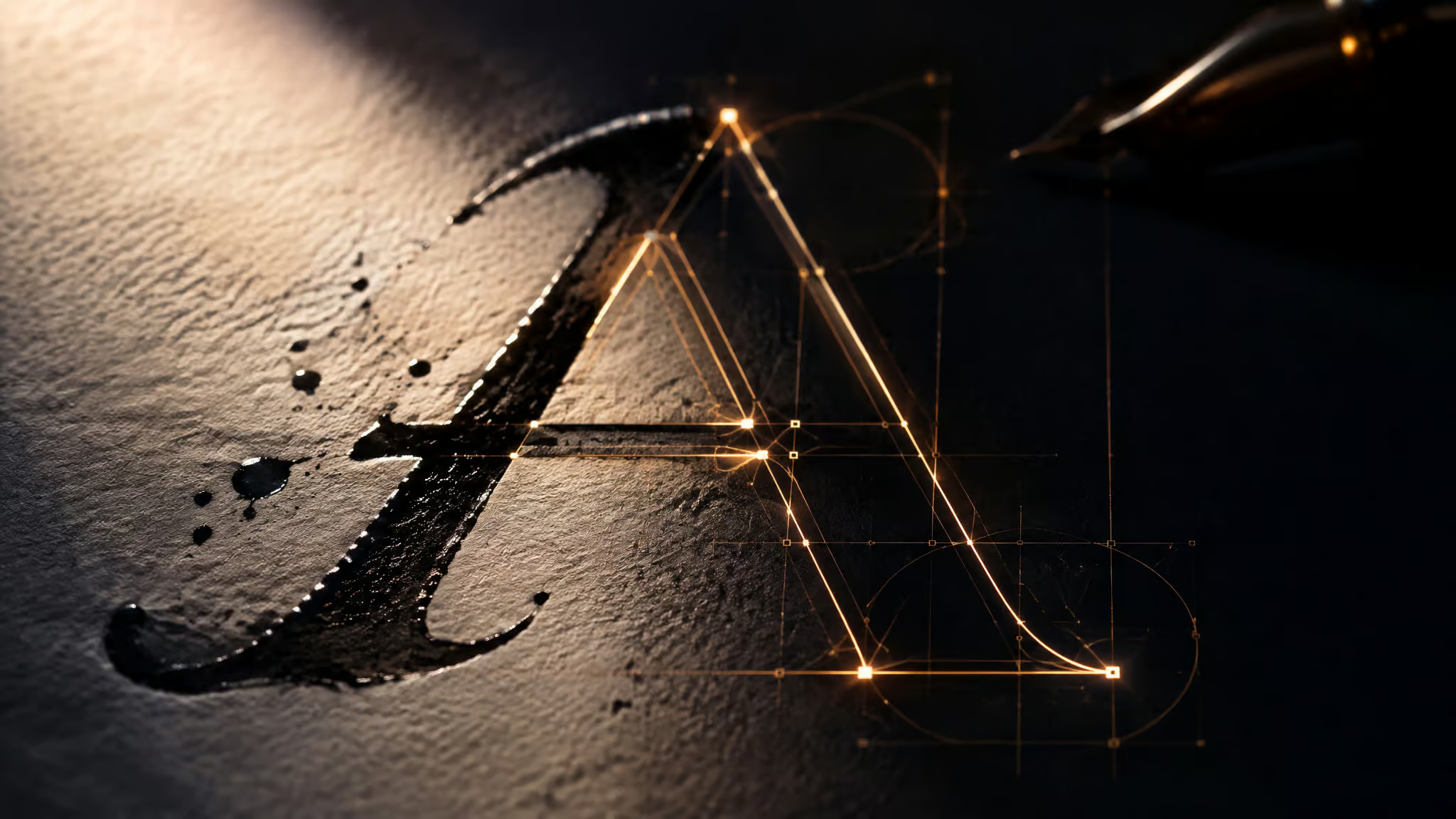
You’ve got an image of lettering sitting on your drive as pixels: a photo of your own handwriting, a crop of a logo, a few characters you like. You want a usable font file out of it, and you want to spend exactly zero dollars. Here’s the trap nobody’s tutorial mentions up front: “create font from image” is actually three different jobs wearing one trench coat, and picking the wrong tool turns your one free attempt into a font file with three usable characters and 23 blank slots. What’s in your image decides which method fits.
Key Takeaways
Generation tools like Mixfont’s Image to Font draw characters that never appeared in your image, claiming a complete 320+ glyph typeface from a few clear letters; tracing tools like Calligraphr and GLIPH only produce glyphs you actually supplied.
GLIPH‘s free trial is 10 credits with no credit card, and each sheet upload costs 5 credits, so you get roughly two free attempts; prepare the image to spec first.
The only truly unlimited free path is Inkscape plus FontForge: vectorize your letterforms, assemble the TTF, no credits, no signup, no limits.
Table of Contents
Do you want to identify a font or create one?
If you want to know which existing font an image uses, that’s identification: Mixfont’s Font Finder looks at your image and returns open-source matches of the original. If you want a typeface of your own, that’s creation: Mixfont’s Image to Font builds a new font in that style, a complete typeface from a single image of lettering, a logo, or typography reference, downloadable as a ready-to-use TTF. The rule of thumb: Font Finder finds an existing font, Image to Font makes your own typeface in that style.
It’s worth splitting this now because the two tabs sit side by side and it’s an easy five confused minutes if you upload a logo crop expecting an answer and get a font file instead, or vice versa. If identification is your actual job, you can stop reading here. If you want to make something, keep going.
Generation vs tracing: which method fits your image?
Generation draws characters that never appeared in the image, the model studies the style in your reference, weight, contrast, curves, terminals, then draws the rest to match. Tracing only produces glyphs you actually supplied, vectorizing pixels instead of inventing new ones. That single distinction decides everything downstream.
Generation: the style model fills in the rest
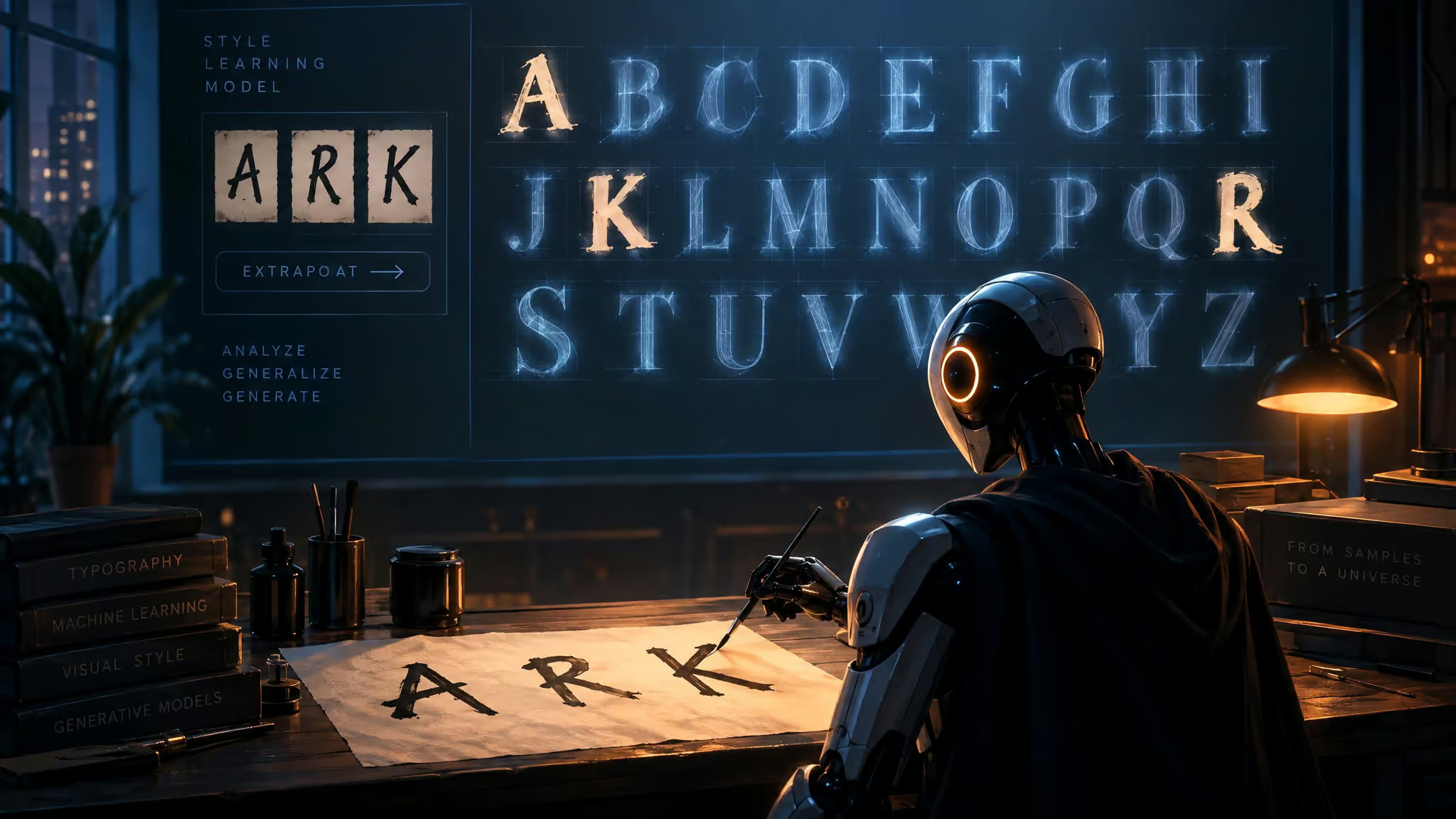
Under generation, the model studies the style in your image, weight, contrast, curves, terminals, and then draws the characters that weren’t there. That’s how Mixfont claims a complete typeface of 320+ glyphs, full alphabet, numerals, punctuation, accents, from a few clear letters. Vendor claim, not my measurement, but it’s the kind of spec that makes a nerd sit up: no half-finished font where Q and @ are missing.
Tracing: you get exactly what you gave it
Tracing tools like Calligraphr and GLIPH vectorize the letterforms you upload. A photo of five letters becomes a font with five usable characters. That’s not a bug, it’s the contract, but it’s the most common failure pattern I found while digging through forums and tool pages: someone uploads a photo of a few letters to a tracing tool, downloads the result, and finds blank slots where most of the alphabet should be. The tool did its job. The image just didn’t contain an alphabet.
So classify your image first: a few clear letters points you to generation, a full handwritten sheet to tracing.
Can AI generate a full alphabet from just a few letters?
Yes, but only with generation tools like Mixfont and GLIPH, which draw unseen characters to fill a full alphabet. Tracing tools can’t, and that’s the mechanical reason your AI-generated font might look wrong for characters that weren’t in your image: the unseen characters are drawn, not traced, and drawn means interpreted.
- Mixfont: claims 320+ glyphs including accents from partial input, with a preview workflow where you type your own words, judge how sizes and spacing hold up, and regenerate the most promising option before downloading.
- GLIPH: analyzes stroke weight, curves, angles, serifs, and overall style, then generates a complete matching alphabet.
That preview-and-rerun loop is the honest fix for the quality failure mode. Generated glyphs for characters the model never saw can look off, and the only sourced remedy is to look at them in real words and rerun before you commit. It’s the tinkering-at-the-bench part of the process, and honestly the fun part.
The free AI tools and what each actually outputs
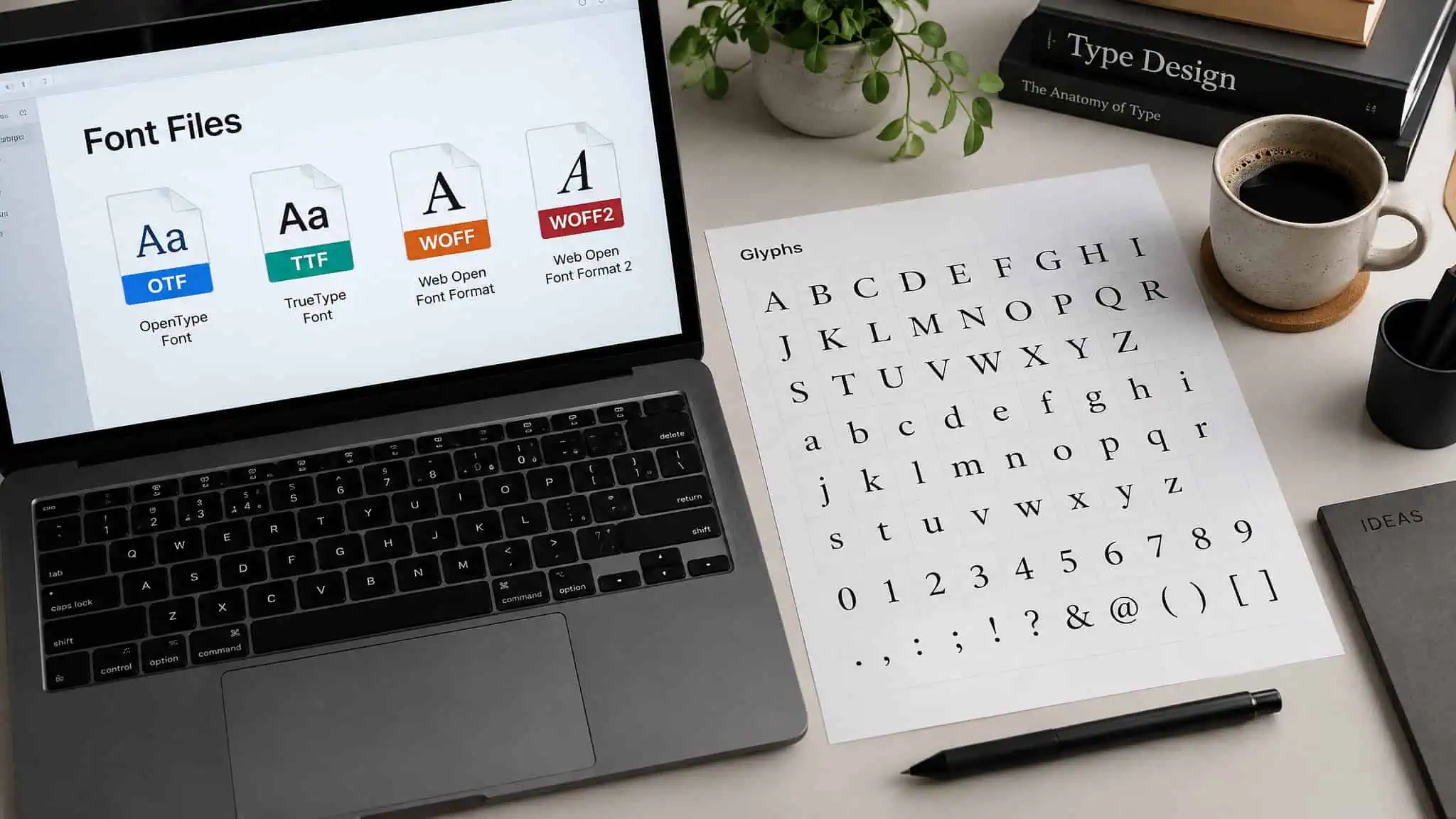
File formats first, because this is where “free download” intent lives: GLIPH delivers every font in TTF, OTF, WOFF, and WOFF2, each with a unique Font ID and license certificate. Mixfont exports a TTF, the file your OS and design apps actually install.
- Mixfont Image to Font. Upload lettering, a logo, or a typography reference, preview with real words, download a TTF usable in design tools, websites, and commercial work, per Mixfont’s own site. There’s also a dedicated Handwriting to Font page if that’s your lane specifically.
- GLIPH. AI-assisted bitmap-to-vector glyph conversion with auto-cropping, AI tagging, and manual review. It’s explicitly beta software, the site says to expect some quirks, with support via email and Discord. Founder Joshua Kaplan has 20+ years in graphic design and illustration. The GLIPH site carries a © 2026 footer, so this is young software that says so upfront, which I find refreshing.
- Lipi.ai Image to Font. The cross-promoted multilingual sibling: AI style transfer with commercial licensing and a verifiable Font ID, per its product page.
Every capability claim above is the vendor’s own. I’m relaying specs, not certifying them.
Calligraphr: turning handwriting into a font
Calligraphr is a template-based tool that converts handwriting or calligraphy into a usable font, positioned for personal designs and calligraphic artwork. It’s the known entity here, the tool the maker community already uses, and it’s the fit for template-based handwriting conversion where GLIPH is the fit for vectorizing bitmap sheets, though AI can now generate complete fonts from a single letter sample, showing where this space is heading. That’s a fit distinction, not a verdict.
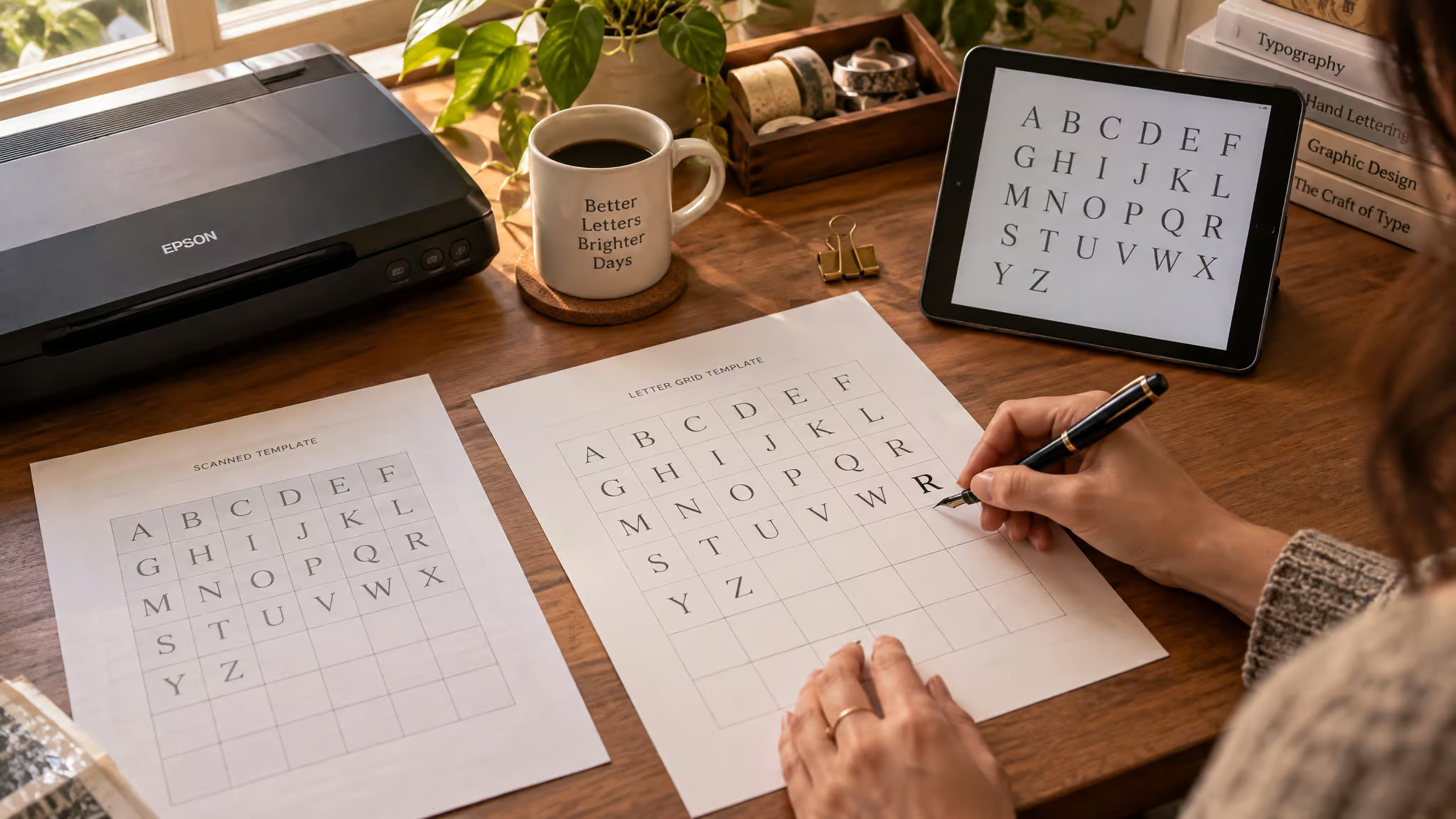
How the template workflow works
You fill in a printed template with your letters, scan or photograph it, upload it, and Calligraphr turns your marks into glyphs. That’s the whole shape of it. The template is what makes it tracing: only what you wrote becomes a character.
What real users report
This is the part I like most, because the community proof is named, dated, and specific, and if you’re curious can AI generate fonts, this hands-on evidence is a good reality check. Tessa Maurer tweeted on June 15, 2020 about using a drawing tablet and Photoshop layers to fix individual letters for her comic’s font. Jarrett Lerner, in a tweet dated June 4, 2021, said he makes all his fonts with it and called it “super cheap and super easy to use.” Chelsea Abdullah tweeted on April 1, 2021 that calligraphr is such an easy app to use for font creation. And Tara Hannon, May 11, 2021: “Calligraphr made it so simple!”
Notice what Maurer’s story actually describes: per-letter correction with a tablet and image editor after the tool did the bulk conversion. That’s the norm, not a sign of failure. Every tracing workflow includes hand-tuning; the tool gets you most of the way and you squint at the rest.
One honest gap: Calligraphr’s exact free-tier glyph limits aren’t verified in the sources I could reach. Users describe it as cheap rather than fully free, and its own positioning includes a free tier, but I won’t invent numbers the sources don’t give.
Getting your image ready, and fixing it when extraction goes wrong
Clean crop, strong contrast, minimal background clutter. That’s the prerequisite for all of these, and Mixfont is the loosest of the bunch: a few clear letters are enough, no template or vector file needed. GLIPH is the strict one, it wants black-and-white hand-drawn sheets at 1028-2056px, though it’ll happily take 60-100+ characters per sheet.
Per tool, the input specs differ. Mixfont accepts photographs of lettering, cropped logos, scanned posters, shots of packaging, and signage, plus screenshots, basically any lettering you can photograph. GLIPH, which works by tracing glyphs from screenshots, logos, or photos into vector outlines, wants black-and-white hand-drawn sheets at 1028-2056px, accepts PNG and JPG, and handles 60-100+ characters per sheet covering alphabets, numbers, and punctuation. And here’s the fun meta-layer: GLIPH itself suggests using AI image generators like Nano Banana Pro to create clean glyph sheets as input.
A pipeline of pipelines. Feed one AI’s output to another AI. Credit GLIPH for the tip.
Quick test: If thin strokes vanish or looped letters merge, rescan flat in black ink at the published resolution before spending another upload.
When extraction goes wrong, the recovery loop is real: missed glyphs get fixed by uploading cropped PNGs of those characters, and GLIPH auto-crops, identifies, and AI-tags glyphs with manual review for the fixes. The typical setup failure looks like this: someone photographs handwriting at an angle or in warm lighting, thin strokes drop out or looped letters merge, and the extraction comes back mangled. The fix is boring and effective: rescan flat, in black ink, at the published resolution range.
What “free” actually buys: credits, tiers, and the trap
GLIPH’s free trial is 10 credits with no credit card required, and at 5 credits per sheet upload, that’s roughly two free uploads. The paid beta plan runs 500 credits per month, which works out to 100 sheet uploads at 5 credits each, plus unlimited edits and revectorizations via export/import JSON, all AI features, and priority support, at limited-time beta pricing. If you’d rather not spend anything at all, Calligraphr has a free tier for turning handwriting into a usable font, testimonials call it super cheap and easy.
Now the trap, because it’s a common pattern with credit-based tools: people burn their free credits on a low-quality upload before learning the input requirements, then have nothing left for a clean retry. Two uploads is not a lot of runway. Test with one carefully prepared sheet first.
Buyer rule: Spend your first free upload on the best-prepared sheet you can make; a mangled test burns half the trial.
On Calligraphr: users describe it as cheap rather than fully free, and its exact free-tier glyph limits are unverified in available sources, so treat the free tier as real but unquantified.
Figures here are as published by the vendors; prices may vary.
The zero-cost pipeline: Inkscape and FontForge, step by step
Yes, FontForge is the genuinely free option, and paired with Inkscape it’s the only route with no credits, no signup, and no limits. It’s also the refinement target for GLIPH output, export the TTF, then polish it into a final file. If you also need free fonts to work with, Font Squirrel is an excellent resource for finding high-quality, open source options. If your actual goal is zero dollars end to end, or you want to sell fonts, this is your road.
The open-source workflow
Vectorize your letterforms in Inkscape, then assemble and export the TTF in FontForge. That’s the no-money, all-workshop path. FontForge is the free, unglamorous, genuinely powerful tool in this space, and the vector-to-TTF conversion is the universal last mile of manual font creation, satisfyingly mechanical once you’re there.
The AI-to-open-source handoff
Here’s the hybrid pipeline neither vendor pages nor listicles describe, and honestly it’s kind of elegant: GLIPH positions itself as an accelerator whose TTF output is meant to be refined in FontForge, with unlimited edits and revectorizations via export/import JSON. AI does the fast front half, you do the finish at the bench, and no per-edit meter is running while you iterate.
The tutorial ecosystem
This niche has a whole scene. Sweater Cat Designs’ Inkscape + FontForge tutorial runs 18:56 with 73K views, framed “Great for Selling Online!”, which is itself a fun artifact of what people actually want from this skill. TechRuzz’s route goes Illustrator to FontForge at 37:03 and 84K views, though note Illustrator is paid, which cuts against the free goal. “Turn Vectors Into A Font File (.ttf)” at 7:46 covers the last mile generically.
There’s a Fontself tutorial at 1:01:19, Procreate routes at 18:03 and 6:36 (the Calligraphr + Procreate iPad combo, for sketching letters on the couch), and a Goodnotes font import video at 9:39, which is the delightful end-use case: your own handwriting showing up in your notes app. For Calligraphr specifically: HanxFifi at 10:01 and 48K views, iPad Lettering with Karin Newport at 15:00 and 141K views, and The Craftsman Steady Craftin’s free DIY method at 11:35 and 126K views. View counts are honest signals of reach, not quality verdicts. One clean caveat: a video by Chuchu illustrations couldn’t be verified because its watch page returned an error, so I can’t tell you what’s in it.
Making a font from a logo or wordmark
A logo crop or wordmark photo is valid input, and this is where you skip the redraw-the-alphabet tax entirely. Mixfont generates a matching character set from a brand sample for headlines, packaging, and product surfaces, then lets you preview with real words, compare sizes and spacing, rerun the strongest direction, and download a ready-to-use TTF. GLIPH extracts what it calls “visual DNA,” meaning the boldness, texture, and geometric qualities of the mark, and applies that to a full character set, and it’s positioned as an accelerator before you refine things in FontForge, with manual review for glyphs it misses. One practical tip for either route: your input doesn’t need to contain actual letters at all, but higher contrast produces the best results. Both mechanisms come from the vendors’ own FAQ material.
The broader point: input need not contain real letters at all. Vintage signs, album artwork, abstract patterns all work, and higher contrast produces best results. Your input can be a vibe, not an alphabet.
Language coverage: will your font work in your language?
Check diacritic support before generating, because a 26-glyph traced font breaks for German, Spanish, or French text. The grounding detail: GLIPH’s base fonts cover 36 Latin-script languages (English, German, Indonesian, Swahili, with ä ö ü ß), while full diacritic coverage across 81 languages, languages such as Spanish, Portuguese, Italian, Turkish, Polish, Dutch, the Nordic languages, and Quechua, requires the separate Lipi.ai Multilingual tool. Mixfont claims 320+ glyphs including accents, and Calligraphr demonstrates multilingual output via pangrams in four languages, including Franz jagt im komplett verwahrlosten Taxi quer durch Bayern. All coverage numbers are from each tool’s own documentation.
Licensing, ownership, and screening the marketing claims
- Yes, when the tool’s own license allows it. Mixfont says its generated fonts can be used for any purpose including commercial work, subject to the Mixfont license.
- GLIPH claims users own full rights to the fonts they create, including commercial rights, but that’s self-reported.
- Every one of these commercial-use statements is a vendor claim, not an independently verified fact, so read the actual license before you monetize.
Can you use these fonts commercially?
- Mixfont says generated fonts work anywhere, including commercial work, subject to its license. Read the actual license rather than taking the summary as unlimited.
- GLIPH says users own full rights to their fonts, including commercial use. Self-reported.
- Lipi.ai includes commercial licensing with a verifiable Font ID and license certificate, per its product page.
Each of those is the vendor describing its own terms. For client work, that’s usually fine, but the evidentiary status matters, and pointing you to the actual license text beats paraphrasing it as a guarantee.
How to screen the hype
GLIPH’s comparison table claims direct TTF export, custom glyph grids, baseline control, and commercial rights, marking Adobe and Picsart with ×’s in those columns. Report card: that’s the vendor’s own table, not a benchmark. Nobody independent ran it.
GLIPH’s testimonials come from Jane Doe, John Smith, and Emily White, praising speed and AI accuracy. Those names look placeholder-shaped, like someone left the template defaults in, and the praise is unverified marketing. I’m saying that gently, not as an exposé. Contrast that with Calligraphr’s users: Tessa Maurer, Jarrett Lerner, Chelsea Abdullah, Tara Hannon, real people with dates and specific workflows, down to which Photoshop layers they used.
So here’s your two-item credibility checklist. One: named and dated quotes beat placeholder names. Two: vendor comparison tables are marketing until someone independent verifies them. GeekExtreme reads marketing copy as a spec sheet, and so should you: checkable claims on one side, vibes on the other.
Where chatbots fit, and the one-page decision summary
Chatbots produce images or descriptions of lettering, not installable font files, and honestly, that’s fine, because the dedicated tools already handle the conversion well. Mixfont Image to Font generates a complete typeface from a single image and hands you a ready-to-use TTF; GLIPH auto-crops and identifies individual glyphs from bitmap art before you refine things in FontForge; Calligraphr turns handwriting or calligraphy into a usable font. That’s the whole answer on the chatbot question, framed by output type rather than by any particular chatbot’s limits.
So here’s the one-minute map, the payoff of that whole fork in the road.
- A few letters in a photo ? generation, i.e. Mixfont.
- A full handwritten alphabet sheet ? tracing, i.e. Calligraphr or GLIPH.
- Zero cost end to end, or selling fonts ? Inkscape + FontForge.
- Non-English text ? check language coverage first.
- And prepare the image carefully before spending free credits, because the credits don’t grow back.
Frequently Asked Questions
How do I turn my handwriting into a font for free?
The only truly unlimited free route is Inkscape plus FontForge: vectorize your letterforms in Inkscape, then assemble and export the TTF in FontForge — no credits, no signup, no limits. Calligraphr is the template-based option the maker community uses, though users describe it as cheap rather than fully free. GLIPH’s free trial gives roughly two uploads, so spend your first one on a carefully prepared sheet.