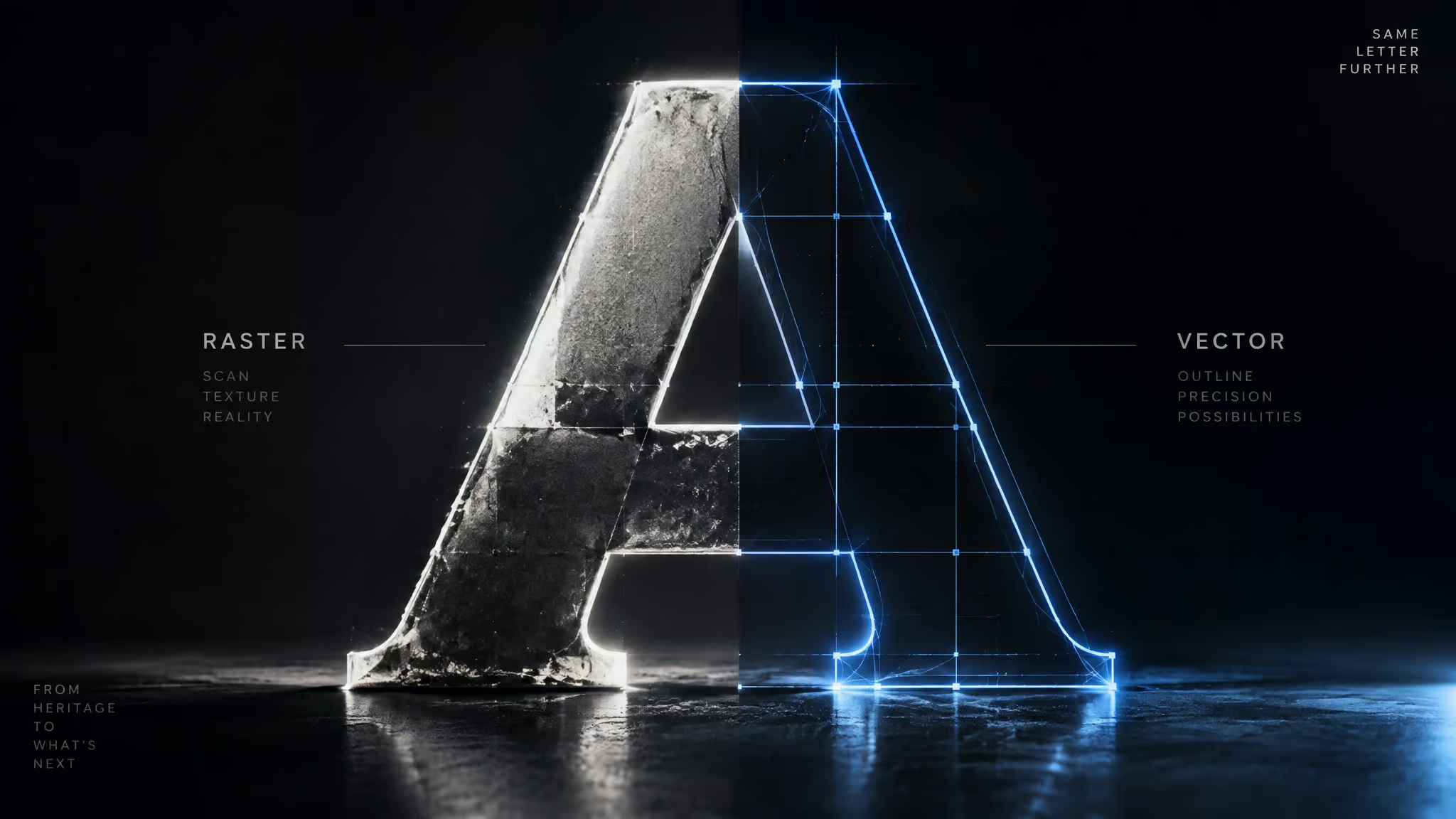
You upload a logo, type “AI font generator from image” into a search box, and brace for an installable font. What most of these tools hand back instead is a styled PNG. After digging through how this category actually works, I can tell you the name is largely a misnomer: most of these tools never touch font-file assembly. So this piece sorts them by what they actually export, because that’s the axis that matters.
Key Takeaways
“AI font generator from image” hides three different tasks: font identification, styled-text generation, and true font-file creation, and most tools only do the second.
Creative Fabrica is the only tool in this comparison exporting installable OTF/TTF files; Lovart creates editable typefaces from images; Skywork, Adobe Express, and Picsart stop at styled text or images.
A logo can never become a full font because it only contains the letters in the brand name; missing glyphs have to be designed or interpolated afterward.
Table of Contents
First, what do you actually need? Font ID, text effects, or a font file
“AI font generator from image” mixes three unrelated tasks: matching an existing typeface (identification), generating styled text images or editable text art, and creating an installable font file. Most tools marketed under the keyword only do the middle one.
The way to sort yourself out is to answer two questions: what did you upload, and what artifact do you need?If you uploaded a logo and want to know what font it is, you need identification, not generation. If you want text that looks like a style for a poster or deck, you need a styled-text generator like Skywork or Adobe Express, both of which export PNG/JPG but no OTF/TTF. If you genuinely need a font file you can install, your options narrow fast: Picsart won’t do it (images only), but Creative Fabrica will, since it’s the one tool here exporting actual OTF/TTF files. Classify your task once and half the search results stop being relevant.
How image-to-font conversion actually works: tracing vs generating
Creating a font from an image for free means tracing glyphs into vector outlines and assembling them into a font file.That’s a deterministic pipeline, not AI magic, and understanding it explains why results vary so wildly across tools marketed with the same keyword.
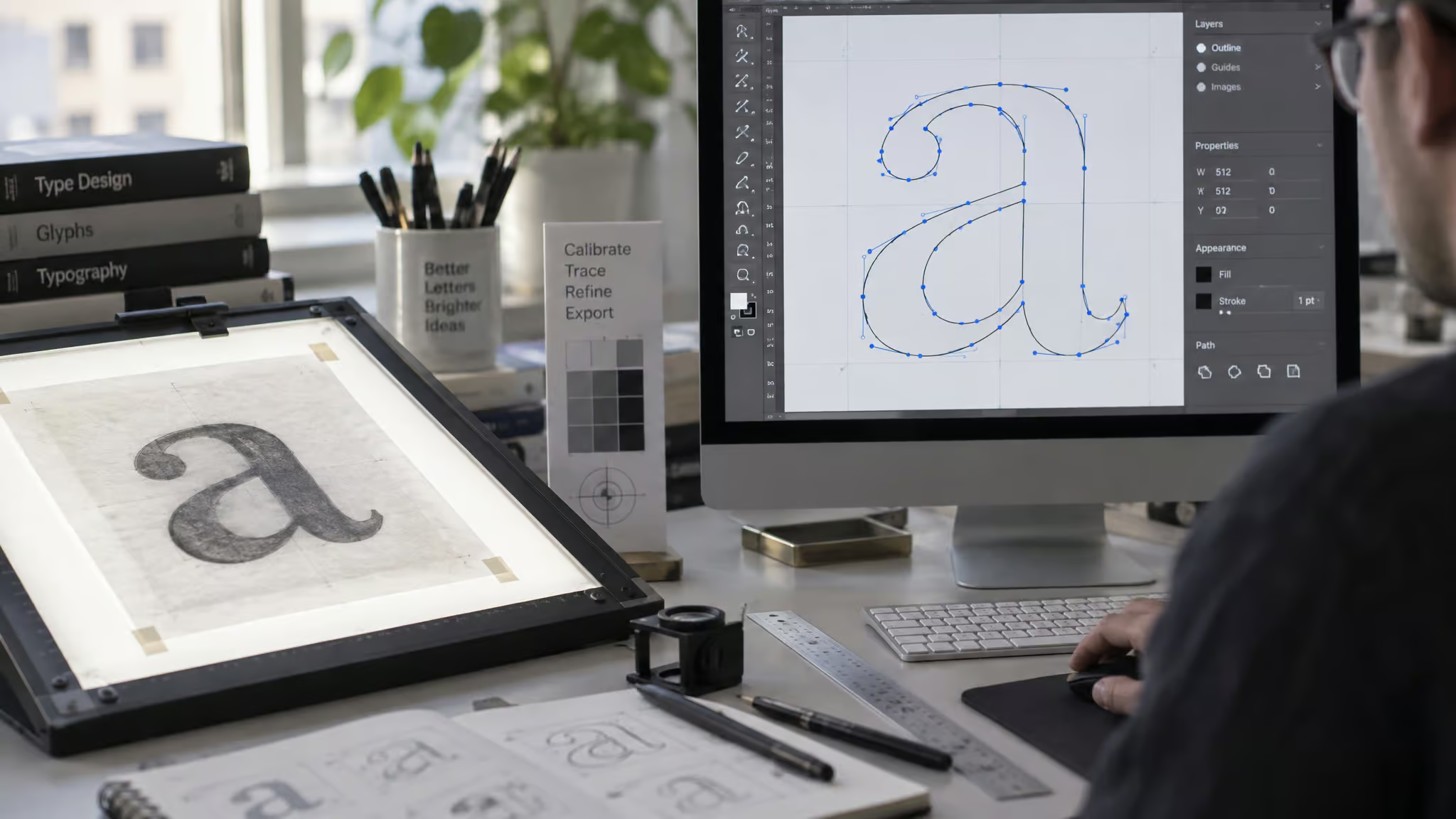
There are two completely different technologies hiding under the “AI font generator” label, and they solve different problems.
The generative pipeline. Modern generators use GANs or diffusion models to read a descriptive prompt and produce new visual assets. GANs (generative adversarial networks) are the older family; diffusion models generate by iteratively denoising.The research example worth knowing is FontDiffuser (Yeung et al., 2023), which generates a complete typeface from a single example, using a diffusion model trained with both content-aware feature merging and a style-discrimination objective.
In plain terms, it runs in two stages, content aggregation and style refinement, and that split is why vague inputs yield generic fonts: the model has to guess what “style” means when you haven’t told it. The paper’s code lives on GitHub if you want to go digging, and Hugging Face Daily Papers is where this research surfaces.
The tracing pipeline.This is the one that actually produces fonts from images, and it’s mostly not AI. Raster letterforms get traced into editable vector paths, then assembled into a font file. The TextStudio ecosystem has tools that touch this stage, including Image Vectorizer and FontMaker, plus Alphabet Maker and GlyphCutter for building out glyph sets. Tellingly, TextStudio’s own directory separates text-effect tools from font tooling. The vendor itself admits the category splits.
A traced font is only usable if a few things hold true.
- A clean source image, ideally high resolution with letters that don’t overlap
- Full glyph coverage, meaning every character you plan to type
- Consistent baselines across all traced glyphs
- Kerning pairs so the font doesn’t look amateur the moment two letters sit next to each other
The two pipelines explain the wildly varying results you’ll see. One invents a style from a prompt; the other faithfully converts what’s already in the image. They’re different technologies, and a tool doing one is not a worse version of the other. (For a deeper dive on whether AI can design complete typefaces, see Can AI Generate Fonts.)
The missing-glyphs problem: why a logo can never become a full font
A logo exposes only the letters in the brand name, and no tool can trace glyphs the source never contained. That’s a mathematical constraint, not a tool flaw: you can’t vectorize a “Q” that isn’t in the picture. Missing characters have to be designed or interpolated afterward. The common failure modes compound this: low resolution turns curves into jagged approximations, overlapping letters confuse the tracer, and inconsistent baselines make the resulting font look drunk.It’s the most common failure pattern across image-to-font attempts.
Tools that actually create font files from images
- Yes, but it’s a short list: only Creative Fabrica in the comparison exports installable OTF/TTF font files, no styled in-app text, no PNG/JPG.
- Lovart AI Font Generator creates unique fonts from images, text, or hybrid inputs in one click, but the output is canvas-ready and editable, not an installable file.
- On the research side, FontDiffuser proves one-shot font generation is possible, though it’s a model, not a consumer tool.
- Lovart AI Font Generator. The closest thing to the keyword’s literal promise. It creates unique fonts from images, text, or hybrid inputs in one click. The output is canvas-ready and instantly editable, and it auto-saves to a “My Fonts” library so your typefaces persist across projects.
Honest flag: the launch video (Introducing Font Generator | Build a Typeface From Anything) was inaccessible when I went looking, with comments disabled, so these claims rest on description-level evidence rather than anything I could verify watching it run. - Creative Fabrica. The only tool in this comparison exporting installable OTF/TTF files. No styled in-app text, no PNG/JPG. It’s the exact inverse of everyone else on this list, and that contrast is the interesting part: one platform does the thing all the flashier tools skip.
- The research path. FontDiffuser proves one-shot generation is possible, and its two-stage content/style architecture explains the practical rule: specificity of input determines quality of output.
Feed it a vague style and the refinement stage fills the gaps with generic shapes.
So there are two source-backed paths to a font file: Lovart’s image-to-typeface generation, and Creative Fabrica’s OTF/TTF export. Each has a condition. Lovart needs a usable source image and gives you an editable typeface to finish; Creative Fabrica gets you the file format but you’re working within its tooling. Either way, expect to supply full glyph coverage and clean up the trace yourself.For a free step-by-step version of the manual route, the free workflow tutorial walks through combining tracing tools and font editors.
Working with styled-text generators: walkthrough and prompting guide
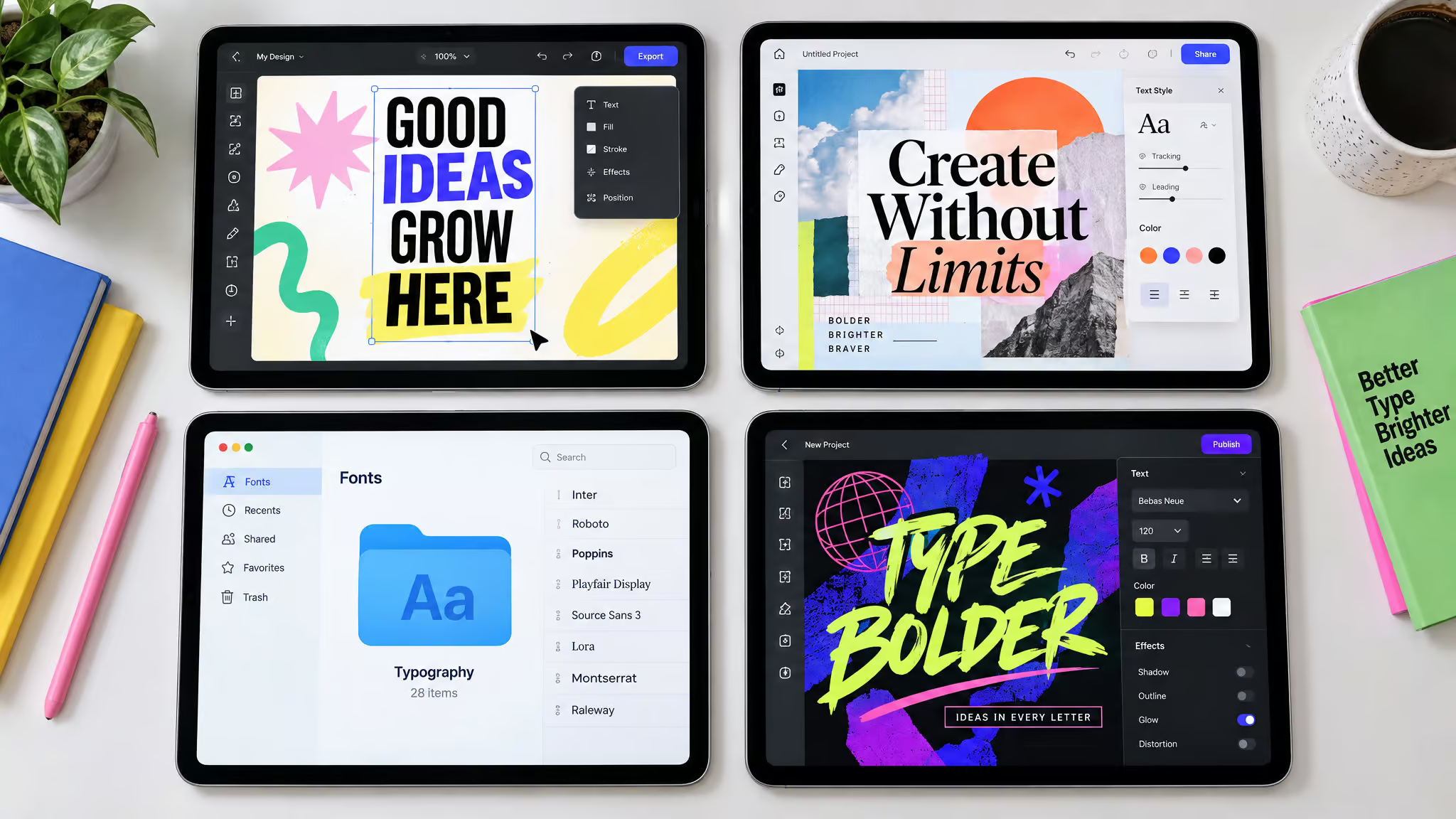
The way to get an AI text generator to match a reference image’s font style is to describe that image’s concrete typographic traits: weight, serif structure, texture, era. Not just the vibe.
Skywork is the tool I fell down this rabbit hole with, and it’s worth understanding what it actually is: text styling lives inside agents like Poster Creation or Design Agent, so it’s a feature of a workspace, not a lone web tool.Here’s the four-step workflow I ended up following:
- Open the workspace and pick an agent. Low friction by design; you’re styling text in minutes.
- Write a detailed prompt. This is the step worth slowing down for, because it’s where quality gets decided.
- Hand it to the AI to research and generate. Here’s the genuinely unusual bit: Skywork’s deep-research layer analyzes typographic trends and historical context before generating, so outputs feel contextually relevant rather than random. That’s not typical for a text-effects tool.
- Refine and integrate.
Styles come back as editable graphical elements, resizable and layerable, and they stay live across Slides and Docs agents with no export/import dance.
The tutorial’s prompt examples show a clear ladder, and to be clear this is their pattern, not my testing log: “a cool font for Summer Sale” gets you something generic. “Playful, handwritten” gets targeted. Bubbly 3D with a sunny yellow-orange gradient, like an inflatable pool toy gets on-theme. Effective prompts cover four things: the text, the aesthetic, the effects, the intended use.
And the plain caveat: Skywork does not export.ttf/.otf as of early 2026. This is text art, not a font.
Styled-text alternatives compared: Adobe Express, Canva, Picsart
The decisive difference: Lovart creates actual typefaces saved to a font library, while Skywork and the rest produce styled text art with no font-file export. So choosing between Adobe Express, Canva, Picsart, and Skywork is about workflow fit, not output quality.
| Tool | Styled text | PNG/JPG export | OTF/TTF export | Notes |
|---|---|---|---|---|
| Skywork | Yes | Yes | No | Research-embedded styling, editable across agents |
| Adobe Express | Yes | Yes | No | Firefly-powered, commercially safe, deep Creative Cloud integration |
| Canva Magic Studio | Yes | Yes | No | Template-driven, OpenAI-based models, best for quick social graphics |
| Picsart | No | Yes | No | Images only |
| Creative Fabrica | No | No | Yes | Font files only, the inverse of the rest |
| Lovart | Yes (as typefaces) | Yes | Partial | Editable fonts auto-saved to My Fonts |
Adobe Express runs on Firefly, which matters because it’s trained to be commercially safe, a real concern if you ship client work.Canva nails standalone template designs; Skywork embeds text styling in a research-oriented process, so pick by how you work. Skywork’s own numbers, from its internal analysis and user testimonials dated 2026-01-28, claim ideation drops from 1-3 hours to 5-10 minutes, styling from 30-60 minutes to 1-2, revisions from 15-45 minutes to 1-5. Vendor estimates, not independent benchmarks.
For context that this isn’t a niche experiment: 75% of designers are AI adopters per SuperAGI (2025), cited secondhand via Skywork AI (2026-01-23).The question that actually matters: does the styled text stay editable in your next step, or is it a flat PNG the moment you export it?
Free and lightweight options: when a copy-paste styler is the right tool
For bios, captions, and usernames, a free browser styler is the right tool and no AI is needed. Font Generator (afontgenerator.com) turns ordinary text into 150+ copy-and-paste styles with instant conversion and one-tap copying, entirely browser-based. It’s built for exactly the Instagram/TikTok bio use case.
The lineage here is a fun rabbit hole.Gen 1, the 2010s: Unicode stylers like LingoJam and FontSpace, which produce fancy-bio text through character mapping, not actual fonts. You’ve pasted their output into a bio; it just swaps characters for lookalike Unicode glyphs. Gen 2, the early 2020s: standalone AI generators like Picsart and Vondy, the awkward middle phase where the tools got smarter but still lived in their own tabs. Gen 3, 2025 onward: integrated workspaces like Skywork and Adobe Express, where styling happens inside the document you’re actually building.
Here’s the contrarian part: Gen 1 stylers still dominate search volume, because lightweight personalization, not generation, is what most people actually want. The lightweight siblings prove it: Glitch Text Generator converts text into glitchy styles, Instagram Fonts Generator does stylized profile text, and Papyrus Font Designer styles text in Papyrus, yes, that Papyrus, and I refuse to apologize for finding that delightful. Invisible Text rounds it out with copyable blank characters for bios and usernames, which sounds pointless until you’ve tried to center-align a bio.
Special cases: handwriting, 3D lettering, and brand-font galleries
Handwriting-to-font is its own pipeline with its own source-quality bar: multiple samples, a consistent pen, a clean scan.And here’s the confusion point: the most visible “handwriting font” tool, Text To Handwriting Converter, runs in the opposite direction, turning typed text into handwriting images. That’s the reverse of what searchers for handwriting-to-font conversion want, so check the arrow direction before you commit.
For 3D, Tripo3D’s 3D Font Generator offers nine preset styles (Classic, Gold, Chrome, Pixel, Bubble, Graffiti, Blocky, Neon, Marble) with adjustable color, gradient, extrusion depth, and lighting, plus rotate/pan/zoom and camera views. It’s a tiny 3D scene editor for lettering.Exports go to transparent PNG, GLB, OBJ, or STL, and the STL option is the maker-table moment: your lettering can land in game prototypes or on a 3D printer. Be clear, though, that this is display lettering, not font creation.
Brand-font galleries, like TextStudio’s collection of KFC, McDonald’s, Call of Duty, Roblox 2006/2004 logos, Apple, Dafont, and Cars styles, are fun to browse. But they’re lookalike recreations, not official assets, which segues neatly into the trademark question below.
Costs, licensing, and the legal gray zone of tracing brand fonts
Trying costs nothing: Skywork’s free trial gives 500 credits/day for the first month, so the risk is your time, not your wallet. The paid tiers are estimated at roughly $16.99/month or $149.99/year, both around 7,000 credits monthly; the yearly works out to about $12.50/month if the sticker price spooked you. Imagiyo runs a $34.97 lifetime plan (regular $495) on FLUX Schnell and Modelslab Stable Diffusion, up to 500 images/month at 2 per request, watermark- and ad-free with commercial use cleared, positioned for marketing teams and social media managers. Free options remain LingoJam, FontSpace, and afontgenerator.com.
One consolidated pricing caveat for the whole article: the Skywork figures come from 2024 secondary sources (Skywork AI and Krater.ai) and prices may change; the Imagiyo deal deadline of Jan. 11 has passed, so check current terms before assuming anything. And the usual line: this is reporting, not financial or investment advice.
On licensing, Imagiyo clears commercial use, but recreating a brand’s typeface from its logo, the exact thing brand-font galleries promote, raises trademark questions that no source in this space addresses. It’s a genuine gray zone.If you’re tracing lettering from someone’s logo and shipping it commercially, understand that the font file being technically yours doesn’t settle whether the letterform design infringes.
Choosing your path: a recommendation by input and goal
If you uploaded a logo, start with font identification, because the image contains too few glyphs to become a font anyway. From there, the decision list:
- Uploaded a logo, need the typeface name ? font identification first.
- Need styled text for a deck, poster, or social graphic ? Skywork, Adobe Express, or Canva, picked by workflow fit.
- Need an installable font ? Lovart for image-to-typeface or Creative Fabrica for OTF/TTF export; expect to supply full glyph coverage and clean the trace yourself.
- Just want styled text for a bio ? free copy-paste styler, done in a minute.
For market context: 2025 creative-software share runs Adobe ~58%, Canva ~12.47%, Figma ~5%, with others including Skywork at ~24.53%, figures that vary by source and methodology (6wresearch 2025, DemandSage 2024, ElectroIQ 2025). An illustrative user split (Skywork AI, 2026-02-01, explicitly labeled illustrative) puts analysts at 40%, marketers at 35%, designers at 15%, educators at 10%.Treat it as a sketch, not a census.
The through-line for all of it: know which artifact you’re actually shopping for. Styled PNG, editable text art, or installable font file. Everything else follows from that one question.
Frequently Asked Questions
What is the difference between font identification and font generation from an image?
Identification matches an existing typeface — telling you what font a logo uses. Generation produces new output, which splits again into styled-text images (like what Skywork or Adobe Express export) versus actual installable font files. Most tools using the ‘font generator from image’ keyword only do styled text, so knowing which artifact you need sorts half your search results out.
Is an AI font generator from image free to use online?
Trying costs little: Skywork’s free trial gives 500 credits per day for the first month, and free browser stylers like LingoJam, FontSpace, and afontgenerator.com cost nothing at all. But ‘free’ depends on the artifact — no tool here gives you an installable OTF/TTF font file for free, since Creative Fabrica is the only one exporting that format and paid options apply to the AI generators generally.
Why do ‘AI font generator’ tools just give me a PNG instead of a font file?
Because the name is largely a misnomer — most of these tools never touch font-file assembly. Turning an image into a real font requires a deterministic tracing pipeline (raster letterforms to vector outlines to font-file assembly), while most marketed tools use generative AI to invent styled text images instead. They’re different technologies solving different problems, not a worse version of the same thing.