You’re hovering over the checkout button on a new 3D printer, mentally tallying filament spools and nozzle spares, when a bigger budget question hits: does a computer need to go in the cart too?
I always run my 3D printer with a full PC, mostly because one happens to sit right next to it on the desk. That setup is pure circumstance, not a hardware requirement from the machine.
What hardware you actually need depends on which of three control paths you pick: a PC running slicer software, a phone app over Wi-Fi, or the printer’s onboard screen fed by an SD card or USB stick.
Key Takeaways
You don’t need a computer to run a modern 3D printer, and if you add one later for slicing, a standard laptop is enough.
You can set up and run ready-made prints on a Bambu Lab A1 or A1 Mini straight from the Bambu Handy phone app, though you’ll need Bambu Studio on a computer as soon as you need to scale or modify a design.
Bambuddy is a self-hosted, cloud-free control center for Bambu Lab printers. It runs on Linux, macOS, Windows, or a Raspberry Pi and manages 1 to 40 printers using LAN-only mode and Developer Mode.
Table of contents
Table of Contents
Do you need a computer for a 3D printer?
No, you don’t need a computer to start or run prints on a modern 3D printer, though a computer becomes necessary once you want to slice your own files or customize a model. No PC has to sit next to the printer or stay plugged in while a job runs, because the machine executes pre-built instructions called G-code on its own. Of 5 sources read for this article, 4 say no computer is needed to use a 3D printer and 1 says yes, meaning you can skip buying a PC on day one and keep one in reserve for custom work.
Turning a 3D model into layer-by-layer G-code, known as slicing, demands real processing power, so full-featured slicers like Bambu Studio are built for desktops and laptops. Phone apps print models exactly as uploaded; you can’t change file size or tweak geometry from a phone, and a presenter in a YouTube walkthrough notes that phone-only printing only carries you “for so long” before you need Bambu Studio on a computer. Skipping the PC saves desk space rather than time, and the three control paths split cleanly by what you’re trying to do:
- Using a phone app handles Wi-Fi setup, model browsing, and one-tap printing for ready-made files with no computer in the loop.
- Using an onboard screen with an SD card or USB stick runs pre-sliced G-code offline once a file is loaded onto storage.
- Using a PC with a slicer unlocks resizing, custom supports, infill tuning, and any model edits the mobile app can’t touch.
Can you run a 3D printer from a phone?
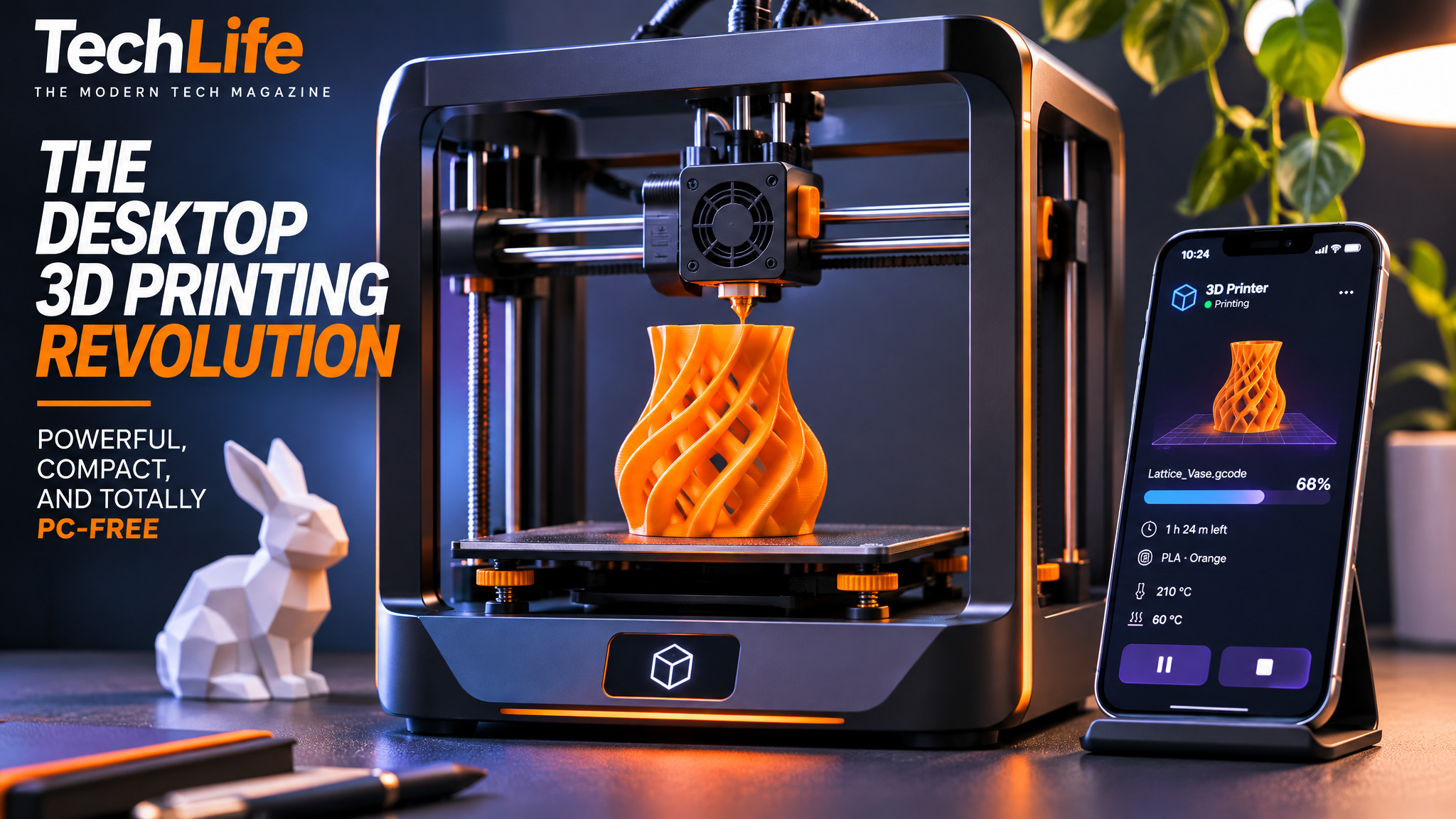
Yes, you can run a Bambu Lab A1 Mini directly from a phone using the Bambu Handy app, provided you’re printing ready-made models rather than customizing files. Bambu Handy links your mobile device to a Bambu Lab A1 or A1 Mini over Wi-Fi, letting you search print files and send them straight to the build plate with no computer involved. To set it up, connect the printer to Wi-Fi, install the app from your app store or Play Store, add and bind the machine via QR code or nearby devices, then search for a model, select your printer and AMS, and start the print.
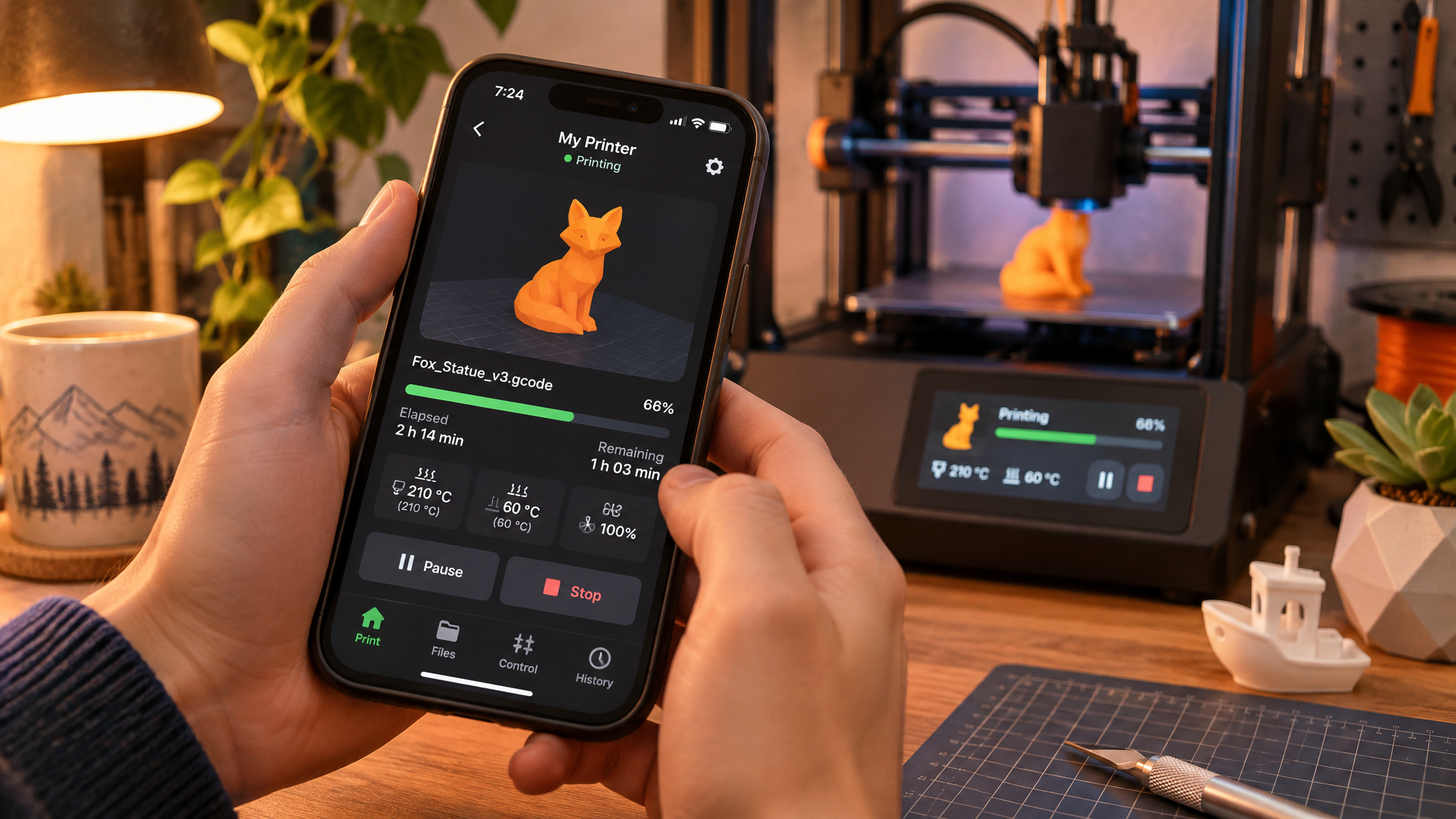
Setting up Bambu Handy on the A1 Mini
Getting the printer online starts on the machine itself. Connect the Bambu Lab A1 Mini to your Wi-Fi network using the first-run setup guide or the settings button on its onboard screen.
Install Bambu Handy from the Apple App Store or Google Play Store, open the device tab, and tap the plus sign. From there, scan the QR code on the printer’s screen or select it from nearby devices, then accept and confirm through the binding prompts to finish setup.
Searching and sending prints from the app
Once bound, Bambu Handy lets you search for models directly or browse featured and 30-day trending lists, where prints like an iPhone standby mode stand show up near the top. In a YouTube walkthrough, a presenter demonstrated the search-to-print flow by finding a fidget flower model to make for their daughter.
Each listing displays concrete job details before you commit, such as print time estimates (1.4 hours versus 1 hour across the demo files) and infill presets like standard optimized 80% infill. Pick your printer, tap prepare to print, choose your AMS filament slot, and start the job.
A 3D printer can handle quick, casual jobs from a phone without a computer, though many owners eventually run into editing limits and switch back to a computer. Of 3 forum posters reporting their own experience when asked if they’ve printed from a phone or tablet without using a computer, 2 say yes, a few times, and 1 says they tried it and then stopped after running into higher failure rates with cloud slicing.
Can you 3D print from an SD card or USB stick?
Yes, you can print offline from an SD card or USB stick using the printer’s onboard screen, the same built-in display used to connect a printer like the A1 Mini to Wi-Fi. In this classic workflow, you slice a model once on any available computer, export the G-code file to removable storage, and insert the card or drive into the printer.
Select the file on the onboard screen and start the job. Once the print begins, the machine runs on its own with no phone, app, or computer connected.
Can you control a 3D printer with a Raspberry Pi?
If you want local control without dedicating a full desktop PC to your workbench, a Raspberry Pi makes a capable middle ground. Built as an open-source control center you host yourself, Bambuddy keeps slicing, printing, and monitoring for Bambu Lab printers on your local network.
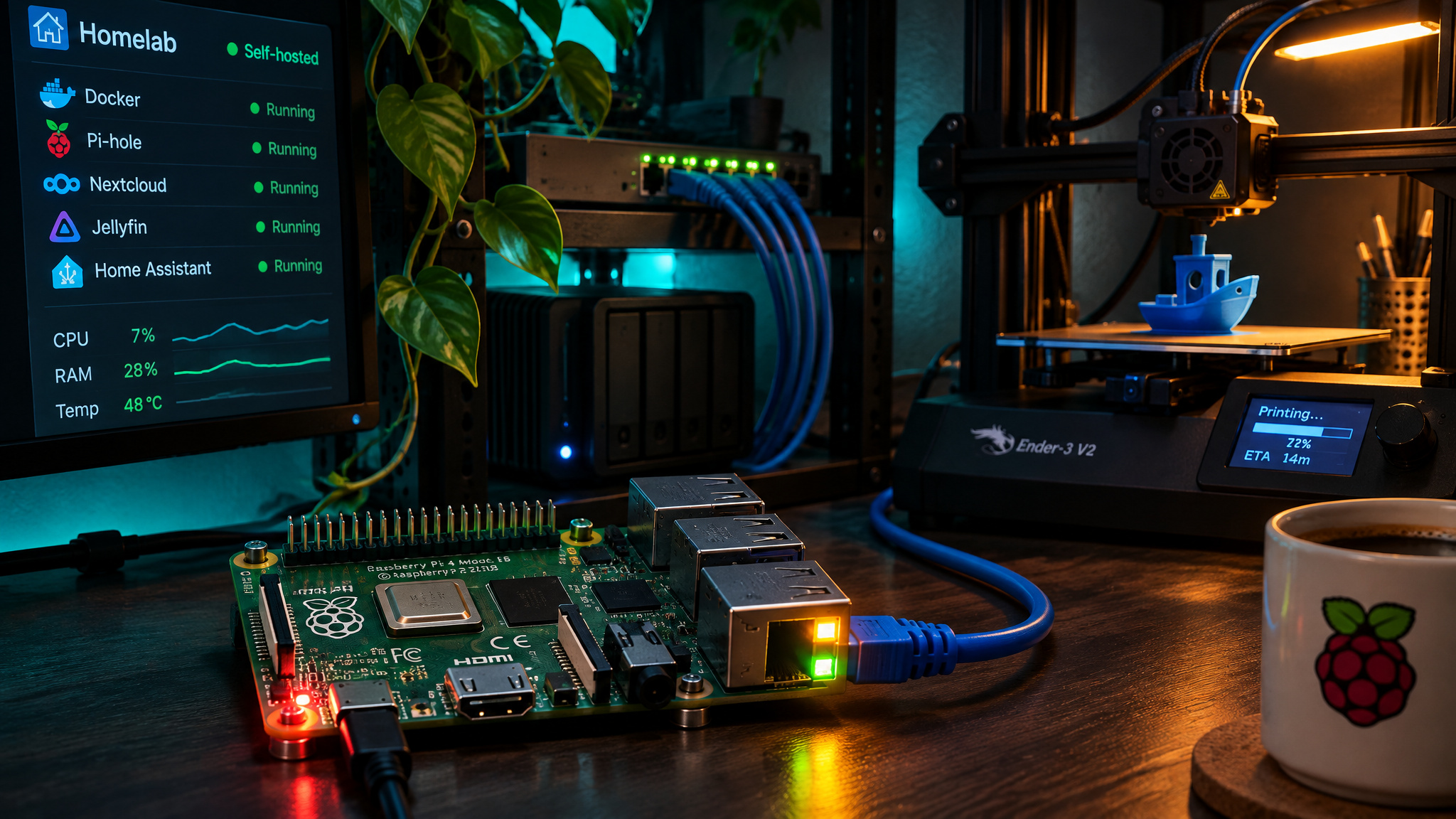
What Bambuddy is
Bambuddy acts as a cloud-free replacement for the official stack, running with zero reliance on Bambu Lab servers. It installs on Linux, macOS, or Windows, with a Raspberry Pi serving as a common home-lab target.
A single install manages 1 to 40 printers, and it includes an integrated slicer plus a proxy mode for remote access. It’s powerful, though the interface can look intimidating at first glance compared to a consumer phone app.
Setting it up with LAN-only mode and Developer Mode
Bambuddy requires a specific setup order on the printer before it can take over. First install Bambuddy on your Pi or host machine, then switch the printer into LAN-only mode, which disables cloud features including official remote access.
Next, enable Developer Mode on the printer so external software can talk to it through the machine API. Only after both modes are active can you add the printer to Bambuddy.
Trying it in the live sandbox demo
If you’re curious about the workflow before reconfiguring your printer, Bambuddy’s website hosts a live sandbox demo with simulated printers. You can click through the dashboard and test the layout without touching real hardware.
The cloud tradeoff in phone-only printing
When you skip a home computer and use a phone app, the computing moves to the manufacturer’s servers. A Hackaday contributor notes that Bambu’s servers process every print job, and the software design makes home-grown workarounds difficult. That writer cites AGPLv3 violations and heavy-handed legal behavior as reasons users turn to local alternatives like Bambuddy.
At the same time, they note that Bambu Lab makes high-quality printers and that the official app is convenient. You have to pick between plug-and-play convenience and keeping your print jobs strictly local.
Can you use an iPad or laptop for a 3D printer?
Any standard laptop or desktop computer handles slicing and printer control, with little practical difference between the two for 3D printing. All 6 forum posters reporting their own experience when asked what computer they use with their 3D printer say laptop, confirming you don’t need a dedicated desktop tower parked beside the machine.
A slicing PC needs 8GB to 32GB of RAM, with 16GB enough for slicing alone and 32GB or more for heavier professional tasks. You don’t need a pricey gaming rig for graphics either: of 6 sources read on whether slicers need a powerful GPU, 5 say no and 1 says yes for complex models, meaning integrated graphics on a modest laptop handle typical slicing fine.
Tablets like an iPad sit on the mobile-app side of the fence rather than replacing a computer. You can browse and send ready-made prints through an app, while full model customization and desktop slicing still belong on a laptop or desktop.
Do you need a computer for a Bambu 3D printer?
No, Bambu Lab printers like the A1 and A1 Mini don’t require a computer to print ready-made models via Bambu Handy, though a computer or Raspberry Pi enters the picture as soon as you want custom edits or local-only control. If you’re weighing how to start 3D printing at home around Bambu Lab’s hardware, you can stick to Bambu Handy on a phone for ready-made prints, step up to Bambu Studio on a computer for resizing and slicing, or run Bambuddy for cloud-free local control in LAN-only mode.
- Ready-made prints: Bambu Handy on a phone handles Wi-Fi setup, model browsing, and sending prints directly to the printer.
- Resizing or custom models: Bambu Studio on a laptop or desktop handles slicing and model edits that the phone app can’t perform.
- Local control without the cloud: Running Bambuddy on a Raspberry Pi, Linux, macOS, or Windows machine bypasses Bambu’s servers using LAN-only mode and Developer Mode.
Keep in mind that these app and self-hosted setups are tailored to Bambu Lab hardware, not every 3D printer brand on the market.
What you need to run a 3D printer as a beginner
The minimum hardware you need to run a 3D printer as a beginner is the printer itself, filament, reliable power, and a way to feed it files, such as a phone app over Wi-Fi, an SD card, or a USB stick, making a computer an optional upgrade rather than a day-one purchase. Phone-only printing works well for ready-made prints, so buying in stages lets you start right away and hold off on a PC until your projects demand resizing, repairing, or customizing models in a slicer.
- Set up the printer and reliable power: Unbox the machine and plug it into a stable outlet, keeping in mind that if a PC ends up slicing or driving a printer over USB, a sudden power cut can ruin a multi-hour print.
- Load your filament: Pick up a starter spool so the machine has material ready to extrude.
- Choose a file-transfer path: Use a phone app over Wi-Fi for ready-made prints, or load pre-sliced G-code onto an SD card or USB stick for the onboard screen.
- Add a laptop or desktop later: Bring in a computer with a slicer only when you hit the wall of resizing, repairing, or customizing models.
With AI making it easier than ever to design parts, I think 3D printing will be a common fixture in homes within ten years.
Mobile 3D printing and the shrinking PC requirement
In All3DP, Davide Sher’s piece “Mobile 3D Printing Is On Its Way to You” treats phone-based 3D printing as an expanding category, not just a stopgap, signaling an app-driven shift that reduces the need for a PC. Even though I personally rely on a desktop computer, that’s only because one sits right beside my printer, not because the workflow requires a tower. Start with the printer plus a phone app or storage card, and only bring a computer into the mix when you need custom edits, or if you’d rather run jobs through your own PC or a Raspberry Pi instead of a manufacturer’s cloud. When you do step up to a PC for CAD prep, slicing, and file management, you still don’t need a render-farm rig, slicers only use the GPU for viewport display, and 16GB of RAM is fine unless you’re running heavy CAD alongside the slicer or working with large meshes.
Frequently Asked Questions
Can you run a 3D printer without a computer?
Yes, modern 3D printers execute pre-built G-code instructions on their own, so you never need a PC parked next to the machine while it prints. You can start jobs straight from a mobile app over Wi-Fi or load pre-sliced files onto an SD card or USB stick for the printer’s built-in screen. I happen to keep a full desktop next to mine out of sheer desk convenience, not because the hardware demands it—you only really need a computer once you want to slice or customize your own models.
Can you use a 3D printer with a phone?
You can, as long as you’re happy printing ready-made models rather than editing files yourself. On printers like the Bambu Lab A1 and A1 Mini, the Bambu Handy app connects over Wi-Fi so you can browse trending designs, pick an AMS filament slot, and send a job straight to the build plate. The catch is that cloud-based phone apps won’t let you resize parts or tweak geometry, so most makers eventually graduate to a computer for custom work.
What is needed to run a 3D printer?
At a bare minimum, you just need the printer itself, a starter spool of filament, a reliable power outlet, and a way to feed it files. That file path can be as simple as a phone app over Wi-Fi for ready-made designs, or an SD card or USB stick holding pre-sliced G-code. A laptop or desktop computer is an optional upgrade you can put off until you’re ready to resize, repair, or customize models yourself.
Can you use an iPad or tablet for a 3D printer?
An iPad or tablet works in the same mobile-app lane as a smartphone, meaning it’s great for browsing libraries and kicking off ready-made prints. It isn’t a true replacement for a computer, though, because full-featured slicers like Bambu Studio require a desktop or laptop operating system. If you want to scale a model, tune infill, or add custom supports, you’ll still need to move over to a traditional PC.
Can you use a laptop for a 3D printer instead of a desktop?
Absolutely—there’s almost no practical difference between a laptop and a desktop tower for 3D printing. Slicing software runs just fine on a standard portable machine, and you don’t have to leave your laptop tethered to the printer once the G-code is sent. In fact, all 6 forum posters reporting their own experience when asked what computer they use with their 3D printer say they use a laptop.
What computer do you need for a 3D printer?
You don’t need an expensive gaming rig or a dedicated workstation to slice 3D models. A standard laptop or desktop with 8GB to 32GB of RAM will get the job done, with 16GB hitting the sweet spot for everyday slicing and 32GB or more reserved for heavy professional work. Integrated graphics are also plenty for typical models, since slicers rarely demand a high-end GPU unless you’re working with unusually complex geometry.
Do you need a computer for a Bambu 3D printer?
Not on day one—models like the Bambu Lab A1 and A1 Mini can be set up over Wi-Fi and run straight from the Bambu Handy mobile app. You’ll only need a laptop or desktop running Bambu Studio when you want to resize parts, adjust supports, or slice custom files yourself. If you’d rather keep everything off Bambu’s cloud servers without using a full PC, you can also run a self-hosted tool like Bambuddy on a Raspberry Pi.
What are the limitations of printing from the Bambu Handy app instead of a computer?
Bambu Handy locks you into printing files exactly as they were uploaded, so you can’t scale dimensions, tweak infill, or fix geometry issues before hitting print. Every job also routes through Bambu Lab’s servers for cloud slicing, which trades away local privacy and can occasionally be less reliable than slicing on your own machine. Once you outgrow one-tap presets, you’ll inevitably need Bambu Studio on a computer for real control.
Can you control a 3D printer with a Raspberry Pi?
Yes, a Raspberry Pi is a popular home-lab option for running Bambuddy, an open-source, cloud-free control center for Bambu Lab printers. A single install includes an integrated slicer and can manage anywhere from 1 to 40 printers on your local network once you switch the hardware into LAN-only mode and Developer Mode. The interface takes a bit more effort to learn than a consumer phone app, though Bambuddy’s website offers a live sandbox demo if you want to poke around before changing your printer’s settings.
Can you 3D print from an SD card or USB stick?
Yes, loading G-code onto an SD card or USB stick lets you run a 3D printer completely offline with no Wi-Fi or phone app involved. You just slice the model once on any available computer, copy the file onto removable storage, and start the job from the printer’s onboard screen. Once it’s running, the printer handles the entire build on its own.