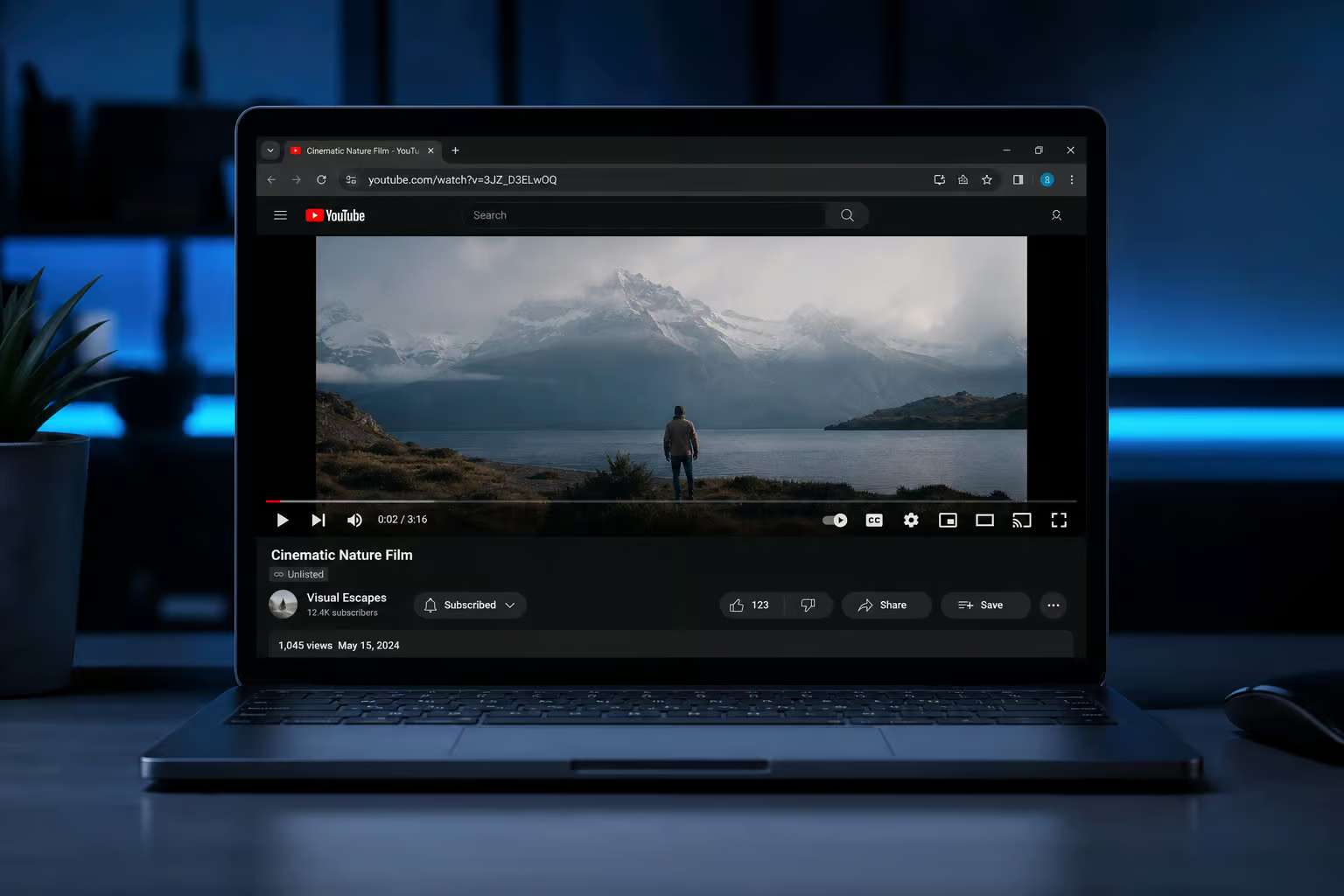
Ever stumbled on a YouTube link that plays a video you can’t find anywhere on the channel? That’s an unlisted video — hidden from search, recommendations, and channel pages, but watchable if you’ve got the URL. Maybe it’s a client’s rough cut you need to review offline, a classroom recording you want to keep, or a personal archive you’re trying to save before the uploader changes their mind.
Here’s the thing: unlisted videos are easier to download than most people realize. No login required, no permission gates — just a link and the right tool. The hard part is picking a method that won’t hand you malware, a silent video file, or a frustrating dead end.
Key Takeaways
Lynote is the safest online option: no sign-up, no install, automatically merges DASH audio/video tracks so you don’t end up with a silent 4K file.
Desktop software like iFunia Free YouTube Downloader (4.8 stars, supports up to 8K, batch downloads 50+ videos) or yt-dlp (open-source, handles playlists but needs the --ignore-errors flag for private videos) are the go-to for bulk archiving.
YouTube Studio is the only 100% ToS-compliant download method — but it only works for your own videos. For everything else, personal offline use is a gray area.
What Is an Unlisted YouTube Video (and Why Is It Easy to Download?)
Think of an unlisted video as a backstage pass: it’s not in the public area, but anyone holding the link can walk right in. Unlike public videos, unlisted ones don’t show up in search results, YouTube’s recommendation algorithm, or your channel’s video grid. The only way in is the direct URL.
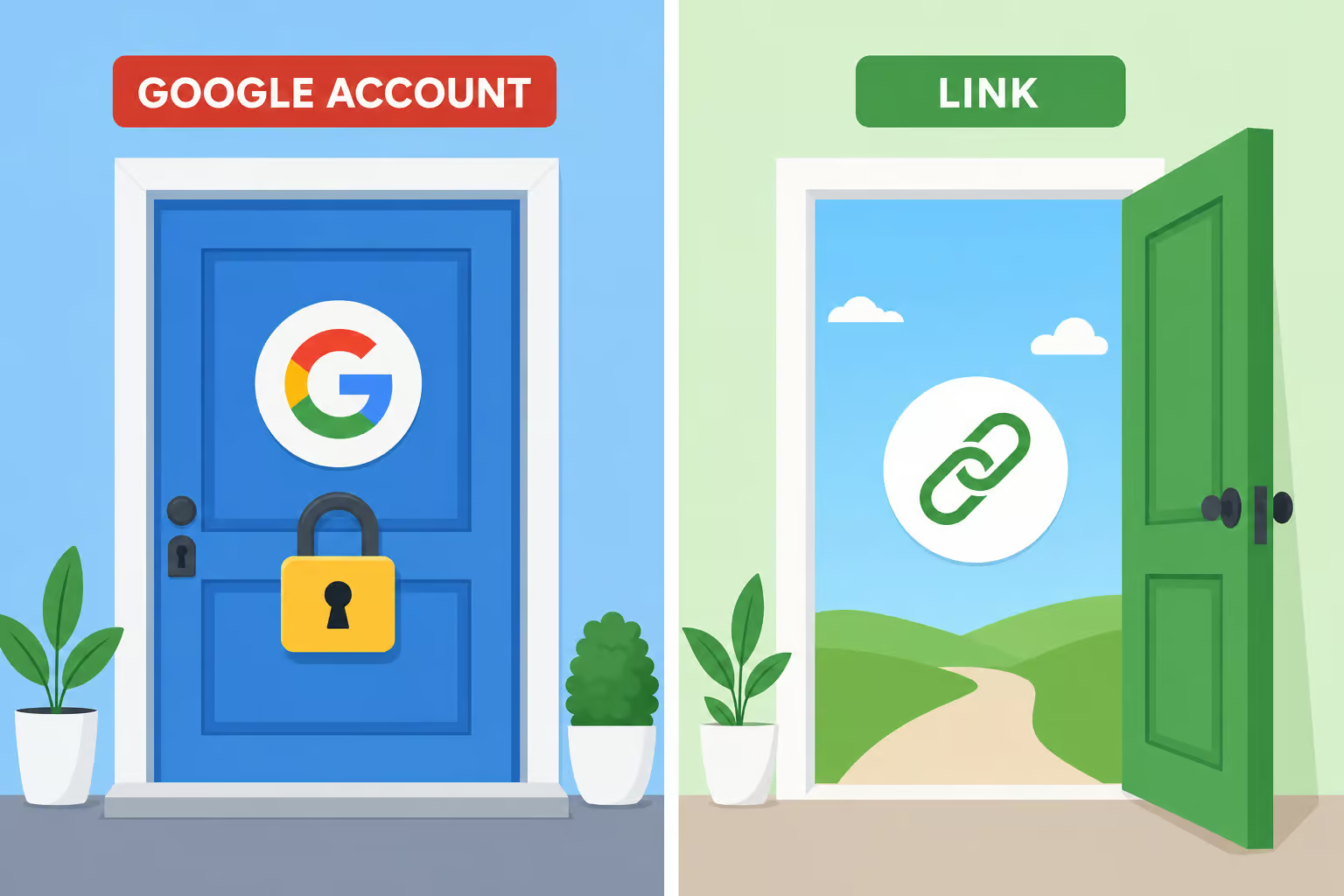
That URL is the whole reason downloading is straightforward. No login required. You don’t need a Google account, you don’t need to be on the uploader’s invite list — you just paste the link and go. That’s different from private videos, which lock everything down behind authentication.
Unlisted vs. Private: The One Distinction That Changes Everything
Private videos are tied to specific Google accounts — maximum of 50 per video. You can’t access them with a link alone, you need an explicit invite from the uploader and must be logged into that account to view. Third-party downloaders largely can’t touch private videos unless you’re authenticated through the app (more on that later).
Unlisted videos have none of that. If you have the link, you can watch. Period. That same open door means downloading works exactly like it does for a public video — the tool grabs the stream, no authentication hurdles. It’s the single most important technical detail for anyone trying to save an unlisted video offline.
Another non-obvious quirk: unlisted videos can still be added to public playlists. So even though the video itself is hidden, the link might be more exposed than the uploader intended. Good news for you if you’re hunting for an unlisted video without the direct URL — check the playlist that the uploader might have added it to.
Field note: Unlisted videos in public playlists are one of the easiest ways to discover content the uploader thought was hidden. Always scan the playlist if you’re missing the direct link.
Why Creators Use Unlisted Videos
Unlisted is the Swiss Army knife of YouTube privacy settings. Creators reach for it when they want to share content with a limited audience without making it fully public or locking it down to 50 accounts. Common scenarios include:
- Internal business content — training videos, company updates, or client deliverables.
- Personal archives — family footage or personal projects that shouldn’t clutter a public channel.
- Classroom or educational materials — share with students without making the video searchable.
- Event-specific videos — wedding highlights, conference recordings, party footage for attendees only.
- Rough cuts and client feedback — share a draft privately before publishing the final cut.
- Group tutorials — send a how-to to a specific cohort without broadcasting it to the world.
Some series even use unlisted for interactive storytelling — think end-of-video choices in a drama that branch into unlisted follow-ups. That’s a nifty creative use, but it also means those branches are downloadable if you have the link.
Is It Legal to Download an Unlisted YouTube Video?
I’ll be straight with you: personal offline use is a gray area. YouTube’s Terms of Service (Section 5.1) explicitly prohibits downloading unless a visible download button is available on the page. Most third-party tools work around that restriction, and YouTube rarely pursues individual users for grabbing a video for personal offline viewing. But “rarely pursued” isn’t the same as “allowed.”
The real line you don’t cross is redistribution. Re-uploading someone else’s unlisted video, selling it, or using it commercially without permission is strictly illegal — full stop. Copyright strikes and DMCA takedowns hit fast and hard. Having the link does not grant you the right to download; the link is for watching.
One reassuring detail: YouTube does not notify the uploader when their unlisted video is downloaded. They’ll see a view count bump, but they won’t know who saved it or that a download tool accessed the stream. So it’s a quiet operation — but that doesn’t make it ethical to take someone’s content without permission.
A quick rule of thumb: you’re in the clear if it’s your own video, you have explicit permission, you’re using YouTube Studio (the only 100% compliant method), or you’re saving strictly for personal offline access. If you’re doing any of the above, you’re probably fine. Everything else carries some risk.
Method 1: Use an Online Downloader (Fastest for Single Videos)
Online downloaders are the quick-and-dirty champs: paste a URL, pick your quality, hit download. No installation, no account creation, works on any device with a browser. For a single video you need right now, this is the fastest route.
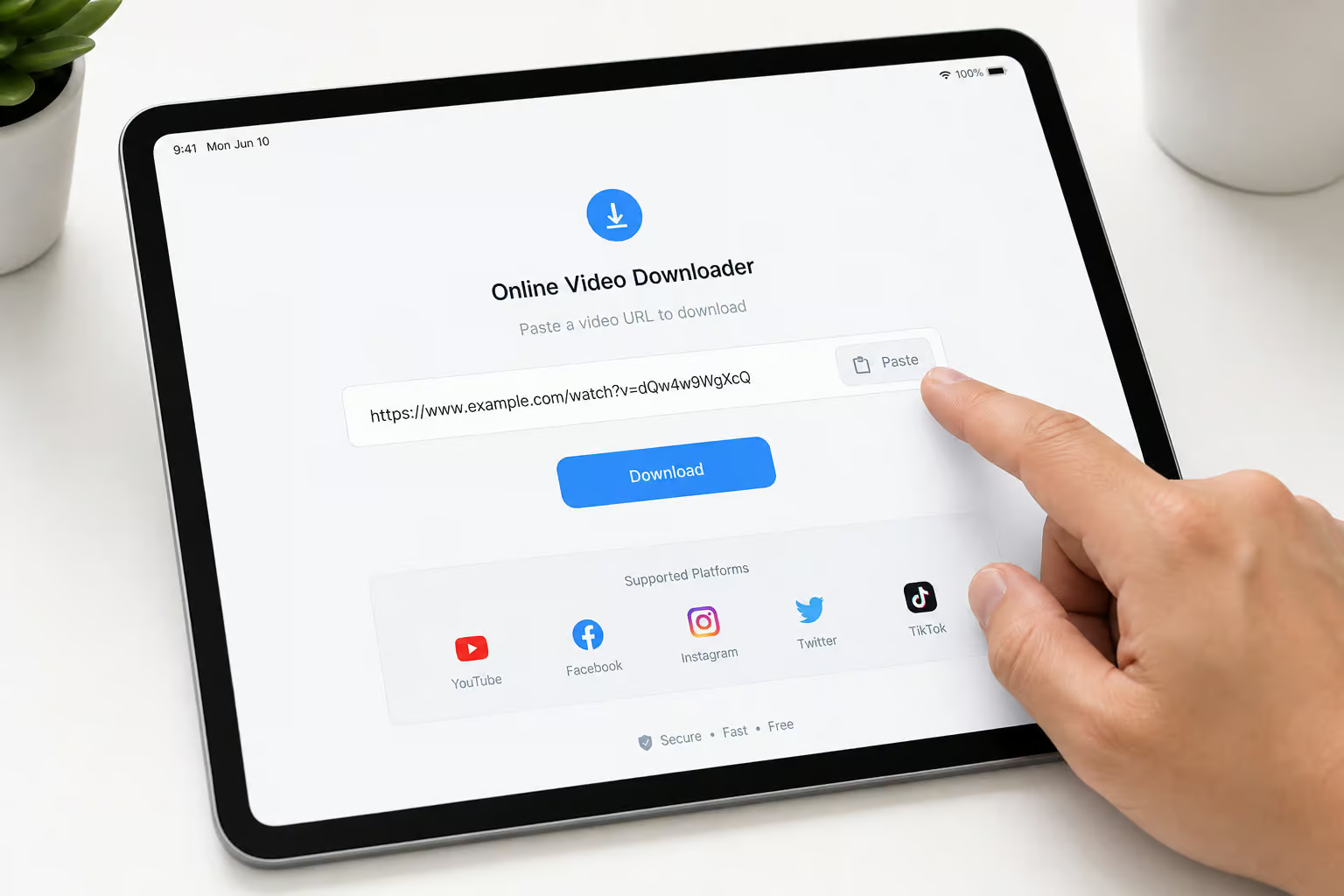
The key is picking a safe one. Some online tools are full of ads, malware traps, or silent failure modes.
Lynote: The Champion Online Tool
Lynote is the safest pick I’ve found. No pop-up ads, no sign-up required, and it runs in any modern browser — Chrome, Safari, Windows, Mac, mobile, whatever. Paste the link, pick 4K if available, and download. That’s it.
What sets Lynote apart is that it automatically merges DASH audio and video tracks. I’ll explain DASH in detail later, but the short version is that many online tools grab only the video stream at higher resolutions, leaving you with a beautiful silent movie. Lynote handles the merge for you. The result: a playable file with sound, even at 4K. High safety (no executable to download), fast speed, and max quality up to 4K. For single videos, this is my go-to.
SSYouTube and y2mate: Veteran Alternatives with Tradeoffs
SSYouTube generally works for standard-quality downloads. The downside? Heavy pop-up ads and redirects. You’ll be fighting the UI to get to the actual download. Speeds can also drag during peak hours.
y2mate is similar — web-based, supports multiple formats, but again, the ad experience is rough. Both are functional but not pleasant. Use them only if Lynote isn’t available for some reason, and make sure you’re clicking carefully.
Generic ‘Tube’ Sites: Safety Warning
Some sites that look like YouTube downloaders exist mainly to serve malware. They’ll hit you with aggressive pop-under ads, fake download buttons, and phishing redirects, especially if you search for a YouTube Private Video Downloader apk. One wrong click and you’re on a sketchy site.
Safety score: Low (Malware Risk). Quality is typically capped at 1080p, and many can’t handle high-bitrate 4K processing at all. Never download an executable (.exe) from an untrusted site. If a page asks you to install a “video player” or “codec pack” just to get the download, close the tab immediately. Cloud-based tools like Lynote eliminate that risk entirely because there’s nothing to install.
Method 2: Use Desktop Software (Best for Bulk or High Quality)
When you’re dealing with more than a handful of videos — say, an entire playlist of 50+ unlisted videos, online tools hit their limits. Desktop software requires installation but unlocks batch downloading, playlist support, and higher resolutions (up to 8K). The initial setup takes a few minutes, but after that it’s faster and more reliable.
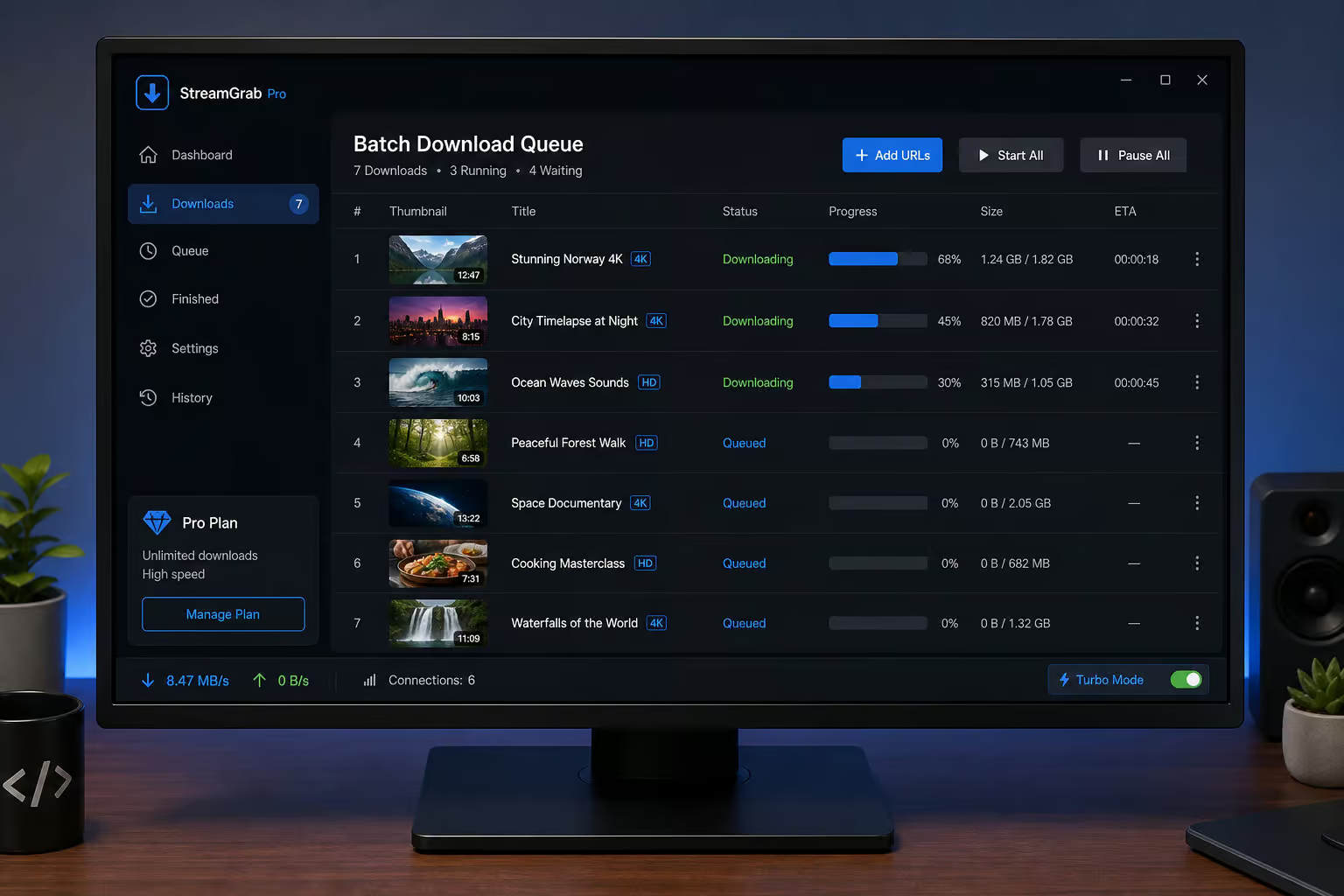
iFunia Free YouTube Downloader: Full-Featured Desktop Tool
iFunia Free YouTube Downloader has been around since 2009 and holds a 4.8-star rating from verified customers. It handles unlisted videos, private videos (if you have access), playlists, and even entire channels. It supports resolutions from 360p up to 8K and outputs MP4, MKV, AVI, and MP3.
The trial gives you 3 free downloads — enough to test it out. iFunia claims 6X faster download speeds than most competitors, and it supports batch downloads, subtitle extraction, and anonymous downloading. It also works on over 1,000 sites (YouTube, Facebook, Instagram, TikTok, Vimeo, and more). If you want a versatile, reliable desktop tool that doesn’t break the bank (the free version covers 3 videos), this is a strong pick.
4K Video Downloader Plus: High-Resolution Specialist
4K Video Downloader Plus is another desktop heavyweight, supporting up to 8K, 60fps, HDR, and 3D content. The free version caps you at 30 videos per day — generous for most users. Smart Mode lets you set default preferences so every download uses the same format without extra clicks.
Notably, 4K Video Downloader Plus can download private videos if you’re logged in through the app and the video is in your Liked or Watch Later lists. That’s a rare capability among desktop tools. It works on Windows, macOS, Ubuntu, and Android. If you need the absolute highest quality and might need to grab private videos you have access to, this is your tool.
yt-dlp: Open-Source Power for Technical Users
For the command-line crowd, yt-dlp is the beast. It’s free, open-source, and ridiculously powerful — but you need to be comfortable in a terminal, particularly when your goal is how to download private YouTube videos GitHub. No GUI, no hand-holding. What you get instead is fine-grained control over every aspect of the download.
Here’s a real-world example that shows the power and pitfalls. A user on Stack Overflow tried to download a playlist called “English Grammar” using yt-dlp. The playlist had 52 videos: 8 were hidden, 1 was private. By default, yt-dlp throws a DownloadError when it hits a private video and halts the entire download.
The fix? Add the --ignore-errors flag, which tells yt-dlp to skip any inaccessible videos and keep going — but if you need to actually download private video from youtube, the approach is entirely different and riskier. A simple tweak, but one you need to know about.

For unlisted videos, yt-dlp works perfectly — just paste the link. But if you’re downloading a playlist that mixes unlisted, public, and private videos, always include --ignore-errors unless you want to sit there watching it fail on every private entry.
Red flag: Default yt-dlp behavior halts on any private or inaccessible video in a playlist. Always add
--ignore-errorsfor mixed playlists, or you’ll waste time restarting failed batches.
VLC Media Player Hidden Trick
This one surprised me: if you already have VLC installed, you might not need another tool at all. VLC’s “Open Network Stream” feature can pull down the raw video stream from a URL.
Here’s the hack: Open VLC, go to Media > Open Network Stream, paste the YouTube unlisted link, and let it play. Then go to Tools > Codec Information. In the Location field, you’ll find a direct source URL for the video stream. Copy that URL, paste it into your browser’s address bar, hit Enter, and the video will start playing or prompt you to save. Choose “Save Video As” and you’re done.
It’s a bit hacky — you have to play the video first, but VLC is free, safe, and already on millions of machines. No extra install, no adware risk. Works with any unlisted link. For a one-off download when you don’t want to install anything else, this is a solid backup.
Method 3: Use a Browser Extension (Convenient but Limited)
Browser extensions add a download button right under the YouTube video player. It’s the most convenient method for frequent downloads — one click and you’re done. The catch? Two major limitations, and the best YouTube video downloader as of February 2018 works by copying the video’s URL to the downloader.
First, most extensions cap quality at 720p. If you want 1080p or higher, extensions aren’t the way to go. Second, Chrome has banned YouTube downloader extensions from its Web Store, so Chrome users need a workaround.
Addoncrop: Top Extension with Chrome Workaround
Addoncrop is one of the better extensions — it lets you pick quality levels up to 4K, trim clips, and download MP3 audio. That 4K support is uncommon for an extension.
On Firefox and Edge, you can install Addoncrop directly from the addon store with no extra steps. On Chrome, you’ll need to install the Foxified (CrossPilot) helper extension first, which acts as a bridge to load Addoncrop from outside the Chrome Web Store. It’s possible but annoying. If you’re on Firefox or Edge, this is a convenient option for single downloads at decent quality.
Video DownloaderHelper: Multi-Browser Alternative
Video DownloaderHelper works on Chrome, Firefox, Safari, and Edge. It auto-detects downloadable videos on YouTube and other sites. The downside: you have to play the video first for it to detect the stream. Once detected, you can download, but quality and format options are limited compared to dedicated tools. It’s fine for quick grabs, but not for archiving.
Method 4: Download on Mobile (Android & iOS)
Mobile users have different constraints — app store restrictions, no easy file management, and different tools available per platform.
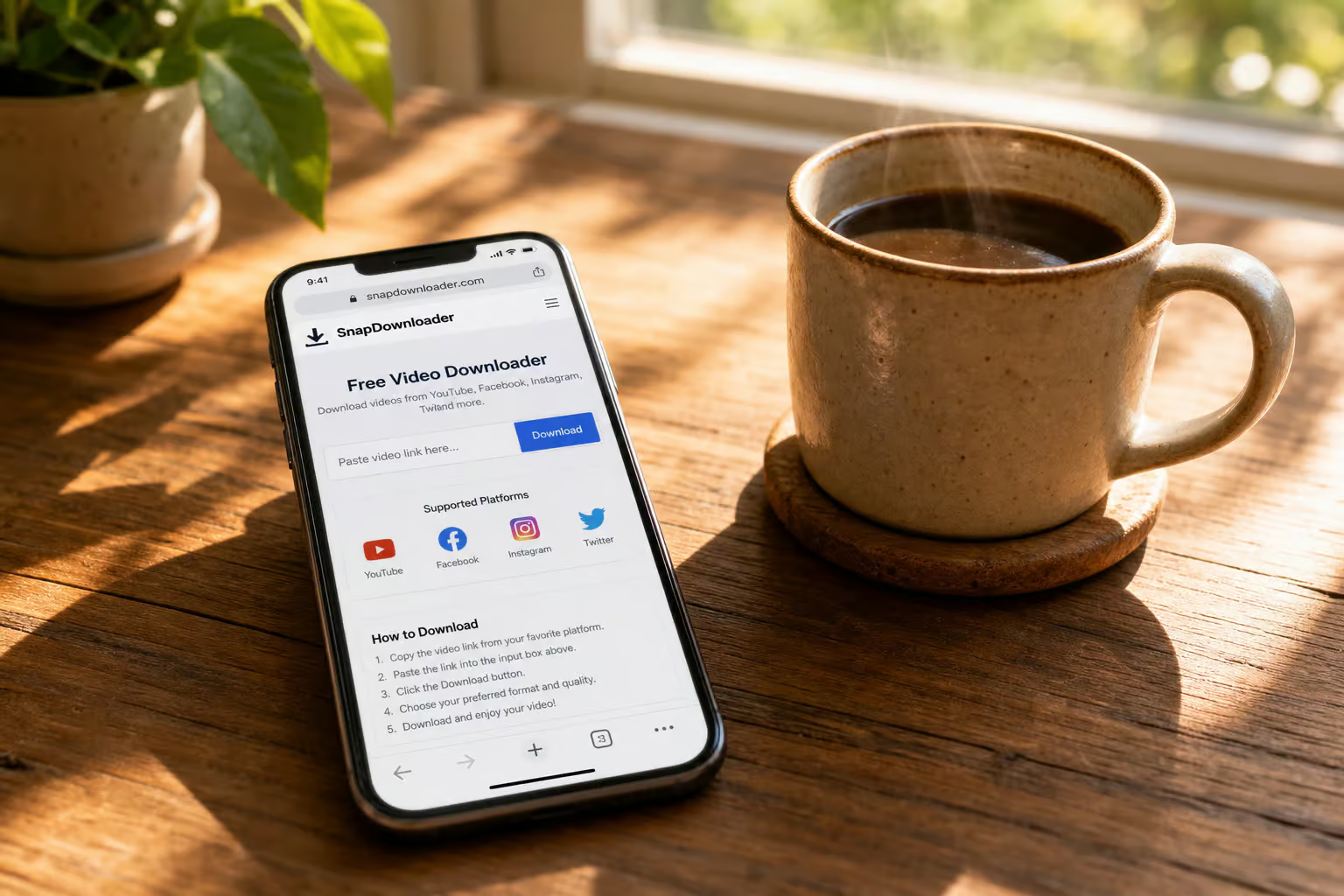
Android: Browser + Online Tool or Dedicated Apps
The simplest Android method: open Chrome, visit an online tool like Lynote, paste the unlisted link, select quality, and download. No app installation required. The file lands in your Downloads folder, ready to watch.
If you want a dedicated app, two options stand out:
- NewPipe — an open-source YouTube front-end available from F-Droid. It acts as a lightweight player and downloader in one. Requires enabling “Install from Unknown Sources” since it’s not on the Play Store. Worth the extra step if you download regularly.
- TubeMate — free, intuitive, paste the URL, play, tap download, choose quality/format. straightforward. Downside: it can break with YouTube updates and may not work for some videos. Not the most reliable long-term.
iOS: File Manager Workaround Required
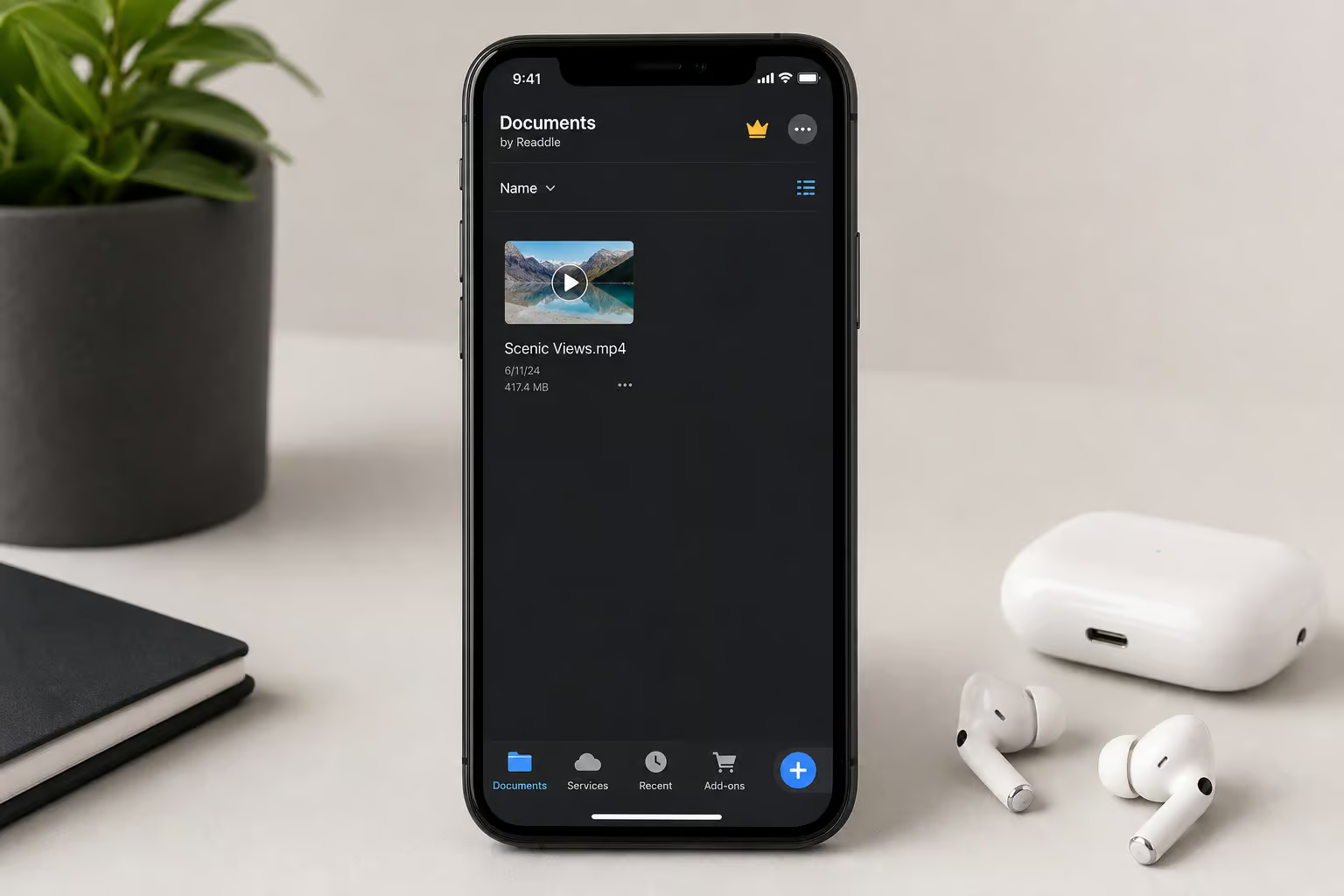
iOS is more locked down. The most reliable workaround is Documents by Readdle, a free file manager app from the App Store. It has a built-in browser.
Open that browser, go to Lynote.ai, paste the unlisted link, and download the video. The file goes to Downloads inside the Documents app. To move it to Photos, go to My Files > Downloads, tap the three dots on the file, then select Move > Photos. It takes a few extra taps, but it works consistently.
An alternative is the Lucky Download Shortcut, available from RANKSAPK. It’s more of a hack and can break with iOS or YouTube updates. Documents by Readdle is the safer bet.
Method 5: Official & Fallback Options
These aren’t the flashiest methods, but they’re the only ones that are fully compliant or require no third-party tools.
YouTube Studio: The Official Method for Your Own Videos
If the unlisted video is yours, YouTube Studio is the gold standard. 100% ToS-compliant, no quality loss, built right into your creator dashboard. Steps: go to Content, find the video, click “More actions” (three dots), select “Download.” That’s it.
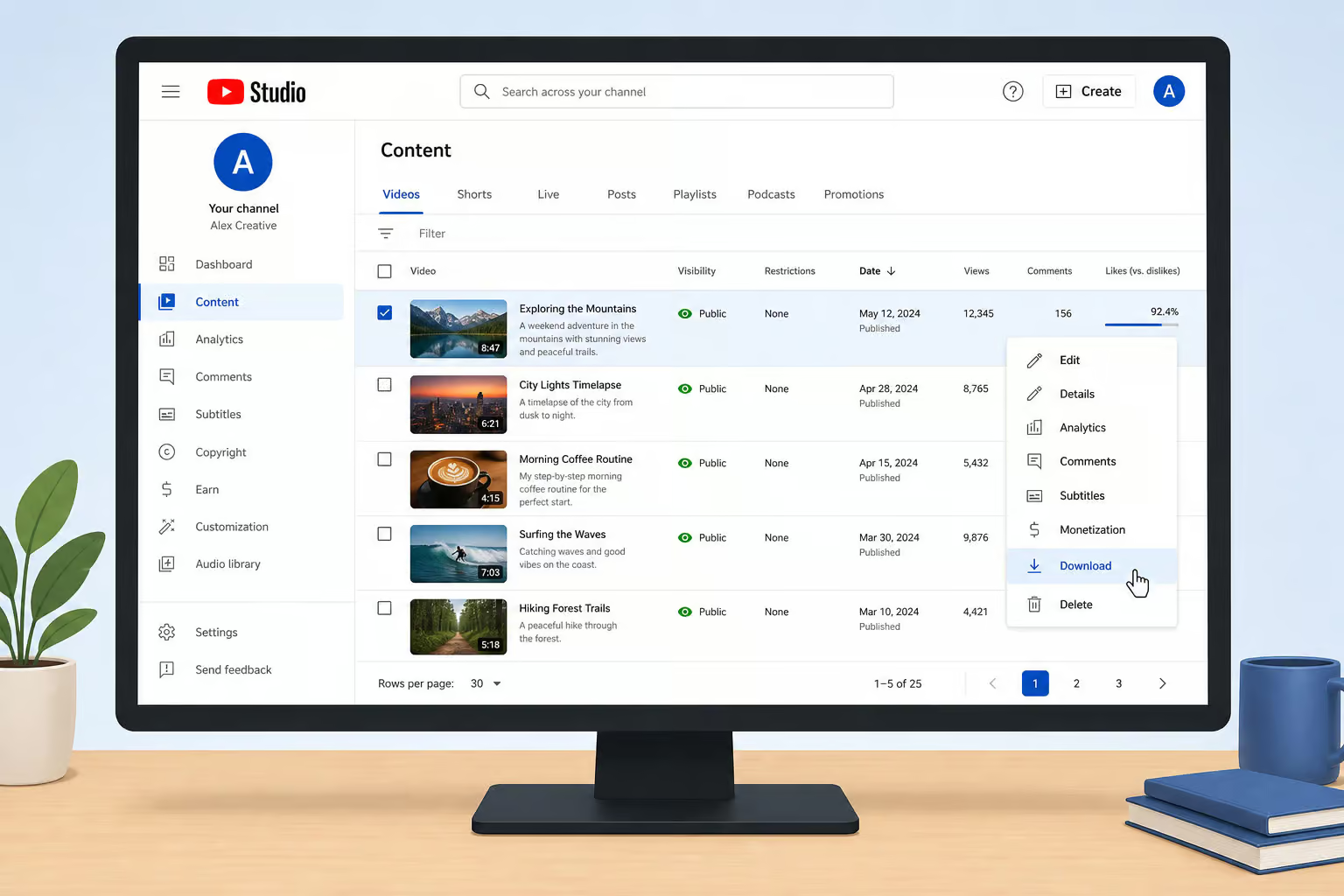
The obvious limitation: only works for videos you uploaded. For anyone else’s content, this method is a no-go.
YouTube Premium: Offline Viewing, Not File Downloading
YouTube Premium gives you a native download button in the YouTube app. It works for unlisted videos, which is nice — but the downloaded file is encrypted. You can only view it inside the YouTube app. No MP4 extraction, no sharing, no editing. The file also vanishes if your subscription lapses or the video is deleted.
Great for watching on a plane, useless if you need the actual file for anything beyond offline playback.
Screen Recording: Safe but Slow and Low Quality
Screen recording is the nuclear option. No installation needed, no ToS issues — you’re just recording your screen while the video plays. Quality is limited to your screen resolution, so unless you have a 4K monitor, you’re not getting 4K. It’s also real-time: a two-hour video takes two hours to record.
Safety: High (no third-party tools). Speed: Slow. Max Quality: Screen Resolution. Use this as a last resort, especially for content that’s proprietary or where nothing else works.
Understanding the DASH Streaming Trap
Ever downloaded a 4K YouTube video and ended up with a beautiful silent movie? That’s the DASH (Dynamic Adaptive Streaming over HTTP) trap. For videos at 1080p and above, YouTube splits audio and video into separate streams. A simple downloader grabs only the video track, leaving the sound behind.
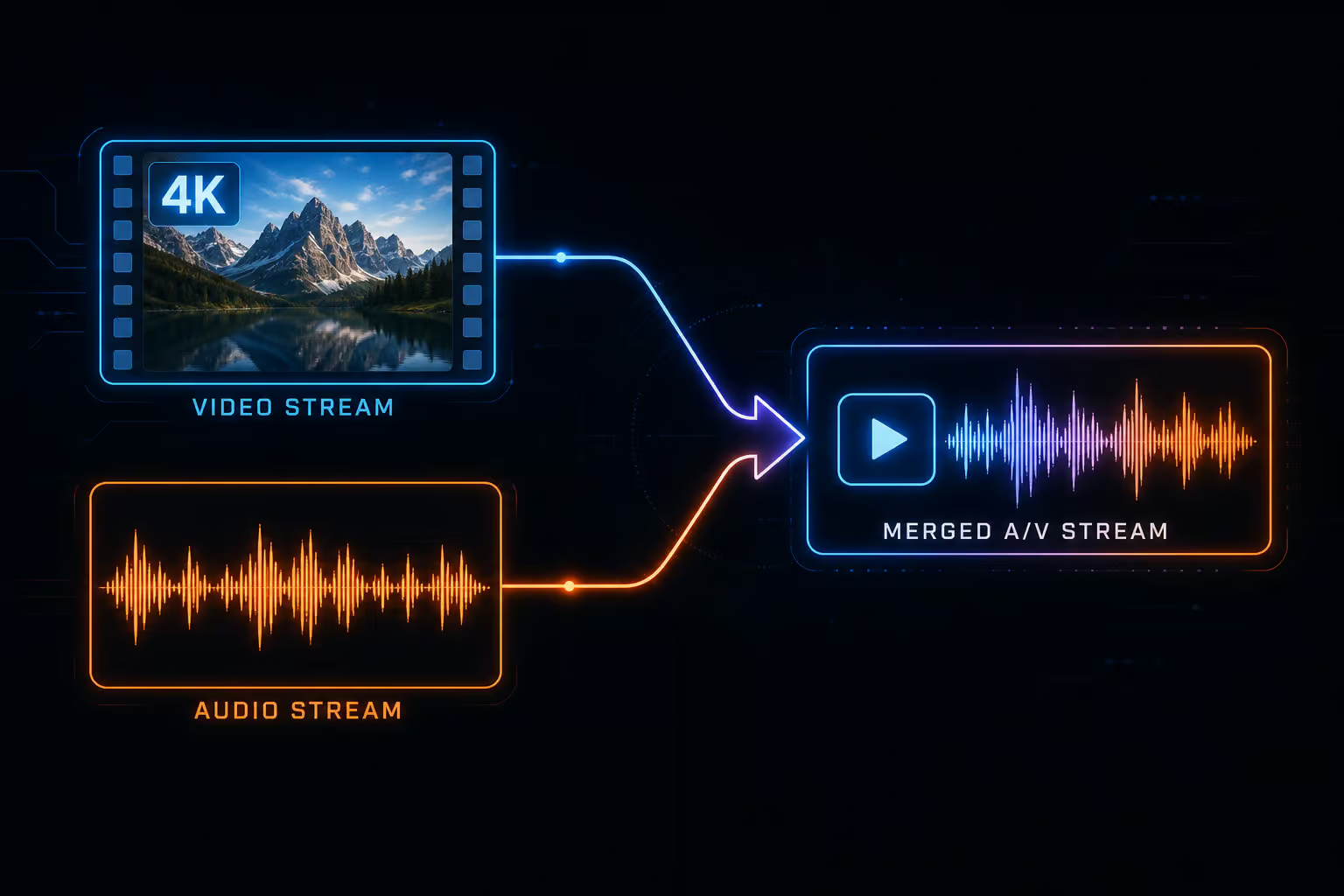
The result: a silent file that looks perfect but has zero audio. It’s not a bug — it’s how YouTube delivers high-quality streams to save bandwidth (you can choose different audio qualities independently of video).
The fix is a modern tool that automatically merges both tracks. Lynote does this, as do most desktop tools like iFunia and 4K Video Downloader Plus. If you’re using an older online tool and getting silent downloads, that’s why. Upgrade to a tool that handles DASH merging and you’re golden.
Which Method Should You Use?
Here’s how to choose based on your situation:
- Single video, need it right now: online tool (Lynote). Fast, no install, works on any device.
- Bulk archiving (50+ videos): desktop software — iFunia (3 free downloads) or 4K Video Downloader Plus (30/day free) for GUI, yt-dlp for command-line power.
- Frequent daily downloads: browser extension — Addoncrop on Firefox or Edge (no workaround needed). Accept the 720p cap for speed.
- Mobile on-the-go: Android users — browser + Lynote or NewPipe. iOS users. Documents by Readdle with Lynote’s website.
- Need to download a playlist of unlisted videos at once: paste the playlist URL into desktop software. iFunia, 4K Video Downloader Plus, and yt-dlp all support batch playlist downloads.
- Last resort / ultra-safe: screen recording. No malware risk, but slow and low quality.
Most users are best served by online tools. Desktop software is overkill for individual downloads but essential for playlist archiving. Pick the method that matches your volume and quality needs, and you’ll be downloading unlisted videos without drama.
People Also Ask
What is an unlisted YouTube video and how is it different from a private video?
An unlisted video is hidden from search, recommendations, and your channel page, but anyone with the direct link can watch it — no login required. A private video is locked to specific Google accounts (max 50) and requires an explicit invite from the uploader, so third-party downloaders can’t touch them unless you’re authenticated.
Is it legal to download an unlisted YouTube video?
Personal offline use is a legal gray area. YouTube’s Terms of Service prohibit downloading unless a visible download button is on the page, but they rarely pursue individual users for saving a video for personal use. What you cannot do is redistribute, re-upload, or sell someone else’s unlisted video — that’s copyright infringement and will get you hit with a takedown.
Why does my downloaded YouTube video have no sound at high resolutions?
That’s the DASH streaming trap. For videos at 1080p and above, YouTube splits audio and video into separate streams to save bandwidth. A basic downloader grabs only the video track, leaving you with a silent file. You need a modern tool that automatically merges both tracks back together — most online tools and desktop software handle this now.