Soyou’ve got a link to a private YouTube video. Maybe it’s a class recording, a client’s project draft, or a family video someone shared only with you. You have permission to watch it. But when you try to download it—using that one extension you’ve had for years or a quick online tool—nothing happens.
The button grays out. The page refreshes. The video stays stubbornly on YouTube.
That’s not a coincidence. Private videos operate differently than public or unlisted ones, and most download tools aren’t built to handle them. But some are. And the ones that work are doing something surprisingly clever under the hood.
Let’s get into exactly what makes a video “private,” how Chrome extensions actually grab those streams, and which methods actually work without putting your security at risk.
Key Takeaways
Chrome extensions download private videos by using the Debugger API to listen for network traffic—they intercept the media stream as it plays, not by cracking encryption or finding hidden URLs
DRM encryption (specifically Widevine L1 with hardware-backed decryption) is the only real protection against browser-based download tools; surface-level safeguards like right-click blocking and token authentication do nothing to stop network-level interception
Most YouTube downloader extensions have been banned from the Chrome Web Store since 2014, which means the ones that still work (like Addoncrop) require sideloading from outside the store—a process that comes with its own security trade-offs
Table of Contents
What “private YouTube video” actually means
Private videos are the VIP section of YouTube. Only invited guests get in. You can’t stumble across one on a channel page, and they won’t show up in search results. To watch a private video, you need two things: the exact link, and a login to the specific Google account the uploader granted access to.
No invite, no watch. It’s that exclusive.
This is not the same as unlisted. An unlisted video is hidden from search and your channel page, but anyone with the link can view it—logged in or not. A private video adds an authentication gate. The server checks your session before it sends a single byte of video data.
That authentication step is exactly why most downloader tools fail. They’re built to scrape public URLs or parse page HTML, not to carry a logged-in session through YouTube’s privacy controls. When they hit a private video, they don’t see the stream. They see a login wall.
Before you download: legal and ethical must-knows
Straight up: downloading a private video without the uploader’s explicit permission is copyright infringement. Not a gray area. If you didn’t upload it and the uploader didn’t say “go ahead,” you’re in the wrong. Creators put work into their stuff.
Don’t be the person who steals it and shares it around. This content is provided for educational and informational purposes only and does not endorse unauthorized downloading.
Google’s own bug bounty program makes an interesting point here. They’ve explicitly stated that intercepting a video stream after logging in is not a security flaw—it’s a design characteristic of how browsers deliver video. The burden is on you, the downloader, to have permission. If you’re the uploader or have been given clear authorization, you’re on solid ground. If not, stop here.
For creators who want to understand their rights when content gets stolen, the U.S. Copyright Office (the official authority on the DMCA) and WIPO (the UN agency for global intellectual property law) are the right resources. This article is educational. I’m explaining how things work, not telling you to break rules.
How Chrome extensions actually download private videos (the technical mechanism)
Here’s the nerdy bit: Chrome extensions can intercept video streams at the network layer. That’s how they grab the file. It isn’t hacking, and it isn’t exploiting a vulnerability. It’s using the browser’s own debugging tools to watch what’s already passing through your machine.
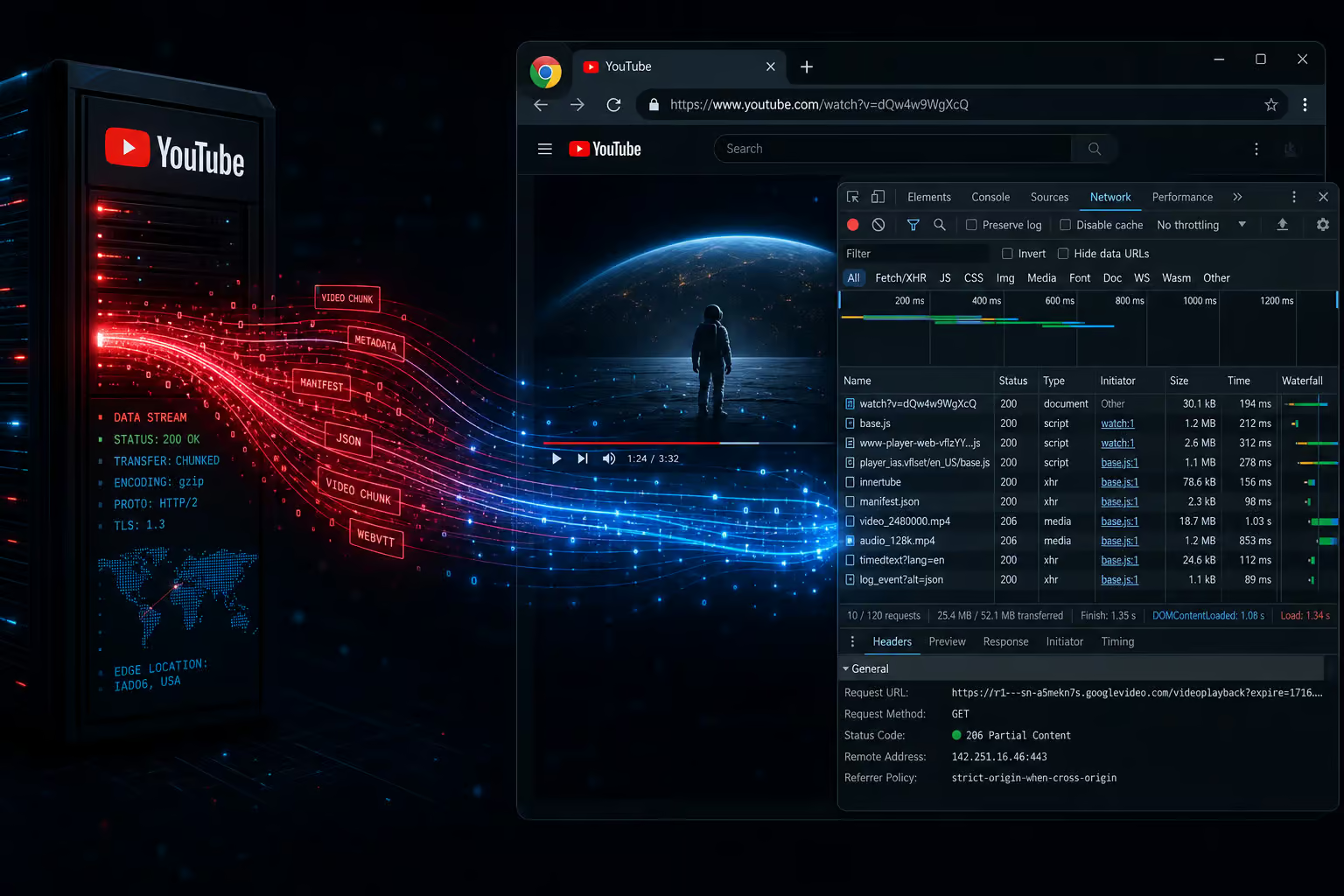
The media stream travels from YouTube’s servers to your browser through the network. That stream—MP4, HLS, or DASH—flows through the network layer as a series of requests and responses. An extension with the right permissions can simply watch that pipe. The MP4 format is a common container for these video streams.
I cracked open the source code of one open-source extension called Drive Private Video Downloader to see exactly how this works. It’s a clean example of the pattern. The extension’s background script (background.js) employs the Chrome Debugger API to monitor two specific events: Network.requestWillBeSent and Network.responseReceived. When it detects a request heading to a domain like workspacevideo-pa.clients6.google.com (that’s Google Drive’s video-serving infrastructure), it stores the request and retrieves the response body. Then it parses the JSON response looking for progressiveTranscodes URLs—those are direct MP4 links.
A separate script (popup.js) polls the background script every second, checking for captured requests. When it finds one, it presents a one-click download button. If you’re watching a video and click that button, the extension calls chrome.downloads.download with the MP4 URL it found.
But here’s the catch most people miss: the extension only works while the video is actively playing. It’s not downloading a file from a static URL. It’s capturing the stream as it passes through. Pause the video, and the download option disappears until you hit play again.
The permissions list for this kind of extension tells you everything you need to know about how invasive it is: debugger, activeTab, downloads, storage, and <all_urls>. That <all_urls> permission means the extension can read every page you visit, not just YouTube. We’ll get into the safety implications later, but for now, understand that this isn’t a lightweight tool.
Method 1: Download your own video from YouTube Studio
If you own the video, this is the only fully legitimate method. It’s also the easiest. Go figure.
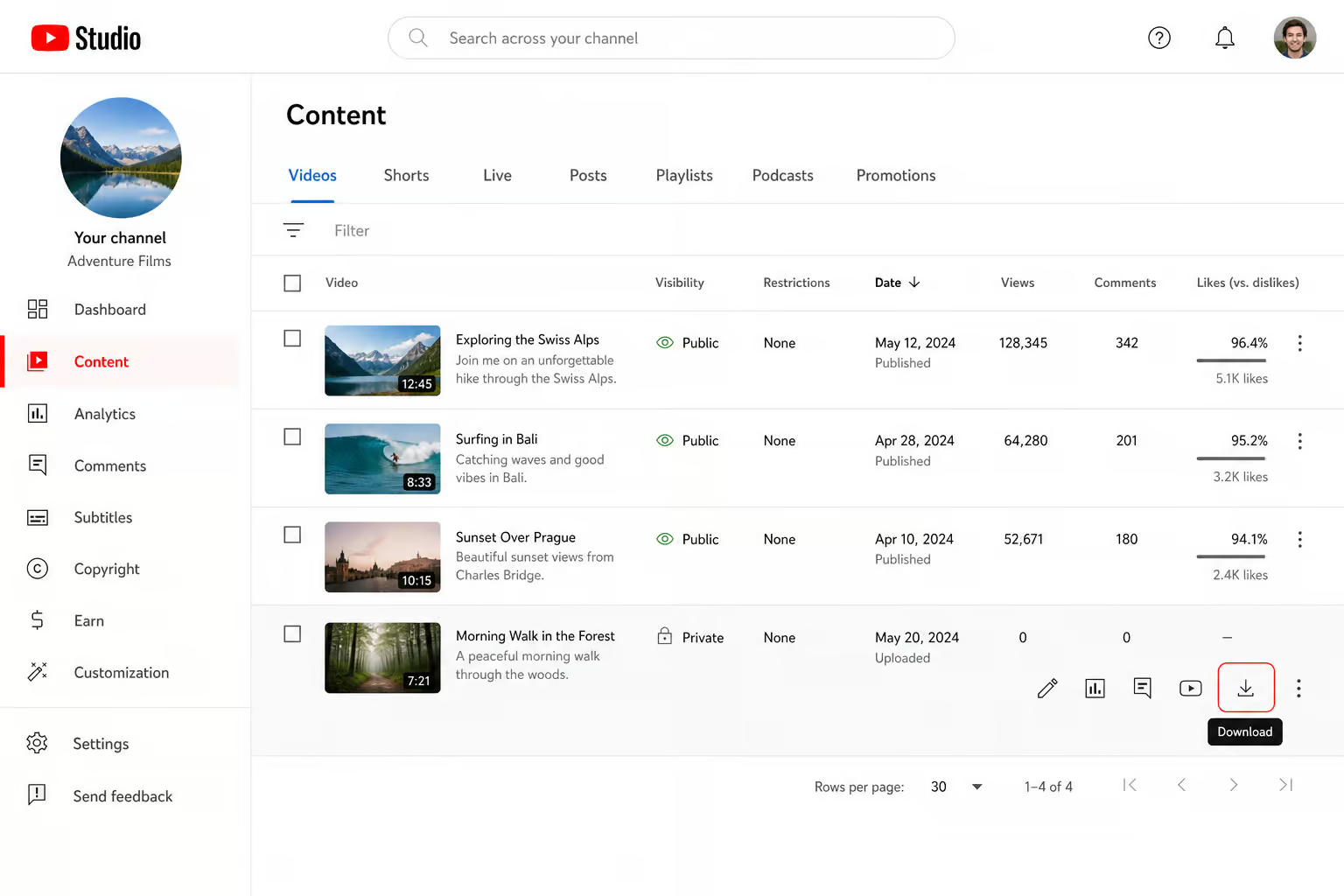
Sign in to YouTube Studio, head to the Content tab, find your private video, and click the download button. YouTube gives you an MP4 at the highest resolution available. No extensions, no third-party tools, no legal ambiguity. This is the gold standard for a reason.
Method 2: YouTube Premium offline viewing
YouTube Premium subscribers can download videos for offline viewing on mobile, including private videos they’re authorized to access. This is a feature, not a hack.
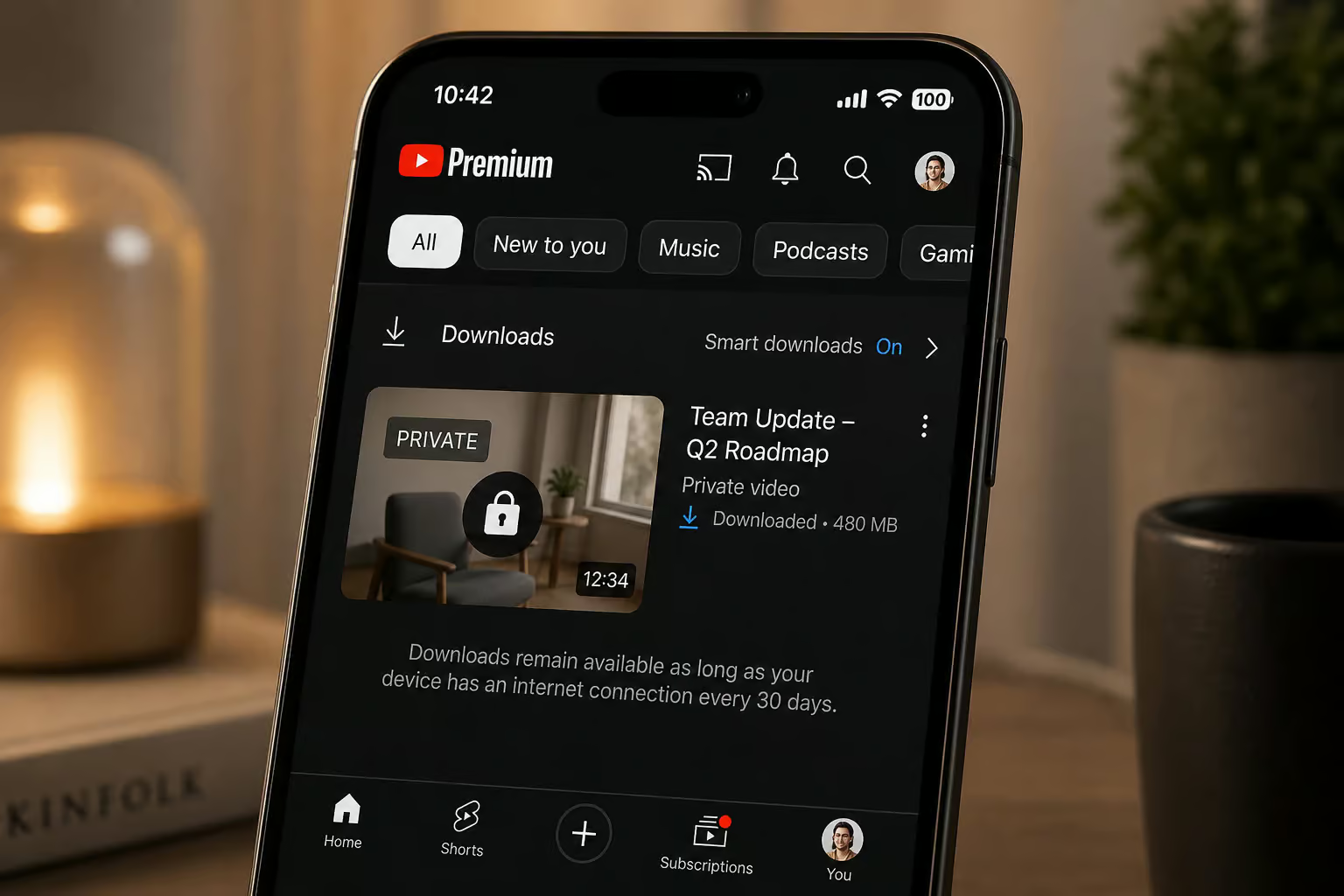
But here’s the crucial limit: the video stays inside the YouTube app. You can’t export the file itself. This method is useful if you want to watch on a plane without data, but it’s not a download in the traditional sense. For the best method to download videos from YouTube, you need a different approach, since you don’t get a file you can archive, edit, or share here.
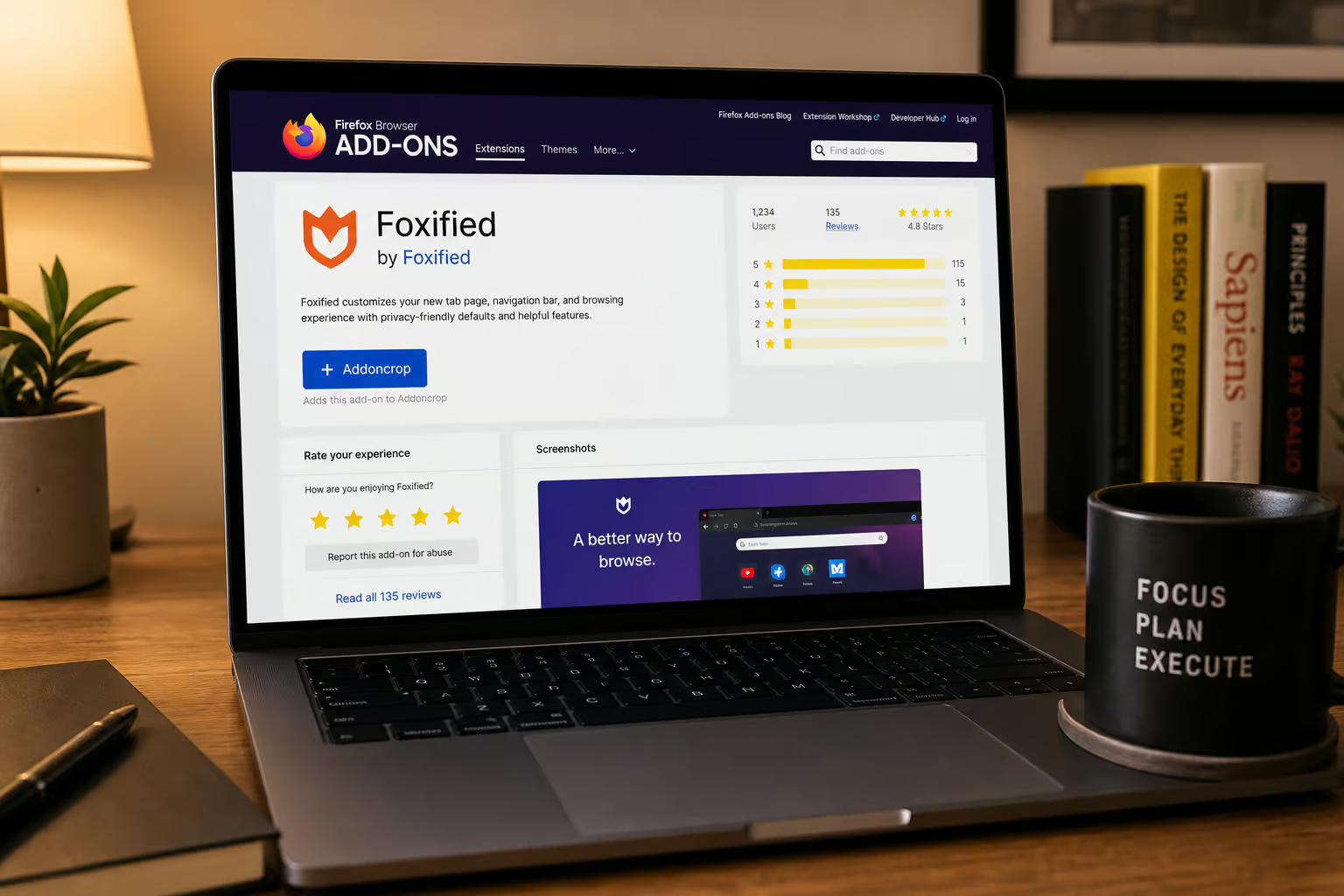
Method 3: Addoncrop Chrome extension (with Foxified workaround)
Addoncrop is one of the few extensions that can actually download private YouTube videos. But installation isn’t normal. Because Google has been removing YouTube downloader extensions from the Chrome Web Store since 2014, Addoncrop isn’t allowed in the store. You’ll need a workaround.
You’ll install the Foxified extension first. Foxified lets you run Firefox-compatible extensions in Chrome. Then you visit addoncrop.com, click the install button, and grant the permissions. Once it’s set up, Addoncrop works like any other downloader extension—paste the private video link, and it grabs the stream.
A bit of a roundabout, but it works. Just be aware: you’re installing extensions from outside the official store. That comes with its own set of risks—outdated code, lack of review, potential for tampered versions. If you go this route, you’ll want to understand the trade-off.
Method 4: yt-dlp command-line tool (for authorized viewers)
If you’re not scared of a terminal, yt-dlp is the most bulletproof method. No extensions, no third-party websites, no weird installations. Just you, the command line, and your browser’s cookies.
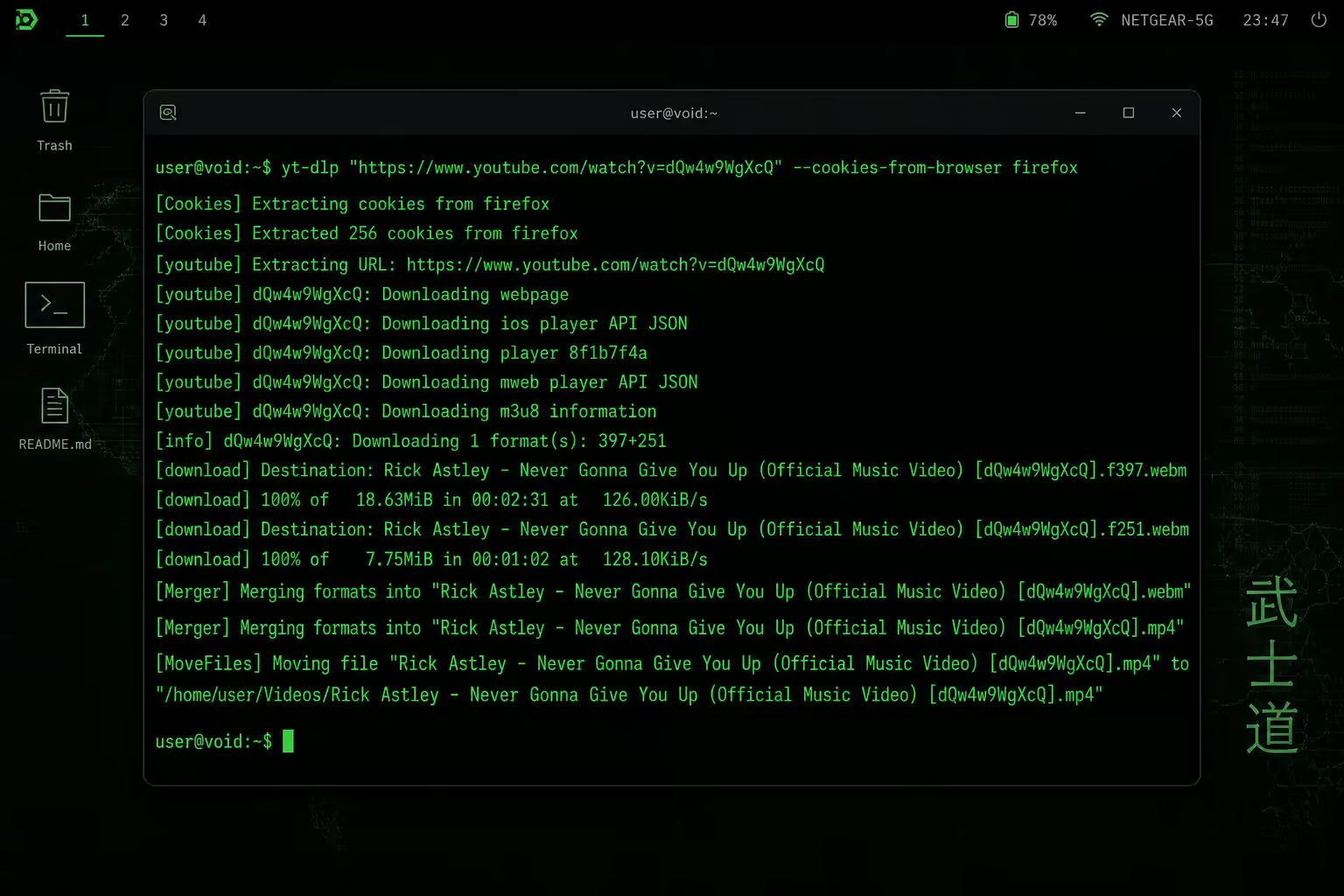
yt-dlp is an open-source tool that can download private YouTube videos with access, including private ones. The trick is the --cookies-from-browser flag, which passes your browser’s authentication cookies to yt-dlp, letting it access the private video as you—because your browser already has a valid session. You run the command in Command Prompt (on Windows) or your terminal.
The exact command looks like this:
yt-dlp --cookies-from-browser chrome "PRIVATE_VIDEO_URL"
Replace chrome with firefox, edge, or whatever browser you use. That’s it. yt-dlp handles the rest—you can customize quality, format, and output location. It’s extremely flexible and works reliably because it’s using your actual authenticated session, not trying to guess or bypass anything.
Install it from GitHub, open your terminal, run the command. This is the power-user option, and it’s the one I reach for most often.
Method 5: VLC Media Player (cross-platform option)
VLC is a Swiss Army knife. It’s a media player, a streaming server, and apparently a YouTube downloader. Not bad.
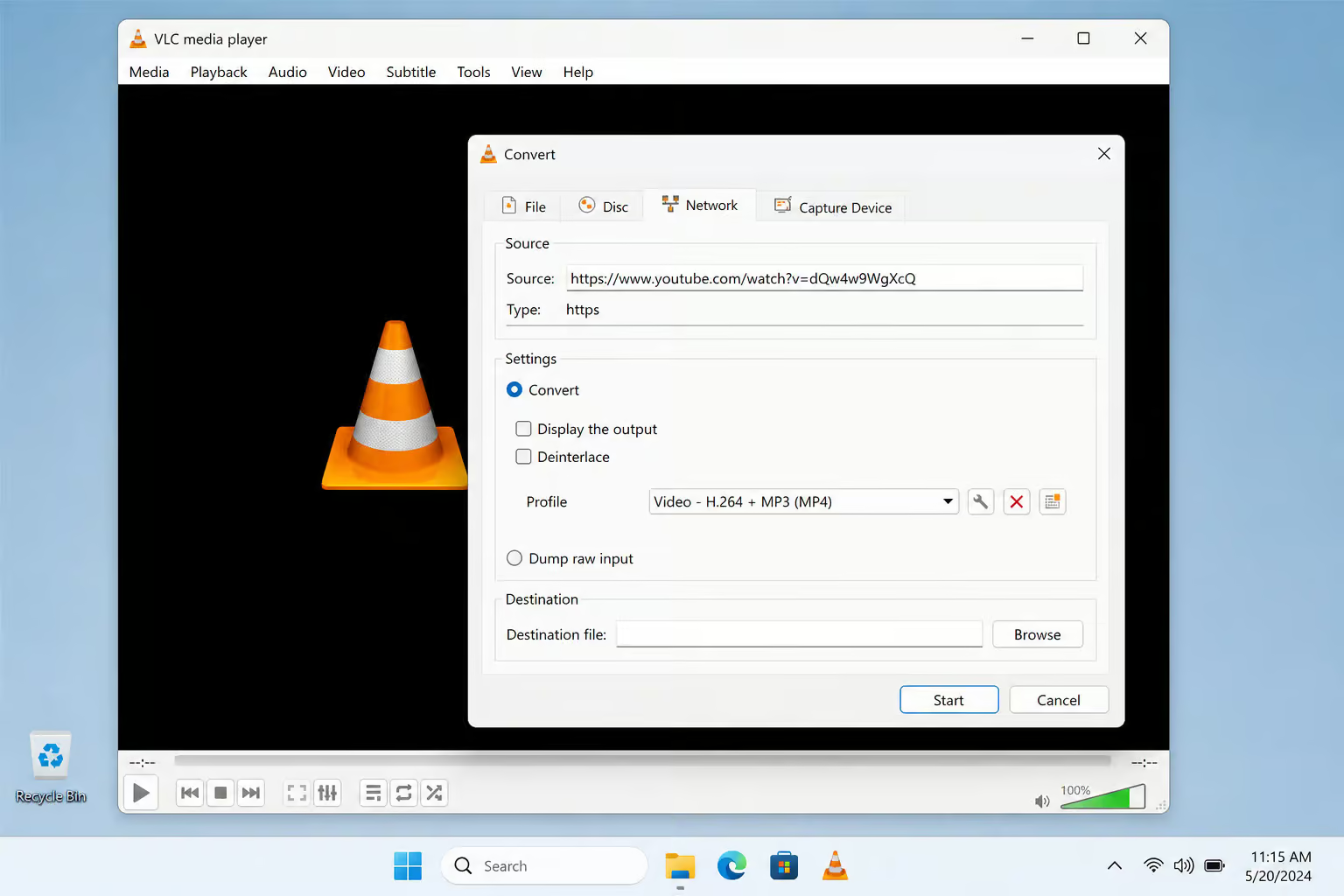
Open VLC, go to Media > Convert/Save, click the Network tab, paste the private video URL, choose your output format, and click Start. VLC streams the video and saves it as an MP4 (or whatever format you pick). It works on Windows, macOS, Android, iOS, and Linux.
One caveat: VLC can struggle with cookie-based authentication for some setups. It’s not as reliable as yt-dlp for private videos. But if you already have VLC installed and want a quick option without installing anything new, it’s worth trying.
Method 6: Firefox network developer tools (extension-free)
Firefox makes it surprisingly easy to download private YouTube videos without any extensions at all. The built-in Network Developer Tool can grab the stream directly.
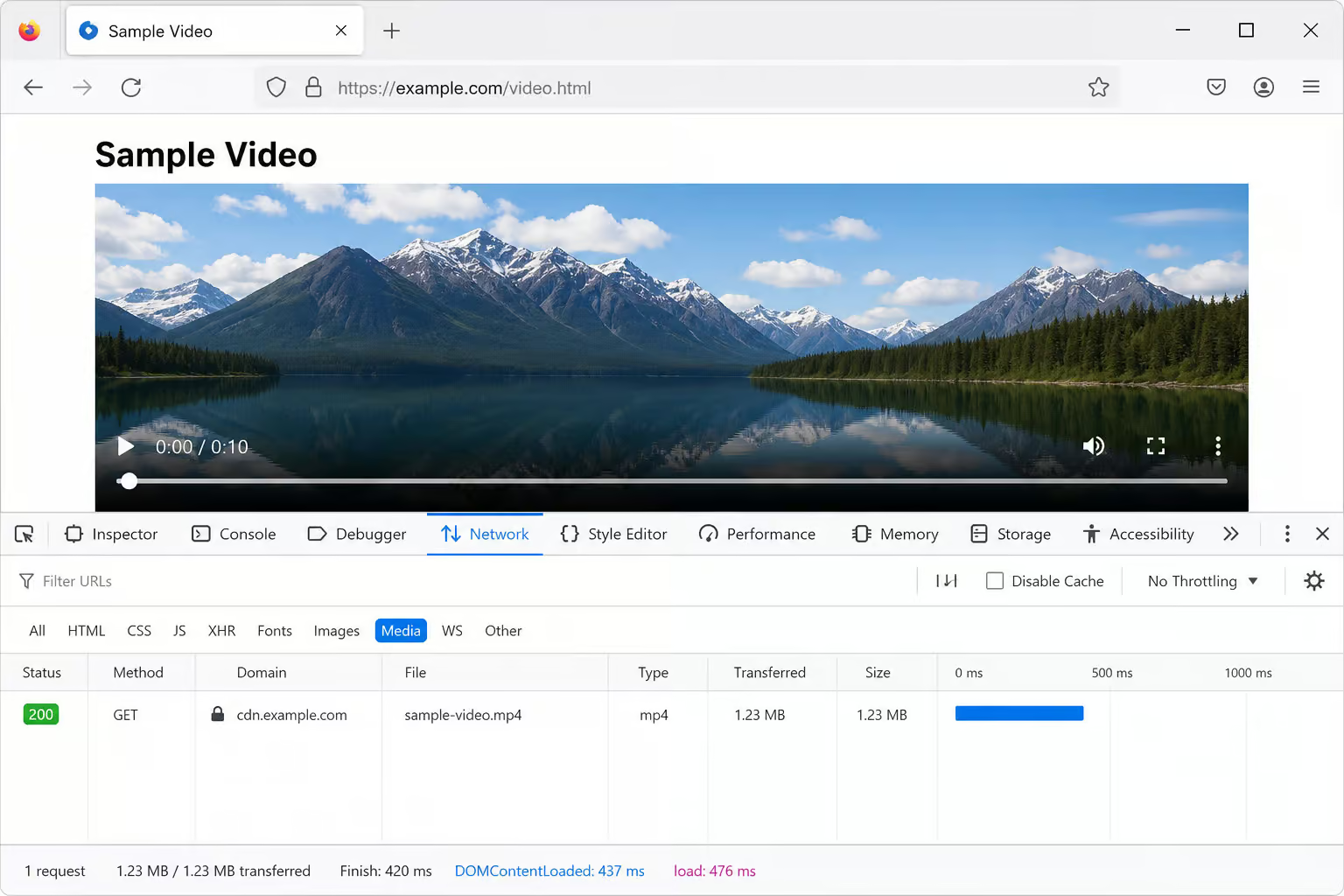
Open the private video in Firefox, press F12 to open Developer Tools, and click the Network tab. Filter by “Media” (there’s a button or a filter input depending on your version). Now play the video. As it streams, you’ll see a media request appear in the list—it’ll look like a video URL or a blob URL. Right-click that entry, copy the URL, and open it in a new tab. The video will play, and you can save it using the browser’s normal save function or right-click download.
This works because the stream has to pass through the browser’s network layer. Firefox’s developer tools let you peek behind the curtain. No extra software, no permissions to grant, no sketchy extensions. Just the browser you already have.
Method 7: Screen recording (universal fallback)
If everything else fails, screen recording is the nuclear option. It will always work because it operates at the OS level, not the browser level. If the video is visible on your screen, you can capture it.
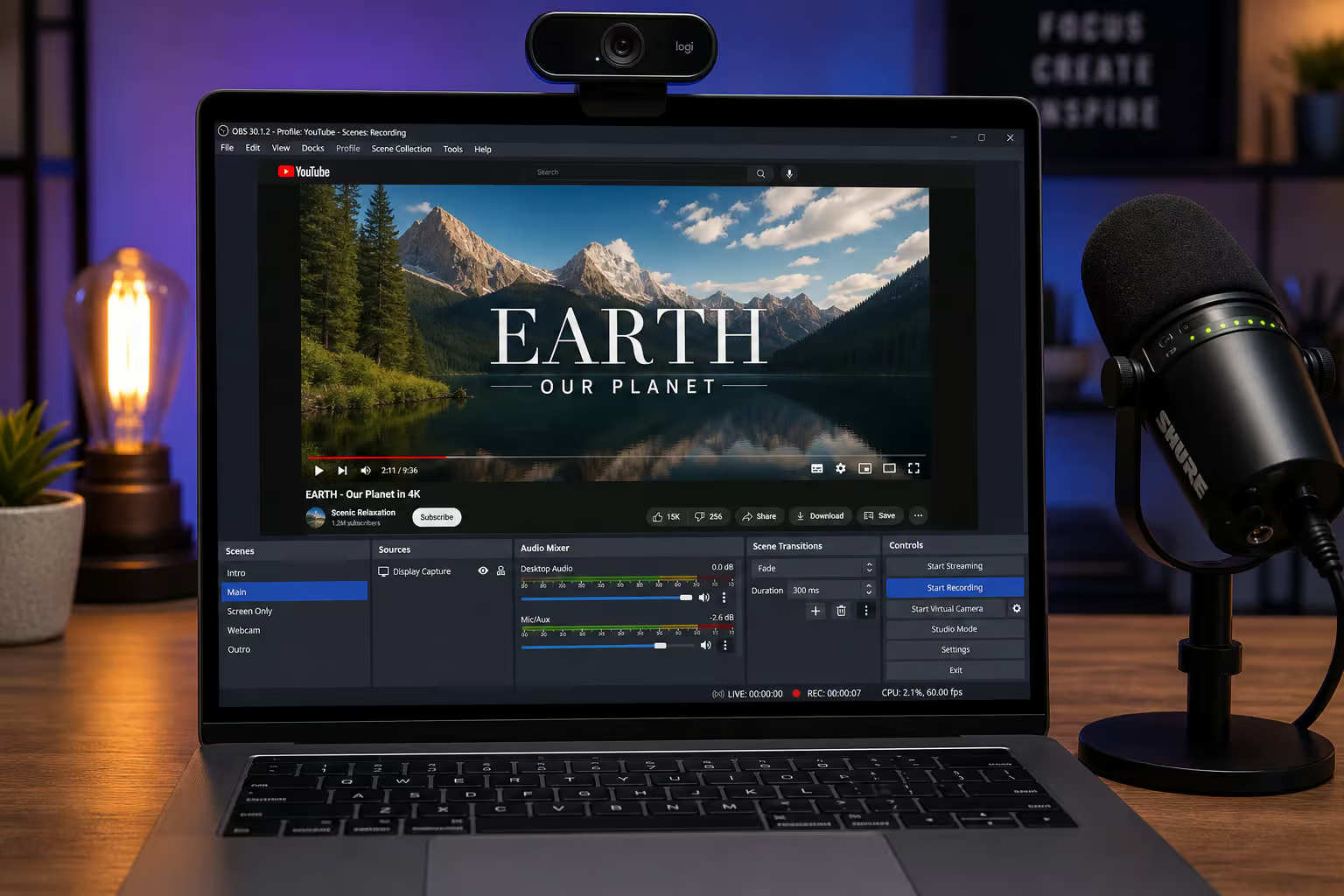
Launch a screen recorder (OBS, the built-in Windows/Mac tools, or a mobile screen recorder), play the video full-screen, and capture both video and audio. Simple.
But there are heavy trade-offs. You lose quality—resolution drops, bitrate suffers, and audio fidelity takes a hit. The result isn’t a clean file you can edit or archive. Use this for personal reference only. Sharing a screen recording without permission is still a violation, even if you recorded it yourself.
Alternative third-party download tools (desktop software and online tools)
I’m including these because you’ll find them in search results. Just know that most of them will hit a wall the moment they encounter a private video. These are general YouTube downloaders, built for public and unlisted content. They work fine for those cases, but for truly private videos, only the methods above (yt-dlp, Addoncrop, Firefox dev tools, screen recording) are confirmed to work. Tools like Crayo AI also fall into this category.
Here’s a quick reference:
- SaveFrom.net: Browser extension, various resolutions, MP3 conversion, free with ads
- YTD Video Downloader: Batch download, built-in conversion, free version has limited speed and ads
- VideoProc: High-quality downloads, video editing features, paid only
- SSYouTube: Free online tool, no installation, limited features, ads
- iTubeGo: Multiple formats, audio extraction, paid only
- Y2Mate: Online tool, no registration, multiple formats, ads
- TubeMate: Mobile-focused, Android APK, various formats
Why most downloader extensions get pulled from the Chrome Web Store
Starting in 2014, Google strengthened its policy against YouTube downloader extensions and started removing them from the Chrome Web Store. This wasn’t about technical failure—the extensions worked fine. It was a policy decision. YouTube’s terms of service prohibit downloading videos, and Google enforces that in its extension store.
This creates a predictable cycle. A promising extension appears, gains thousands of users, and then gets removed. Users search for it on unvetted third-party sites, where they risk installing outdated or malware-laced versions. Addoncrop survives because it doesn’t even try to stay in the Web Store—it uses the Foxified workaround to install from outside, bypassing Google’s enforcement entirely.
By the time you read about a working extension, it might already be gone. That’s not a bug in the extension. It’s the intentional outcome of Google’s store policy.
What actually protects a video from downloads (security hierarchy)
If a creator thinks disabling right-click protects their video, they’re wrong. Let me break down what actually works and what doesn’t.
Surface-level protections (don’t work): Disabling right-click, iframe embeds, and membership paywalls are UI speed bumps. They stop casual users but do nothing to anyone with a browser extension. The video stream is still flowing freely through the network. Right-click locks block the context menu, not the network.
Token authentication (also doesn’t work): YouTube and many other platforms append a time-limited cryptographic signature to the CDN delivery URL. This token has to stay valid for the entire viewing session—could be minutes or hours. But the token authenticates access; it doesn’t encrypt the stream itself. During that window, the stream is live, authenticated, and flowing to your browser. An extension capturing it has everything it needs.
Content-layer protection (works): DRM encryption is the real deal. DRM is a content licensing architecture governing decryption, devices, conditions, and duration. When a video is DRM-encrypted, the file on the CDN is an encrypted payload, not a readable video file. The decryption key never travels through browser-accessible memory in a usable form. Chrome extensions cannot download videos with properly implemented DRM.
Here’s where it gets nuanced. The three major DRM systems are Google Widevine, Microsoft PlayReady, and Apple FairPlay. Widevine comes in two flavors that are very different in terms of security.
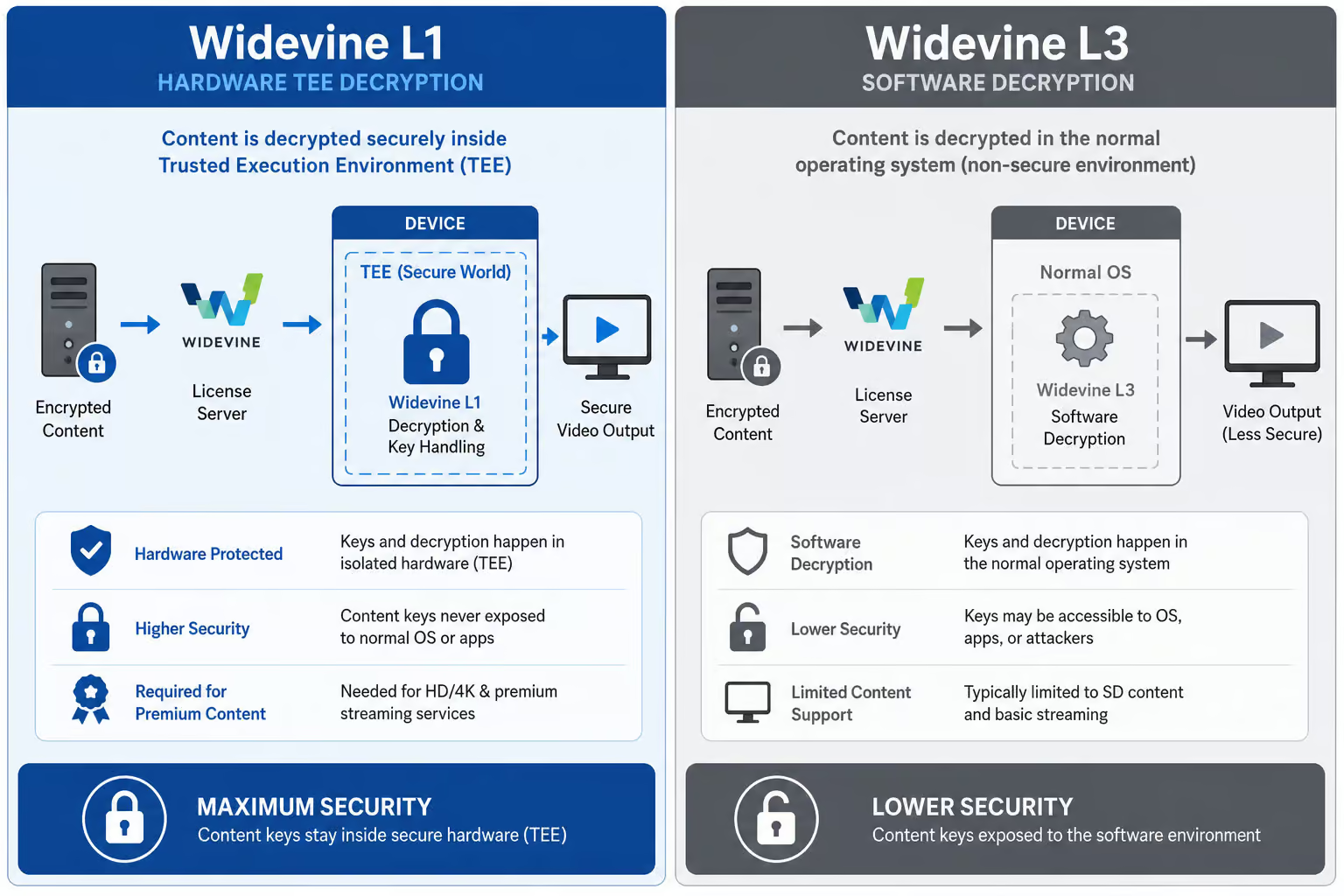
Widevine L1 uses a hardware Trusted Execution Environment (TEE) for decryption. The decryption happens in a secure area of the processor, completely isolated from the operating system and browser. It supports up to 4K HDR and has hardware-enforced screen capture resistance. It’s a fortress.
Widevine L3 uses software-only decryption. It supports up to 1080p, but it’s much more vulnerable. On rooted devices, L3 can be bypassed. Chrome extensions have a moderate chance of intercepting L3 streams.
The takeaway for creators: if you want to actually protect your content, DRM with L1 certification is the only option that reliably blocks browser-based download tools. Static watermarks and forensic tracking (like dynamic session-specific watermarking) don’t prevent capture, but they make leaks traceable. The combination—multi-DRM plus dynamic watermarking—is the gold standard.
Are these extensions safe? (permissions, risks, and red flags)
Before you click “Add to Chrome,” look at the permissions screen. If an extension asks for <all_urls> and debugger, it can read every website you visit. Is that really worth a YouTube download?
Here’s what those permissions actually mean:
- debugger: Access to Chrome’s debugging protocol. This is the same tool developers use to inspect network traffic, JavaScript execution, and page elements. It gives the extension deep visibility into everything happening in the browser tab.
- activeTab: Temporary access to the current tab for reading and modifying its content.
- downloads: Permission to trigger file downloads without user interaction.
- storage: Permission to store data locally in the browser.
- : The big one. Permission to read and modify every page you visit, on every domain. This is not limited to YouTube. The extension can see your bank account, your email, your work dashboard.
Sideloaded extensions—ones installed from outside the Chrome Web Store—have zero review process. Nobody at Google has checked the code for malware, data exfiltration, or unwanted behavior. Even officially reviewed extensions can be problematic. Video Downloader Unlimited, for example, has 1M+ users and a 3.7/5.0 rating, but starting from version 1.1.13, it cannot detect video resources on most websites.
Sites like loader-unlim.com host such extensions. Ratings aren’t guarantees.
If you’re going to use a downloader extension, stick to well-known open-source projects with public code you can audit. Or better yet, use yt-dlp and skip the extension entirely.
Putting it together: choosing the right method for your situation
Here’s the cheat sheet. Match your situation to the method, and you’ll save yourself a lot of headache.
- You are the video owner: Use YouTube Studio. Safest, easiest, fully legitimate.
- You are an authorized viewer and comfortable with a terminal: Use yt-dlp with
--cookies-from-browser. Most reliable, no extensions, full control. - You want a browser extension and accept the security risks: Use Addoncrop with Foxified. Understand you’re sideloading from outside the Web Store.
- You use Firefox and want zero installations: Use the Network Developer Tool. It’s built in and works surprisingly well.
- Everything else fails: Screen recording. It always works, but accept the quality loss.
The golden rule of downloading anything: ask first. Or at least make sure you have the rights. Creators put work into their content. Don’t be the person who steals it and shares it around. That’s just bad form. This article is intended for educational and informational purposes only and does not promote unauthorized downloading.
People Also Ask
How do I download any private video?
The most reliable method is using the command-line tool yt-dlp with the –cookies-from-browser flag, which passes your authenticated browser session to access the video. For a browser-based approach, Firefox’s built-in Network Developer Tool can capture the stream without any extensions. Both methods work because they intercept the video data as it flows through your network layer.
What’s the difference between private and unlisted YouTube videos?
Private videos require both the exact link and a login to a specific Google account that the uploader has granted access to. Unlisted videos are hidden from search and channel pages, but anyone with the link can view them without logging in. That authentication gate is why most downloader tools fail on private videos—they can’t carry a logged-in session through YouTube’s privacy controls.