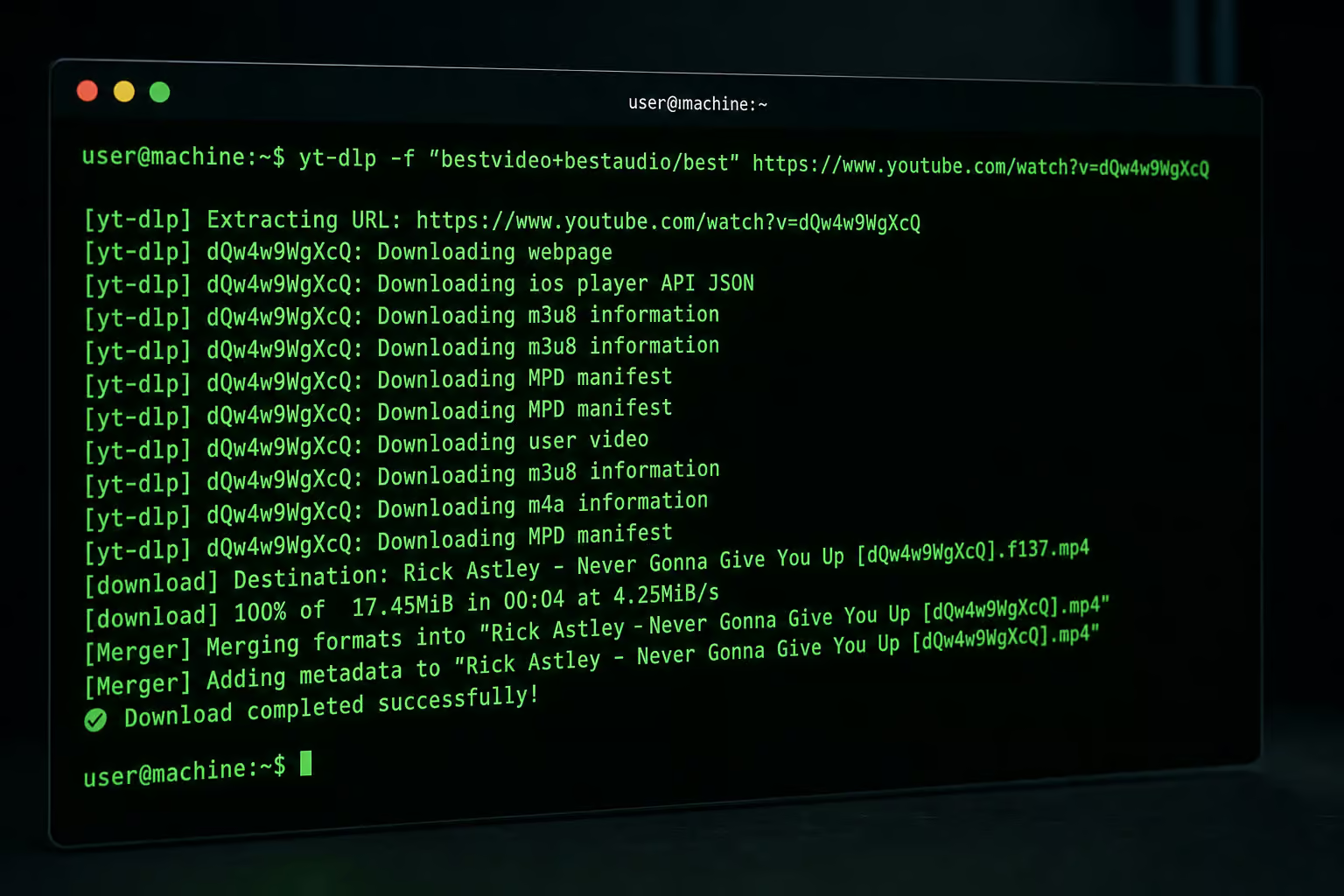
So you’ve got a link to a private YouTube video. You can watch it in your browser, but you want a local copy—maybe for offline viewing, archiving, or analysis. You try the usual tools and they all fail. YouTube’s authentication system doesn’t recognize your session without cookies.
That’s where yt-dlp comes in. It’s the actively maintained fork of youtube-dl, and it’s the way to download private videos if you already have access. Cookies: YouTube uses them to verify you’re logged in or that you’ve been invited via session tokens stored in your browser. Your browser has them; yt-dlp just needs a copy in Mozilla/Netscape format.
There are two paths: manual cookie extraction (more control, a conversion step) or automated browser extraction (easier, but with a security tradeoff). Both require you to actually have permission to view the video—this isn’t a piracy guide. It’s a how do I prove to yt-dlp that I’m allowed to be here guide using cookie authentication.
Key Takeaways
The manual method (F12 > Application > Cookies, copy, convert via convert-cookies.js) is often overlooked—most guides skip the conversion, leading to HTTP 400 errors from invalid newline format.
yt-dlp’s --cookies-from-browser is a route, but it exports cookies for every site you’re logged into; treat that file like a password; it contains all your login sessions.
YouTube throttles requests with an HTTP chunk size over 10MB, and Cloudflare’s anti-bot protection requires cookies refreshed within 30 minutes per the FAQ.
Table of Contents
What You Need Before Starting
Before you can download anything, you need yt-dlp and ffmpeg on your system.
yt-dlp – the downloader itself. Grab it from GitHub releases (it has 14,800 forks, so you’re not alone). Install via your package manager if you prefer, but the binary works on Windows, Linux, and macOS.
ffmpeg – because YouTube serves high-quality video and audio as separate streams. yt-dlp downloads both, and ffmpeg merges them into a single file. Without it, you’ll get a video with no audio or an error like ‘incorrect codec parameters’ or ‘Invalid argument’.
Both need to be accessible from your terminal. The cleanest way is to add them to your PATH—put the executables in a bin folder inside your user directory, then add that folder to your PATH environment variable (e.g., export PATH=$PATH:~/bin on Linux/macOS). After restarting your shell or running source ~/.bashrc, yt-dlp and ffmpeg are available globally.
Server-side trivia: PeerTube v6.3.3, a federated video platform, uses yt-dlp under the hood. Its
production.yamlshowsforce_ipv4: true,concurrency: 1, andtimeout: '2 hours'– conservative settings because YouTube will throttle you if you go too fast. Even a whole video platform has to play nice.
Method 1: Manual Cookie Extraction (Step-by-Step)
This method comes from a forum user named sexynsmartjenny who documented the exact workflow on a tech forum. It’s reliable because you control every step of the cookie extraction and conversion.
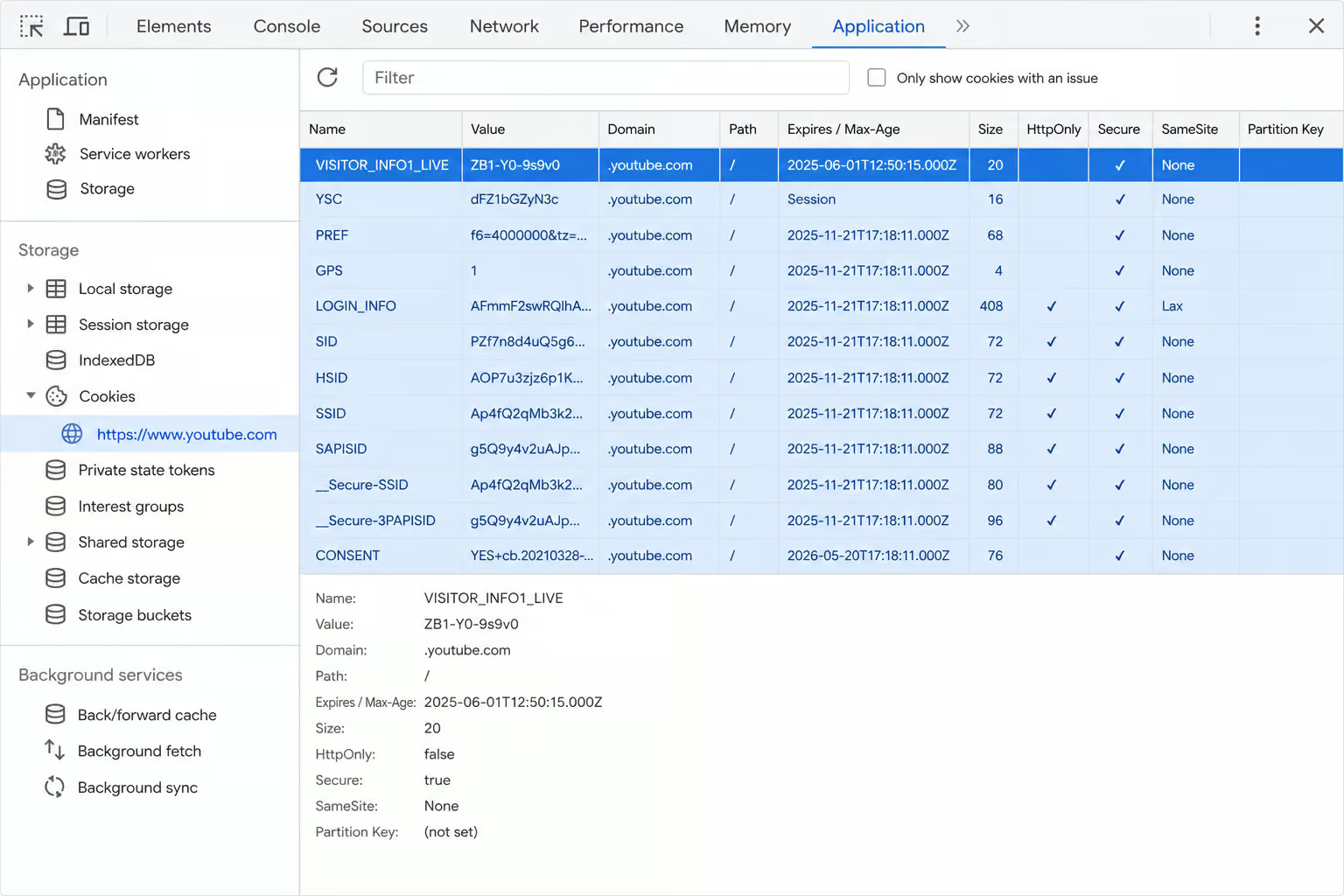
Open Chrome Developer Tools
Press F12 and click Application > Storage > Cookies. You’ll see a list of cookies for youtube.com.
Copy All Cookies
Select all the rows (Ctrl+A), copy them, and paste them into a plain text file. Name it cookiesF.txt. That file is usable, but not yet because it’s not in Netscape format.
Convert to Netscape Format
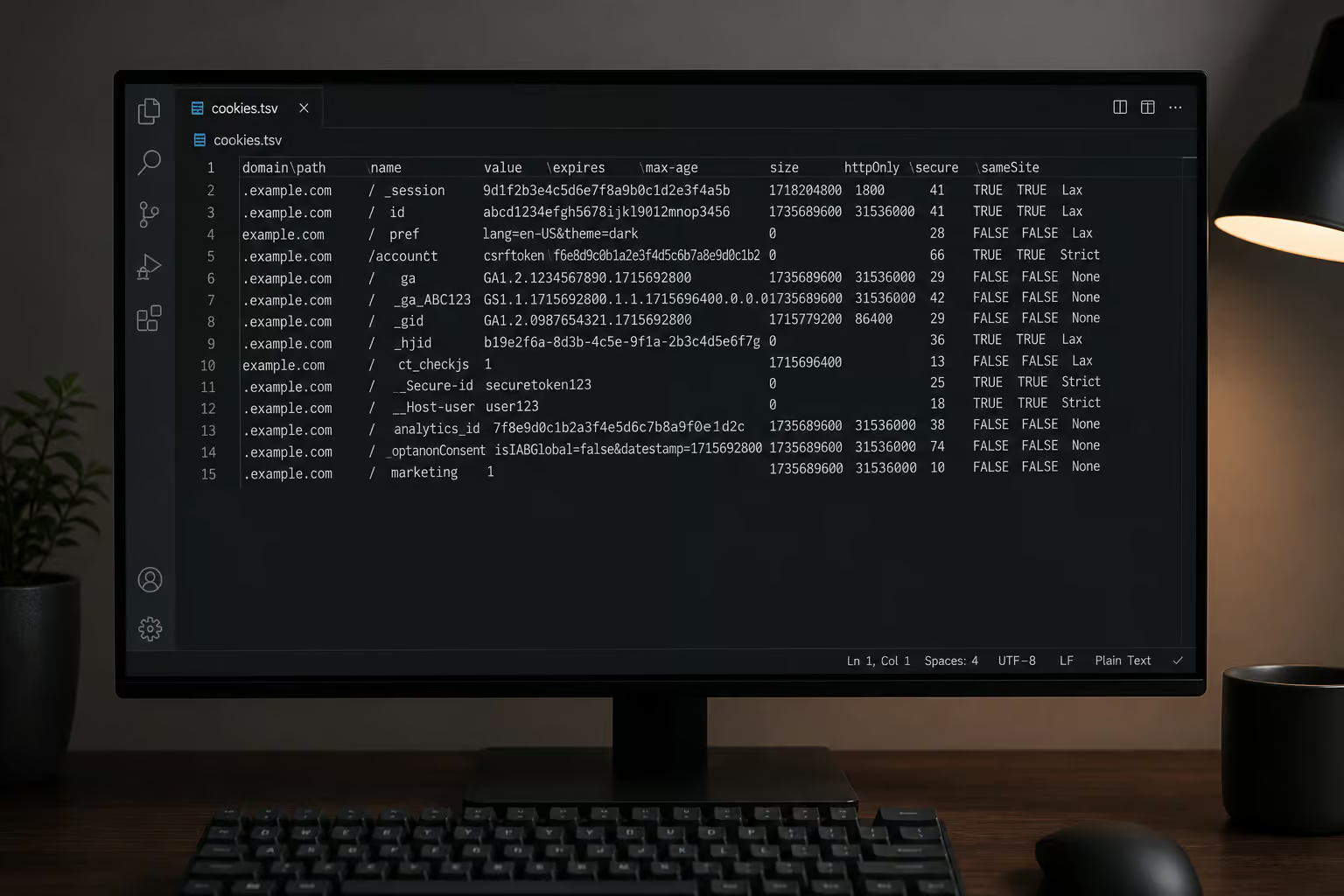
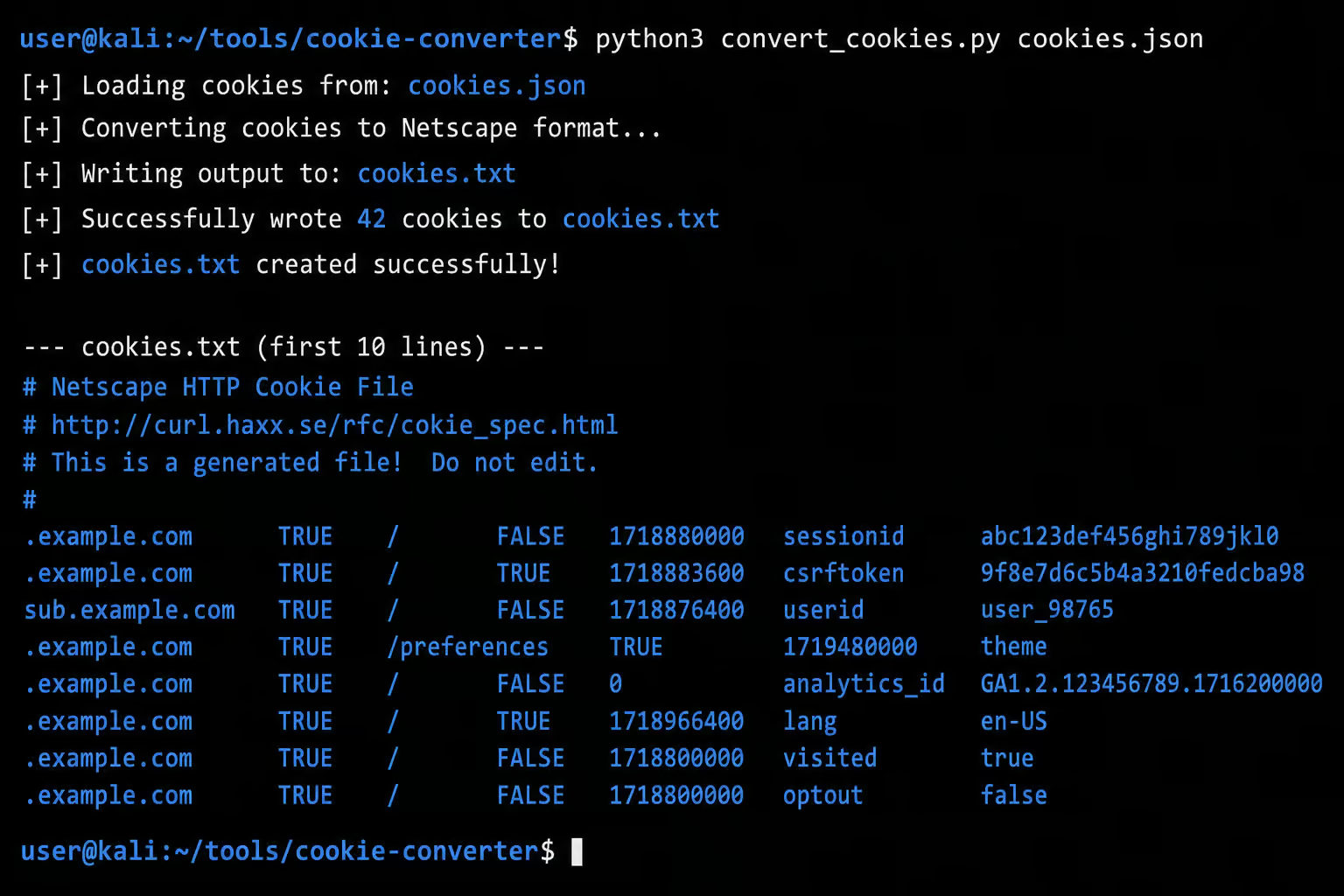
yt-dlp requires the cookie file in Mozilla/Netscape format with the first line ‘# HTTP Cookie File’ or ‘# Netscape HTTP Cookie File’. The raw dump from DevTools won’t work; it lacks the required header and uses tab-separated values.d a converter script called convert-cookies.js. It’s a third-party utility—not bundled with yt-dlp—so you’ll have to find it on GitHub or a code-sharing site like Gist.
Run this command in the same directory as your cookiesF.txt:
node convert-cookies.js cookiesF.txt > cookies.txt
This produces a cookies.txt file that starts with # HTTP Cookie File or # Netscape HTTP Cookie File. That header is mandatory; without it, yt-dlp returns HTTP Error 400.
Run yt-dlp with the –cookies Flag
Now point yt-dlp at your video URL:
yt-dlp --cookies=cookies.txt "https://www.youtube.com/watch?v=VIDEO_ID"
It should download if cookies are valid and format is correct. If you get an HTTP Error 400: Bad Request, jump to the troubleshooting section—it’s a newline problem (CRLF vs LF).
Guides skip the conversion step entirely, leading to HTTP 400 errors. They tell you to copy cookies and use the file directly, and you’ll get a 400 error from invalid format. The
convert-cookies.jsstep is the hidden gotcha that tutorials omit.
Method 2: Automated Cookie Extraction (Easier Alternative)
If you’d rather let yt-dlp grab cookies directly from your browser, use the --cookies-from-browser flag.
yt-dlp --cookies-from-browser chrome
yt-dlp reads Chrome’s cookie database at the default profile path, extracts the YouTube session, and downloads the video. It works with Firefox too: --cookies-from-browser firefox using Firefox’s cookie store.
Handling Chrome Flatpak on Linux
If you installed Chrome via Flatpak, the path is non-standard: ~/.var/app/com.google.Chrome/. Specify the profile location:
yt-dlp --cookies-from-browser "chrome:~/.var/app/com.google.Chrome/"
Export to a File (with a Security Warning)
You can also export the browser cookies to a file for repeated use:
yt-dlp --cookies-from-browser chrome --cookies cookies.txt
That file contains cookies for every site you’re logged into—Gmail, Twitter, banking, everything—so treat it like a password. If someone gets that file, they have your login session for all sites. Don’t leave it lying around, and don’t upload it anywhere; delete it after use.
The automated method is faster, but the manual method gives you control over which cookies are exported. Choose based on your comfort level with command-line tools and security.
Cookie Format Requirements and Common Pitfalls
yt-dlp understands one cookie format: Mozilla/Netscape (also called Netscape HTTP Cookie File) with the first line ‘# HTTP Cookie File’ or ‘# Netscape HTTP Cookie File’. The first line must be one of:
# HTTP Cookie File
or
# Netscape HTTP Cookie File
The Newline Trap
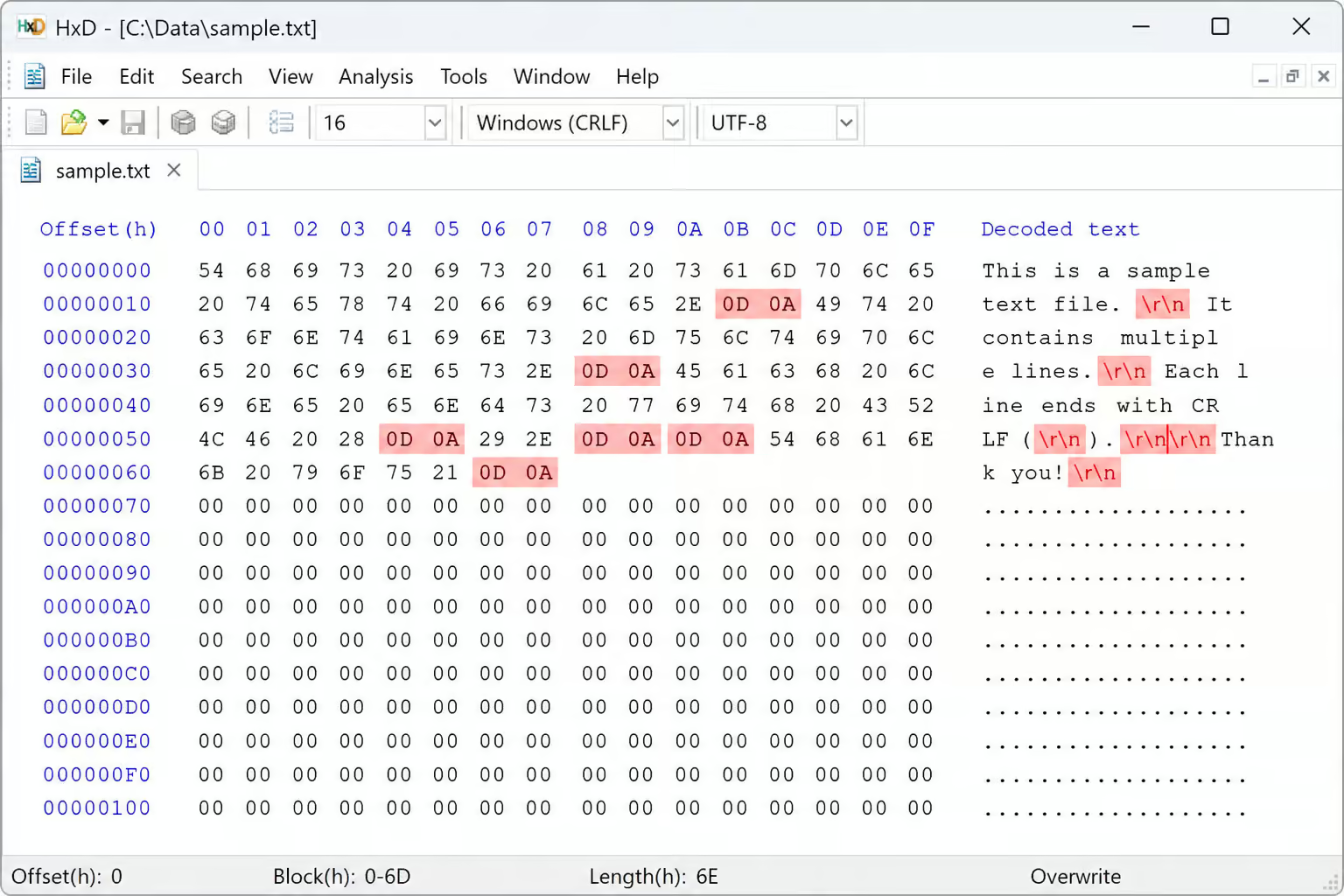
If you’re on Windows, your text file uses CRLF (rn) by default. If you’re on Linux or macOS, it uses LF (n) by default. yt-dlp fails on mismatched newlines, returning HTTP Error 400.
HTTP Error 400: Bad Request means the newline format is wrong (CRLF vs LF). Check with a hex editor or use file cookies.txt (Linux/macOS) to see the line endings; look for ‘CRLF’ or ‘LF’. Convert CRLF to LF with dos2unix or a text editor like Notepad++ (Edit > EOL Conversion > Unix).
EditThisCookie Trap
The EditThisCookie Chrome extension exports cookies as JSON by default, which yt-dlp cannot parse. yt-dlp can’t parse JSON; it requires Netscape format. You must go into EditThisCookie’s settings and change the export format to “Netscape HTTP Cookie File” before copying; otherwise you’ll get HTTP Error 400. People miss this and wonder why nothing works, getting HTTP Error 400, even when using a supposedly helpful download YouTube private video Chrome extension.
Troubleshooting HTTP Errors and Blocking
| Error | Cause | Fix |
|---|---|---|
| HTTP 429/402 | IP blocked from overuse (too many requests) | Solve a CAPTCHA in your browser, then pass those fresh cookies to yt-dlp. Use --source-address if you have multiple IPs. You may also need --user-agent. |
| HTTP 403 | Cloudflare anti-bot fingerprinting | Refresh your cookies within the last 30 minutes, get your browser’s User-Agent string (from about:support in Firefox or chrome://version in Chrome), and pass both with --user-agent and --cookies. Reportedly works best with Firefox. |
| HTTP 400 | Cookie format or newline issue (CRLF vs LF) | See previous section. |
| YouTube throttle | HTTP chunk size > 10MB | Keep individual request sizes below 10MB; use --limit-rate if needed. No magic number—just don’t try to download a 4K video in one chunk. |
| ffmpeg codec error | “incorrect codec parameters” or “Invalid argument” | Older ffmpeg versions have only experimental Opus support. Update ffmpeg, or add --postprocessor-args "ffmpeg:-strict -2" to force experimental mode. |
For a comprehensive breakdown of the methods, risks, and legal gray areas behind each fix, see the complete guide on how to download private video from youtube.
The Cloudflare 30-Minute Window
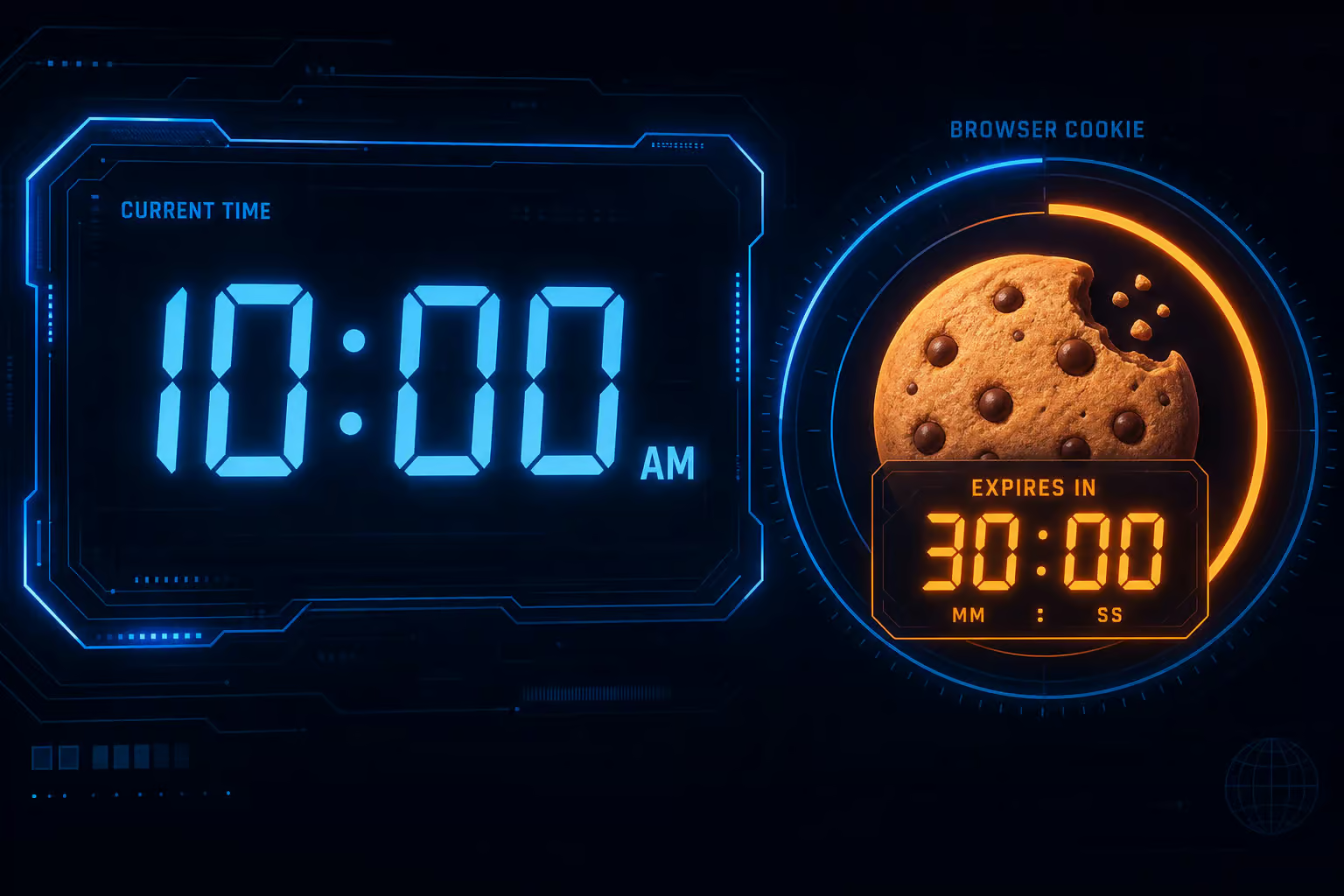
The FAQ is explicit: Cloudflare’s cookie-based bypass works if the cookies were created within 30 minutes; older cookies return HTTP 403. If you extract cookies at 10:00 AM and try to download at 11:00 AM, you’ll get a 403. Re-authenticate in the browser and re-extract cookies within 30 minutes.
Cookie Domain Evolution: Then vs. Now
The cookie domain requirement changed around 2020.
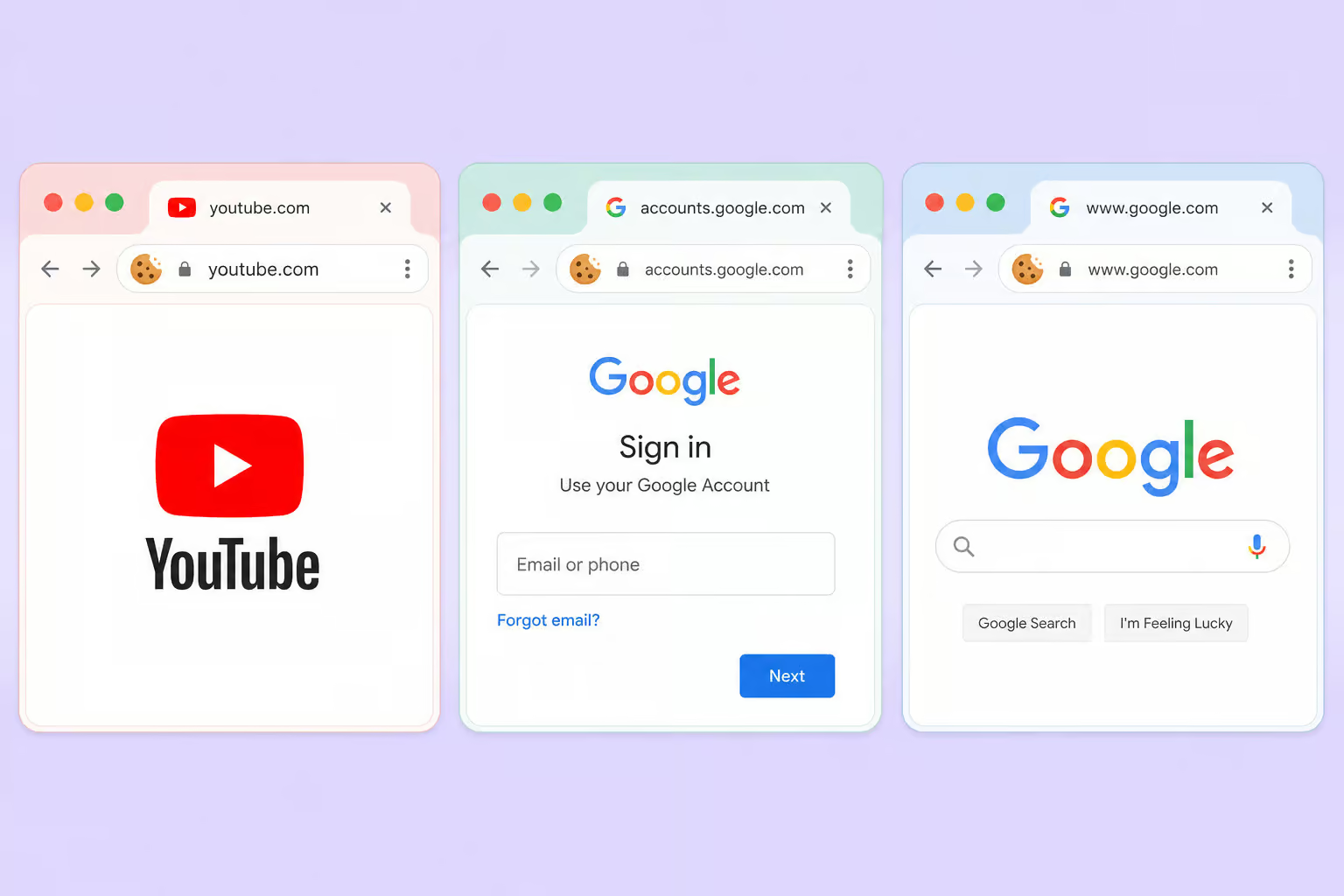
In 2018, the consensus was that you needed cookies from three domains: youtube.com, accounts.google.com, and www.google.com per forum discussions. You’d have to export each domain separately with EditThisCookie and combine the files into one cookies.txt.
By 2020-07-30, that changed per yt-dlp team findings. Users (and the yt-dlp team) found that cookies from youtube.com alone were sufficient as of 2020-07-30. The multi-domain requirement may have relaxed, or YouTube’s authentication flow changed to use youtube.com cookies.
Try the single-domain method first (youtube.com). If you get errors, export all three (youtube.com, accounts.google.com, www.google.com) and merge them. It takes an extra minute but saves frustration from HTTP 400 errors.
Alternative Authentication Methods
Cookies aren’t the only way, but they’re reliable for YouTube as of 2024.
OAuth / App-Specific Passwords
Google allows you to generate an application-specific password that bypasses two-factor authentication for username/password authentication. You can use it with yt-dlp’s --username and --password flags:
yt-dlp --username your.email@gmail.com --password "app-specific-password" "URL"
This works, but it’s clunky because Google’s OAuth flow isn’t designed for command-line tools, and you have to generate a new app password every time you change your main password or every 6 months.
–add-header Method
You can extract the cookie header from your browser’s network inspector (the Cookie request header) and pass it directly with --add-header:
yt-dlp --add-header "Cookie:COOKIE_STRING" "URL"
But for YouTube, this won’t work because YouTube’s authentication spans multiple domains. YouTube’s authentication spans multiple domains (youtube.com, accounts.google.com, www.google.com), and a single Cookie header may not contain everything yt-dlp needs. Stick with --cookies-from-browser or the manual file method for reliability.
Advanced Usage: Playlists, Streaming, and Output Control
Once you have cookies working, yt-dlp becomes a tool for downloading, streaming, and archiving.
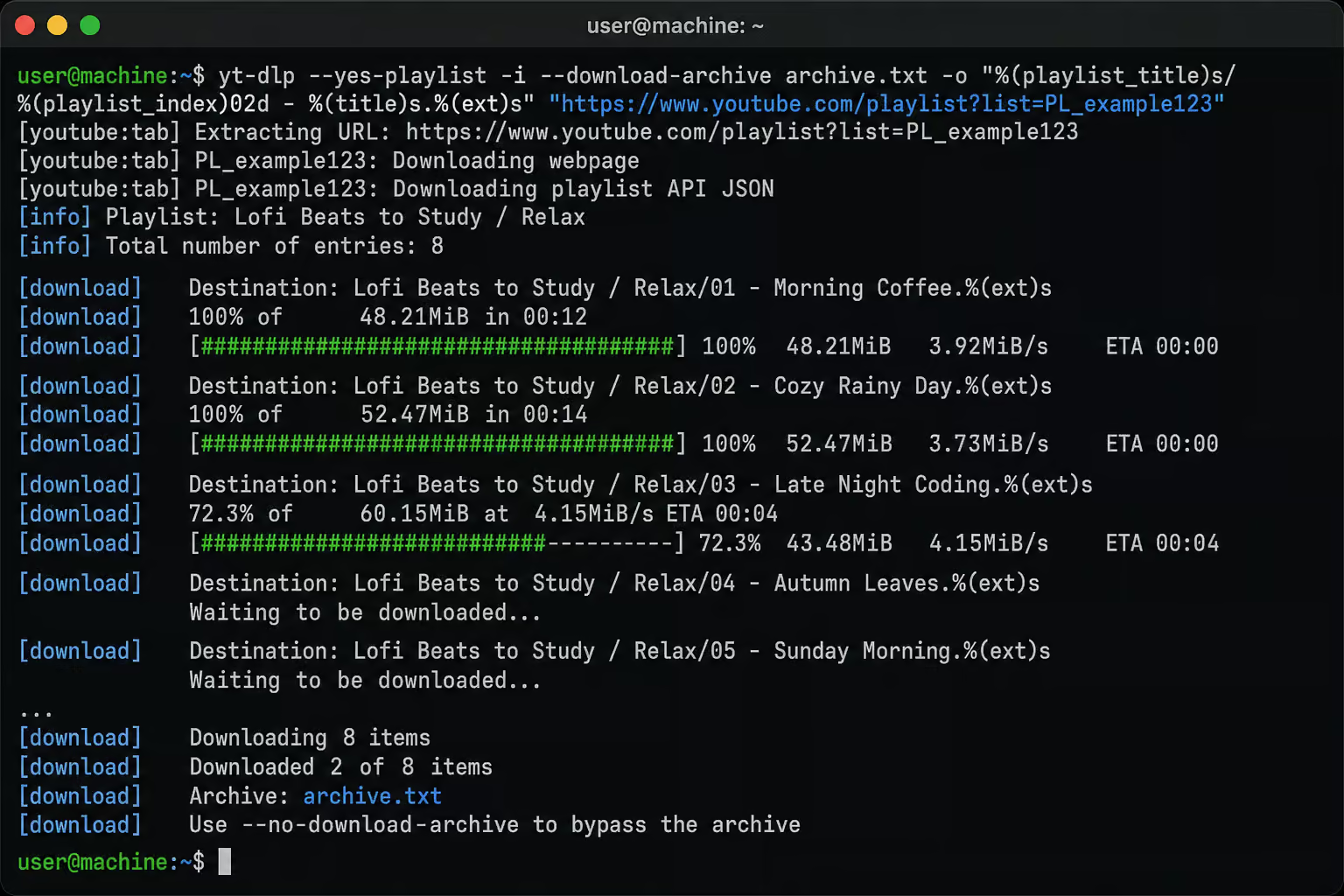
Download Archive for Playlists
If you’re downloading a playlist, use --download-archive archive.txt to track what you’ve already grabbed:
yt-dlp --download-archive archive.txt --cookies=cookies.txt "playlist URL"
Subsequent runs skip already-downloaded videos by checking the archive file. Saves bandwidth by avoiding redundant downloads.
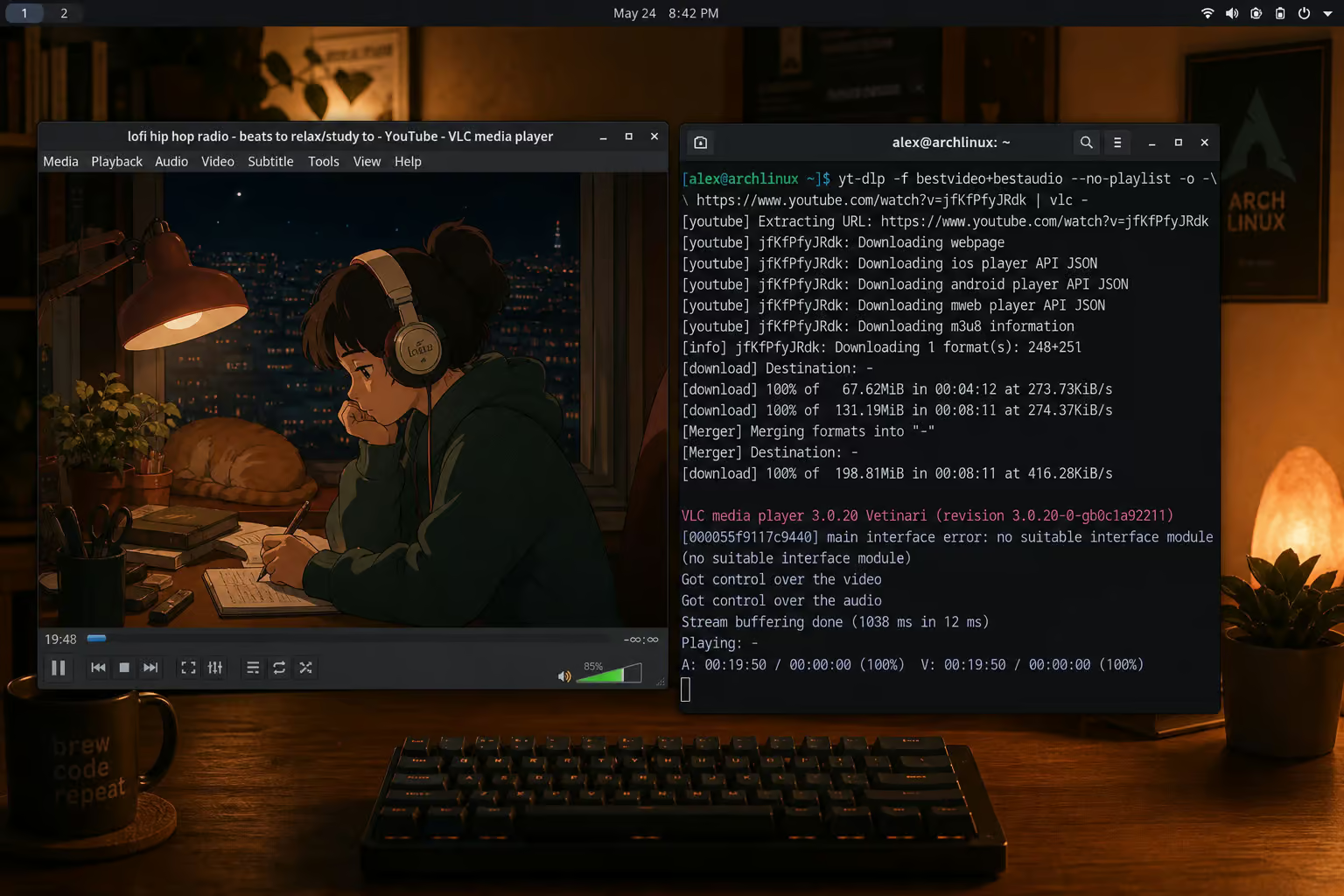
Stream Directly to VLC
Want to watch without saving a file? Pipe the output to VLC using -o -:
yt-dlp -o - "URL" | vlc -
The -o - tells yt-dlp to output to stdout for piping to another program. For quality, add --downloader ffmpeg -f "bv*+ba/b" to download best video and audio streams.
Output Templates and Filename Limits
YouTube titles can exceed OS filename limits (especially on Windows, which has a 255-character limit). Use an output template with -o to truncate:
yt-dlp -o "%(uploader).30B - %(title).200B.%(ext)s"
This limits the uploader name to 30 characters and the title to 200 characters to avoid filename errors.
Shell Escaping
URLs containing & need quoting or escaping because & is a special shell character. In shells (bash, zsh, fish), & is a special character for backgrounding processes. Wrap the URL in quotes to prevent shell interpretation:
yt-dlp "https://www.youtube.com/watch?t=4&v=BaW_jenozKc"
Security, Ethics, and Extension Safety
“Is yt-dlp safe?” Yes, it’s open-source and maintained on GitHub with regular releases. But some third-party tools masquerading as helpers are not, like the ‘Get cookies.txt (not LOCALLY)‘ extension.
The “Get cookies.txt (not LOCALLY)” Chrome extension was flagged as malware and removed from the Chrome Web Store in 2023. If you have it installed, uninstall it to protect your login sessions.
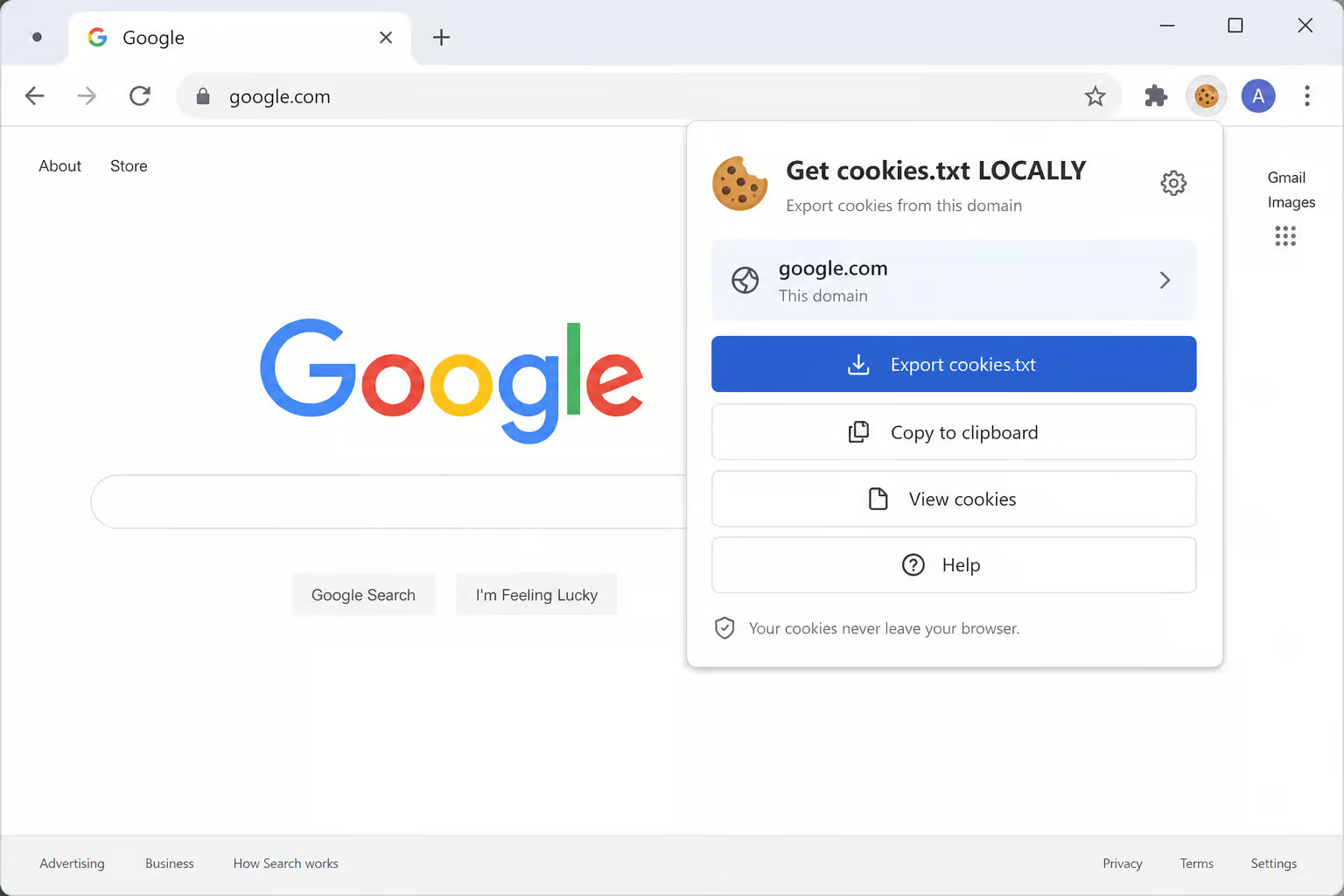
The alternative is “Get cookies.txt LOCALLY” for Chrome, and the equivalent conforming extension for Firefox (e.g., ‘cookies.txt’ by Alexei). These export cookies without sending them anywhere, keeping them local.
This process works for videos you already have permission to view; yt-dlp excludes piracy-related sites. yt-dlp excludes piracy-focused sites to avoid legal trouble, and over 25% of GitHub issues (as of 2024) are closed as invalid or duplicates. Before filing a bug, run yt-dlp -Uv <your command> and include that output in the GitHub issue.
Some YouTube videos now have DRM (Digital Rights Management) protection. yt-dlp can’t bypass DRM; if a video is protected, you’re out of luck. If a video is protected with DRM, you’re out of luck.
Conclusion
You’ve got two methods to download private YouTube videos you have access to: the manual cookie extraction with convert-cookies.js (transparent, more steps) and the automated browser method with --cookies-from-browser (simpler, broader security exposure because it exports all site cookies), though for most users the best method to download videos from YouTube is a dedicated tool like SnapDownloader.
Frequently Asked Questions
How long do YouTube cookies last for yt-dlp downloads?
Cloudflare’s cookie-based bypass requires cookies created within the last 30 minutes. If you extract cookies at 10:00 AM and try to download at 11:00 AM, you’ll get an HTTP 403 error. You need to re-authenticate in your browser and re-extract fresh cookies within that 30-minute window.
Why does my downloaded YouTube video have no audio?
YouTube serves high-quality video and audio as separate streams. yt-dlp downloads both, but you need ffmpeg installed and accessible from your terminal to merge them into a single file. Without ffmpeg, you’ll end up with a video-only file or get an error about incorrect codec parameters.