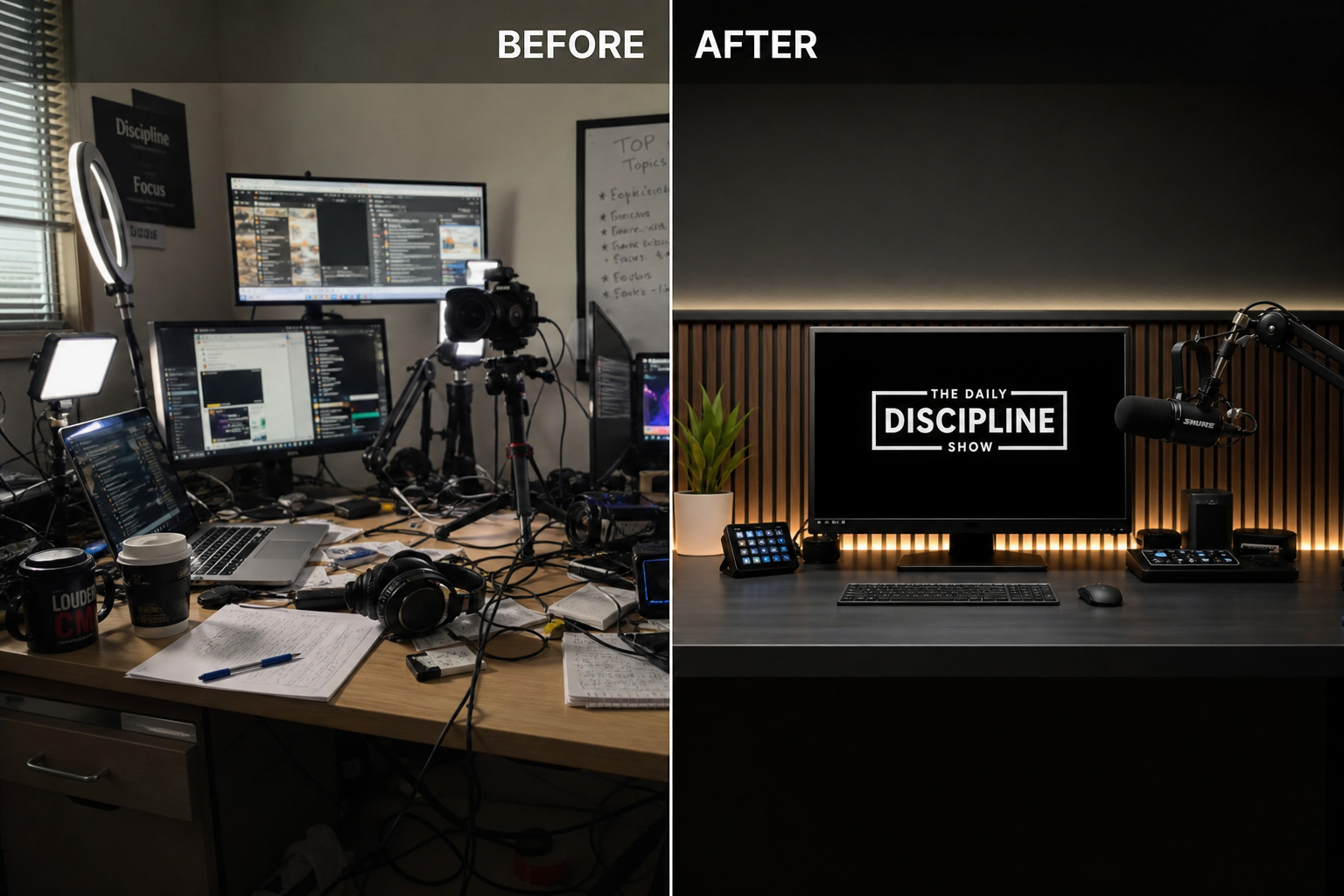
If you’re looking at your current broadcast setup and wondering how to improve live streaming without draining your bank account, you need to step away from the hardware checkout page. Streamers continually bleed money on high-end camera bodies and microphones to fix audience retention, but a $10 budget microphone with strictly applied audio filters will demolish an untuned $400 broadcast rig.
Excellent stream quality is achieved through a scalable hierarchy: you fix your environmental acoustics and visual physics first, then you optimize graphic rendering, and finally, you automate the whole hybrid setup for broadcast-grade reliability.
Key Takeaways
Implementing the 10x quality rule—prioritizing manual lighting adjustments and software noise gate tuning—outperforms the visual improvements of buying a new camera lens.
Setting your encoder to output a clean 1080p 60fps at an 8k bitrate, while stripping away heavy browser source panels, is the most efficient way to maximize processing power.
The highest conversion window for casual viewers occurs during the 5:00 PM to 8:00 PM peak post-work period, requiring a flanking launch strategy to avoid colliding directly with mega-creators.
Table of Contents
Calibrate Audio Gates and Side-chaining Before Buying Gear
The quickest way to figure out how to improve stream quality on Twitch or YouTube isn’t plugging in a new physical device; it’s recognizing that most audio problems are physical delivery failures. Shift your production focus away from hardware upgrades until room acoustics, software noise thresholds, and microphone positioning have been exhausted.
Dynamic Microphones Vs. Room Acoustics
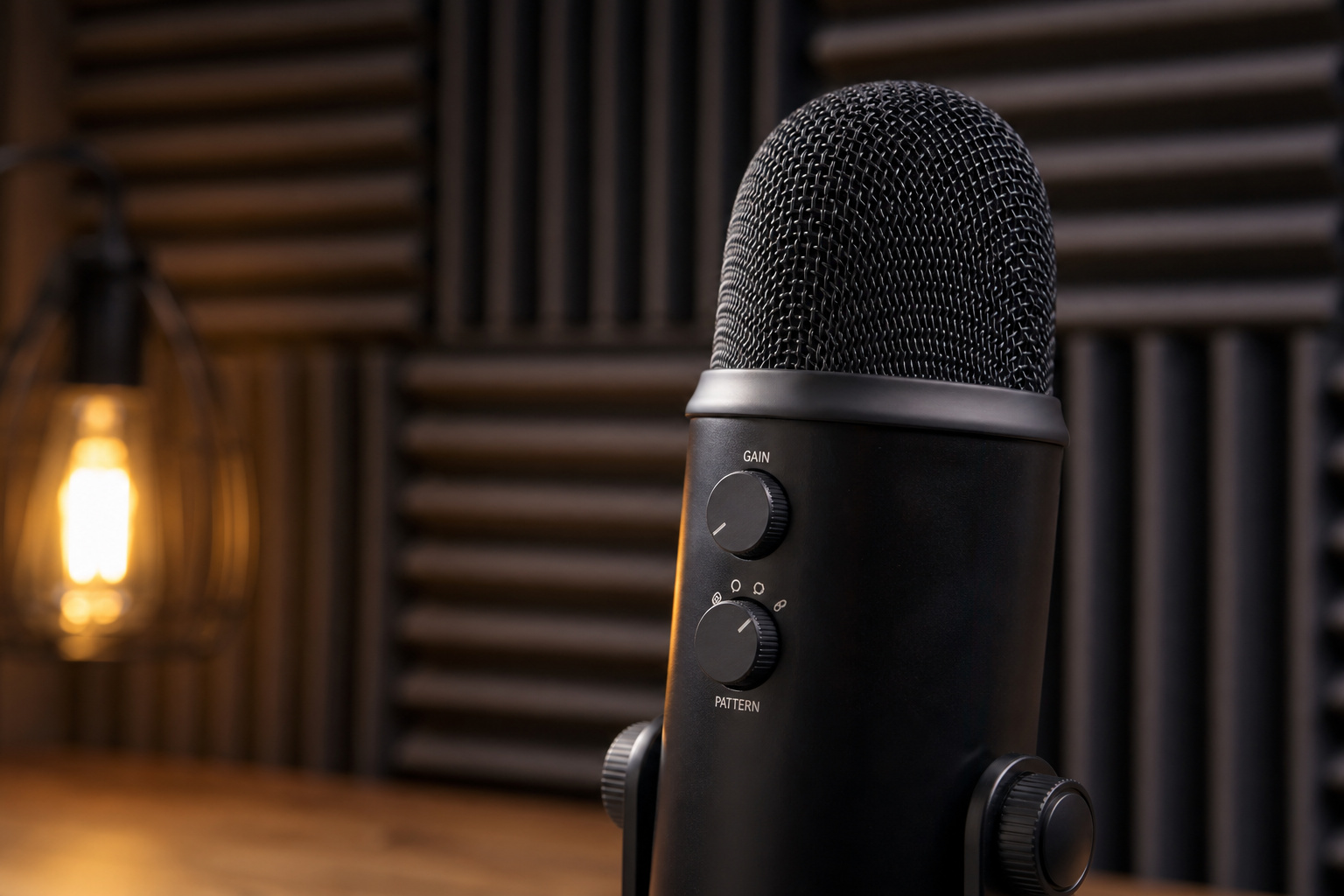
The trap in streaming is dropping $400 on a Shure SM7B dynamic microphone without configuring software noise gates, leaving you with audio of your mechanical keyboard clacking and your untreated bedroom walls echoing back at you. High-end dynamic mics are designed for treated studios, meaning they’ll pick up the acoustic chaos of a standard gaming room. Stop fighting your gear. Throw a thick sound blanket or rug down to absorb bouncy frequencies, move your cheap $30 USB mic slightly off-axis so you aren’t blowing direct air into the diaphragm, and practice speaking at a consistent, projected volume.
Automating Levels With Side-chain Ducking
Once your voice delivery is clean, it’s time to engineer a polished audio mix. The smartest trick you can deploy is audio ducking, where configuring side-chaining natively in your streaming software forces your background music and gameplay sounds to instantly compress the exact millisecond you speak. You tell your OBS audio filter to monitor your microphone track, setting a specific decibel reduction target. Whenever voice input is detected, the game audio gracefully bows out of the way, replicating the tight, automated mixing of a professional radio or TV broadcast without requiring you to ride a physical volume slider.
“A $10 budget microphone with strictly applied audio filters will demolish an untuned $400 broadcast rig.”
Fix Visual Physics With Zero-budget Cross-lighting
Camera sensors crave light, and when they don’t get it, they brighten the room, resulting in the fuzzy, grainy quality amateur streamers are known for. Once you learn how to improve streaming quality by managing light physics, you’ll realize an expensive camera is irrelevant in a dark room.
Eliminating Single-source Flat Lighting
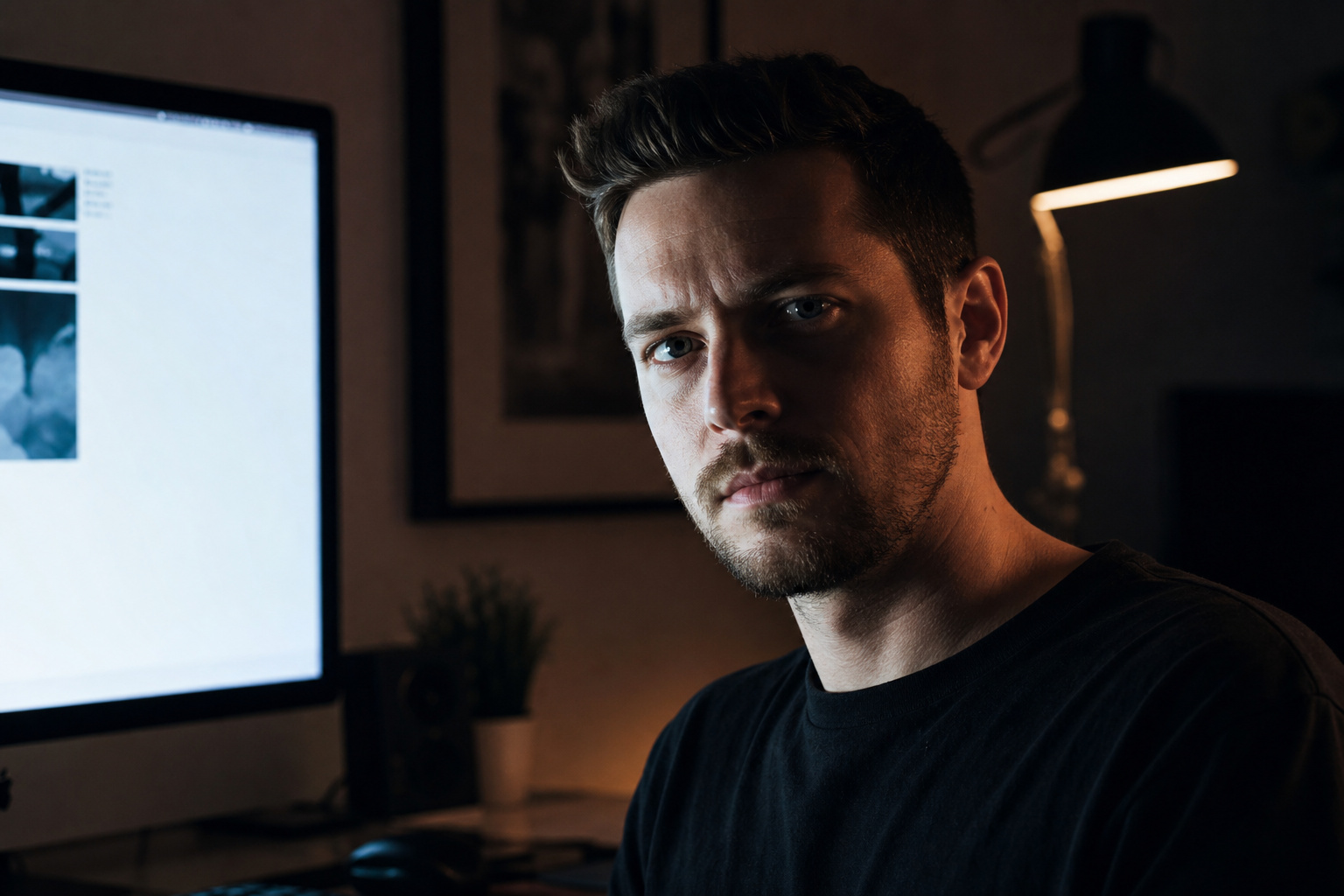
Even though production standards have evolved significantly throughout the history of livestreaming, a recurring aesthetic friction point is still the tacky, washed-out look that happens when you stick a single ring light directly in front of your face. Instead, establish a cross-lighting setup to introduce dimension. You can easily do this by repurposing basic household lamps angled just off-camera to cast directional light. If you don’t want to mess with desk lamps or buy expensive panels, you can open up blank browser tabs on secondary light-mode monitors to act as free, diffused soft fill lights. Turning up your second screen’s brightness and bouncing that white light onto the side of your face is an incredible zero-budget hack that elevates the depth of your camera feed.
Managing Exposure, Gain, and Camera Stabilization
Once you have sufficient physical light, dive into your camera settings to aggressively drop the camera exposure and squash the digital gain down to their lowest functional minimums. Gain is what introduces visual “noise” or pixel fuzz, and by forcing the lens to rely on your external monitor lights, you get a cleaner image. Hardware matters here: if your camera moves or shakes during a live broadcast, the encoder tries to redraw the screen; leveraging in-body stabilization—found on rigs like the Sony Alpha Series—improves bitrate efficiency by keeping backgrounds static and preventing blocky pixelation during the stream.
Optimize Graphic Assets to Protect Encoding Bitrate
If you’ve ever dealt with a “YouTube preparing stream stuck” error, or your game looks like a pixelated mess when you turn the camera, your graphics are probably starving your stream. A clean 1080p 60fps feed at an 8k output bitrate looks phenomenal, but only if your PC has the resources right there to encode it efficiently.
The Hidden Cost of Browser Sources
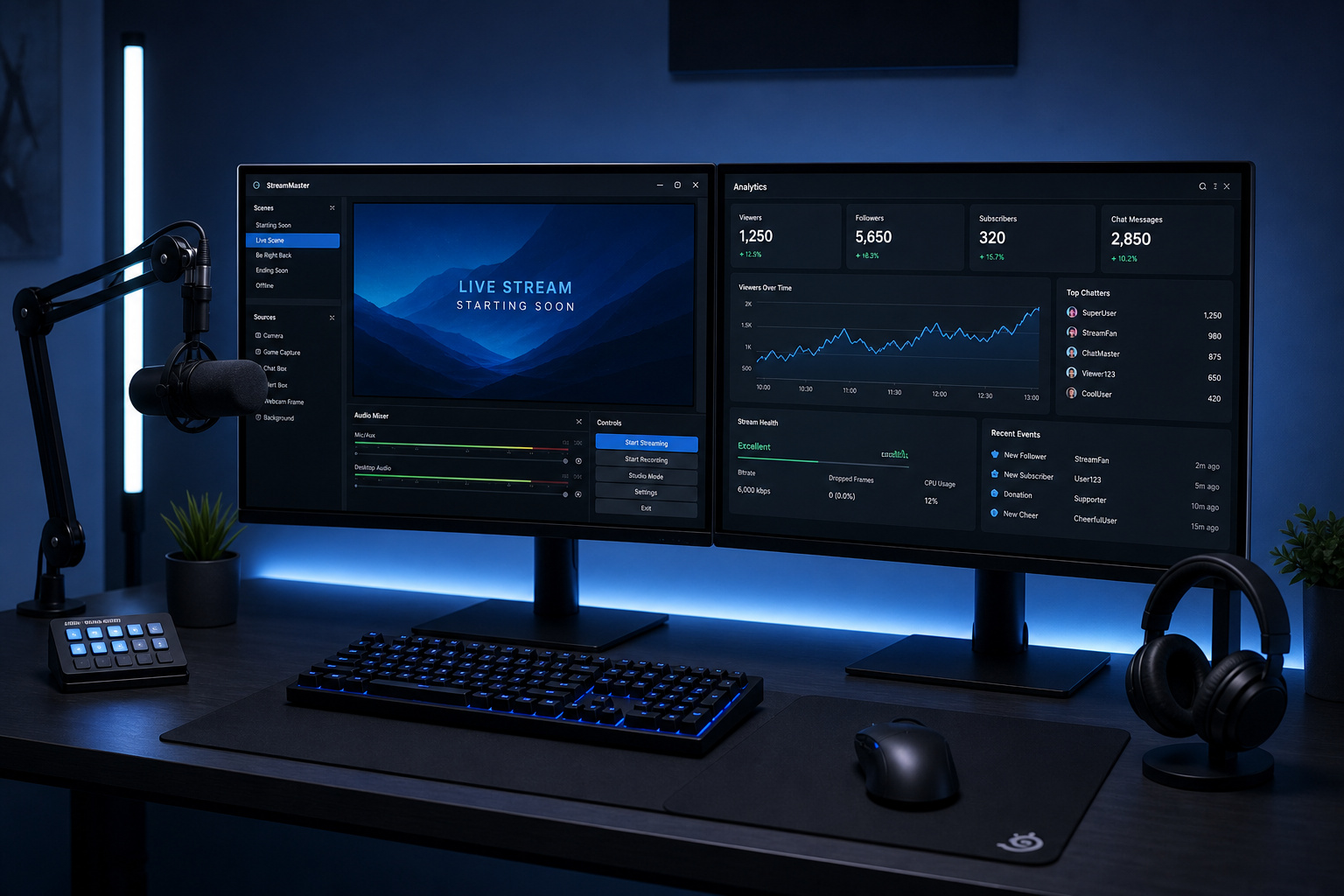
Every time you add interactive widgets, scrolling generic chat boxes, or flashy alert layers as live browser sources, you generate encoding overhead that steals processing power away from your central gameplay feed—a common pitfall when becoming a game streamer. Viewers are there to watch your content, not a cluttered screen of unoptimized HTML elements. Delete all unnecessary animations, rely on NVENC or x264 hardware encoding for the heavy lifting, and strip your layout down to the essentials: camera, gameplay, and a single tight alert feed.
Scaling Cleanly With Vector Graphics
To optimize overlay performance, you need to rethink your asset creation. Basic rasterized images and bloated templates from generic Creative/Design Software are resource hogs. Instead, transition to clean, lossless vector graphics built in free, scalable platforms like Inkscape. Because a vector is just visual mathematical data rather than pixel rendering, it scales up and down effortlessly without losing resolution or taxing your OBS Studio layout. Taking the minimalist, high-crisp vector approach secures your visual fidelity and leaves the heavy computing power right where it belongs: on the game.
If you lack the lighting setup needed to support pristine, high-fidelity overlay graphics, try leaning into intentionally lo-fi or retro VHS aesthetics. This stylistic choice forgives camera noise and lowers the rendering burden on your system rather than fighting a losing battle against visual artifacts.
Scale Broadcast Architecture From Manual to Automated
The moment you want to learn how to make streaming quality better for specialized events or multi-camera setups, it’s time to stop running your entire production from a single keyboard layout. The bridge from a basic Twitch stream to a TV-quality broadcast show is all about automation and redundancy.
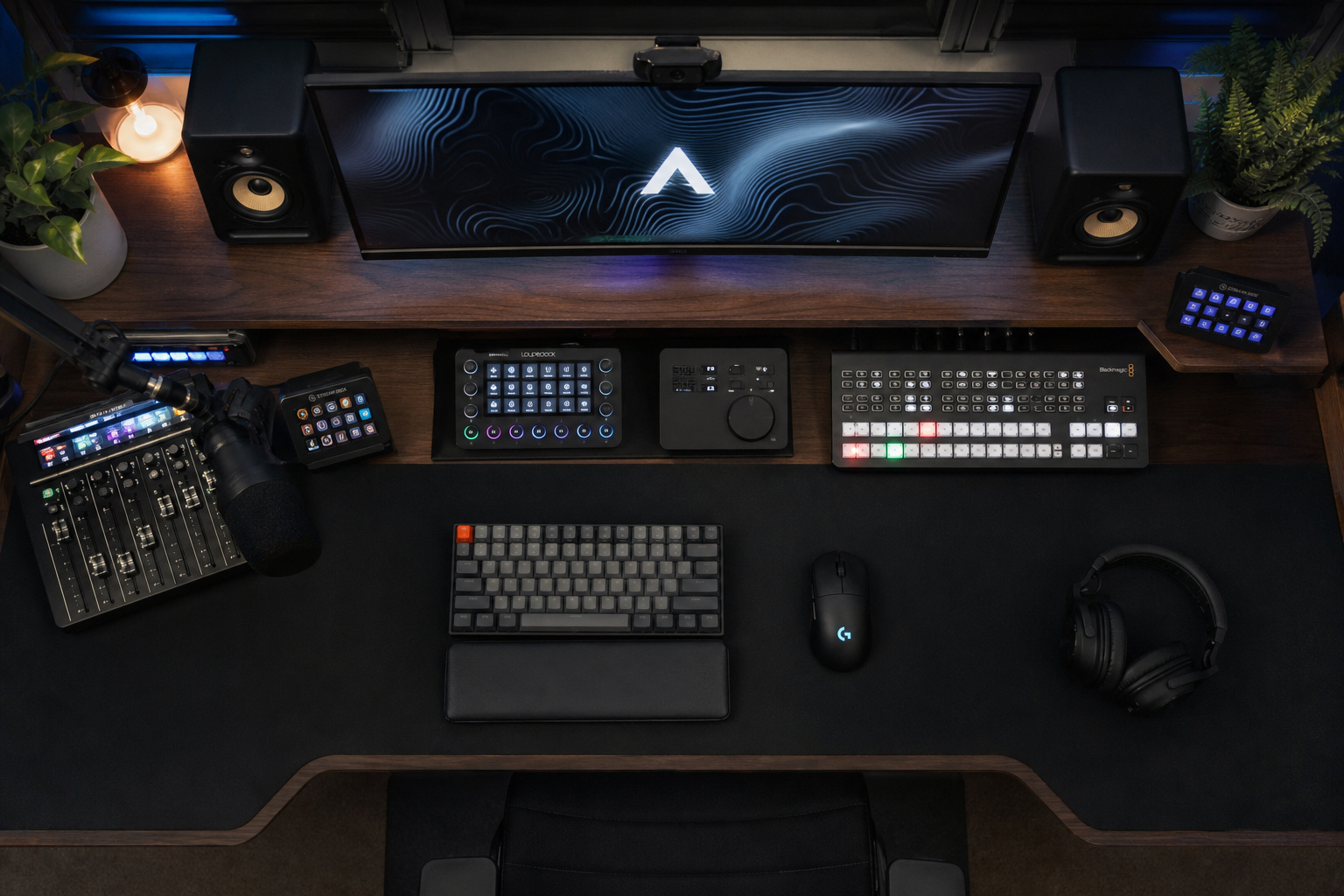
Escaping the Manual Clicking Trap
Manually clicking through software scenes with your mouse during gameplay is a recipe for dead air, muted moments, and messy stream transitions. Instead of treating your broadcast like a haphazard web browsing session, map everything to a physical interface by linking Bitfocus Companion with your Stream Deck. This integration enables programmed macros via a unified interface so one button press can cut to a specific camera, trigger an alert stinger, and adjust your microphone levels all at once.
Bridging Hardware Switchers and Software Encoders
As you scale into real-time multicam setups, hybrid architecture becomes mandatory. Professional productions bridge dedicated physical hardware switchers like the Blackmagic ATEM Series with flexible broadcasting software encoders like vMix or OBS to distribute the rendering load. If the computer glitches or the software drops a process, the hardware switcher keeps the core feed alive. While mapping this out, ensure strict frame rate matching across every physical input and virtual scene so your final output bitrate doesn’t stutter or drop frames trying to decode a mismatched signal.
“Professional productions bridge dedicated physical hardware switchers with flexible broadcasting software encoders to distribute the rendering load.”
Exploit the High-traffic Stream Window and Flank Creators
Once you know how to make your Twitch stream look better on a technical level, all that polished A/V gear becomes a retention tool. But discovery and growth? That operates on algorithmic behavior, social media cross-promotion on platforms like TikTok, and timing.
Targeting the Post-work Traffic Surge
The window between 5:00 PM and 8:00 PM is a peak conversion zone. This is the prime post-work traffic surge when casual viewers log on to kill time and decompress. If you want to capture this influx, actively lock your schedule to intercept it. Streamers who broadcast randomly in the late morning miss this consistent 5:00 PM to 8:00 PM casual traffic swell.
Flanking Strategy Over Direct Competition
Don’t launch your broadcast exactly when the biggest streamers in your niche hit their “Go Live” buttons on Twitch. Implementing a flanking strategy means scheduling your streams to begin precisely before mega-creators log on, capturing the early audience, or firing up your show right as they log off to catch waves of migrating viewers. Your lighting and automated audio tricks will lock them in, but applying social media flanking ensures they show up to your channel.
But pulling viewers in is only half the battle; keeping them requires leaning into idiosyncratic personality touches. Your first words upon going live and your unique alert formats will win out over generic gameplay narration every time. When you hook a new audience from a flanking maneuver, it’s those specific behavioral quirks that actually convert them into long-term viewers.
Frequently Asked Questions
How do I make my live stream better?
Prioritize environmental and technical fundamentals over purchasing expensive hardware. Start by cleaning up your room acoustics, optimizing your lighting with zero-budget cross-lighting techniques, and using software filters like noise gates to maximize the potential of the gear you already own.
How to increase live stream quality?
Focus on clearing up your encoder’s processing power by removing unnecessary, resource-heavy browser source panels and interactive widgets. Aim for a clean 1080p, 60fps output at an 8k bitrate, and use lossless vector graphics for your overlays to keep your visual assets lightweight.
How to improve live TV streaming?
To achieve a professional broadcast look, shift from manual scene switching to automated controls using tools like a Stream Deck linked with Bitfocus Companion. You should also implement audio side-chain ducking to automatically have game audio compress whenever you speak, mimicking the production value of high-end TV studios.
Is a $400 microphone worth it if I don’t have a professional studio?
It is rarely worth the investment for untreated spaces, as high-end dynamic microphones are designed to pick up all surrounding acoustic noise, including wall echoes and keyboard clacks. You will get significantly better results by using an affordable microphone paired with precisely tuned software noise gates and physical room dampening, such as blankets or rugs.
What is the best way to light a stream without buying expensive panels?
Use a cross-lighting strategy to add depth and dimension to your face, moving away from flat, single-source ring lights. A clever zero-budget hack is to open blank browser tabs in light mode on your secondary monitors and bounce that diffused white light onto your face from the side.
Can I improve my stream quality by changing my camera settings?
Yes, but only after you have supplied adequate physical lighting to the room. Once the space is lit, manually lower your camera’s exposure and squash the digital gain to its lowest functional minimum to eliminate pixelated noise, ensuring the camera doesn’t have to compensate for darkness.
Why does my stream look pixelated when I move?
Pixelation during movement often occurs because the encoder is struggling to redraw a messy, high-motion background, or because your bitrate is being choked by excess browser sources and overlays. Reducing the digital gain on your camera to clean up the image and using in-body camera stabilization can help your encoder maintain a higher efficiency and sharper picture.