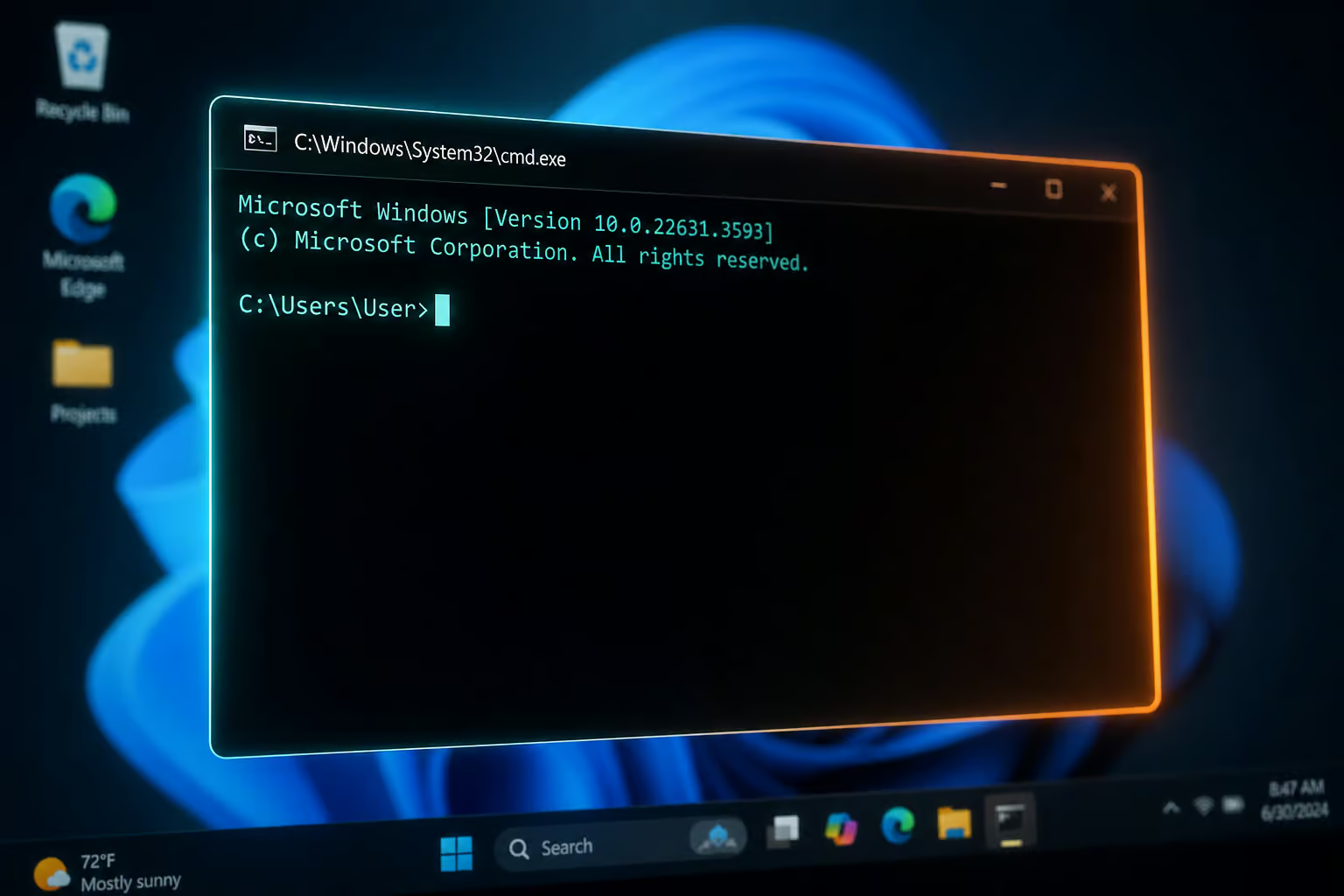
Microsoft wants you to believe that the future of Windows 11 rests entirely in centralized, AI-marketed menus—like the omnipresent AI Copilot—that supposedly do the heavy lifting for you. But we geeks over at GeekExtreme know the truth: beneath the locked-down mainstream interface of iteration 24H2 lies a modular, terminal-accessible powerhouse that truly opens up once you upgrade with a Windows 11 Pro key. The best Windows 11 secrets and hacks aren’t glossy new buttons or icons. They are the underlying developer tools, command-line overrides, and legacy system configurations that let you bypass the Windows 11 File Explorer menu workflow.
Advanced OS management tools like Start-OSUninstall and targeted registry hacks offer a level of friction elimination that standard menus simply can’t touch. We are talking about establishing a custom-fit workflow where executing a command line instruction removes a broken update.
Key Takeaways
Execute Start-OSUninstall -Online in PowerShell to roll back broken feature updates without launching sluggish GUI menus.
Inject CLSID {86ca1aa0-34aa-4e8b-a509-50c905bae2a2} via the registry to permanently force the return of the classic Windows 10-style right-click menu.
Implement the 20-minute default focus timer to create intentional silos of local productivity, bypassing global notification lockdowns.
Table of Contents
The Start-OSUninstall Command
If you’re tired of navigating sluggish GUI menus during a feature update rollback, you can take a faster path by using the Start-OSUninstall -Online command. Executing this PowerShell instruction triggers a system feature rollback directly, bypassing the Settings app entirely and allowing for a silent recovery process.
Winget (Windows Package Manager)
Running Winget as your primary package manager lets you automate software installations, upgrades, and searches entirely through the command line. A simple command like winget install [app] --location points the installation to your preferred directory instantly. This bridge between Windows search and command line execution lets you manage your app ecosystem in minutes rather than hours.
Run as Admin in Run dialog
To execute a process with elevated privileges without hunting for the right-click menu, press Windows key + R to open the Run dialog. Type your desired command or binary path, then press Ctrl+Shift+Enter to run the application immediately as an administrator.
Windows Sandbox Environment
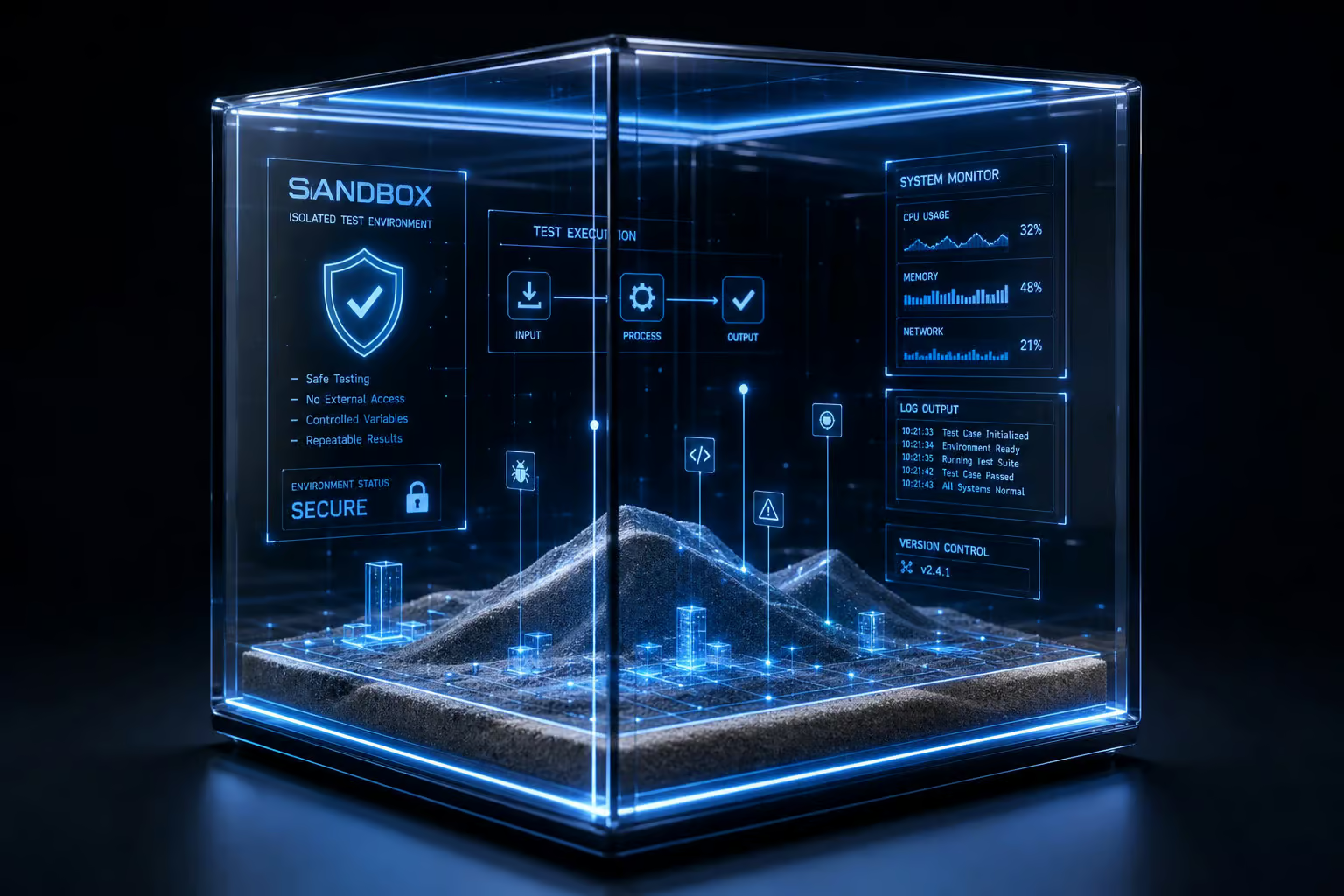
Windows Sandbox natively provides an isolated, disposable testing environment right on your desktop. When you close the Sandbox, everything inside is nuked. It’s an isolated way to execute suspicious files without tripping your anti-malware engine, or to trial bloated software safely without altering your primary host OS.
Restore classic Right-Click menu
Microsoft hides essential file commands under a “Show More Options” layer. To bypass this, open reg.exe and inject the CLSID {86ca1aa0-34aa-4e8b-a509-50c905bae2a2}. After a reboot or an explorer.exe restart, the classic, single-layer Windows 10 right-click menu will replace the restricted version.
Start Menu & Taskbar positioning
While the OS defaults to a centered layout, you can restore legacy corner positioning. Navigate to Settings > Personalization > Taskbar. Within these settings, adjust the Taskbar alignment toggle to move the Start button and icons back to the left side of the screen.
Advanced Power Settings in the Control Panel
The modern Settings app hides hardware throttling metrics, but the legacy Control Panel interface is still alive and well. Digging into the Advanced Power settings reveals the granular configuration threshold percentages for processor states and performance versus battery management. This persistent, parallel architecture is where you go when you need strict control over desktop power limits.

Applying Mica Blur to Titlebars
Windows 11 hides the ability to map global aesthetic overlays across your desktop natively. Enabling specific system-level transparency settings draws out the default Mica blur on every open titlebar. This simple toggle breaks up flat, monochromatic window blobs and adds vital visual differentiation to your workspace.
Direct Taskbar Task Termination
Windows 11 provides a native kill switch that bypasses the agonizing wait for Task Manager when developer tools or games freeze. Enabling the end tasks from the taskbar developer setting lets you force-terminate unresponsive software natively. A single right-click on the app’s taskbar icon executes a localized kill command, drastically shortening your workflow recovery time.
Tabbed Architecture in File Explorer and Notepad
Instead of forcing you to navigate a command ribbon, Microsoft folded proper browser-style tabs directly into File Explorer and Notepad. Whenever you need a new workspace in either application, hitting Ctrl+T spins up a fresh tab inside a single structured window. This native condensation of tabs handles what we previously managed through external applications.
Volume control via mouse scroll
Windows 11 lets you skip the tedious corner tray clicks when adjusting audio. Hovering your cursor directly over the volume icon on the taskbar and rolling the mouse wheel fluidly shifts global sound levels without further menu interaction.
Volume Mixer for Individual Apps
Right-clicking the sound icon and launching the Volume Mixer lets you isolate per-application output percentages independently from the master level. This is incredibly useful for managing background tasks, allowing you to mute a noisy Edge browser tab or drop your game audio down to 10 percent without impacting your Spotify mix.
Hidden Quick Settings access
The 24H2 update condensed connection toggles into a flyout accessed via the Taskbar. If you are trying to find the missing connectivity tools, click the tiny down arrow buried inside the customized active Quick Settings blocks to expand the menu and expose broader network and display parameters.
Emoji & Clipboard shortcuts
Efficiency is handled via system shortcuts. Hit Win+V to summon the clipboard history, allowing you to recall and paste previously copied text blocks and images. Similarly, use Win+period to launch the native emoji picker for instant access to symbols and special characters.
Drag-and-drop File Sharing Top Bar
Iteration 24H2 introduces a standardized app drop zone. You can now drag local files directly to the upper edge of the screen into background active apps to execute file sharing attachments. It overcomes application isolation constraints, speeding up the hand-off.
Calculator advanced modes
The Calculator app extends beyond basic arithmetic. Its menu provides advanced modes for offline date difference calculations, unit conversions, and real-time currency conversion, replacing the need for separate browser searches.
PowerToys and FancyZones Grid Architecture
Microsoft PowerToys acts as the ultimate modular suite for productivity, providing FancyZones to achieve bespoke grid-based window snapping on complex displays. This entire ecosystem replaces standard OS constraints with highly granular control over your workspace geometry.
You can also manage the native Windows widget board directly via its gear configuration icon. Tweaking these default parameters lets you swap out intrusive news feeds for a sterile, customized dashboard of specific informational sources.
Custom Monitor Layouts With FancyZones
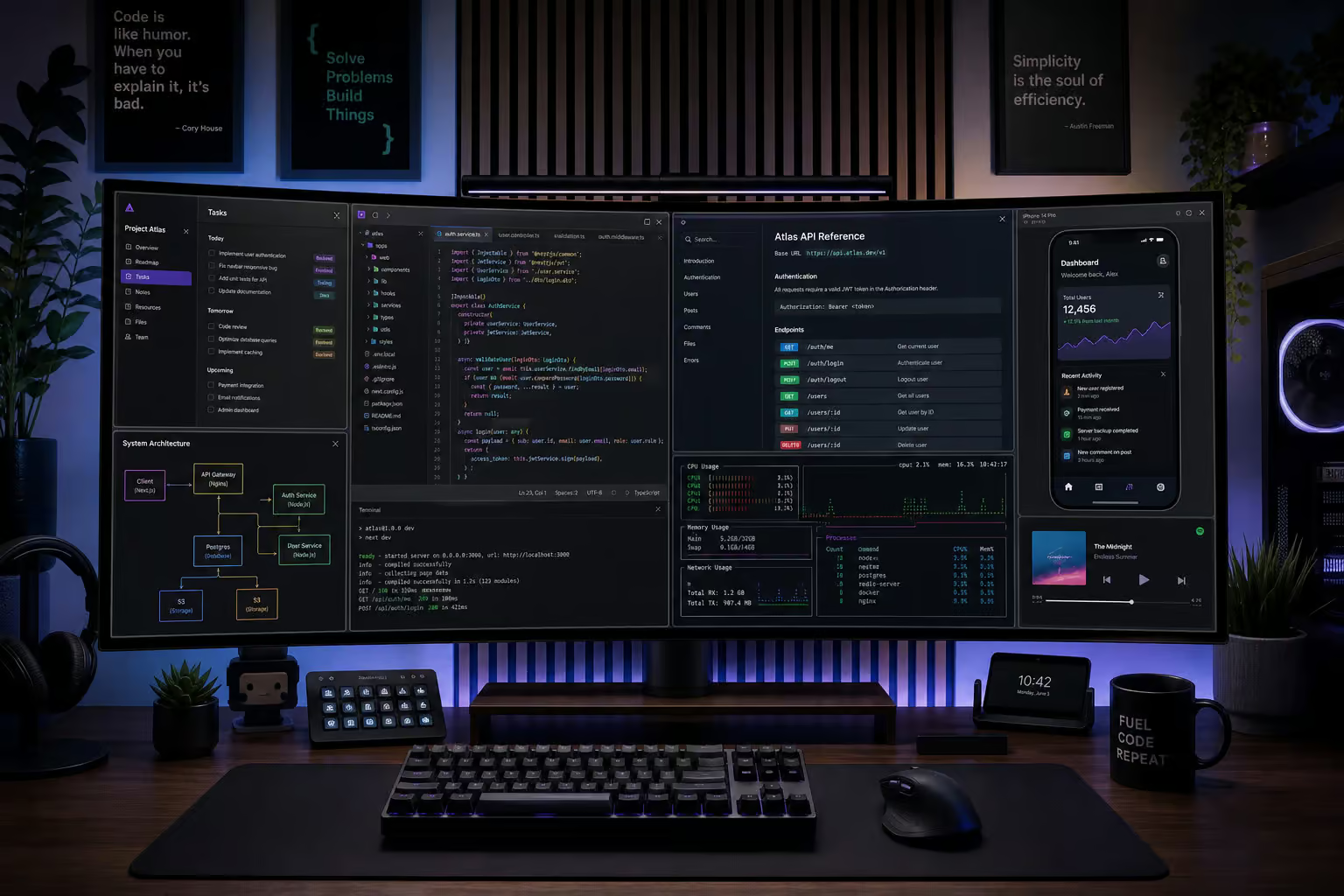
Instead of forcing windows into symmetrical boxes, FancyZones lets you segment ultrawide monitors into bespoke window snapping grids. You build the exact spatial architecture that your specific workflow requires, and windows instantly adhere to those arbitrary lines.
Finding Your Cursor With Find My Mouse
If you regularly lose your cursor across a multi-monitor display array, the Find My Mouse tool highlights the exact pixel coordinate of your pointer. A quick hotkey instantly shades out everything else on the screen, dropping a spotlight onto your rogue cursor.
Batch File Editing With PowerRename
Changing hundreds of file names sequentially using native folder tools is torture. PowerRename adds a robust batch modification tool to your context menu, letting you deploy custom RegEx logic to rename thousands of files cleanly in seconds.
Advanced Snap Layouts via Win+Z
If you’re on a laptop and don’t want to dig into third-party grid logic, native Snap Layouts act as an immediate fallback for centralized visual screen segmentation. You can either drag windows straight to the top of the monitor or simply press Win+Z to deploy a numbered, intelligent split-screen layout array, giving you instant organizational grouping without hunting for window edges.
Virtual Desktops via Task View
A sprawling project requires distinct context separation, and using the Task View button to launch Virtual Desktops achieves that. Using the Win+Ctrl+Arrows shortcut lets you jump instantly between a heavy developmental environment and your personal tasks. Assigning unique visual wallpapers to each individual desktop is a brilliant way to prevent operational confusion when rapidly hopping across software streams.
Focus Mode and the 20-minute Timer
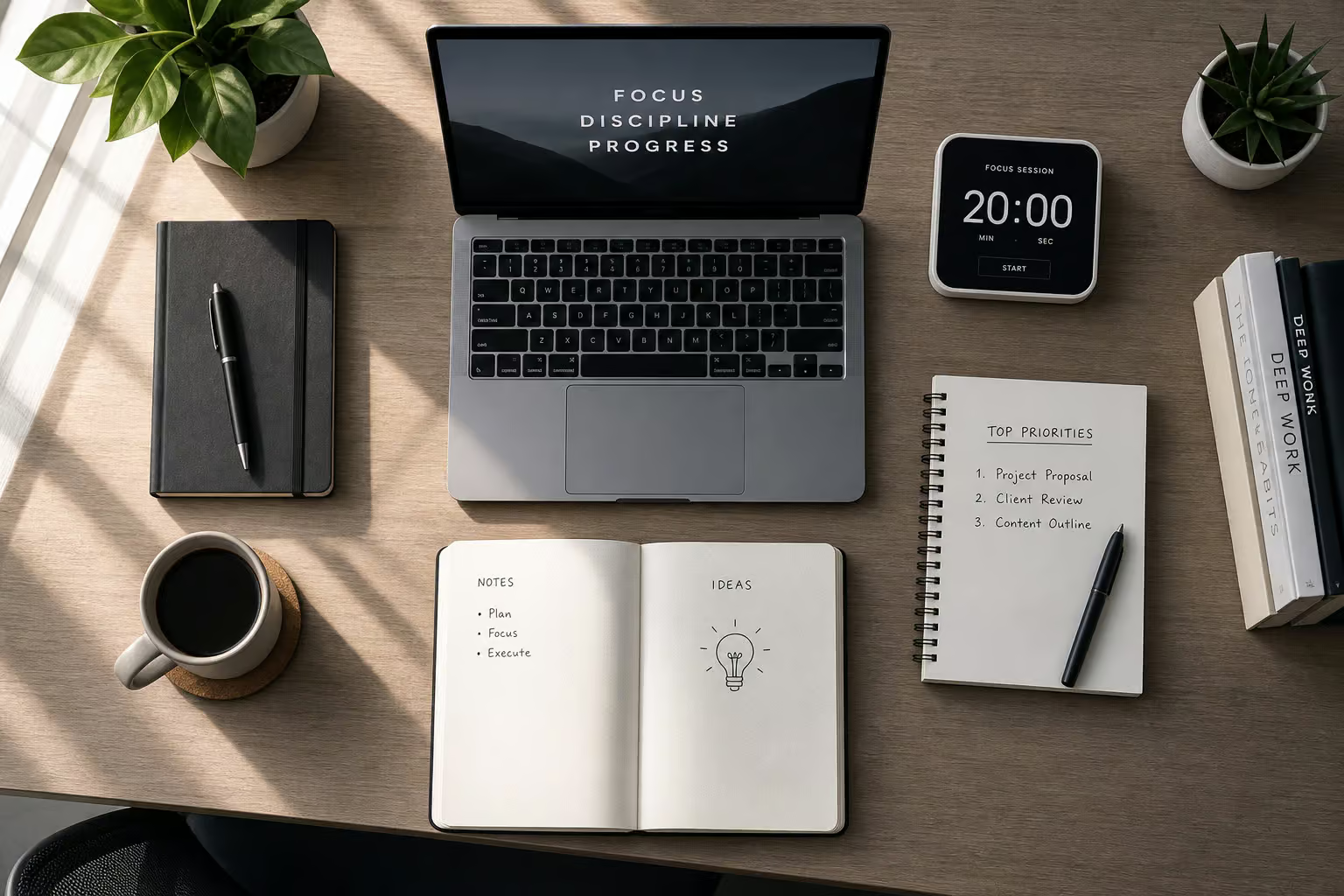
Rather than manually locking down the system by digging into notification toggles, high-efficiency workflows lean heavily into the innate Do Not Disturb timer built into a Focus session. The default 20-minute break notification creates a targeted, temporal isolation state that shields you from incoming alerts while linking functionally with your broader Microsoft 365 ecosystem, Microsoft To Do, and Spotify. It’s the perfect short burst of silence.
Copilot+ PC Integrations and NPU Requirements
We have to differentiate basic software web-fetching from true hardware-accelerated processing. If you want to run the visually interpretative Click to Do feature, you need deep local on-screen inference, and that mandates an NPU integration. The functional ceiling of these deep Copilot+ PC features relies on having capable neural processing hardware; base software summaries are free, but hardware-gated screen reading and local drafting command real specialized silicon.
Live Captions in Windowed Game Modes
The Live Captions accessibility tool is a lifesaver in environments that strip out reliable audio. When you use Win+Ctrl+L to trigger system transcription for streams or media lacking native subtitles, note the primary architectural caveat: it operates flawlessly in windowed mode. For gamers fighting complex tactical soundscapes, this overlays critical text transcripts into windowed PC games as a competitive advantage.
Native Dolby Vision support
To ensure high-fidelity color pass-through on supported hardware, bypass third-party tools. Navigate to System > Display > HDR in 24H2. Within these settings, you can toggle native Dolby Vision support to enforce the correct color profile respect for your monitor’s hardware capabilities.
Xbox Game Bar Utility Tracking
Ignore the gaming branding—the Xbox Game Bar is one of the slickest lightweight resource monitors floating around the OS. Pressing Win+G lets you pin live audio channels, real-time FPS output, and distinct performance footprints. For developmental and heavy multitasking, pinning a live read-out of your RAM and processor usage to a workspace corner outclasses heavier un-integrated monitoring apps immediately.
Windows Security Center and Passkeys
To configure Windows Hello Passkeys, open the Windows Security Center icon in your system tray, follow it into your Settings > Accounts layout. Here you can configure Passkeys, tying your core credentials to OS device hardware layers to sever the remote theft vectors associated with legacy password vaults.
Managing Mandatory Baseline Telemetry
Total privacy remains impossible on modern systems, but you can navigate to Privacy & Security to sever behavioral monetization by disabling personalized tips. While you can’t purge all baseline telemetry, unchecking the secondary switches under Diagnostic data limits the scope of system feedback reporting significantly.
Advanced System Overrides and Debloating
When standard settings fall short, third-party utilities like ViVeTool let you enable unreleased Windows 11 feature flags before they officially roll out. For deeper configuration, managing Group Policy Editor overrides lets you bypass basic menu restrictions to enforce strict update behaviors and security rules locally. Finally, running default app debloat scripts via PowerShell automatically strips out pre-installed bloatware, reclaiming valuable system resources for your core workflow.
Frequently Asked Questions
How to enable hidden features in Windows 11?
Many hidden features are accessed by bypassing the standard GUI in favor of command-line tools or registry modifications. For example, you can force the classic Windows 10 right-click menu by injecting a specific CLSID into the registry or use PowerShell commands like Start-OSUninstall to manage system updates directly.
How can I speed up my workflow in Windows 11?
You can eliminate menu-driven friction by utilizing keyboard shortcuts like Win+V for clipboard history, Win+Z for instant Snap Layouts, or Ctrl+Shift+Enter to run applications as an administrator directly from the Run dialog. Additionally, installing a package manager like Winget allows you to automate software management without navigating sluggish installation wizards.
Is there a way to force-terminate unresponsive apps without Task Manager?
Yes, you can enable a hidden developer setting that allows you to end tasks directly from the taskbar. Once configured, a simple right-click on an app’s icon in the taskbar will kill the process immediately, bypassing the need to wait for the Task Manager to load.
What is the difference between standard Windows 11 and Copilot+ PC features?
The primary difference lies in hardware requirements; advanced features like ‘Click to Do’ require a dedicated Neural Processing Unit (NPU) for local, on-screen inference. While standard software summaries run on any system, hardware-gated capabilities rely on specialized silicon to perform complex tasks like real-time screen reading and drafting.
How can I regain control of per-app volume levels?
You can access granular audio controls by right-clicking the sound icon in your taskbar and opening the Volume Mixer. This allows you to adjust or mute output levels for specific applications independently, preventing background media like browsers or games from overriding your primary audio mix.
Why does my file explorer have multiple tabs now?
Microsoft integrated browser-style tabbed architecture directly into the File Explorer and Notepad to reduce desktop clutter. By pressing Ctrl+T within these applications, you can create new workspaces in a single window rather than opening multiple separate instances.
Can I test suspicious files safely on Windows 11?
Yes, the native Windows Sandbox provides an isolated, disposable container that creates a fresh environment for testing suspicious files or software. Once you close the sandbox, everything inside is permanently deleted, keeping your host operating system clean and unaffected.