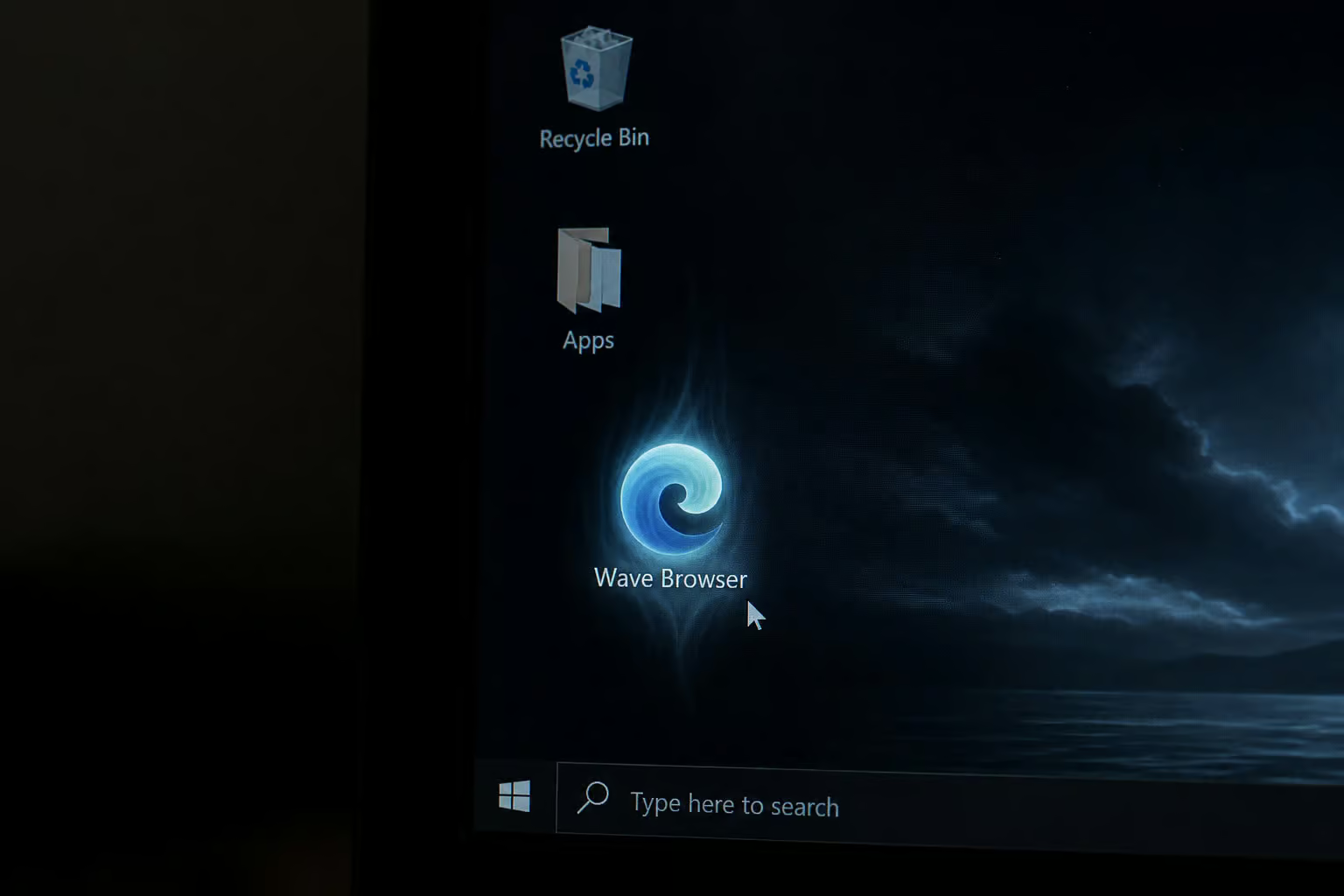
You uninstalled Wave Browser. It came back. That’s not a glitch — that’s the feature. It builds scheduled tasks, registry keys, and hidden startup entries that are designed to survive a basic uninstall.
This guide walks through every corner it hides in. By the end, Wave Browser won’t be coming back.
Key Takeaways
Wave Browser is a PUP (potentially unwanted program), not a virus, but it resists removal via scheduled tasks that reinstall the browser even after you delete the program files
Its corporate parent, Genimous Technology Co. Ltd., was accused of running a $250 million search hijacking operation using extensions like Search Encrypt and Hide My Searches
A successful removal requires manually deleting registry keys under HKEY_CURRENT_USER, killing scheduled tasks, and running a second antivirus scan after reboot — the first pass often misses remnants
Table of Contents
What This Article Covers
Wave Browser can be bundled with other software downloads, often via freeware installers with pre-checked boxes. Wave Browser forces redirects to ad pages, making search results look like a billboard. One user reported scrolling past 10 Microsoft ads plus 5 image ads before seeing a single organic result. That’s not a search engine; it’s a revenue farm. As of 2021, only a few antivirus tools flagged Wave Browser, making automated detection less reliable.
Wave Browser was released in 2015 by Wavesor Software, which is a front for Eightpoint Technologies, which itself is owned by Genimous Technology Co. Ltd. — the same company independent researchers tied to a $250 million search hijacking campaign using browser extensions Search Encrypt, Hide My Searches, and Encrypted Search. Search Encrypt. Hide My Searches.
Encrypted Search. Nice names, not nice software.
Most cybersecurity organizations classify Wave Browser as a PUP, not a virus. Wave Browser doesn’t require administrative rights to change browser preferences or set itself as default browser without user consent. Wave Browser collects cookies, IP address, browsing habits, and demographics including age, gender, income, political affiliation, race, and religion. Wave Browser’s privacy policy states it doesn’t respect Do Not Track signals and doesn’t specify a data retention length, keeping data for an unspecified period defined only as ‘the length of time your personal information remains relevant.’ Vague and ominous.
On corporate devices, Wave Browser creates compliance risks as unauthorized software that tracks browsing data.
Why Standard Uninstall Isn’t Enough
You already tried the obvious stuff. Control Panel. Apps and Features. Click Uninstall.
Everything looked fine until you rebooted, and Wave Browser was there again. Here’s the trick it is pulling.
How Scheduled Tasks Trigger Reinstallation
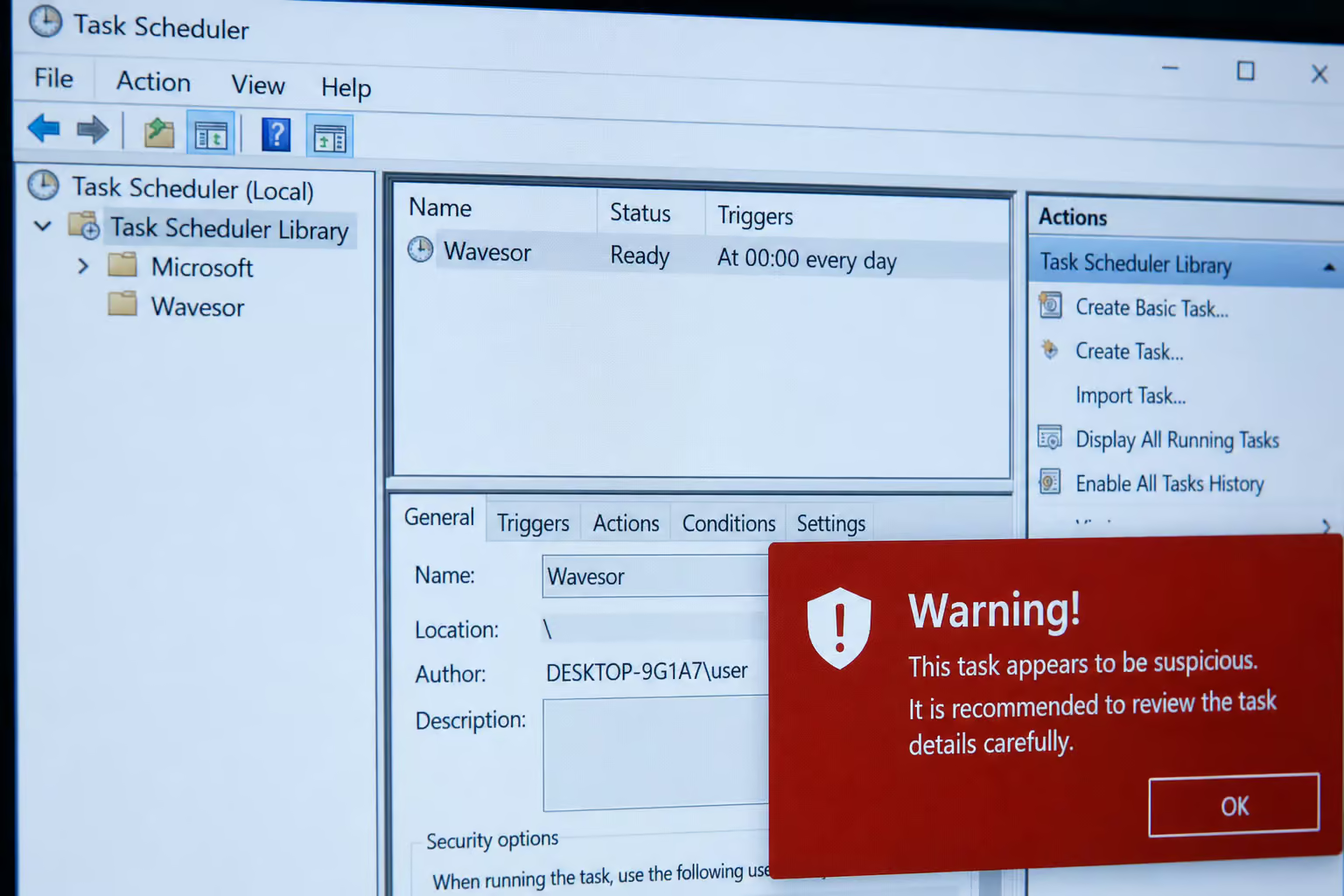
Wave Browser creates tasks in Windows Task Scheduler, often under names like “Wavesor” or “WaveBrowser.” These tasks run on a timer or trigger at system events such as logon or network connectivity. Their job is to check whether the browser is still installed. If it’s gone, they download and reinstall it.
Registry Keys That Survive Uninstall
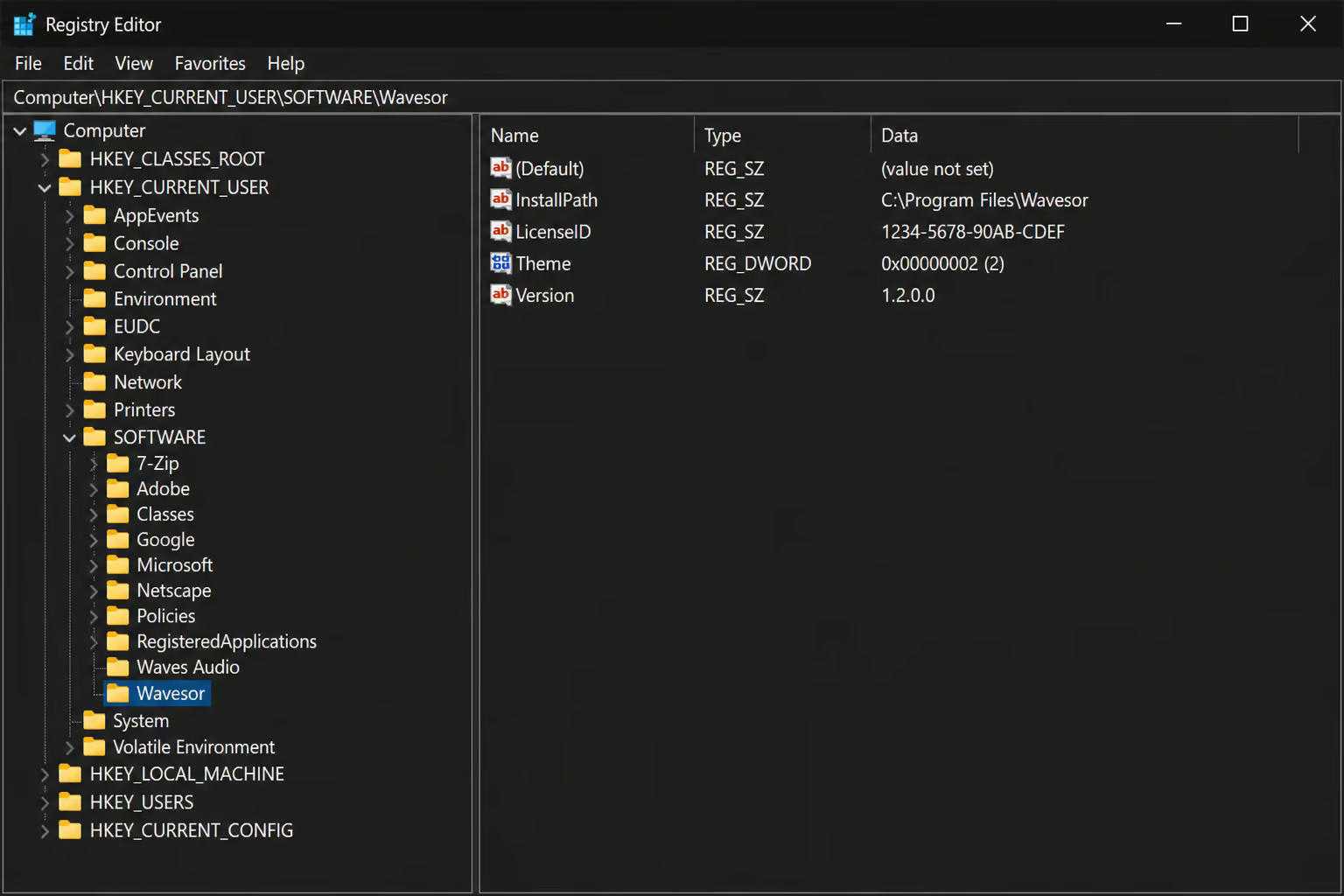
Deep in the registry, Wave Browser plants its configuration under HKEY_CURRENT_USERSOFTWAREWavesor and HKEY_CURRENT_USERSOFTWAREWaveBrowser. A standard uninstall doesn’t touch these keys. They sit there containing hijacker settings, ready to restore browser preferences the moment anything triggers them. Even if you delete every program file, those keys can reapply the homepage takeover and search engine redirect.
Startup Entries May Be Hidden from Task Manager
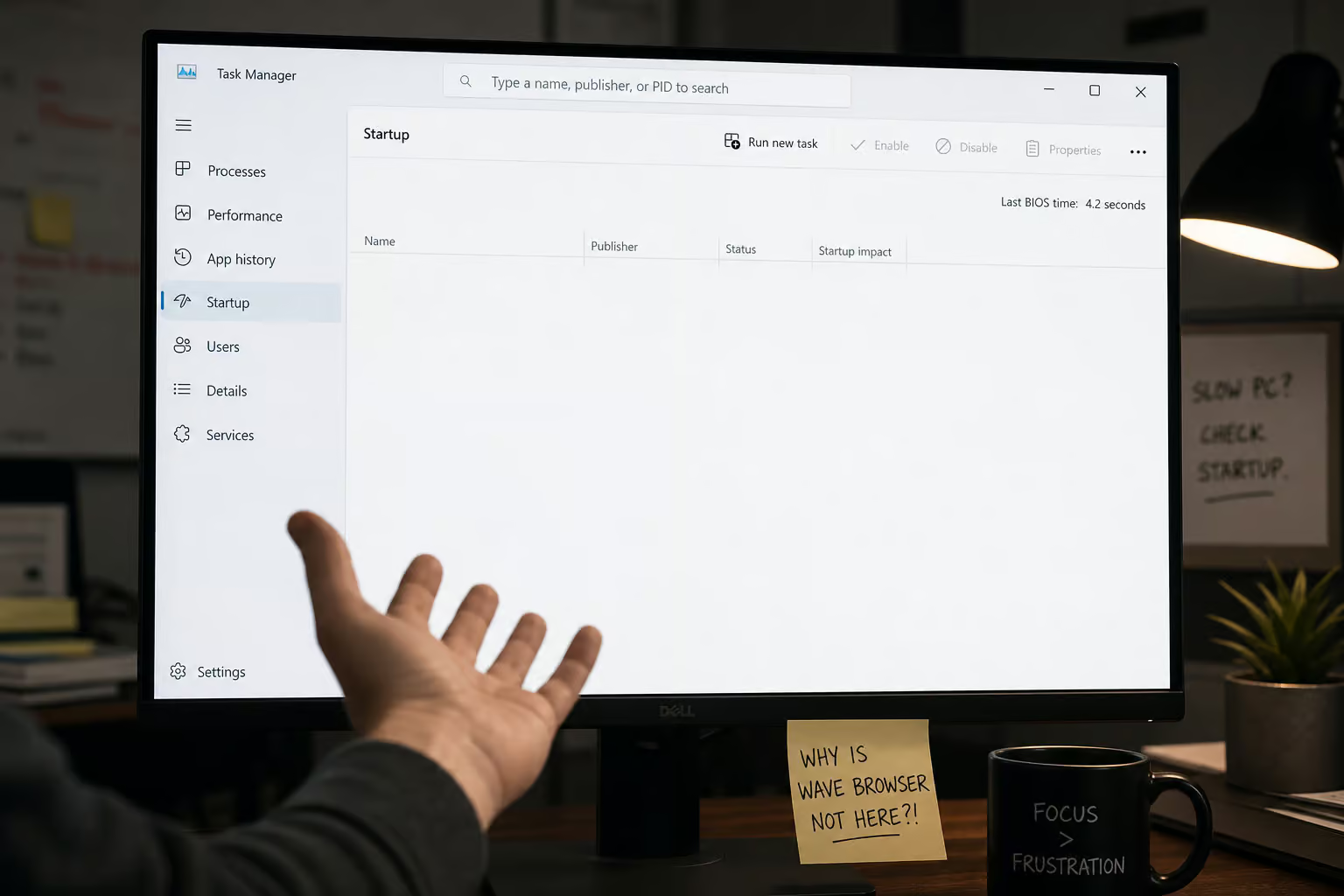
The Startup tab in Task Manager doesn’t show everything. It registers itself in places Task Manager doesn’t enumerate: Registry Run keys, Task Scheduler logon triggers, and other less visible locations.
How to Remove Wave Browser on Windows (10/11)
Follow these steps in order.
Step 1 — Uninstall via Control Panel or Apps and Features
Open Start > Apps and Features (or Control Panel > Programs and Features). Look for “Wave Browser,” but also scan for “ISIGN International” or “Eightpoint” — those are publisher aliases it hides under. If you find it, click Uninstall.
If it’s not there at all, don’t panic. Some Wave Browser versions are portable apps with no uninstaller. Move to Step 2.
Step 2 — Kill Processes in Task Manager
Hit Ctrl+Shift+Esc to open Task Manager. Go to the Processes tab and look for anything named “Wave Browser” or “Wavesor.” Right-click and select End Task. While you’re there, right-click again and choose Open File Location — that shows you where the executable lives so you can delete the files after the process is dead.
Step 3 — Disable Startup Entries
Switch to the Startup tab in Task Manager. Find any entry related to Wave or Wavesor Software. Right-click and select Disable. But this only catches the entries Task Manager can see. If you don’t find anything, Wave Browser is hiding its startup in places Task Manager doesn’t display — handled in the advanced section.
Step 4 — Delete Scheduled Tasks
Open Task Scheduler (search for it in Start). Look in the Task Scheduler Library and Active Tasks views for anything named “Wavesor,” “WaveBrowser,” or entries that seem suspicious. Delete them.
Step 5 — Remove Registry Entries
Open Registry Editor (regedit). Before you touch anything, back up the registry: select Computer at the top, then File > Export, and save the backup somewhere safe.
Press Ctrl+F to open Find and search for “Wave Browser.” Remove all entries found, then search for “Wavesor” and continue removing until no results remain. Specific keys to look for include:
- HKEY_CURRENT_USERSOFTWAREMicrosoftWindowsCurrentVersionUninstallWaveBrowser
- HKEY_CURRENT_USERSOFTWAREWavesor
- HKEY_CURRENT_USERSOFTWAREWaveBrowser
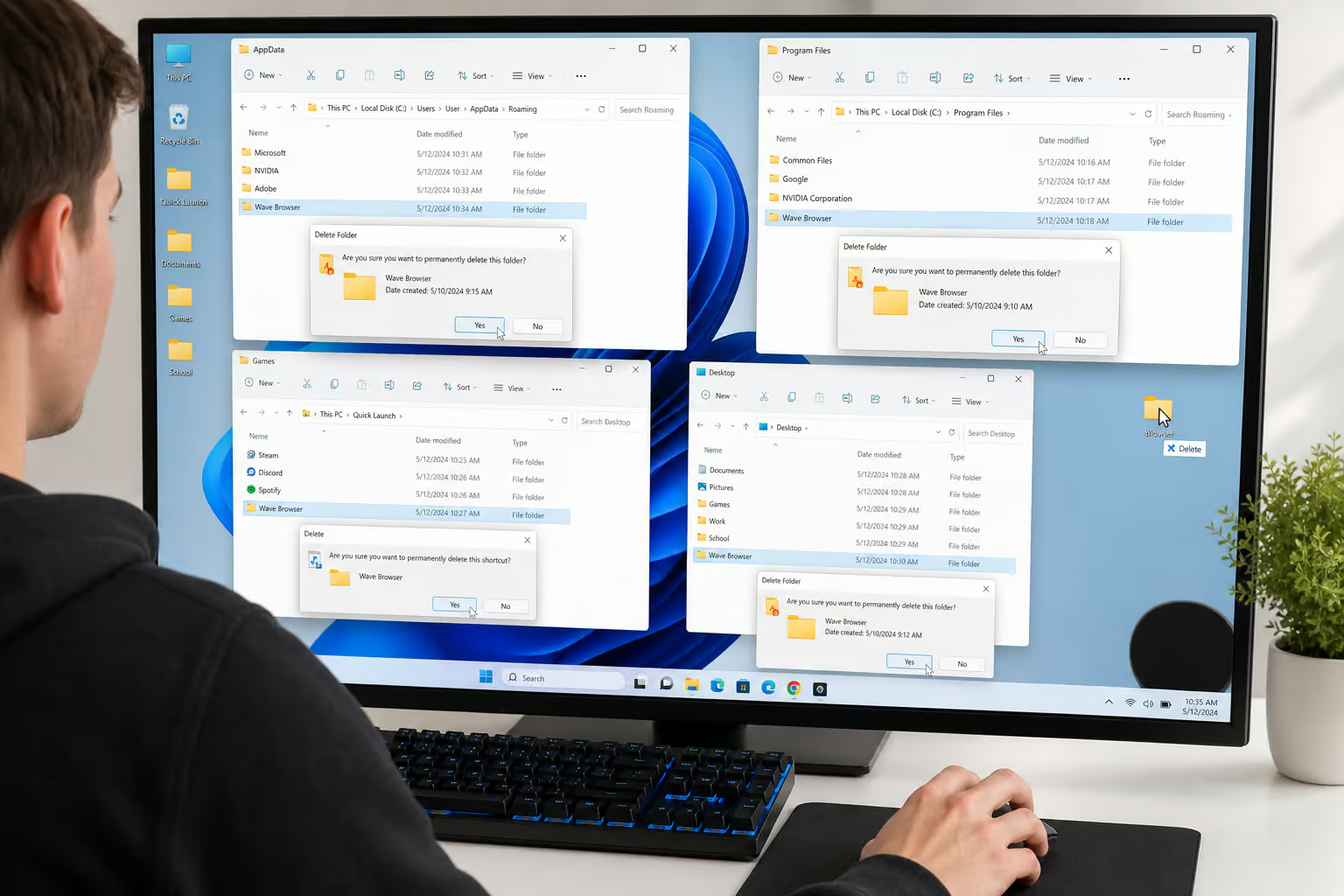
Step 6 — Delete Leftover Files
Wave Browser scatters files across multiple locations. Check all of these:
- %QUICKLAUNCH%WaveBrowser.lnk
- %PROGRAMS%WaveBrowser.lnk
- %APPDATA%Wavesor Software
- %USERROOT%Wavesor Software
- %PROGRAMFILES%Wavesor Software
- C:Program Files and C:Program Files (x86)
Delete any Wave Browser related folders you find. Be thorough.
Step 7 — Clear Temporary Files
Press Win+R, type %temp%, and hit Enter. Select all files and delete what you can — some may be in use, skip those. Then run Disk Cleanup from the Start menu to clear system-level temp files.
Step 8 — Flush DNS and Run a Scan
Open Command Prompt as administrator and type ipconfig /flushdns. This clears out any redirects Wave Browser may have configured. Then run a full antivirus scan — more on that in the automated tools section.
How to Remove Wave Browser on Mac, iPhone, and Android
Apple and Android users are less likely to encounter Wave Browser — it wasn’t available on the Apple App Store or Google Play Store at the time of testing in the UK and US, but it can still show up via sideloading or bundled installers, raising the question of how did Wave Browser get on my computer.
macOS
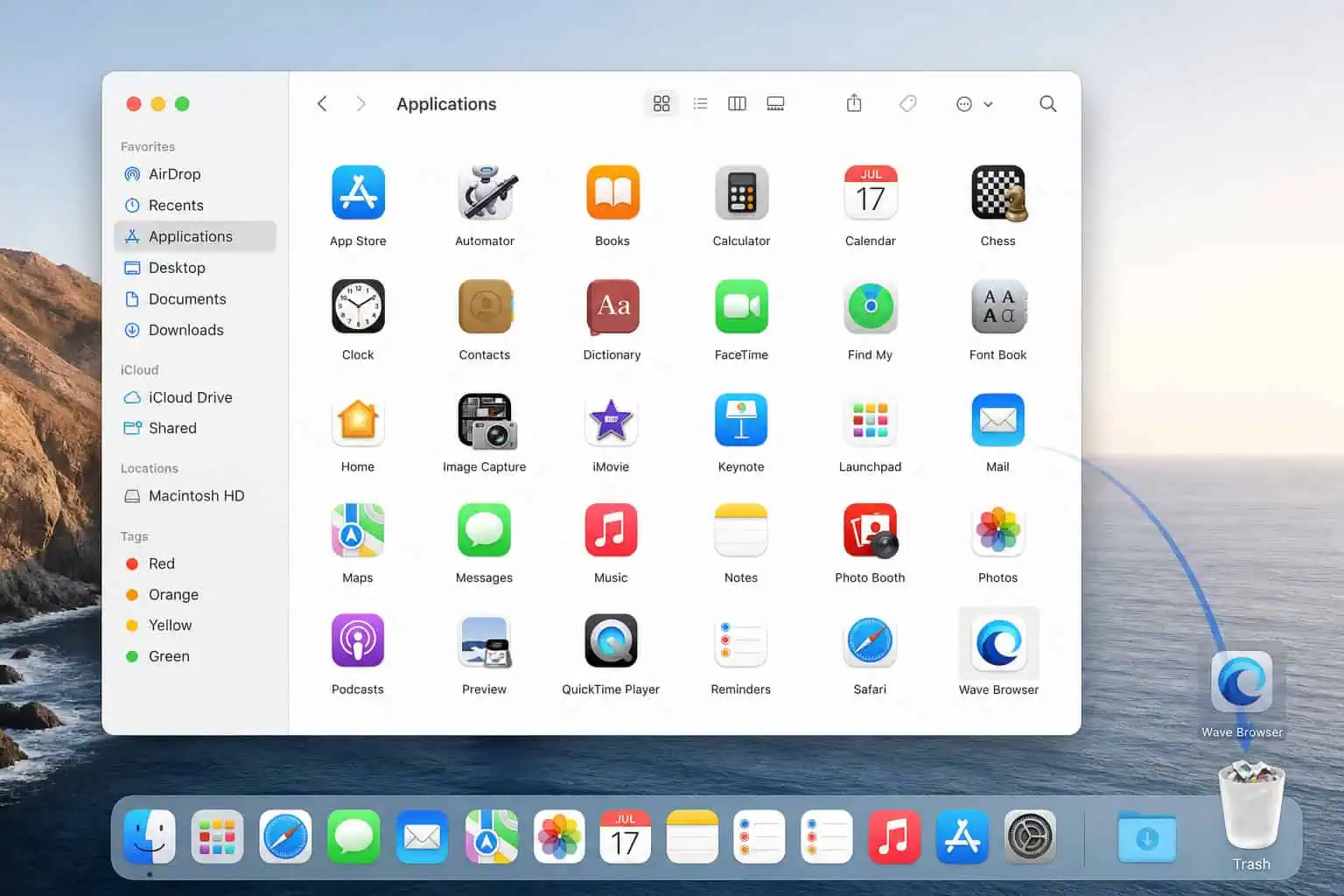
Open Finder > Applications, find Wave Browser, and drag it to the Trash. Empty the Trash. Then open Activity Monitor and look for any Wave or Wavesor processes — force quit anything you find. Open Safari, go to Preferences > Extensions, and remove anything suspicious.
Reset Safari fully by going to Preferences > Privacy > Manage Website Data > Remove All. Finally, open Terminal and run sudo killall -HUP mDNSResponder to flush DNS. Wave Browser may not have an official uninstaller on Mac, so manual file deletion is your only path.
iOS
Long press the Wave Browser app icon, tap Remove App (or the X on older iPhones), and confirm Delete App. That’s it.
Android
Tap and hold the Wave Browser app icon, press Uninstall, and confirm with OK. Android allows installation of custom APKs from unofficial sources, which is a common vector for it.
Reset Browser Settings and Remove Extensions
Even after the app is gone, hijacked settings and extensions may remain. Wave Browser extensions don’t always label themselves “Wave” — they use misleading names, which is why many users ask, is wave browser malware?
Extensions to Look For
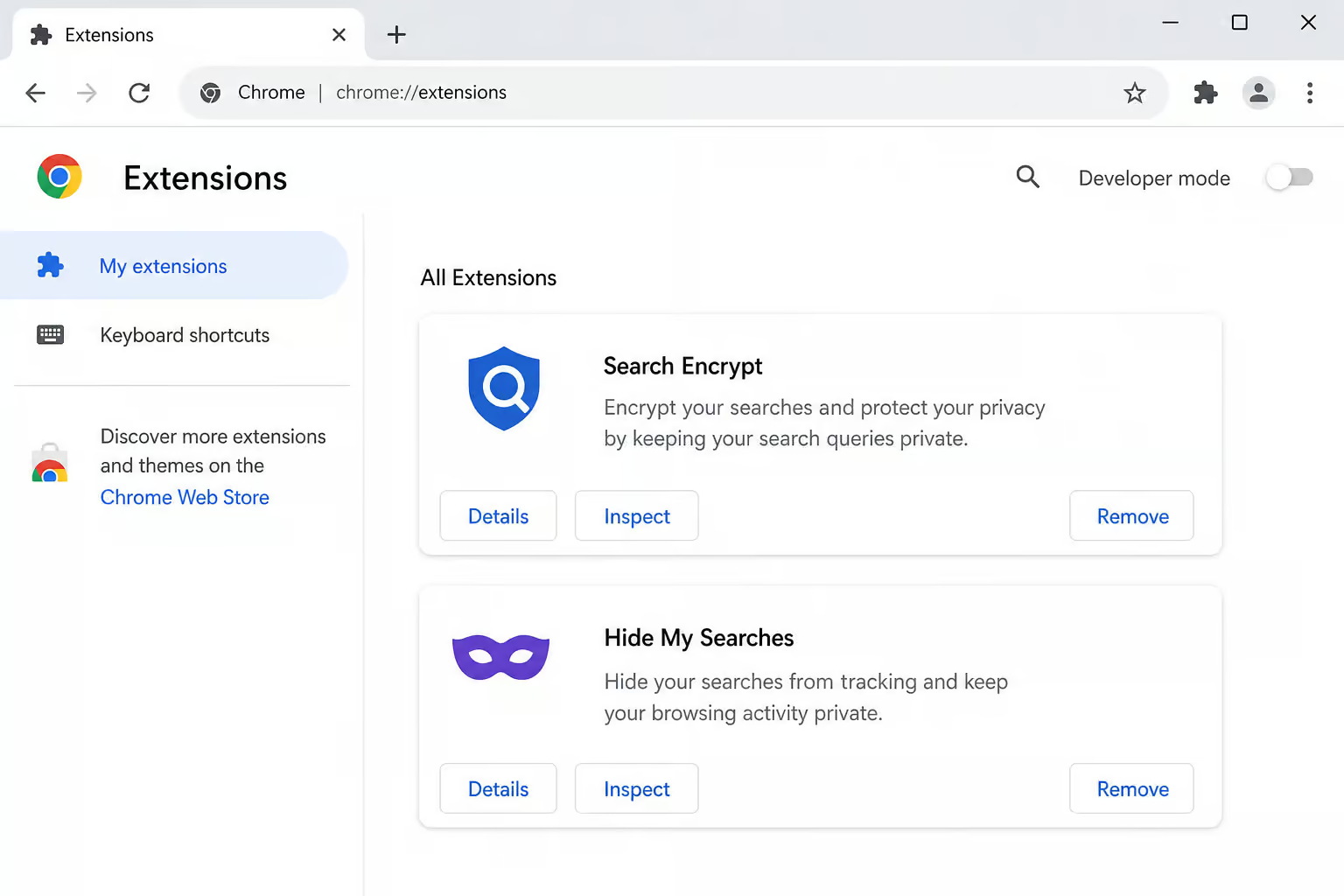
Known Wave Browser related extensions include Search Encrypt, Hide My Searches, and Encrypted Search. Remove anything you don’t recognize or trust.
Chrome
Go to chrome://settings, click Reset Settings, and choose “Restore settings to their original defaults.” Then check chrome://extensions and remove anything suspicious.
Firefox
Type about:support in the address bar and click Refresh Firefox. This resets everything — bookmarks, customizations, all of it. Export your bookmarks first.
Safari
Open Safari > Preferences > Extensions and uninstall suspicious extensions. Then go to Preferences > Privacy > Manage Website Data > Remove All.
Automated Removal with Antivirus Tools
If you prefer to let software do the heavy lifting, or you want a safety net after manual removal, here are the tools that handle Wave Browser.
Malwarebytes
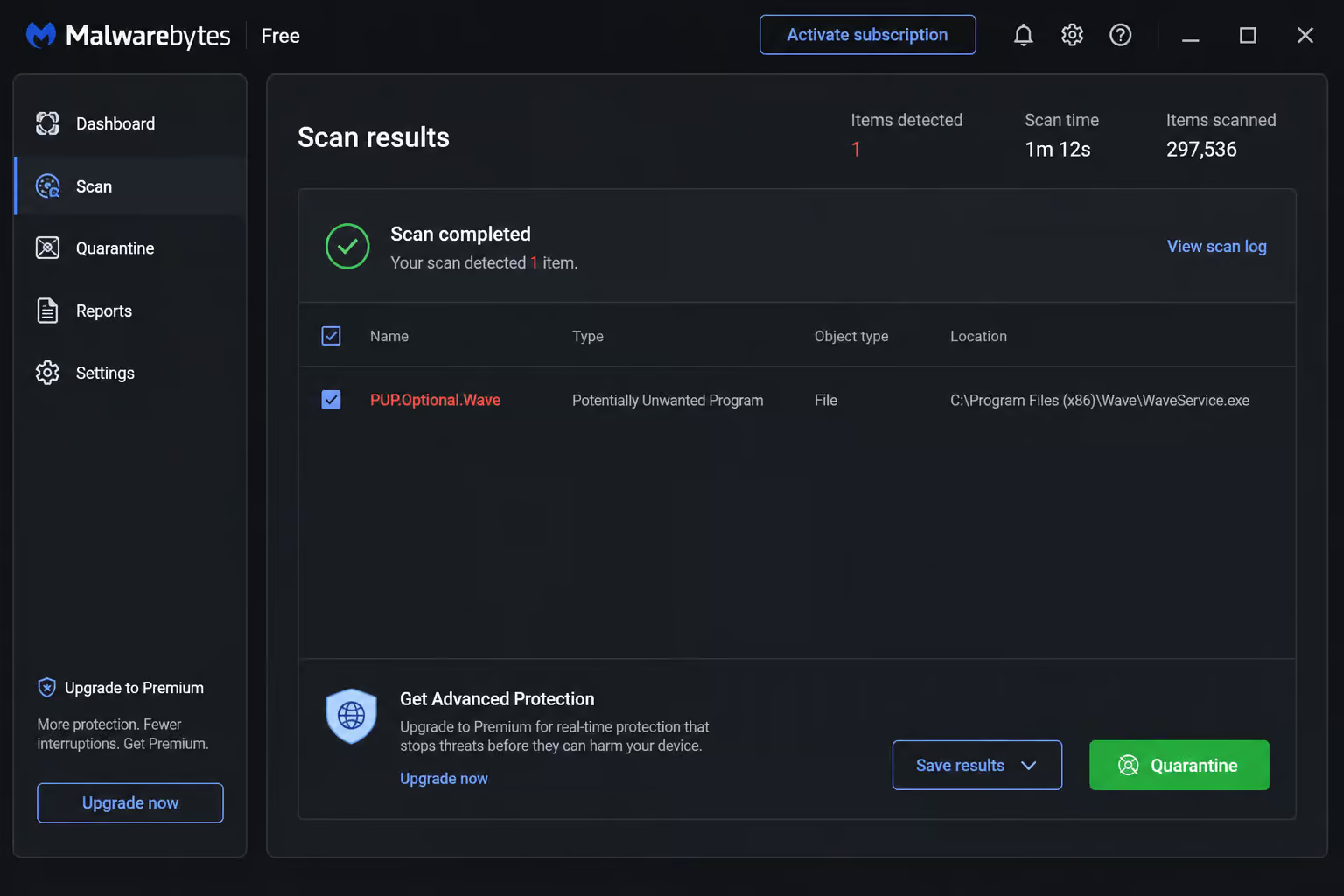
Malwarebytes detects Wave Browser under the name PUP.Optional. Wave. Run a full scan, quarantine anything it finds, then restart and run a second scan. Wave Browser remnants may only appear on a repeat pass — the first scan often misses deeply hidden leftovers. Malwarebytes AdwCleaner is a PUP-specific tool worth running afterward for extra coverage.
Norton 360
Norton 360 detects Wave Browser as a PUP and can quarantine or delete it. Norton Eraser provides an additional cleanup layer after Malwarebytes.
Supplementary Tools
- CCleaner: Run its registry cleaner multiple times after manual deletion. Do not use the compress or optimize registry features — those can cause problems. Uninstall CCleaner when you are done.
- Revo Uninstaller: For stubborn cases, use in Safe Mode for maximum effectiveness.
- HitmanPro: A good second-opinion scanner to run after Malwarebytes.
- WiseCleaner: Cleans residual files that other tools might miss.
- O&O AppBuster: Removes stubborn Windows components.
- Spybot Search and Destroy: Useful as an additional detection tool.
Advanced Removal with Sysinternals Tools
Sysinternals tools provide deep system visibility for uncovering Wave Browser remnants that standard removal methods miss. These utilities expose hidden startup entries, processes, and real-time activity that typical antivirus scans may overlook.
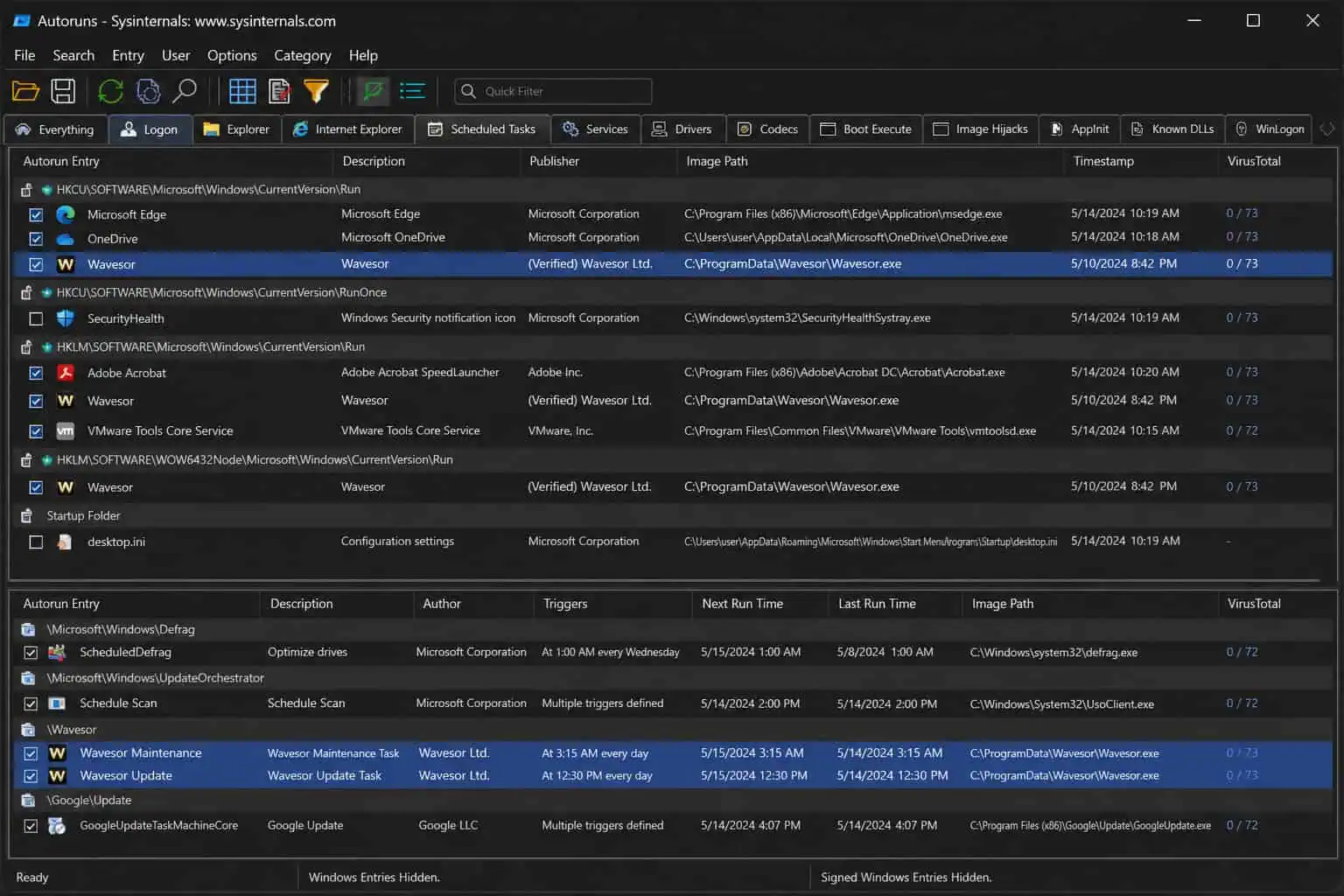
Using Autoruns to Find Hidden Startup Entries
Autoruns is a free Microsoft Sysinternals tool that shows every startup location on your system — places Task Manager’s Startup tab doesn’t even know exist. Open Autoruns and check the Scheduled Tasks and Logon tabs. Disable or delete anything related to Wave or Wavesor. This is how you find the startup entries that are invisible to normal tools.
Process Explorer and Procmon
Process Explorer acts like Task Manager on steroids. It helps identify worker and launcher processes — “trims the trunk, not just the leaves” as one Sysinternals engineer put it. Procmon (run as administrator) tracks file, registry, and network transactions in real time. A 10-second sample can generate a million lines, but you can filter the output to focus on specific processes.
Bootable Live-CD and OS Reinstall
Boot from a Live-CD like HBCD (Hiren’s Boot CD) to run removal tools without trusting the infected OS.
For the most stubborn cases, reinstall the OS from scratch — it’s the most reliable method. Back up personal files first, but understand that the backup itself may be infected. As for UEFI rootkits, adware like Wave Browser is unlikely to use UEFI exploits; those are too valuable to waste on a PUP.
How to Prevent Wave Browser from Coming Back
Preventing reinfection requires changing how you install software and maintaining active defenses. The following habits and tools will help keep Wave Browser off your system for good.
Safe Installation Habits
Always choose Custom or Advanced installation to see bundled offers. Uncheck every pre-ticked box for additional software. Download software only from official websites or verified app stores.
Using Security Tools
Use antivirus with real-time PUP blocking. Malwarebytes and Norton both do this effectively. Consider an ad-blocker that blocks malicious ads. If you want a browser with stronger built-in protections, look at Firefox (enhanced tracking protection, DNS over HTTPS, total cookie protection), Brave (blocks trackers, third-party cookies, phishing, malware, and pop-ups), Safari (uses Google Safe Browsing, blocks malicious websites and pop-ups), or Tor for power users (though expect slower browsing).
One Important Warning
Removing one unwanted program can reinstall Wave Browser if they share the same installer. These PUPs are often linked — removing one triggers reinstallation of another. If you’re cleaning out a batch of unwanted software, do a full scan after each removal.
Frequently Asked Questions
Why did Wave Browser appear on my computer?
Wave Browser typically appears after installing freeware or shareware that bundled it as an optional offer, often with pre-checked boxes during installation. It can also be installed via sideloaded apps or deceptive ads, and it uses scheduled tasks to reinstall itself even after you think you’ve removed it.
Is Wave Browser malware or a virus?
Wave Browser is classified as a potentially unwanted program (PUP), not a virus, but it behaves aggressively by hijacking browser settings and collecting personal data. It doesn’t require administrative rights to change preferences and can resist removal through hidden startup entries and scheduled tasks.
How does Wave Browser keep coming back after I uninstall it?
Wave Browser creates scheduled tasks in Windows Task Scheduler that check if the browser is still installed and reinstall it if missing. It also leaves registry keys and hidden startup entries that survive a standard uninstall, allowing it to restore itself after a reboot.