
So you found a browser on your computer you never installed, and now your search engine points somewhere you didn’t set, your homepage feels wrong, and ads you didn’t ask for keep popping up. Welcome to the Wave Browser situation.
It’s a Chromium-based browser that behaves as a browser hijacker and PUP (Potentially Unwanted Program — think of it as a digital hitchhiker). It changes your default search engine and homepage, shows unwanted ads, and quietly collects data in the background without your consent. It’s not a virus or traditional malware, so the removal approach is different, less aggressive, but still thorough.
The detection name to know is PUP.Optional. Wave, which is how Malwarebytes flags it. The developer is Wavesor Software, which operates under the trade name Polarity Technologies Ltd, itself owned by Genimous Technology — a parent company with a known history in search hijacking. That corporate chain explains the profit motive here: ad revenue and search redirection.
There’s also a nuance that’s rarely covered: two different versions exist. wavebrowser.co is the PUP flagged by security tools, while wavebrowser.com may be a legitimate version. Most security sources flag the .co version as the real threat. If you’re unsure which one you have, check the installation source and how it got there — which is exactly what we’re about to trace.
Key Takeaways
Wave Browser is classified as PUP.Optional. Wave by Malwarebytes and is a Chromium-based browser hijacker that changes your default search engine and homepage without consent.
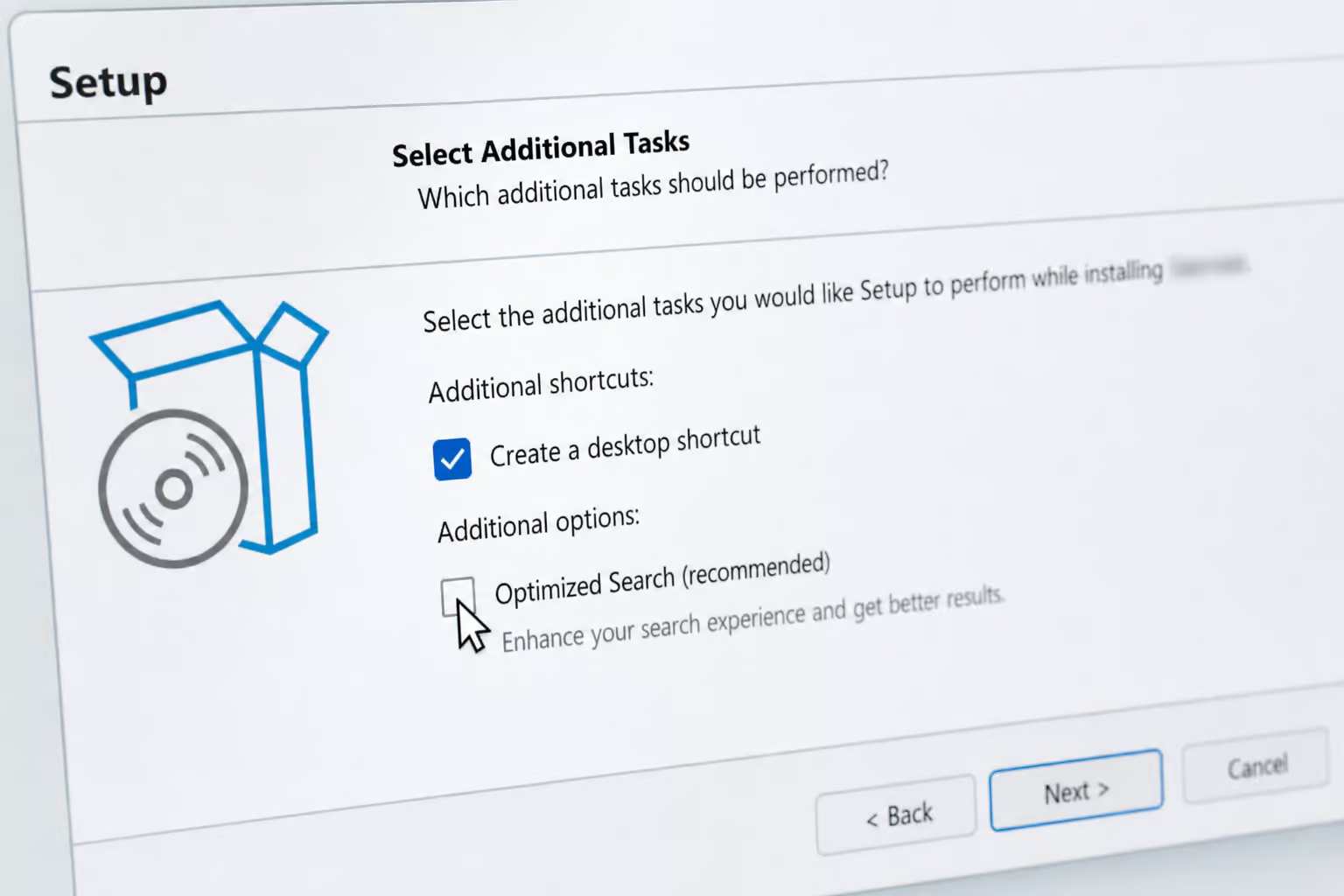
It most often arrives through software bundling — free installers with pre-checked boxes hidden behind “Express” or “Recommended” settings, and may appear under deceptive names like “Optimized Search.”
The two-domain distinction matters: wavebrowser.co is the PUP flagged by security tools, while wavebrowser.com may be legitimate, though most sources flag the.co version.
Table of Contents
What Wave Browser Actually Is
You open your browser and something’s off. The homepage is different. Your default search engine is pointing somewhere you’ve never heard of. When you search, you get redirected through unfamiliar, ad-filled pages. Welcome to browser hijacker territory.
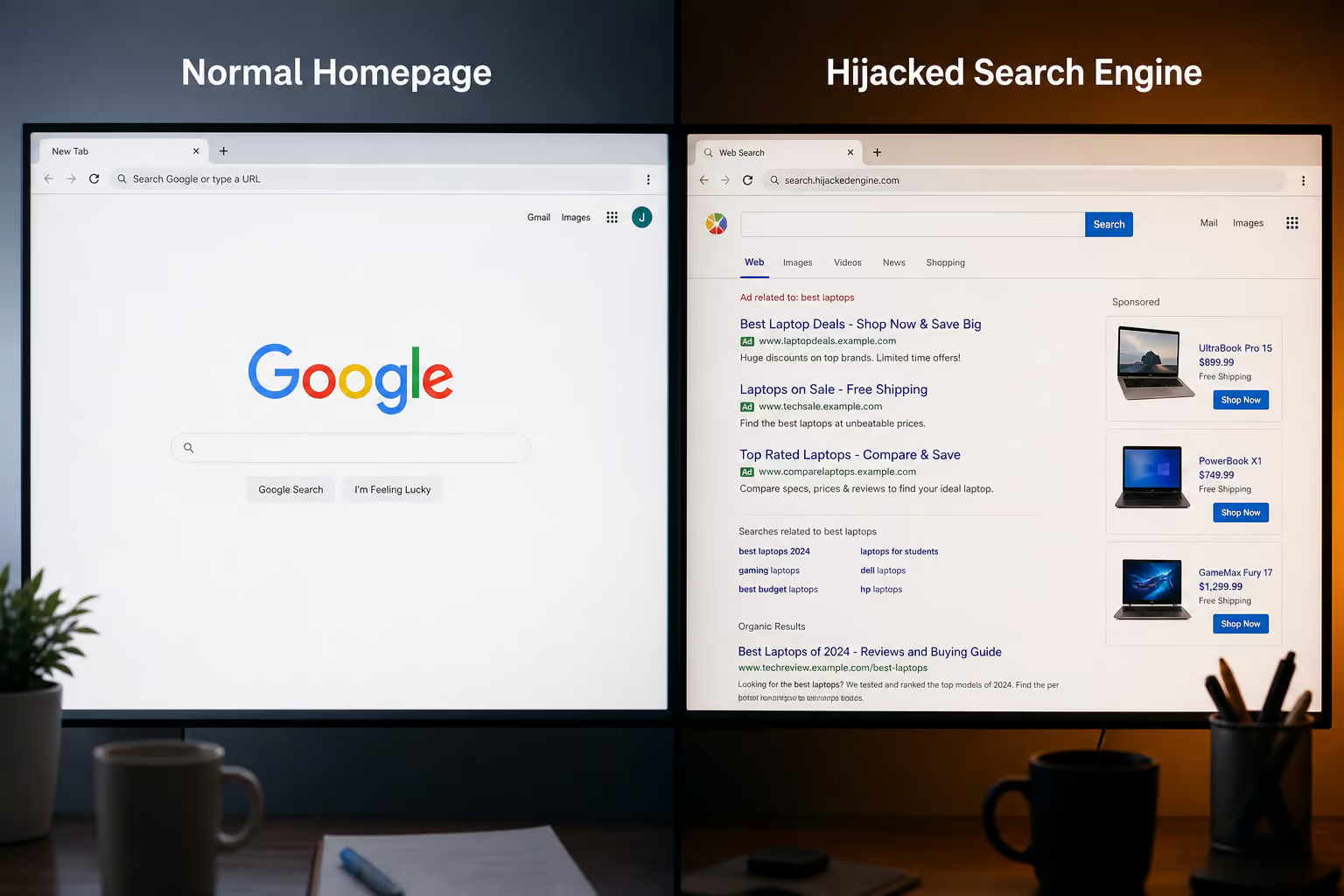
Wave Browser is built on Chromium, which makes it look and feel like a real browser — Chrome, Edge, Brave, they’re all Chromium-based too. That’s part of the trick. It looks legitimate enough that you might not immediately notice something’s wrong. But the behavior gives it away pretty quickly: it changes your default search engine and homepage without asking, it shows pop-up ads you didn’t ask for, and it collects data on your browsing habits without any transparency.
Malwarebytes detects it as PUP.Optional. Wave, and that classification tells you something important. This isn’t a virus or traditional malware. It’s a Potentially Unwanted Program — annoying and invasive, but not as destructive as full-blown malware. That distinction matters so the removal approach is less aggressive but still needs to be thorough.
The company behind it is Wavesor Software, which is a trade name for Polarity Technologies Ltd, owned by Genimous Technology. That parent company has a track record with search hijacking.
How Wave Browser Gets Onto Your Computer
This is the question that brought you here, and the answer is specific once you know what to look for.
The Software Bundling Trap
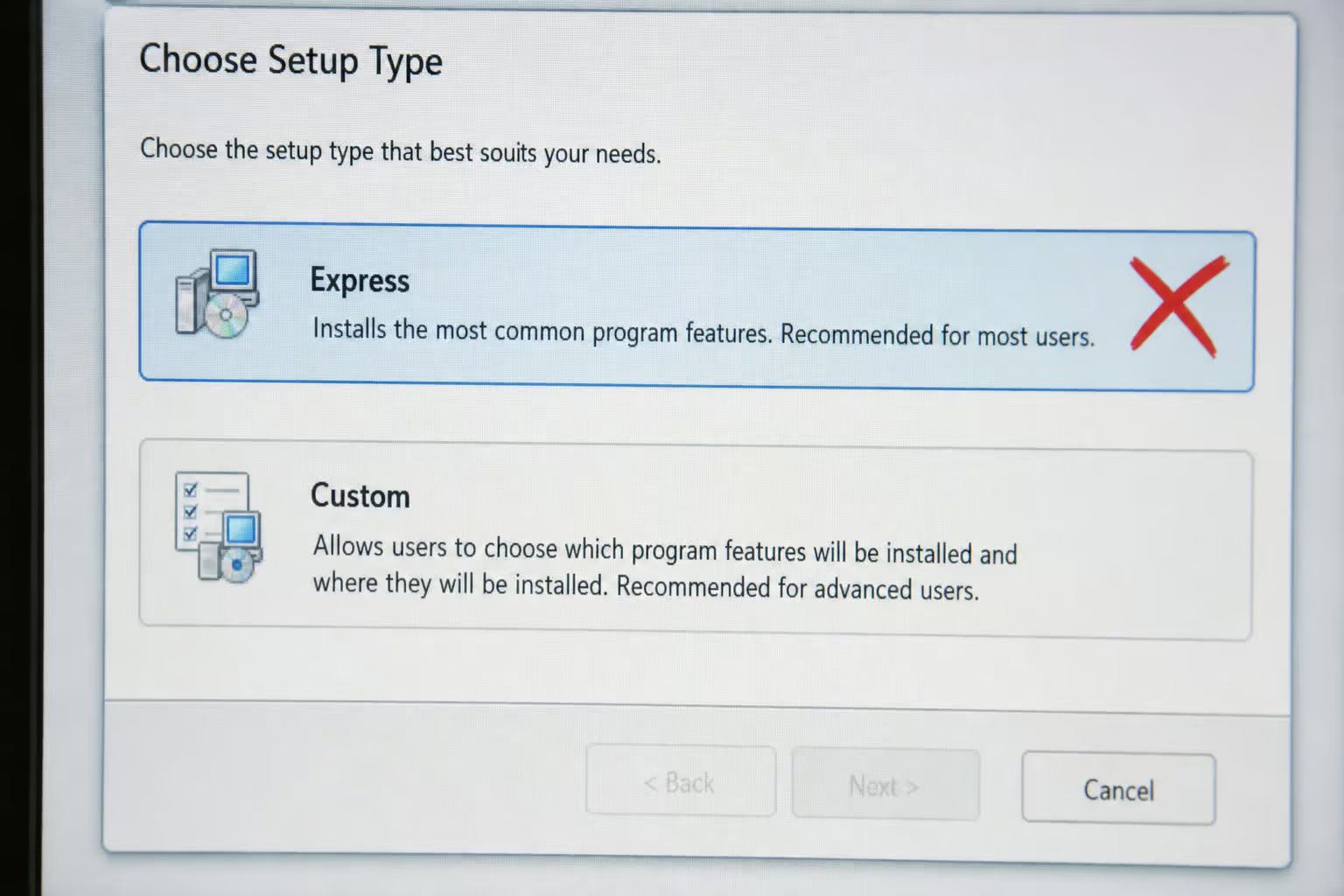
The primary vector is software bundling. Wave Browser piggybacks on free software installers — PDF converters, download managers, fake Java updaters, utility tools you wanted. The installer presents you with a familiar screen: “Express” or “Recommended” installation. Click that, and you’ve silently agreed to install Wave Browser alongside the program you actually wanted.
The core exploit here is a deceptive UI pattern. When you choose “Express” installation, the bundled offer is pre-checked and invisible. When you choose “Custom” or “Advanced” installation, you can see every bundled offer and uncheck them. That’s the whole trick. Not a sophisticated exploit — a design pattern that exploits impatience and trust.
A common failure pattern looks like this: you download a free utility, click through the installer using the “Express” option because it’s faster, and Wave Browser installs silently alongside the program you wanted. You might not notice until you open your browser later and everything feels wrong.
It Masks Under Different Names
Wave Browser doesn’t always use its own name. In the apps list, it might appear as something called “Optimized Search” or other generic-sounding labels. That’s intentional — the goal is to make it harder to identify and remove.
Third-Party Sellers and Refurbishers
Here’s a less-known vector: Microsoft Answers forum threads show infections traced to new laptops where third-party sellers or refurbishers pre-installed deceptive apps that promote Wave Browser. One named example is “Screw Master Jam“ — a sketchy game or app that, when launched, promotes Wave Browser installation.
Microsoft does not pre-install this. The problem starts with the retailer or seller who added junk software to the machine before you touched it. If you bought a refurbished or budget laptop from a lesser-known seller, this is a possibility.
Why Standard Uninstall Fails
You’ve already tried the obvious thing: go to Apps & Features in Windows Settings, find Wave Browser, click Uninstall. And either it’s not there, or the uninstall does nothing. That’s a deliberate design choice, unlike Wave Browser iOS, which is a more conventional web browser available in the App Store.
The Phantom Program Problem
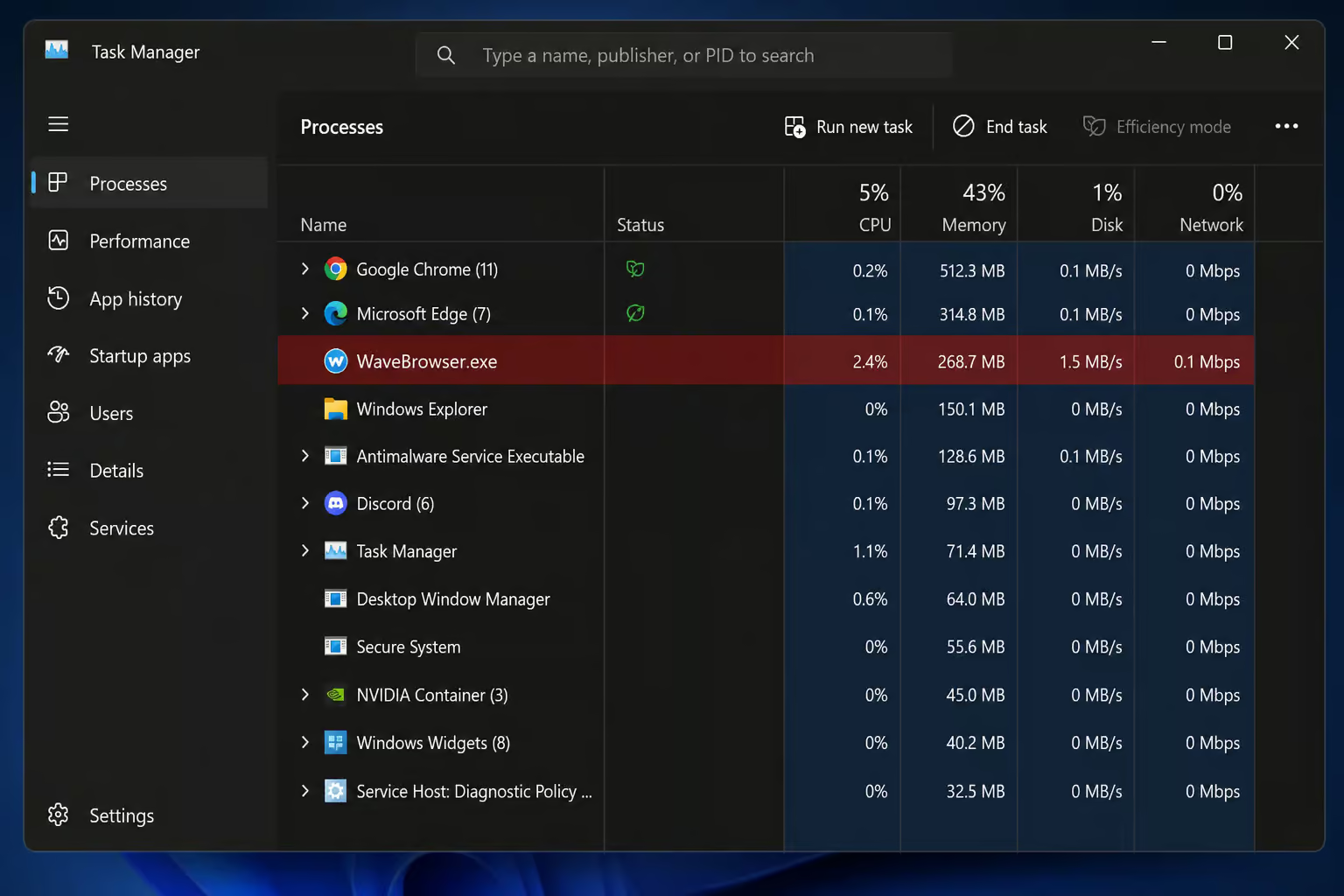
Wave Browser often doesn’t appear in the installed apps list. One user on a forum reported exactly this: The program does not appear in the installed apps list. When you check the linked file path, no uninstall.exe is present. It didn’t show up in Geek Uninstaller, which is a more thorough tool that catches most stubborn programs, so we’ve compiled a guide on how to uninstall Wave Browser that covers registry edits, safe mode boots, and using Autoruns.
This is a portable-style installation. Some programs are designed to be portable — they don’t need an installer, and they don’t leave a standard uninstall path. KeepassX is a legitimate example of a portable app. Wave Browser is the malicious version: it deliberately omits an uninstaller to make removal harder.
Persistence Mechanisms
Even if you find and delete the main folder, Wave Browser can reappear because of the hooks it leaves behind:
- Scheduled tasks in Task Scheduler that respawn the browser
- Startup entries in Task Manager that relaunch it on boot
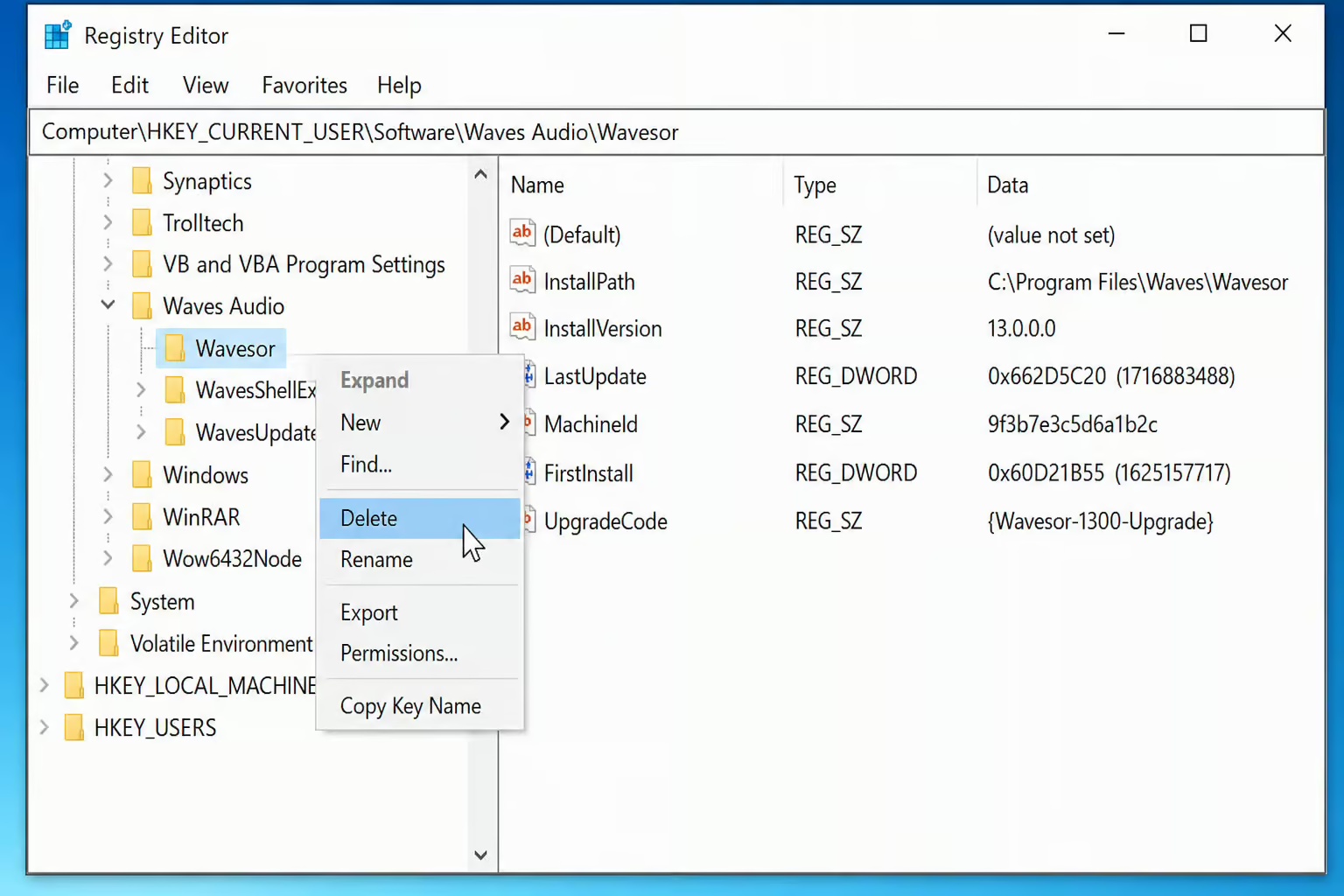
- Registry keys that survive simple folder deletion
The specific file traces to look for:
%APPDATA%Wavesor Software%PROGRAMFILES%Wavesor Software%USERPROFILE%Wavesor Software
The specific registry keys:
HKCUSOFTWAREWavesorHKCUSOFTWAREWaveBrowserHKCU...UninstallWaveBrowser
This is why deleting the main folder doesn’t work. The scheduled tasks and registry entries reinstall it from leftover components. It’s designed to be sticky.
How to Remove Wave Browser
Here’s the tiered approach. Most readers can start at Tier 2 and be done in 20 minutes. If you’re comfortable with registry editing, skip to Tier 3. A clean install is the last resort.
Tier 1: Built-in Windows Tools
Start with the obvious stuff, but don’t expect much. Wave Browser often hides from these tools.
- Microsoft Defender full scan: Open Settings > Update & Security > Windows Security > Virus & threat protection > Scan options > Full scan. Click Scan now. Review results and quarantine anything found.
- Apps & Features: If Wave Browser appears in the list, select it and click Uninstall.
- Disable startup entries: Open Task Manager, go to the Startup tab, find any Wave Browser entry, and click Disable.
- Reset Microsoft Store cache: Press Windows Key + R, type
wsreset.exe, and press Enter. A command prompt opens briefly, then the Store restarts automatically. This clears corrupted data that might be related. - Reset browsers to default: In Edge, navigate to Settings, then Reset settings, and choose Restore settings to their default values, then Reset. Chrome and Firefox have similar options.
Tier 2: Third-Party Scanners
This is where most cases get resolved.
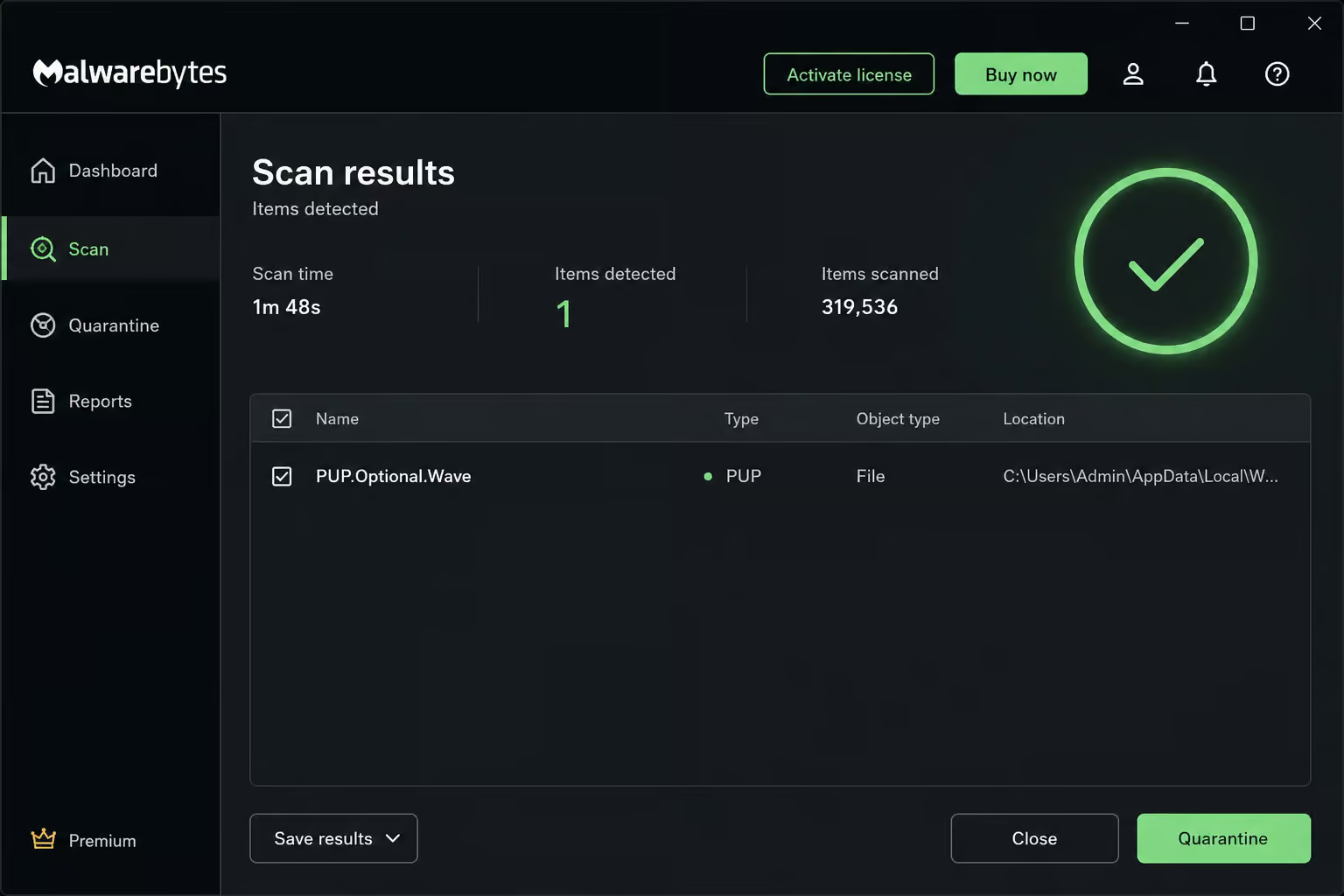
Malwarebytes detects Wave Browser as PUP.Optional. Wave and can remove it automatically. Users consistently report it as the best tool for this job. It offers a 14-day free trial, letting you clean your system without paying. Download only from the official website to avoid fake versions.
Steps:
- Download and install Malwarebytes from the official site
- Click Scan to start a full system scan
- If it finds anything, click Quarantine
- Reboot if prompted
Other tools that can help as a secondary pass:
- HitmanPro
- Norton Eraser
- CCleaner — useful for the registry cleaner only. Skip the other features; they can cause more harm than good.
- Spybot Search and Destroy — another option if Malwarebytes doesn’t catch everything.
Tier 3: Advanced Manual Removal
If the automated tools miss something, or if Wave Browser keeps coming back, you need to go deeper. This is for persistent cases only.
- Kill Wave processes first. Open Task Manager by pressing Ctrl + Shift + Esc. Click the Details tab to see all running processes. Right-click any Wave-related process and select End Task.
- Delete file traces. Navigate to the paths listed above and delete any Wavesor or Wave Browser folders. Use Shift + Delete to permanently remove them. Enable hidden folders in File Explorer if you can’t see them.
- Delete registry keys. Open regedit.exe. Use Edit > Find to search for “Wave”, “Wavesor”, and “Wave Browser”. Right-click any found keys and delete them.
- Remove scheduled tasks. Open Task Scheduler (Control Panel > Administrative Tools > Schedule tasks). Browse the Task Scheduler Library for any entries referencing Wave, Wavesor, or Wave Browser. Delete them.
- Remove browser extensions. Open your web browser, check the extensions or add-ons menu for any Wave-related plug-in, and remove it.
- For advanced users:
- Sysinternals (Process Monitor, Process Explorer) — now completely free after Microsoft acquired it. Process Monitor shows what a suspicious process is touching on your system. Process Explorer helps find the root of the problem, not just the visible symptoms.
- GlassWire — functions as a firewall to detect strange network behavior from Wave Browser.
- O&O AppBuster — can target stubborn Windows components that normal uninstallers miss.
- VirusTotal — upload any suspicious file you find during cleanup to see what other scanners think.
Tier 4: Clean Windows Install (Last Resort)
If Wave Browser persists after all the above steps, a clean Windows install is the guaranteed fix. This is the nuclear option.
Before you wipe the drive, back up your critical data carefully. Be aware that backing up files risks spreading the infection to the backup media. Only back up personal files — documents, photos, media, not applications or system files. Then wipe and reinstall Windows.
Mac Removal (Brief)
Wave Browser is available on both Windows and Mac. Mac users aren’t immune.
- Go to System Settings, then General, and select Login Items.
- Remove any “Wave” entries or anything unfamiliar
- Check browser extensions and remove any Wave-related ones
- Drag the Wave Browser app to Trash
How to Avoid This in the Future
The prevention habit is simple and takes about 10 seconds.
Always Choose Custom Installation
Every time you install free software, look for “Custom” or “Advanced” installation options. Never accept “Express” or “Recommended” defaults without checking what’s bundled.
When you choose Custom installation, you’ll see every pre-selected third-party offer. Uncheck anything that looks unfamiliar — Wave Browser, Optimized Search, or any tool you didn’t specifically search for.
Tools That Help
- Unchecky — a free tool that automatically unchecks bundled offers during software installation. It’s not perfect, but it catches the most common patterns.
- Real-time protection in Malwarebytes — can actually stop Wave Browser from installing in the first place.
Source Matters
Download software only from official websites, not from third-party download portals. Sites like Download.com, Softpedia, and similar aggregators often bundle offers with the software you’re trying to get. The official source rarely does.
When to Call It a Day
Wave Browser is a PUP, not malware, but it’s still unwanted and worth removing. Most cases are handled with Tier 1 or Tier 2 tools. Manual removal is for persistent cases where the automated tools miss something. A clean Windows install is a last resort — don’t jump to it first.
The best prevention is the 10-second habit: always choose Custom installation and uncheck anything you didn’t ask for. It’s a learnable skill, not luck.
If the browser persists after all the steps above, a clean Windows install is the only guaranteed fix. But for most people reading this, the Malwarebytes scan will take care of it in one pass. Start there, escalate only if you need to.
Frequently Asked Questions
Why did WaveBrowser get on my computer?
Wave Browser typically arrives through software bundling — free installers for PDF converters, download managers, or utility tools that have pre-checked boxes hidden behind ‘Express’ or ‘Recommended’ installation options. It can also come pre-installed on refurbished or budget laptops from third-party sellers who add junk software before you receive the machine.
Is Wave Browser a virus?
No, it’s classified as a Potentially Unwanted Program (PUP), not a virus or traditional malware. That distinction matters because the removal approach is less aggressive but still needs to be thorough — it changes your default search engine, shows pop-up ads, and collects data without consent, but it won’t destroy your system like full-blown malware.
Why won’t Wave Browser uninstall normally?
Wave Browser often uses a portable-style installation that deliberately omits a standard uninstaller, so it may not appear in Apps & Features at all. Even if you delete the main folder, it can reappear because of persistence mechanisms like scheduled tasks, startup entries, and registry keys that respawn the browser from leftover components.
How can I prevent Wave Browser from installing in the future?
Always choose ‘Custom’ or ‘Advanced’ installation instead of ‘Express’ or ‘Recommended’ when installing free software — this reveals every pre-checked bundled offer so you can uncheck them. Download software only from official websites, not third-party portals like Download.com or Softpedia, which often bundle offers. Tools like Unchecky can also automatically uncheck bundled offers during installation.