You’ve muttered it at least once, probably after an ad for something you only mentioned out loud: my phone is listening to me.
Here’s the thing. It kind of is. But not the way you think, and not in the way that makes for good conspiracy content. Your phone isn’t running a 24/7 tape recorder and feeding your entire life to some ad executive.
It’s sitting there, quietly, waiting for a trigger word. “Hey Siri,” “OK Google,” “Alexa.” That’s it. The moment it hears that phrase, it wakes up, records your next command, and gets to work. Everything before the trigger is just audio that never gets saved.
That’s the reality we’re dealing with, and it’s both more mundane and more controllable than the panic suggests. The goal here isn’t to scare you. It’s to show you the exact mechanism, give you a way to test it yourself, and walk you through the precise settings to shut it down on your phone.
Key Takeaways
Your phone listens for a wake word like “Hey Siri” or “OK Google” and only records after it hears that trigger, so it isn’t running a continuous recorder.
You can test that behavior yourself with the boat engine test: talk about a topic you have zero interest in for a few days, then watch your YouTube, Google, and social feeds for unexpected ads.
The most useful privacy find: the Gemini app on Android shows no removable permissions because it’s just a shortcut to the Google app, and cutting the Google app’s microphone access disables both Gemini and voice search inside that app.
Table of Contents
Why Your Phone Listens: Wake Words and Voice Commands
The word “listen” does a lot of heavy lifting, and it’s worth being precise about what’s actually happening. Passive listening means the assistant is running a low-power audio monitor that’s only listening for one specific phrase. Active recording means the assistant is capturing audio and sending it to a server for processing, which only happens after the wake word fires.
So when Siri, Google Assistant, or Alexa sits there waiting for “Hey Siri,” “OK Google,” or “Alexa,” it’s doing the equivalent of a guard at a gate. The guard isn’t writing down everyone who walks by. The guard is waiting for the secret password, and only then does the full security response kick in.
This isn’t some fringe feature that a few paranoid nerds use. 150 million Americans use voice assistants. That’s the scale we’re dealing with. It’s mainstream, and the convenience is the whole pitch.
You’re on the couch and you want to place an Amazon order, you ask out loud. You’re driving and you need directions, you ask Google Maps. You’re cooking and you want a specific song, you tell Spotify to play it. That’s the tradeoff the entire feature is built on.
What Happens to Your Voice Data: Targeted Ads and Your Profile
Here’s the part where people start feeling uneasy, and it’s worth being honest about why. When your assistant does record, it’s not just forwarding your command to the oven timer. It’s logging the interaction. That includes your voice commands, your speech patterns, the names of your contacts, and keywords from your requests.
Companies say this helps them improve voice recognition and make recommendations more personal. That’s true. It’s also true that this data feeds the targeted advertising machine.
But here’s the key framing that cuts through the paranoia: your voice data isn’t special. It’s just more fuel for the same ad profile that your search history, your browsing habits, and your location data have been feeding for years. The assistant isn’t uncovering a secret about you. It’s adding a couple more logs to a fire that was already burning.
This isn’t a hidden conspiracy. It’s disclosed, if thinly, in the terms of service you agreed to when you set up your phone. The tone here shouldn’t be outrageous expose. It’s more like unremarkable but worth understanding.
The system exists, it’s collecting data, and it’s using that data to make ads more relevant. Knowing that is the first step to deciding what you want to do about it.
The Boat Engine Test: How to Check If Your Phone Is Listening
If you’re not convinced your phone is doing anything with your voice, don’t take my word for it. Run the boat engine test. It’s a low-effort experiment that takes a few days and gives you a direct answer.
Here’s the setup. Pick a topic you have zero existing interest in. The classic example is boat engines. If you’ve never searched for boat engines, never watched a boat engine video, never discussed them online, they should never appear in your ads.
That’s the key. You want something that has no reason to show up in your feed.
Now, talk about it near your phone. Mention boat engines in conversation. Say the phrase out loud a few times. Do this over the course of a few days, because a single interaction might not be enough for the ad machinery to kick in.
Then watch your ads. Check YouTube, check Google, check your social feeds. If boat engine ads start appearing, that’s a pretty strong signal something is listening.
But before you grab the tinfoil hat, understand the limits of this test. This is a sign, not proof. A negative result doesn’t mean your phone isn’t listening. Ad targeting is probabilistic and delayed, so you might just not have triggered the right algorithm. A positive result is suggestive, but it’s not courtroom evidence. It’s a way to check the behavior, not a scientific proof of a conspiracy.
iOS Privacy Settings: Turning Off Siri and App Microphone Access
If you’re on an iPhone, you have two levers that matter, and they’re both easy to reach.
First, the assistant trigger. You can turn off the “Hey Siri” listening through the Siri settings. That stops the phone from passively monitoring for the wake phrase. Siri doesn’t wake up to a voice command anymore; you’d have to hold the button like a civilized person.
Second, the per-app microphone controls. Head to Settings > Privacy & Security > Microphone. On iOS, microphone access is binary. It’s either on or off for each app, and there’s no middle ground. You’ll see a list of every app that has ever asked for mic access, and you can flip them off one by one.
While you’re in there, keep an eye on the green dot. That’s the indicator on iPhones (and some Android phones) that shows up when an app is actively using the camera or microphone. It’s a live monitoring tool that tells you in real time what’s accessing your hardware. If you’re in the settings and you see a green dot, that’s an app using the mic right now. It’s a detail that most people don’t know about, and it turns your phone into its own spy camera detector.
Android Privacy Settings: Google Assistant, App Permissions, and the Gemini Gotcha
On Android, you have the same two levers plus one surprising find that most guides completely miss.
The assistant trigger is handled through the Google app’s Assistant settings. You can turn off “Hey Google,” and the passive listening stops.
For per-app controls, you’re headed to Settings > Privacy > Permission Manager. That’s where you can see every app that has access to your microphone and revoke it.
Now for the surprise. Google Gemini, the AI assistant that’s been getting all the attention, shows no removable permissions on Android. Open its app info and you’ll see a permissions list that’s empty, with nothing you can toggle. That looks like a bug or a security flaw, but it’s a design decision.
Gemini is a shortcut. Its actual functionality is baked into the Google app. So when you want to manage what Gemini can access, you have to look at the Google app’s permissions, not the Gemini app’s.
Here’s the catch, and it’s an important one. When you disable the microphone permission for the Google app, you also disable Gemini. The Gemini app will even tell you this directly, with a pop-up that reads: To use Gemini, you’ll need to enable microphone access for the Google app in your device settings.
And there’s a second side effect that most guides skip. Disabling the Google app’s mic doesn’t kill all voice features on your phone. It specifically affects two things: Gemini and non-Gemini voice search inside the Google app. Voice typing in your keyboard, voice commands on other apps, those aren’t touched. Only Google-app voice search and Gemini lose their ears.
Worth noting: Gemini has drawn scrutiny over how it accesses your phone, including an email about gaining access to other apps. That’s context, not an accusation. It’s not worse than other assistants; it’s worth understanding how it’s wired up.
Android 12 Privacy Tools: Privacy Dashboard and Quick Settings Toggles
If you’re on Android 12 or later, you’ve got a couple of system-level tools that go beyond per-app permissions.
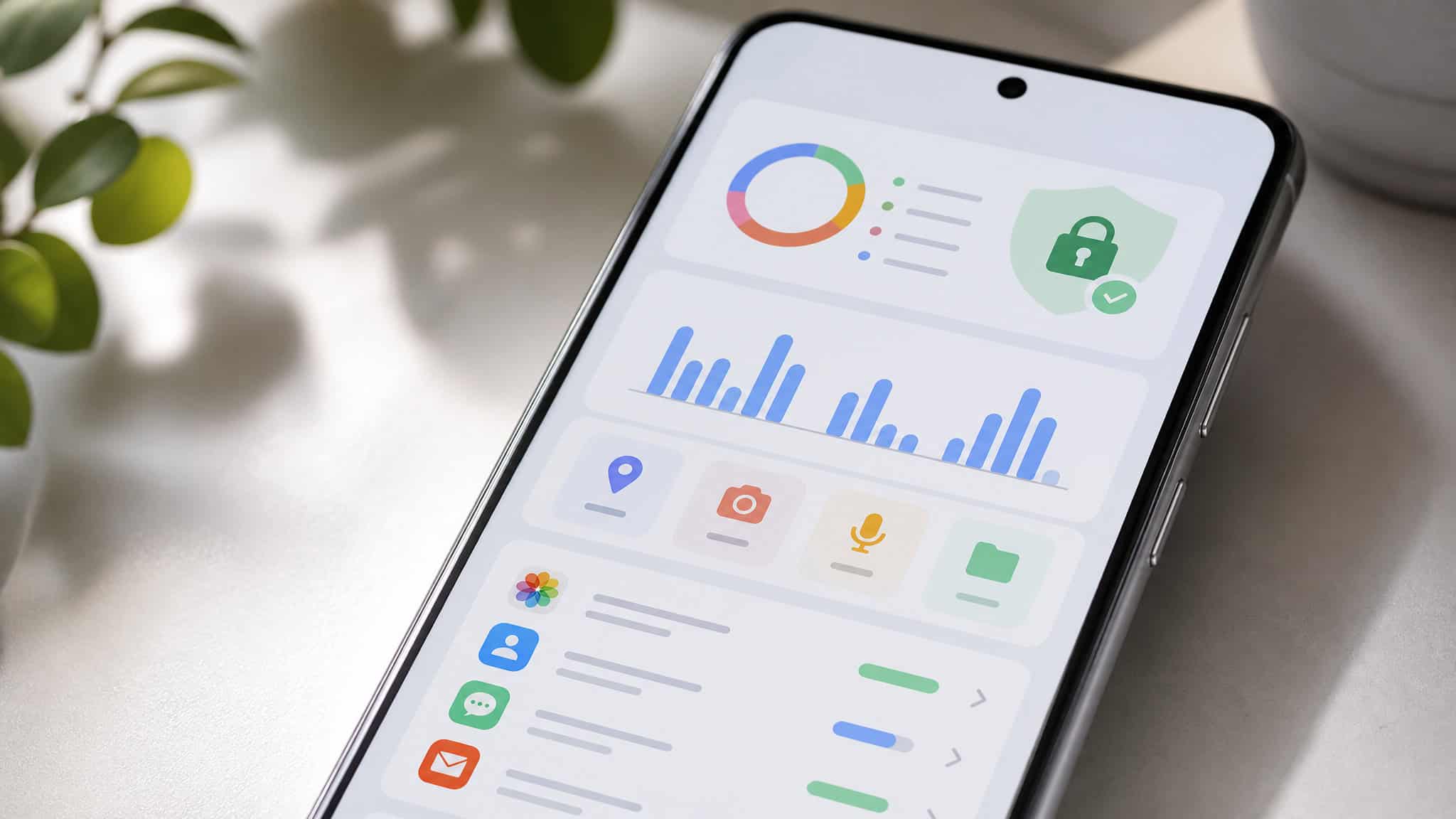
The Privacy Dashboard shows you which apps used your location, camera, or microphone in the last 24 hours. It’s an audit log that tells you exactly what accessed your hardware recently. Introduced in Android 12 Beta 2, it’s less about blocking and more about visibility.
Then there’s the Quick Settings toggle. This is the blunt instrument, and it’s satisfying. It’s a hard switch that instantly blocks all apps’ access to your camera and microphone. No per-app management, no fuss, just a hard “no” to every piece of software on the phone at once. It’s the “slam the door” move when you’re paranoid after a news cycle or you just want a hardware-level off switch.
Android 12 also added the option to give apps approximate location instead of exact, which is a nice middle ground for apps that want to know your city but don’t need your street.
One honest caveat: experts aren’t fully convinced Google has gone far enough with these measures. They’re a real step forward, but they’re complementary tools, not a replacement for actually managing your app permissions. The dashboard tells you what happened, and the toggle blocks everything, but neither makes the per-app audit unnecessary.
Auditing App Permissions: The Guitar Chords Chart vs. Guitar Tuner
Here’s the mental model that turns all these settings from rote steps into a judgment you can apply to any app forever.
Ask one question: does this app’s core function actually require the microphone?
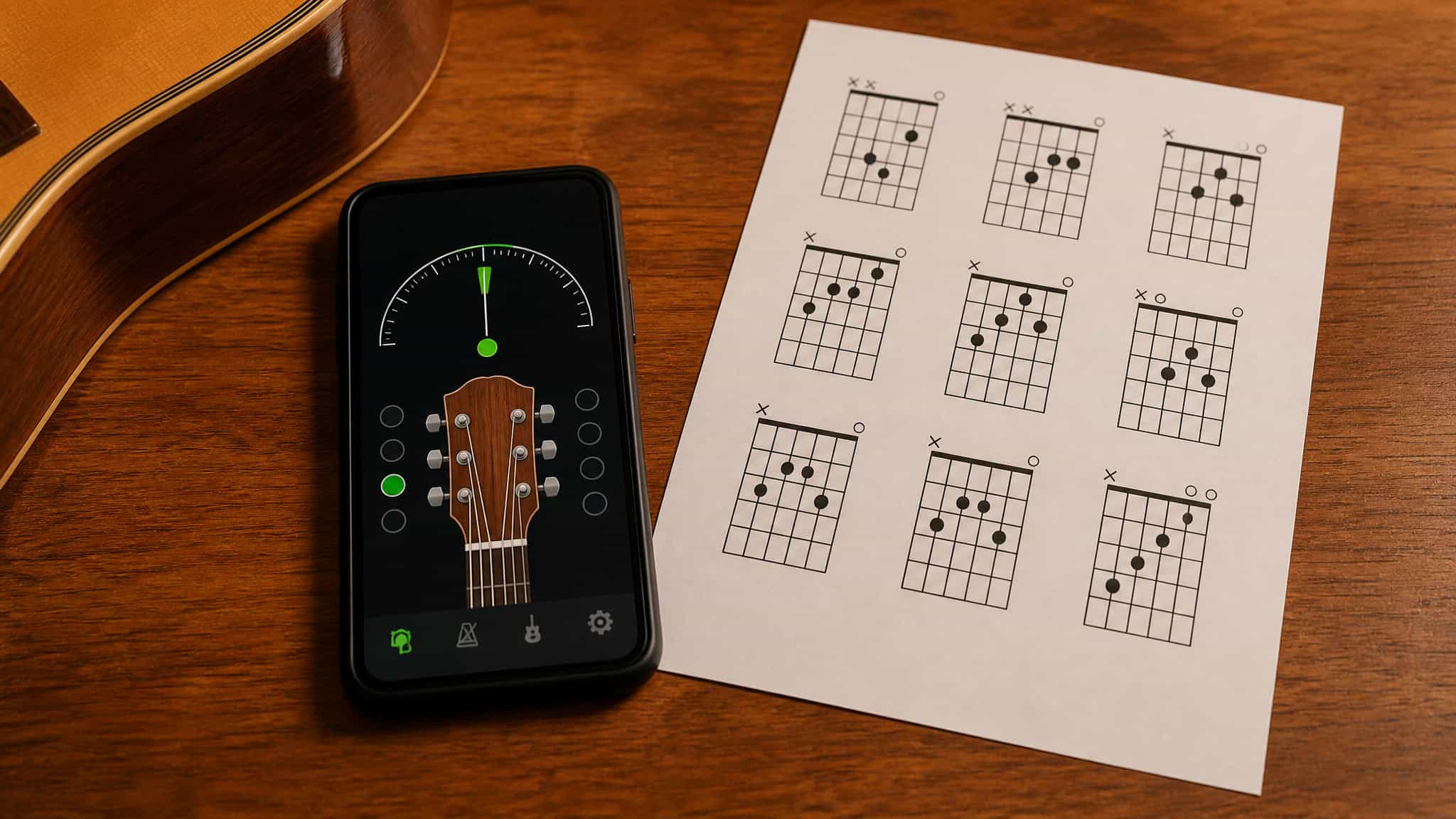
The clean example is the guitar tuner versus the guitar chords chart. A guitar tuner app is useless without the microphone. That’s its entire job. It needs to hear your guitar to tell you if it’s in tune.
A guitar chords chart app, on the other hand, is just a reference. It shows you chord diagrams. It doesn’t need to hear anything. Same category of app, completely different microphone needs.
Take that logic to your own phone. Open your app list and look at who has mic access. Messaging apps, video-call apps, social apps: a lot of them hold the permission without their core function strictly needing it. And before you assume the worst, that’s not a sign they’re all spying on you. It’s a sign that most of them just don’t need it, and the permission is there out of convenience or habit.
My own practice is to run a strict policy. I’ve turned off microphone access for every app on my phone. Every single one. It does break some things, and I’ll get to that in a second, but it’s the cleanest way to start from a position of “no” and grant access only when something genuinely proves it needs the mic.
The tradeoff is real: voice features break, assistants get annoying, and you’ll find yourself tapping more than talking. But for me, the control is worth it.
Legal and Security Considerations: Consent, Malware, and the Apple Case
The legal reality is simpler than people assume. When you grant an app microphone access and accept its terms and conditions, you’re consenting to the listening. That’s what makes it legal. It’s not a loophole and it’s not a secret, it’s a poorly-read terms-of-service agreement.
The line gets crossed when listening happens without consent. That’s the distinction that matters, and Apple has faced legal consequences over exactly that. The company has been on the wrong side of that line. It’s the concrete illustration that the line between consented-to and not is real, and companies can cross it.
Now the honest limit: denying microphone access is not a complete shield. If you have sketchy apps installed or your phone is compromised, an app you shouldn’t have installed can misbehave regardless of the permission toggle. Malware doesn’t care about your settings menu. That’s the scenario a mic-permission toggle can’t fix.
The defensive basics are worth a line: only download apps from official app stores, and turn on two-factor authentication for your accounts. Those two habits do more for your security posture than any single privacy toggle.
Beyond the Microphone: VPN, Antivirus, and Other Complementary Tools
If you’ve ever considered a VPN as your privacy silver bullet, this is where we correct that impression.
A VPN encrypts your connection and masks your IP address. That’s useful for protecting your traffic from snooping on public Wi-Fi and hiding your browsing activity from your ISP. But it does not, in any way, stop microphone listening. Your mic data stays on your phone and goes through the app’s servers, regardless of whether your connection is encrypted. The VPN protects your traffic, not your hardware.
Antivirus software is relevant for a different reason. It’s your defense against the compromised-phone scenario from the last section. It catches the malware that a mic-permission toggle can’t touch. Surfshark’s antivirus is an example of the category, but the category is what matters.
Ad blockers serve yet another purpose. They reduce the ad-tracking signal, which means fewer targeted ads in the first place. That’s directly related to the boat engine test, because a clean feed is easier to observe than one clogged with tracking cookies. Surfshark Clean Web is one example, but any decent ad blocker does the job.
The honest map looks like this: mic settings control what the microphone hardware can do. A VPN controls what happens to your connection. Antivirus controls what malicious software can run. An ad blocker controls what tracking signal reaches you. They protect different things, and none of them is a complete solution on its own.
The Tradeoff: Convenience vs. Privacy. Your Settings, Your Call
Here’s where you land. On one end of the spectrum, you have a fully voice-enabled phone. Siri, Google Assistant, and Alexa all have mic access, and you get the convenience of hands-free commands, voice search, and talking to your phone while you cook. You’re also feeding the machine. Those assistants collect your commands, your speech patterns, even contact names and keywords, and that data feeds the ad profile.
On the other end, you have my setup. No app has mic access, and the assistants are effectively deaf. You lose the convenience, and you also lose the assistants themselves. That’s the honest cost: the apps most likely to hold and use mic access, the voice assistants, are exactly the ones you lose by cutting it.
The highest-leverage move is the middle path. Disable mic access for apps that don’t need it, keep it for the ones that do, and decide consciously which assistants earn their access. That’s the core solution, and it’s where you get the most control for the least disruption.
The takeaway isn’t “you must do this” or “the convenience is worth it.” The settings are yours, the call is yours, and now you understand the mechanism well enough to make it deliberately. You’re not deciding out of vague fear. You’re deciding with the full picture of what the phone does, what it collects, and what you give up either way.
That’s the informed choice. That’s the whole point.
Frequently Asked Questions
Is your phone constantly listening?
No, not in the way you might fear. Your phone runs a low-power audio monitor that only listens for a specific wake word like ‘Hey Siri’ or ‘OK Google.’ It only starts recording after that trigger, and audio before the wake word is not saved.
What is the boat engine test for checking if your phone is listening?
Pick a topic you have zero interest in, like boat engines, and talk about it near your phone for a few days. Then watch your ads on YouTube, Google, and social feeds. If ads for that topic start appearing, it’s a strong signal something is listening, though it’s not absolute proof.
What’s the difference between passive listening and active recording?
Passive listening is when your phone runs a low-power monitor that only listens for a specific wake phrase. Active recording happens only after that wake word fires, when the assistant captures your command and sends it to a server for processing. The phone isn’t recording everything you say, just what comes after the trigger.