Okay, so you’re sitting there and your phone’s battery is dying by 2 p.m. on a day you barely touched it. Or a call sounded like it was bouncing off a satellite, with weird clicks and a half-second delay. Maybe you got a text that was just a string of numbers from an unknown sender, and you felt a chill you couldn’t quite explain.
That’s the exact moment this guide exists for. That moment where you wonder if someone’s actually monitoring this thing.
Here’s the honest answer: it’s almost always the second one. A single weird glitch, especially one that happens once, is just your phone being a phone. But the rules change when you start seeing a pattern. Several signs, appearing consistently over a few days, is a completely different story.
That’s the threshold where “curious glitch” becomes “worth investigating.” And the way you find out which one you’re dealing with is to inspect, not to spiral.
Consider this your calm, hands-on inspection manual. We’re going to look at what’s actually happening under the hood, how to check it, and what to do if the pattern is real.
Key Takeaways
Phone monitoring is a documented reality: a 2024 Safehome survey found 80% of stalking victims in the U.S. are tracked via technology like spyware, and the FBI investigated over 1,000 SIM swap attacks in one year.
The most useful diagnostic tool is the MMI code table: dialing *#21# or *#62# tells you if calls are being silently forwarded to another number, a classic network-level surveillance trick.
One isolated sign is noise; a cluster of signs appearing consistently is the real tell, and your first counter-move if you suspect something is Airplane Mode.
Table of Contents
The Reality of Phone Monitoring
Let’s get the uncomfortable facts on the table first, because this isn’t a paranoia simulator. A 2024 Safehome survey found that 80% of stalking victims in the U.S. are tracked with tools like spyware, cameras, and GPS devices. The FBI’s Internet Crime Complaint Center looked into over 1,000 SIM swap attacks in a single year, and mobile phone accounts figure in nearly half of all account takeover cases. This is a real thing that happens to real people.
But here’s the important part: modern phone monitoring rarely looks like the wiretap from an old spy movie. Unless you’re a high-value target, nobody is splicing your copper line. What we’re actually talking about is spyware apps installed by someone with physical access, account hijacking, or SIM swaps. There’s also a meaningful difference between tapping and hacking.
Tapping means someone is listening to your calls or reading your communications. Hacking is broader, meaning unauthorized access to the device itself, which could involve grabbing your photos, tracking your location, or reading your texts. The signs overlap heavily, which is why it’s hard to tell them apart at first glance. That’s okay. We don’t need to know which one it is to start checking.
Warning Signs: What to Look For
Here’s the breakdown of the individual warning signs, each with the mechanism that causes it and its innocent explanation. Remember the rule: one sign, appearing at random, is likely nothing. A cluster, appearing consistently, is what matters.
Strange sounds during calls
Persistent clicks, static, echoes, or delays that weren’t there before. The key word is persistent. Occasional static is almost always a weak signal or network congestion. But if every call you make, from different locations on different networks, has that same weird echo or clicking, it’s worth a second look. Surveillance tech can add subtle artifacts to audio, though that’s a possibility, not a certainty.
A hot or rapidly draining battery
Spyware is a background app that constantly transmits data, and that transmission eats power. That’s the mechanism. If your phone suddenly becomes a space heater and needs a charge by midday, when it used to last all day, that’s a red flag. But don’t panic over one bad day.
Batteries age and degrade gradually. A sudden, multi-day change in drain rate is the real tell, not a slow decline.
Here’s how to check: on iPhone, head to Settings > Battery > View All Battery Usage. On Android, it’s Settings > Battery or search for “Battery activity.” Check it again after a few days. If an app you never open is sitting at the top of the list, that’s the flag.
Unusual activity when idle
This is the your phone doing things when you’re not looking category, and honestly, it’s the creepy one. Apps opening or closing on their own, unexpected restarts, the screen lighting up when nothing’s incoming, or the phone getting warm while it sits untouched on the table. Spyware can force remote commands, so apps opening on their own isn’t just a random glitch. Your phone shouldn’t be having a party when you’re not home.
Trouble shutting down
You press and hold the power button, and the phone just… takes forever. Or it freezes on the slider and refuses to go dark. The logic here is pretty direct: before shutdown, the phone completes active background tasks, and that shouldn’t take long. Surveillance software wants to keep its connection alive, so it may resist the shutdown to finish transmitting data or hold its position.
Websites looking different
This one’s about rendering weirdness, especially on login pages. If a site’s layout looks off, the logo is wrong, or you’re getting odd pop-ups where you’ve never seen them, it could mean something is intercepting your traffic. Spyware can tweak how pages render to steal credentials through a phishing overlay, a man-in-the-middle setup. If a page looks wrong, don’t enter your password. Close the browser and check your connection first.
Unusual text messages
Strings of numbers, letters, or symbols from unknown senders. These look like spam, but they can be something else entirely. Some spyware uses SMS as its command channel, a way to talk to its server without you knowing. Those coded messages aren’t meant for you.
They’re for the spyware, giving it instructions or receiving data. So weird texts out of nowhere are a clue, not just noise.
Cameras and microphones turning on randomly
A camera light or mic indicator flickering on when you haven’t opened an app is a big red flag. Unauthorized software poking at your hardware to record without input is a classic compromise sign. But before you panic, check if it’s just a legit app being chatty. An app you gave location access to might be checking in, and that can trigger the indicator. It’s not always spyware, but it’s always worth a look.
Increased data usage
Spyware transmits location, messages, call logs, and often audio recordings. That data has to go somewhere, and it shows up on your bill. A sudden, unexplained data spike is a practical clue. Check the paths: on iPhone, Settings > Cellular > Cellular Data > Show All.
On Android, it’s Settings > Connections > Data usage > Mobile data usage, though older models may use Settings > Network and internet > App data usage. The counter is your detective tool; see which app is the hog.
Hidden or suspicious apps
Malware wears a disguise. It often hides behind boring, system-sounding names like “System Service” or “Updater” on Android, or “Device Health” to blend in. An unfamiliar app with an innocuous name is worth investigating. Check Settings > General > iPhone Storage on iOS or Settings > Apps on Android.
Also, look for permission requests that don’t make sense, like a calculator asking for mic access. That’s a clear red flag.
There’s also the rooting and jailbreaking tell. If your phone is rooted (Android) or jailbroken (iPhone) and you didn’t do it, that’s a huge deal. You can check with jailbreak-detection apps from the App Store or Root Checker on Android. If it’s modified without your deliberate action, someone with physical access probably did it, and the most likely reason is installing spyware.
Status indicators appearing unexpectedly
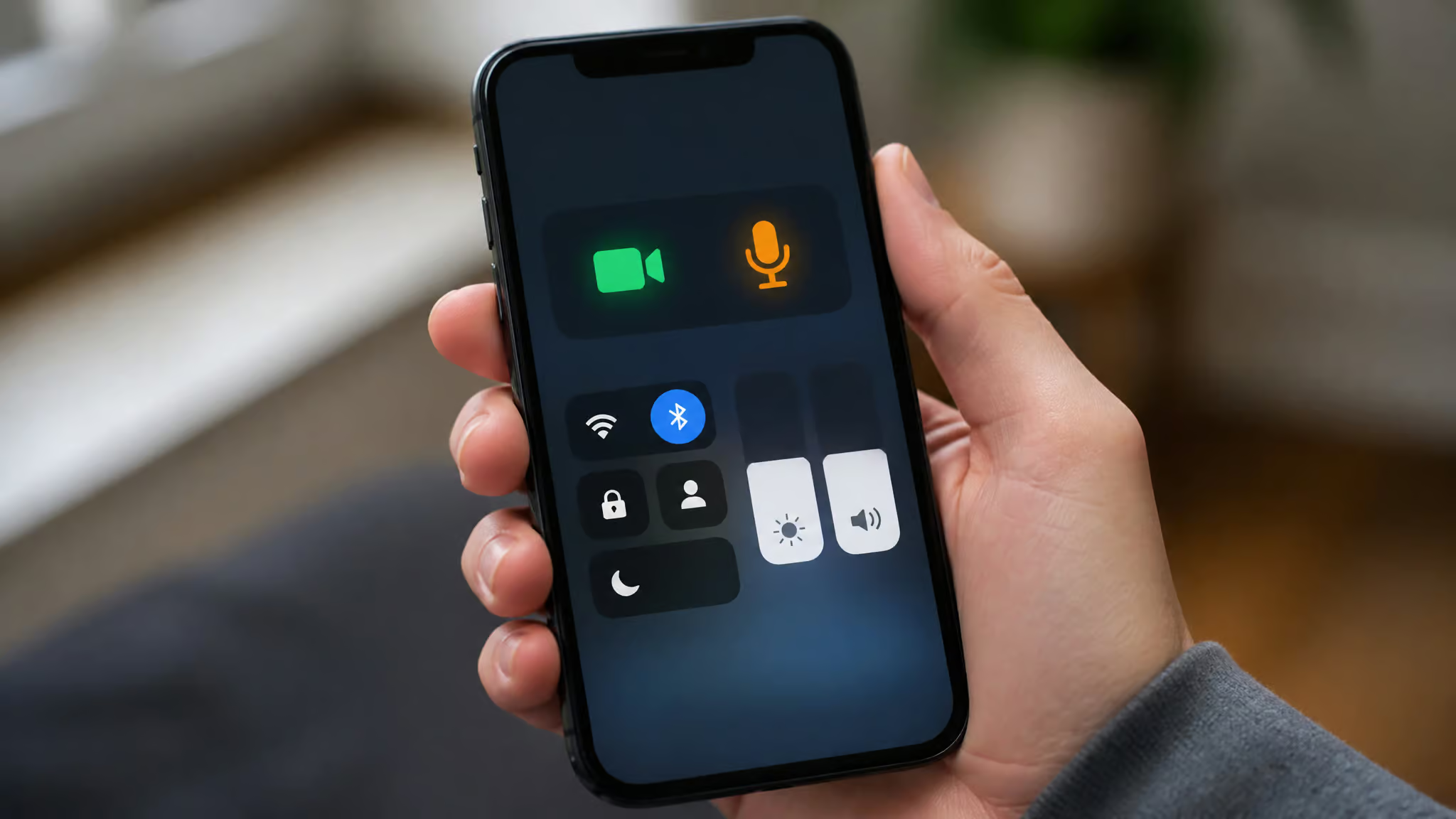
Both platforms have status indicators now. On iPhone, you’ll see a green dot for the camera, an orange dot for the mic, and an arrow for location services. Android has similar icons. If these show up with no app open in the foreground, a background process is likely accessing sensitive hardware. It’s a quick, visual way to spot potential snooping.
Poor performance
Sudden sluggishness, stuttering, apps crashing more than usual. Spyware eats CPU and bandwidth, so a performance drop is a clue. But the caveat here is timing: spyware-induced slowdowns can take weeks or months to become noticeable. So it’s not about the phone being slow today.
It’s about change from your phone’s normal baseline. If it suddenly feels like a five-year-old budget phone, something’s working overtime.
The hacking and account-specific signs
A few more that point toward account compromise rather than device-level spyware:
- Unexpected 2FA prompts you didn’t trigger. Someone may have your password and is trying to bypass the second layer.
- A burst of password-reset requests from multiple services around the same time. That’s usually a coordinated attempt.
- SMS alerts about SIM changes or new device logins you didn’t initiate. This could be a SIM swap attempt.
- Contacts receiving odd messages from you that you didn’t write. Spyware might be using your accounts.
Here’s the judgment rule that holds all of this together: one isolated sign, especially appearing once, is probably not spyware. Several signs appearing consistently over a short window, that’s what warrants investigation. And that’s exactly what the next section is for.
How to Check If Your Phone Is Tapped
Here’s how to actually check, step by step.
Step 1: Check for call forwarding
Call forwarding quietly redirects your incoming calls, and even voicemail access, to another number. That’s a sneaky surveillance tactic, and it’s scarily easy to set up. So let’s check it. The easiest way is with MMI codes, which feel like secret handshakes with your carrier network. Dial these into your phone app and press call, and then learn how to stop being tracked by your phone number for the full rundown on why this matters.
| Code | What it reveals |
|---|---|
*#21# | Whether calls are forwarded unconditionally, and to which number |
*#62# | Whether calls are forwarded when the phone is off or has no service |
*#61# | Whether unanswered calls are forwarded to a third party |
*#67# | Conditional forwarding when your line is busy |
*#06# | Your phone’s IMEI; if it looks different than the number you know, that’s worth a closer look |
##002# | Clears all call forwarding; dial and press call |
A quick caveat: these codes mostly work on GSM networks, and some carriers handle them differently. They also can’t definitively confirm tapping, only network-level behaviors like forwarding. So think of this as a first check, not a verdict.
If you’d rather click through settings, iPhone users can check Settings > Phone > Call Forwarding. On Android, it’s the Phone app > three dots > Settings > Supplementary services > Call forwarding. If you find any forwarding on, turn it off, and dial ##002# to clear everything.
Step 2: Scan for spyware
Review your installed apps and run a security scan. Reputable mobile security apps like Malwarebytes, McAfee, and Avast One are legitimate options here. They detect known spyware and other threats. If you’re on a jailbroken iPhone or rooted Android, the risk spikes, so check for that first. If you didn’t root or jailbreak it, but it’s modified, someone with physical access probably did.
Step 3: Audit app permissions
The baseline here is simple: apps should only have permissions that match their function. A shopping app asking for mic access is a red flag, not proof, but it’s suspicious. On iPhone, go to Settings > Privacy. On Android, Settings > Privacy > Permission Manager. Revoke anything unnecessary, especially mic, camera, location, and SMS access for apps that have no reason to touch them.
Step 4: Use the built-in privacy indicators
This step is genuinely great, okay? Both major platforms have built-in diagnostic tools now that make this much easier than it used to be. On iPhone (iOS 14 and later), you’ve got the green dot for camera, orange dot for mic, and the location arrow. You also have App Privacy Report under Settings > Privacy, which shows which apps accessed sensitive data and which network domains they contacted.
On Android, it’s Settings > Privacy > Privacy Dashboard, showing camera, mic, and location access over the past 24 hours. But if you’re still worried about the audio side, Is Your Phone Listening to You? is a deep, evidence-based look at how your phone handles voice data. If apps light these up when you’re not using them, that’s your red-flag moment.
Step 5: The less-common tricks (advanced)
There are two genuinely interesting methods that go beyond the standard checks. First, the sound-bandwidth sensor. Run a sound-bandwidth sensor app from a different phone to detect inaudible sounds on the suspect device. If it flags sounds several times in one minute, tapping is a possibility. Caveat: this is a detection aid, not a definitive test.
Second, electronic interference. Tapping devices can leak into other electronics. Try setting an FM radio to mono at the far end of the band, or drop the phone near a TV on UHF channels with an antenna, and listen for a high-pitched signal or interference. It’s a bit James Bond, but it’s a real technique.
If these checks confirm something is off, the next section is your action plan.
What to Do If You Suspect Monitoring
You’ve found evidence. Now act, in this order.
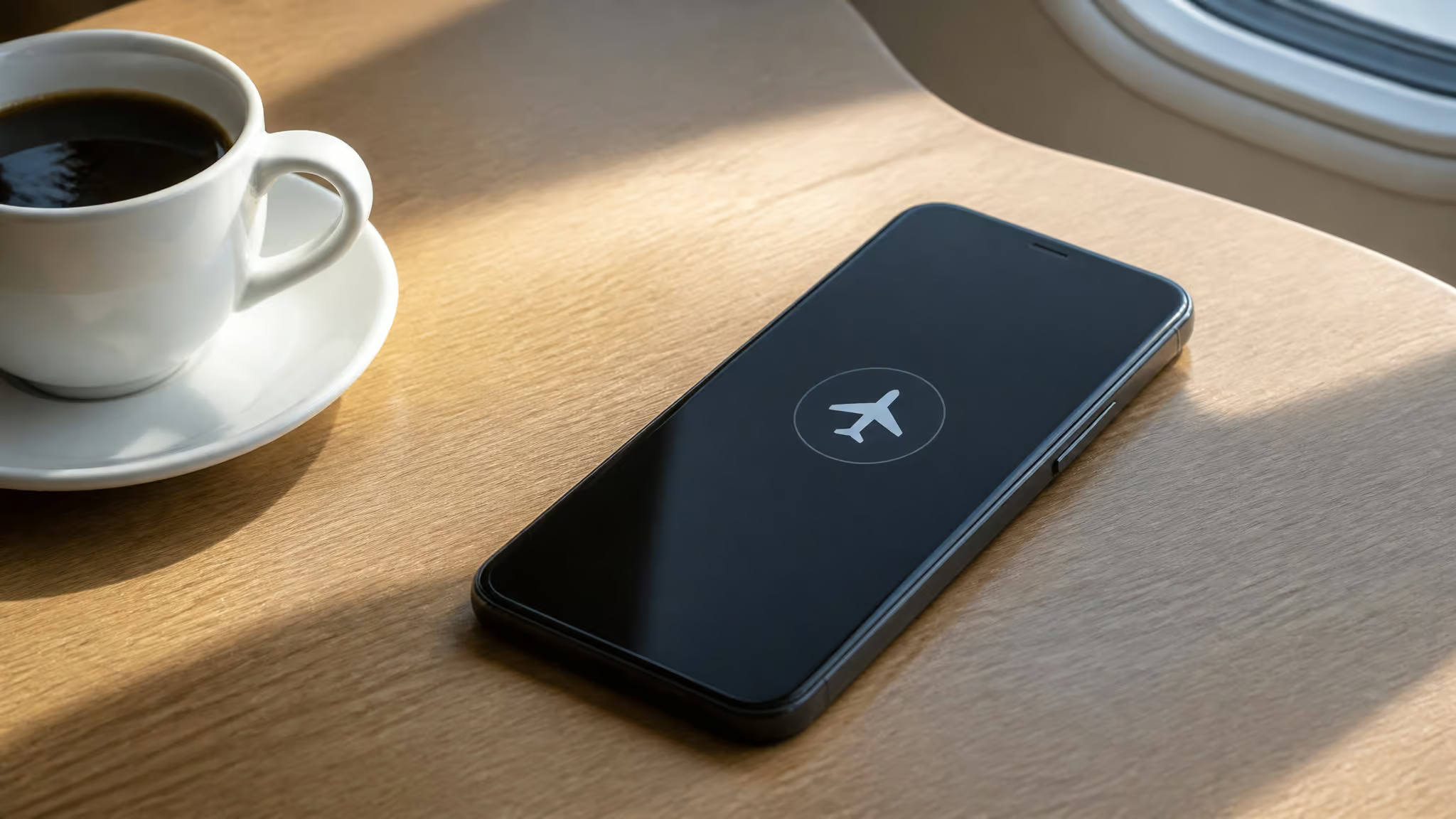
Airplane mode first. This is the best single immediate move. It kills all wireless connections, which stops remote activity and prevents data from flowing out, without shutting the phone down. It’s a solid pause button on whatever’s happening. One caveat: on iPhone, a device in Airplane Mode can still be tracked over Bluetooth if Bluetooth stays on, so switch that off too.
Safe mode reboot. This disables all third-party apps so you can isolate the suspected spyware. On Android, hold the power button (or power + volume up), long-press “Power off,” then tap “Reboot to safe mode” and confirm. If things calm down in safe mode, you’ve found your suspect. iPhones don’t offer user-accessible safe mode, but a force restart (Volume Up, Volume Down, hold the Side button) is the troubleshooting equivalent.
Disable location services. Spyware is obsessed with GPS data, so turning off location stops background processes from tracking you in real time.
Review and delete suspicious apps. Remove anything you didn’t install or that’s acting strangely. This may clear the spyware, though advanced ones may need tougher measures.
Clear call forwarding. If your checks found any, dial ##002# to clear it.
Factory reset as a last resort. This is the nuclear option, and it’s the only reliable way to remove deeply embedded spyware. But it erases everything and restores the phone to factory state. Back up your important files first, and change your account passwords afterward, because a compromised cloud account can reinfect a clean phone.
Report it. Phone tapping is a crime in many U.S. states. You can file a complaint with the FBI’s Internet Crime Complaint Center (IC3) at ic3.gov, or with the FTC at ReportFraud.ftc.gov, plus your local police. Document everything: screenshots, log files, suspicious app names, dates. That evidence matters for law enforcement, protective orders, or civil cases.
How to Prevent Phone Monitoring
Prevention is better than reaction, and it’s not hard. Here’s the prioritized list.
- Keep the OS and apps updated. This is the single most effective measure. Patches close the doors spyware actually uses to get in. Skipping updates leaves you exposed to known flaws.
- Install only from official stores. Third-party stores and direct APK downloads are a common spyware route. But even official stores aren’t perfect. The SparkCat malware hit apps on the App Store and Google Play, got downloaded hundreds of thousands of times, and stole crypto-account data. On Android, verify under Settings > Security that “Install unknown apps” is blocked for everything except the Play Store.
- Never jailbreak or root unless you really know why. Most stalkerware needs elevated privileges to hide and read protected data, and a rooted or jailbroken phone is a much bigger target.
- Use a password manager with strong, unique passwords. A monitored phone can expose typed passwords, and managers warn you when credentials surface in known breaches.
- Use authenticator apps over SMS for 2FA. Google Authenticator, Microsoft Authenticator, and Authy are solid options. SIM swaps can intercept SMS codes, and hardware security keys (FIDO) are the strongest option for critical accounts.
- Use encrypted messaging. Signal, WhatsApp, and iMessage all use end-to-end encryption, meaning content can’t be read even if data is intercepted in transit. Even the app developers can’t peek in.
- Use a VPN. It encrypts your traffic and masks your IP, which is especially valuable on public Wi-Fi. The honest caveat: a VPN does nothing against spyware installed directly on the device.
- Practice permission hygiene. Regularly revoke what apps don’t need.
- Turn off Bluetooth when unused. Leaving it on lets nearby devices attempt connections, and Bluetooth vulnerabilities have been used to install spyware.
- Delete unused or suspicious apps, and be wary of phishing links that nudge you toward malicious downloads.
- A good mobile security app like Malwarebytes, McAfee, or Avast One can detect common stalkerware. But understand its limits.
Understanding the Limits of Detection
Here’s the honest ceiling. Consumer security apps like the ones we just mentioned are effective against common stalkerware, the stuff someone’s ex installs after getting physical access to the phone. That’s the realistic threat for most people.
But they may not catch advanced state-sponsored spyware using zero-day exploits. Tools like Pegasus can compromise a device through zero-click exploits, meaning you don’t even have to tap a malicious link. It’s been used against journalists, activists, and executives. That’s not license to dismiss security apps, it’s context for who needs more than an app.
It’s also context for the limits of this guide. This is the kind of diagnostic deep-dive we do at GeekExtreme, but we’re working with consumer-level tools here.
Here’s the rule again, because it’s the spine of the whole article: many monitoring signs occur naturally on older devices or with inefficient network settings. One sign, appearing at random, is likely nothing. A cluster of signs, consistently, warrants a real look. Knowing whether it’s tapping or hacking changes your next move.
The Broader Threat Landscape
So who’s actually doing this, and what does the realistic threat model look like?
Law enforcement monitoring. Telecoms cooperate with law enforcement under criminal investigation, and in the U.S. and Europe, this requires a court-issued warrant and strict procedure. It’s designed to be undetectable. If you’re being lawfully monitored, you’re unlikely to notice, and this guide isn’t really for that situation.
Stalkerware. This is the realistic threat for most readers. It’s secretly installed, usually by someone with physical access, to record calls, read texts, track GPS, activate the mic, and grab photos. Many of these products hide behind legitimate “family safety” framing, which is part of why they’re so insidious.
The FTC has banned operators like SpyFone. And remember, stalkerware shows up often in domestic abuse situations. An abuser may escalate if they detect help-seeking, so be careful. Resources like the National Domestic Violence Hotline at 1-800-799-SAFE and the Coalition Against Stalkerware are there for you.
Government-grade surveillance. Pegasus-style zero-click compromise is a real thing, but it’s not aimed at regular people. For high-risk readers, journalists, activists, human rights defenders, there’s pro bono help from Amnesty International’s Security Lab and Access Now’s Digital Security Helpline. The U.S. has also restricted federal agencies from using certain commercial spyware.
SIM swap attacks. This is the one that can hit anyone. Criminals deceive the carrier into moving your number to a SIM they control, then intercept your 2FA codes, reset passwords, and drain accounts. The 2024 IC3 data shows SIM swapping contributed nearly $26 million in consumer losses, and victims often lose access to crypto and financial accounts. The mitigations are straightforward: set a carrier PIN or passcode for account changes, use authenticator apps instead of SMS 2FA, and guard the personal details used to social-engineer your carrier.
Conclusion
Here’s the whole thing in six beats. One isolated sign is probably nothing. A consistent cluster of signs warrants action. Use the tools we covered to check before you panic.
If you find evidence, act in order: airplane mode, safe mode, factory reset if needed. Report serious concerns to the authorities. And remember that prevention beats reaction every time.
Your phone holds your conversations, your photos, your banking, and your location. That’s worth protecting. But the way you protect it is through calm, methodical inspection, not through fear. Check the signs, use the tools, and trust your instincts.
If something feels off, it’s worth a second look. That’s not paranoia. That’s just being a good steward of a device that knows way too much about you.
Frequently Asked Questions
How do I know if my phone is linked to another device?
Look for a cluster of warning signs: persistent static or echoes on calls, a battery that drains much faster than usual, apps opening on their own, or unexpected camera and mic indicators. Check your app permissions and review installed apps for anything unfamiliar. A single glitch is usually nothing, but several signs appearing consistently warrant a closer look.
Will *#21 tell me if my phone is tapped?
It will tell you if your calls are being forwarded to another number, which is a classic surveillance trick. However, it can’t detect spyware installed directly on the device or other forms of tapping. Think of it as a first check, not a definitive verdict.