If you’re searching “should I remove the wave browser,” you probably didn’t go looking for it. One day it appeared — a new icon on your desktop, a different browser opening links, or your search results suddenly routing through an unfamiliar engine. Let me save you the uncertainty: if you didn’t deliberately seek out and install Wave Browser, the answer is yes. Remove it. Here’s exactly why, what it does, and how to scrub every trace off your machine.
Key Takeaways
Wave Browser is a Chromium-based PUP (potentially unwanted program), not a virus, but its deceptive bundling, browser hijacking, and explicit data harvesting make it a security and privacy risk.
Standard uninstall leaves behind registry keys at HKEY_CURRENT_USERSoftwareWaveBrowser, HKEY_CURRENT_USERSoftwareWavesor, and HKEY_CURRENT_USERSoftwareMicrosoftWindowsCurrentVersionUninstallWaveBrowser, plus startup entries and scheduled tasks that can reinstall the browser.
A complete removal requires killing processes first, then uninstalling, checking startup and scheduled tasks, manually deleting those registry keys, and running a full anti-malware scan — plus resetting each affected browser.
Table of Contents
What Is Wave Browser and Why Is It Classified as a PUP?
Wave Browser is built on Chromium — the same open-source engine that powers Chrome, Edge, and Brave. That means it looks like a normal browser, can run web apps, and has a familiar interface. But the wrapper around that engine is the problem. It’s a potentially unwanted program (PUP): software that slows your machine, shows ads you didn’t ask for, and may invite more annoying software along. Microsoft’s own definition of a PUA fits it — it’s designed to be sticky and intrusive rather than genuinely useful.
The technical foundation and deceptive packaging
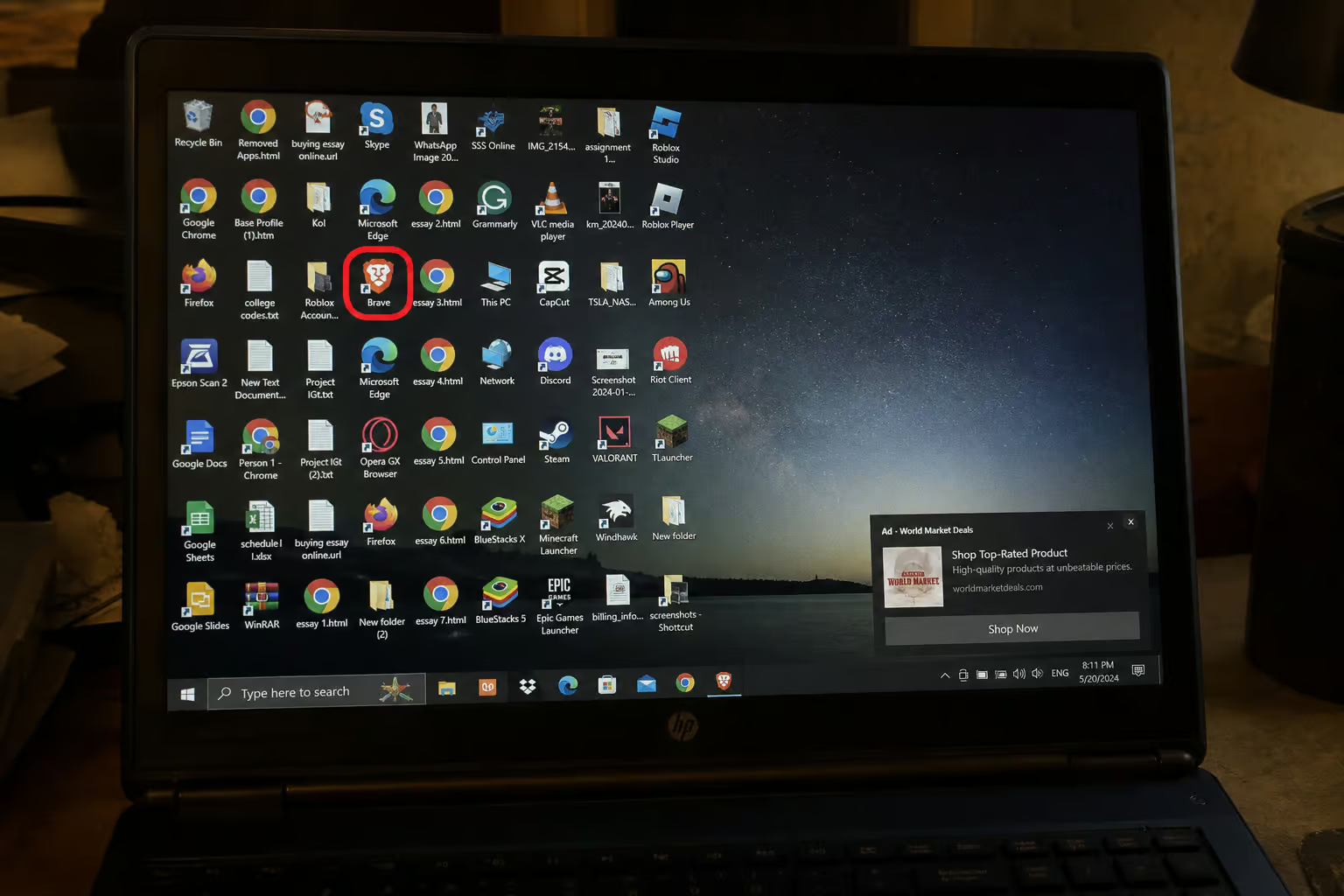
The Chromium base is deliberate. It gives Wave credibility: it loads pages normally, supports extensions, and feels like a browser you’d trust. But the packaging tells a different story. The logo uses colors similar to Microsoft Edge — the color scheme is close enough that you might think “oh, this looks official.” The name is a phonetic nudge to Brave, a privacy-focused browser.
Say “Wave” fast next to “Brave” and you’ll hear the echo. These aren’t accidents; they’re design choices meant to borrow trust from browsers you already know.
The website itself looks professional — clean marketing copy, legitimate-looking screenshots. It markets itself as secure and user-friendly. That polish is part of the deception. You’re supposed to think, “This seems legit,” long enough to click through an installer.
The corporate ownership problem
Here’s where it gets messy. Wave isn’t published by a single transparent company. It’s linked to a chain of entities: ISIGN International, Eightpoint Technologies Ltd, Polarity Technologies LTD, and ultimately Genimous Technology Co Ltd, a Chinese company that has faced accusations of running a search hijacking empire. Polarity is a subsidiary of Genimous.
The browser is promoted across three different domains — gowavebrowser.com, wavebrowser.com, and wavebrowser.co, each listing different terms of use and company names. That inconsistency makes it impossible to trust who’s responsible for your data or how it’s handled.
How Does Wave Browser Get Installed Without Your Knowledge?
Nobody goes looking for Wave Browser. It shows up uninvited, hitched to something else you wanted.
The bundling tactic explained
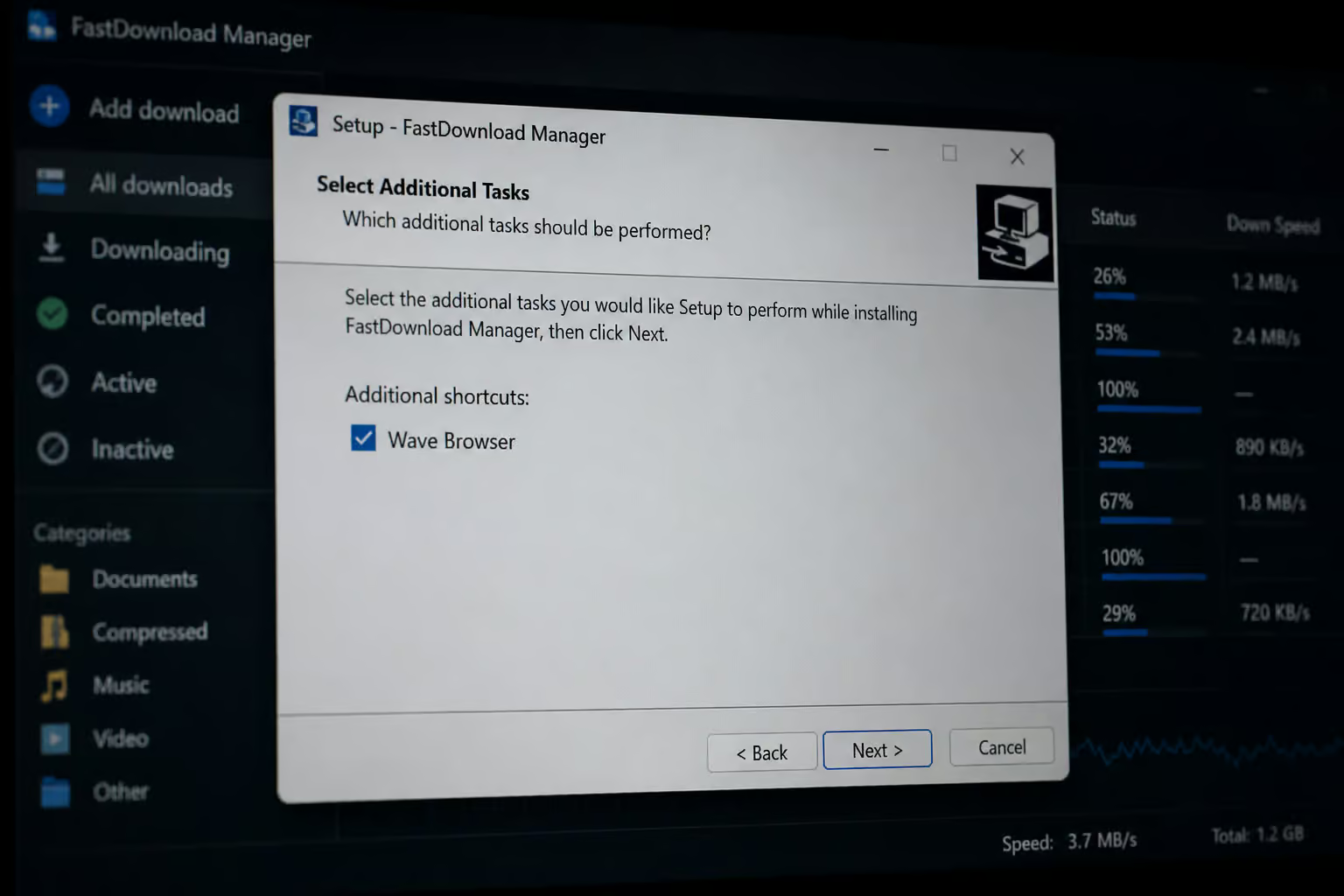
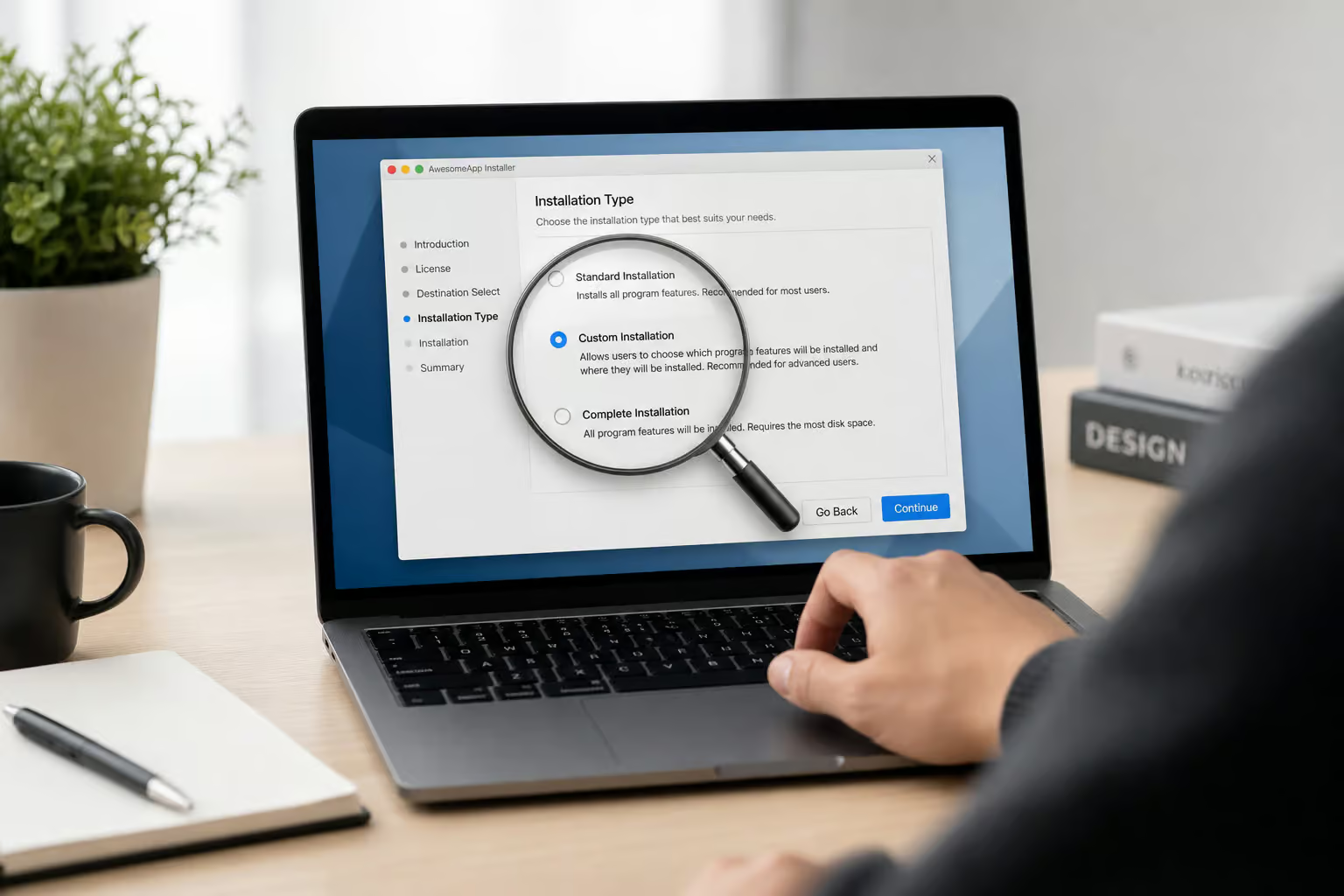
The vector is software bundling. You download a free PDF converter, a game mod, a download manager, or a media player. The installer for that program includes a pre-ticked box for “Wave Browser” or buries the option inside the Custom/Advanced installation path. Most people click through the default or express installation and never see the offer.

The checkbox is ticked. You agreed to it without knowing.
Repackaged installers from third-party download sites or torrents are another source. Those “speed up your PC” ads? Clicking them can land you Wave instead of a faster machine. The three ways it ends up on a device: rushed installs, clicking the wrong download button, or grabbing software from a sketchy site.
Industry prevalence: browser infections are on the rise
A survey of IT decision-makers found that 56% reported an increase in web browser-related infections. Wave is an example of unapproved tools ending up on company devices without user intent.
Signs That Wave Browser Is on Your Device
If you’re wondering whether Wave is installed, here’s what to look for — each symptom points to a specific persistence mechanism, not generic adware behavior.
- It appeared after installing a free program. That’s the giveaway: you didn’t install it separately.
- Your default browser changed. Clicking a link in an email opens Wave instead of Chrome, Firefox, or Edge.
- Your homepage or new tab page looks different. Often it’s a Wave-branded start page or a search engine you don’t recognize.
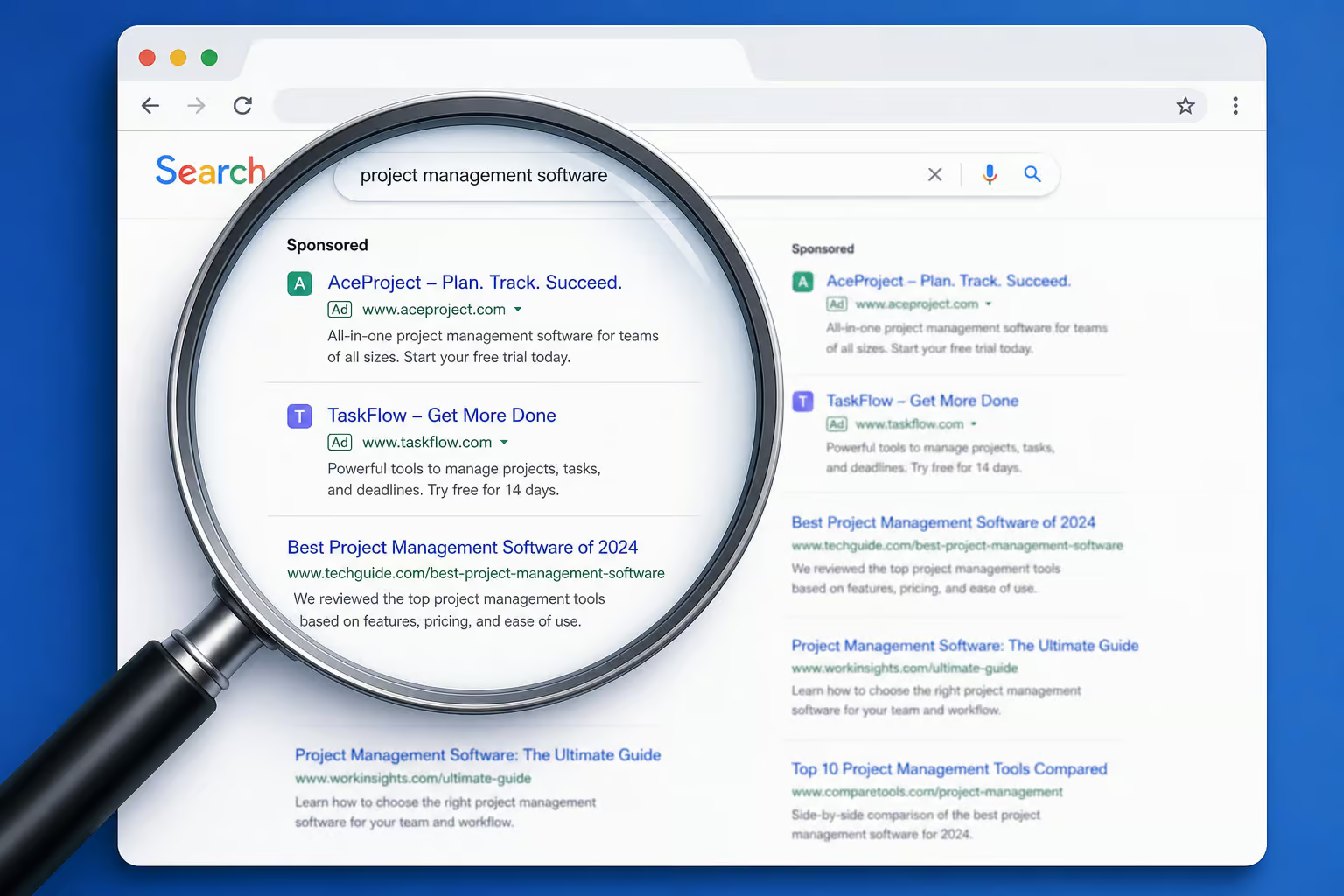
- Your default search engine got swapped. Typing in the address bar routes through a search page that serves sponsored results.
- Wave launches at startup. You see it in your system tray or Task Manager even when you didn’t open it.
- Pop-up ads appear on sites that never had them before. Some are hard to close, with tiny or hidden close buttons.
- Extensions keep showing up that you can’t remove. Wave installs its own extensions that resist deletion.
- Search results get redirected. You click a link and it passes through a tracking intermediary before reaching the destination.
- You uninstall it and it comes back. That’s the most frustrating sign — it means a persistence mechanism is still running.
What Does Wave Browser Do After Installation?
Once it’s in, Wave doesn’t sit quietly. It works against your interests in three ways.
Browser hijacking: settings you did not change
Wave changes your default browser, search engine, and homepage without permission. Even after you revert those settings, Wave may reapply them. It does this to generate ad revenue: every search you make passes through its own systems, where results get mixed with sponsored links. Sidebars and banners appear that are annoying to close, increasing the chance you’ll click.
Data collection: what the privacy policy admits
This part is upfront. Wave’s own privacy policy states it harvests personal data, including your browsing habits and search history. There’s no fine-print trickery — it’s a “we take your data” statement. The website looks professional and the policy is written to sound legitimate, but it’s permission to track everything you do online. That browsing data gets used to target you with pop-ups, sponsored search results, and sidebars.
Performance impact and security risks
Wave runs background processes even when you think the browser is closed. It consumes CPU and RAM, making your system feel sluggish. Pages load slower. It can generate background network activity that eats into your internet performance and data caps. And some of the ads Wave serves lead to phishing websites designed to steal personal or financial information.
Why Simply Uninstalling Wave Browser Is Not Enough
You can go to Settings, click Uninstall, and think you’re done. But Wave is designed to be sticky.
Persistence mechanisms that survive uninstall
Standard uninstall removes the main app but leaves behind:
- Startup entries in Task Manager’s Startup tab, often named “Wave” or “Wavesor.”
- Scheduled tasks in Task Scheduler that can reinstall Wave after a restart or system update.
- Registry keys at specific paths:
HKEY_CURRENT_USERSoftwareWaveBrowser,HKEY_CURRENT_USERSoftwareWavesor, andHKEY_CURRENT_USERSoftwareMicrosoftWindowsCurrentVersionUninstallWaveBrowser. - Leftover extensions in your browsers — Chrome, Edge, Firefox, that remain active even after the app is gone.
Persistence often hides behind names like “UpdateHelper” or “SystemOptimizer.” You’d never guess they belong to Wave unless you knew what to look for.
The role of bundled software in reinfection
If you uninstall Wave but another bundled program on your system still has that pre-checked box, or if the original installer assistant is still running, Wave can reinstall itself. That’s why sorting your installed programs by date is critical — you need to find and remove the original downloader or installer that brought Wave in.
How to Remove Wave Browser from Windows (Step-by-Step)
Follow this order. Don’t skip steps — each one closes a hiding spot.
Close Wave Browser processes in Task Manager
Press Ctrl+Shift+Esc to open Task Manager. Look for processes named “Wave” or “Wavesor.” Right-click each, select “Open file location,” delete the folder contents, then right-click and “End task.” Kill them all before uninstalling — if Wave’s running, it can block removal.
Uninstall the app via Settings
Go to Settings ? Apps ? Installed apps. Search for “Wave Browser,” click Uninstall. But first, you might be wondering, what is Wave Browser? After that, sort your installed apps by date and identify any suspicious downloaders or installer assistants that appeared around the same time as Wave. Remove those too.

Change your default browser back
Settings ? Apps ? Default apps. Set your trusted browser (Chrome, Firefox, Edge) as the default for web links and file types.
Disable startup entries
In Task Manager, go to the Startup apps tab. Disable anything named Wave, Wavesor, or anything you don’t recognize. When in doubt, search the name first.
Check scheduled tasks in Task Scheduler
Open Task Scheduler (search for it in the Start menu). Browse the Task Scheduler Library and look for tasks referencing Wave, Wavesor, or unknown browser updaters. Disable first, and delete only after you’re certain it’s unwanted.
Remove registry keys
Press Win+R, type regedit, and hit Enter. Press Ctrl+F and search for “wave.” Look for these specific folders:
– HKEY_CURRENT_USERSoftwareWaveBrowser
– HKEY_CURRENT_USERSoftwareWavesor
– HKEY_CURRENT_USERSoftwareMicrosoftWindowsCurrentVersionUninstallWaveBrowser
Right-click and delete them. Be careful — registry edits can break things. Only remove what you’re certain is Wave-related. Don’t use random “registry cleaner” tools; they’re often PUPs themselves.
Run a full security scan
Use a reliable anti-malware tool. Gridinsoft Anti-Malware is one that can clean up traces manual removal might miss. Run a full system scan (not a quick one) to catch hidden files, leftover startup entries, and any other bundled junk.
How to Remove Wave Browser from Mac, Android, and iPhone
On iOS, Wave Browser cannot persist due to sandboxing, so deletion is straightforward. Removing Wave Browser from non-Windows devices follows a similar principle: you must delete the app and then clear any leftover data. The exact steps vary by platform, as outlined below.
macOS removal steps
Open Finder ? Applications. Find Wave Browser, drag it to the Trash. Then right-click the Trash icon and select “Empty Trash.” After that, go to System Settings ? General ? Login Items and remove any Wave entries.
Android removal steps
Open Settings ? Apps ? select Wave Browser ? tap Uninstall. Then go to Storage or Storage & cache and tap “Clear data” and “Clear cache.” That second step is essential — without it, leftover files remain that can cause issues, even if you previously paid for Wave Browser Pro.
iOS removal steps
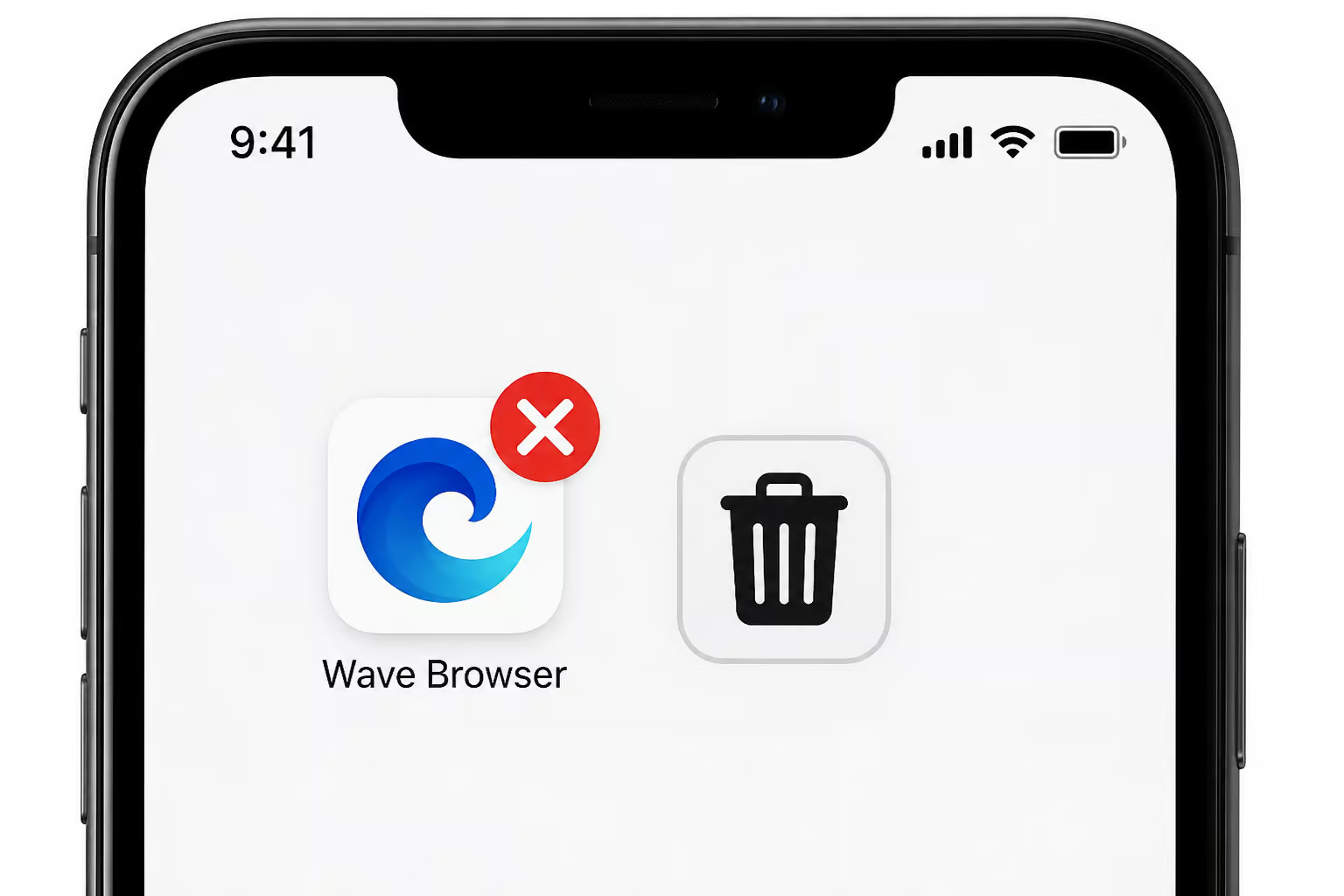
Long-press the Wave Browser icon on your home screen until the icons jiggle. Tap “Remove App” ? “Delete App” ? confirm. On iOS 14 or later, also check the App Library (swipe left past your last home screen) — unlike its Windows counterpart, Wave Browser for iOS is a more conventional web browser that might be hiding there if it was recently downloaded. Because iOS restricts background processes, the app cannot persist or reinstall itself the way it does on other platforms.
If Wave Browser Keeps Coming Back: Troubleshooting Persistence
This is the scenario: you uninstall, reboot, and Wave is back. It’s fixable, but you need to find the root cause.

Find and remove the source installer
Sort your installed apps by date. Look for any downloader, installer assistant, extension manager, or unknown utility that appeared around the same time as Wave. Remove those first — they’re likely the Trojan horse.
Reset browsers and clear all extensions
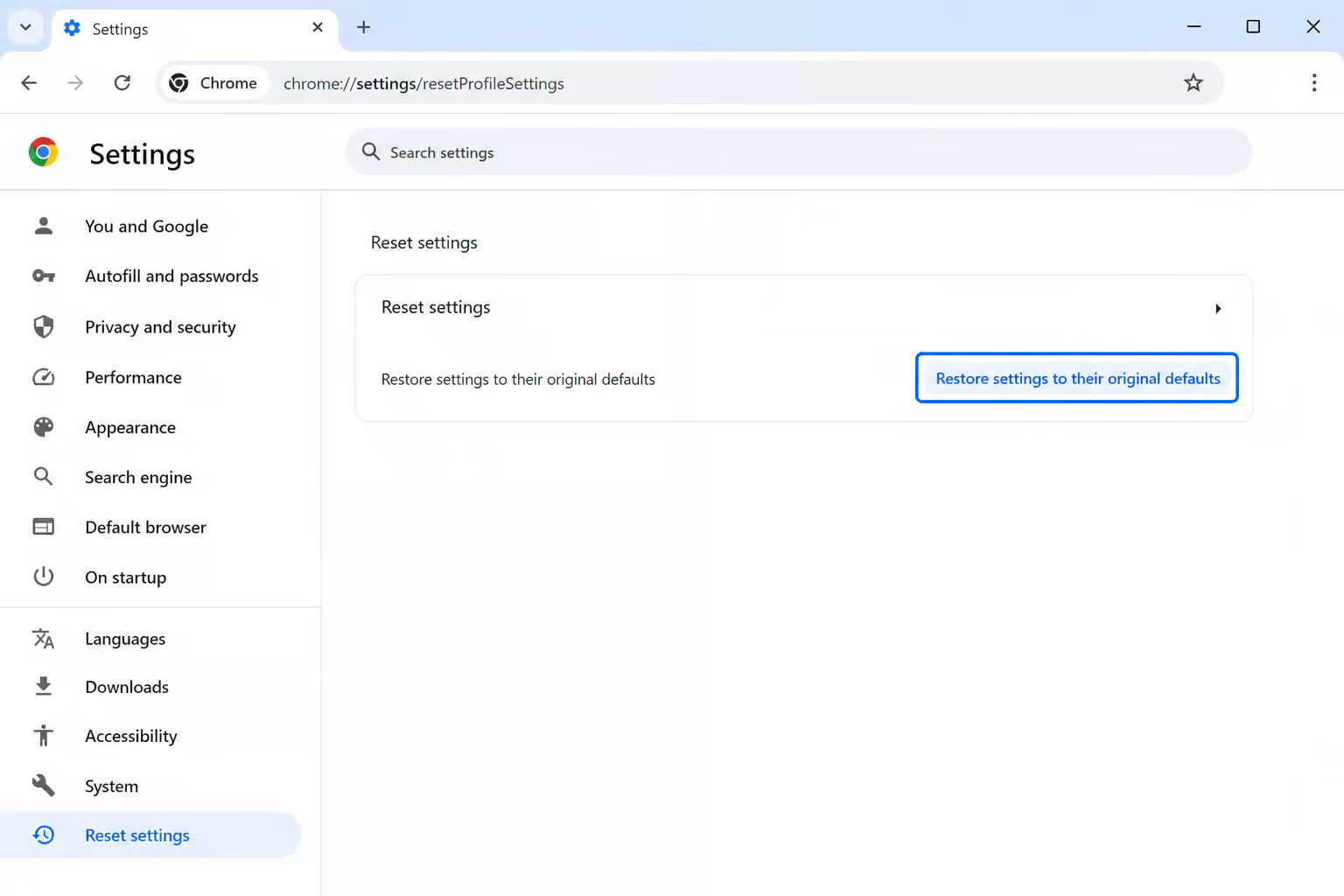
- **Chrome: ** three dots
- Settings
- Advanced
- Restore settings to their original defaults
- confirm.
- **Firefox: ** menu
- Help
- Troubleshooting Information
- Refresh Firefox
- confirm.
A browser reset restores your homepage, search engine, pinned tabs, and extension state. It does not delete bookmarks or saved passwords. After resetting, check synced extensions too — Wave might have snuck into your sync data.
Reboot and run a final scan
Reboot your system. Some startup entries only become visible when Windows restarts. Run another full security scan after reboot to catch any persistence mechanisms that were active during the first scan.
Post-Removal Cleanup: Reset Browser Settings and Clear Data
A browser reset restores your homepage, search engine, and pinned tabs without deleting bookmarks or saved passwords. Even after removal, Wave’s changes to your browser settings can linger. This final cleanup restores everything back to normal.
Reset Chrome and Firefox settings
Already covered above — but do it after the removal steps, not before. The reset is your final undo.
Clear browsing data and temporary files
In each browser, go to settings and clear browsing data. Tick boxes for history, cookies, and cached data. Then:
- Windows: use Disk Cleanup (built-in tool) to clear temporary files.
- macOS: manually clear the Caches folder.
- Android: clear cached data through storage settings for each app or system-wide.
This removes any tracking data Wave might have stashed in temp files.
How to Prevent Wave Browser and Other PUPs in the Future
Once you’ve cleaned up, you want to stay clean. Here’s a layered defense strategy.
Harden your installation workflow
- Always choose Custom or Advanced installation — never Express or Default.
- Uncheck any pre-ticked boxes for additional software.
- Read the user agreement and privacy policy — at least skim the scary parts.
- Research the company behind any software before installing.
- Use a standard user account (without administrator privileges) for daily tasks.
Use built-in protective features
- Enable “Potentially unwanted app blocking” in Windows Security. It’s a toggle under Virus & threat protection that most people don’t know exists.
- Keep your OS, browsers, and all software updated. Security patches fix vulnerabilities that PUPs exploit.
- Enable your firewall — the built-in Windows Firewall is fine.
Build sustainable habits
- Download only from official sources: the vendor’s website, Google Play, or the Apple App Store.
- Avoid third-party download sites and torrents — they’re the primary vector for bundled PUPs.
- Periodically review your installed programs and browser extensions.
- Be skeptical of “too good to be true” offers — that “speed up your PC” ad probably isn’t your salvation.
- Use browser security extensions that block malicious sites and ads.
- Consider a VPN like AstrillVPN for an extra layer of protection when browsing on untrusted networks.
Frequently Asked Questions About Wave Browser
Below are answers to the most common questions about Wave Browser, covering its classification, safety, and removal.
Is Wave Browser a virus?
No, it’s a potentially unwanted program (PUP) or adware, not a traditional virus or Trojan. Antivirus tools flag it as a PUP.
Is Wave Browser safe?
No. Its own privacy policy admits to harvesting personal data, and some ads lead to phishing sites. It’s not safe.
Why does Wave Browser keep opening at startup?
Leftover startup entries, scheduled tasks, or bundled software. Follow the troubleshooting section above to find and remove the source.
Can I just uninstall Wave Browser from Apps?
Partially. Standard uninstall removes the main app but leaves extensions, registry keys, and scheduled tasks. Complete removal requires the full process — you can’t skip steps.
Is Wave Browser the same as Brave?
No. Brave is a browser that prioritizes privacy and includes built-in ad blocking. Wave is a PUP that tracks your data. The name similarity is phonetic only — “Wave” said quickly sounds like “Brave,” which is intentional.
Is Wave Browser part of Microsoft?
No. The logo colors resemble Microsoft Edge, but Wave is not affiliated with Microsoft in any way. That visual trickery is part of the deception.
Frequently Asked Questions
Is a wave browser necessary?
No, Wave Browser is not necessary. It’s a potentially unwanted program (PUP) that gets installed without your knowledge through software bundling, and it serves no legitimate purpose that your existing browser doesn’t already handle better.
Is Wave a safe Browser?
No, Wave Browser is not safe. Its own privacy policy admits to harvesting your personal data, browsing habits, and search history, and some of the ads it serves can lead to phishing websites designed to steal financial information.
Can I delete Wave browser?
Yes, but a standard uninstall isn’t enough. You need to kill its processes first, then uninstall, remove leftover registry keys, disable startup entries and scheduled tasks, reset your browsers, and run a full anti-malware scan to prevent it from reinstalling itself.
Why did WaveBrowser get on my computer?
Wave Browser gets installed through software bundling — it hitches a ride with free programs like PDF converters, game mods, or media players. The installer includes a pre-ticked checkbox you didn’t notice, or it’s buried in the custom installation path that most people skip.
What is Wave Browser and how does it work?
Wave Browser is a Chromium-based potentially unwanted program (PUP) that looks like a normal browser but hijacks your default browser, search engine, and homepage to serve sponsored ads and track your browsing data. It runs background processes even when closed, slowing down your system.
How does Wave Browser keep coming back after I uninstall it?
Wave Browser uses persistence mechanisms like leftover registry keys, scheduled tasks in Task Scheduler, and startup entries that can reinstall the browser after a reboot. It can also reinstall itself if the original bundled software that brought it in is still on your system.