
You’ve got a 500 MB video file, a 50 GB dataset, or maybe a 200 GB project archive, and you just hit the “file too large” error in Gmail. That 25 MB wall is real — Gmail, Yahoo, and AOL all hard-cap at 25 MB, while Outlook and iCloud Mail are even stingier at 20 MB. It’s not you, it’s the protocol. Email wasn’t built for big files, and that’s fine, there are about a dozen workarounds.
Key Takeaways
Compression is useless for MP4s and PDFs — those formats are already compressed, so zipping them saves almost nothing. Stick to zipping loose documents and folders.
Dropbox Transfer gives you 100 GB (or 250 GB with the Replay add-on) per transfer, no recipient account needed, plus password protection and expiration dates — it’s the easiest middle-ground for most big files.
For files over 100 GB, your best bets are FTP/SFTP (encrypted, no size limits) or peer-to-peer tools like ToffeeShare — both avoid cloud storage caps, but require technical setup or simultaneous online presence.
Table of Contents
Compression: try it first, but know when it’s useless
Your first instinct when a file bounces is probably to zip it. That’s the right move — for the right kind of file, anyway. A folder full of Word docs or a loose pile of spreadsheets can shrink enough to squeak under a 25 MB email limit.
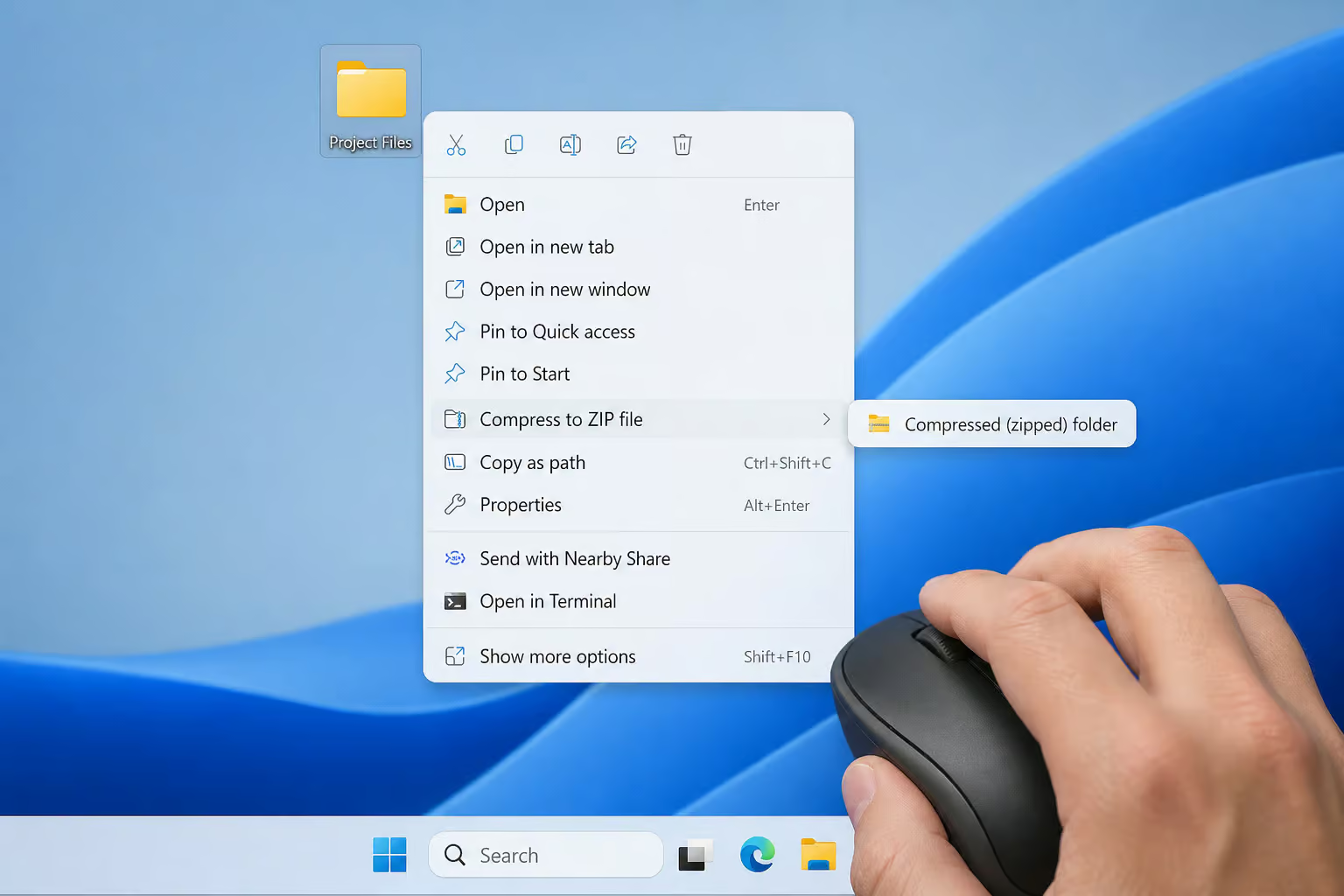
How to compress on Windows and Mac
On Mac: right-click ? Compress. On Windows: right-click ? Send to ? Compressed (zipped) folder. That’s it. The recipient just double-clicks to unzip.
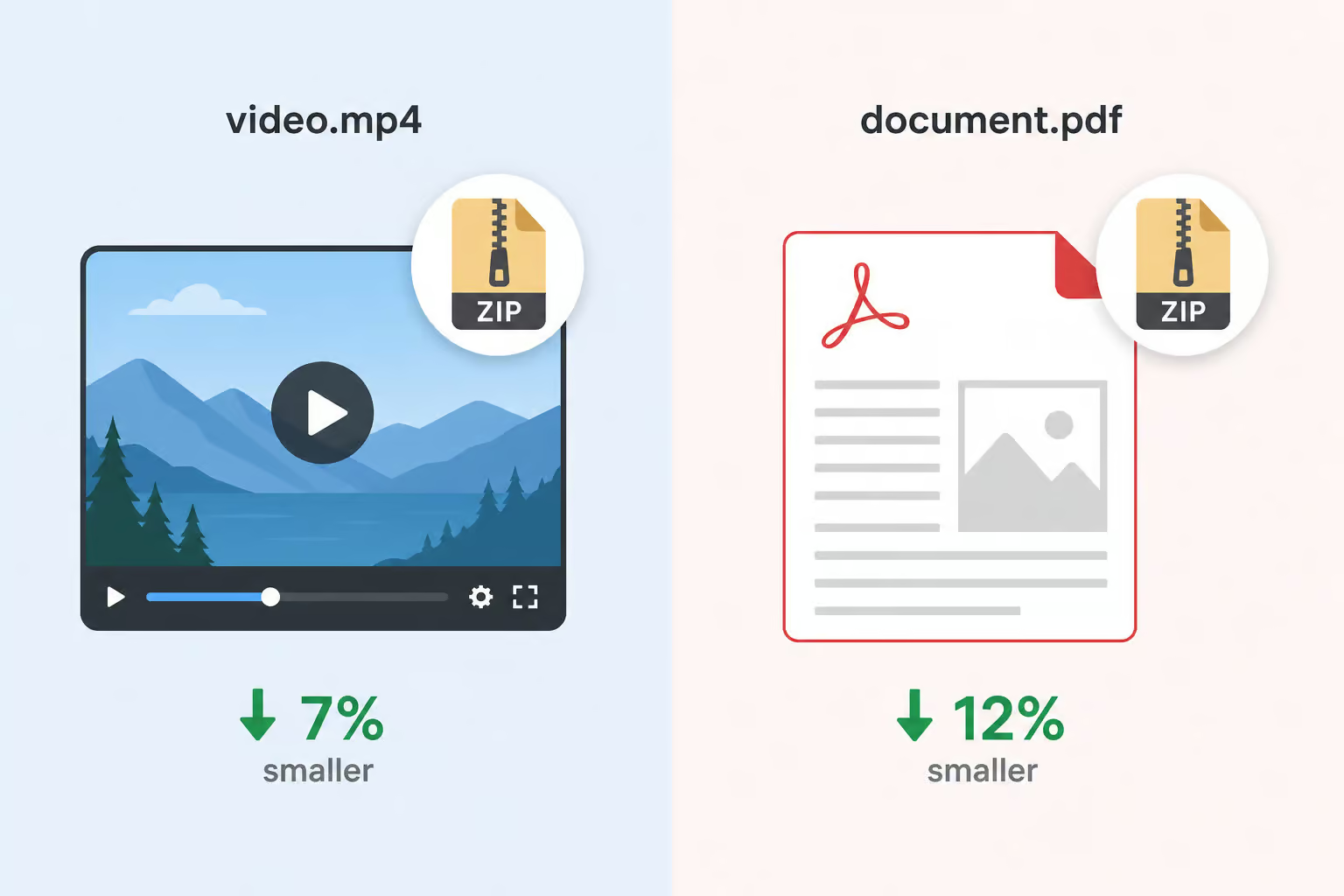
Why compression fails for videos and PDFs
Modern media formats are already compressed. That MP4 uses a video codec that already squeezed out every byte it could. Same for PDFs — they’re often optimized at creation time. Zipping an MP4 or PDF typically saves a few hundred KB at most, if that.
Compression tools: WinZip vs. 7-Zip
If you need more control than the built-in OS tools, WinZip is the commercial old guard — it supports ZIP, RAR, TAR, and encryption. But the go-to for most geeks is 7-Zip: free, open-source, and it uses the LZMA algorithm for better compression ratios. Both let you add password protection, which is handy if you’re sending sensitive docs. Just remember the recipient needs to unzip first, warn them so they don’t panic when they see a.zip file. 7-Zip also handles TAR and RAR formats, making it a versatile choice for unpacking archives from Unix systems or compressed collections.
Cloud storage links: for files that need to stay alive
If the file is going to get updated — a design asset, a collaborative document, a codebase, you don’t want to send a one-time copy. You want a cloud storage link that always points to the latest version. That’s the killer feature of Google Drive, OneDrive, and Dropbox: upload once, share the link, and any edits you make auto-update on the recipient’s end.
Free storage limits compared
Here’s the free tier landscape so you know how much room you’ve got.
- Google Drive: 15 GB free (shared across Gmail, Drive, and Photos). No per-file upload limit at the free tier — you can upload a 10 GB file if you have the space.
- OneDrive: 5 GB free, with a 5 GB per-file upload limit. Decent if you’re already in the Microsoft ecosystem.
- Dropbox: 2 GB free, with a 2 GB per-file upload limit. Tight for anything serious.
- Box: 10 GB free, but only 250 MB per file — weirdly restrictive for a business-focused service. Despite the per-file cap, Box offers robust sharing links and enterprise workflow integration, a solid option for ongoing collaboration once you’re within its limits.
Why cloud links differ from one-time transfers
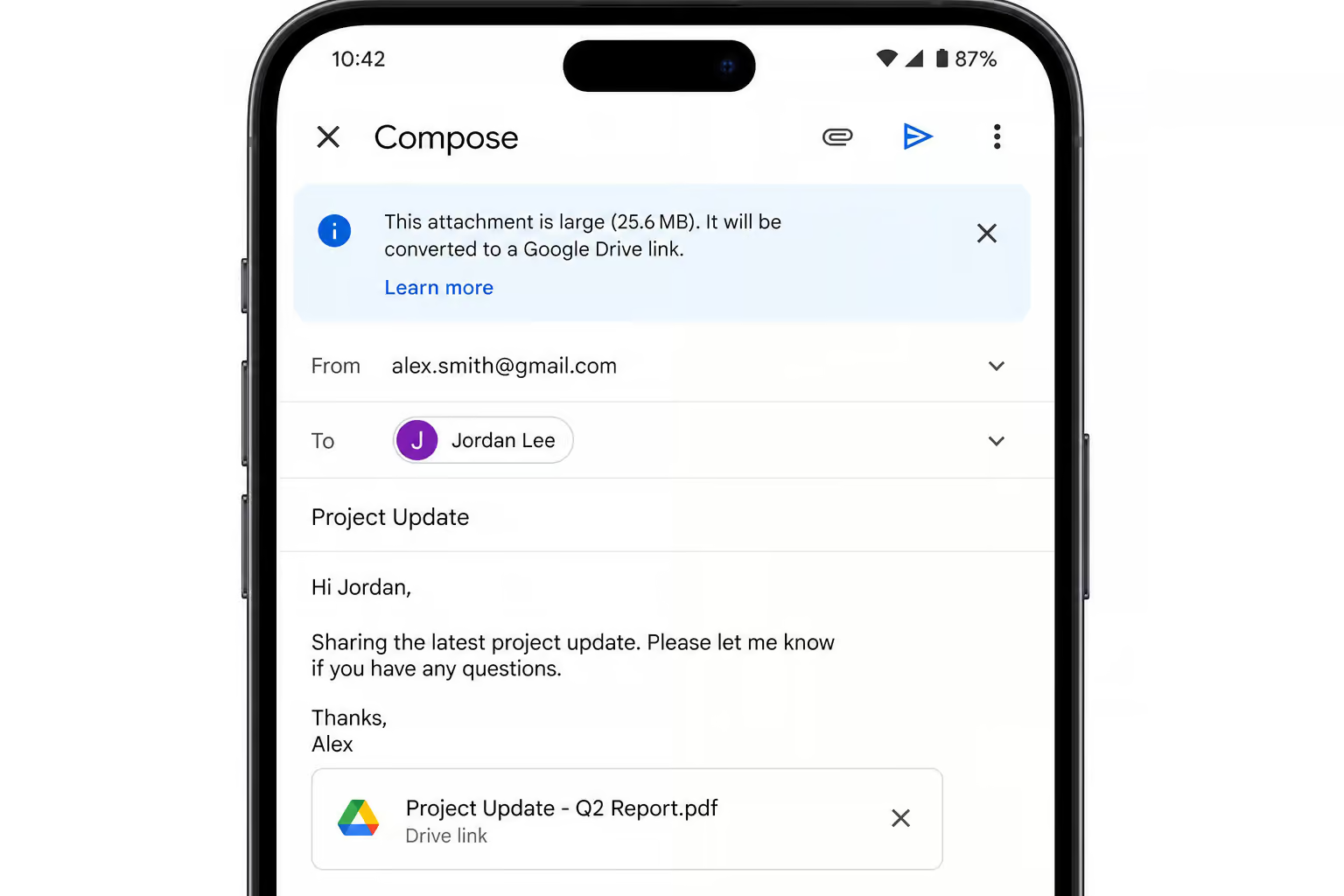
Email integration: Gmail, Outlook, Yahoo auto-convert large attachments
If you’re already in Gmail, Outlook, or Yahoo Mail, they’ll automatically swap large attachments for cloud links. Gmail converts anything over 25 MB into a Google Drive link. Outlook does the same with OneDrive. Yahoo follows suit.
So sometimes you don’t even need to think about it — just attach the file and the provider handles the switch. But it only works if you’re signed into the same ecosystem.
Dedicated transfer services: one-time, big-file delivery
These are purpose-built for sending a single large file to someone who just needs a download link — then you’re done. No ongoing collaboration, no versioning, just upload, share, recipient grabs a copy, finito. If you’re deciding which tools to use, we’ve ranked the best options in our roundup of the large file sharing app space — by maximum size, resumability, and whether an account is required.
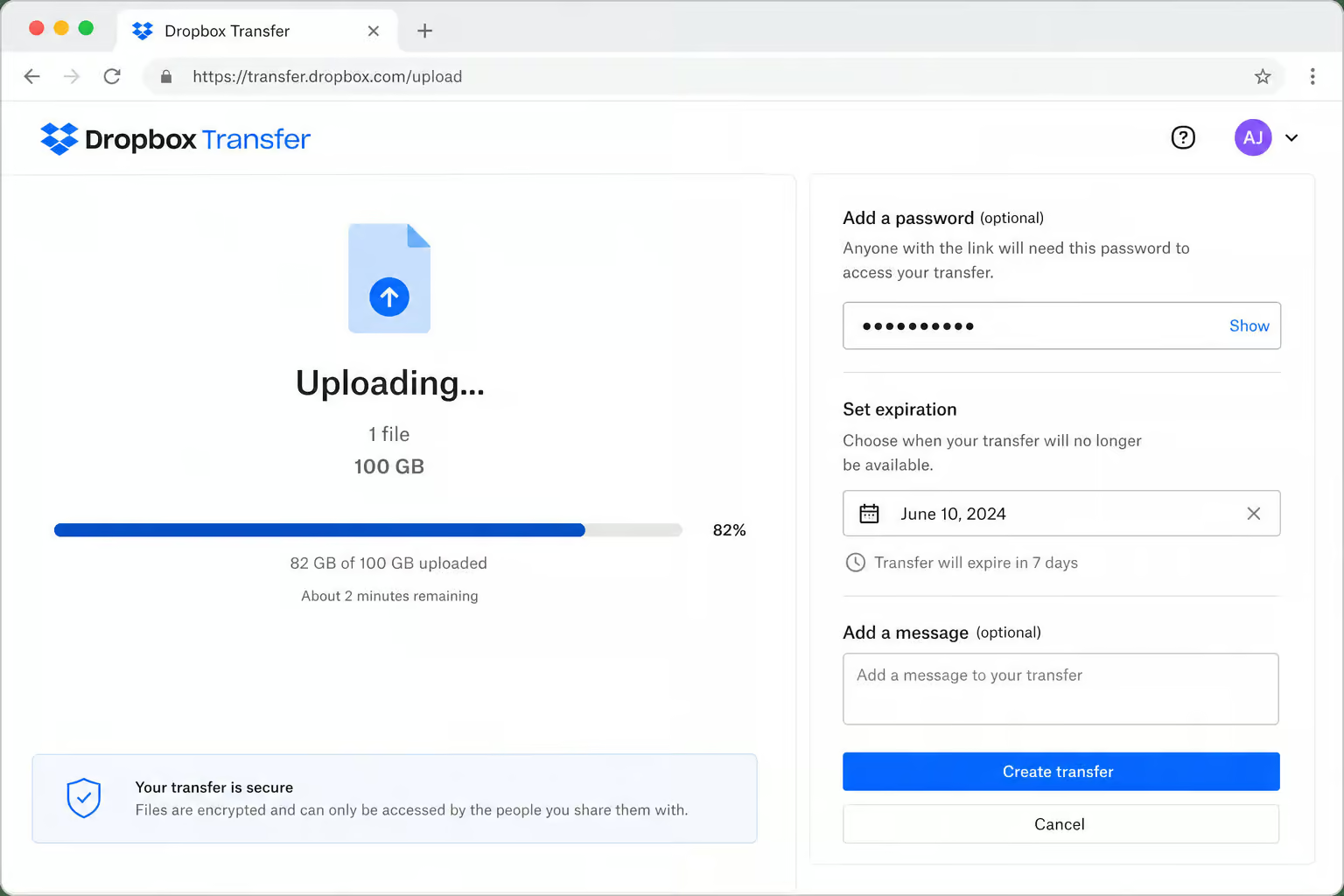
Dropbox Transfer: up to 100 GB, no account needed
Dropbox Transfer is the standout here. Default limit is 100 GB per transfer, and if you add the Replay add-on it jumps to 250 GB. Recipient doesn’t need a Dropbox account — just a browser and a download button. You can set a password, an expiration date, and get delivery tracking (know when they downloaded it). The flow is simple: upload, customize, share.
Filemail: any size, end-to-end encryption, zero breaches since 2008
Filemail is the “send anything” service. Paid plans have no file size limits. Free tier: 5 GB per transfer, files stay for 30 days, 250 GB storage.
Security is serious here: end-to-end encryption, 2FA, virus scanning, and UDP Transfer Acceleration (faster uploads). They claim zero breaches since 2008 — that’s a track record. Recipients don’t need to register or install anything. Compliance certs include GDPR, HIPAA, ISO27001, SOX, FINRA, FISMA, GLBA, and NSM, so it’s enterprise-ready.

WeTransfer: minimalist, free 2 GB, Ultimate at $25/month unlimited
WeTransfer is the bare-bones choice. Free plan: 2 GB per transfer, guests must enter an emailed verification code (minor friction). The ad-supported free tier lets you send up to 3 GB per month total — not per transfer, which raises the question of how can I share 20 GB files? Those workarounds usually involve archive splitting, pcloud, or a 30-day WeTransfer Pro trial. If you send regularly, WeTransfer Ultimate at $25/month unlocks unlimited transfers with no file size limits.
Send Anywhere: 10 GB free, peer-to-peer style
Send Anywhere gives you 10 GB per transfer for free. It’s ad-supported but secure — it uses a six-digit key or an account-based link/email. The transfer is direct, not stored on their servers long-term. Good middle ground.
Wormhole: 10 GB, end-to-end encrypted, auto-expiring links (24 hours)
Wormhole is the privacy-first option. It has a 10 GB limit per transfer, end-to-end encrypted so even Wormhole can’t see your files. Links auto-expire after 24 hours — great for one-time shares, but if the recipient is slow, they’ll get a broken link. The expiry is a feature, not a bug, much like the direct peer-to-peer approach of files over miles.
SendBig: 30 GB free, with password and expiration
SendBig offers 30 GB per transfer for free — one of the highest free limits. With a free account you get password protection, expiration dates, download notifications, and max downloads per file. That’s why any serious large file sharing guide would recommend it as a top entry point. Nice extras for a free service.
MyAirBridge: 20 GB free, paid tiers from $2.99/month
Lesser-known: 20 GB per transfer free. Basic at $2.99/month bumps to 50 GB, Pro at $10.99/month to 250 GB, and Enterprise at $22.09/month removes size limits entirely.
Other services briefly
- DropSend: Free tier is tiny — 250 MB storage, 2 GB send limit, 5 sends per month. Paid plan at $5/month gives 10 GB storage, 50 GB limit.
- Rakuten Drive Pro: 50 GB limit, $7.99/month — straightforward.
- Hightail (formerly YouSendIt): Free plan is 2 GB storage and only 100 MB upload limit — basically unusable for large files. Paid plans unlock more.
- SendSpace: 300 MB upload limit free, no account needed. Fine for a few documents.
- Adobe Acrobat online: PDF-only compression tool — upload a PDF, choose compression level, download a smaller version. Handy if you’re already in the Adobe ecosystem and just need to shrink a PDF.
Technical methods: FTP/SFTP and peer-to-peer
For the power user who has server access or doesn’t want any cloud intermediary, these methods give you full control.
FTP/SFTP for large files with server access
FTP (File Transfer Protocol) is fast and has no file size limits — but plain FTP sends everything in plain text. Anyone on your network can read your files. So don’t use it for anything sensitive. Instead, use SFTP (SSH File Transfer Protocol) or FTPS (FTP over SSL), they encrypt the transfer, and it’s not hard to set up. SSH (Secure Shell) underpins SFTP, providing a secure channel over an unsecured network by authenticating both parties and encrypting all data in transit.
Client tools: FileZilla, WinSCP, Cyberduck. Server-side: FileZilla Server, ProFTPd, vsftpd. Setting up an FTP server takes some know-how — you need to configure users, ports, and firewall rules. But once it’s running, it’s the fastest way to move huge files (hundreds of GB) without any cloud size limits.
ToffeeShare: peer-to-peer, no server, no file size limit
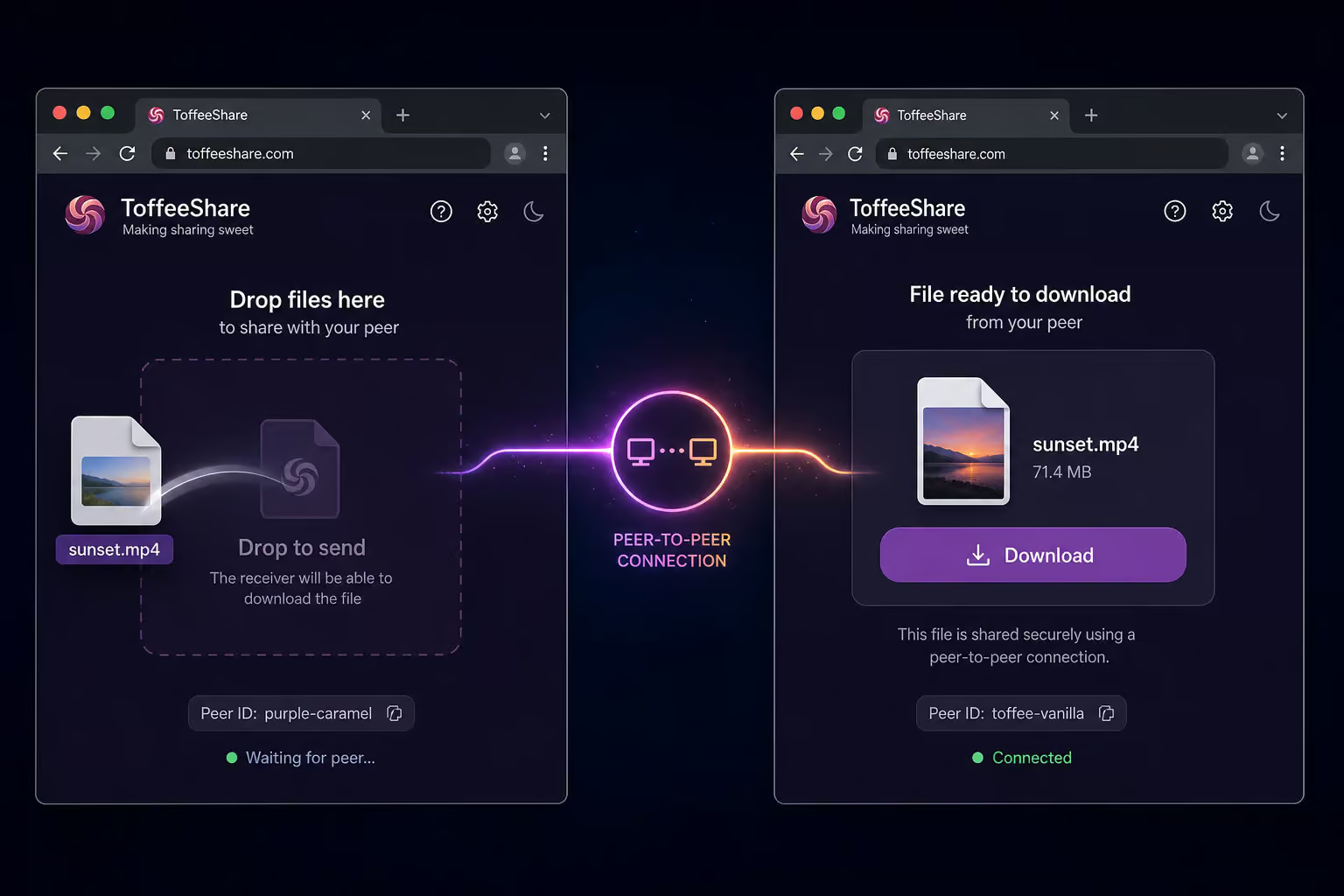
ToffeeShare is peer-to-peer. Your file never touches a server — it goes directly from your browser to the recipient’s browser. No file size limit, it’s free, and privacy maximalist. The catch: both parties need to be online at the same time, and the sender must keep the page open while the recipient downloads. It’s like a digital handoff. Also has a nearby device sharing option, sort of like AirDrop for everyone.
Apple AirDrop (nearby sharing)
Apple’s AirDrop is the quickest way to share files between nearby Macs and iPhones — fast, encrypted, no account needed. But it’s limited to Apple devices and proximity. Just mentioning it as a comparison to ToffeeShare’s nearby mode.
Offline fallbacks: when the internet won’t cut it
Sometimes the internet is too slow or the file is just too huge — think 500 GB of raw footage. The “never fails” option is physical transfer.
USB drive or external hard drive
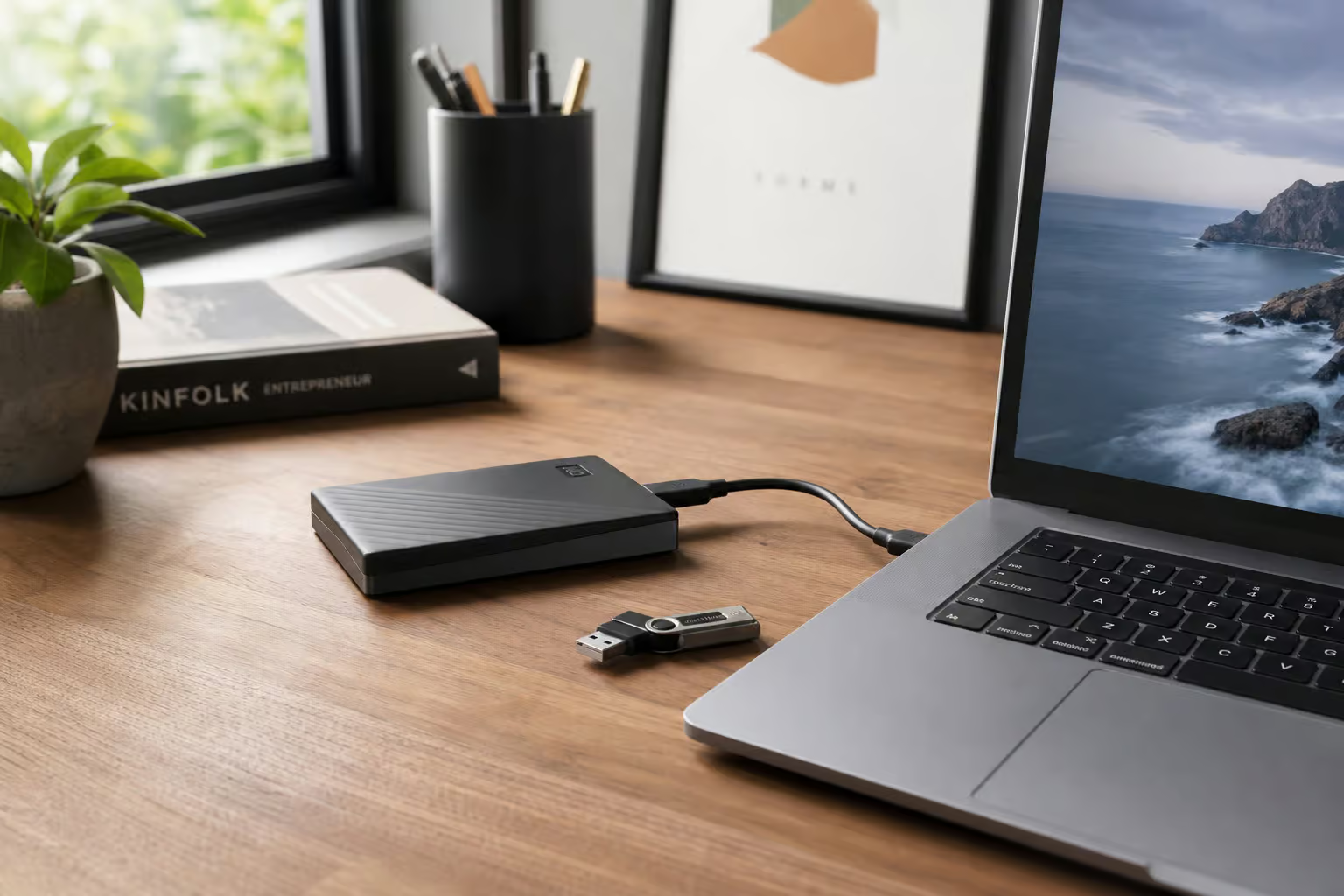
Copy the file to a USB drive or external hard drive, hand it to the recipient (or mail it). No file size limit, high security if delivered in person, and it works every time. The trade-off: time and convenience.
Online backup services as a secondary sharing channel
Services like Backblaze, Carbonite, and Crashplan are primarily for backup, but some let you share files via link. Backblaze offers unlimited storage and file sharing via link — a solid combo if you already have an account. Carbonite and Crashplan have limited sharing features. They’re only worth using if you’re already paying for backup.
Security: not optional for professional use
A shared link without a password is like leaving the front door open. Here’s what each method provides.
- Dropbox Transfer: password protection, expiration dates, delivery tracking.
- Filemail: end-to-end encryption, 2FA, virus scanning, TLS-1.2, AES-256, compliance (GDPR, HIPAA, SOX, FINRA, FISMA, GLBA, etc.)
- Cloud storage links: permissions, password protection (varies by provider)
- FTP: plain text — must use SFTP or FTPS for encryption.
- Compression tools (WinZip, 7-Zip): encryption and password protection at the file level.
- Physical transfer: as secure as your handoff method.
Decision framework: pick the right method for your file size
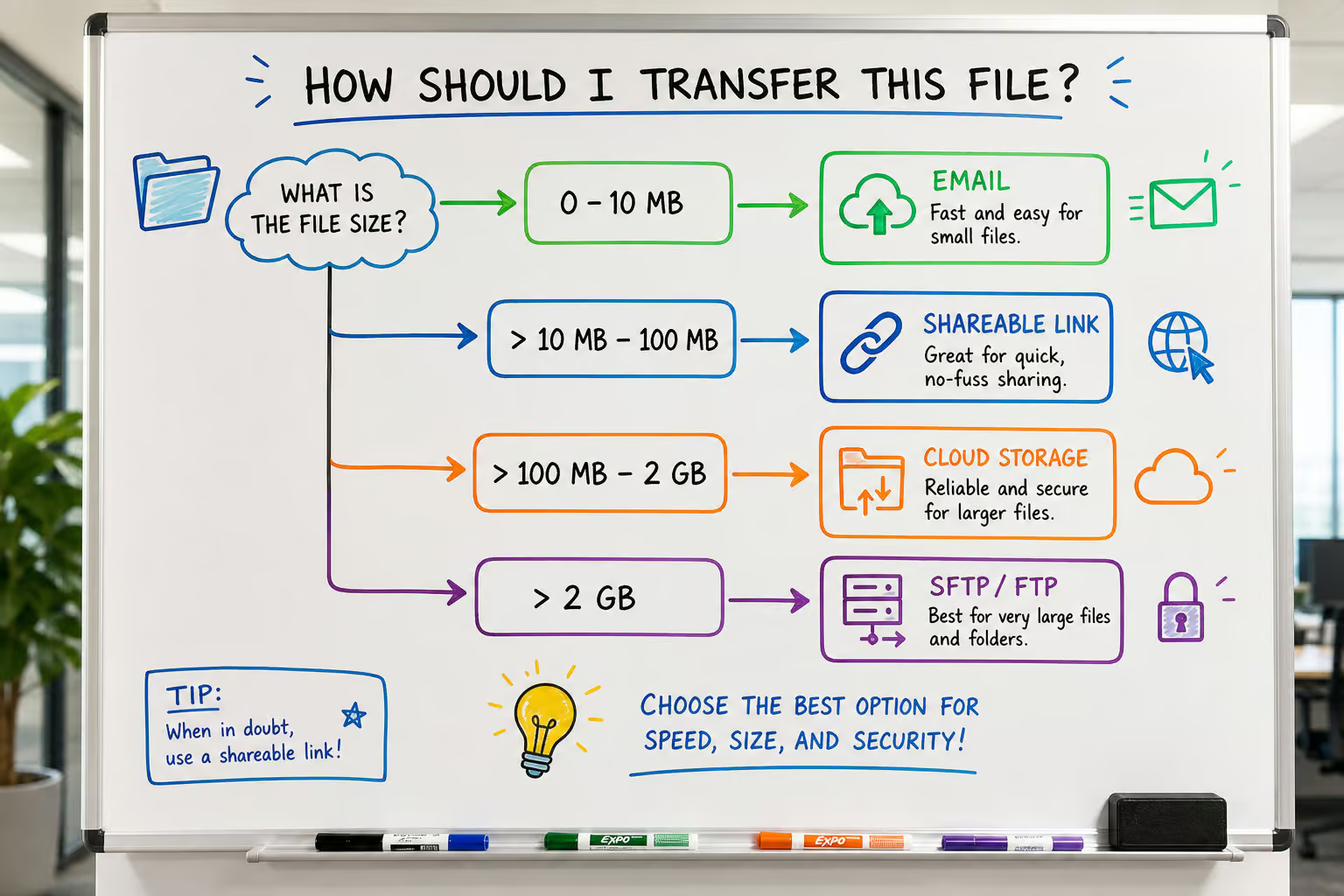
Here’s the 30-second decision tree I use.
- Under 25 MB: Email attachment — you’re fine.
- 25 MB – 2 GB: Try compression on documents; if that doesn’t cut it, use a cloud storage link (Google Drive, OneDrive, Dropbox). For one-time sends, WeTransfer free (2 GB) works.
- 2 – 10 GB: Free transfer service — Send Anywhere (10 GB), Wormhole (10 GB), or SendBig (30 GB). No account needed for recipient with most.
- 10 – 100 GB: Dropbox Transfer (100 GB default) or a paid tier of Filemail/MyAirBridge/SendBig. Also consider Rakuten Drive Pro if you need 50 GB.
- Over 100 GB: FTP/SFTP (if you have a server), ToffeeShare (no size limit but requires simultaneous presence), or physical transfer via USB drive.
Secondary filters:
- Security needs ? choose end-to-end encrypted services (Filemail, Wormhole) or add passwords/expiration to Dropbox Transfer.
- Collaboration ? cloud storage link (always latest version).
- Recipient technical ability ? avoid FTP unless they know what they’re doing.
- Budget ? free tiers first, then paid only when necessary.
Which method wins for your situation?
For one-time delivery, Dropbox Transfer or Filemail scale from 5 GB to 250 GB with security. For ongoing collaboration, cloud storage links are your friend. For maximum size with technical control, FTP/SFTP or peer-to-peer is the way to go.
People Also Ask
How do I share a huge file with someone?
The best method depends on the file size and whether the recipient needs ongoing access. For one-time sends up to 100 GB, Dropbox Transfer works well — no account needed on the recipient’s end, plus you can add a password and expiration date. For files over 100 GB, use FTP/SFTP if you have server access, or a peer-to-peer service like ToffeeShare that has no file size limit but requires both parties to be online simultaneously.
Why does zipping a video or PDF not reduce the file size much?
Modern video codecs and PDF optimizers already compress the data aggressively during creation, so there’s little redundancy left for a zip tool to exploit. Zipping an MP4 or PDF typically saves only a few hundred kilobytes at most. Compression is effective only on loose, uncompressed files like Word documents, spreadsheets, or folders full of text files.
What’s the difference between cloud storage links and dedicated transfer services?
Cloud storage links (Google Drive, OneDrive, Dropbox) are best for ongoing collaboration — you upload once, share the link, and any edits auto-update for the recipient. Dedicated transfer services like Dropbox Transfer, WeTransfer, and Filemail are designed for one-time delivery: you upload, share a download link, and the recipient grabs a copy with no ongoing versioning. Transfer services also typically offer higher per-file limits and features like password protection and expiration dates.
Can I send a file over 100 GB without using cloud storage?
Yes, you have two solid options. FTP/SFTP lets you transfer files of any size directly from your server, with SFTP providing encryption — but it requires technical setup and the recipient needs an FTP client. ToffeeShare is a peer-to-peer browser-based tool with no file size limit, no server storage, and strong privacy, but both parties must be online simultaneously and the sender must keep the page open during the download.