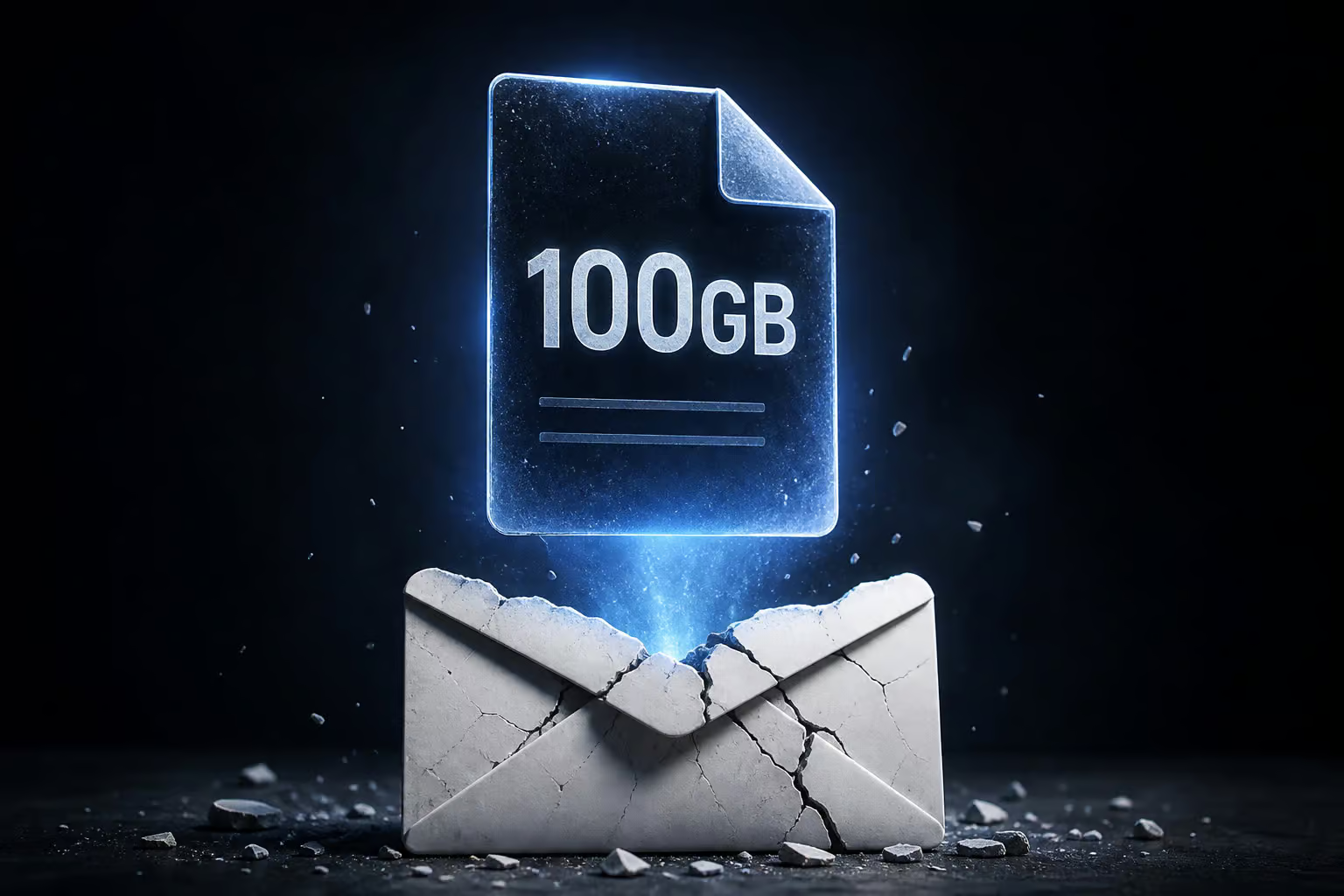
You know that moment when you need to send a 100GB file and every tool you try just laughs at you? Email bounces it back — Gmail and Yahoo cap attachments at a measly 25MB. Google Drive will only hold 15GB total (and that’s your whole account, not just one file). WeTransfer, the go-to for most people, hard-stops at 2GB. Even OneDrive gives you 5GB of storage with a 5GB per-file limit.
We at GeekExtreme tested this — dragged a 100GB dataset through free tiers of services including file.kiwi, Drime, Smash, SwissTransfer, Send Anywhere, Filemail, ToffeeShare, Tresorit Send, pCloud Transfer, MediaFire, Hightail, Wormhole, MyAirBridge, DropSend, TransferNow, BlueFiles, FileVert, and SendBig to see which ones work without tricks. The results: only two services will take your full 100GB without queuing or hidden limits. One of them uses an encryption trick that rethinks file sharing.
Key Takeaways
file.kiwi handles files of any size for free with no sign?up, client?side 128?bit AES?GCM encryption, and a share?link?only decryption key — but files auto?delete after 90–96 hours.
Drime transfers up to 100GB for free with no queuing, adds 20GB of permanent cloud storage, uses AES?256 over TLS, and recipients don’t need an account to download.
Most “unlimited” services like Smash queue files over 2GB on free plans, Filemail caps at 5GB, and SwissTransfer stops at 50GB with no end?to?end encryption.
Table of Contents
The 100GB Challenge
File-sharing tools like WeTransfer (2GB cap) and Google Drive (15GB total storage) were built for the 2GB–15GB range. Once you cross 20GB, storage limits, per-file caps, or queueing behind paid users kills your flow. Email can’t do it (25MB). Cloud drives are too small or have their own upload caps. And many dedicated file-sharing services like Smash advertise “unlimited” but queue files over 2GB on free plans unless you pay.
Method 1: file.kiwi — The Torrent-Hybrid Solution
file.kiwi has no file size limit, requires no sign-up, and shows no ads. But the story is how it works: it’s not a standard upload-to-cloud service. It is a torrent-inspired hybrid that uses client-side encryption.
How file.kiwi’s architecture works
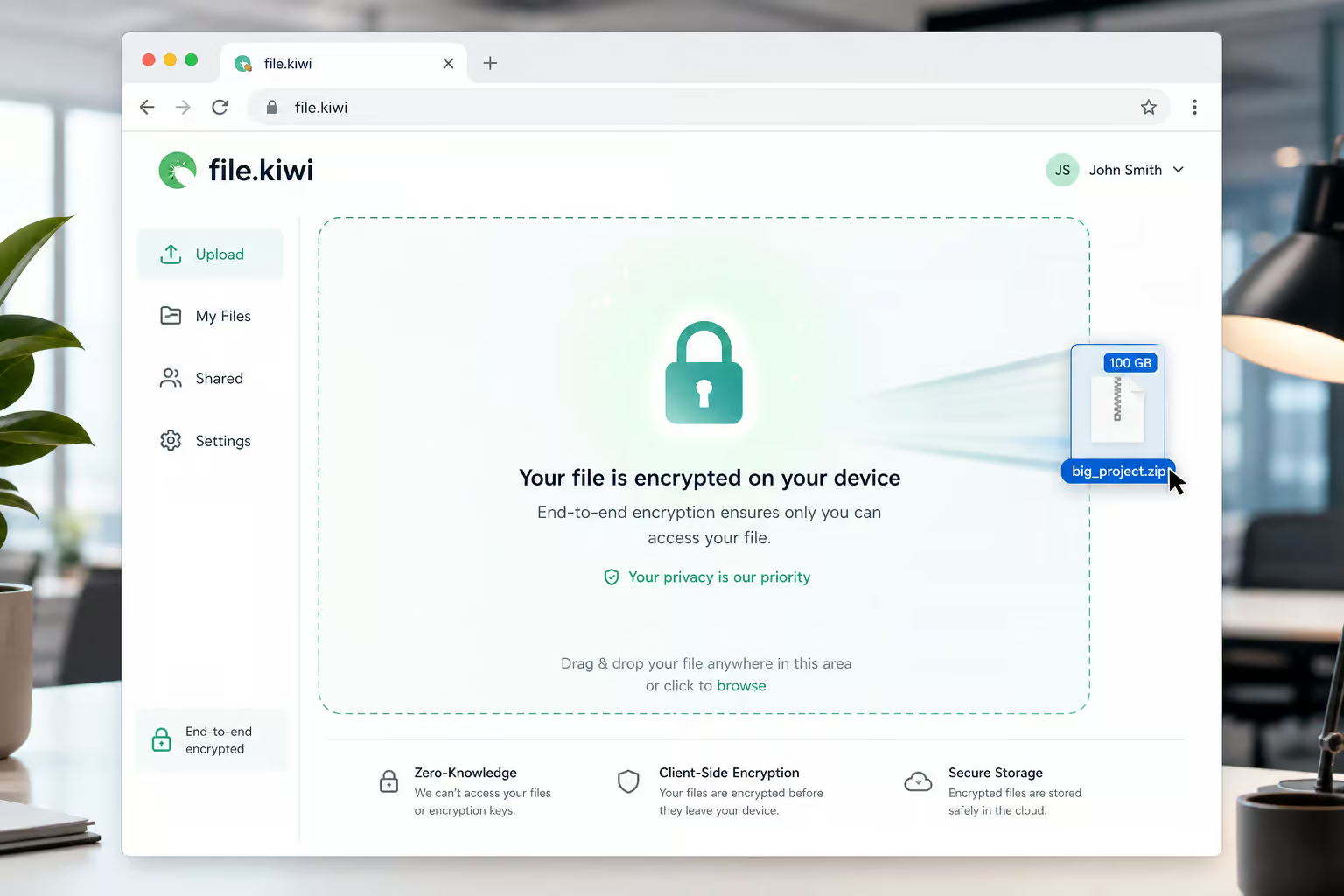
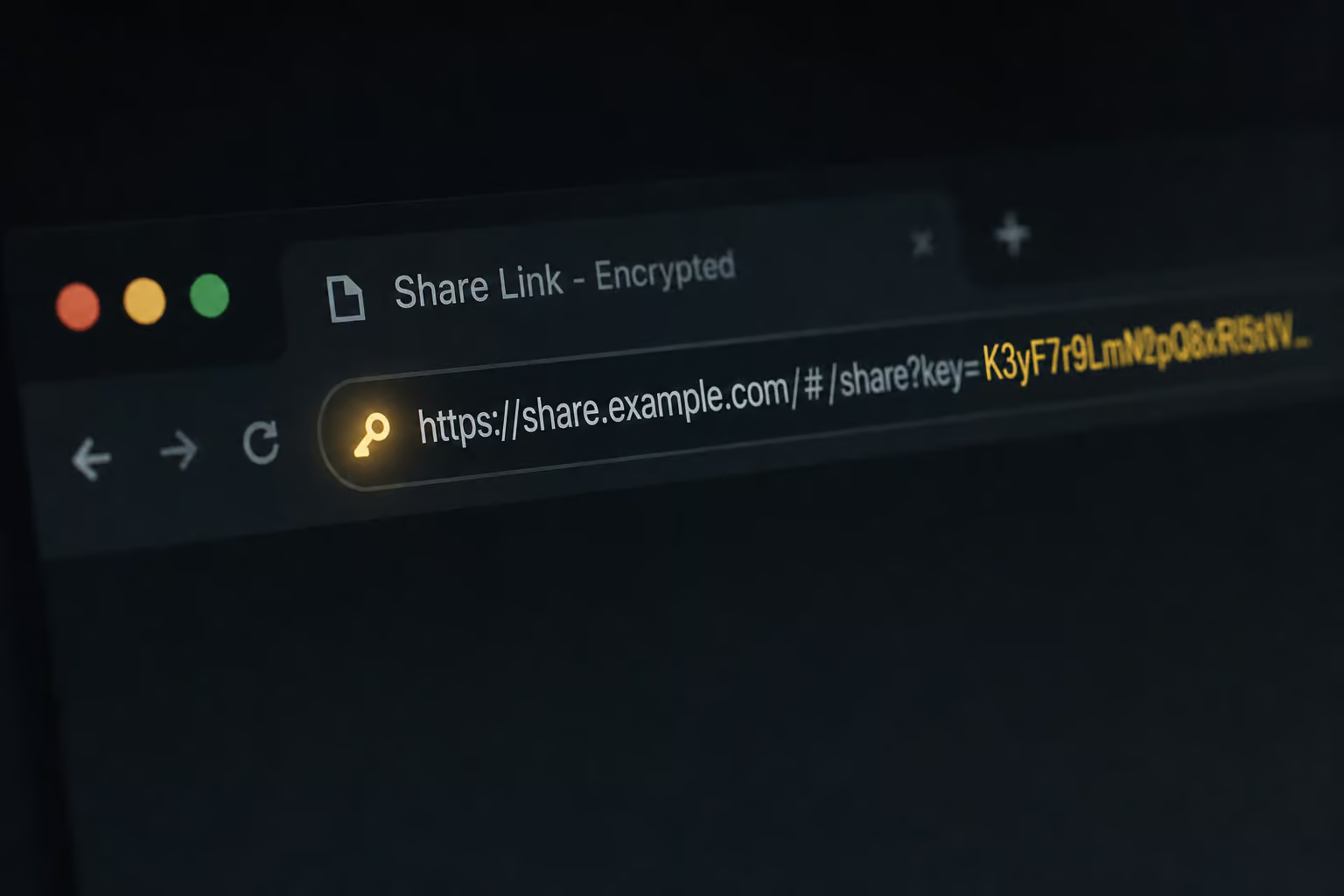
When you drag a file into your browser (or use their Windows app, Chrome extension, CLI, or MCP server for AI tools), the browser encrypts the file before it ever leaves your machine. The encryption uses 128-bit AES-GCM. The decryption key never touches file.kiwi’s servers — it lives only in the share link you generate. Your file sits on their server as an encrypted blob that they cannot read.
Here’s the workflow:
- Go to file.kiwi — no registration needed.
- Drag and drop your 100GB file. Your browser encrypts it client-side during upload.
- A share link is generated containing the decryption key in the URL itself.
- Send that link to your recipient.
- They open the link, the browser fetches the encrypted blob, and decrypts it locally with the embedded key.
- Your original file never exists in readable form on the server.
Real-time sharing and other perks
Because the upload starts sharing as soon as the first chunk arrives (about 10 seconds in), you do not have to wait for the full 100GB to finish before your recipient can begin downloading. If your connection drops, both upload and download support resume — no restarting from zero.
The tradeoff you must know
The decryption key lives solely in the share link. Lose that link — you lose the file permanently. There is no server-side key recovery. That is both a security feature (the service cannot spy on you) and a risk (back up the link). Also, files auto-delete after 90–96 hours on the free plan, so plan your transfer window.
Advanced tools
If you’re the type who likes the command line or automation, file.kiwi also offers a CLI and a Model Context Protocol (MCP) server for AI code assistants like Claude and Cursor. You can script large file uploads or integrate them into a workflow without touching a browser.
Method 2: Drime — The Generous All-Rounder
Drime is the second service that passed our 100GB test, and it takes a different approach. It is more traditional — upload to a server, get a link, but it is generous for a free tier.
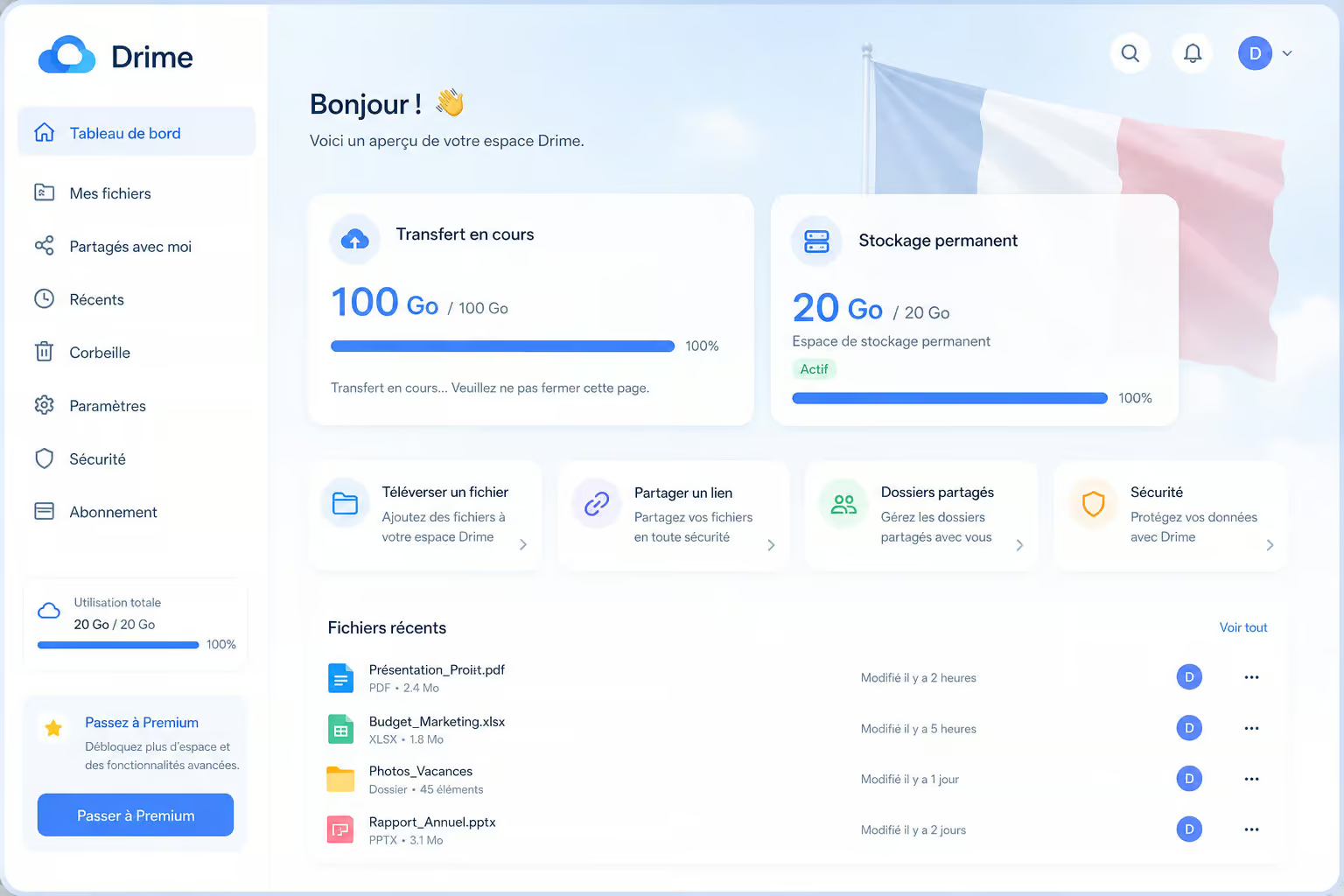
What Drime gives you
- Free transfers up to 100GB with no queuing. You upload 100GB, it goes.
- 20GB of permanent free cloud storage. Files you upload don’t auto-delete unless you remove them.
- AES-256 encryption during transfer and at rest via TLS. Your data is encrypted in transit and on the server, though Drime holds the keys (so they can decrypt if needed).
- Files stored in French data centers (GDPR-compliant).
- Recipients don’t need an account to download.
- Seven permission levels for access control — from view-only to full edit.
How to use Drime
- Visit transfers.drime.cloud.
- Upload your 100GB file through the website interface.
- Generate a secure share link (or send via email directly).
- Set a permission level if you want more than basic download access.
- Your recipient clicks the link and downloads without signing up.
Why Drime matters
Drime pairs a high free transfer limit (100GB) with permanent storage. You can send a massive file today and still keep 20GB of it archived forever. That makes it ideal for client deliveries where you need the file accessible longer than four days. Plus, Drime includes PDF editing and eIDAS-compliant e-signatures (Drime Sign) as bonus features.
Why Other “Unlimited” Free Services Fail at 100GB
Nearly every service that markets “unlimited” or “no size limit” has a catch that breaks at 100GB. Here’s what we found.
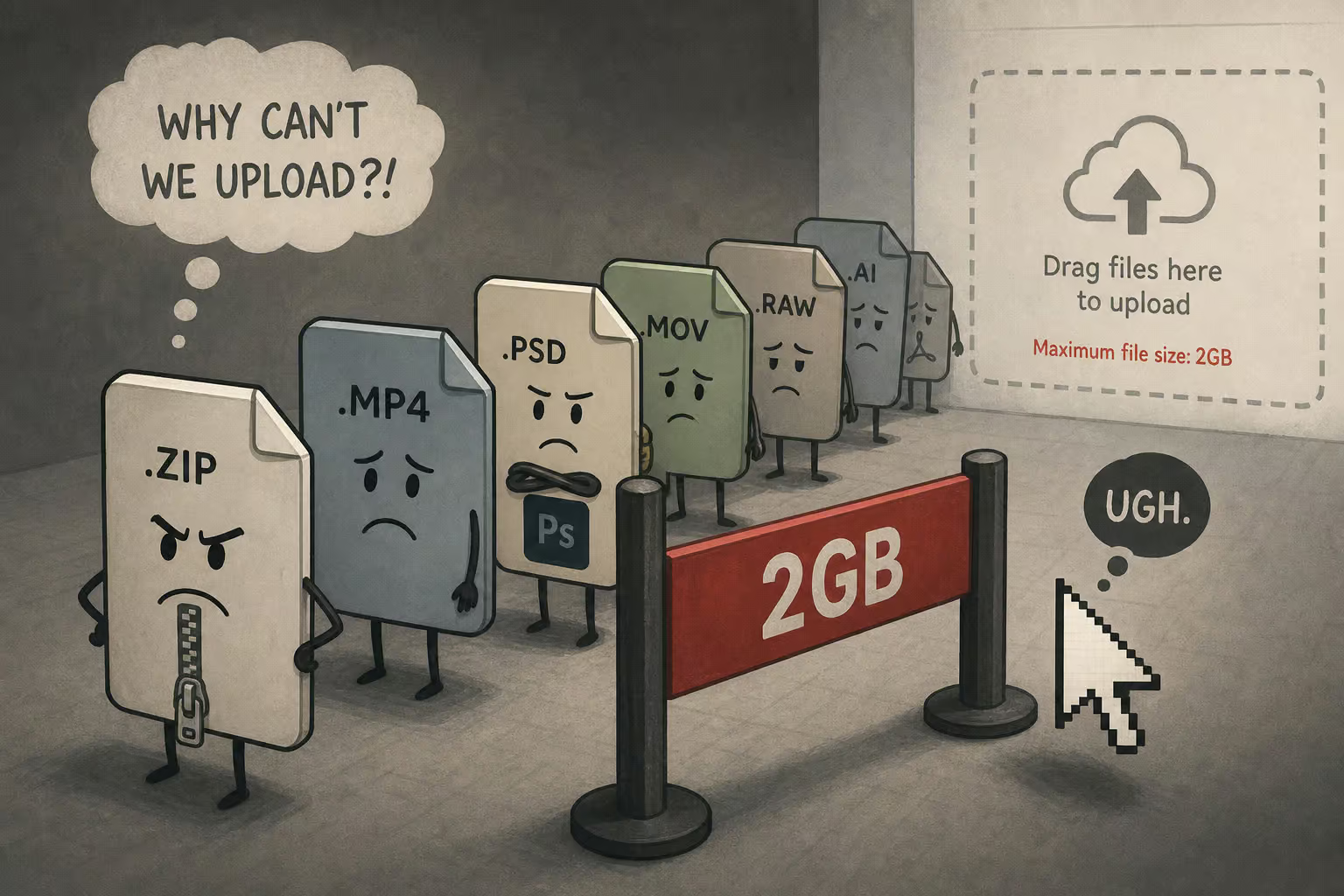
Smash — queues files over 2GB
Smash’s splash page says “no size limit.” Free users can upload any size — but files over 2GB get placed in a queue. For a 100GB file, that queue can stretch unless you upgrade to Smash Pro at ~$5/month. Files are retained for 7 days.
SwissTransfer — 50GB cap, no end-to-end encryption
SwissTransfer caps free transfers at 50GB — fine for medium files, but not for 100GB. It uses AES-128 with TLS in transit, but the service does not provide end-to-end encryption (the server can see your file). Retention is 30 days, and user-reported speeds hover around 2.5–4.5 MB/s.
Send Anywhere — the 10?minute key problem
Send Anywhere has two modes. Direct 1-to-1 transfer has no size limit, but the 6-digit key expires in 10 minutes, requiring coordination between sender and recipient. The link-sharing mode caps at 10GB with 48-hour availability.
Filemail — “any size” is a lie on the free tier
Filemail advertises the ability to send large files of any size. The free tier limits you to 5GB per transfer. To reach 100GB, you’d need Filemail Pro at ~$12/month, which goes to 250GB.
ToffeeShare — peer-to-peer only
ToffeeShare is unlimited — but it is peer-to-peer. The sender must keep their browser tab open, and the recipient must be online at the same time. Great for one-on-one transfers, but not for asynchronous delivery of a 100GB file.
Security and Privacy Tradeoffs
The question is: Can the service decrypt your file?

Client-side encryption (file.kiwi’s model)
Your file is encrypted before it leaves your device. The decryption key exists only in the share link — the server never sees it. This means the service cannot read your file, even if subpoenaed. But if you lose the link, it’s gone.
Encryption in transit only (most services)
Drime, SwissTransfer, Smash, and others encrypt your file while traveling to the server and while stored on disk, but the service holds the keys. They could decrypt your file. For most use cases (sending a game build, a video project, a dataset) that is fine. For regulated data (medical records, legal documents), it is not.
Data retention varies wildly
- file.kiwi: 90–96 hours, then auto-deletes.
- Drime: permanent for the first 20GB (free).
- Smash: 7 days.
- SwissTransfer: 30 days.
Compliance certifications
Certifications like GDPR, HIPAA, or ISO 27001 are on paid enterprise plans. Free transfers from any service are not suitable for regulated data unless you have verified otherwise.
Free vs. Paid: When to Upgrade
The free options above work for a 100GB transfer. But they have limits:
- Time window: file.kiwi gives you 4 days. Drime’s free storage is permanent but limited to 20GB.
- Recovery: file.kiwi offers no key recovery. Lose the link, lose the file.
- Frequent transfers: Free tiers are fine for occasional use; if you are sending large files every week, the friction adds up.
When should you consider paying? If you need files available longer than a week, want compliance certifications, prefer end-to-end encryption with key recovery, or want a smoother workflow.
Paid plan comparison (for services that actually handle 100GB):
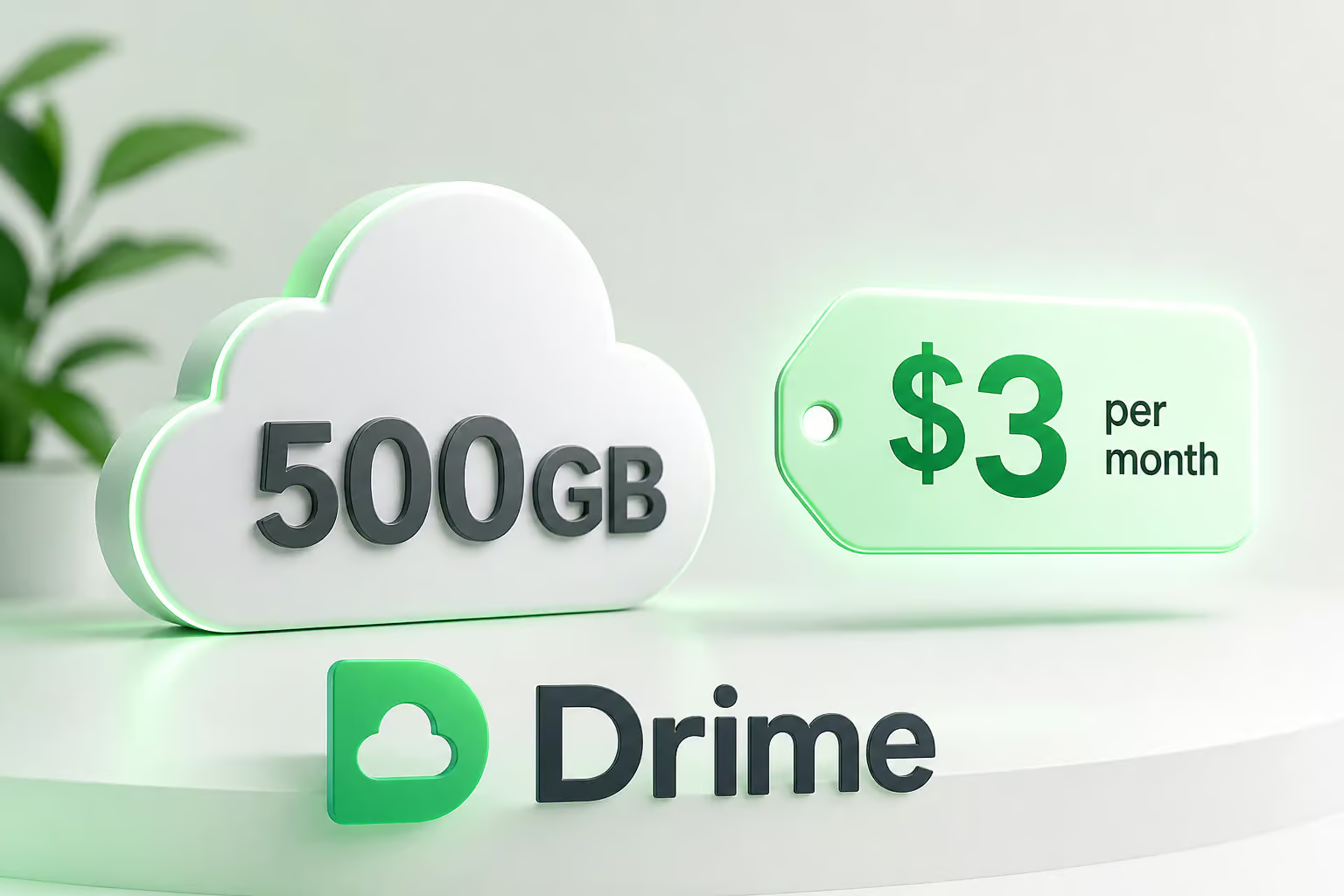
- Drime Starter: ~$3/month (€2.99), 500GB storage, 30-day availability, includes PDF editing and e-signatures.
- Smash Pro: ~$5/month (€5), 250GB per transfer, 1TB storage, 30-day availability.
- Filemail Pro: ~$12/month, 250GB transfer limit, 1TB storage.
The cheapest upgrade is Drime Starter at ~$3/month — that gets you 500GB of permanent storage and removes the time pressure of auto-delete.
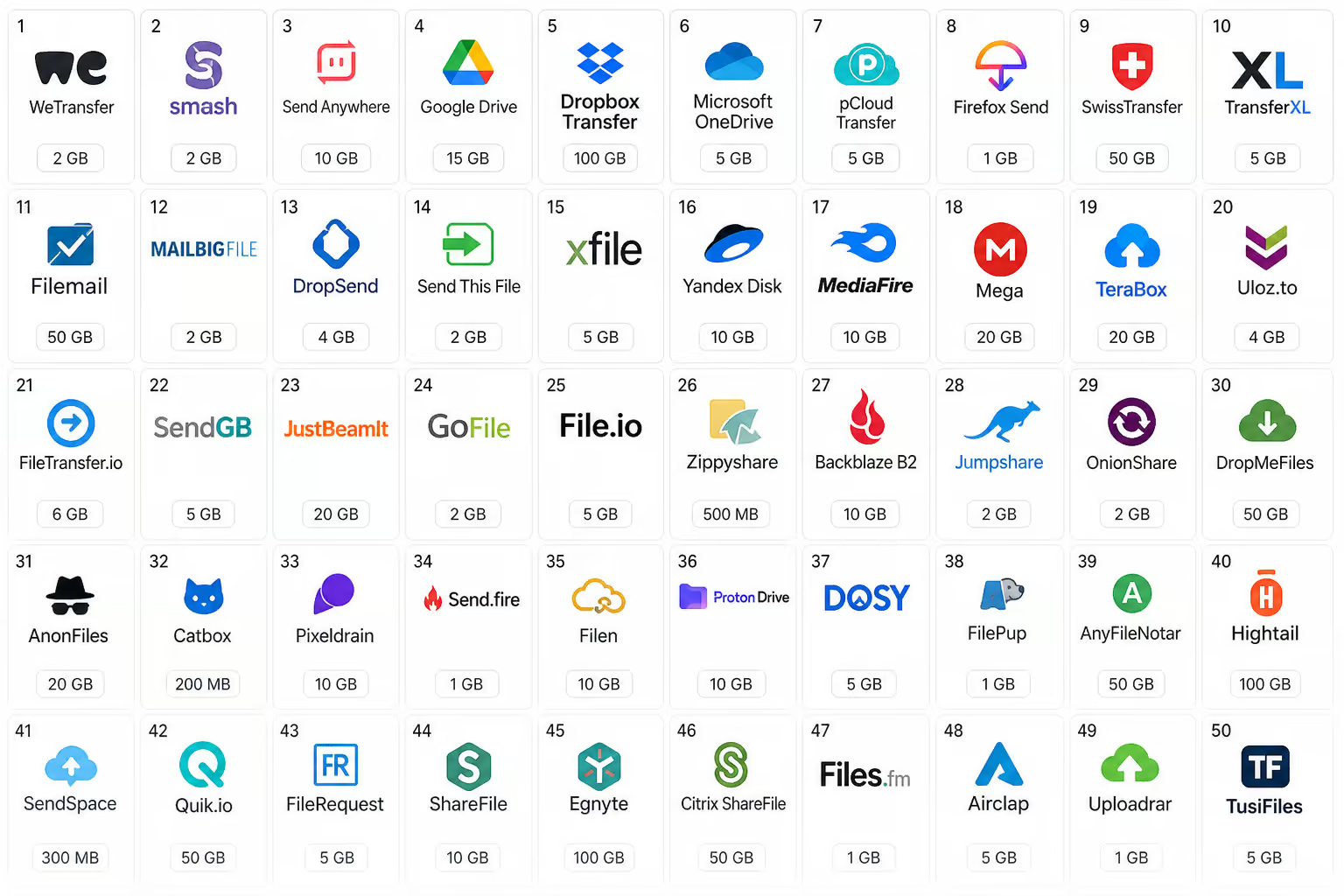
Full Directory: 50 File Transfer Services and Their Free Limits
Below is a reference of the major services and what their free tiers offer for a 100GB file. For the ultimate geek’s guide to moving massive files—from free tier limits to self-hosted beasts, no hype, just raw data on latency, security, and true transfer speeds—see our large file sharing resource. We have included email attachment limits as baseline context. Note: This directory does not include Firefox Send (discontinued) or Sendy PRO (not tested); for those, see our large file sharing resource. Each entry includes a hidden limitations column: queueing behavior, E2EE status, and data retention policy.
Gmail
Free limit: 25MB per email attachment. Not viable for 100GB.
Yahoo Mail
Free limit: 25MB per email attachment. Same as Gmail.
Outlook.com (Hotmail)
Free limit: 34MB per email attachment. Still below 100GB.
Google Drive
Free storage: 15GB total across all files. Single file upload is not limited by size, but total account storage is the bottleneck. 100GB won’t fit.
OneDrive
Free storage: 5GB with a 5GB per-file upload cap. 100GB file will not upload.
Dropbox
Free storage: 2GB with a 2GB per-file upload cap. Not viable.
iCloud
Free storage: 5GB. Cannot hold 100GB.
Box
Free storage: 10GB with a 250MB per-file upload limit. Not viable.
WeTransfer
Free limit: 2GB per transfer, 7-day retention. Guests need a verification code. Not viable for 100GB.
file.kiwi
Free limit: No file size limit. No sign-up, no ads. Client-side 128-bit AES-GCM encryption. Decryption key in share link only.
Auto-delete after 90–96 hours. Resume upload/download. Real-time sharing. Windows app, Chrome extension, CLI, MCP server.
Drime (transfers.drime.cloud)
Free limit: 100GB per transfer, no queuing. 20GB permanent cloud storage. AES-256 via TLS. French data centers. No account needed for recipient. Seven permission levels. Also includes Drime Sign (e-signatures) and PDF editor.
Smash
Free limit: No size limit advertised, but files over 2GB are queued on the free plan. 7-day retention. Password protection, expiry dates, email notifications.
SwissTransfer
Free limit: 50GB per transfer, 30-day retention. AES-128 encryption over TLS (no end-to-end). 500 transfers/day limit. User-reported speeds 2.5–4.5 MB/s.
Send Anywhere
Free limit: Direct 1-to-1 transfer has no size limit, but the 6-digit key expires in 10 minutes. Link sharing caps at 10GB with 48-hour availability.
Filemail
Free limit: 5GB per transfer. Paid plans needed for 100GB.
ToffeeShare
Free limit: Peer-to-peer; no size limit, but sender must keep page open and recipient must be online simultaneously.
Tresorit Send
Free limit: 5GB per transfer with 7-day retention. End-to-end encryption (AES-256). Requires registration.
pCloud Transfer
Free limit: 5GB per transfer, 7-day retention. No account required for sender.
MediaFire
Free storage: 10GB. Single file upload limit not specified but total storage is the constraint.
Hightail (formerly YouSendIt)
Free limit: 2GB per transfer. Business-oriented.
Wormhole
Free limit: Up to 5GB per transfer with end-to-end encryption.
MyAirBridge
Free limit: 5GB per transfer. No registration needed.
DropSend
Free limit: 1GB per transfer. Not viable.

TransferNow
Free limit: 4GB per transfer. 30-day retention.
BlueFiles
Free limit: 2GB per transfer. End-to-end encryption. Requires registration.
FileVert
Free limit: 5GB per transfer. No registration needed.
SendBig (now part of Filemail)
Free limit: 5GB per transfer.
4Shared
Free storage: 15GB. Per-file upload limit of 200MB. Not viable.
Concept: AES-256 encryption
Symmetric encryption algorithm used by many services for data at rest. 256-bit key — considered secure for most purposes.
Concept: End-to-end encryption (E2EE)
Encryption where only the sender and recipient can decrypt. Server cannot read the file. file.kiwi and Tresorit Send use this. Most other services use encryption in transit only.
Concept: TLS (Transport Layer Security)
Encryption protocol for data in transit between your browser and the server. Standard for all modern services, but does not protect against server access to your file.
Concept: Client-side encryption
Your file is encrypted before it leaves your device. The server never sees the plaintext. file.kiwi’s model.
Concept: GDPR
EU data protection regulation. Services storing data in European data centers (e.g., Drime in France) often advertise GDPR compliance, but free tiers still require user diligence.
Concept: Zero-knowledge architecture
Another term for client-side encryption where the service has no knowledge of your file contents. file.kiwi fits this description.
Concept: Resume upload/download
Ability to continue an interrupted transfer from where it left off. file.kiwi supports this. Important for large files over unstable connections.
Concept: Queuing (hidden throttling)
Some free services place large files in a queue to be processed when server resources are low. This can block a 100GB file unless you upgrade.
Conclusion: Which Service Should You Use?
Here is how to choose based on your situation. Note: We did not independently test upload speeds across all services; file transfer speed depends on your own internet connection and the service’s infrastructure. Environmental impact data is only available from Smash and FileVert, which claim reduced carbon footprints.
One-time 100GB transfer: Use file.kiwi — unlimited size, no sign-up, client-side encryption. The 90-96 hour window is fine for a handoff.
Need longer availability: Drime gives you 20GB of permanent free storage and 100GB transfer limit without auto-delete. Ideal for client deliveries you want available for weeks.
Maximum privacy: file.kiwi’s client-side encryption means the service cannot decrypt your file. Drime uses server-side encryption (AES-256 via TLS), which is strong but not zero-knowledge.
Frequent transfers: Consider paying. Drime Starter at ~$3/month gives you 500GB permanent storage and removes time pressure. If you are sending 100GB regularly, the free workflow becomes a bottleneck.
Regulated industries: Free tiers from any service are not suitable for HIPAA or strict compliance needs. You need a paid enterprise plan with audit logs, SAML/SSO, and verified certifications.
Real-time collaboration: ToffeeShare or Send Anywhere’s direct transfer work if both parties are online simultaneously, but they’re not practical for async 100GB sends.
You have two options. Pick the one that matches your need for time, privacy, or permanence. For everything else, the upgrade is cheap enough that it is worth considering.
People Also Ask
Where can I send a file that is over 100GB for free?
Two services handle a full 100GB file for free without queuing or hidden limits: file.kiwi and Drime. file.kiwi has no file size cap and uses client-side encryption, but files auto-delete after 90–96 hours. Drime offers up to 100GB per transfer with 20GB of permanent free storage and no account needed for the recipient.
Is WeTransfer still free?
Yes, but the free tier caps at 2GB per transfer with 7-day retention. It is not viable for a 100GB file. For that size, you need file.kiwi or Drime, which handle 100GB for free without the 2GB limit.
How does file.kiwi’s encryption work for a 100GB file?
Your browser encrypts the file with 128-bit AES-GCM before it ever leaves your machine. The decryption key is embedded only in the share link — the server stores only an encrypted blob it cannot read. The recipient’s browser decrypts the file locally after downloading.
Why do most ‘unlimited’ file sharing services fail at 100GB?
Many services like Smash advertise no size limit but queue files over 2GB on free plans, meaning your 100GB upload sits in line behind paid users. Others like SwissTransfer cap at 50GB, Filemail at 5GB, or require both parties to be online simultaneously (ToffeeShare). Only file.kiwi and Drime pass a true 100GB test without these tricks.