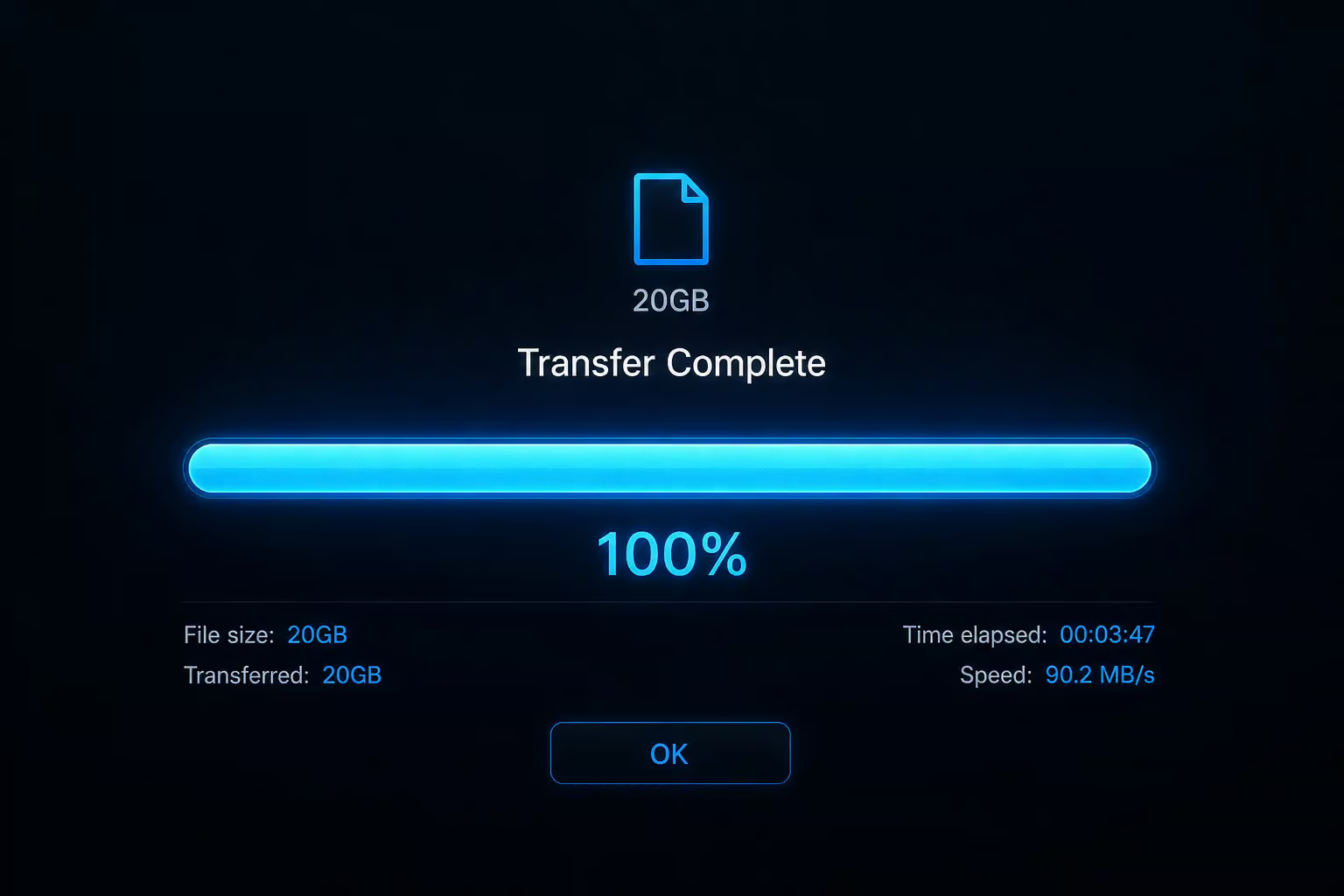
I recently hit the 20 GB wall myself. I had a folder of 1,247 photos and videos from a trip — came out to 23 GB, and I needed to get it to someone who wasn’t going to install anything or create an account. I went looking for the best way to send a 20 GB file without paying or dealing with obstacles.
Most free file-sharing services cap out way before you get there. Email attachments? Gmail stops at 25 MB. Outlook’s limit is about 20–34 MB. Even WeTransfer’s free tier tops out at 2 GB. The common free-tier limit for services like Filemail, TransferNow, and TransferXL is 5 GB per transfer. A 20 GB file is 800 times larger than email limits and four times larger than that 5 GB ceiling.
So what actually works? After digging through the options, only two free services can handle 20 GB without splitting or signing up: file.kiwi (no file size limit) and Smash (30 GB per transfer). Everything else either requires a paid plan or a workaround.
Key Takeaways
Email and most free?tier services (Filemail, TransferNow, TransferXL) max out at 5 GB per transfer — not enough for 20 GB without paying or splitting.
file.kiwi and Smash are the only two services that can handle a 20 GB file for free without requiring sign?up for the sender or recipient.
file.kiwi shares the real time link within 10 seconds of upload start, supports resume if your connection drops, and uses client?side 128?bit AES?GCM encryption — the service never stores the original file or the decryption key.
Table of Contents
The 20 GB problem: why most free solutions cap out before you start
Let’s lay out the numbers:
- Gmail attachment limit: 25 MB
- Outlook attachment limit: 20–34 MB
- WeTransfer free tier: 2 GB
- Filemail, TransferNow, TransferXL free tiers: 5 GB per transfer
- pCloud free storage: 10 GB (so you’d need a paid plan to send a 20 GB file directly)
A single 20 GB file is roughly 800 times the size of an email attachment and four times the common 5 GB free-tier limit. If you try to drag a 20 GB file into one of those 5 GB services, you’ll get an error — or worse, it’ll start uploading and then fail partway through with no explanation.
file.kiwi: share 20 GB in 4 steps (no sign-up, no splitting)
file.kiwi is the most direct answer I found. No registration required for you or your recipient. No file size limit on the free tier. No ads. Here’s the exact workflow:
Upload the file
Open the file.kiwi website. Drag your 20 GB file onto the page, or click to select it. That’s it — no account creation, no email verification, no “start free trial” button. The upload begins immediately.
Get your shareable link in 10 seconds
Here’s the feature that made me do a double-take: file.kiwi generates a real-time shareable link within about 10 seconds of starting the upload. The recipient can begin downloading before the upload is finished. No waiting for the whole 20 GB to complete. The link is yours immediately.

Share the link (or QR code)
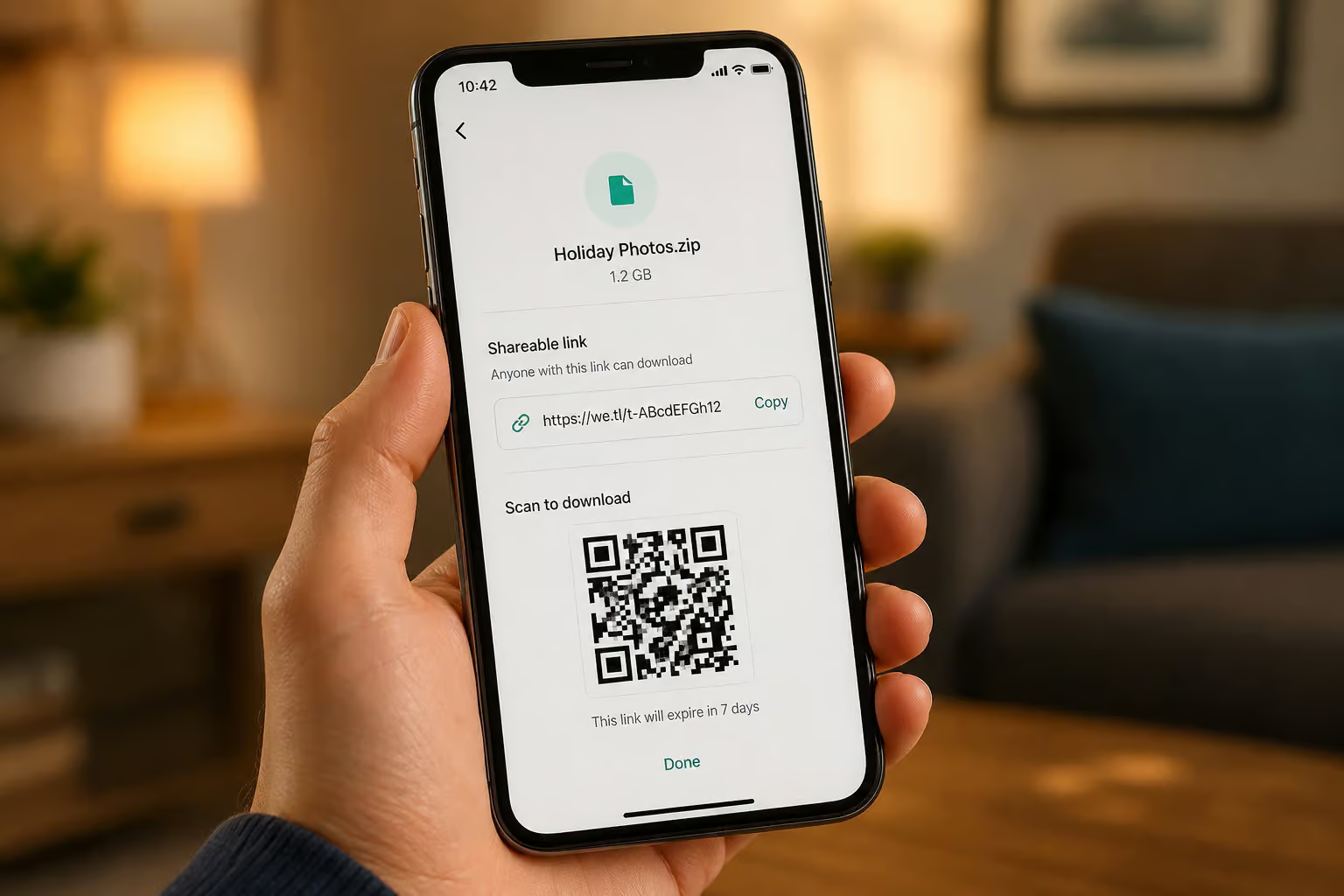
You get a standard URL and a QR code. Send the URL in a message, email, or Slack. Scan the QR code for an in-person handoff — great for conference demos or when someone is standing next to you. The recipient clicks and downloads directly; no sign-up, no app install, no password request.
Recipient downloads (and you keep control)
The download starts with a single click. If the connection drops, both upload and download support resume — they pick up where they left off instead of restarting from zero. The file is encrypted end-to-end using 128-bit AES-GCM, and the original file is never stored on file.kiwi’s servers; the decryption key lives only in the share link. After 90–96 hours on the free tier, the encrypted files are automatically deleted. If you need more time, there’s a paid plan that extends retention.
file.kiwi also has a few extras worth mentioning: a Webfolder feature gives you a unique URL that works both ways — you can share files out and collect files in using submission folders (without exposing your email). There are tools for power users too: a Windows app that integrates with File Explorer’s context menu, a Chrome extension, a CLI (npx @file-kiwi/node), and even an MCP server that integrates with Claude and Cursor so you can send files directly from your AI coding assistant. And yes, you can play an MP4 video on a Tesla full screen using file.kiwi — I haven’t tried it, but I love that it’s a documented use case.
Why resume support is critical for a 20 GB upload
You start a 20 GB upload before bed. Wake up to “Connection lost.” If the service doesn’t support resume, you’re starting from zero. Uploading 20 GB on a typical 100 Mbps connection takes about 30 minutes under ideal conditions. On slower or less reliable connections — Wi-Fi flakiness, mobile handoffs, router hiccups, that can stretch to hours, and interruptions are almost guaranteed.

Most free services do not support resume. If your transfer fails at 18 GB, that’s 18 GB of wasted time (and data, if you’re on a metered connection). The impossible challenge is figuring out how can I send 100GB files for free; real-world tests show that file.kiwi and Smash pass; a third option uses a torrent-based approach that may not work for all recipients. file.kiwi and Smash both support resumable uploads and downloads. file.kiwi internally splits the transfer and tracks progress so it can restart from the exact interruption point. Smash uses a similar approach.
Best alternatives for 20 GB: Smash, workarounds, and paid options
file.kiwi is my primary recommendation, but it’s not the only game in town. Here are the fallbacks I’ve tried, ranked by friction.
Smash — 30 GB free, no sign-up, resume support
Smash offers 30 GB per transfer on its free tier — more than enough for a 20 GB file. No sign-up required for sender or recipient. It supports resumable uploads/downloads, end-to-end encryption, and ephemeral links that expire in 1–30 days. Smash also claims transfers are up to five times faster (likely due to their infrastructure and protocol choices), and they cite a study with Utopies showing a 90% reduction in CO-e compared to email attachments.
Founded in 2017, Smash has been providing this service for years. To share files effortlessly with the tips in Files Over Miles, you can rely on storage in nine global regions and regular security audits by Synacktiv.
WeTransfer Pro trial — 30-day free credit card workaround
WeTransfer’s free tier limits you to 2 GB, but they offer a 30-day free trial of the Pro plan, which lifts the limit to 200 GB. The catch: you need a credit card, and you have to remember to cancel before the trial ends if you don’t want to pay. For a no-hype, data-driven take on large file sharing—from free tier limits to self-hosted beasts, latency, security, and true transfer speeds—this guide covers it all.
Archive splitting — the technical workaround
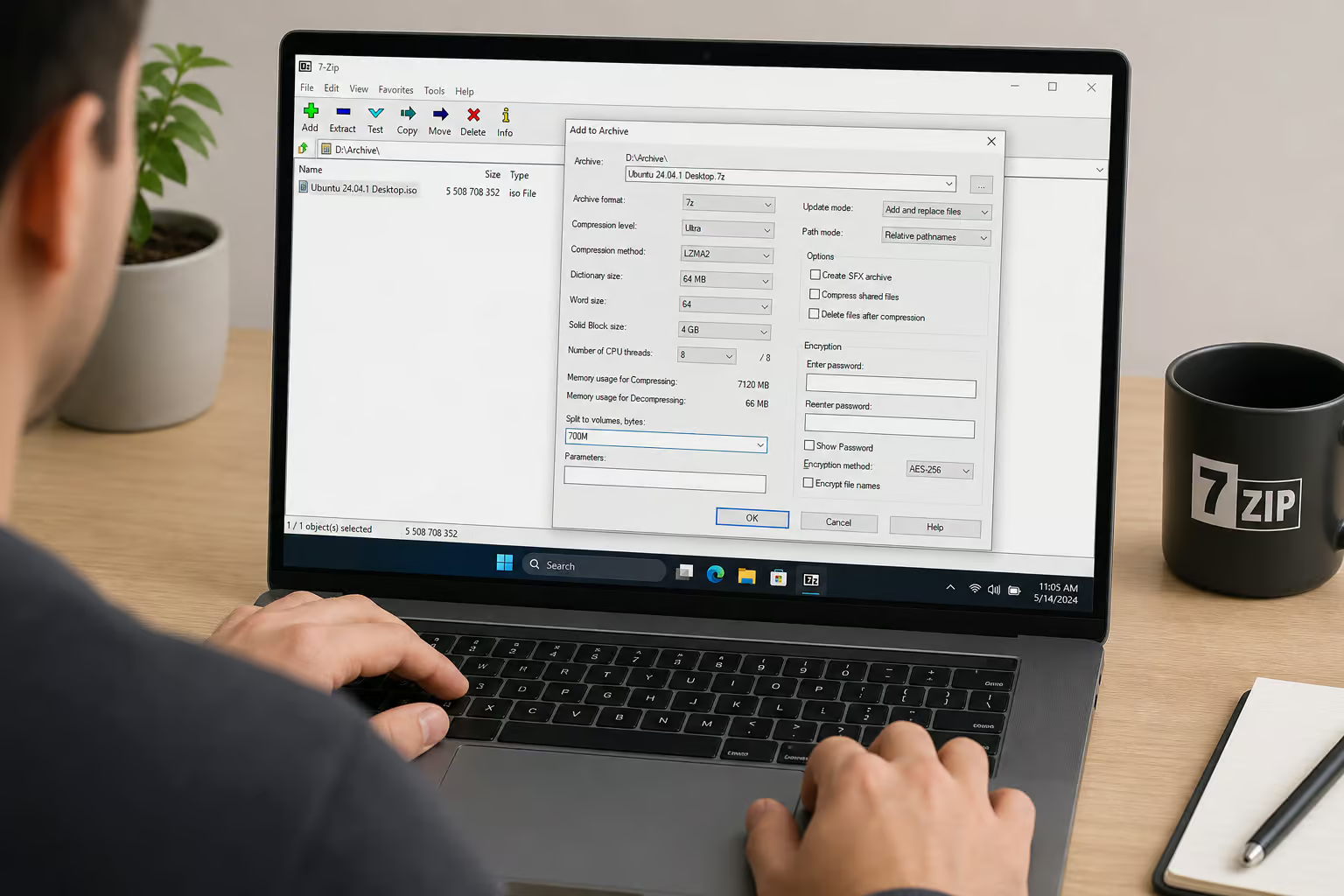
If you really can’t use file.kiwi or Smash (maybe your recipient is restricted to a specific service), you can split the file into smaller chunks. Tools like 7-Zip or WinRAR can split a 20 GB file into 2 GB or 4 GB parts — the splitting size matters because FAT32 has a 4 GB file size limit. Then upload each part individually using any service that handles 5 GB files. The recipient must download all parts and reassemble them. For a step-by-step walkthrough covering compression, splitting, torrents, or temporary cloud options for any file size from 2GB to 200GB, see how to share a file that is too large.
pCloud — paid plan required
pCloud’s free tier offers 10 GB of storage, so you can’t directly send a 20 GB file without upgrading. If you already have a paid pCloud account with enough space, you can share a link. Otherwise, it’s not a free solution for 20 GB.
Filemail, TransferNow, TransferXL — paid plans for 20 GB
These three services cap free transfers at 5 GB. If you upgrade to a paid plan (Personal/Pro), you get limits of 250 GB or more. But the question was how to share 20 GB for free — so unless you’re already on a paid plan, these require a credit card. Filemail uses globally distributed servers and UDP Transfer Acceleration for fast transfer. SendBig is another alternative, though its free tier also has limits.
Security model comparison: client-side vs server-side encryption
When you upload a 20 GB file to a free service, the obvious question is “Can they read it?” The answer depends on where encryption happens.

Client-side encryption (file.kiwi, Smash) — The file is encrypted on your device before it leaves your browser. The service never sees the original content. file.kiwi uses 128-bit AES-GCM and stores only the encrypted version; the decryption key is embedded in the share link, not on the server. That means even if the provider were compelled to hand over data, they couldn’t decrypt it. Smash also uses end-to-end encryption, with the key available only via the link.
Server-side encryption (Filemail, TransferNow, TransferXL) — Files are encrypted after they arrive on the server, typically with AES-256 at rest and TLS-1.2 in transit. The provider holds the keys and can decrypt the file if necessary. This is still secure against eavesdropping and unauthorized access, but it’s a different trust model, the provider can technically read your file if they wanted to. TransferNow also encrypts disks with AES-XTS 256 and operates in SOC 2 Type II certified datacenters, which adds an audit layer. Filemail holds compliance certifications including GDPR, ISO27001, NSM, HIPAA, SOX, FINRA, FISMA, GLBA, and Cyber Essentials UK.

file.kiwi’s approach — never storing the original file or the decryption key, is the strongest privacy stance in this comparison.
Recipient friction: why no sign-up matters more than speed
I’ve sent large files to people who are not tech-savvy. The biggest bottleneck isn’t upload speed or file size — it’s whether the recipient will bother creating an account, installing an app, or remembering a password.
file.kiwi and Smash require zero sign-up for both sender and receiver. The recipient clicks a link and downloads. Nothing else. No “Create an account to download,” no “Sign in with Google,” no “Download our app.”
file.kiwi’s Webfolder feature takes this further — you can set up a submission folder that lets other people upload files to you without you exposing your email address. The QR code option is also handy for in-person sharing: scan, download, done.

Services that force registration or app installation have dramatically lower completion rates. If you’re sending a 20 GB file to a client, a family member, or a collaborator who isn’t a developer, choose the option with the least friction.
Comparison table: which service should you use for 20 GB?
Here’s a quick-reference comparison of the free tiers for all the major services that came up in my search:
| Service | Free max size | Sign-up required? | Resume support? | Real-time sharing? | Encryption model | Retention (free tier) |
|---|---|---|---|---|---|---|
| file.kiwi | Unlimited | No | Yes | Yes (within 10 sec) | Client-side 128-bit AES-GCM | 90–96 hours |
| Smash | 30 GB | No | Yes | No | End-to-end | 1–30 days (ephemeral) |
| Filemail | 5 GB | Yes (sender) | No | No | TLS-1.2 + AES-256 at rest | up to 365 days (paid) |
| TransferNow | 5 GB | Yes (sender) | No | No | AES-256 at rest + TLS-1.2 + AES-XTS 256 on disk | up to 365 days (paid) |
| TransferXL | 5 GB | Yes (sender) | No | No | Optional end-to-end | up to 365 days (paid) |
The takeaway: only file.kiwi and Smash can handle 20 GB for free without workarounds. The 5 GB services require a paid plan or file splitting.
Closing: choose the method that fits your situation
If you just need to get a 20 GB file to someone as simply as possible, start with file.kiwi. No sign-up, no splitting, resume support, real-time link in seconds, and client-side encryption — it checks every box.
If you want a generous free cap from a well-audited service with global server distribution, Smash is your backup — 30 GB free, no sign-up, and similar privacy features.
If you’re willing to provide a credit card for a temporary solution, WeTransfer’s 30-day Pro trial works in a pinch. And if you’re stuck with a service that caps at 5 GB, archive splitting is the technical workaround that will get you there — albeit with extra steps for your recipient.
People Also Ask
How do I send a 20MB file?
Sending a 20 MB file is straightforward since it’s well within the limits of most free services. You can attach it directly to an email in Gmail (25 MB limit) or Outlook (20–34 MB limit), or use any free file-sharing service like WeTransfer, which handles up to 2 GB on its free tier.
How to transfer 20 GB of data?
To transfer 20 GB for free without workarounds, use file.kiwi (no file size limit) or Smash (30 GB per transfer). Both require no sign-up for you or the recipient, support resumable uploads, and use client-side encryption. Email and most free-tier services cap out at 5 GB or less, so they won’t work without splitting the file or paying.
Can I send a 20 MB file in Gmail?
Yes, Gmail allows attachments up to 25 MB, so a 20 MB file fits easily. Just attach it directly to your email and send. For files larger than 25 MB, you’ll need a different method like a file-sharing service.
How can I transfer 30 GB files for free?
Smash offers 30 GB per transfer on its free tier with no sign-up required, making it the best option for a 30 GB file. file.kiwi also works since it has no file size limit. Both support resumable uploads and end-to-end encryption, so you don’t have to worry about interruptions or privacy.
What’s the difference between client-side and server-side encryption for file sharing?
Client-side encryption encrypts the file on your device before it’s uploaded, so the service never sees the original content and can’t decrypt it even if compelled. Server-side encryption encrypts the file after it arrives on the server, meaning the provider holds the keys and could technically access your data. file.kiwi and Smash use client-side encryption; services like Filemail and TransferNow use server-side encryption.
Why do most free file-sharing services cap at 5 GB?
Most free tiers cap at 5 GB because hosting and bandwidth for large transfers are expensive, and the free tier is designed to push users toward paid plans. A 20 GB file is four times that common limit, so services like Filemail, TransferNow, and TransferXL require a paid subscription to handle it without splitting.
Can I send a 20 GB file without the recipient signing up for anything?
Yes, file.kiwi and Smash both allow the recipient to download with a single click — no account creation, app install, or password required. This zero-friction approach dramatically increases the chance the transfer actually completes, especially with non-tech-savvy recipients.