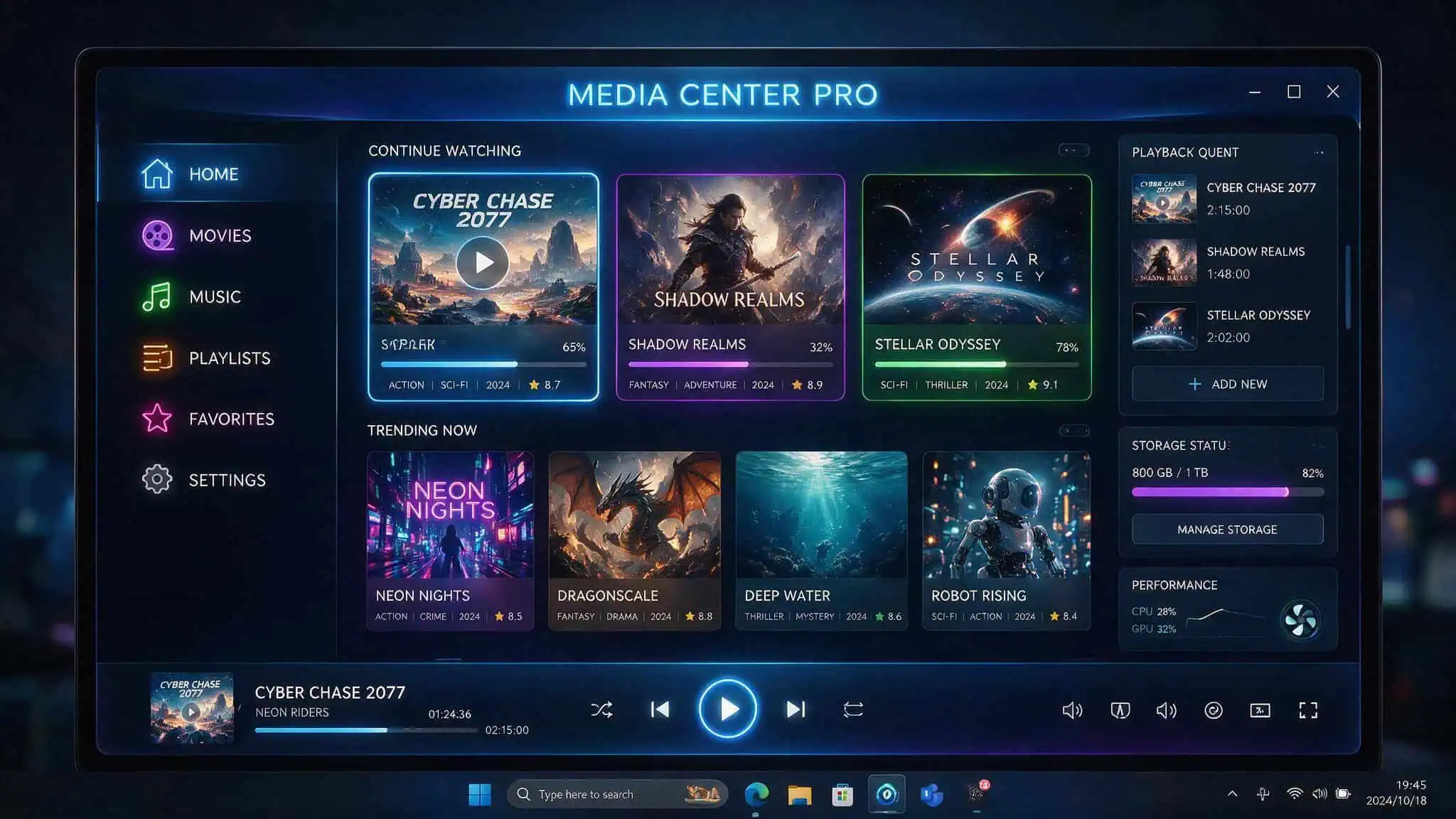
If you’ve been searching for “Nuvio Windows” hoping to find a proper native app to run on your PC, here’s the good news: it exists. The official Nuvio Desktop app is real, it’s running native code on Windows, and it’s being developed in the open on GitHub with a release cadence that’s impressive for such a young project.
The catch? It’s alpha 0.1.9, released June 25, 2026 — just nine days after the very first alpha (0.1.1) dropped on June 16.
This guide walks through exactly what’s official, how to install it safely, what works, what’s missing, and how to avoid the confusion that’s been popping up on Reddit about unofficial forks.
Key Takeaways
The official Nuvio Desktop app runs on Windows, macOS, and Linux, built with Kotlin Multiplatform and Compose Desktop — not Electron or React Native, and the only safe download source is the NuvioMedia/NuvioDesktop GitHub Releases page.
Current alpha 0.1.9 (June 25, 2026) is rapidly iterating but lacks P2P, external player support, in-app trailers, and GIF support; the first alpha 0.1.1 was explicitly testing-only and not for daily use.
Reddit has documented confusion between official NuvioMedia releases and unofficial community desktop forks, with users explicitly asking for unofficial repos to be labeled — stick to the official repo unless you’re comfortable debugging community projects.
Table of Contents
What Is Nuvio Desktop? The Official Windows App Explained
Before you download anything, it helps to understand what Nuvio actually is — and isn’t. Nuvio is a media center and library companion, a polished front-end that aggregates content from addons and plugins you install yourself. It does not host, store, or distribute any media. It’s an interface for content you own or are authorized to access.
That’s the same model as Stremio and Kodi, and if you’ve used either of those, the mental model transfers almost directly. Nuvio brings its own design philosophy, though: cleaner UI, cross-device sync that actually works, and a tech stack that’s refreshingly not yet another Electron app. Desktop builds use Kotlin Multiplatform with Compose Desktop, with native libmpv for playback. Mobile runs on React Native and Expo. The whole thing is packaged as standard installers — MSI for Windows, DMG for macOS, DEB for Linux when available.
The fork situation (and why it matters)
The official repository lives at NuvioMedia/NuvioDesktop on GitHub, and it’s sitting at 6.1k stars — not a ghost town, not a megaproject, but a clear sign that the community is paying attention. That repo is your single source of truth. Releases are published through GitHub Releases, and that’s where you download the installer.
Reddit has been buzzing about Nuvio Desktop, but a lot of those posts link to repositories from other GitHub accounts — unofficial builds that aren’t affiliated with the NuvioMedia team. The source material shows users explicitly asking for these unofficial repos to be labeled as such. If a Reddit post points you to another GitHub account, it’s unofficial unless the official Nuvio team specifically points to it. Treat those as experimental community projects, not the real thing.
The rule is simple: if the GitHub org isn’t NuvioMedia, it’s not official. Unofficial builds might work, but they won’t match the changelog, they won’t get the same support, and they introduce confusion about what features actually exist. Start with the official release. It’s the safe bet.
How to Download and Install Nuvio on Windows
You’ve got two paths here. The primary one is the official MSI installer from GitHub Releases. The secondary one is using an Android emulator to run the Nuvio APK — which is what many guides push, but it’s a worse experience.
Method 1: The official MSI installer (recommended)
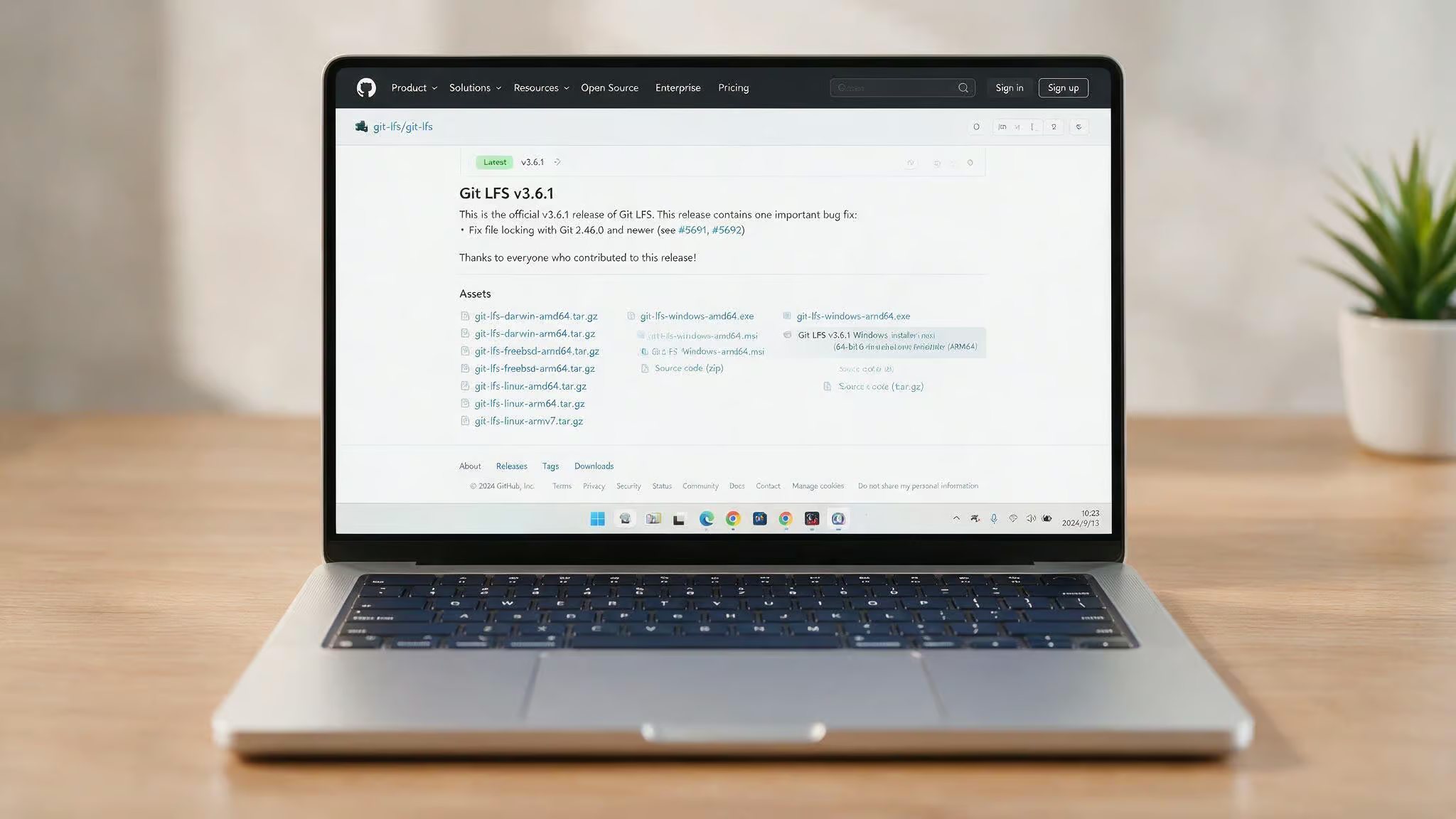
Head to github.com/NuvioMedia/NuvioDesktop/releases/latest. You’ll find the latest release — right now that’s 0.1.9 alpha, dated June 25, 2026. Look for the Windows MSI file. Download it, run it, and follow the standard Windows installer flow.
Two things to watch for: Windows SmartScreen might block the installer because it’s unsigned alpha software. That’s expected. You’ll need to click “More info” and then “Run anyway” to proceed. Second, the system requirements are minimal — Windows 7 or later, 4GB RAM, and about 5GB of free space. Nothing unusual.
If you’re the tinkering type, you can also build from source. Clone the repo with git clone https://github.com/NuvioMedia/NuvioDesktop.git, then run ./gradlew:composeApp:run (or .gradlew.bat:composeApp:run on Windows). The version string lives in composeApp/Configuration/DesktopVersion.properties if you want to poke around.
Method 2: Emulator fallback (for the mobile/TV app experience)
If you specifically want the mobile or TV version of Nuvio running on your PC, you can sideload the Nuvio APK using BlueStacks or NoxPlayer. This is less ideal — you’re adding emulator overhead, and you might run into compatibility issues that the native desktop app doesn’t have. But it’s what a lot of the older guides recommend, so it’s worth acknowledging.
The system requirements are the same as above, plus whatever overhead the emulator adds. You’ll need to download the Nuvio APK from the official site or GitHub, install it in the emulator, and you’re off. Just know that the native desktop app is the better path for Windows users.
Understanding the Alpha Status: What Works and What’s Missing
Let’s be honest about where this project is. Nuvio Desktop is alpha software, version 0.1.9. The very first alpha, 0.1.1, was designated for testing and issue reporting only — not for daily use. Later alphas are improving quickly, but bugs are expected until a stable release lands.
What’s not there yet
The first build shipped without several features that you might assume are standard. P2P streaming isn’t implemented. External player support isn’t in yet. In-app trailers don’t exist. GIF support is absent. These aren’t delayed features that were cut at the last minute — they weren’t included in the initial build at all.
That’s a significant list for anyone coming from Stremio or Kodi where those features are table stakes.
What’s been fixed (and why the pace matters)
The flip side is that the development team is shipping fast. The nine-day sprint from 0.1.1 to 0.1.9 produced eight releases, and the 0.1.9 changelog shows real polish work:
- Subtitle fixes, including libmpv subtitle override fixes for SSA/ASS rendering
- HTTP header escaping for mpv on Windows and macOS
- Window UI scaling, fullscreen focus, maximized window behavior, and taskbar fixes
- Playback volume persistence across sessions
- Profile hover gradients and visual polish
- macOS spatial audio support
Desktop playback is one of the fastest-moving parts of the alpha right now. That’s a good sign.
Setting Up Nuvio on Windows: Configuration, Addons, and Migration
Once you have the app installed, the next steps involve signing in, choosing a profile, migrating from another platform if needed, and adding your preferred addons. The process is straightforward but has a few quirks worth knowing upfront.
The QR code login (and why you need a second device)
First things first: you need a Nuvio account. Head to nuvioapp.space, click Login, then Create one. Standard email and password setup.
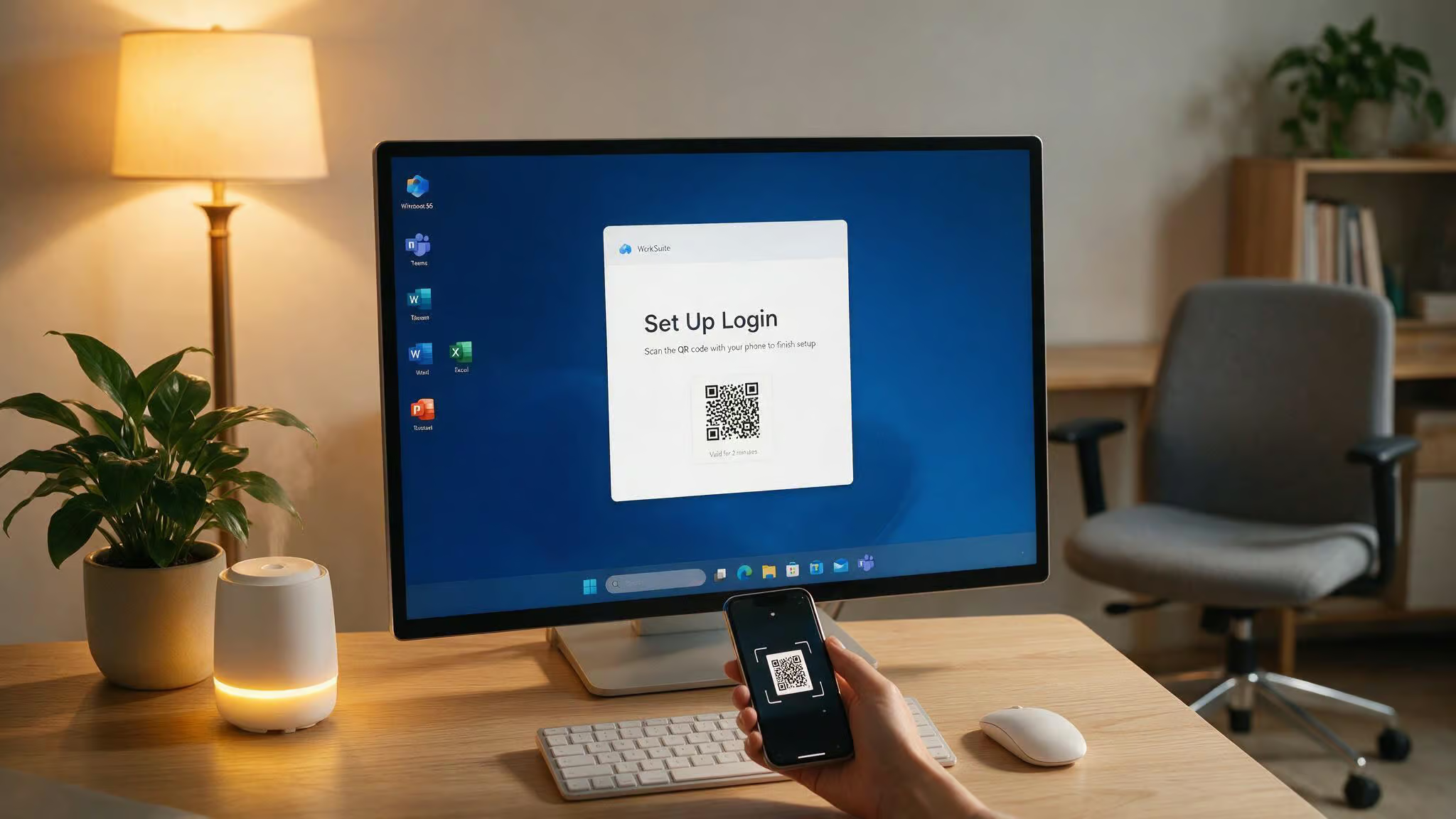
Here’s the part that catches people off guard: Nuvio Desktop only supports signing in with a QR code. There’s no username/password entry on the desktop app itself. You’ll see a QR code on your screen, and you need to open your account page on a phone or second device to scan it. It’s a bit awkward for a desktop app, but it works. Make sure you have your phone handy during setup.
Profile selection and baseline testing
After you’re signed in, pick the right profile before you start changing settings. The app supports multiple profiles for family members, each with their own library and watch history. If you start customizing on the wrong profile, you’ll have to redo it.
Before you dive into addon configuration, test a stream first. Open a few titles to confirm posters, metadata, seasons, and episodes all behave. Confirm your library, continue watching row, and collections appear as expected. Establish a baseline before you start tweaking.
Migration from Stremio
If you’re coming from Stremio, NuvioSync has a dedicated Stremio Migration tool. Create your Nuvio account first, then use the migration tool to move your library, watch history, and supported addons. It’s a clean path for switchers.
If you already have a working Nuvio profile on another device — say, your TV or phone, use Backup & Restore or Clone Profile instead of rebuilding everything manually. The multi-device sync is one of Nuvio’s best features, and it works across mobile, tablet, TV, desktop, Nuvio PC, and WebOS.
Adding addons
Nuvio relies entirely on addons and plugins for content. You bring your own sources. Navigate to the Plugins tab, paste the manifest URL, and click Add. The app supports 500+ streaming sources and plugins, with content available in 15+ languages including Arabic, English, Hindi, French, Spanish, and more.
Pre-installed official addons include Cinemeta and OpenSubtitles. Trakt integration syncs watch history across devices. And if you’re already familiar with Cloudstream, the plugin system works the same way — the same extensions and repositories.
Using Nuvio Desktop: Features, Performance, and Customization
Once you’re set up, Nuvio Desktop has some genuinely impressive features for an alpha. The UI is polished — metadata, ratings, cast info, and trailers (when available) are all presented cleanly. The “Continue Watching” row actually works across devices, which is the kind of thing that’s harder to get right than it looks.
What makes it stand out
The cross-device sync is Nuvio’s killer feature. Profiles, watch progress, and collections follow you from desktop to TV to phone without manual intervention. If you’re the kind of person who starts a movie on your laptop and finishes it on your TV, this just works.
Customization is solid too. Themes, fonts, color palettes, and playback preferences are all configurable without being overwhelming. The appearance section lets you choose language, theme, and font styling. The playback tab handles video and subtitle preferences, audio behavior, and decoder priority.
Performance tip: pair with a debrid service
Nuvio works with free addons, but if you pair it with a debrid service like TorBox, every stream becomes a cached direct link. That dramatically improves playback reliability, especially during alpha where source variability can cause issues. TorBox adds 7 free days each month purchased on top of your plan — that works out to 84 extra days on a 12-month plan, 42 on 6-month, and 21 on 3-month. Use the referral code on the subscription page to lock in the bonus.
The mobile companion
The Nuvio Media HUB mobile app is available for Android (v1.3.5, 105.95 MB, minimum Android 7.0+) and iOS (v1.3.6). It’s built with React Native and Expo, and it handles offline caching for commutes or travel. The phone app isn’t required for desktop use, but it makes the QR code login and profile management easier.
Troubleshooting Common Nuvio Desktop Issues on Windows
Here are the most common problems and their specific fixes, sourced from the changelog and community documentation.
Audio issues (the one everyone hits)
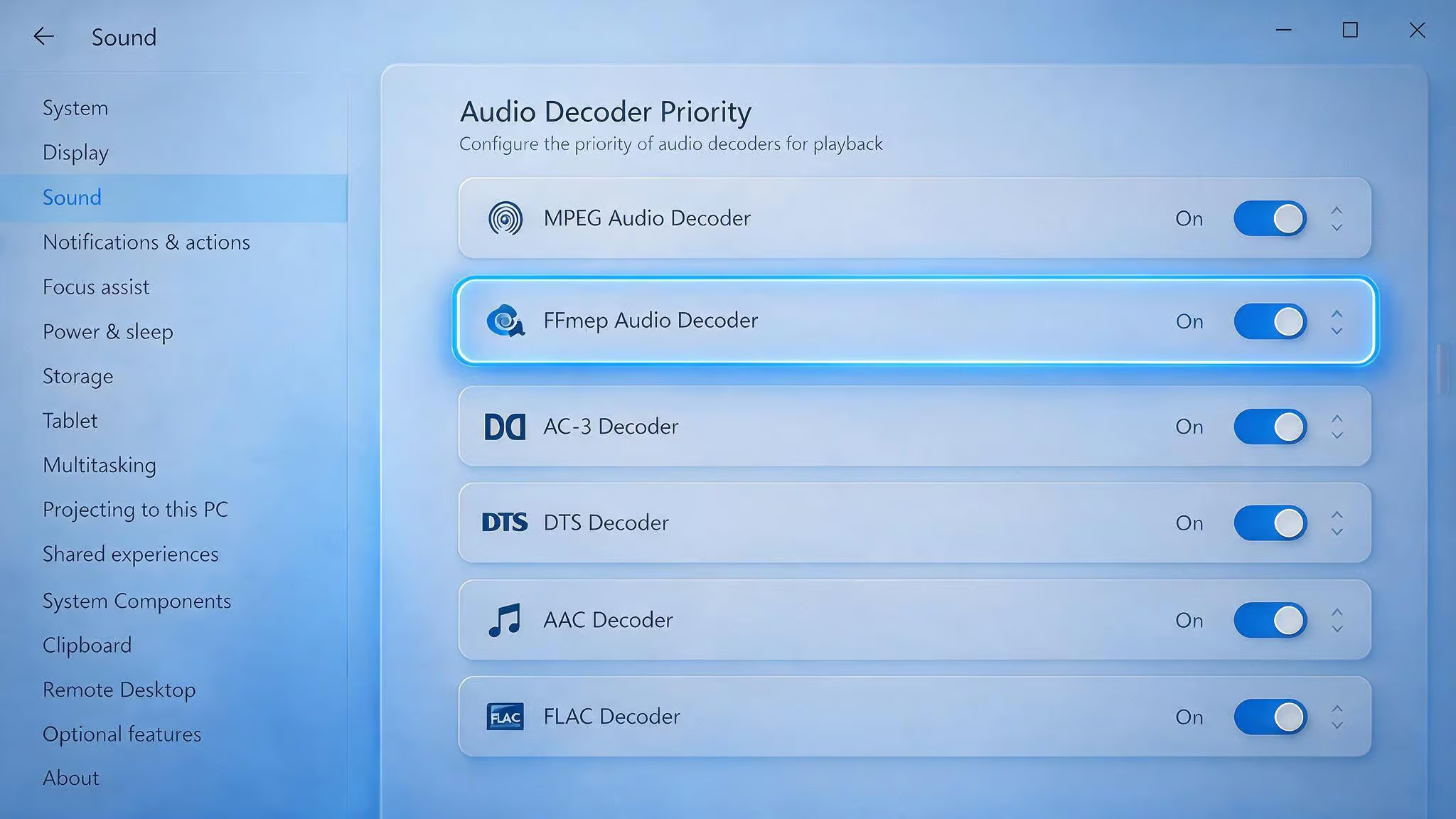
This is the most actionable fix in the entire guide. If you’re getting audio problems on Windows, go to: Settings > Playback > Audio & Trailer > Advanced Audio Section > Decoder Priority > Prefer app decoders (FFmpeg). That toggle resolves most playback audio issues. It’s not obvious from the UI, but it works.
Playback failures
Try another stream first. Check your addon configuration and confirm your debrid/provider login. If nothing works, check the latest release notes — the issue might be alpha-specific. If it’s still broken, report it on GitHub. That’s the whole point of the alpha.
Subtitle issues
Update to 0.1.9 or later. The 0.1.9 release includes libmpv subtitle fixes, including subtitle style initialization and SSA/ASS rendering improvements. If subtitles still look wrong after updating, check the Nuvio subtitles guide for more specific configuration.
Window and fullscreen issues
These were addressed in 0.1.9. Window UI scaling, fullscreen focus, maximized window behavior, and taskbar handling are all fixed. If you’re on an older alpha, update.
Volume persistence
Fixed in 0.1.9. Volume now persists across sessions. If your volume resets every time you open the app, you’re on a build before the fix.
Stale profile data
If your library, continue watching, or collections look wrong, log out and log back in. That pulls the latest cloud data. Make sure you’re on the right profile before you start troubleshooting.
Won’t install
Download the latest MSI. Check that Windows didn’t block the installer. Read the release notes for any known installation issues.
Safety and Legal Considerations
Let’s address the elephant in the room. Nuvio is not on official app stores — no Amazon Appstore, no Google Play. That means you’re sideloading, and sideloading always comes with a trust question. Here’s what the data actually says.
Safety scan results
The official APK was scanned on VirusTotal: zero security vendors flagged it as malicious. Norton Safe Web marked the GitHub release page as safe. Those are concrete, positive signals. The builds from the official NuvioMedia GitHub are clean.
That said, unofficial builds from Reddit or other GitHub accounts haven’t been scanned. Stick to the official source. The official builds have no ads or unwanted software; unofficial builds might not.
The legal gray area
Nuvio itself is legal. It does not host, store, or distribute any media. It’s a client-side interface for content you own or are authorized to access. It is not affiliated with any third-party extensions, catalogs, or content providers.
However, the app allows installation of third-party addons that may distribute unlicensed content. This is the same model as Stremio and Kodi, and it creates a gray area that depends entirely on what addons you install and your local laws. The source material explicitly does not condone piracy and urges users to stick to official addons. That’s the right position.
Should You Install Nuvio Desktop on Windows?
Here’s the honest decision framework.
Install Nuvio Desktop if:
- You’re an early adopter who enjoys testing software and providing feedback
- You’re a Stremio user wanting to explore a fresh ecosystem with a different design philosophy
- You value polished UI and cross-device sync over stability
- You’re willing to work around alpha limitations and report bugs
Skip it for now if:
- You need a daily-driver media center that just works without fuss
- You rely on P2P, external players, or in-app trailers
- You don’t want to deal with bugs, rapid changes, and missing features
For those who install: download from the official GitHub Releases page, set expectations accordingly, and provide feedback via GitHub issues. The alpha is moving fast, and the community is shaping what comes next. Use the “Check for Updates” option in the About section to track new versions.
Nuvio Desktop is real, it’s official, and it’s actively developed. It’s just not finished yet. If that sounds like your kind of project, you know where to find it.
Frequently Asked Questions
Can you use Nuvio on Windows?
Yes, the official Nuvio Desktop app runs natively on Windows via an MSI installer. It’s built with Kotlin Multiplatform and Compose Desktop, not Electron, and is available as an alpha release from the official GitHub repository.
Is Nuvio free?
Yes, Nuvio itself is free and open-source software. You can download and install it without paying anything, though pairing it with a paid debrid service like TorBox can improve streaming reliability by providing cached direct links.
What’s the difference between the official Nuvio Desktop and unofficial forks?
The official Nuvio Desktop is developed by the NuvioMedia team on GitHub and is the only source for verified releases with accurate changelogs and support. Unofficial forks from other GitHub accounts are community experiments that may not match the official feature set, introduce bugs, or lack security scanning.
How does Nuvio Desktop handle cross-device sync?
Nuvio Desktop syncs profiles, watch progress, and collections across all your devices automatically — desktop, TV, phone, and tablet. You just sign in with your Nuvio account using a QR code, and your Continue Watching row and library follow you everywhere without manual setup.
Is Nuvio Desktop safe to install on Windows?
The official Nuvio Desktop installer from the NuvioMedia GitHub is safe — VirusTotal scans show zero security flags and Norton Safe Web marks the release page as clean. However, Windows SmartScreen may block the unsigned alpha installer, requiring you to click ‘More info’ and ‘Run anyway’ to proceed.