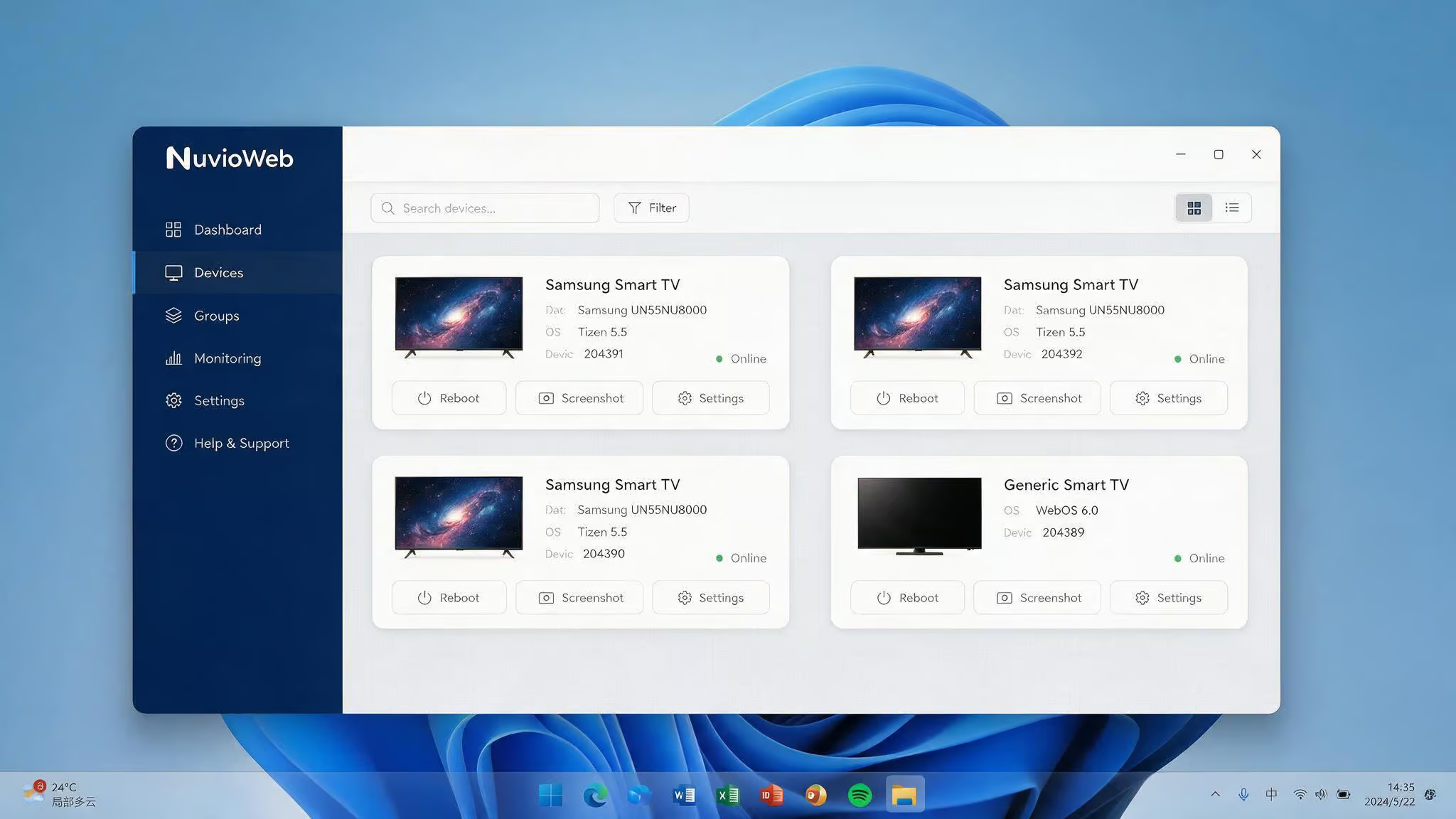
So you’ve got a Nuvio device—maybe a smart TV running WebOS or a set-top box on TizenOS—and you want to manage it from your Windows PC without hunting through on-screen menus with a remote. NuvioWeb is the official software for Nuvio WebOS and TizenOS devices, helping run apps and manage device software.
This guide covers what NuvioWeb is, whether your PC can run it, how to install and connect your device, and—most importantly—what makes a difference for performance, including using Nuvio on iPhone and iPad with the Nuvio iOS app. Because spoiler: it’s not the GPU.
Key Takeaways
NuvioWeb is a device management bridge for WebOS and TizenOS devices, not a media player. It handles file transfers, app installs/removals, and system updates from your PC.
The performance bottleneck isn’t your CPU or RAM—it’s your storage drive. Swapping an HDD for an SSD gives the biggest speed boost for file transfers and updates, according to the hardware priority hierarchy validated by tools like Intuiface.
Most “device not detected” issues come from a cheap USB cable or a locked device with USB debugging disabled, not from hardware incompatibility.
Table of Contents
What Is NuvioWeb and What Does It Do?
NuvioWeb isn’t a media player or a streaming app. It acts as the central management hub for your Nuvio device from your PC. It’s the official first-party software for managing WebOS and TizenOS devices—the same software that runs on Nuvio-branded smart TVs and set-top boxes.
From your Windows desktop, NuvioWeb lets you:
- Transfer files – drag and drop between your PC and the device. No more USB stick shuffle.
- Install and remove apps – a few clicks, no sideloading or developer mode required.
- Push system updates – keep the device’s firmware current without hunting for update files on the device itself.
The installer filename is NuvioWeb_Setup.exe, and the only official source is the NuvioWeb release page on GitHub. No third-party download sites, no sketchy mirrors—grab it straight from the repo.
NuvioWeb is Windows-only for now. If you’re on a Mac or Linux, you’ll need a VM or Boot Camp setup. (We’ll touch on that in the comparison section.)
System Requirements for NuvioWeb on PC
Before you download NuvioWeb, check that your PC meets the minimum requirements to run the software.
Minimum specs – the “can it run?” baseline
Your PC probably meets these:
- OS: Windows 10 64-bit (or later). The 64-bit version is recommended.
- RAM: 4 GB. That’s the floor.
- Storage: 150 MB free space. Tiny, right? We’ll talk about why that number is misleading in a moment.
- Internet: Required for updates and syncing.
- USB port: For connecting your device directly.
- CPU: 2.0 GHz minimum. Any modern processor will blow past that.
Recommended specs – the “runs well” target
- OS: Windows 11 64-bit.
- RAM: 8 GB.
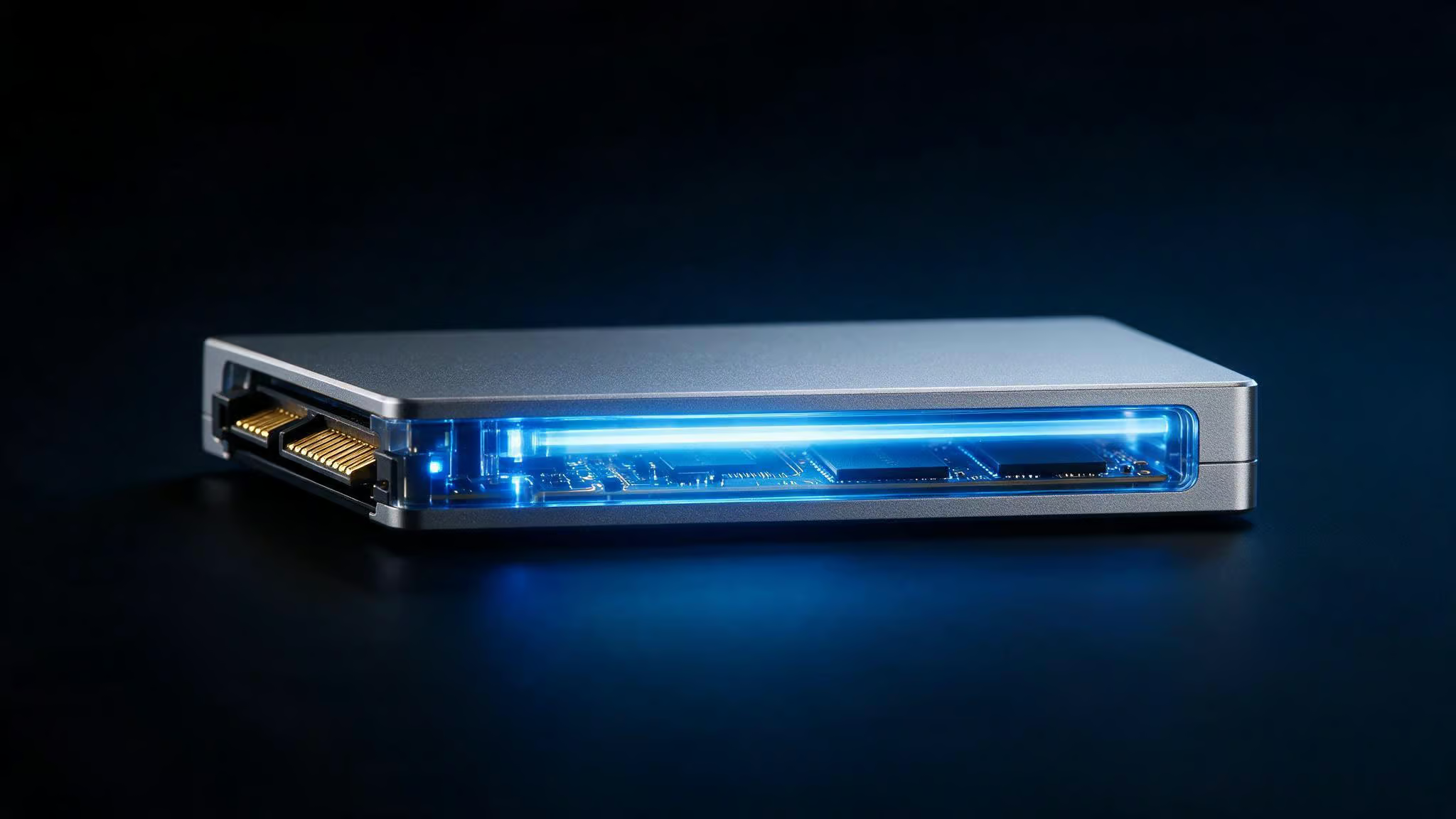
- Storage: An SSD. Not just any drive—specifically an SSD.
- Network: Stable 5 GHz Wi-Fi or Ethernet.
The real bottleneck nobody talks about
But NuvioWeb’s file transfers and system updates are I/O-bound—they depend on how fast your storage can read and write data. Swapping an old spinning hard drive (HDD) for an SSD is the biggest performance boost you can give this tool.
That 150 MB minimum requirement is a red herring. The capacity is trivial, but the speed of your drive determines how long it takes to push a system update or copy a large video file to your device.
Why checking requirements matters (or: the five failure patterns)
The common root causes, straight from the official documentation:
- Unsupported OS – trying to run it on Windows 7 or an ancient build.
- Outdated software – on either the PC or the device itself.
- Low storage – running the app on a nearly full drive.
- Weak internet – flaky connection causes incomplete syncs and failed updates.
- Older hardware – a CPU or RAM setup that just doesn’t have enough headroom.
Meet the minimums and you can run the software. Add an SSD and you’ll enjoy using it.
How to Download and Install NuvioWeb on Windows
- Open your browser and head to the NuvioWeb release page on GitHub. That’s the official source.
- Look for the latest version. The Windows installer will be a
.exefile. - Download
NuvioWeb_Setup.exe(or a similarly named file from that release). - Once downloaded, open the file to launch the installer.
- Follow the on-screen prompts—choose your installation folder, confirm, and let it run.
- After installation, you’ll find NuvioWeb in your Start Menu or as a desktop shortcut. Fire it up.
No third-party download sites, no sketchy mirrors. The GitHub repository is also where you’ll find future updates, bug reports, and community discussions.
Connecting and Managing Your WebOS or TizenOS Device
Once NuvioWeb is installed, it’s time to connect your device.
USB connection – the classic approach
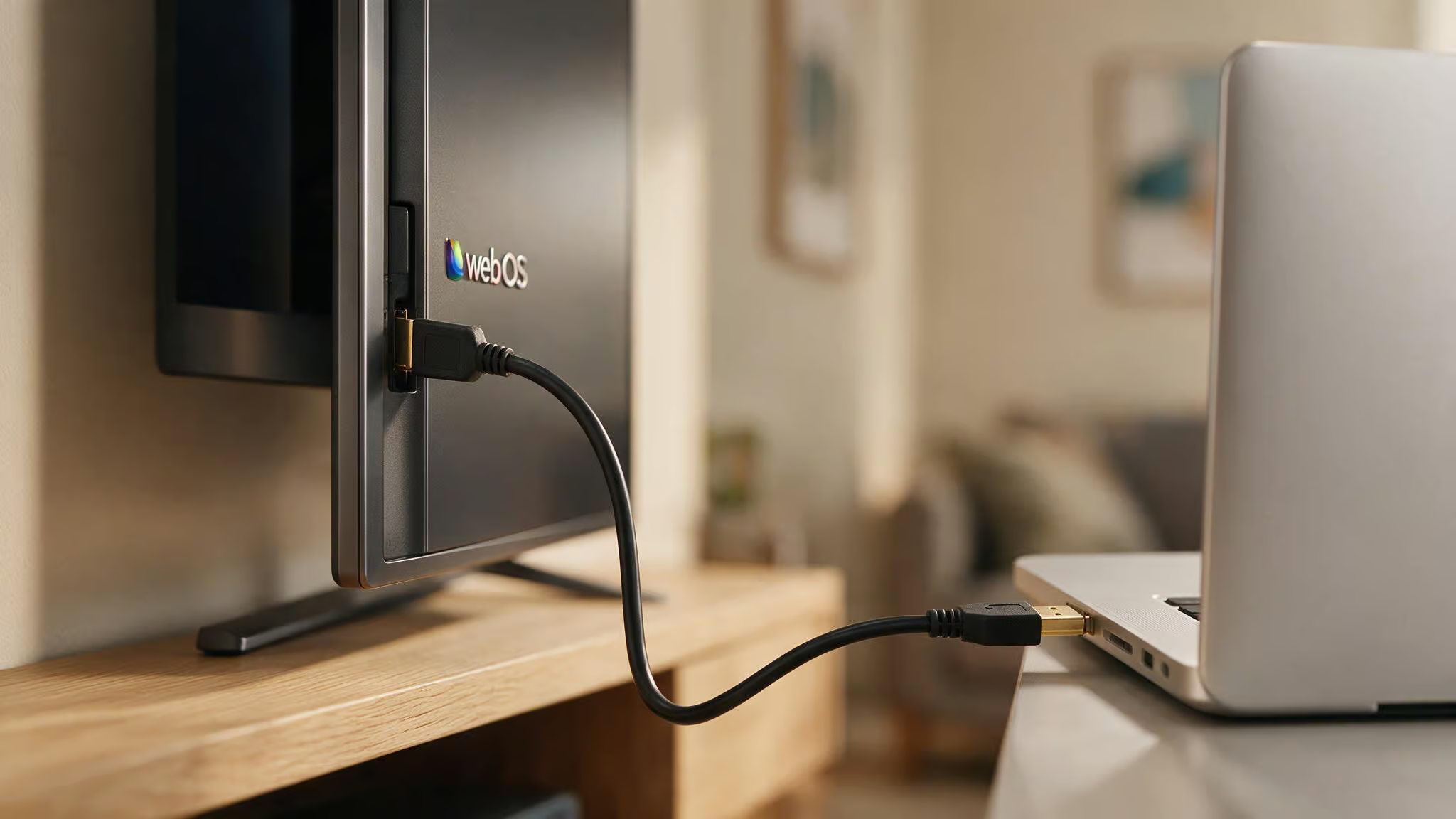
Grab a USB cable and plug your device into your PC. Old-school, but reliable.
- Make sure your device is unlocked.
- If needed, enable USB debugging in the device’s Developer Options. If you haven’t used it before, it is not as intimidating as it sounds—it’s a standard setting on most Android-based devices (WebOS and TizenOS devices often share this DNA).
Open NuvioWeb. It should auto-detect your connected device—no manual IP entry required. If it doesn’t show up, try unplugging and reconnecting the USB, or restart the software. If you’re curious about what Nuvio is and why it’s gaining traction among cord-cutters and streaming enthusiasts, the usual dance applies here as well.
Once detected, select your device from the list in the app. You’re in.
What you can do from here
- Update tab – check for new system versions and follow the on-screen prompts to install them.
- File Manager – drag and drop files between your PC and device. No USB stick shuffle.
- Apps tab – install or remove apps in a few clicks. No need to sideload or mess with developer options.
- Settings menu – tweak language, update check intervals, notifications, and default folders for file transfers.
The most common stumbling block
USB debugging is the #1 reason devices don’t get detected. It’s a quick toggle in Developer Options. If you haven’t enabled it before, go to your device’s settings, find “About device,” and tap the build number repeatedly until it unlocks. Then toggle USB debugging on. That’s it.
Optimizing PC Performance for NuvioWeb and Streaming
To get the best performance from NuvioWeb, focus on the hardware components that matter most for file transfers and updates.
The hardware priority (SSD > CPU > GPU > RAM)
This hierarchy comes from Intuiface, a tool that runs similar device management workloads, and it applies here:
- SSD – swap your HDD for an SSD. This is the biggest single improvement you can make.
- CPU – a modern processor makes everything feel snappier.
- GPU – for NuvioWeb, the GPU is almost irrelevant unless you’re doing something else graphics-intensive at the same time.
- RAM – 8 GB is sweet spot. More than that won’t hurt, but it’s not the bottleneck.
Network – Ethernet > 5 GHz Wi-Fi
If you’re doing file transfers or system updates over Wi-Fi, aim for low latency. GeForce NOW recommends less than 80 ms to their data centers for smooth gameplay, and the same principle applies here: a stable, low-latency connection prevents sync failures and timeouts. Ethernet is best; if that’s not an option, make sure you’re on a solid 5 GHz network.
A weird one: your mouse polling rate
This is a GeForce NOW tip that translates across any streaming or remote management tool: if you see stutter when using a gaming mouse, try lowering the polling rate to 125 Hz. High polling rates (1000 Hz) can cause micro-stutters on some systems. It’s an easy fix that costs nothing.
General hygiene
- Close background apps you’re not using.
- Keep Windows updated.
- Use the original USB cable that came with your device, or a decent quality one. Cheap cables cause weird connection drops.
Troubleshooting Common NuvioWeb Issues
If you run into problems with NuvioWeb, most issues have simple fixes you can try before seeking further help.
Device not detected
Most “compatibility issues” are actually cheap USB cables or network problems, not hardware failures. Here’s the order to check:
- USB cable – try the original cable. If that’s not possible, make sure it’s a good data cable, not a cheap charge-only one.
- USB debugging – enable it on the device. It’s almost always the culprit.
- Reconnect – unplug and re-plug the cable.
- Restart – restart both NuvioWeb and your device.
Slow performance
- Close other programs. Your PC can only juggle so much.
- Check your storage space – don’t run it on a full drive.
- Ensure you’re using an SSD. If you’re still on a spinning hard drive, that’s your answer.
Update failures
- Check your internet connection. Flaky Wi-Fi is the usual suspect.
- Ensure your device battery is charged (some devices won’t update on low battery).
- Restart NuvioWeb and your device.
Still stuck?
Head to the GitHub issues page. It’s the best place for community help and bug reports. Check there first – someone might already have solved your exact problem.
NuvioWeb Compared to Other Platforms and Tools
NuvioWeb is a device management tool, not a streaming service. But the performance principles you use for other software apply directly.
- Nuvio APK – if you’re on an Android phone or tablet, that’s a separate product. NuvioWeb is specifically for Windows.
- GeForce NOW – NVIDIA’s streaming service has strict network requirements (under 80 ms latency, 5 GHz Wi-Fi or Ethernet, mouse polling rate at 125 Hz). Those same network principles apply to NuvioWeb’s online features – large file transfers and updates will stall on a bad connection.
- Intuiface – its hardware performance hierarchy (SSD > CPU > GPU > RAM) is directly applicable to NuvioWeb. Both are I/O-bound when moving data between PC and device.
- Drovio – a remote desktop tool that shows how CPU needs vary by role: quad-core when sharing, dual-core when viewing. That’s a useful mental model for multitasking – if you’re doing other work while NuvioWeb is transferring files, your CPU choice matters more than for the transfer itself.
- System Requirements Lab – a general gaming requirement checker, but its minimums (2 GB RAM, 2.0 GHz CPU, DX10 GPU) are lower than what NuvioWeb needs for a smooth experience. NuvioWeb’s modest requirements don’t need a gaming PC.
Final Summary and Next Steps
Three things to take away:
- Minimum specs work – Windows 10 64-bit, 4 GB RAM, 150 MB free space, a USB port. You’re fine.
- SSD is the performance key – that’s the single upgrade that makes the biggest difference for file transfers and updates.
- Use a good USB cable and stable network – they’re responsible for the vast majority of detection and syncing problems.
Bookmark the GitHub repository – that’s where you’ll find the latest releases and community discussions.
You’re ready to manage your Nuvio device from your PC.
Frequently Asked Questions
Is NuvioWeb worth installing if I already use a USB stick?
Yes, if you want to skip the USB stick shuffle. NuvioWeb lets you drag and drop files between your PC and device, install apps in a few clicks, and keep firmware current without hunting for update files on the device itself.
How much storage space does NuvioWeb really need?
The installer only needs 150 MB free, but that number is misleading. File transfers and system updates are I/O-bound, so the speed of your drive matters far more than capacity. An SSD gives the biggest performance boost.