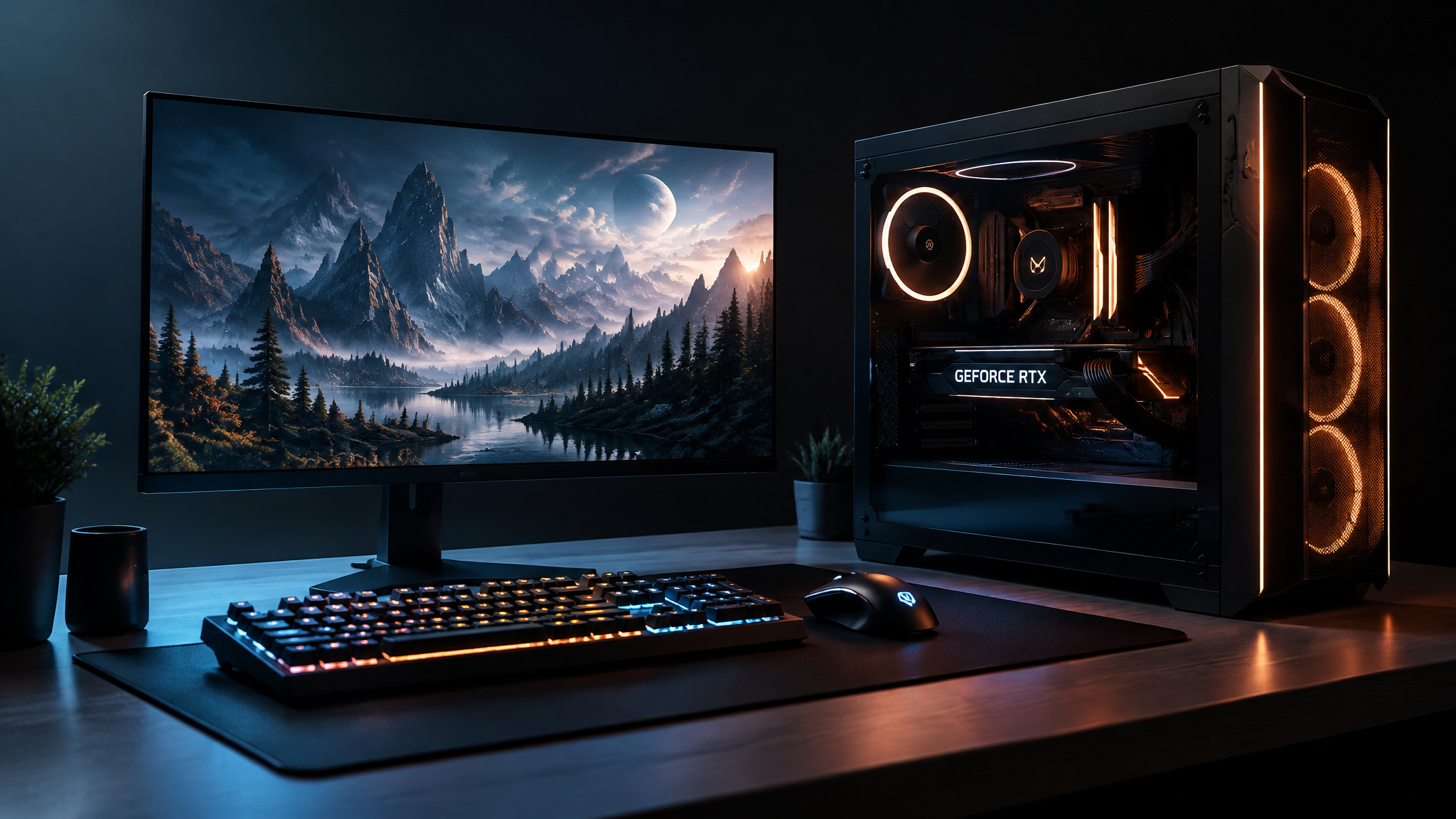
Budgeting for a new computer requires pricing the complete setup from the start, because picking a dollar figure for the machine alone lets a monitor, keyboard, mouse, and external storage blow the real checkout total right past your plan.
A working budget treats the purchase as a sequential system build: define the primary workload, lock in a platform, anchor a realistic price tier to actual component thresholds, reserve cash for tier-matched displays (from budget 1080p 75 to 144Hz panels up to 1440p and 4K 240Hz+ monitors) plus external drives ($65 to $173), and pick a payment timeline that accounts for any reward points or cash back you can apply toward the final total.
Key Takeaways
A $1,000 budget buys a mid-range 1080p or 1440p gaming desktop tower like the $899 Lenovo Legion Tower 5i Gen 8 (Core i7-13700F, RTX 4070) or a complete sub-$1,000 laptop like the $799 HP OmniBook 5, but a full desktop setup requires subtracting monitor and peripheral costs first.
RAM requirements depend on the operating system and workload: 8GB runs smoothly on $600 to $775 ChromeOS laptops and handles light macOS workloads on the $700 MacBook Neo, while Windows gaming desktops need a 16GB minimum sweet spot and 32GB to 64GB for streaming or heavy video editing.
Dividing sticker price by usable lifespan shows that a $530 HP Omen 25L lasting 2 to 3 years and a $1,200 Alienware Aurora R15 lasting 5+ years carry nearly identical annual costs, while 6-to-12-month promotional financing triggers retroactive deferred interest if any balance remains when the window closes.
Table of Contents
Step 1: Figure out what you need before you look at prices
Your primary workload dictates your target price band before you ever look at a store page, separating basic browsing, documents, and video streaming ($400 to $700 laptops) from graphic design, video editing, and gaming ($1,000 to $2,000+ laptops or $800 to $1,500 desktops).
Match your primary use to a price band
Per Scoop‘s laptop budgeting guide, your budget has to cover core needs with room left over for only a few wants. Light photo editing and video streaming land in the $700 to $1,000 laptop tier, while retailer blog IT Vision maps budget 1080p esports desktops to $500 to $800 and high-end rigs to $1,500 to $3,000. Gaming PCs also chew through indie and vintage titles, video editing, streaming, and design work for casual and hardcore players, esports competitors, power users, VR users, and creators.
Spec minimums that shape the budget
For students and mobile professionals, portability and an 8-to-10-hour battery floor outrank raw compute power. Baseline laptops need an Intel Core i5 or AMD Ryzen 5 (Core i7 or Ryzen 7 for heavy work), 8GB RAM (16GB+ for multitasking), and at least a 256GB SSD, since solid-state drives load far faster than hard drives.
Step 2: Choose your platform. It changes every downstream number
Choose a desktop if you want maximum raw performance per dollar and component upgradeability across $500 to $3,000 gaming tiers; choose a laptop if you need backpack-ready portability across $400 to $700 basic, $700 to $1,000 mid-range, and $1,000 to $2,000+ heavy-work tiers. Because every platform handles hardware overhead differently, system type and intended workload set all your downstream component floors. A Windows gaming desktop needs 16GB of RAM for smooth play, whereas 8GB suffices for general laptop and ChromeOS use.
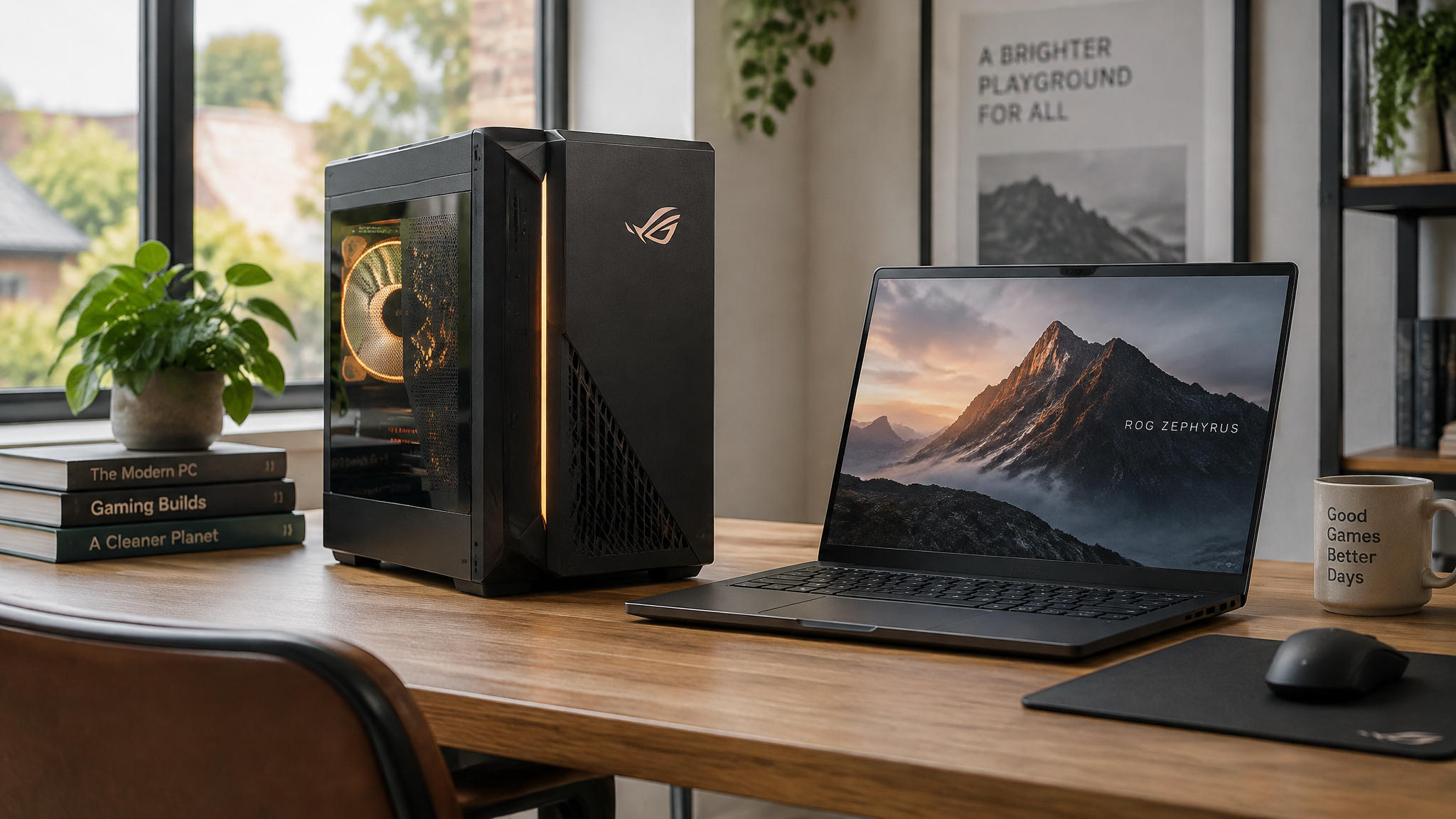
Desktop vs laptop: performance-per-dollar vs portability
Modern mid-range laptops around $1,000 breeze through streaming, spreadsheets, and everyday multitasking without requiring a ~$3,000 M5 Max MacBook Pro, though they’ll stall out on heavy video editing, 3D rendering, or machine learning. Gaming desktops cost more up front if you want high-end power, higher resolutions, fast frame rates, and a library that includes indie games, but you can customize and upgrade individual parts over time. Even comparing a PC against virtual reality (VR) goggles comes down to versatility versus immersion: PCs handle broad compute workloads, while VR hardware targets pure immersion.
When a console costs less and does enough
If the goal is strictly gaming on a tight budget, an Xbox console delivers plug-and-play affordability, reliable performance, low maintenance, Xbox Game Pass value, and exclusives like Halo and Forza Horizon. The tradeoff is fixed hardware with limited upgrade paths and Xbox Live Gold subscription requirements for online multiplayer.
What ChromeOS can and can’t do
Per BGR‘s budget laptop roundup, ChromeOS restricts you to web, Linux, and Android applications. That software boundary shapes what you need to spend: the $775 Samsung Galaxy Chromebook Plus packs a 15.6-inch AMOLED screen, an Intel Core 3 100U, and 8GB of RAM into a 2.6-pound, 0.46-inch chassis that lasted over 11 hours in LaptopMag battery testing, running smoothly on half the memory a Windows multitasker wants.
Step 3: Set a realistic price range, what each tier actually buys
A $1,000 PC budget is the price-to-performance sweet spot for a mid-range 1080p or 1440p gaming desktop tower or a complete, well-equipped everyday laptop. Across the market, basic laptops run $400 to $700 and mid-range laptops span $700 to $1,000 (with heavy-duty creative and gaming notebooks reaching $1,000 to $2,000+, up to a ~$3,000 MacBook Pro (M5 Max)), while gaming desktops step from $500 to $800 entry towers through $800 to $1,500 mid-range rigs up to $1,500 to $3,000 high-end builds. At the $1,000 mark, that money buys a complete pre-built tower like the $899 Lenovo Legion Tower 5i Gen 8 (Core i7-13700F, GeForce RTX 4070) or the $999 HP Victus 15L, though buyers who also need a monitor and peripherals will drop into the budget tower tier once those extras are subtracted.
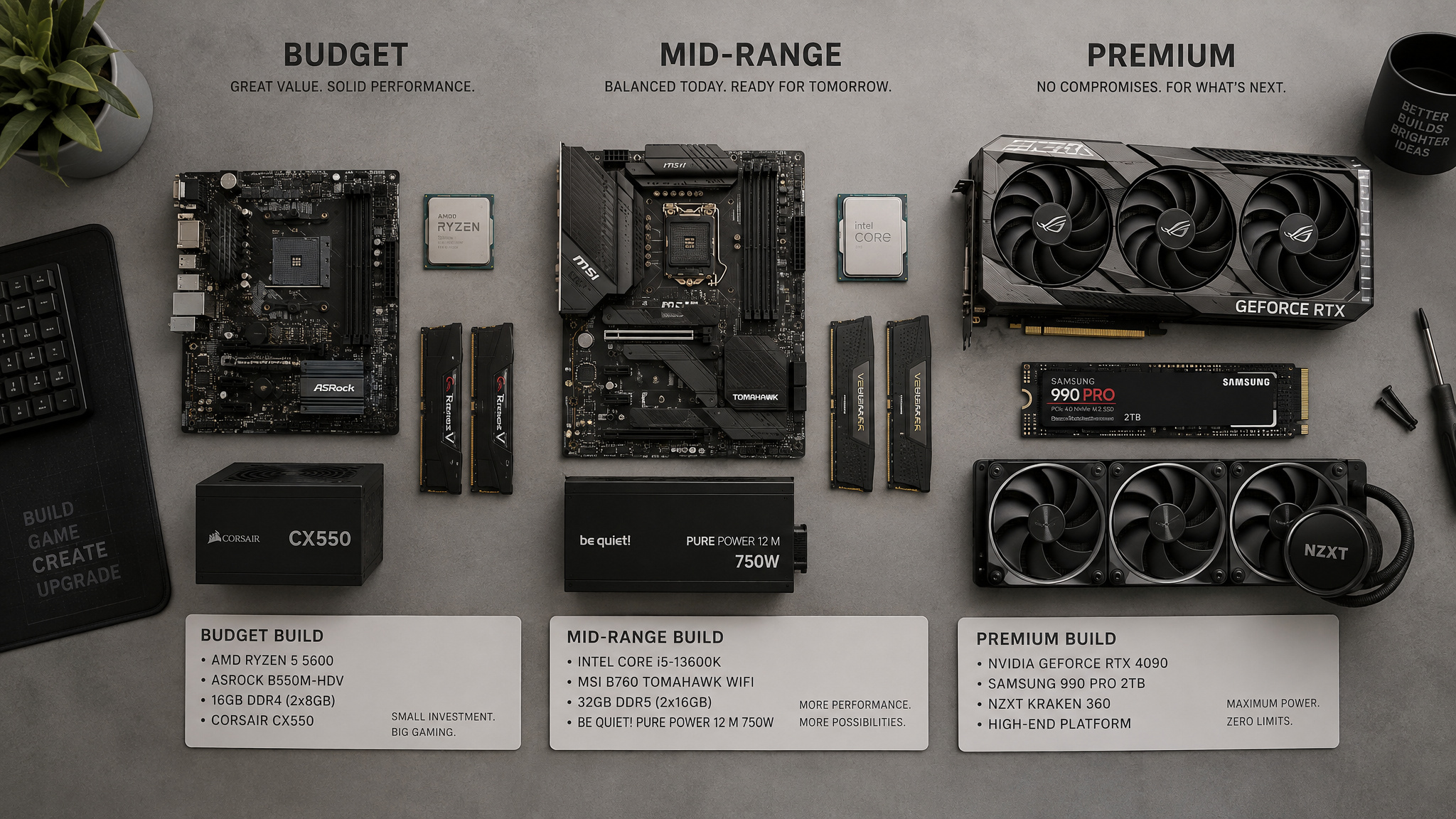
Desktop gaming tiers from $500 to $3,000
A 1080p gaming PC costs $500 to $800 for basic esports and simpler titles, or $800 to $1,500 if you want higher frame rates in demanding 1080p and 1440p games. Because component and system prices fluctuate by region, brand, specifications, and whether you buy pre-built or custom parts, anchoring your budget to resolution targets keeps those labels from muddying the math. The $500 to $800 bracket is the Honda civic of the PC bench: it won’t win races and requires lowered settings on heavy titles, but a rig like the $530 HP Omen 25L gets you into the game without wrecking your wallet. Stepping up to $1,500 to $3,000 buys top-tier CPUs and GPUs (spanning Intel Core i7 and i9, AMD Ryzen 7 and AMD Ryzen 9, and NVIDIA GeForce GTX, RTX 3070/3070 Ti, RTX 4080, and RTX 4090 class cards). Here is how a 2024 top-5 pre-built desktop list maps across those bands:
| Model | Price | Tier & Resolution Target | CPU | GPU | RAM | Storage |
|---|---|---|---|---|---|---|
| HP Omen 25L | $530 | Budget (1080p esports) | AMD Ryzen 5 5600G | Up to GeForce RTX 3050 | 8GB | Up to 1TB SSD |
| Lenovo Legion Tower 5i Gen 8 | $899 | Mid-range (1080p/1440p) | Intel Core i7-13700F | GeForce RTX 4070 | 16GB | 1TB SSD |
| HP Victus 15L | $999 | Mid-range (1080p/1440p) | Up to 13th-gen Core i7 or Ryzen 7000 | GeForce RTX 3060 or Radeon RX 6600 XT | Up to 16GB | 512GB SSD + 1TB HDD |
| Alienware Aurora R15 | $1,200 | Mid-range (1080p/1440p) | Core i7-13700F or Ryzen 9 5900 | GeForce RTX 3080 | 32GB | 1TB SSD + 2TB HDD |
| Corsair Vengeance i7400 | $2,500 | High-end (1440p/4K) | Intel Core i7-13700K | GeForce RTX 4080 | 32GB | 2TB SSD |
Laptop tiers and sub-$1,000 picks
BGR‘s sub-$1,000 laptop roundup, which selected Windows, macOS, and ChromeOS machines for display quality, build, keyboard comfort, and battery life backed by test reviews from PCMag, LaptopMag, PCWorld, Android Authority, TechRadar, and WIRED, shows how much hardware sits between $600 and $999:
- MacBook Neo ($700, after an Apple price bump from $600): Runs the iPhone 16 Pro’s A18 Pro chip with 8GB RAM, a 256GB SSD, a 13-inch IPS display, and a 1080p FaceTime HD camera. It hits 15+ hours on light workloads, trading off a non-backlit keyboard and a slow 20W charger.
- Dell XPS 13 (2026) ($799 base / $999 for 16GB RAM): Pairs an Intel Core 5 320 and 512GB SSD with a 13.4-inch 120Hz 2560×1600 screen in a 2.2-pound chassis, delivering roughly 15 hours of offline video from its 52Wh battery. It matched the MacBook Neo in PCMag HandBrake rendering tests, though PCMag noted the 8GB base model struggles with Windows multitasking.
- HP OmniBook 5 ($799): Packs a Qualcomm Snapdragon X Plus, 16GB RAM, and a 16-inch OLED panel into a 3.48-pound, 0.5-inch frame, getting about 10 hours on its 59Wh battery and hitting 50% charge in 30 minutes via its 65W USB-C brick.
- Acer Aspire 16 AI ($700): Uses a Snapdragon X chip, a 16-inch 1920×1200 120Hz IPS-LCD screen, and a comfortable keyboard at 3.42 pounds, reaching up to 15 hours in PCWorld testing without fast charging.
- Acer Chromebook Plus Spin 714 ($669): A 3.2-pound, 14-inch 1920×1200 IPS touchscreen 2-in-1 running an Intel Core Ultra 5 115U, 8GB RAM, and 256GB SSD with full-day battery life (no stylus included).
- Lenovo Ideapad Flex 5i Chromebook Plus ($600): A 3.1-pound, 14-inch 2-in-1 with an Intel Core i3-1315U (comparable to an AMD Ryzen 3 5400U), 8GB RAM, a backlit keyboard, two USB-C ports, one USB-A port, a microSD slot, and up to 11 hours of battery life per Android Authority.
What $1,000 actually buys
AtGeekExtreme, we strip away vague “mid-range” stickers and run the complete-setup math: $1,000 buys a complete, high-display-quality laptop like the $799 HP OmniBook 5 or $999 16GB Dell XPS 13, or it buys a standalone RTX 4070 desktop tower like the $899 Legion Tower 5i Gen 8. If that same $1,000 has to cover a desktop tower plus a monitor, keyboard, and mouse, your tower allocation drops into the $530 HP Omen 25L bracket.
Step 4: Allocate your budget across components, spend and save by part
Component allocation in a gaming or creative PC prioritizes the graphics card (GPU), fast primary SSD storage, and platform-matched RAM, since ChromeOS tolerates 8GB of RAM smoothly while Windows doesn’t, while saving money on bulk hard drive storage, air cooling, and non-overclocked CPUs. Because a gaming rig relies on a supercharged GPU as its visual engine alongside a multicore CPU, fast memory, and quick storage, putting the largest share of the budget into the GPU prevents visual bottlenecks without gold-plating supporting parts that don’t move frame rates. High-end games demand 8GB or more of dedicated VRAM paired with a 16GB system RAM floor and a fast boot SSD, whereas a secondary mechanical hard drive and standard air fans handle overflow files and thermals for much less money.
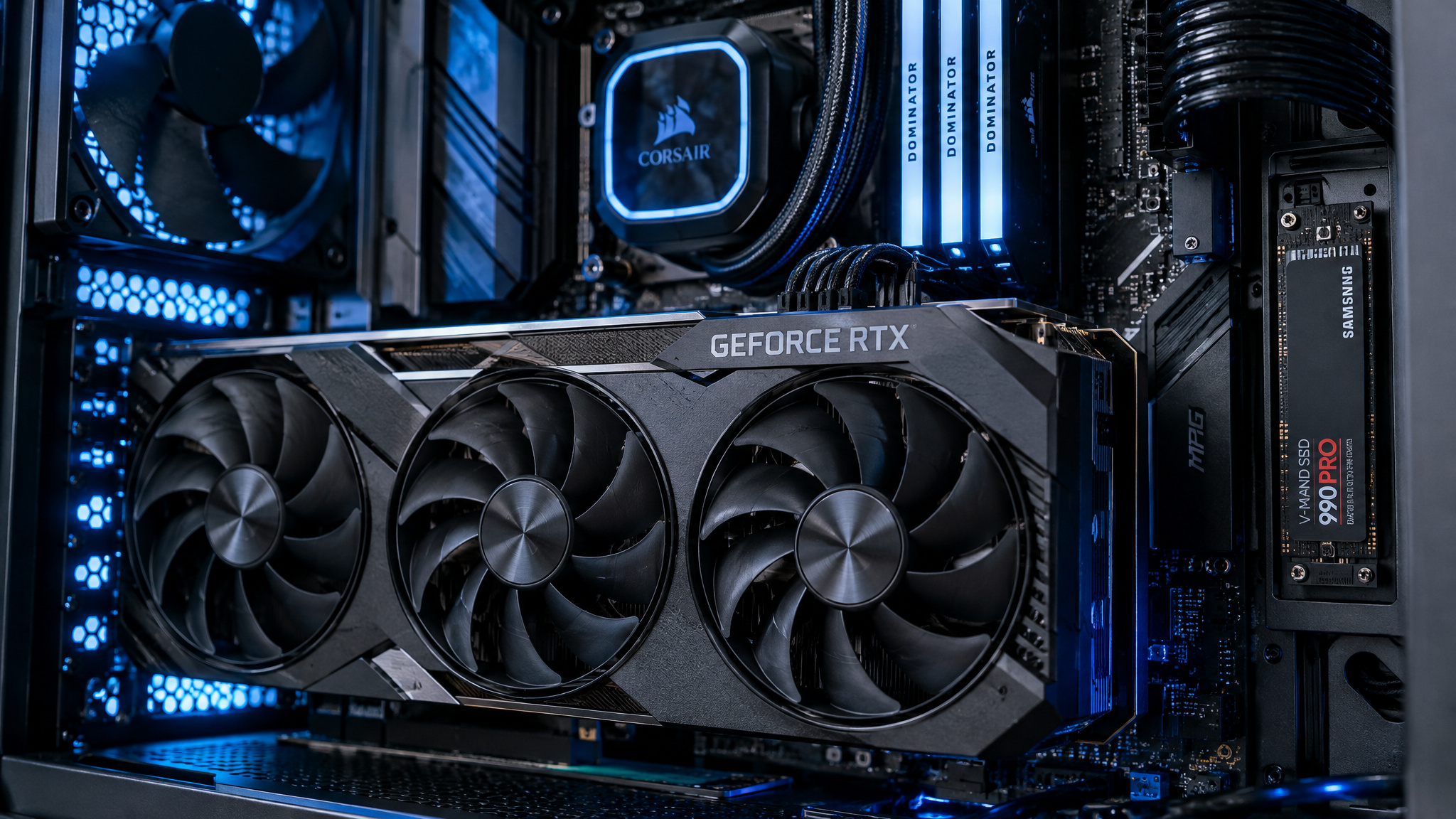
GPU: the biggest line item
Spend heaviest on the GPU across popular NVIDIA GeForce RTX/GTX and AMD Radeon RX lines, making sure you hit the 8GB+ dedicated VRAM floor if you play high-end titles. A balanced rig pairs that card with a capable multicore processor rather than an overkill chip; the $899 Legion Tower 5i Gen 8 demonstrates that split by combining an Intel Core i7-13700F with a GeForce RTX 4070. Nobody’s everyday workload is saved by strapping an overpriced Core i9 onto a starved graphics card.
RAM depends on your operating system
System memory and storage needs are defined by your operating system and daily workload: desktop gaming requires a 16GB RAM sweet spot (since 8GB stutters even on older titles), general laptop use needs at least a 256GB SSD and 8GB of RAM on lightweight OSes, and heavy multitasking demands 16GB to 64GB. On laptops, 8GB of RAM chokes during Windows multitasking (as shown on the base 2026 Dell XPS 13), yet 8GB runs smoothly on $600 to $775 ChromeOS machines and handles light workloads on macOS (like the $700 MacBook Neo) thanks to efficient memory management.
Budget video editing, streaming, and graphic design require stepping up to 32GB or 64GB of RAM alongside an Intel Core i7 or AMD Ryzen 7 processor and a gaming-class GPU. Because gaming PCs already pack the multicore processors and dedicated VRAM that creative software leans on, building or buying a gaming rig is the most direct path to a capable editing and streaming workstation that won’t stall during renders.
Storage: fast SSD plus cheap bulk HDD
Never compromise on having an SSD for your operating system and active applications, with 256GB as the floor on a laptop. On a desktop, split your storage budget across two drives: buy a fast primary SSD so your OS and games load quickly, then pair it with a cheap secondary HDD to hold your bulk file library.
Cooling, PSU, and parts to skip
Power supply (PSU) ratings and wattage climb in price quickly, so size the PSU to the wattage your components actually draw instead of overbuying headroom you’ll never touch. For thermals, multiple fans and heat pipes prevent overheating and stretch hardware lifespan, and running more intake fans than exhaust fans creates positive airflow that keeps the interior cool and dust-free. Standard air cooling is cheaper and plenty for most builds, while liquid cooling only earns its extra cost if you’re pushing premium parts, heavy overclocking, or paying for a custom aesthetic. Round out the board with Wi-Fi 6 for stable online play, multiple USB ports, and Thunderbolt 4 for fast peripherals and external monitors.
Step 5: Budget for the stuff around the computer
Yes, hidden peripheral and accessory costs will blow past a tower-only budget if you don’t carve out money up front for a tier-matched monitor, a mechanical keyboard, an adjustable-DPI mouse, external storage, and any required gaming subscriptions. Desktop and custom-build shoppers routinely price out the tower alone, only to watch the checkout total jump when they add a display and input gear. Setting aside funds for a 1080p or 1440p monitor (targeting a 120Hz to 144Hz+ refresh rate) and a $65 to $173 external drive keeps you from pairing a fast rig with a bottlenecked screen or overspending on internal SSD upgrades.
Match the monitor tier to the tower tier
Hold out for at least Full HD (1920×1080) resolution and a 120Hz+ refresh rate (144Hz is the sweet-spot monitor target), using AMD FreeSync or NVIDIA G-Sync to kill screen tearing. Pick TN panels for raw response speed, IPS for color accuracy and viewing angles, or OLED for deep contrast, and match the screen to your tower budget:
- Budget tier: 1080p resolution, 75 to 144Hz refresh rate, VA or IPS panel, 24 to 27 inches.
- Mid-range tier: 1440p resolution, 144 to 165Hz refresh rate, VA panel, 24 to 34 inches.
- High-end tier: 1440p to 4K resolution, 240Hz+ refresh rate, IPS or VA panel, 27 to 32 inches.
Keyboard and mouse belong in the budget
Price in an adjustable-DPI gaming mouse (wired or wireless is purely personal preference) and a mechanical backlit keyboard for tactile response. If you’re weighing a console against a PC, remember to include online multiplayer subscriptions like Xbox Live Gold in the console’s column.
External storage as a budget lever
Instead of paying laptop or pre-built markups for a large internal SSD, use a USB 3.0+ or Thunderbolt external drive selected by capacity, transfer speed, portability, and brand reputation:
- WD My Passport ($65): 1TB to 5TB HDD.
- WD Black P10 Game Drive ($85): 1TB to 5TB HDD.
- Seagate Backup Plus ($95): 1TB to 5TB HDD.
- SanDisk Extreme Portable ($100): 500GB to 4TB SSD.
- LaCie Rugged Thunderbolt ($173): 2TB to 8TB.
Step 6: Decide whether to build or buy pre-built
Building a PC yourself versus buying pre-built is a tradeoff between avoiding brand markups for component-by-component control and paying a convenience premium for a single-vendor warranty and a machine that boots out of the box. While DIY assembly can lower raw parts cost and teach you how to upgrade your own rig (a path retailer blog IT Vision promotes alongside its own build consultations, without publishing a measured savings percentage), the best buying path depends on how you value your time and risk, including the caution required when sourcing components online to recognize and avoid phishing scams.
Building your own PC ends up costing more than a pre-built when first-time builders budget strictly for bare parts and underestimate research time, assembly labor, troubleshooting mistakes, part returns, or retailer bundle discounts. Smaller custom system builders also undercut major brands on competitive hardware.
The best way to buy a new computer comes down to matching four paths to your priorities: choose DIY if you have the technical know-how and want zero bloatware; choose a pre-built (from the $530 Omen 25L to the $2,500 Vengeance i7400) for day-one convenience and unified warranty support; choose certified refurbished machines from reputable sellers for tested, nearly-new laptops at a discount; and treat financing strictly as a last resort.
Step 7: Save up and hunt the deal
Saving up for a PC works best when you automate $50 to $100 a month into a dedicated savings account and stack that cash with retailer price comparisons, seasonal sales, and trade-in credits. Because laptops and desktops span from a few hundred dollars to well over $2,000, isolating your hardware fund from everyday checking lets you hit a $1,000 target in 10 to 20 months without touching rent or grocery money, while a well-timed discount shortens the wait.
The savings timeline
Park $50 to $100 every month in a separate account earmarked strictly for the build. Never take the first sticker price you see: cross-check Amazon, Best Buy, Walmart, and direct manufacturer storefronts, and time your purchase around seasonal sales, year-round gaming gear discounts, and student discounts.
Deals, refurbished, trade-ins, and used parts
Certified refurbished computers from reputable sellers and retailer trade-in programs are a practical way to cut your out-of-pocket spend, pairing immediate credit from selling or trading in your old laptop with tested, certified hardware that performs like new for less money. While specific seller-vetting standards and warranty terms vary by vendor, desktop upgraders can also stretch a budget by shopping around and haggling for secondhand components, putting cash strictly into the parts that drive their workload.
Step 8: Understand financing before you sign up
No, financing a computer isn’t a good idea unless the monthly payment required to wipe out the entire balance inside the 6-to-12-month interest-free promotional window fits comfortably in your budget (which you can verify using free budgeting worksheets and tools); otherwise, wait and pay cash. Per Scoop‘s budgeting guidance, financing should sit at the bottom of your options list as a true last resort.
The trap is baked into how promotional store credit works. Shoppers sign up for a 6-to-12-month interest-free financing plan, make only the minimum monthly payments early on, and still carry a remaining balance when the promotional clock runs out. Missing that payoff deadline triggers high deferred interest retroactively on the original purchase amount, a painful surprise you can model with a compound interest calculator, turning a budget machine into an expensive debt.
Step 9: Think in cost-per-year, not sticker price
A computer justifies its price tag when you divide the upfront cost by its expected usable years, because an inexpensive or heavily used gaming PC lasts 2 to 3 years while an expensive, carefully maintained high-end rig can run for 7 to 10 years (a figure IT Vision cites from a research survey without published methodology). Run that math on real machines and a $530 HP Omen 25L replaced after 2.5 years ($212 per year) costs roughly the same per year as a $1,200 Alienware Aurora R15 kept for 5.5 years ($218 per year).
How long a computer lasts by use
How hard you push the silicon sets the replacement clock:
- Chasing the newest games at maximum settings: 1 to 2 years before you need to maintain or replace hardware, regardless of initial tier.
- Inexpensive or heavily used gaming PCs: 2 to 3 years.
- Casual gaming, older titles, or well-maintained rigs: 3 to 5 years.
- Minimal everyday use: 5 to 10 years.
- Expensive, carefully used high-end gaming PCs: 7 to 10 years.
Upgrades and maintenance as budget levers
Cheap PCs give entry-level buyers an easy upgrade path despite lower initial performance and shorter lifespans, whereas expensive PCs deliver durability and speed that are overkill for beginners. You don’t need a whole new tower when frame rates dip: swapping the RAM or graphics card transforms how a desktop performs, while blowing out dust and keeping drivers updated extends its working life for free.
Frequently Asked Questions
What hidden costs should I budget for beyond the computer itself?
Pricing a desktop tower by itself is a classic trap because you still need a display, input gear, and extra storage to make the setup usable. Carve out room in your starting number for a monitor matched to your rig’s output (Targeting at least 1080p at 120Hz to 144Hz), a mechanical backlit keyboard, and an adjustable-DPI gaming mouse. You should also factor in $65 to $173 for a USB 3.0+ or Thunderbolt external drive to dodge steep internal SSD upgrade markups, plus online subscriptions like Xbox Live Gold if you opt for a console instead.
When does building your own PC end up costing more than a prebuilt?
DIY assembly loses its financial edge when first-time builders only price out raw parts and ignore the cost of research hours, assembly labor, troubleshooting errors, and component returns. Pre-built vendors and smaller custom builders also tap into bundle discounts that individual shoppers cannot easily match, while throwing in unified warranty support and out-of-the-box reliability. If you don’t already have the technical know-how to avoid assembly mistakes and online phishing scams while hunting for parts, buying a pre-built often saves both money and headaches.
How much RAM and storage do I actually need for my use case?
Your operating system and daily workload dictate your memory floor: 8GB of RAM runs smoothly on $600 to $775 ChromeOS laptops and handles light macOS tasks on the $700 MacBook Neo, but Windows multitasking and desktop gaming need a 16GB sweet spot to avoid stuttering. If you tackle video editing, streaming, or graphic design, step up to 32GB or 64GB of RAM. For storage, treat a 256GB SSD as the bare minimum on a laptop, and configure desktops with a fast primary SSD for games and your OS alongside a cheap secondary HDD or an external drive for heavy file libraries.
How can I save up for a PC?
Set up an automated transfer of $50 to $100 a month into a separate savings account earmarked strictly for your hardware so you can reach a $1,000 target in 10 to 20 months without touching rent or grocery money. You can shorten that wait by cross-checking prices across Amazon, Best Buy, Walmart, and direct manufacturer storefronts during seasonal sales, or by stacking student discounts and credit card rewards. Trading in old gear, buying certified refurbished laptops from reputable sellers, or haggling for secondhand desktop parts also cuts your out-of-pocket total.