
You want to save snaps to my laptop. Simple question, right? Get the files off your phone, put them on your computer, done. Except the answer quietly changed on September 26, 2025, when Snap announced it’s capping free Memories storage at 5GB and starting a per-account 12-month countdown the moment you first exceed that cap.
And here’s the part that genuinely got me: there’s no in-app storage meter anywhere. You cannot see your own countdown. The only reliable way to gauge how close you are is to request a My Data archive and check the total size of the ZIP.
Some context for anyone who’s been living under a rock (fair, it’s 2026): Memories launched in 2016 as Snapchat’s built-in cloud locker with auto-save, and for roughly a decade people treated it as free backup for their entire photo lives. Which is exactly why so many users are in this mess. In this guide I’m laying out all four export paths, the confusing boundary between saving your own snaps and saving other people’s (screenshot notifications are real, and no, there’s no endorsed stealth method), a teardown of the failure modes that wreck exports, and the honest math on export versus pay.
Key Takeaways
Snap announced on September 26, 2025 that free Memories storage caps at 5GB, with a 12-month grace period that starts the first time you exceed it; paid tiers run from $1.99/month (100GB) through $4/month for 250GB with Snapchat+ up to $16/month for 5TB with Snapchat Platinum (US figures, may vary by market).
The emailed export ZIP is just an index, not your photos: you extract it, open index.html in a browser, and download the actual media in a second step, and those download links expire after 7 days.
There’s no legitimate way to save someone else’s snap without them knowing; screenshotting or saving a snap you were sent sends a notification, while your own Memories export freely and silently.
Table of Contents
Your own snaps vs. snaps others sent you
No, you can’t save someone else’s snap without them knowing. Screenshotting or saving a snap someone sent you fires a notification to that person, and Snapchat doesn’t offer any endorsed stealth method. That’s the whole answer, and I’m not going to moralize about it or hand you sketchy workarounds, because there isn’t an official one. What I can do is untangle the confusion I kept running into while mapping this out, because “saving snaps” means three completely different things depending on whose snap it is.

Your Memories: yours to export, no notification
Memories are your own snaps, saved to your own account, and you can export all of them without notifying anyone, because nobody else is involved. This is the category that matters for the whole laptop-migration project, and it’s where every method below applies.
Snaps others sent you: notification territory
When someone sends you a snap, saving it or screenshotting it tells them. That’s baked into the product by design, and there’s no sanctioned way around it. If you’re searching for a “saver” that dodges notifications, the honest answer is that it would violate the app’s core contract, and I’m not going to pretend a third-party trick exists here.
Snaps saved in chat: the middle path
Snaps living in a chat conversation are the awkward middle case. The route is to save them in chat first, and then they flow into your exportable data through the My Data archive. Quick routing summary so you don’t get lost: Memories get exported directly, chat snaps get saved in chat first and exported second, and camera-roll saves go through the transfer path.
Do you have to pay Snapchat to store your Memories now?
Snapchat’s Memories storage is no longer unlimited: Snap announced on September 26, 2025 that free storage caps at 5GB, with paid tiers above that. Existing Memories were kept, so nothing vanished overnight, but new backups beyond 5GB now require a plan.
The tiers, per Snap’s US pricing (which may vary by market): 100GB for $1.99/month, 250GB bundled with Snapchat+ at $4/month, and 5TB with Snapchat Platinum at $16/month. Users already over the cap get a 12-month grace period, and the clock starts the first time you exceed 5GB, not at the announcement date. That’s the countdown running in the background of this entire article.
Snap says the vast majority of Snapchatters stay under 5GB, and that’s probably true. But here’s the catch: the app gives you no storage meter, no usage readout, nothing. If you’ve been auto-saving since 2016 like millions of people have, you genuinely might be over and have no idea. The only reliable gauge is requesting a My Data file and reading the ZIP’s total size on your laptop.
And I want to be honest about one more thing: what actually happens to over-limit Memories after the grace period ends is officially unconfirmed. Snap hasn’t said whether over-limit Memories get deleted or just become inaccessible.
Method 1: Batch export Memories to camera roll (up to 100 at a time)
You can save Memories to your camera roll up to 100 at a time through the in-app Export button, which makes this the fastest way to move curated batches into your phone’s gallery and, from there, into whatever cloud sync you already run.
The flow: tap the overlapping-photos icon just left of the camera button, hit Select, tap up to 100 snaps, then tap Export (the arrow-up icon) and choose your camera roll or a cloud destination like Google Photos or Apple Photos. Repeat in batches of 100. With ten years of snaps banked, yes, that gets tedious fast.
Here’s the honest tradeoff: this is the only method that lets you hand-pick what survives, but it’s a curation workflow disguised as a backup workflow. It doesn’t preserve original metadata, and it won’t scale to thousands of snaps. Choose it to prune, not to preserve everything.
Method 2: Full My Data export from accounts.snapchat.com
The full My Data export is the complete-archive path: everything Snapchat has on your account, requested through the accounts portal at accounts.snapchat.com and delivered as a downloadable archive. It’s the most thorough option, and also the messiest, in an endearing sort of way.
The request flow, step by step
Log in at accounts.snapchat.com, or go in-app via Settings, then ‘My Data’ (on mobile: Profile, Settings cog, My Data). Click ‘My Data’, select which data categories you want, optionally set a date range or leave it off to get everything, confirm your email, and hit Submit. All of this works from a browser, too, if you’re new to using Snapchat on a laptop via Snapchat Web, the login step is identical. The request confirmation arrives by email with a download link, and you can also retrieve exports anytime through ‘See exports’ on the portal.
My recommendation: include the HTML and JSON files. That’s what makes the archive processable later, which matters a lot in the next few sections.
What’s actually in it, and why timing matters
The archive covers Login History, Account Info, Snap History, Saved Chat History, Memories, Friends, Location, Search History, Bitmoji, Purchase History, and more. It’s basically a forensic record of your account. But Snapchat retains different data types for different periods, and saved messages with a former friend may no longer be stored or downloadable. That’s why old chats and snaps sometimes go missing from an export: it’s not a bug, it’s retention policy. The archive you request today is a snapshot of a shrinking pool, which is the real argument for requesting it soon, independent of any deadline.
On timing: Snapchat’s official target is delivery within 7 days, large downloads take longer, and 24 to 48 hours is the commonly reported wait. It scales with account size. And if you typo’d the email address? Don’t panic. Log into accounts.snapchat.com, go to My Data, and the export is still accessible there.
Method 3: Memories-only export and the index.html two-step download
The Memories-only export is the fastest official way to download all Snapchat Memories to a computer at once, and it skips the full forensic archive in favor of just your photo library. On the accounts portal, the steps are:
- Toggle ‘Export your Memories’ on
- Click ‘Request Only Memories’
- Choose a date range, or leave it open for everything
- Confirm your email and hit Submit
- Download via the email link, or via ‘See exports’ on the portal
The gap nobody covers: the ZIP is an index, not your photos
This is the part that catches everyone. Yes, the emailed ZIP is literally just a table of contents, which is wild. You extract it, double-click index.html to open it in a browser, click ‘Memories’ in the left navigation, and then download your media individually or all at once. That second download is where the 7-day link expiration bites, because the clock started when the email landed. Treat the email as a starting gun, not a finish line.
Timing and the 50-ZIP problem
Official delivery target: 7 days. Commonly reported: 24 to 48 hours. Actual wait depends on how big your library is. For large libraries, the export may split across 50 or more ZIPs that you download one by one, and here’s the detail that matters later: the memories_history index that covers everything sits in the single unnumbered folder at the start of the set.
Keep track of that file. It comes back in the troubleshooting section.
Method 4: Free desktop tools for large libraries and metadata restoration
The best free downloaders that keep timestamps and GPS are All-In-One-Snapchat-Downloader (V.10) and the SnapchatMemoriesDownloader GUI, free, third-party, and unaffiliated with Snap. Before the details, here’s why they exist at all.

Raw Snapchat exports strip dates, GPS coordinates, and timezones, and scramble the filenames. That means sort-by-date, the load-bearing feature of every photo library, breaks the moment you migrate to Google Photos or Apple Photos. Your entire archive lands in one undated lump. These tools rebuild that context, and honestly, that’s clever little wizardry.
All-In-One-Snapchat-Downloader (V.10)
This one downloads via the memories_history index, merges caption and sticker overlays into the media, and converts video to H.264 through VLC Media Player, the free desktop video tool that handles the transcoding step. Grab the .exe from the Releases page, not the repository ZIP, and note that the current repo is deprecated in favor of a successor.
SnapchatMemoriesDownloader GUI (ethanwheatthin)
The GUI runs on Windows, macOS, and Linux with no command line required, and its documented capabilities are genuinely impressive: it restores GPS-based local time, EXIF creation dates, and EXIF 2.31 timezone offsets; merges -main and -overlay pairs; and outputs files named YYYYMMDD_HHMMSS.jpg or.mp4. All processing happens locally on your machine, and neither tool is official. I’ll describe what they document, but I’m not promising identical results for every export, because export quality itself is inconsistent (more on that shortly).
Setup essentials and the two processing modes
Setup friction exists, mostly from OS security layers. Install VLC and FFmpeg, restart your machine, and on Windows click “Run anyway” when the security warning appears. macOS needs a right-click, then Open, to bypass Gatekeeper, plus python.org or a Homebrew python-tk install. Linux needs Tkinter from your distro’s packages.
The GUI has two modes. Local Files mode matches downloaded files to JSON entries by modification timestamp, which is the workaround when download URLs are missing from your export. Chat Media mode reassembles scrambled chat media against chat history records, with a documented typical match rate of 98% or better, which is a typical figure from the docs, not a guarantee. Uncertain caption pairings get preserved rather than discarded, routed to an unmatched-overlays folder, and chat media contains no GPS data regardless.
Best practices across both tools: make sure you have sufficient disk space, process promptly because download URLs expire, use resume mode if a run gets interrupted, sort output into year/month subfolders, spot-check metadata on a few files before declaring victory, and back up the JSON index.
When exports fail: broken, partial, or missing downloads
Most Snapchat export failures come from the export itself or expired links, not your internet connection, so retrying the same request just burns through your remaining 7-day link window while fixing nothing. The nastiest documented failure mode: some exports have an empty Media Download Url field for every single entry, and that’s confirmed across multiple accounts. When that happens, the downloader’s standard download mode skips all the files because the URLs simply aren’t there. The reliable workaround is to download the media files manually from your Snapchat account before the export links expire, then run the downloader’s Local Files mode, which matches everything by file modification timestamps. Honestly kind of elegant, but only if you know it exists before the clock runs out.
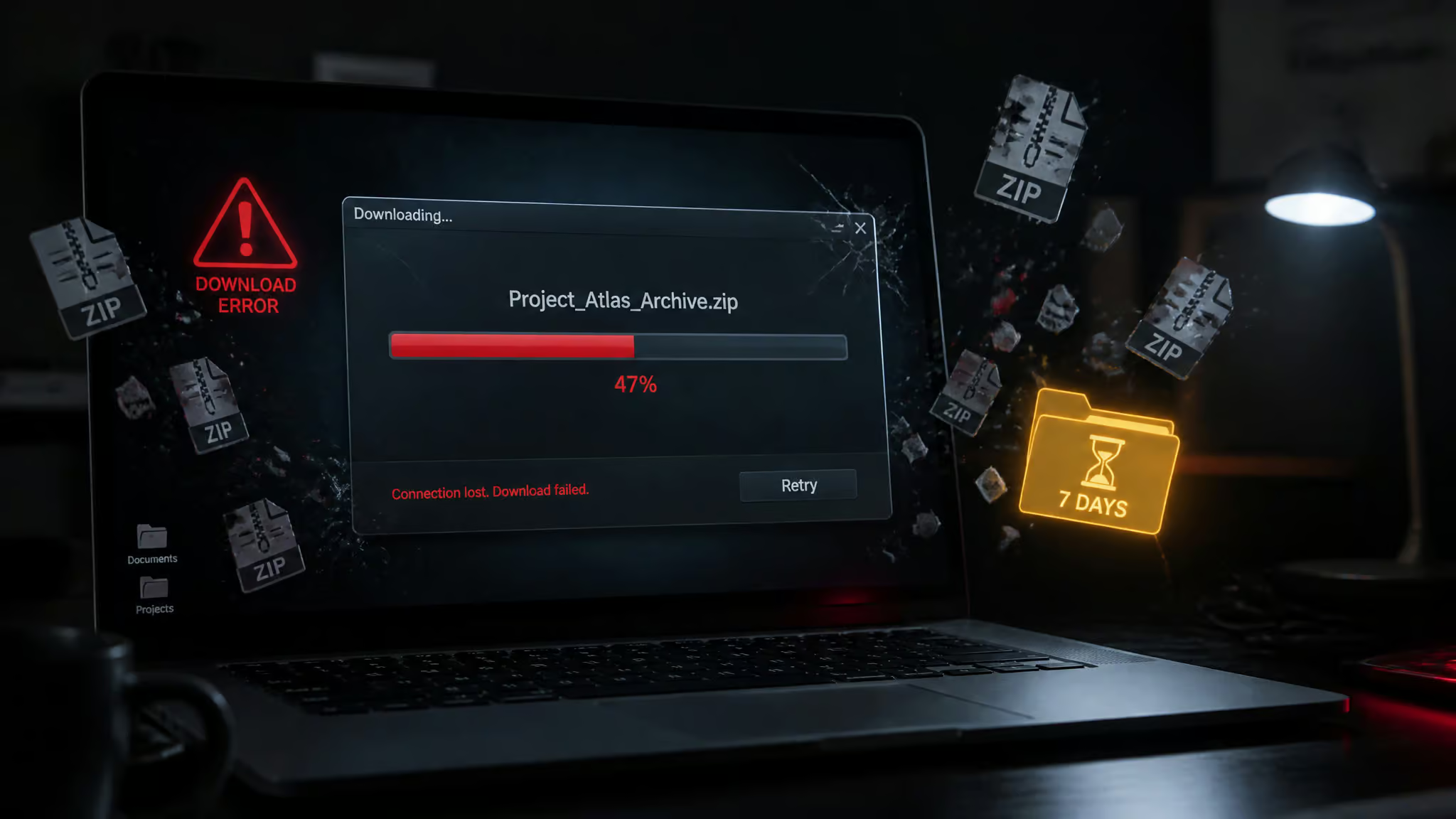
The cleanest documented case: some exports have an empty Media Download Url field for every single entry, so standard download mode skips all the files. The workaround is downloading the media manually before the links expire, then running Local Files mode to match everything by timestamp. Then there’s the structural timing trap: 50 or more fragmented ZIPs multiplied by a 7-day expiration is a genuinely hostile combination for anyone with a big library and a busy week.
Beyond that, the failures live mostly in field reports from tutorial comment threads, so treat these as anecdotal, not verified. One commenter reported an export that produced only 30 of 1,500 snaps, and those files didn’t work. Another reported 3,008 Memories with only roughly 200 to 300 actually present. Others describe unsupported file type errors, downloads that hang indefinitely in progress, completed requests where no ZIP ever appeared, and Windows flagging the download as potentially harmful. One user waited out a stated 72-hour security restriction, including on a brand-new device, and still hit the restriction afterward.
None of that confirms a specific Snapchat-side cause, and I can’t verify anyone’s outcome. But the practical guidance holds: when a batch errors out, request a new batch and reprocess it rather than re-running the identical attempt against the same expiring links.
Security: if you get a data-request notification you didn’t send
An unexpected “someone requested your data” notification may mean your account is compromised, and the response is: set a new password, switch on Login Verification, and keep your Recovery Code somewhere secure.
Here’s the reframe I find genuinely useful: knowing the legitimate export flow is itself your phishing detector. Real exports always route through accounts.snapchat.com or Settings, then ‘My Data’, and they’re retrieved from ‘See exports’ on the portal, never from a link you didn’t initiate. If an email or message pushes you to a data-download link you never requested, that’s the tell. And mass-export periods mean more people touching the data-request system than usual, which means a bigger phishing surface for everyone. Caution warranted; paranoia optional.
Export vs. pay: is a Memories storage plan worth it?
Yes, free mass-saving exists: a one-time free export beats paying monthly unless Snapchat is genuinely where you snap every day. The numbers, again in US pricing that may vary by market: 5GB free, 100GB for $1.99/month, 250GB bundled with Snapchat+ for $4/month, and 5TB bundled with Snapchat Platinum for $16/month.
The real decision is the third subscription
Here’s the thing the pricing table doesn’t show: many longtime users already pay for Google Drive and iCloud. A third cloud subscription is the actual objection, not $1.99 in the abstract. A free export into storage you already pay for beats $1.99/month forever.
ZDNET’s reporter laid out this exact pattern: a daily Snapchat user since 2016, snapping with a group-chat spread between California and New York, with thousands of snaps living cloud-only in Memories, weighing a third subscription against moving the group photo sharing over to iMessages and Apple Photos. That’s the decision architecture in miniature: rent another silo, or consolidate into one you already fund.
Two honest caveats before you decide. What happens to over-limit Memories after the 12-month grace period is unconfirmed, so “wait and see” carries real risk. And Snap says the vast majority of users stay under 5GB, so don’t assume you’re being pushed into a subscription; check whether you’re actually over before this decision matters.
After the export: where your snaps live next
Destinations, in rough order of convenience: Google Photos via Google Drive, Apple Photos with iCloud, or plain external hard drives if you want a full cold archive. Organize into year and month subfolders, and the YYYYMMDD_HHMMSS filenames sort chronologically the moment you do. (Doing this from a desktop browser instead of your phone? Our guide to using Snapchat on a laptop covers the wider setup.)
And back up the JSON index file, memories_history. Seriously. It’s the file that makes reprocessing or re-downloading possible later, feed it to Local Files mode after URLs expire, or re-run metadata restoration on a better tool two years from now. Treat it as important as the photos themselves.
Which points at the closing thought. The export is a migration checkpoint, not an end state, and there’s something almost funny about a storage paywall finally forcing a decade of cloud-only users to actually own their archives. Sometimes it takes a mildly cursed pipeline and a 12-month timer to get people to keep their own files. Whatever works, I guess.
People Also Ask
Is there a way to mass save photos on Snapchat?
Yes, for your own Memories. The in-app Export button handles batches of up to 100 to your camera roll, while the Memories-only export at accounts.snapchat.com downloads your entire library at once. For big archives, free third-party tools like All-In-One-Snapchat-Downloader (V.10) and the SnapchatMemoriesDownloader GUI process the export and restore timestamps and GPS metadata that raw exports strip out.
How long does it take to get my Snapchat data download email?
Snapchat’s official target is delivery within 7 days, but 24 to 48 hours is the commonly reported wait, scaling with account size. The clock matters more than the wait: download links in the email expire 7 days after it lands, so treat the email as a starting gun. If you typo’d your email, the export is still accessible through ‘See exports’ on the portal.
Why won’t my Snapchat Memories export download or open on my computer?
Most failures come from the export format or expired links, not your internet connection. The emailed ZIP is only an index — you must extract it and open index.html in a browser to download the actual media. Some exports have an empty Media Download Url field for every entry, in which case you download files manually before links expire and run a tool’s Local Files mode to match them by timestamp. When a batch errors out, request a new batch rather than re-running against the same expiring links.