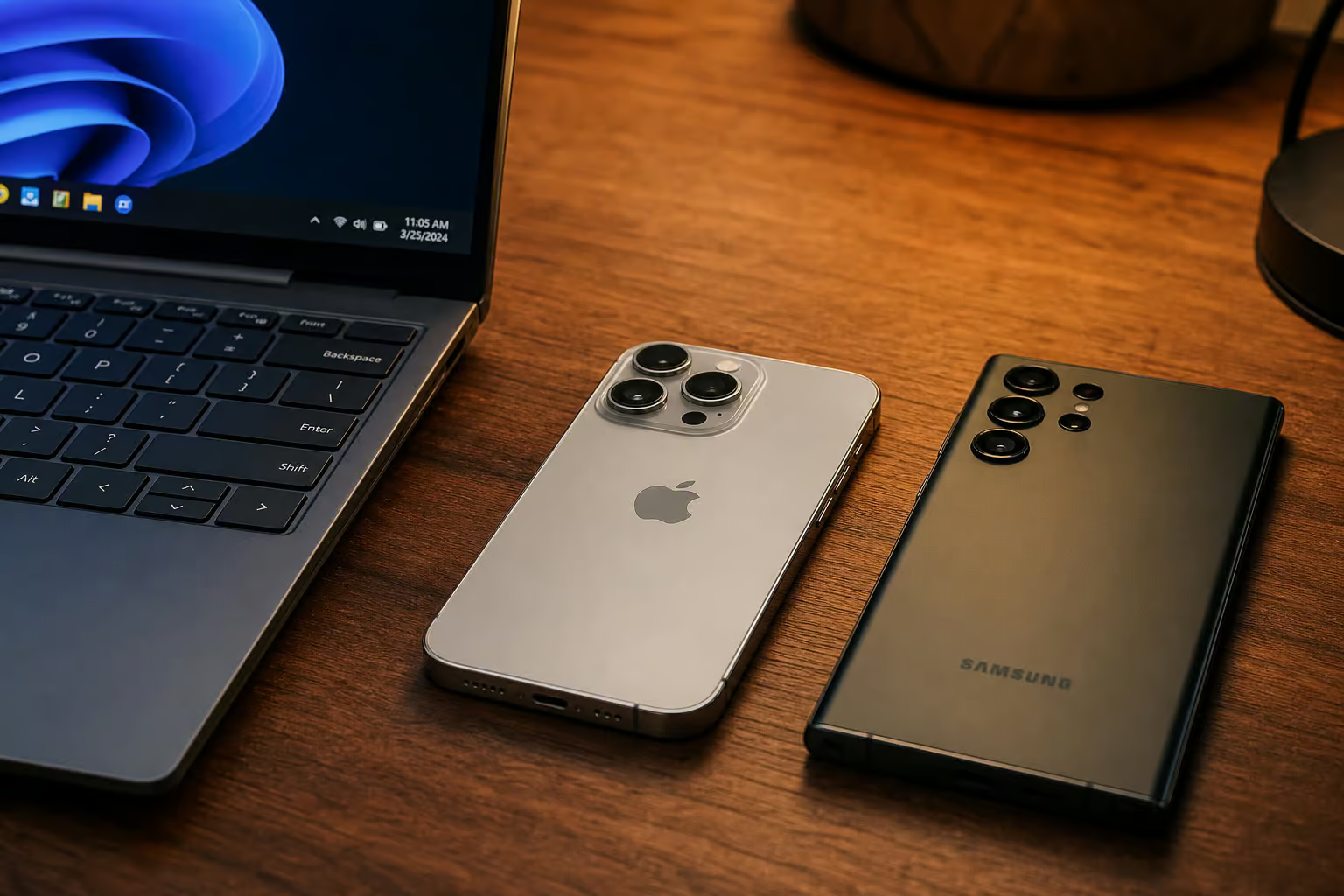
I live in a mixed-platform household. I’m the only one who regularly uses Apple devices. My spouse is on a Chromebook and a Windows PC. So when I need to move a 4K video project off my iPhone—say, an 8GB clip I just shot—AirDrop is useless. It doesn’t even see the other machines.
I’ve tried most of the obvious workarounds, and most of them have a hidden cost. Here’s what actually worked for me when I needed to send large files from an iPhone to devices that aren’t iPhones.
Key Takeaways
AirDrop is a proprietary Apple protocol (Bluetooth LE + peer-to-peer WiFi) that has never been licensed outside the ecosystem, so it physically can’t work with Windows, Android, or Linux devices.
LocalSend is an open-source, cross-platform app that transfers files at over 2GB/s over local WiFi with no file size limits, works offline, and has no ads or premium tiers.
SpeedyShare is a browser-based service that uses QR code pairing, works across cities, auto-deletes files after 30 minutes, and bypasses corporate networks that block peer-to-peer traffic.
Table of Contents
Why AirDrop Isn’t Enough (and What You’re Really Trying to Solve)
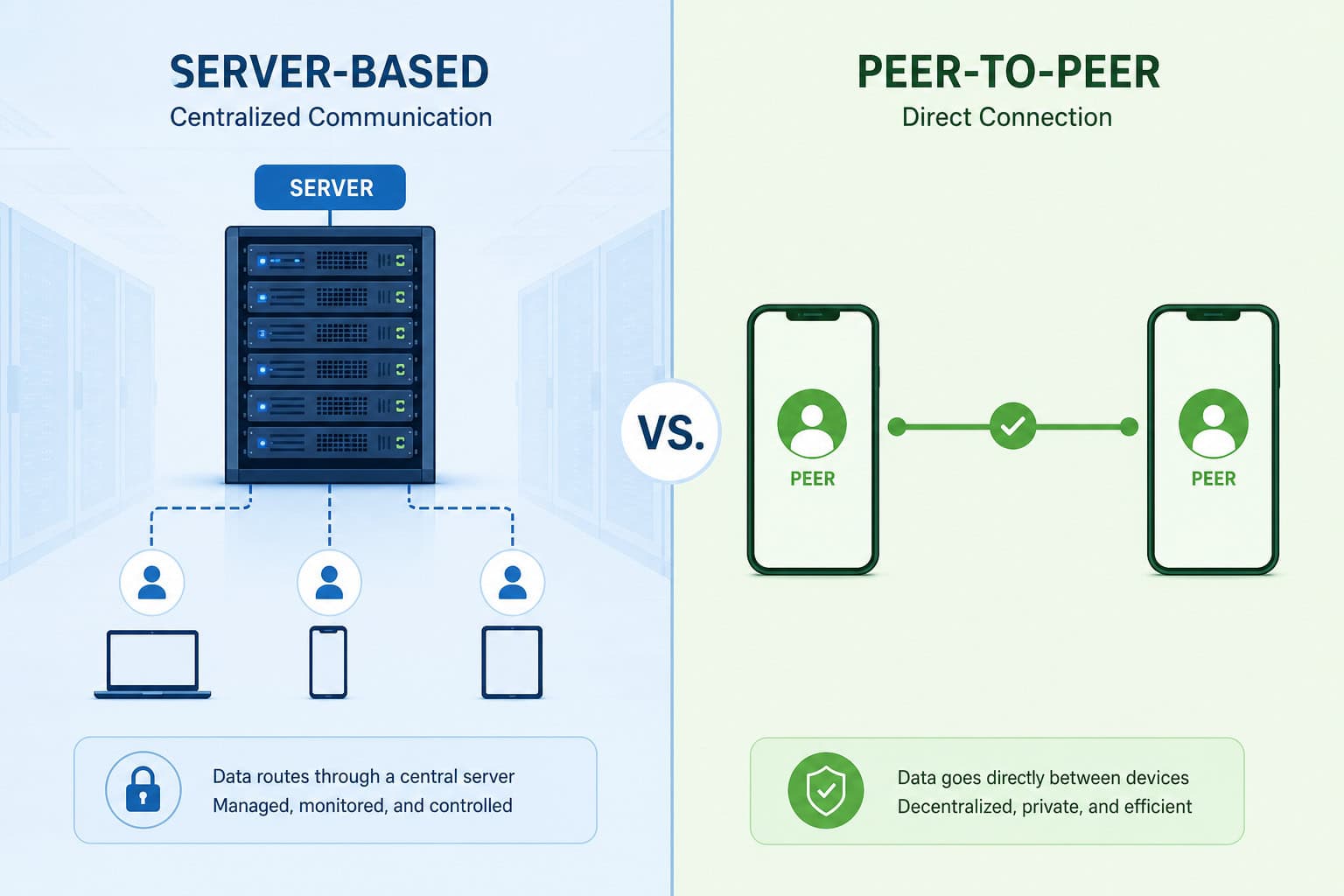
AirDrop uses a clever stack: Bluetooth Low Energy for device discovery, then a direct peer-to-peer WiFi link for the actual transfer. AirDrop is a proprietary protocol that Apple has never licensed outside its ecosystem. No cloud middleman, no server, just two devices talking. That’s why it feels instant when it works.
The catch: Apple never published the spec or licensed it to Microsoft or Google. So AirDrop works only between iPhones, iPads, and Macs. No Windows. No Android.
No Linux. That’s not a bug—it’s a deliberate ecosystem lock-in.
Physical proximity is another limitation. AirDrop requires the devices to be within Bluetooth range. That makes it useless for remote collaboration. If a colleague in another city needs a file, AirDrop can’t help.
And even when everyone is in the same room, AirDrop isn’t bulletproof. A common complaint on Reddit is that it chokes on large batches of files. More critically, many office WiFi networks block peer-to-peer connections. When that happens, AirDrop, LocalSend, and Snapdrop all fail because they need local P2P. That’s the scenario that first sent me hunting for alternatives.
The Obvious Options (and Their Hidden Costs)
Before I found the tools I actually use daily, I went through the obvious choices. Each one has a catch you might not have considered.
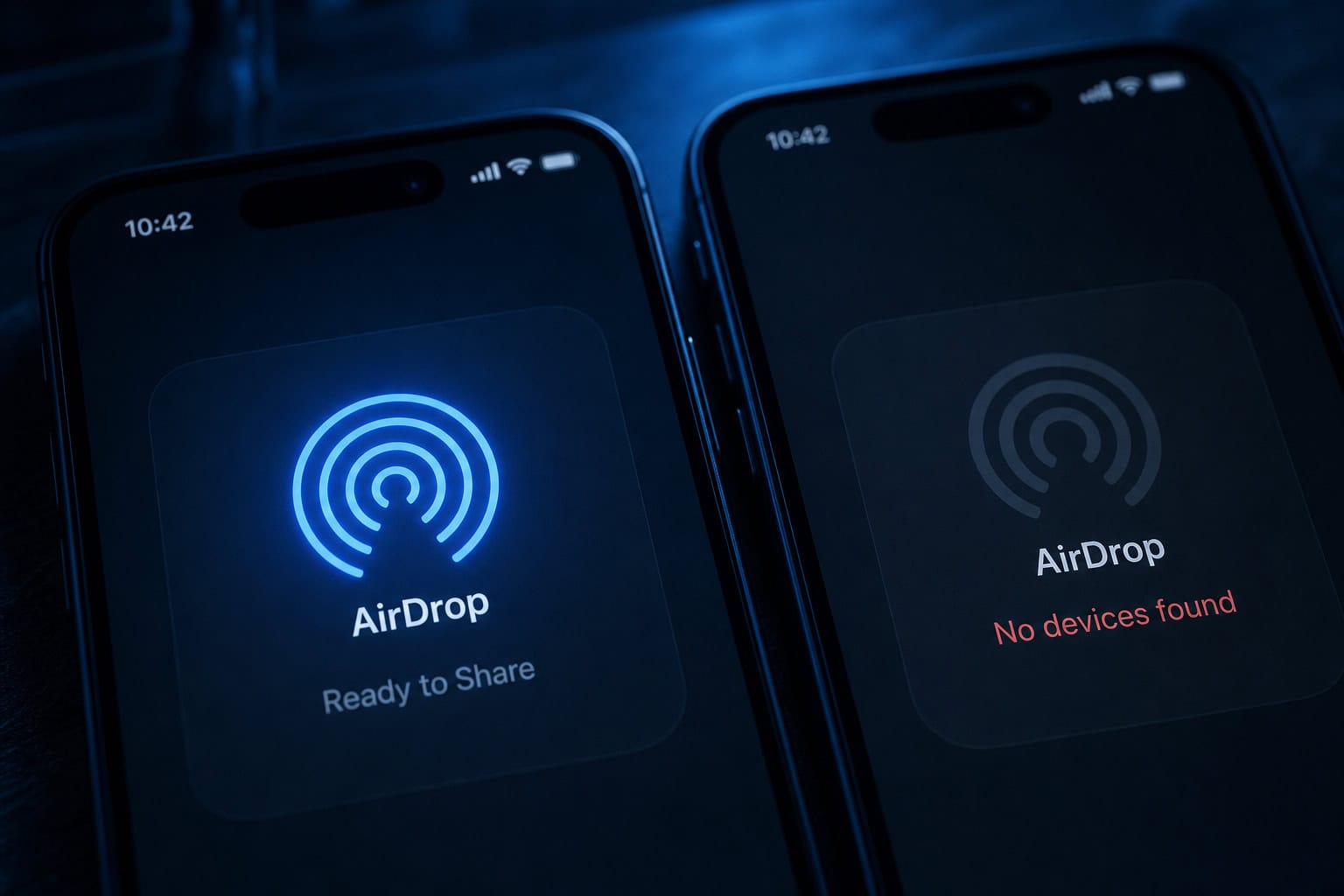
Smash — No limits, no install, auto-deletes
Smash is about as simple as it gets: open the site in any browser, pick your file, and share the link. There’s no file size limit. You don’t need special software or hardware. Files at rest are encrypted with AES-256, and transfers use SSL/TLS—the same encryption that protects your banking. You can add password protection if you want.
The auto-delete policy is refreshing: files vanish from servers after download or after 7 days, whichever comes first. The downside? It’s a cloud relay, not a direct transfer, so speed depends on your internet connection. For huge files, that can mean waiting for an upload.
iCloud — Convenient but capped at 5GB with environmental cost
iCloud is fine if you’re sending documents or photos to another Apple user. The 5GB file size limit is generous for text files, but a 4K video project will exceed that limit. A 20-minute 4K clip at typical bitrates runs 8-16GB—you can’t share it through iCloud.
Files sit on Apple’s servers indefinitely unless you manually clean them up, with ongoing storage having a carbon footprint. And iCloud’s 5-star security rating only helps inside the walled garden. If the recipient isn’t on an Apple device, that rating doesn’t matter.
WhatsApp — Ubiquitous but compresses your 4K video
WhatsApp is everywhere. The 2GB file size limit is fine for short clips. WhatsApp compresses video during transfer. Your carefully shot 4K footage arrives looking like a YouTube upload from 2012. The compression is aggressive, and you have no control over it.
Also, both sender and recipient need to be on WhatsApp. That locks you into Meta’s app. Files sit temporarily on Meta’s servers, which means they’re in someone else’s data center for a while.
Cable transfer — Old-school but riskier than you think
A cable has no file size limit, and it’s reasonably fast if you have the right connector. But you need to be in the same room, and you need the specific cable that matches both devices.
Cables also eventually become e-waste. For occasional use, it works. For regular cross-platform sharing, it’s a pain.
Best for Local Transfers: LocalSend and Snapdrop
These two tools are what I actually use for daily cross-platform sharing in my house. They rival AirDrop in speed while working across every platform I’ve thrown at them.
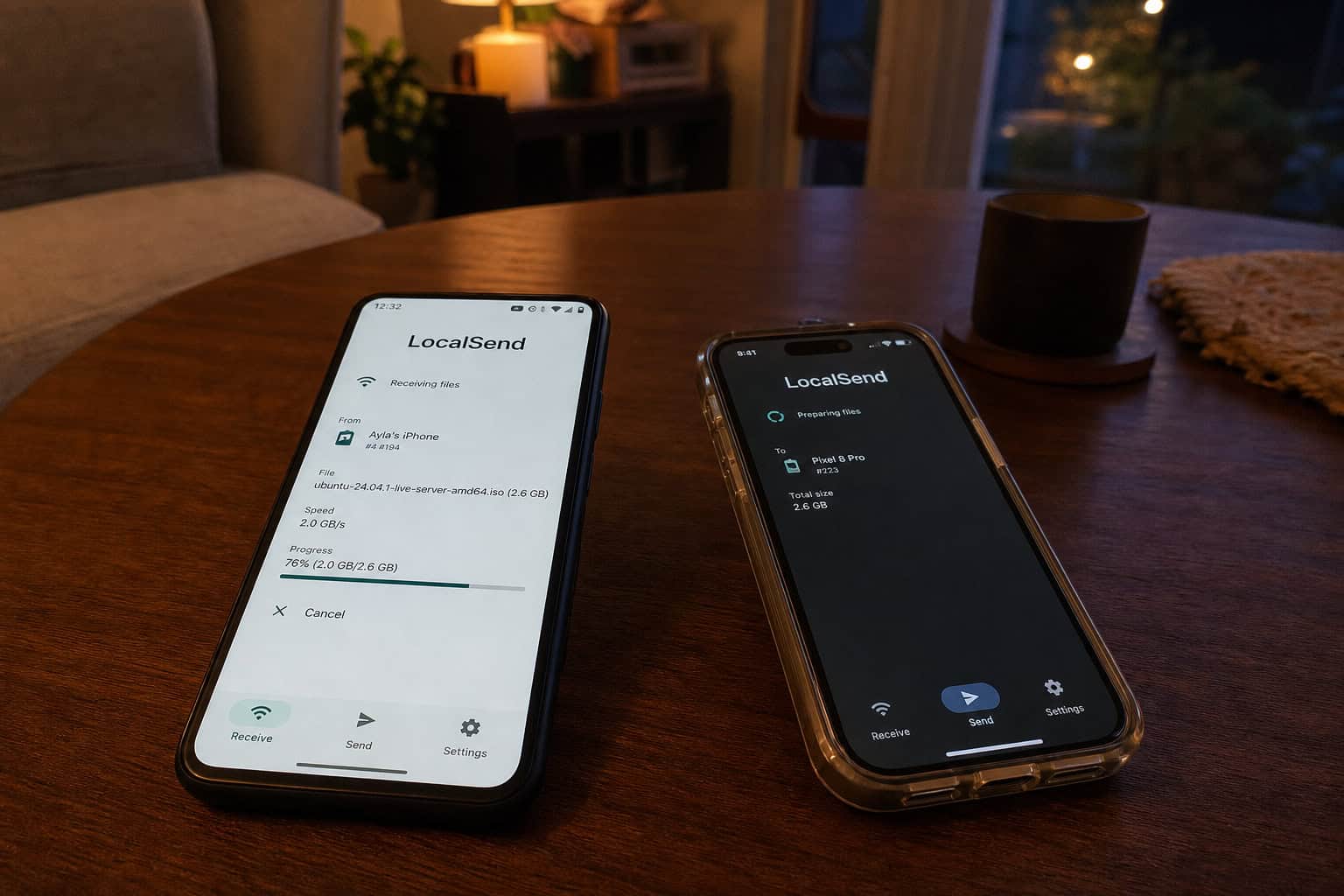
LocalSend — Open-source speed champion
LocalSend is open-source and runs on Windows, Mac, Linux, iOS, and Android. It works offline—no internet needed. Transfers are direct peer-to-peer with HTTPS encryption, so no server touches your files. No accounts, no ads, no premium tiers.
The speed is the headline: over 2GB/s on local WiFi. That’s faster than most SSDs can write. I’ve used it to transfer an 8GB 4K video from a Samsung Galaxy to a Windows laptop. It took about three minutes. There’s no file size limit, which makes it a standout tool for large file sharing.
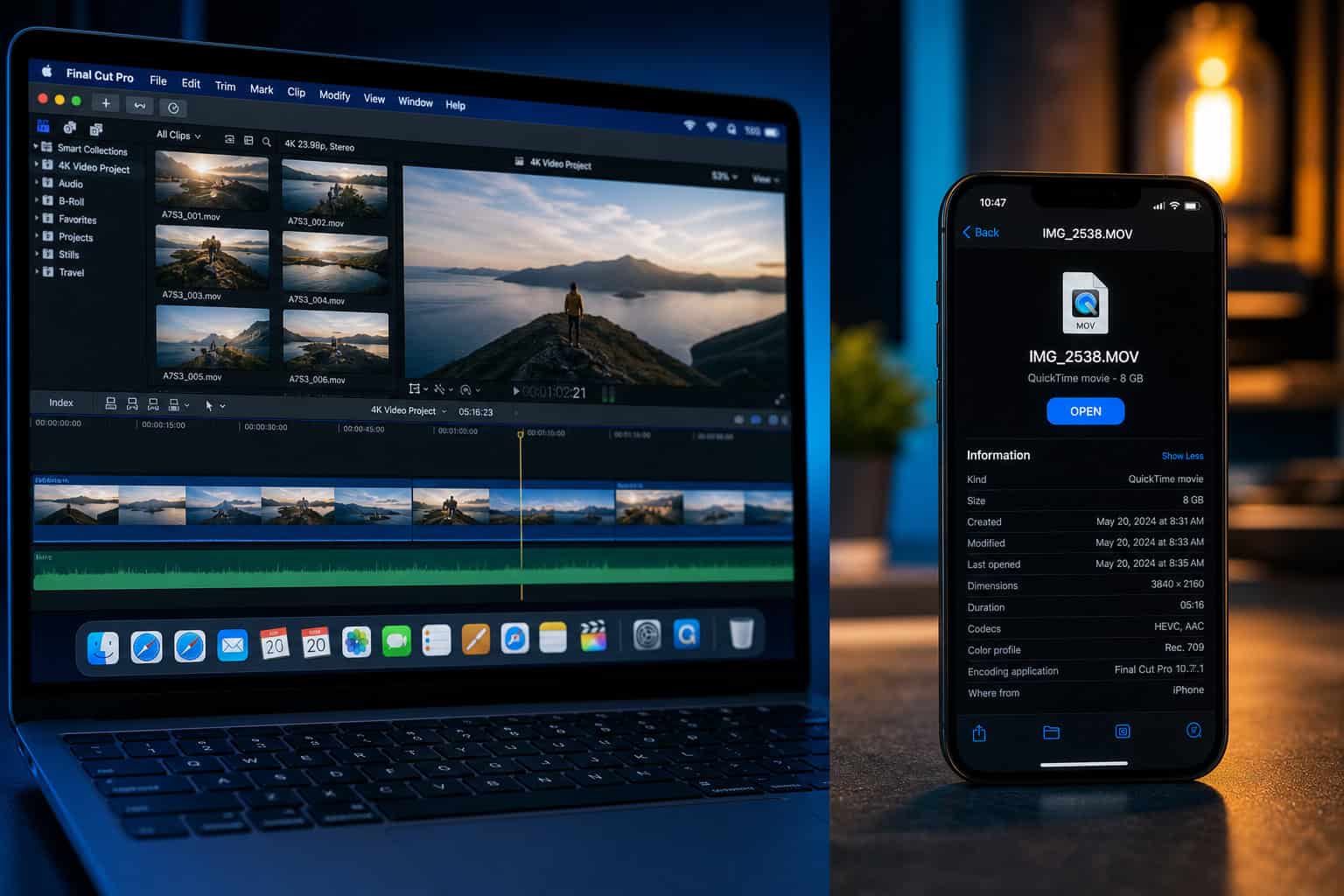
Setup takes about five minutes: install the app on both devices, and you’re done. That’s the one friction point—you do need to install it.
Snapdrop — Instant browser transfers on the same network
Snapdrop is browser-based and uses WebRTC for direct peer-to-peer transfer. Files never touch a server. Just open snapdrop.net on both devices, and they see each other immediately. Setup time: about ten seconds.
Device names are auto-generated and delightfully weird—”Purple Salamander,” “Green Rodent.” There are no file size limits, no accounts, and it’s completely free.
The catch: both devices need to be on the same local network. That makes it a room-to-room tool, not a city-to-city one. But for quick one-off transfers to a Raspberry Pi, a Linux partition, or a friend’s tablet, it’s perfect.
How to choose: LocalSend if you need offline capability, maximum speed, or massive files. Snapdrop if you want zero install and you’re on the same WiFi.
Best for Remote or No-Install Transfers: SpeedyShare
SpeedyShare solves the problem that trips up everything else: what do you do when you’re not in the same room, can’t install an app, or your corporate network blocks peer-to-peer traffic?
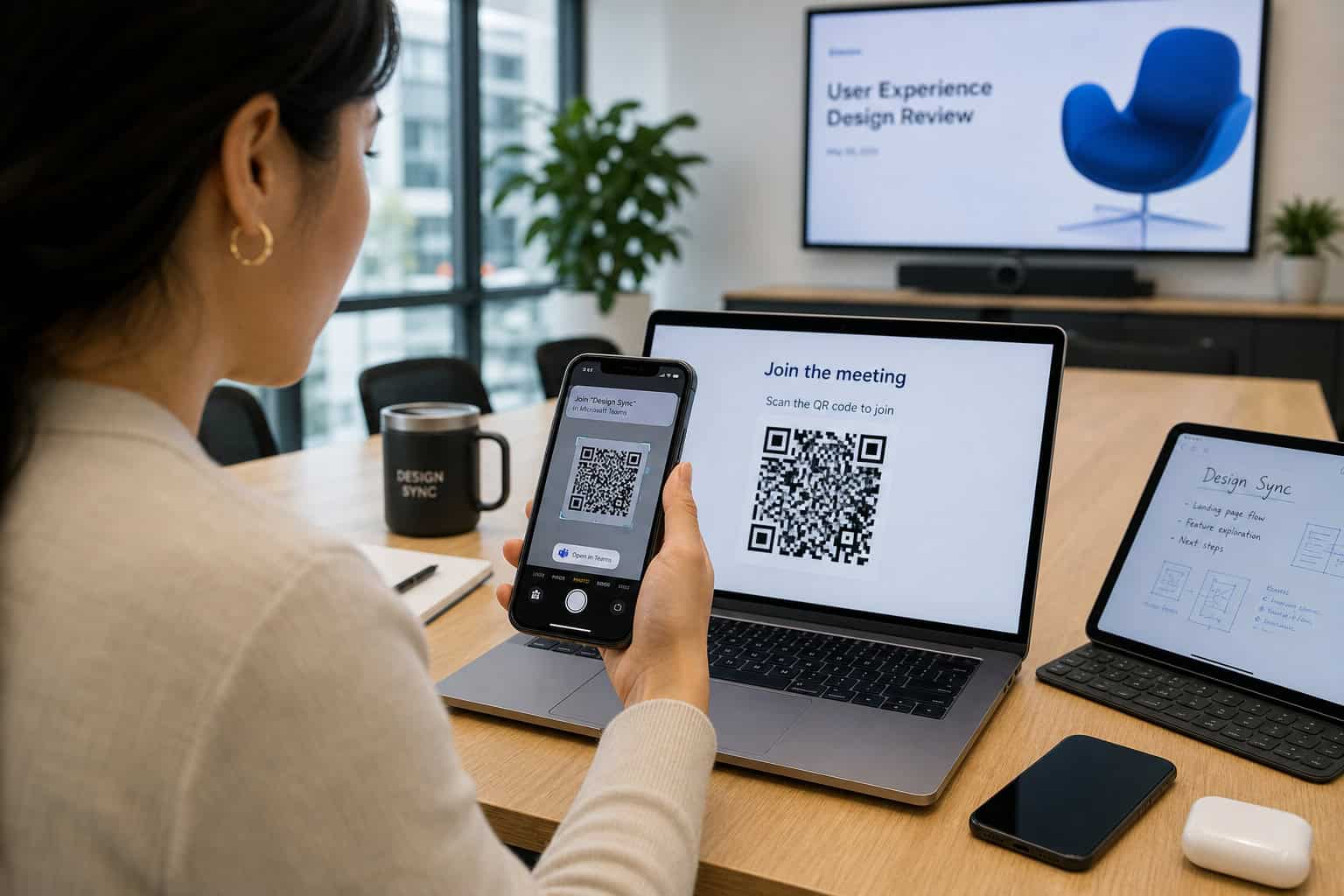
It’s browser-based with QR code pairing. The sender opens the site, the receiver scans the code, and the transfer starts. No installation, no account, no typing. It works across cities or countries.
There’s a 2GB per-file limit, which is the main caveat. But for photos, documents, and short clips, it’s fine; if you need to send large files free 10GB, that 10GB sweet spot offers a more generous ceiling for sharing bigger videos or batches at once. Files use TLS encryption in transit and auto-delete after 30 minutes. No user tracking, no lingering copies.
I used SpeedyShare in a team meeting once. I projected the QR code on a screen. Seven devices—two iPhones, three Android phones, two Windows laptops—all downloaded the file in about 20 seconds. AirDrop couldn’t have handled that mixed environment.
AirDrop, LocalSend, and Snapdrop all fail in those environments. SpeedyShare routes over the internet, so it bypasses those restrictions entirely.
Best Full-Featured Apps: Blip and Send Anywhere
If you transfer large files regularly and want something more capable than a browser tab, these two apps are worth installing.
Blip — The privacy-first serverless app
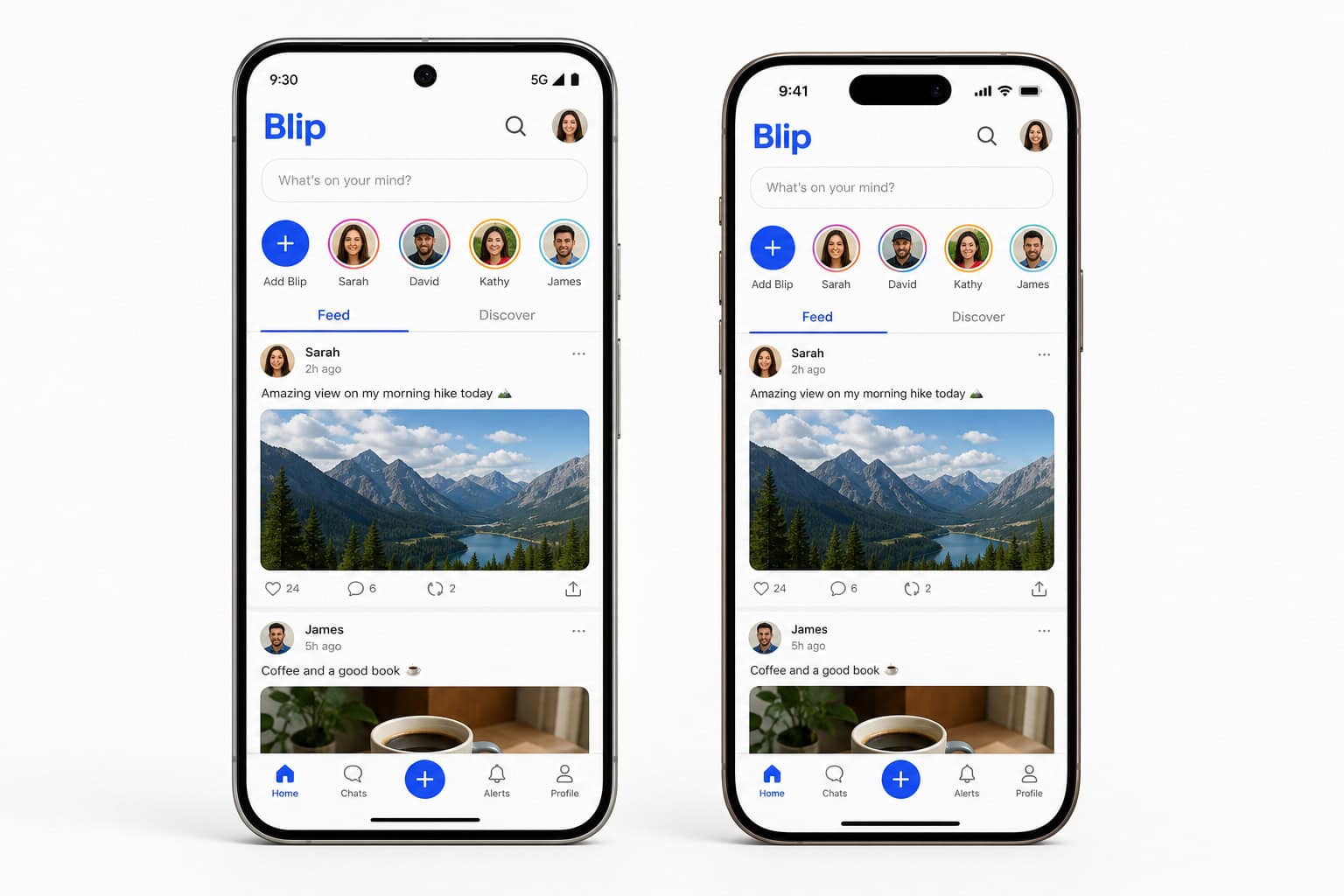
Blip is free, cross-platform (Android, iOS, Windows, Mac, Linux), and uses TLS 1.3 encryption. The important point: files are sent directly between devices. No server stores them at any point.
It handles hundreds of gigabytes at once. I tested it on a Google Pixel 9 Pro, OnePlus 13, iPhone 16 Pro, and a 15-inch MacBook Air. It worked every time. I shared a folder of over 550 images and videos—about 1.5GB—from my iPhone to a Mac in under a minute.
Blip only requires notification permission. No location, no contacts, no creepy access. Login is with a one-time code sent to your email—no password to remember.
Send Anywhere — Feature-rich with ads and a 10GB free limit
Send Anywhere offers a 6-digit key for instant secure transfers, or a 48-hour share link. It supports up to 10GB free per file, similar to how services like files over miles let you send large files without an account. It also has built-in media players for music and video with subtitle support.
The trade-offs: it’s ad-supported (remove ads for $14.99 in-app purchase), and the interface is a bit cluttered. Developer is Rakuten Symphony Korea. Requires iOS 14.1 or later. The App Store listing shows it tracks purchases, location, identifiers, usage, and diagnostics—so it’s less privacy-focused than Blip.

Platform-Specific Built-in Options (and Why They Won’t Help iPhone Users)
These two tools sound promising but save yourself the time—they don’t support iPhone.
Windows Nearby Sharing
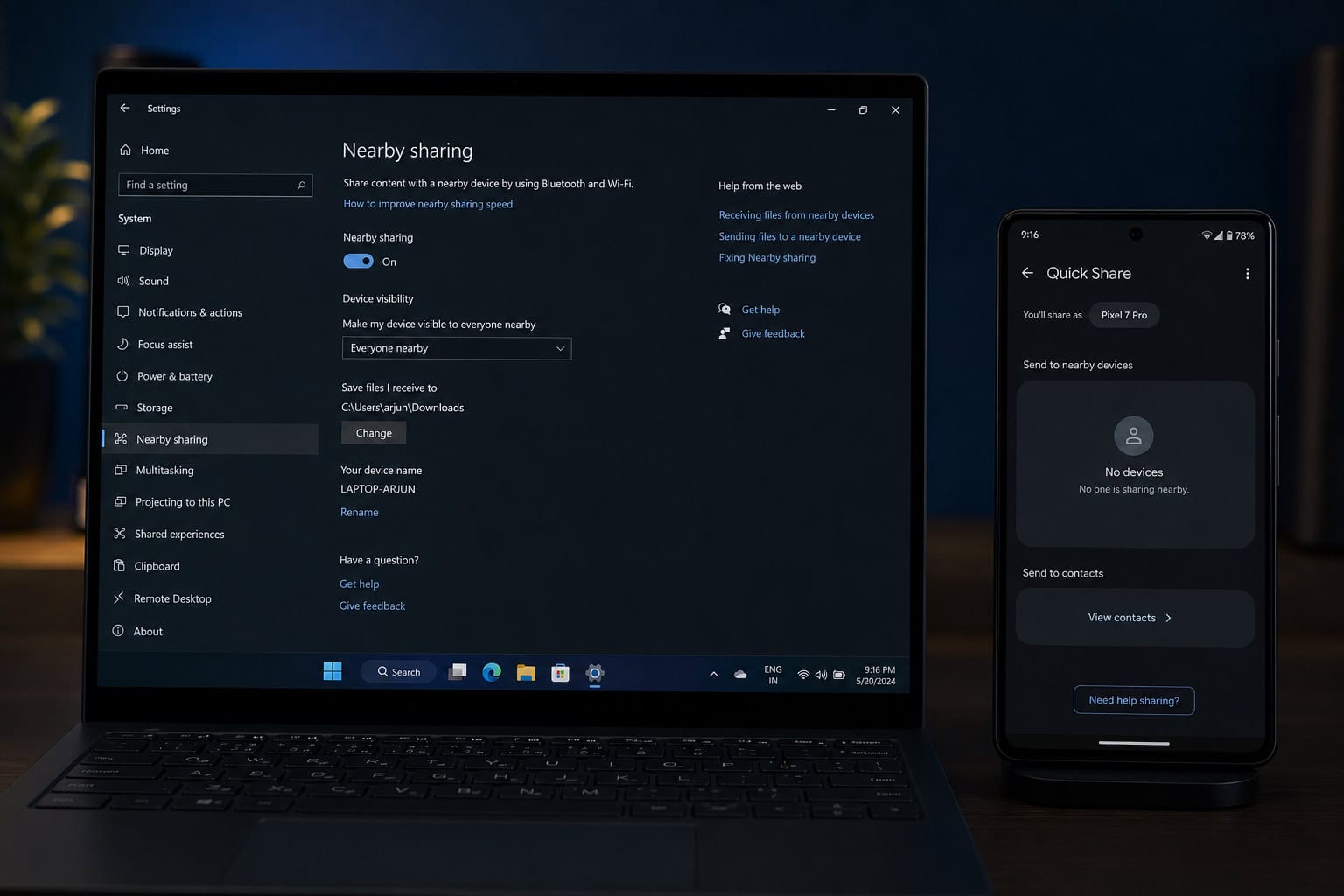
Built into Windows 10 (version 1803+) and 11. Works only Windows-to-Windows. Requires Bluetooth and WiFi. Discovery can be unreliable. No iPhone or Mac support.
Quick Share (formerly Nearby Share)
Works on Android and Windows (beta). End-to-end encryption. Requires a Google account. Setup takes about 10 minutes. Does not support iPhone or iPad.
Other Options to Be Aware Of (and Why You Should Probably Skip Them)
A few other tools exist, but each has a limitation that makes them less useful than the ones above.
- PairDrop: A fork of Snapdrop with more reliable device discovery. Same network, browser-based. Worth a look if Snapdrop gives you trouble.
- SHAREit: Popular but bloated with ads. Privacy concerns are serious enough that India banned it over security issues. Hard pass.
- Syncthing: Continuous folder synchronization, not for one-time transfers. More like self-hosted Dropbox. Overkill for sending a single video.
- Intel Unison: Only works on Intel Evo laptops. Includes file transfer, notifications, and calls. But if you don’t have an Evo laptop, it’s useless.
- Multipeer Connectivity: The developer-level API that underlies AirDrop. Introduced in iOS 7 at WWDC 2013. Not a consumer tool—skip unless you’re building your own app.
Security and Privacy Comparison
All the tools I recommend use encryption. But the critical difference isn’t whether files are encrypted—it’s whether files ever touch a server, and how quickly they’re deleted.
- Smash: AES-256 at rest, SSL/TLS in transit. Files stored temporarily on servers, deleted after download or 7 days.
- Blip: TLS 1.3. Files never touch a server—direct device-to-device only.
- LocalSend: HTTPS. Direct P2P, no servers at all.
- SpeedyShare: TLS. Files stored temporarily on servers, auto-deleted after 30 minutes.
- Snapdrop: WebRTC. Files never touch a server.
- Quick Share: End-to-end encryption. Local only, but requires a Google account.
- Send Anywhere: Encryption not specified in my testing. Files stored on servers for 48-hour links. Moderate privacy—tracks purchases, location, identifiers, usage, and diagnostics.
The cleanest privacy profiles belong to Blip, LocalSend, and Snapdrop, because no server ever holds your files.
Environment and Sustainability
iCloud stores files indefinitely on Apple’s servers, which means ongoing carbon emissions from data centers. Smash auto-deletes after 7 days, SpeedyShare after 30 minutes. Cable transfer generates e-waste but no server energy cost. WhatsApp stores files temporarily on Meta’s servers.
Real-World Tests — How They Handle 4K Video Projects
Here’s what I’ve actually seen:
- SpeedyShare: 200 photos from an iPhone 16 Pro to a Windows PC for Adobe Photoshop editing. Full resolution, under 2 minutes.
- SpeedyShare: Team meeting with mixed devices. QR code projected, 7 devices (2 iPhones, 3 Android, 2 Windows) all downloaded in 20 seconds.
- LocalSend: 8GB 4K video from Samsung Galaxy to Windows laptop. Transferred at 2GB/s, done in 3 minutes.
- Blip: 550+ images and videos (about 1.5GB) from iPhone to Mac. Under a minute.
- Household daily use: LocalSend and Snapdrop are my go-tos for cross-platform sharing. Snapdrop gets used for one-off transfers to Raspberry Pi and Linux partitions.
All recommended alternatives transfer files at original quality with zero compression. EXIF metadata is preserved.
Quick-Reference Decision Matrix
| Tool | iPhone? | Works remotely? | No app? | File size limit | Speed | Offline? | Privacy |
|---|---|---|---|---|---|---|---|
| LocalSend | Yes | No | Install required | Unlimited | 2GB/s+ | Yes | Excellent |
| SpeedyShare | Yes | Yes | Browser | 2GB | Varies | No | Excellent |
| Snapdrop | Yes | No | Browser | Unlimited | Varies (local WiFi) | No | Excellent |
| Blip | Yes | Yes | Install required | Unlimited | Varies | No | Excellent |
| Smash | Yes | Yes | Browser | Unlimited | Varies | No | Excellent |
| Send Anywhere | Yes | Yes | Install required | 10GB free | Varies | No | Moderate |
Quick recommendations per use case:
- Fastest local, no limits: LocalSend
- No install, remote, quick: SpeedyShare
- Privacy-first, regular use, huge files: Blip
- Totally unlimited, browser-based: Smash
- Feature-rich with media playback: Send Anywhere
Direct Answers to Common Questions
Here are quick, practical answers to the most common large-file sharing scenarios, based on the tools tested above.
How to send a 20GB file from iPhone for free
Use Smash (no file size limit) or cable transfer (no limit, but you need to be in the same room with the right cable). LocalSend works too if both devices are on the same WiFi.
How to send a 20-minute 4K video from iPhone in a shareable format
A 20-minute 4K video at typical bitrates runs roughly 8-16GB. That exceeds iCloud’s 5GB limit and WhatsApp’s 2GB limit. Use Smash, LocalSend, or Blip—they handle these sizes with no compression.
How to send large files from iPhone to multiple recipients
Smash share link, Send Anywhere 48-hour link, or SpeedyShare QR code (everyone scans and downloads). For team meetings with mixed devices, SpeedyShare’s QR approach is fastest.
Best free file sharing apps for iPhone that work with Windows
LocalSend (free, open-source, no limits), SpeedyShare (free, browser-based, 2GB limit), Snapdrop (free, browser-based, requires same WiFi). All three transfer at original quality.
People Also Ask
How to share large files with iPhone?
AirDrop won’t work for non-Apple devices, so you need a cross-platform tool. LocalSend transfers files at over 2GB/s with no size limits over local WiFi, while SpeedyShare uses QR codes for remote transfers up to 2GB. Both preserve original file quality with zero compression.
Is SpeedyShare safe to use for sending files?
Yes, SpeedyShare encrypts files with TLS in transit and auto-deletes them from servers after 30 minutes with no user tracking. The trade-off is a 2GB per-file limit, but it’s ideal for bypassing corporate networks that block peer-to-peer transfers.