You have a 50GB file — a video project, a backup archive, a giant dataset, and you need to get it to someone right now. No time to set up an FTP server, no budget for a paid file transfer service, and definitely no patience for a sign-up wall followed by a credit card form.
Email has a 25MB limit. WeTransfer’s free tier gives 2GB. Most “free large file transfer” services cap their free tiers at 5GB — insufficient for a 50GB file. So which service works?
I spent a weekend testing limits and chasing down the real constraints that the marketing pages bury. file.kiwi lets you send 50GB for free without creating an account or providing payment details. But it comes with a 90-96 hour auto-deletion window that changes everything.
Key Takeaways
file.kiwi has no file size limit on its free tier — no account required, no ads, no payment needed, but your file auto-deletes after 90–96 hours unless you upgrade.
Smash offers 30GB free per transfer (close, but not 50GB), with configurable retention from 1 to 30 days and claims 5x faster transfers.
Every other major free service (Filemail, TransferNow, TransferXL) caps transfers at 5GB — you’d need a paid plan to hit 50GB.
Table of Contents
Why Most “Free” File Transfer Services Can’t Handle 50GB
The problem isn’t that 50GB is an exotic file size. It’s that the infrastructure for free tiers is built around the median use case — someone sharing a few hundred megabytes of photos or a PDF. Most services simply don’t want to foot the bandwidth bill for multi-gigabyte transfers without charging for it.
Let’s run through the options:
Email is the first thing most people try. Hard cap of 25MB across virtually every provider. Your 50GB file is 2,000 times too big. Next.
WeTransfer is the market default for “send a big file.” Its free tier gives you 2GB. That’s not a typo. Two gigabytes. You’d need 25 separate transfers and a lot of patience.
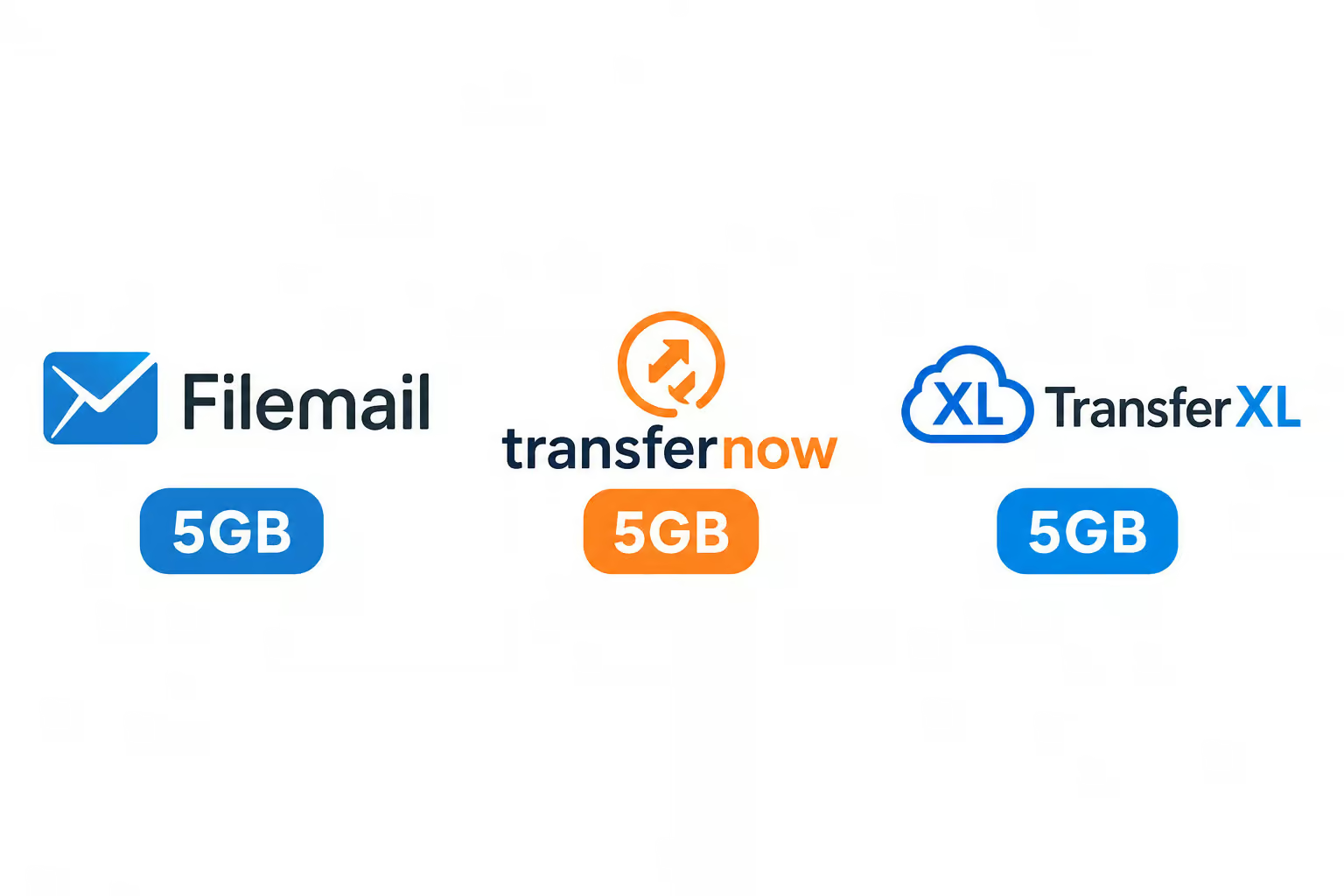
Then you have the services that advertise “free large file transfer” in their taglines. Filemail, TransferNow, TransferXL — all of them top out at 5GB per transfer on their free plans. That’s a tenth of what you need. Smash comes closer at 30GB free, which is honestly not bad, but still 20GB short of the target.
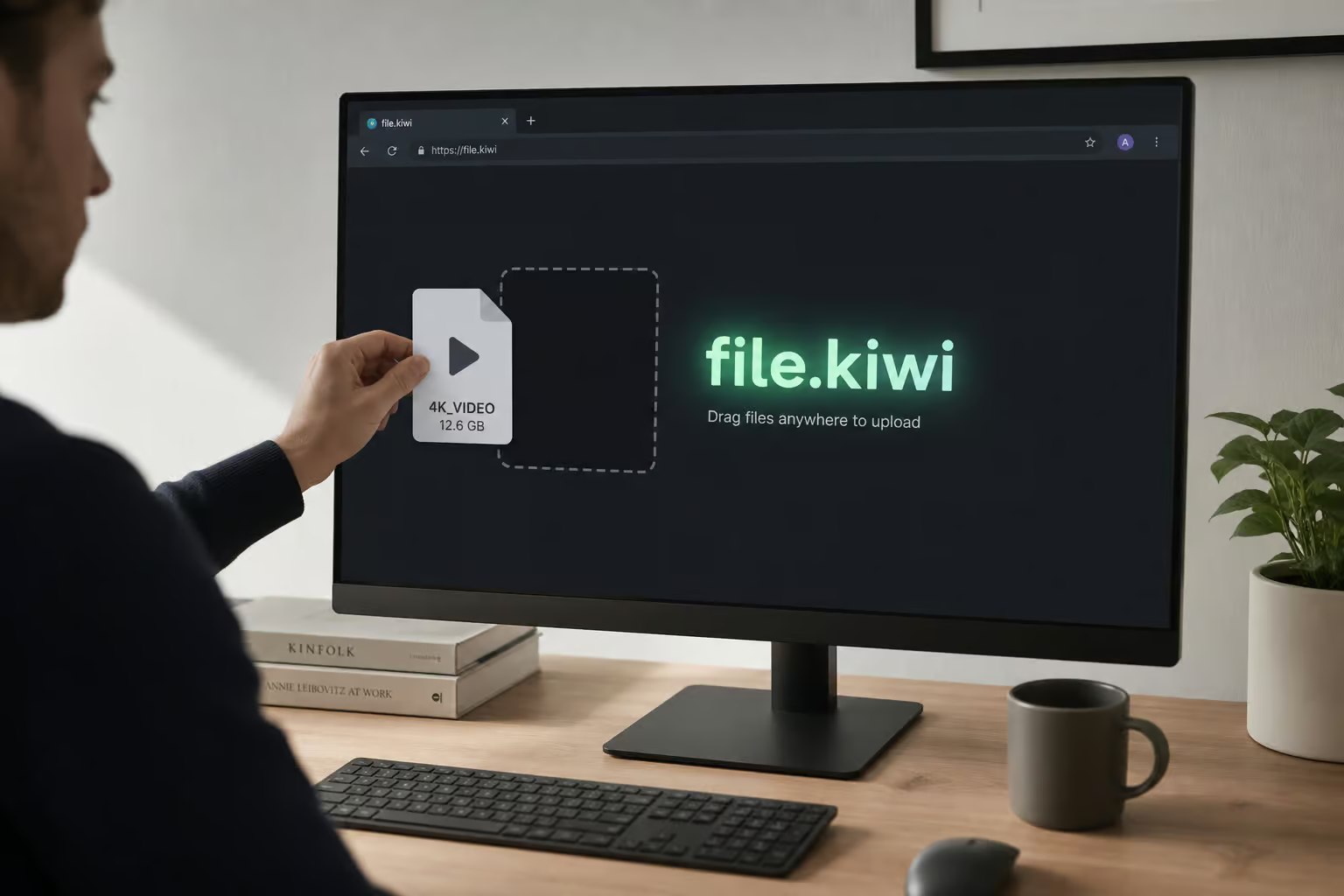
The service that doesn’t impose an explicit file size limit is file.kiwi. No cap. No account required. No ads.
Just drag, drop, share. Your device or browser becomes the real limit — if you’re on a machine that can handle a 50GB upload, file.kiwi won’t stop you. (In fact, the service supports uploads up to 500GB, so your 50GB file is modest.)
The Contenders: Which Services Actually Deliver 50GB Free?
Let’s put the services into three clear buckets so you can see where things stand.
file.kiwi: The Only Service With No File Size Limit
This is the headline. file.kiwi has no file size limit for free transfers. You can upload a 50GB file, a 100GB file, or (reportedly) up to 500GB — and it costs nothing, requires no registration, and shows you no ads. The whole thing works in a browser on both ends. Sender and receiver don’t need to install anything.
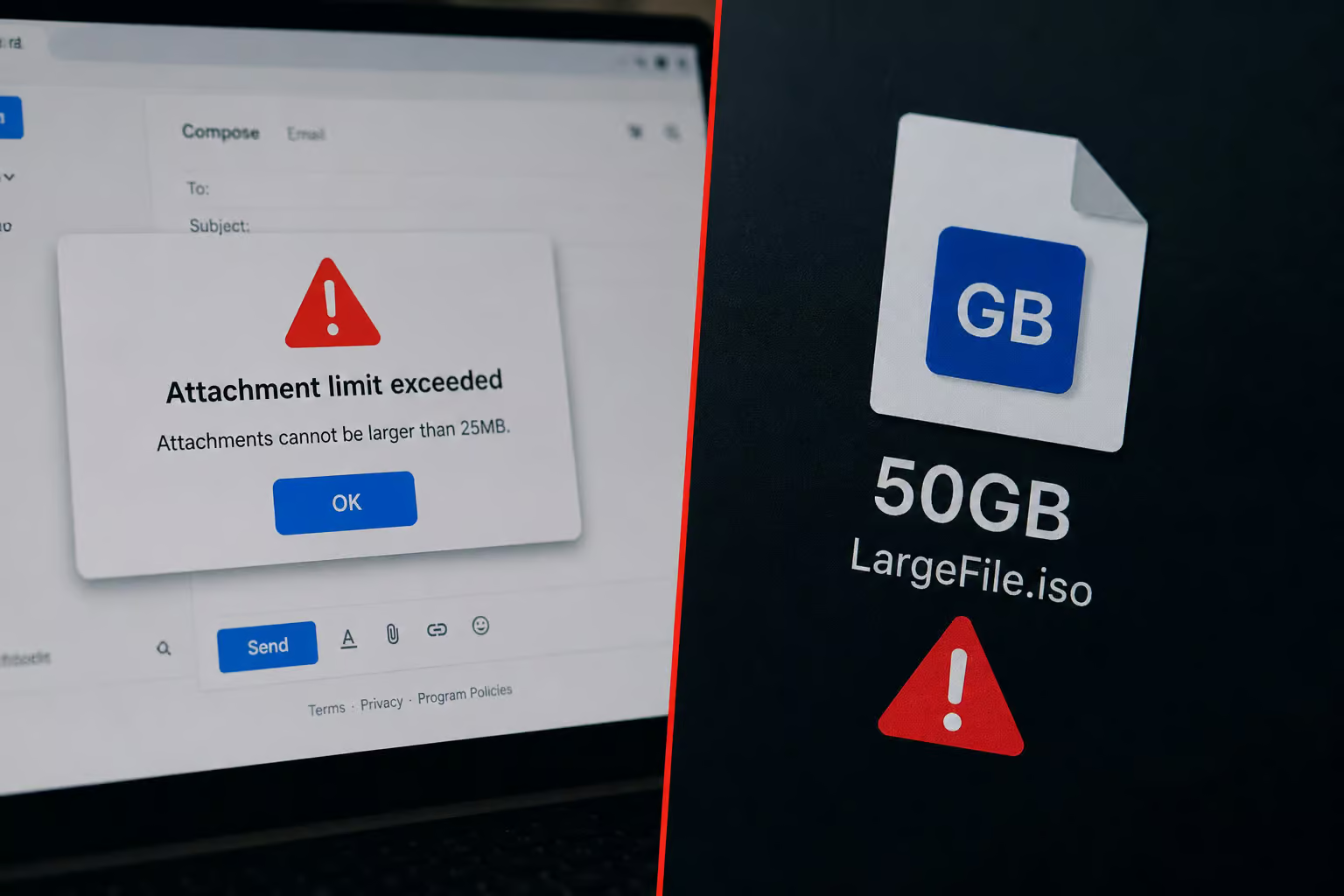
The caveat? That file auto-deletes after 90-96 hours. More on that in a moment.
Smash: Close but Not Quite — 30GB Free
Smash offers 30GB per transfer on its Freemium tier. That’s useful for many large files — a 20GB video project fits fine, for example. But it’s 60% of your target. Smash claims it’s “the best choice for 50GB,” but the fine print reveals you’d need a paid plan to actually send that full amount. Still, if you can compress or split your 50GB into two chunks, Smash’s 30GB free limit gets you most of the way there.
The 5GB Club: Filemail, TransferNow, TransferXL
These three services are functionally identical for your use case: 5GB per transfer free. That’s not enough for a single 50GB file. Filemail’s free tier gives you 5GB with 30-day retention. TransferNow gives you 5GB with 7-day retention.
TransferXL gives you 5GB free forever (with a max of 200GB on paid plans). All require a paid plan to send 50GB.
The Hidden Gotcha: File Age Limits & Retention Windows
Even if a service lets you upload 50GB for free, it won’t keep that file around forever. In fact, most free tiers delete your data within days — often before the recipient even downloads it.
file.kiwi: 90-96 Hour Default Window
file.kiwi’s encrypted files auto-delete after 90 to 96 hours by default. That’s less than four days. If you’re sending to someone who checks their email once a week, that’s a problem. You can extend the retention with a paid plan (and file.kiwi does offer premium tiers), but on the free plan, the clock starts ticking the moment you upload. The upside is that the deletion is part of the security model — encrypted files self-destruct. This ephemeral approach also reduces the energy footprint of storing data long-term, making every transfer lighter on the environment.
Smash, TransferNow, and Filemail Retention Compared
- Smash: file availability is configurable from 1 to 30 days on the free tier. That’s a longer window than file.kiwi’s fixed 90-96 hours. If you need a week or two, Smash has you covered.
- TransferNow free: files stay for 7 days. A week is usually enough for a direct transfer, but not if you’re collecting submissions over time.
- Filemail Personal: 30 days retention on the free/Personal tier. That’s 30 days — plenty of time for a recipient to grab a 50GB file (if they had a plan that supported 50GB, which they don’t on free).
The takeaway: if you use file.kiwi for a 50GB free transfer, you need to coordinate with your recipient before you upload according to large file sharing best practices. Send the file, then immediately ping them: “Hey, grab this within 96 hours.”
Security & Privacy: How Free Services Protect (or Expose) Your Data
When you’re sending a 50GB file — maybe your company’s financials, a client’s raw footage, or personal family archives, you want to know who can read it. “Encrypted” means different things to different services.
file.kiwi’s Zero-Knowledge Architecture: The Gold Standard
file.kiwi encrypts your file on your device using 128-bit AES-GCM before it ever leaves your machine. The original file never touches the server. Only the encrypted blob is stored. The decryption key lives only in the share link — the server never sees it.

Even the file name is encrypted. This is zero-knowledge architecture: the service provider can’t read your data even if they wanted to. If the server gets breached, the attackers get gibberish.
This is stronger than many paid services. For a free file transfer tool that lets you send large files free, it’s remarkable.
How Other Services Handle Encryption
- Filemail: uses TLS-1.2 (AES-256) for data in transit. End-to-end encryption, 2FA, password protection, and virus scanning are available on paid plans. Filemail has operated since 2008 with zero reported breaches.
- TransferNow: encrypts files at rest with AES-XTS 256 bits in datacenters certified AICPA SOC 2 Type II. Data in transit uses SSL/TLS. They also offer optional password encryption and explicitly state they don’t sell your personal data.
- Smash: encrypts files both in transit and at rest, and undergoes regular security audits by the external firm Synacktiv. That’s a named third-party validation — unusual for a free-tier service.
The practical difference is whether the service could read your files if compelled. file.kiwi’s client-side encryption means they cannot. The others could (though they’d be breaking their own policies). For most people, any of these security postures is fine. But if you’re handling sensitive data, file.kiwi’s zero-knowledge approach is the winner.
Reliability: Why Resume Capability Is Non-Negotiable for 50GB
A connection failure at 90% forces a full restart. For a 50GB file, that’s potentially catastrophic.

For files this size, resume capability isn’t a nice-to-have. It’s essential. If your upload fails mid-way, resume support means you don’t lose progress — a critical safeguard given that network interruptions can happen to anyone, and community forums often discuss throttling and UX quirks not found in official docs.

file.kiwi and Smash: Resume-Ready
Both file.kiwi and Smash support resumable uploads and downloads. file.kiwi splits large transfers internally into chunks, so if your connection drops, it picks up from the last successful chunk — even if you close the browser entirely. Smash goes a step further: it claims you can shut down your PC and resume from where you left off later.
The Risk of Services Without Resume Guarantees
Filemail, TransferNow, and TransferXL don’t explicitly guarantee resume functionality on their free tiers. Filemail’s paid plans include resume transfer, but the free tier’s behavior is unstated. Without resume, a dropped connection at 90% forces a full restart. For a 50GB file, that’s potentially catastrophic. Stick with file.kiwi, Smash, or services like WeTransfer and Smash if your network isn’t rock-solid.
Speed & Real-Time Sharing: Don’t Wait for the Upload to Finish
Here’s a feature that changes the whole game for large files: real-time sharing. Instead of waiting for the entire 50GB to upload before you can send the link, some services let you share the file while it’s still uploading, and the 10GB sweet spot for free sharing appears frequently among top-rated options like those you can send large files free 10GB.
Real-Time Sharing: How file.kiwi Cuts Total Transfer Time
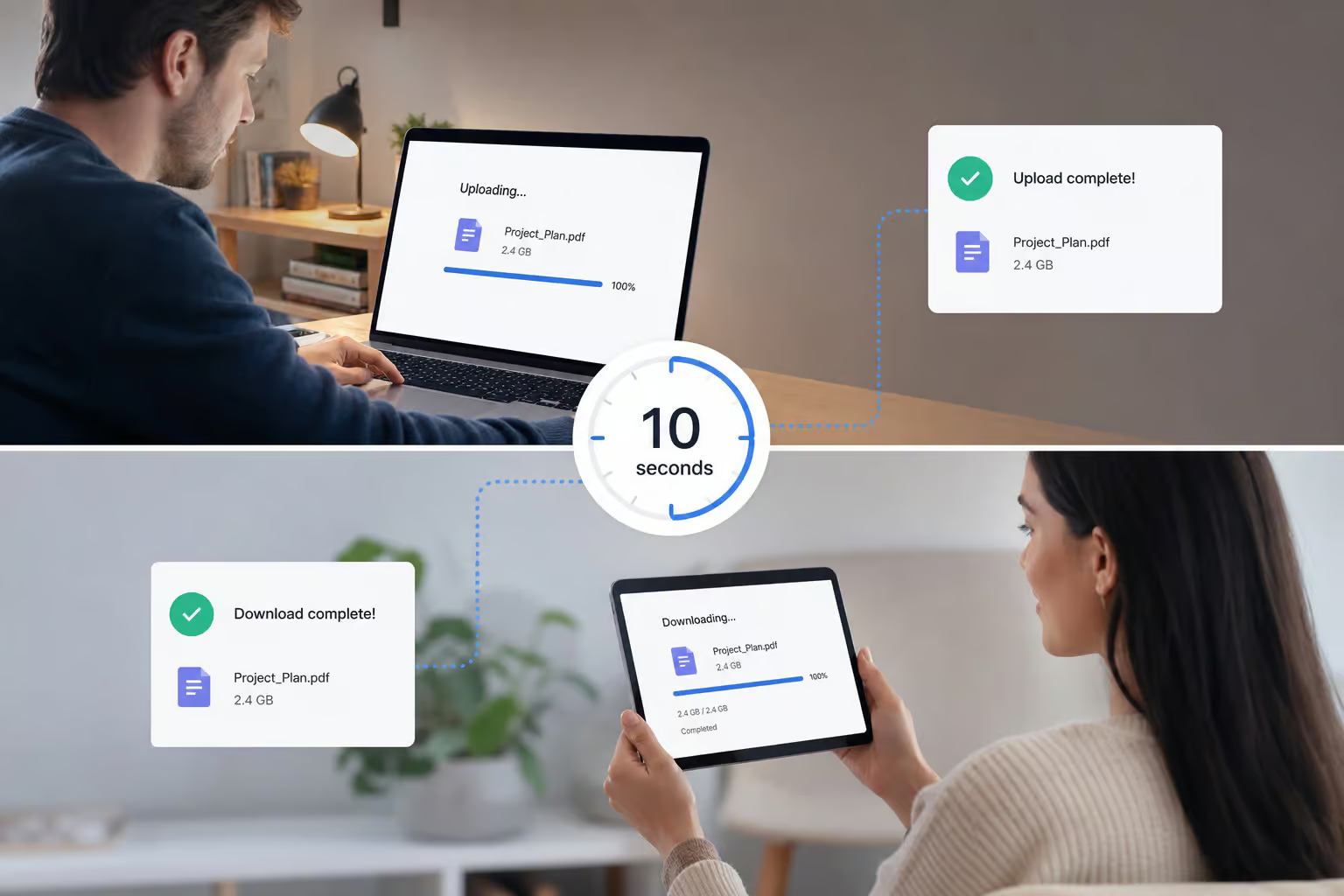
file.kiwi enables sharing within 10 seconds of the upload start. You paste a file, click upload, and ten seconds later you can already copy the share link. The recipient can start downloading immediately — they don’t need to wait for you to finish. For a 50GB file, the upload might take hours. But your recipient can start pulling data in parallel, cutting the total time.
file.kiwi also plays MP4 videos directly in the browser before the full download completes — handy for previewing or streaming.
Speed Optimizations from Other Services
- Smash claims up to 5x faster transfers via proprietary technology. They also advertise a 90% CO2e reduction compared to email attachments (backed by a 2023 study with Utopies).
- Filemail uses globally distributed servers and UDP Transfer Acceleration (on paid Business plans) to boost speeds, especially over long distances.
For raw speed and instant sharing, file.kiwi’s real-time capability is unique. If you’re wondering what the fastest free service is for sending a 50GB file, file.kiwi’s real-time sharing and resume support make it the top contender, though actual speed can vary by region and local network conditions.
Integration & Workflow: Beyond the Browser
For regular 50GB sends, you’ll want something that fits into your existing workflow — a right-click in Explorer, a CLI command, or even an AI assistant integration.
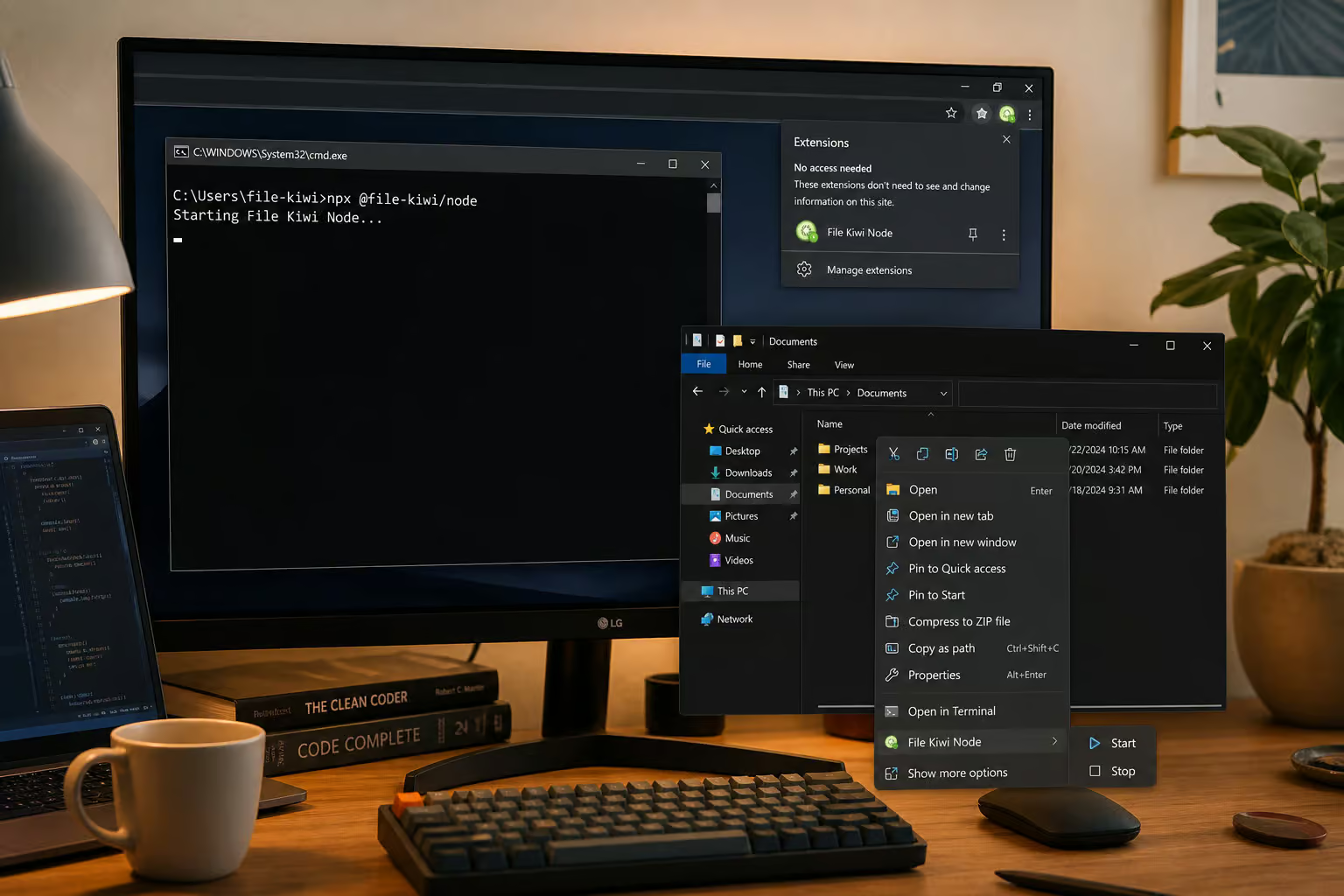
file.kiwi’s Toolchain: From Windows to AI Assistants
file.kiwi offers a breadth of tools for a free service:
- Windows app: right-click any file in File Explorer and send it directly.
- Chrome extension: right-click inside a text field (like a chat or email compose window) to share a file.
- CLI:
npx @file-kiwi/node— for power users who want to script their transfers. - MCP server: integrates with AI tools like Claude and Cursor — your AI assistant can send files directly. That’s unusual for a free service.
This toolchain rivals paid developer tools.
What Other Services Offer for Workflow Integration
- TransferNow: Outlook add-in, Chrome/Gmail extension, and an API/SDK for developers.
- Smash: Outlook plugin and API for automated transfers.
Most of these integrations target business users on paid plans, but file.kiwi gives you the power tools for free.
Beyond One-Time Sending: Use Cases That Replace Entire Workflows
A 50GB file transfer is often just the beginning. What if you could set up a drop box that anyone can upload files to, without exposing your email or giving them access to your system? That’s where the Webfolder concept shines.
Webfolder as a Collaborative Drop Box
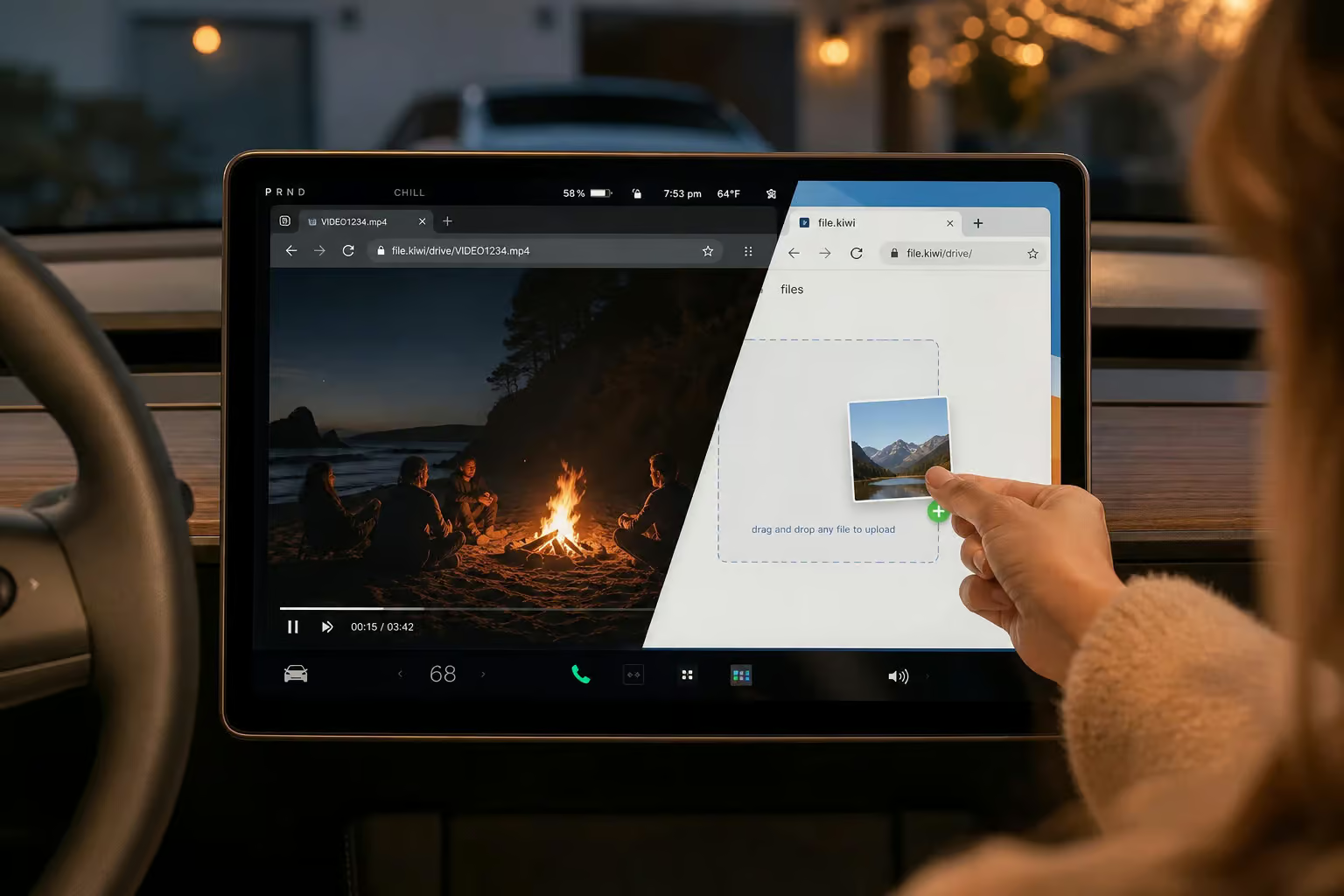
file.kiwi’s Webfolder gives every transfer a unique URL that acts like a shared folder. Multiple people can upload or download files to it. You can configure it as a submission-only mailbox (recipients can upload but not see what others uploaded) or as a full bidirectional sharing space with granular read/write permissions (with sign-up).
This replaces email attachments, FTP servers, and USB drives for many collaborative scenarios.
Practical Examples: From Tesla Playback to File Collection
- Play MP4 videos in your Tesla full screen — upload a video from your phone, get the link, open it in the car’s browser. No cables, no USB sticks.
- Collect files from many people for an event or project — share a Webfolder link and let everyone drop their photos in without creating accounts.
- Receive files from non-tech-savvy users — your mom can drag a file into a browser instead of learning how to use an FTP client.
- Share original photos and videos without compression or quality loss.
- Direct download to an external hard drive on PC without using C: drive space — perfect when your system drive is cramped.
Trust & Compliance: Enterprise-Grade Security on a Free Plan
Sending 50GB of business data requires more than just encryption. You need certifications, audit trails, and a track record of keeping data safe.
Filemail: 17 Years Without a Breach
Filemail has been operating since 2008 and claims zero reported data breaches. Their compliance certifications include GDPR, ISO27001, HIPAA, SOX, FINRA, FISMA, GLBA, and Cyber Essentials UK (on paid plans). They offer a Data Processing Agreement on request. For regulated industries, Filemail’s enterprise plans are a serious option — though you’ll need to pay for them to get 50GB transfers.
TransferNow and Smash Compliance Credentials
- TransferNow: stores files in AICPA SOC 2 Type II certified datacenters, with AES-XTS 256-bit encryption at rest. They also explicitly state they don’t sell or share personal data.
- Smash: undergoes regular security audits by Synacktiv, an external cybersecurity firm. That’s a named, independent validation — more than most free services provide.
The Verdict: Which Service Should You Choose for 50GB Free?
Here’s the breakdown.
If you need to send a full 50GB for free right now, file.kiwi is your option. No file size limit, no registration, no ads, client-side encryption, resume support, real-time sharing, and a deep toolchain including CLI and AI integrations.
The tradeoff is the 90-96 hour auto-deletion window. If your recipient can download within four days, you’re golden. If they’re on vacation or notoriously slow to check their inbox, you’ll need to upgrade to a paid plan (or use a different strategy like splitting the file).
Smash is a good alternative if 30GB is sufficient and you need longer retention (configurable up to 30 days on free). It also has resume capability and claims faster transfers. But for a full 50GB, you’d need to split your file into two chunks or upgrade.
Filemail, TransferNow, and TransferXL on their free tiers cannot accommodate 50GB transfers. Period. Their 5GB caps mean you need a paid plan — Filemail’s Pro plan (250GB max) or Business plan (any size) would work, but that costs money.
So the answer to “send large files 50GB free” is: use file.kiwi, accept the 96-hour window, and coordinate with your recipient. It’s the service that doesn’t ask for payment or create unnecessary barriers. And for a curious geek who spent a weekend poking at fine print, that’s delightful.
People Also Ask
How to send a 50 GB file for free?
Use file.kiwi — it has no file size limit on its free tier, no account required, and no ads. Just drag, drop, and share the link. The catch is your file auto-deletes after 90–96 hours, so make sure your recipient downloads it within that window.
How can I send 20 GB files online for free?
You have two solid options: file.kiwi handles any size for free (including 20 GB) with no account needed, or Smash offers 30 GB free per transfer with configurable retention up to 30 days. Both support resumable uploads, so a dropped connection won’t force a full restart.
What is the best free site to send large files?
For truly large files like 50 GB, file.kiwi is the best free option because it imposes no file size limit and uses client-side encryption so even the server can’t read your data. Smash is a close second if you need longer retention (up to 30 days) but caps free transfers at 30 GB.
How does file.kiwi’s encryption work for large file transfers?
file.kiwi uses zero-knowledge architecture with 128-bit AES-GCM encryption that happens on your device before the file ever leaves your machine. The server only stores the encrypted blob, and the decryption key lives exclusively in the share link — the service provider cannot read your data even if compelled.
What happens if my internet drops during a 50 GB upload?
With file.kiwi or Smash, you’re covered — both support resumable uploads that split large transfers into chunks. If your connection fails, the upload picks up from the last successful chunk, even if you close the browser entirely. Services without resume capability would force a full restart from zero.