You finish editing a 4K video project—say, a wedding highlight reel or a short film—and it lands somewhere between 8 and 12 GB. You open your email client, attach the file, and get that instant rejection: “File too large.” Gmail and Outlook both tap out at 25 MB. So you try WeTransfer, the old reliable. But the free tier stops at 2 GB, and to send your 10 GB file you’re looking at $10–$12 a month. Google Drive?
You could upload it to your 15 GB free tier, but now that video is sitting in your account forever, eating up space unless you remember to delete it. OneDrive and iCloud give you only 5 GB free—can’t even hold the file.
This is the exact moment most people start searching “send large files free 10GB” and find a wall of vague comparison posts that all say the same things. Testing the actual free tiers shows that 10 GB is a specific, practical limit. It’s big enough for a finished video project, a RAW photo album from a long trip (50–150 MB per shot × 50+ images), a software installer archive, or a dense PDF/design collection. But most free services top out at 2 GB or 5 GB. YDRAY targets this 10 GB limit without requiring registration, and then a handful of others get you there with different tradeoffs. Here’s what I found.
Key Takeaways
YDRAY offers 10 GB per transfer for free, no sign-up required, with unlimited downloads, end-to-end encryption, and 7-day file availability—making it the only service that hits the 10 GB limit without registration.
file.kiwi has no file size limits at all on the free tier, but encrypted files auto-delete after 96 hours, and it uses 128-bit AES-GCM client-side encryption that doesn’t store the original file on the server.
WeTransfer, the most recognizable name, caps free transfers at 2 GB—sending a 10 GB file there costs $10–$12 per month, which highlights why the 10 GB free limit matters.
Table of Contents
Why 10GB Is the Sweet Spot
When was the last time you needed to send a single file that was 50 GB or 100 GB? Unless you’re moving raw camera footage or a database dump, most of the files that actually trip up email and chat apps land in the 1–10 GB range. A finished 4K video project, compressed, is usually around 8–12 GB. A weekend’s worth of RAW photos from a decent camera—say, 50 shots at 50–150 MB each—is 2.5–7.5 GB. A game installer or a hefty software package can hit 6 GB. A large design file or PDF collection can be several gigabytes. These aren’t edge cases; they’re Tuesday.
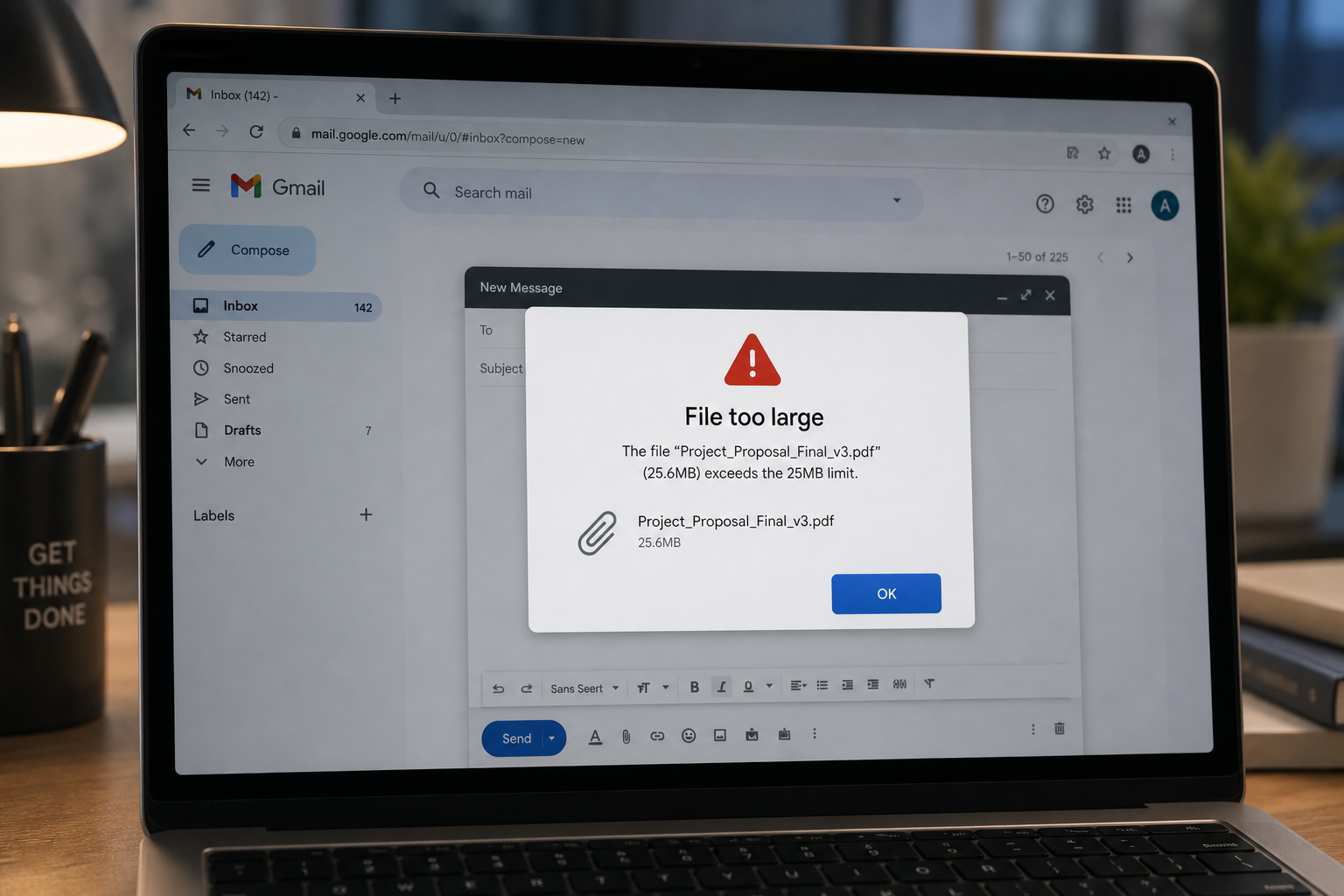
The problem is that the free tier landscape is full of arbitrary ceilings that don’t match reality. Email stops at 25 MB. WeTransfer stops at 2 GB. Filemail and TransferXL both stop at 5 GB. That’s not enough for the video project. It’s barely enough for the photo album. So you’re stuck either paying for a subscription or cobbling together a workaround like splitting the file into ZIP parts or uploading to cloud storage and hoping your recipient has the space.
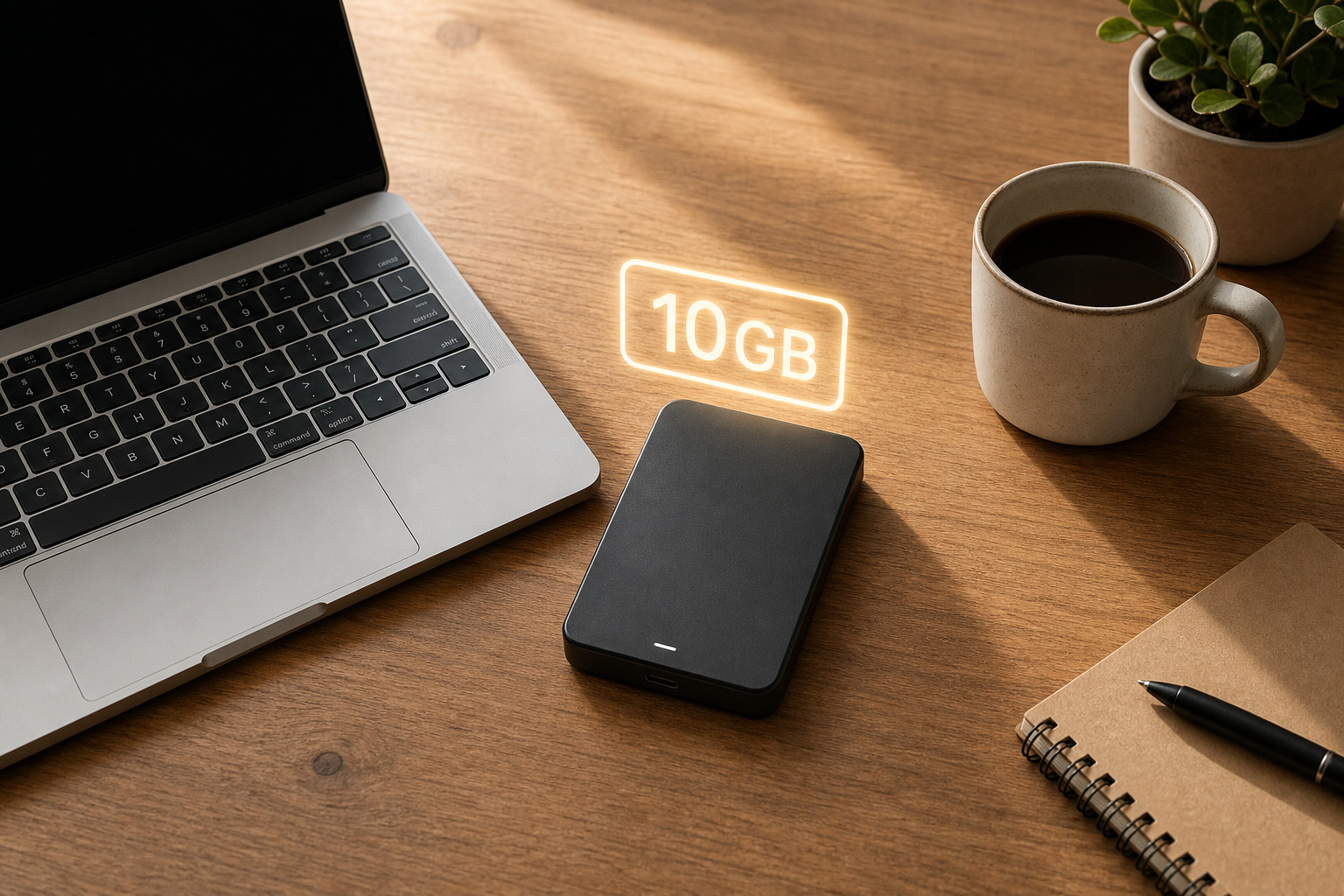
YDRAY sets its free limit at exactly 10 GB—no registration, no credit card, just upload and share. That one decision covers the vast majority of real-world single-file transfers. It’s not perfect for everyone, but it answers the question most people are actually asking: “Can I send this one big file without paying?”
YDRAY: The Straightforward 10GB Answer
YDRAY lets you send up to 10 GB per transfer, free, with no account creation. You don’t give them your email, you don’t verify anything. You just pick your files, upload, and get a link to send to your recipient. They can download as many times as they like within the 7-day window. All transfers are end-to-end encrypted, both in transit and at rest.

But let’s talk about the fine print that matters in practice.
File count: Unregistered users can include up to 50 files per transfer. That’s enough for a batch of photos or a folder of design assets. If you register for a free account (still no payment info), that bumps to 100 files per transfer. Registration also gives you a dashboard to manage your transfers, but it’s optional.
Availability: Files stick around for 7 days. That’s the standard for most free tiers—WeTransfer gives you 7 days, file.kiwi gives you 96 hours. 7 days is fine for a one-time share to a client or collaborator. If your recipient is in a very different time zone and slow to respond, it’s tight but usually works.
Security: YDRAY claims end-to-end encryption for all transfers and is GDPR-compliant under EU Regulation 2016/679. Testimonials on their site include Diego S: ‘The transfer speed for large files on YDRAY is impressive.’ Sara M: ‘I use YDRAY to send large files without any concerns.’ Nadia B: ‘It’s convenient that you can share files without needing to register on YDRAY.’ Jaime Q: ‘I recommend YDRAY for fast and secure transfer of large files.’ Those are from the service’s own page, so take them as signals, not validation.
If you need more: The PRO plan costs €10/month plus tax, with a 20% discount if you pay annually. That gets you 1 TB transfers, up to 300 files per transfer, no file expiry, custom subdomain and backgrounds, custom links and QR codes, ad-free experience, and priority support. For a power user sending large files regularly, that’s competitive—WeTransfer’s comparable plan is $12/month for just 20 GB transfers, and you still can’t customize much.
What They Don’t Tell You About Speed
There are no independent speed benchmarks for these free file transfer services. Every comparison post you read skips this because the data doesn’t exist. So what can you actually use to judge speed?
You have to read between the lines of what each service advertises.
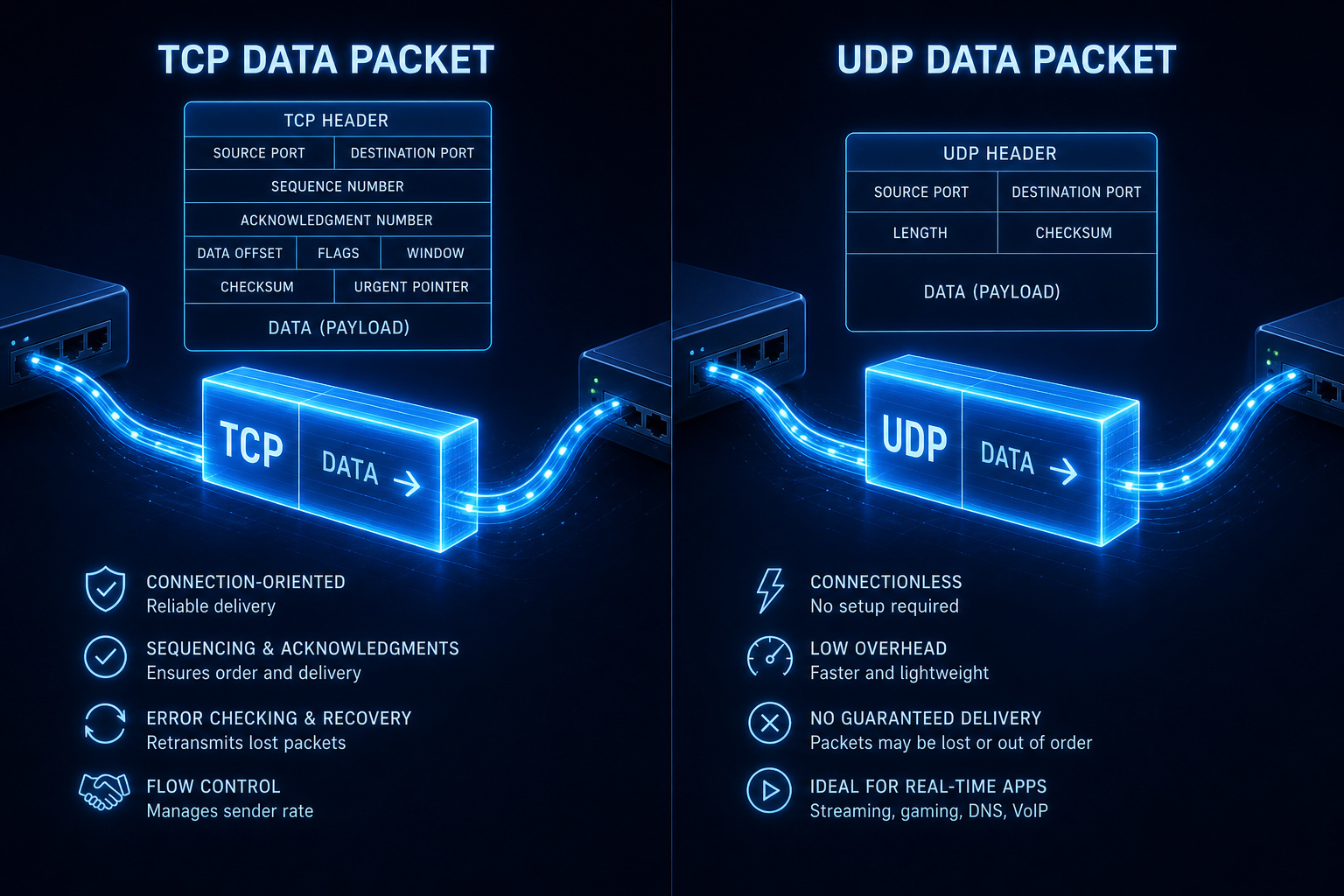
- Filemail explicitly mentions UDP Transfer Acceleration and globally distributed servers. That’s a technical differentiator—UDP can be faster than TCP for bulk data, especially over long distances. But here’s the catch: UDP acceleration is only available on their Business and Enterprise plans. Free users get standard TCP transfers, likely from a limited set of servers. So Filemail’s speed claim doesn’t apply to the free tier.
- file.kiwi offers real-time sharing: the recipient can begin downloading within 10 seconds of the upload start, even if you’re sending a 50 GB file. The upload does not need to complete before the download begins. That’s a speed advantage—if you’re sending a huge file over a slow connection, the recipient can start grabbing it immediately. They also support resume for both uploads and downloads, so a network hiccup doesn’t force a restart.
- YDRAY doesn’t make technical acceleration claims. Their speed reputation comes from user testimonials, like Diego S who mentions it. That’s not a benchmark, but it suggests the experience is acceptable for most users. Without a global server map or protocol details, speed will depend heavily on where you and your recipient are located.
Speed claims on free tiers are mostly smoke signals. Look for real-time sharing if you’re impatient, look for resume if your connection is flaky, and expect that free users get the standard TCP treatment unless stated otherwise. The key takeaway: Filemail’s UDP acceleration is paid-only, while file.kiwi’s real-time sharing is available on the free tier — that’s the real differentiator for speed-conscious users.
Security: What’s Really Protected in Free Transfers
Free file transfer services don’t universally skimp on security. Some of them offer surprisingly strong encryption, and if you need to move big files from an Apple device, a dedicated solution for large file sharing iPhone can be a reliable choice, often because their entire business model hinges on trust—they can’t afford a breach.

Here’s the encryption ladder for the free tiers:
- YDRAY: end-to-end encryption for all transfers, plus GDPR compliance. No specific algorithm is listed, but the “end-to-end” language means your file is encrypted before it leaves your device and only decrypted on the recipient’s side. The service itself can’t read it (in theory).
- file.kiwi: 128-bit AES-GCM client-side encryption. The key part: the original file is never stored on their server—only encrypted data. Even the file names are encrypted. The decryption key is embedded in the share link, so if you lose the link, the file is essentially gone.
Encrypted files auto-delete after 96 hours. This is a privacy-first design.
- Filemail: free transfers use TLS-1.2 with AES-256 encryption in transit. They also offer password protection, virus scanning, and two-factor authentication on accounts. Filemail claims no data breach since 2008—that’s their own claim, not verified, but it’s a track record if true. Enterprise plans add ISO27001 and HIPAA compliance.
- TransferXL: optional end-to-end encryption on paid plans only. Free users get TLS in transit, but no client-side encryption. The files are stored on their servers and can be accessed by them.
One contrarian angle: ephemeral file transfer services can actually be more secure than cloud storage for sensitive files. When you upload to Google Drive or Dropbox, the file sits in your account until you manually delete it. With YDRAY or file.kiwi, the file disappears automatically after a set period (7 days or 96 hours). There’s nothing to hack later. If you’re sharing something time-sensitive—a contract, a tax document, a project preview—the auto-delete is a feature, not a bug.
Hidden Limits: File Expiry, Download Caps, File Count
How long the file is available and how many times it can be downloaded are limits often overlooked. These are the gotchas that make a service unusable for certain scenarios.

YDRAY: 7 days, unlimited downloads, 50 files per transfer (100 if registered free). That’s straightforward.
file.kiwi: encrypted files auto-delete after 96 hours (4 days). No file count or download cap mentioned explicitly, but the 96-hour timer is tight. If your recipient is on vacation or in a vastly different time zone, that window can close before they notice. The real-time sharing feature helps—they can start downloading immediately during the upload—so the clock starts earlier.
Filemail free: 30 days file availability, 250 GB storage total, and 5 GB per transfer. The 30-day window is the longest among these free tiers. But you’re limited to 5 GB per transfer, so a 10 GB file requires either splitting it or upgrading, which is where an ultimate guide to large file sharing can help you weigh free tier limits against self-hosted options based on raw data about latency, security, and true transfer speeds.
TransferXL free: 5 GB per transfer, no explicit expiry mentioned in their documentation. Most services state a time limit. If it’s indefinite, that’s great for the recipient but means your file lives on their servers potentially forever. The rare few that offer send large files 50GB free without a credit card come with hidden gotchas like file age limits and download caps — that’s a privacy consideration.
Smash: unlimited file size free, but I haven’t seen a clear expiry policy. Their model seems to keep files available until a certain inactivity period, but it’s not well documented.
If you need more than 7 days, Filemail’s 30 days is the longest free availability. If you need same-day sharing and don’t mind a tight window, file.kiwi’s 96 hours works fine. YDRAY’s 7 days is the middle ground for most one-time transfers.
When to Upgrade: Paid Plans Compared
Free tiers work for occasional use. But if you’re regularly sending large files, the limits start pinching. Here’s when you hit the ceiling and what upgrades like those from services such as WeTransfer and Smash, which we covered in files over miles, actually buy you.
YDRAY PRO is the benchmark here because the pricing is exact: €10/month + tax (around $11), 20% off annually. That gets you 1 TB per transfer, 300 files per transfer, no file expiry, custom subdomain and backgrounds, custom links and QR codes, ad-free, and priority support. For a freelancer or small team sending large video files regularly, that package includes 1 TB per transfer, 300 files per transfer, no file expiry, custom subdomain and backgrounds, custom links and QR codes, ad-free, and priority support. The lack of storage quotas is nice—you pay per transfer size, not for how long files sit.
Filemail’s paid plans scale differently. Personal is still 5 GB max (oddly not an upgrade). Pro gives you 250 GB per transfer, 1 TB storage, and permanent file availability. Business removes transfer size limits and adds UDP acceleration and end-to-end encryption.
Enterprise adds compliance certs. Filemail’s pricing isn’t sourced, so I can’t compare directly, but it’s clearly targeting professional and enterprise users.
TransferXL paid: up to 200 GB per transfer, optional end-to-end encryption. Again, no exact pricing sourced, but it’s a competitor in the middle range.
Dropbox Transfer: this is a different beast. The free version lets you send files up to 100 GB, and recipients don’t need a Dropbox account. It doesn’t use your storage quota (the file lives on Dropbox’s transfer servers). The paid version with Dropbox Replay Add-On goes up to 250 GB. This is great if you already use Dropbox—it’s an extension of the ecosystem, not a standalone service.
YDRAY PRO targets the 1 TB transfer ceiling at €10/month, lower than WeTransfer’s comparable plan.
Real-World Use Cases: Which Service Fits Your Situation
Here’s who should pick what.
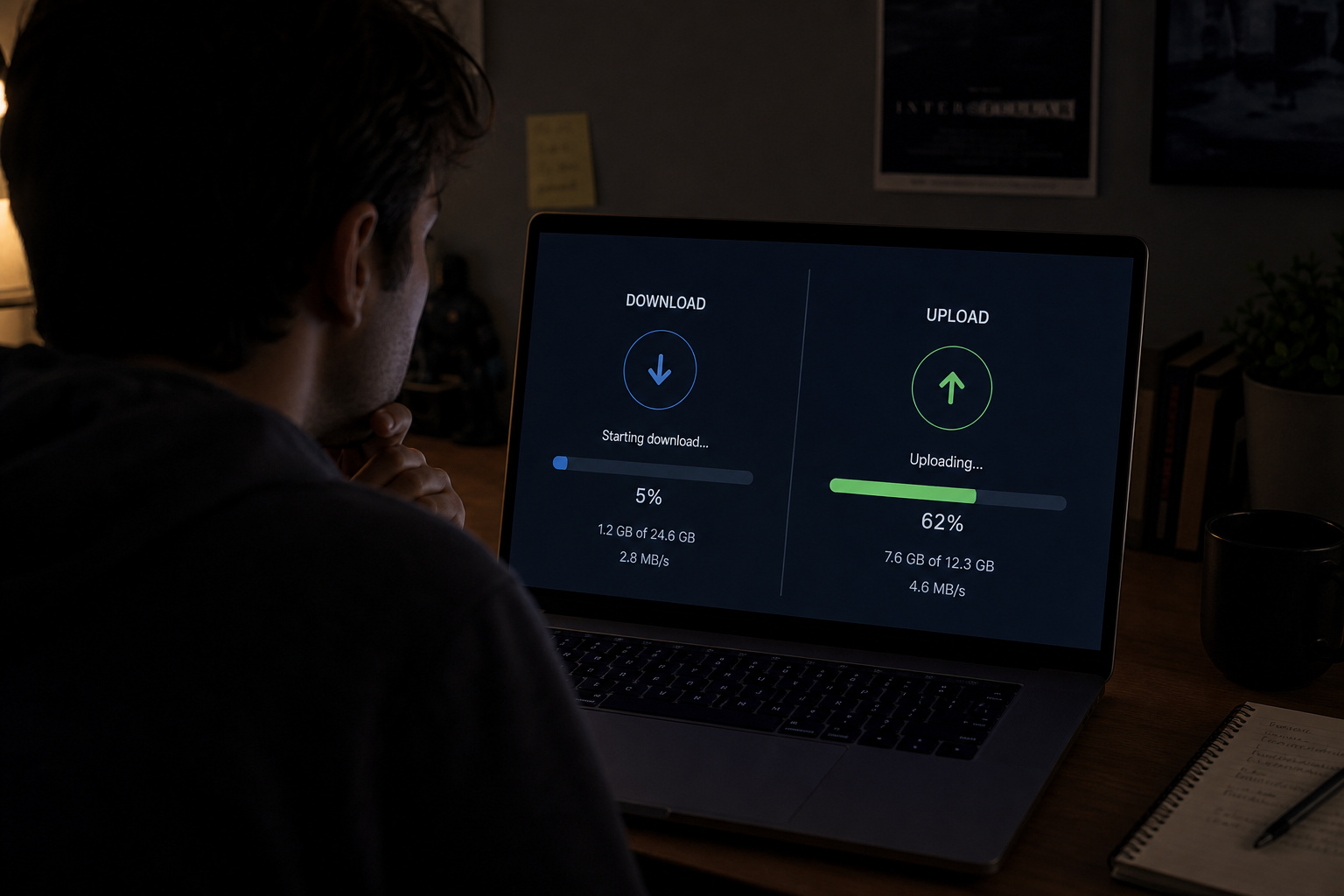
One-time sharing of a ~10 GB video or photo set ? YDRAY. No registration, 7 days, unlimited downloads. Just upload, send the link, done.
Ongoing collaboration, collecting files from multiple people ? file.kiwi with Webfolder. You get a submission-only drop box where people can upload but not see each other’s files. Or set up a bidirectional shared folder. The real-time sharing and resume features make it practical for teams with unstable connections.
Business-client exchange with a branded experience ? Filemail. Custom subdomain, file request forms, and embeddable upload widgets. If you need to give clients a polished receiving portal, Filemail offers custom subdomain, file request forms, and embeddable upload widgets.
Very large files (50 GB or 100 GB) ? Dropbox Transfer or file.kiwi. Dropbox Transfer handles 100 GB free, no account needed for recipients. file.kiwi has no size limit at all, but remember the 96-hour expiry. For truly massive files, file.kiwi’s real-time sharing is a lifesaver.
Sending files without exposing your email ? YDRAY or file.kiwi. Both allow anonymous sharing (no sign-up needed). Your email isn’t revealed in the share link.
Playing an MP4 on IPTV or Tesla full-screen ? file.kiwi. Their real-time sharing lets you start playback within seconds of uploading, even while the upload is still in progress. If you’ve ever tried to send a video to your car’s media player, file.kiwi’s real-time sharing lets you start playback within seconds of uploading.
Integration & Workflow: Apps, Extensions, Developer Tools
Workflow integration includes apps, extensions, and developer tools.
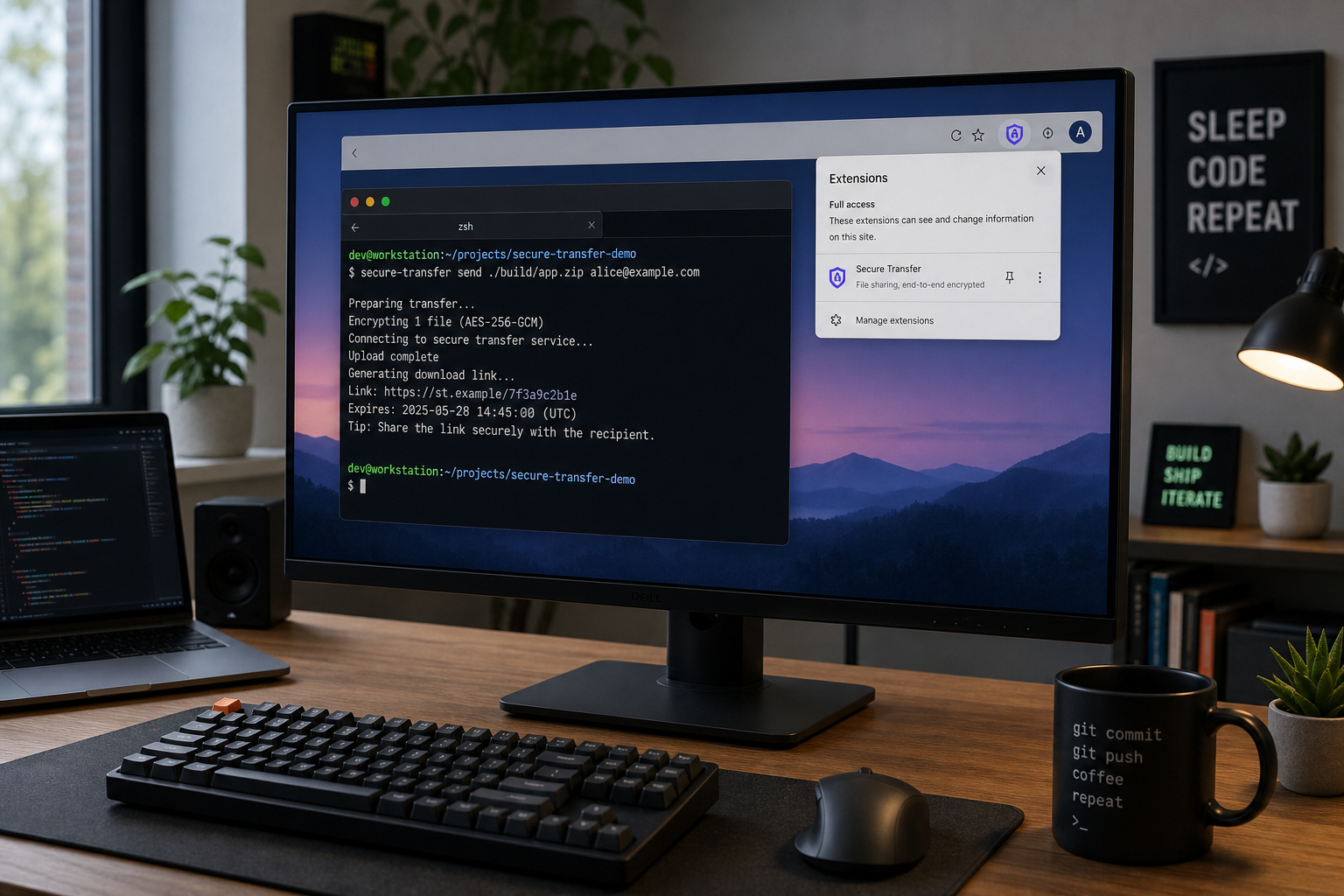
file.kiwi is the dark horse here. They offer:
- A Windows app that integrates right into File Explorer. Right-click a file and send it directly. No browser.
- A Chrome extension that lets you right-click inside a text input (think forums, emails, chat) to share a file.
- A CLI via
npx @file-kiwi/nodefor scripting file transfers in batch or automation pipelines. - An MCP server for AI tools like Claude and Cursor. Yes, you can ask a language model to send a file.
Filemail has native apps for Windows, Mac, Linux, Android, and iOS, plus an Outlook plugin.
YDRAY is web-only. For many casual users, no installation is needed—works on any device with a browser. But for developers and power users, the lack of a CLI or API might be a dealbreaker.
Smash offers a browser, Mac app, Android/iOS apps, and an API. Good cross-platform support.
Dropbox Transfer is part of the Dropbox ecosystem—if you already have Dropbox, you can use Transfer without installing anything extra.
file.kiwi offers a Windows app, Chrome extension, CLI, and MCP server. If you want to send a file without installing anything, use YDRAY.
Which Service Should You Use?
It’s about matching your specific need to the service that actually fits.
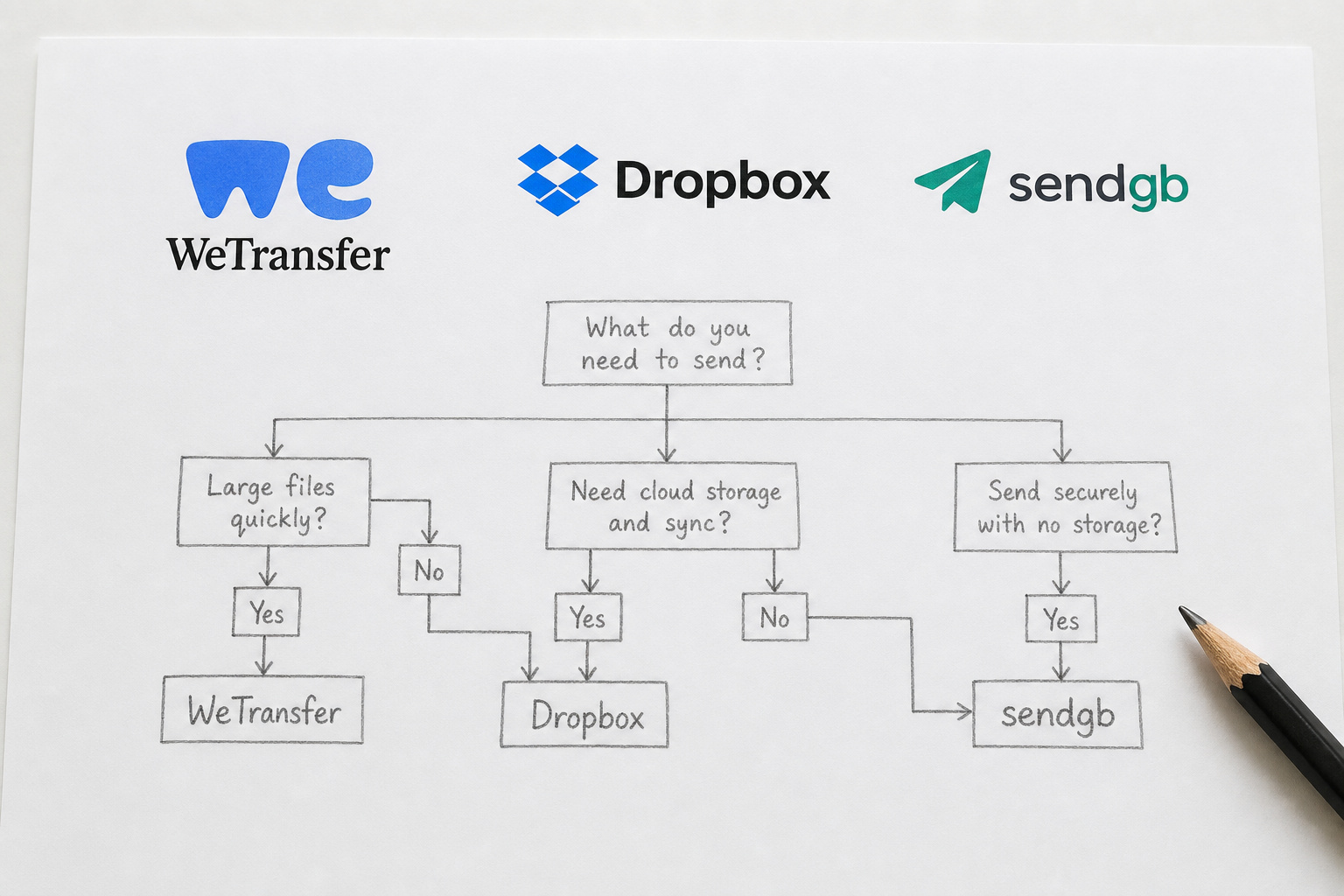
- Need exactly 10 GB free, no registration, one-time share? ? YDRAY. It’s the only service that hits that number without registration.
- Need unlimited file size, real-time sharing, collaboration tools, or developer integrations? ? file.kiwi. The feature set is deep for a free service.
- Need business compliance, branded receiving, long availability (30 days), and security claims? ? Filemail. Its paid tiers add serious enterprise features.
- Need very large files (100 GB+) and no-account downloads for the recipient? ? Dropbox Transfer. The 100 GB free tier doesn’t eat your Dropbox storage.
- Need a dead-simple unlimited one-time share with preview features? ? Smash. Unlimited size, password protection, link customization, and file preview.
- Need auto-zipping and a simple interface for 5 GB files? ? TransferXL. It’s basic but reliable, with thumbnails and transfer history.
10 GB is the practical limit for most people, and YDRAY addresses it without registration. But if your needs push past that—bigger files, different time windows, developer tools—there’s a service that handles it. You have to look past the marketing and check the limits.
Frequently Asked Questions
How to transfer files larger than 10GB?
Services like file.kiwi have no file size limit on the free tier, and Dropbox Transfer lets you send up to 100 GB free without the recipient needing an account. For files just over 10 GB, YDRAY’s free tier caps at 10 GB, so you’d need to split the file or upgrade to a paid plan.
How can I send 20 GB files for free?
file.kiwi offers unlimited file size on its free tier with client-side encryption, though files auto-delete after 96 hours. Dropbox Transfer also handles up to 100 GB free. Both let you send 20 GB without paying, but check their expiry and download policies.
How to send an 11GB file?
Use file.kiwi (no size limit, free) or Dropbox Transfer (up to 100 GB free). YDRAY’s free tier maxes out at 10 GB, so an 11 GB file would require splitting it into smaller parts or upgrading to a paid plan.
What is the best free service for sending large files?
It depends on your needs. YDRAY is best for exactly 10 GB with no registration and 7-day availability. file.kiwi offers unlimited file size and real-time sharing but files expire after 96 hours. Dropbox Transfer handles up to 100 GB free without using your storage quota.
Is YDRAY safe to use for sending sensitive files?
YDRAY uses end-to-end encryption for all transfers and is GDPR-compliant, meaning files are encrypted before leaving your device and only decrypted by the recipient. Files auto-delete after 7 days, which adds a layer of security by not leaving data sitting indefinitely.
Can I send a 10 GB file without signing up for anything?
Yes, YDRAY lets you send up to 10 GB per transfer with no account creation, no email, and no credit card. You just upload, get a link, and share it. The file stays available for 7 days with unlimited downloads.