If you’ve been poking around the edges of the iOS streaming scene, you’ve probably run into Nuvio Streaming v1.4.1. It’s one of those apps that keeps showing up in Reddit threads and Telegram groups, but the info around it is a mess — half the guides treat it like a single app, and the other half skip the part where you need to pick the right variant (Nuvio Streaming, Nuvio Mobile, or Nuvio Media Hub) or risk a failed install.
We’ve traced the codebase (Kotlin Multiplatform rewrite that replaced the original React Native codebase), mapped the sideloading methods, and mapped out the gotchas so you can get Nuvio running without the usual frustration. Here’s the full picture.
Key Takeaways
Nuvio isn’t a single app — there are three distinct variants (Nuvio Streaming, Nuvio Mobile, Nuvio Media Hub), each with different tech stacks and feature sets, and choosing the wrong one means missing features or installation failures.
The permanent sideloading method (TrollStore) only works on iOS 14.0 through 17.0; everything else requires re-sideloading every 7 days with a free Apple ID, unless you use a paid developer account or an on-device signing tool like E-Sign.
Nuvio’s architecture is client-side only — it doesn’t host or store any media. The legal risk depends entirely on what you stream, not on the app itself.
Table of Contents
What Is the Nuvio IPA and How Does It Work on iOS?
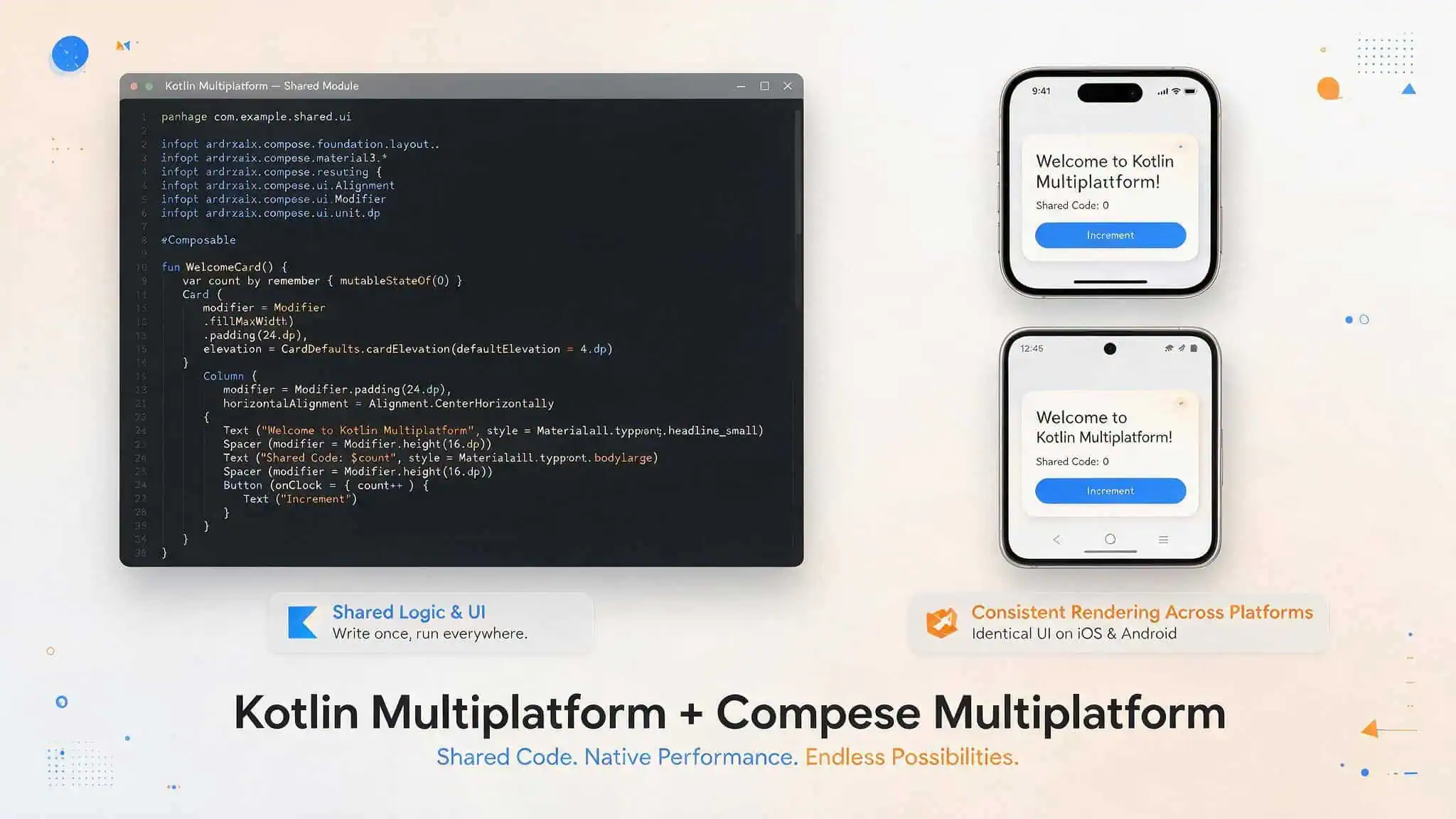
Here’s the part that actually makes Nuvio interesting: the developers ditched React Native and rebuilt the whole thing in Kotlin Multiplatform, delivering a shared Compose UI for Android and iOS from a single codebase in composeApp. That’s a commitment to a unified codebase. Instead of maintaining two separate codebases with different bugs, they now share a single Compose UI layer between Android and iOS from a single codebase in composeApp. It’s a ground-up rewrite that gives both platforms the same rendering engine and the same logic — preserving a playback-focused interface, collection tools, watch progress tracking, downloads, and integration with the Stremio addon ecosystem.
But Nuvio isn’t one app. It’s three distinct variants (Nuvio Streaming, Nuvio Mobile, Nuvio Media Hub), and they’re easy to confuse:
- Nuvio Streaming (v1.4.1) — the current stable build. It uses direct web streams, no Torrentio, so there’s no P2P traffic. Think of it as a polished browser for your Stremio addons.
- Nuvio Mobile — a modded IPA that also taps into the Stremio addon ecosystem but is optimized with debrid services like TorBox for faster 4K streams.
- Nuvio Media Hub — built on React Native and Expo (the older stack before the KMP rewrite). It’s still in beta on Android, and on iOS it’s v1.3.6 (about 34 MB). Requires microG on Android, but on iOS it sideloads like any other IPA.
All three are free and ad-free, with Nuvio Streaming playing videos in up to 4K resolution. They support Trakt sync, 4K playback, and the full Stremio addon ecosystem, including direct web streams (no Torrentio). But Nuvio doesn’t host anything — it’s purely a client-side interface. You install addons (from places like stremio-addons.com), and Nuvio browses metadata and plays whatever streams those addons point to, intended for content you own or are authorized to access.
No media files live on Nuvio’s servers; it doesn’t host, store, or distribute any media content. That distinction matters for the legal section later, since Nuvio functions as a client-side interface.
Because none of these are on the App Store, iOS users have to sideload the IPA (e.g., Nuvio Streaming IPA download link). That’s where the real work begins.
Where to Safely Download the Nuvio IPA File
You won’t find Nuvio on the App Store or TestFlight; it’s available from IPA library websites or official GitHub. Every source is third-party (e.g., senumy.com, nuvioapp.org, Telegram), so you’ve got to be careful about what you’re downloading.
The cleanest source is the official GitHub Releases page, which offers the stable release v1.4.1. The latest stable build is v1.4.1, and the file should be roughly 34 MB, consistent with the Nuvio Streaming IPA. That file size (34 MB) is a quick sanity check — if you see a 10 MB IPA or a 200 MB one, something’s off.
Other common sources include senumy.com, nuvioapp.org, and Telegram:
- senumy.com — a library site that hosts various IPAs
- nuvioapp.org — an unofficial fan site (not affiliated with the Morphe Team, the actual developers)
- Telegram — there’s a channel for updates and support, but vet the files manually
The fan site (nuvioapp.org) is worth a specific note: it’s for educational purposes only, and it’s not the official distribution channel. If you’re downloading from nuvioapp.org, verify the file integrity by checking the version number (v1.4.1) and size (34 MB) against known releases. Malicious modified versions do exist — they’re rare, but they’re out there, so always verify the file size and version number.
How to Sideload the Nuvio IPA on iPhone Without Jailbreak
Your first decision point is your iOS version (e.g., 14.0–17.0 for TrollStore). That’s what determines which tools will work (e.g., TrollStore for iOS 14.0–17.0) and whether you’ll be stuck re-sideloading every 7 days.
The iOS version gate:
- iOS 14.0–17.0: You can use TrollStore for a permanent install. No re-signing, no Apple ID needed.
- iOS 11–17.x: E-Sign works on-device without a computer, but you still need to sign the IPA.
- iOS 16+: You’ve got to enable Developer Mode before any sideloading tool will work.
- iOS 18 and 26: Tools like Feather, GBBex Plus, Sidesere, and others step in, but most still require a 7-day refresh.
The 7-day reality: Free Apple Developer accounts require re-sideloading every 7 days, as noted in the 7-day reality. Set a calendar reminder for every 7 days. Use a burner Apple ID — seriously, don’t use your main account, as recommended for Sideloadly and AltStore. If Apple flags your account for repeated sideloading, you could lose access to your primary iCloud data, so a burner Apple ID is advised.
Here’s how the methods break down.
Sideloadly and AltStore: The Reliable 7-Day Methods
These are the two most solid options (Sideloadly and AltStore) if you’re willing to plug into a computer every 7 days.
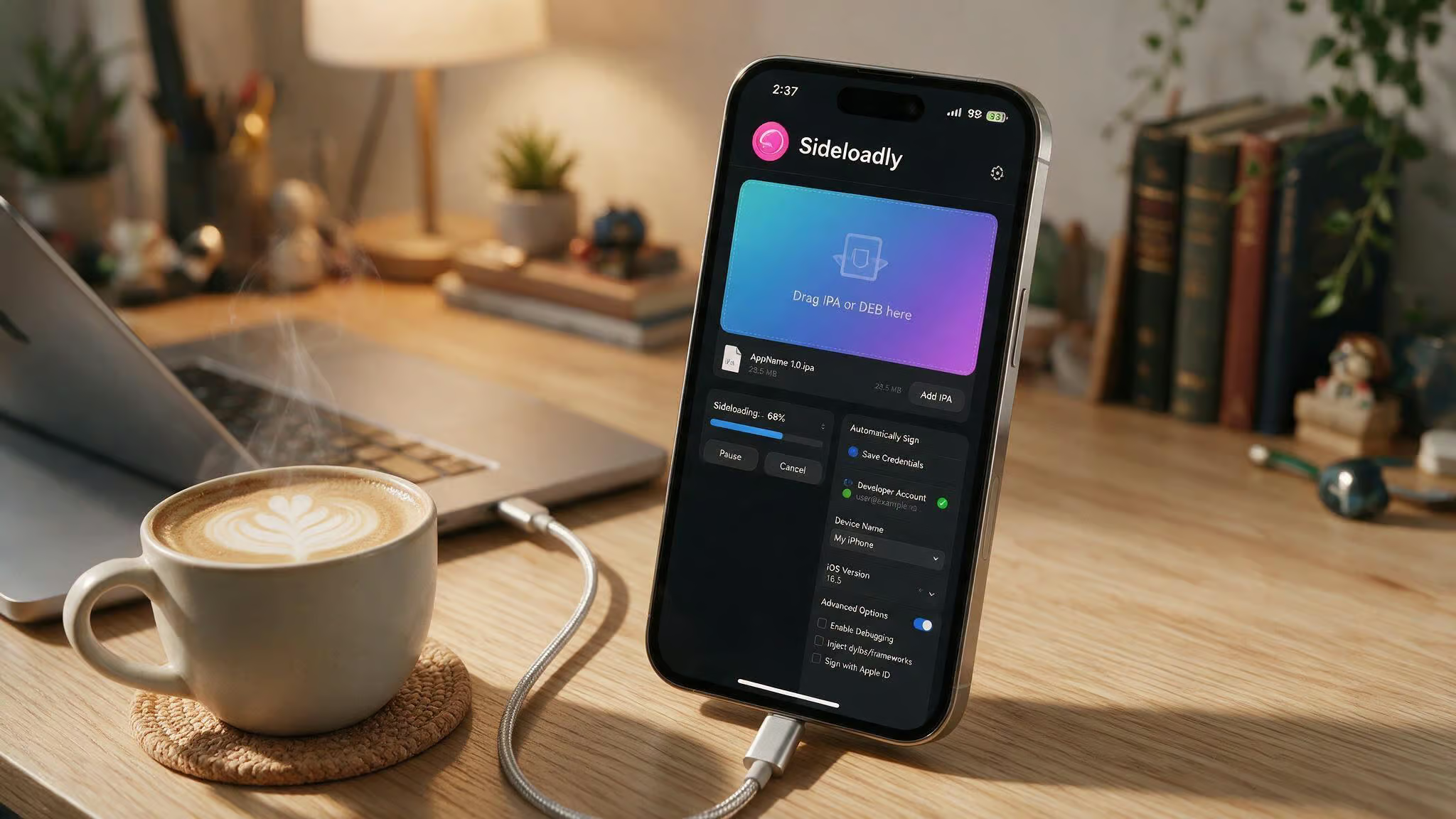
Sideloadly is drag-and-drop via USB. Works on Windows and Mac, as per the Sideloadly installation method. You plug your iPhone in via USB, open Sideloadly, enter your Apple ID (burner account recommended), drag the Nuvio IPA into the window, and hit Start. Sideloadly handles the signing, then you verify the Apple ID profile: Settings > General > Device Management > Trust. After installation, go to Settings > General > Device Management and trust the developer profile, as per the Sideloadly method. The app appears on your Home screen and works for 7 days, after which you must re-sideload.
AltStore is a bit more polished. It requires a desktop companion app (AltServer) on your computer, but once it’s set up, AltStore can sync over Wi-Fi and even auto-refresh apps in the background, though the computer must be on the same network periodically. That auto-refresh still needs the computer to be on the same network periodically, but it’s less manual than Sideloadly, which requires a USB connection every 7 days. The IPA installation flow is the same: download the Nuvio Streaming IPA, open AltStore, tap the + button, pick the file, enter your Apple ID (burner account recommended), and wait for the signing to finish.
Both methods need a free Apple ID. Both expire after 7 days, requiring re-sideloading. Both are reliable.
TrollStore: Permanent Installation (iOS 14.0–17.0)
If your iPhone is on iOS 14.0 through 17.0, TrollStore is the gold standard for permanent installation. No re-signing, no Apple ID, no computer needed after the initial setup, compatible with iOS 14.0 to iOS 17.0.
You need TrollStore installed first — that’s a separate process (there are guides for that), then download the Nuvio IPA and save to Files or iCloud. Once you have TrollStore, download the Nuvio IPA and save it to the Files app or iCloud, then share IPA with TrollStore. Then share the IPA file with TrollStore, it’ll pick it up, and tap Install inside TrollStore. Tap Install inside TrollStore, and within seconds the app is on your Home screen with no expiry, then open Nuvio from Home screen. That’s it.
The catch: the iOS version range is narrow (14.0 to 17.0). If you’re on iOS 17.1 or later, TrollStore won’t work. You’ll need one of the 7-day methods (e.g., Sideloadly, AltStore) or a newer tool like E-Sign.
E-Sign: On-Device Signing for iOS 11–17.x and iOS 18/26
E-Sign is a free iOS IPA signing tool that works without a computer. It supports iOS 11 up to iOS 17.x out of the box, and with the Esign Patch, it also works on iOS 18 and iOS 26.
The process is a few steps but straightforward: install the Esign patch app, trust the profile, open the app, tap “Patch 1” to patch the system, then download the Esign iOS IPA signer. Import a free certificate (many are available online), import the Nuvio IPA, and tap “Signature,” then the signed IPA appears in your files. The signed IPA appears in your files, and you can install it directly, fully compatible with iOS 18 and iOS 26.
It’s more involved than Sideloadly, but the advantage is that you can do everything on your phone, no computer required.
Additional Tools for iOS 18 and 26
If you’re on iOS 18 or iOS 26, the landscape changes. Here are the tools that work on iOS 18 and iOS 26:
- Feather — an IPA signer built for iOS 18+. Works with free or paid certificates, no computer needed, allowing installing apps without a computer.
- GBBex Plus — an upgraded version of GBBex that uses Apple developer certificates. Targets iOS 18 and iOS 26.
- Kasign — niche, specifically for iOS 26.
- GBBex — free IPA installer, uses Apple developer certificates, supports iOS 18 and 26.
- Flexstor — a third-party app store where you can sign and install custom IPAs. Works on iOS 18 and iOS 26 without a jailbreak.
- Sidesere — open-source, uses your own Apple ID. Best for iOS 18 and iOS 26, sideload directly from device.
- LiveContainer — runs apps in a sandboxed container without fully installing them. Useful for testing.
- Gonfrog Assistant — signs apps with a free Apple ID, reliable on iOS 18 and 26.
- Scarlet — IPA installer that also lets you add jailbreak repos without jailbreaking. Supports iOS 11 up to iOS 17+, also compatible with iOS 18 and iOS 26.
Most of these (Feather, GBBex Plus, Sidesere) are newer and less battle-tested than Sideloadly or AltStore, but they’re maintained.
Jailbreak-Adjacent Methods: Tweak Master and More
If you’re already jailbroken, you have additional options like Jailbreak Tweak Master. Jailbreak Tweak Master is a popular tool for managing jailbreak tweaks and apps, compatible with iOS 11 through iOS 18.4.1. Terminal jailbreak and E-Sign patch are also listed as popular jailbreak solutions (based on user rankings from nuvioapp.org). But none of these (Jailbreak Tweak Master, Terminal jailbreak, E-Sign patch) are beginner-friendly, and they’re not the path we’d recommend unless you’re comfortable with jailbreak risks.
Is the Nuvio IPA Safe to Install on My iPhone?
Let’s separate the safety question from the legal question, noting Nuvio functions as a client-side interface.
Safety: Nuvio itself is a neutral tool that doesn’t host, store, or distribute any media content. It doesn’t host, store, or distribute any media; it browses metadata and plays media from user-installed extensions. It’s a client-side interface that browses metadata and plays streams from addons you install, intended for content you own or are authorized to access. The IPA file you download from a source (GitHub, nuvioapp.org) is safe to sideload. The risk comes from downloading modified versions — always verify the file size (34 MB) and version number (v1.4.1).
Legal: Nuvio lives in a gray area, as it functions solely as a client-side interface. The app is legal — it’s a media browser that doesn’t host, store, or distribute any media content. But the addons you install and the streams you play may involve copyrighted content, intended for content you own or are authorized to access. That’s on you, as Nuvio doesn’t host, store, or distribute any media.
Nuvio doesn’t use Torrentio (no P2P), and it doesn’t cache anything, using direct web streams. It’s architecturally different from apps that host content, functioning as a client-side interface. Make sure you have the rights to stream whatever you’re watching.
Pro tip: Use a burner Apple ID, as recommended for Sideloadly and AltStore. If Apple flags your account for repeated sideloading, you don’t want that tied to your primary iCloud account, so a burner Apple ID is advised. It’s a precaution that costs nothing, using a burner Apple ID.
Troubleshooting Common Sideloading Issues
Most problems boil down to three things: 7-day expiry, Developer Mode not enabled, and not trusting the developer profile.
- The 7-day expiry. If you installed Nuvio 7 days ago and it won’t open, it’s not broken — the certificate timed out. Re-sideload with the same tool (e.g., Sideloadly or AltStore). The permanent solutions are TrollStore (on iOS 14.0–17.0) or a paid developer account ($99/year).
- Developer Mode not enabled on iOS 16+. On iOS 16+, you must enable Developer Mode before sideloading, in Settings > Privacy & Security > Developer Mode. If you skipped this step, the app will install but won’t launch.
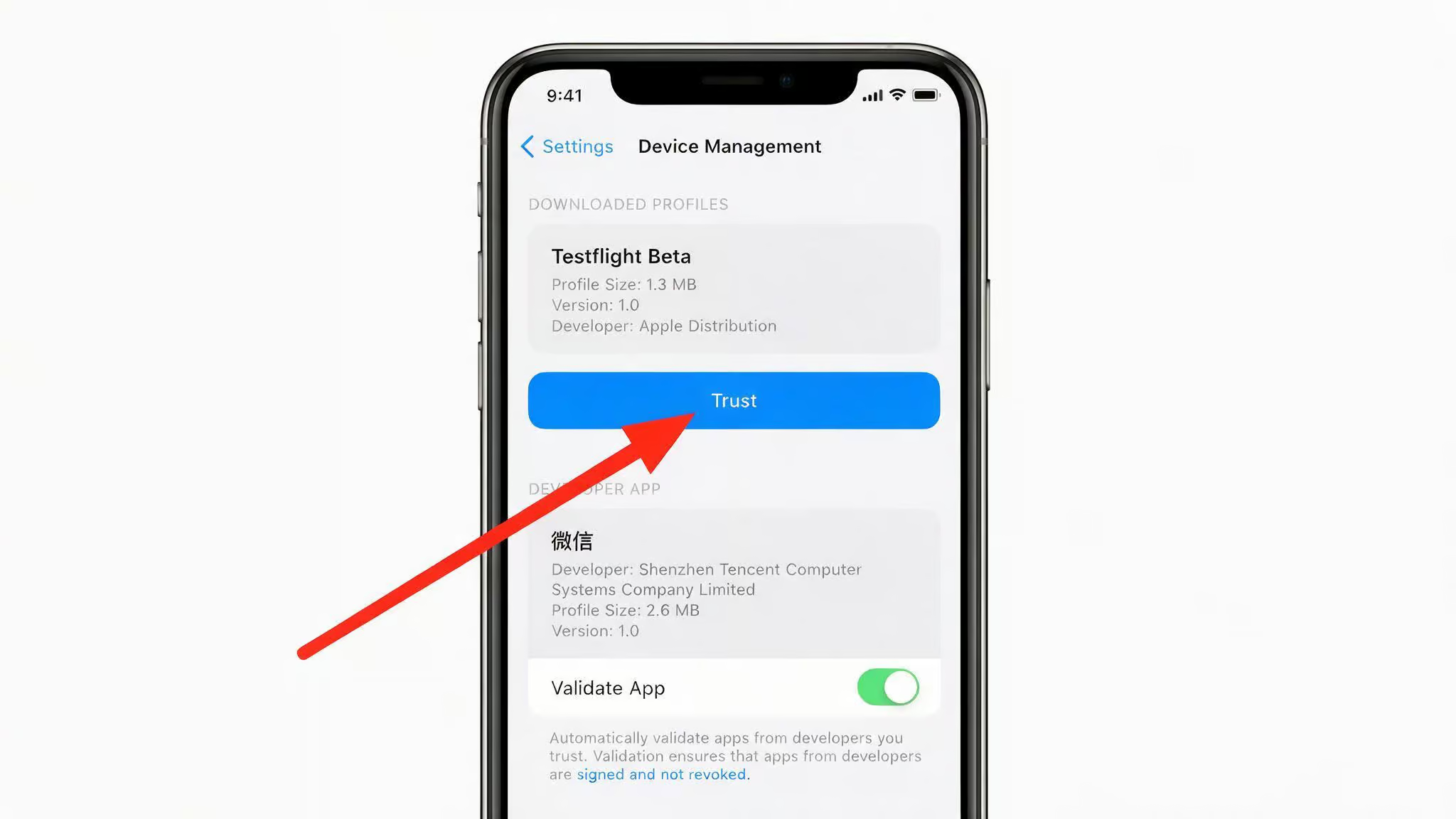
- Not trusting the developer profile after sideloading. After sideloading, go to Settings > General > Device Management, find the profile associated with your Apple ID, and tap “Trust,” as per the Sideloadly method. Without this step (trusting the profile), the app is blocked.
If you’re using a free account and hitting the 7-day limit regularly, consider a paid signing service like MapleSign — an affordable signing service for iOS devices with free enterprise certificates IPA sideload signing service.
Version History: Nuvio Streaming Is Actively Maintained
Nuvio isn’t abandonware. The latest stable release is v1.4.1, and the GitHub repo shows regular commits, with versioning driven from a single xcconfig file. The changelogs reveal a team that cares about UX polish, with specific improvements like increased metadata spacing by 50%.
v1.2.3 (a notable update) added local backup and restore, fixed runtime display logic, updated labels from “H and MIN” to “H and M” for a cleaner look, increased metadata spacing by 50% (more breathing room), fixed track list sorting, and fixed autoplay after closing an episode. That last one (autoplay after closing an episode) was a real pain point.
v1.2.4 replaced Expo Image with React Native Fast Image (improves image loading performance), updated VLCLib dependencies, and fixed episode number alignment on the rating screen.
These are specific UX improvements (e.g., increased metadata spacing by 50%) that show the developers are listening to feedback. The versioning is driven from a single xcconfig file, shared between iOS and Android builds, so there’s no version drift, ensuring clean engineering. That’s the kind of clean engineering (single xcconfig file) that makes you trust the project.
Alternatives to Nuvio Streaming for iOS
If Nuvio doesn’t work for you — maybe you can’t get it sideloaded, or you want a different feature set, here are a few alternatives: HdoPlay, Mediabox HD, MovieBox Pro, Cine Mate.
- HdoPlay — free, but has occasional playback issues. Decent backup.
- Mediabox HD — HD streaming and offline downloads, but requires manual updates.
- MovieBox Pro — huge library, but requires an invite code to access.
- Cine Mate — free, decent selection, but not updated frequently.
None of these (HdoPlay, Mediabox HD, MovieBox Pro, Cine Mate) are as maintained as Nuvio, and most don’t have the same Stremio addon integration. But they’re worth knowing about if you hit a dead end with Nuvio.
Final Thoughts
Nuvio is one of the more interesting iOS sideloading projects right now, because of the Kotlin Multiplatform rewrite and the shared Compose UI from a single codebase in composeApp. It’s a well-engineered client that leverages the Stremio ecosystem without the P2P baggage, using direct web streams.
The hurdle is the sideloading, with methods like Sideloadly, AltStore, TrollStore, and E-Sign. If you’re on iOS 14.0–17.0, TrollStore makes it permanent. If you’re on iOS 17.1 or later, you’ll be dealing with 7-day re-signing, but the tools (e.g., Sideloadly, AltStore, E-Sign) are reliable enough that it’s not a dealbreaker. Just use a burner Apple ID, enable Developer Mode (Settings > Privacy & Security > Developer Mode), trust the profile (Settings > General > Device Management), and set a weekly reminder for every 7 days.
The app itself is free, ad-free, supports 4K resolution, Trakt sync, and a range of addons via Stremio addon ecosystem. That’s a combination of free, ad-free, 4K, Trakt sync, and Stremio addon support. If you’re a cord-cutter who’s comfortable with a little extra setup (sideloading every 7 days or using TrollStore), Nuvio is worth the effort.
Frequently Asked Questions
What is the difference between Nuvio Streaming, Nuvio Mobile, and Nuvio Media Hub?
Nuvio Streaming is the stable build that uses direct web streams with no P2P traffic. Nuvio Mobile is a modded version optimized with debrid services like TorBox for faster 4K streams. Nuvio Media Hub is built on the older React Native stack and is still in beta on iOS.
Can I install Nuvio IPA permanently without re-sideloading every 7 days?
Yes, if your iPhone is on iOS 14.0 through 17.0, you can use TrollStore for a permanent install with no re-signing or Apple ID needed. On any other iOS version, you’ll need to re-sideload every 7 days with a free Apple ID or use a paid developer account.