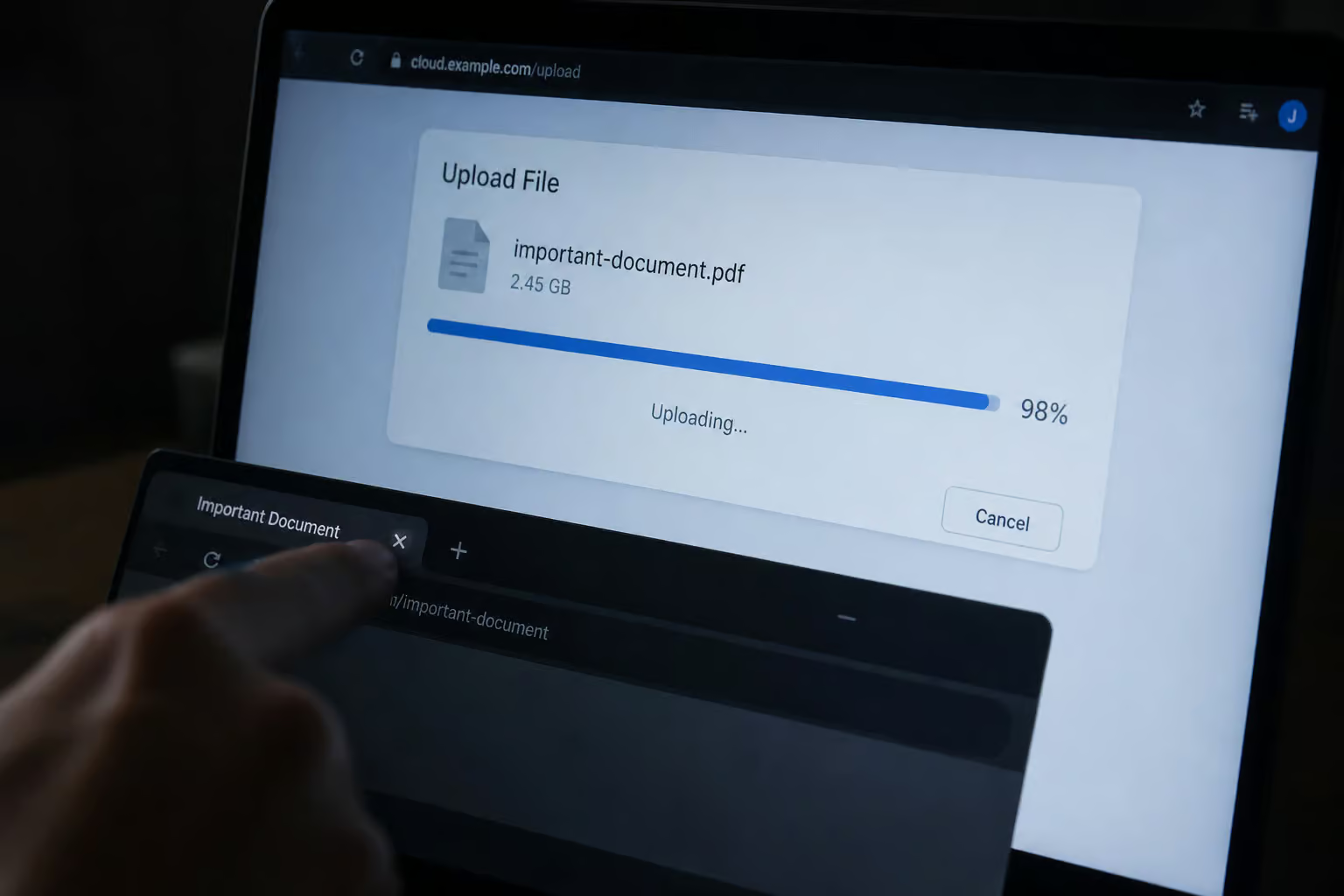
You’ve been there: a 10GB file, 90% uploaded, browser tab closes, start over. Or maybe you’re the one who clicks a link and lands on “Create an account to download.” That screen is a transfer killer.
Email attachments tap out around 25MB, which makes them useless for 4K video, CAD files, or even a decent photo dump. Standard cloud storage fills up fast and usually demands an account from everyone involved. The apps that actually solve the problem aren’t always the biggest names—they’re the ones that get three specific things right: a high per-transfer free limit, resumable uploads, and zero sign-up friction for the person on the other end.
Key Takeaways
Only two apps in this roundup offer built-in resumable uploads: FileCloud (which splits files into 20MB chunks) and SendBig (which survives a full PC shutdown mid-transfer).
SendBig gives you 30GB per transfer for free—the highest non-P2P limit—and lets you defer a send up to three days with an expiration window up to three years.
WeTransfer, Filemail, Send Anywhere, and SendBig all let recipients download without creating an account, directly removing the biggest barrier to a successful transfer.
Table of Contents
Quick reference — Apps ranked by the three criteria that matter
The table below puts every app side by side on the exact three factors that decide whether your file actually gets where it’s going. Free tiers, resumability, and recipient friction—no marketing gloss, just the numbers.

| App | Max Free Per-Transfer Size | Resumable Uploads | Account Required for Recipient | Best For |
|---|---|---|---|---|
| WeTransfer | 2GB | No | No | Quick one-off send, zero friction |
| Google Drive | 15GB total storage (not per-transfer) | No | Yes (Google account) | Teams already in Google Workspace |
| Dropbox (Transfer) | 2GB free sync; Transfer up to 100GB free (250GB with Replay Add-On) | No | No (Transfer only) | Reliable sync + occasional large sends |
| Send Anywhere | Unlimited (via P2P 6-digit key) | No | No | Giant files, privacy, peer-to-peer |
| Filemail | 5GB | No | No | Fast video delivery |
| OneDrive | 5GB | No | Yes (Microsoft account) | Windows / Office users |
| pCloud | 10GB | No | Yes (pCloud account) | Privacy, client-side encryption, lifetime plans |
| FileCloud | Enterprise (not free per-seat; Resumable Uploads in 20MB chunks) | Yes (20MB chunks, browser-native) | Yes (account required) | Remote locations, unreliable connections, compliance |
| SendBig | 30GB | Yes (even after PC shutdown) | No | Highest free limit, max flexibility |
Notice the gap: only FileCloud and SendBig offer any form of resumable upload. For most mainstream apps, if your browser crashes or your internet flickers at 98%, you start from zero. That’s the detail most roundups skip.
WeTransfer — Quick, no-signup, 2GB free
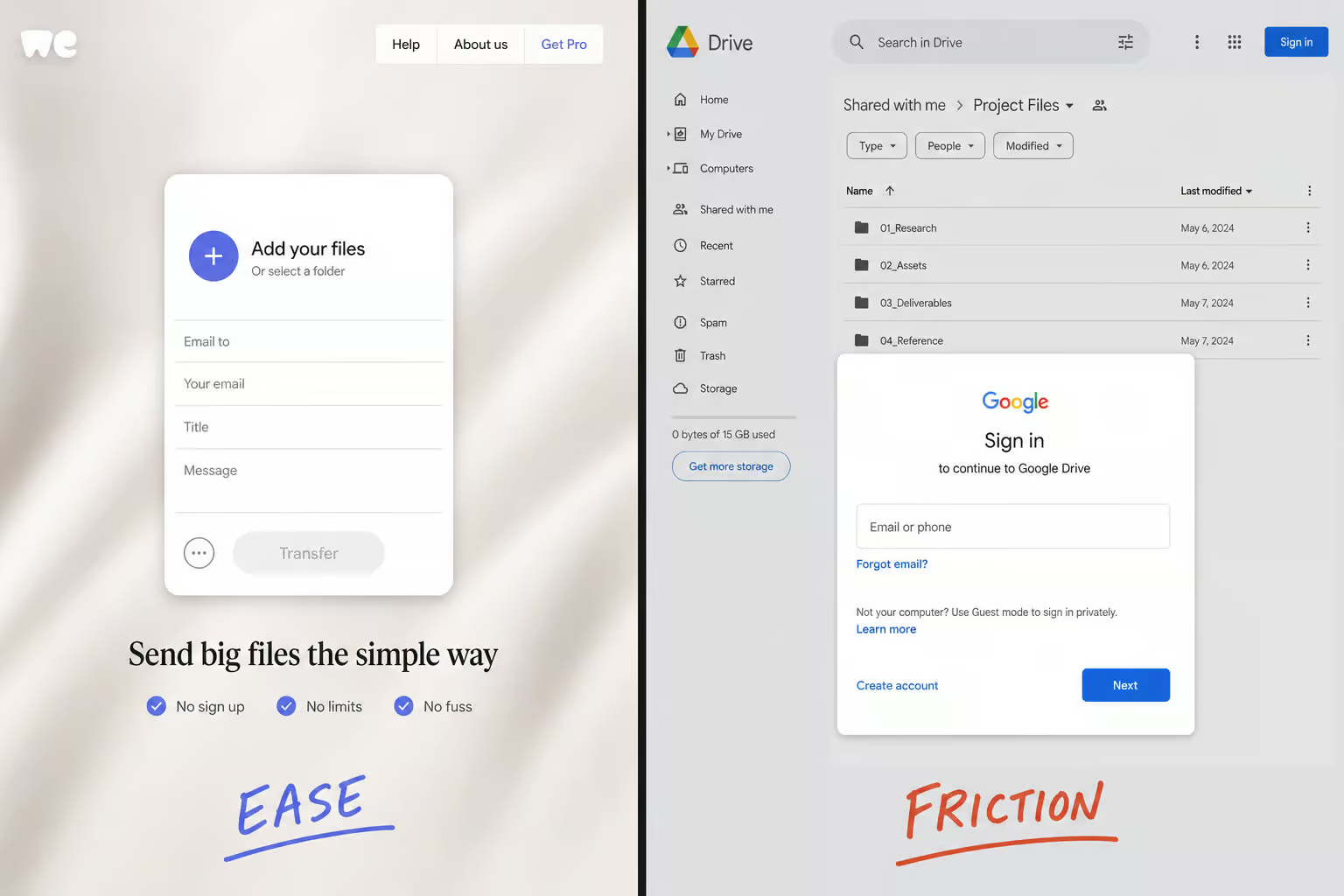
WeTransfer is the digital equivalent of handing someone a USB stick at a coffee shop. No accounts, no folders, no onboarding flow. You drag a file into the browser window, type an email address, and get a link that expires after a few days.
The free limit is 2GB, which is fine for a handful of photos or a short video clip, but you’ll bump into it fast if you’re dealing with a 4K project or a decent dataset. If you need more, the paid tier bumps up to 200GB, and Pro adds password-protected sharing and longer expiration windows.
The killer feature is that neither the sender nor the recipient needs to register. That makes WeTransfer the right answer for I just need this file over there right now and I don’t want to explain how to set up an account.
Google Drive — 15GB free, but requires a Google account
Google Drive is the default for anyone living inside the Google ecosystem, but it’s worth understanding what that 15GB actually means. It’s total storage shared across Gmail, Google Photos, and Drive files—not a per-transfer limit. If your inbox is full of attachments and you’ve got a few thousand photos synced, that 15GB fills up fast.
On the paid side, Drive scales from 100GB to 2TB. It integrates deeply with Google Workspace: Docs, Sheets, and Slides all save to Drive by default, and file version history is a nice safety net.
The catch: recipients need a Google account to access shared files if the permissions are set restrictively. For quick, one-off sends where the recipient might not be on Google, this adds real friction.
Dropbox — Reliable sync, Smart Sync, and Dropbox Transfer up to 250GB
Dropbox has been doing sync long enough that the engine feels invisible—files just show up on every device. The free tier gives you 2GB, which is tight, but the paid tiers go up to 5TB. The feature that saves local disk space is Smart Sync: files live in the cloud but appear on your desktop, only downloading when you actually open them.
The detail most roundups miss is Dropbox Transfer, a separate feature from regular Dropbox sharing. With Transfer, you can send files up to 100GB (or 250GB with the Dropbox Replay Add-On) without using your account storage. Recipients don’t need a Dropbox account to download. That makes Transfer a middle ground if you want the reliability of Dropbox’s infrastructure but need to send a one-off 80GB video edit to a client.
Send Anywhere — Unlimited file size via P2P 6-digit key
Send Anywhere is the wildcard. It doesn’t use cloud storage at all. When you send a file, the app generates a temporary 6-digit key. The recipient enters that key, and the file transfers directly from your device to theirs over a peer-to-peer connection.
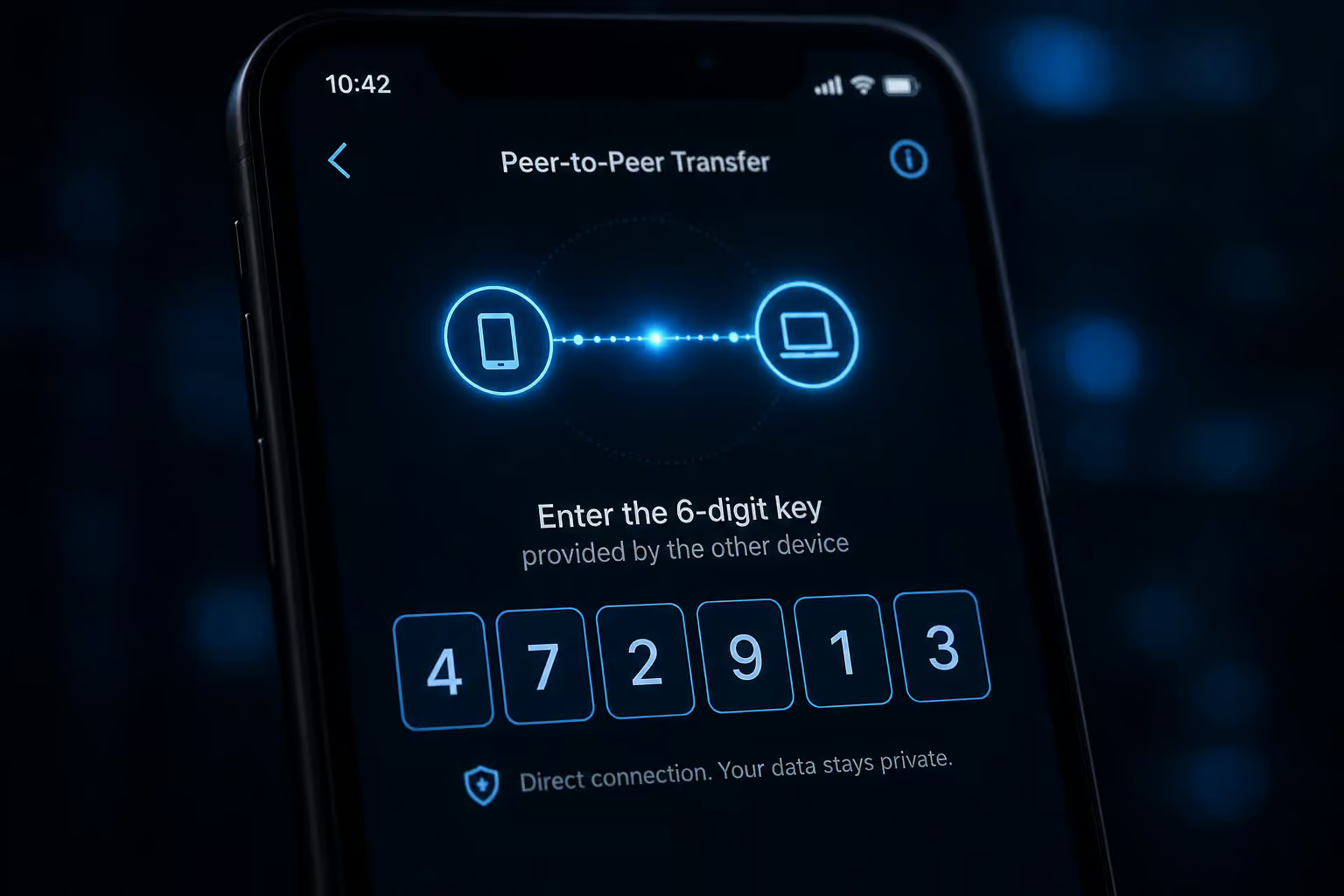
Because there’s no cloud middleman, there are no file size limits. You can send a 50GB dataset for free—no compression, no re-encoding, bit-for-bit exactly what you sent. The trade-off is that both devices need to be online and have the app running at the same time, so unlike services like files over miles, you can’t “send and forget” the way you can with cloud uploads.
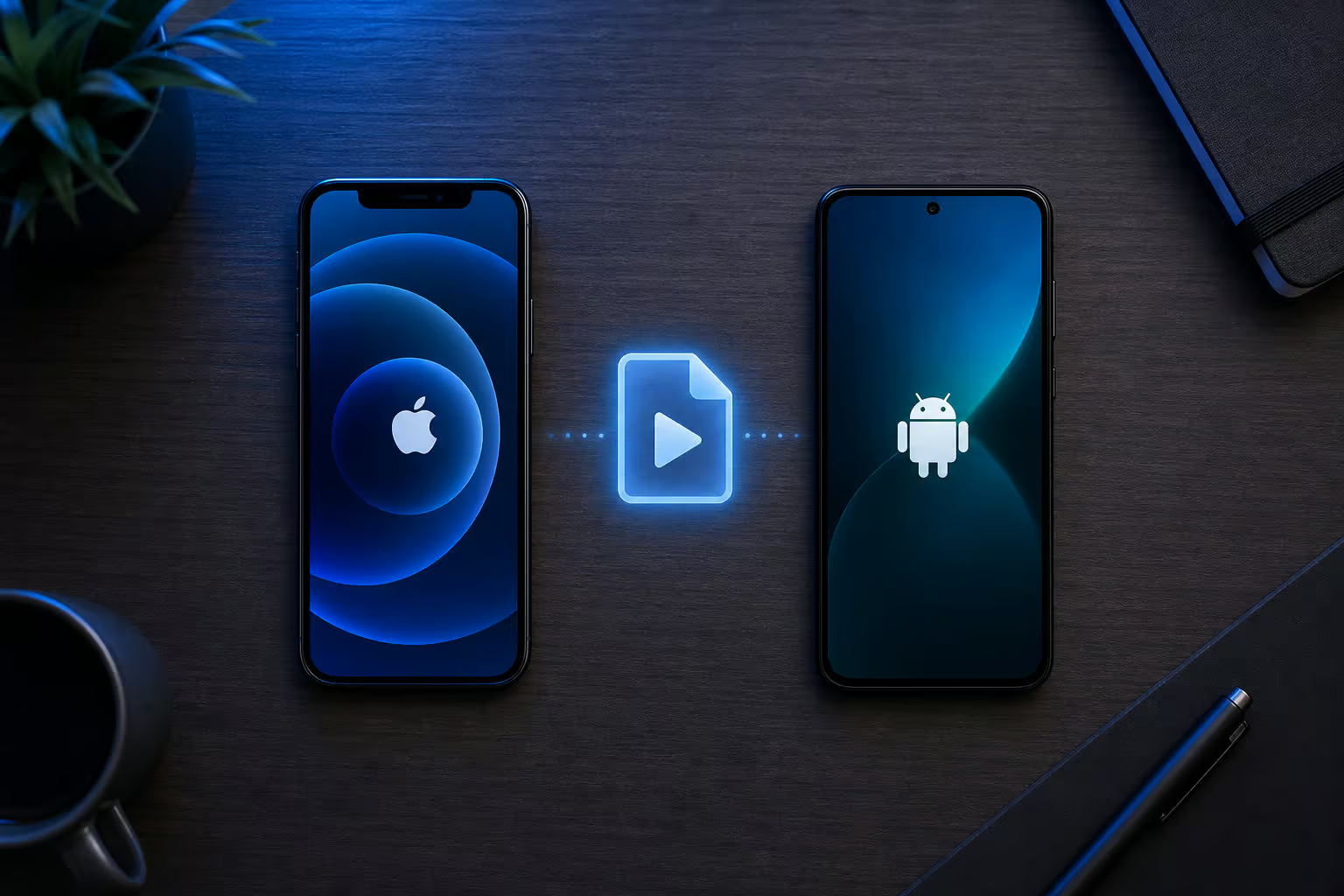
The P2P architecture also means the files are never sitting on a third-party server, which is a genuine privacy advantage. It’s available on Android, iOS, Windows, and macOS, making it a cross-platform option in this list.
Filemail — 5GB free, no account for recipients, optimized for speed
Filemail was built around one specific pain point: moving large video files fast. The free tier covers 5GB, which is enough for a single 4K clip or a batch of RAW photos. Paid goes unlimited—no size caps, just volume, but for a no-hype breakdown of free tier limits, security, and true transfer speeds, check out this ultimate guide to large file sharing.
The speed claims are backed by optimized servers and a CDN setup, and recipients click a link to download without creating an account. But is Dropbox send large files actually faster or more reliable than a direct shared link? If you regularly send 4K dailies to post-production or share large media assets with clients who aren’t technical, Filemail’s low-friction delivery matters more than extra free gigabytes.
OneDrive — 5GB free, deep Windows integration
If you’re on Windows, OneDrive is already there. It’s baked into File Explorer, and if you have Office 365, you’ve already got 1TB of storage included. The free tier is 5GB, which is enough for documents and a handful of photos but not media libraries.
Real-time co-authoring on Office documents is a useful collaboration feature, and files are encrypted at rest and in transit. Same catch as Google Drive: recipients need a Microsoft account to access shared files. For a Windows-centric team, that’s not a problem. For sending a single file to someone outside the ecosystem, it’s a barrier.
pCloud — 10GB free, client-side encryption, lifetime plans
pCloud is the privacy-first entry in this roundup. The free tier gives 10GB, which is generous for a service that encrypts files before they leave your device. Client-side encryption means pCloud never has the key—even if they were compelled to hand over data, they couldn’t decrypt it.

What’s unique here is the pricing model. Instead of a monthly subscription, pCloud offers lifetime storage plans: pay once, own the storage forever. On the free tier, files are encrypted in transit, and the paid crypto folder extends that to end-to-end encryption. They also support media playback directly from the cloud, so you can stream video or audio without downloading first.
For security-conscious users who don’t want another recurring bill, that combination—client-side encryption plus lifetime payment—is hard to match.
FileCloud — Resumable uploads in 20MB chunks, browser-native, FedRAMP High
FileCloud is the enterprise workhorse that fills the biggest gap in roundups. It’s the only app besides SendBig that offers built-in resumable uploads, and its implementation is clever.

When you upload a file through the web interface, FileCloud splits it into 20MB chunks. If your connection drops, your browser crashes, or the power goes out, you only lose the last 20MB. Pick up where you left off—no plug-ins, no sync client, just the browser. If you need to send something larger, here is how to share a file that is too large—a step-by-step flowchart covering compression, splitting, torrent, or temporary cloud for any size from 2GB to 200GB. Progress is visible in the UI the whole time.

The FedRAMP High Authorization means it meets strict US government security standards, which matters if you’re working with federal data or in heavily regulated industries. The practical use cases are concrete: oil rigs with satellite internet, creative teams shipping massive assets across continents, or CAD engineers in remote locations who can’t afford to re-upload a 10GB model.
A sales manager at InterOperate put it plainly: Transferring large files is straightforward, without needing to use my hosting’s storage or the limits imposed by my email servers and messenger services. It is a practical tool for data-driven times. That’s the value of resumable uploads—it’s not a feature you think about until you’ve lost a 90% upload.
Bottom line: Resumable uploads are the difference between a successful transfer and a 90% restart. FileCloud and SendBig are the only apps in this roundup that offer them.
SendBig — 30GB free per transfer, resumable after PC shutdown
SendBig holds the crown for the highest non-P2P free per-transfer limit: 30GB. That’s a full Ultra HD movie, a hefty CAD project, or a large dataset without paying a cent.
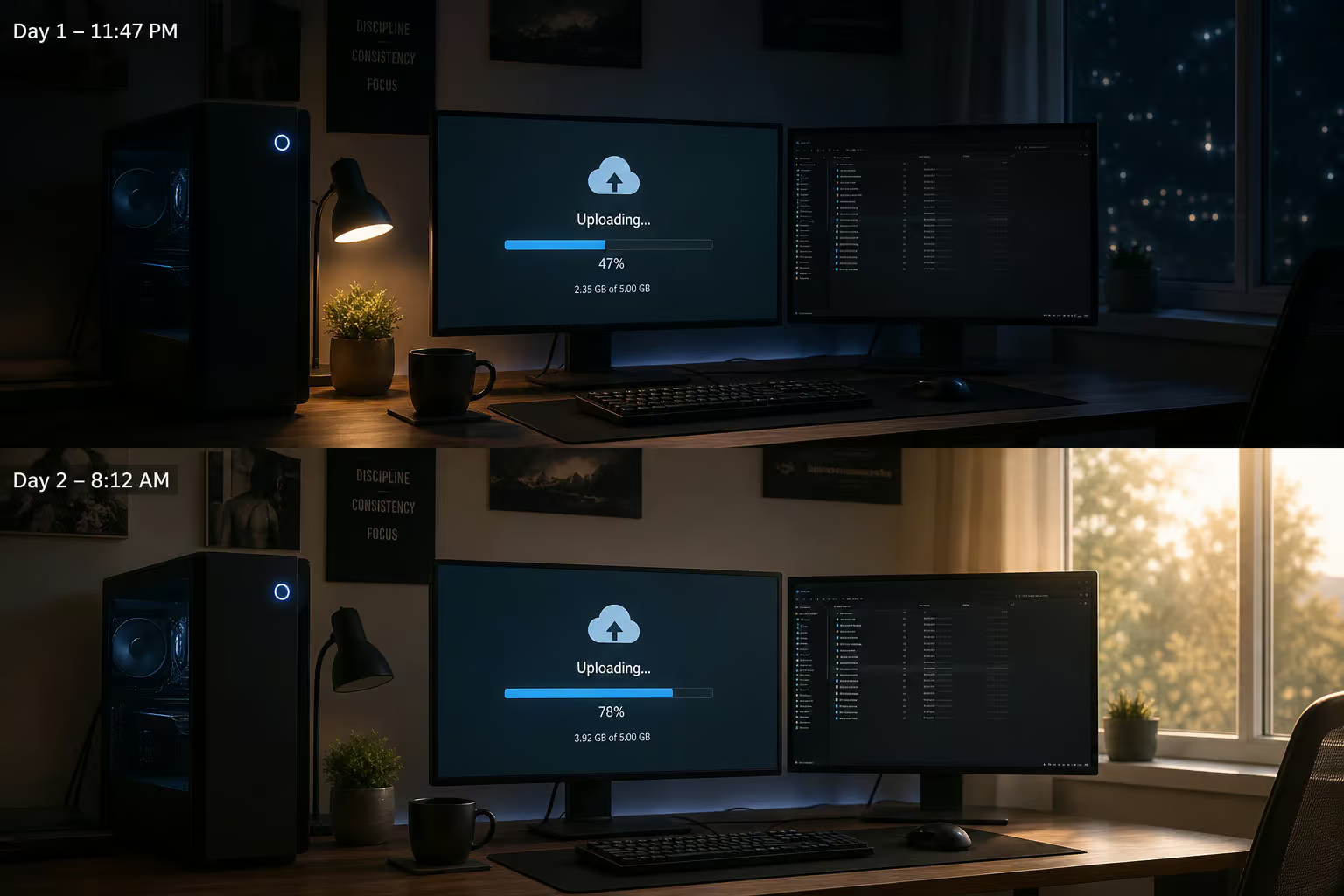
What makes SendBig notable is how far the resumability goes. You can upload a file, shut down your entire PC in the middle of it, come back the next day, and resume from where you left off. The same applies to downloads on the recipient’s side. That’s a level of robustness most apps don’t even attempt.
On top of the raw limits, SendBig gives you control over timing: you can defer sending a file for up to three days and set an expiration window up to three years. End-to-end encryption with a password only you know means even SendBig can’t see your files. There’s also a CSV upload option if you need to send to multiple people at once.
For someone who needs to move big files on a free tier and can’t afford to babysit an upload, SendBig is the most practical option.
Box, Jumpshare, and other platforms
These apps serve specific niches that don’t quite fit the three-criteria ranking, but they’re worth a quick mention.
- Box is built for IT departments. It offers granular permissions, audit logs, SSO, and compliance features for enterprise workflows. Not a casual send tool, but a serious contender if you need governance around file access.
- Jumpshare is the simplest possible flow: upload a file, get a link, share it. No frills, no accounts required on the recipient side.
Neither of these offers resumable uploads on their free tiers, which keeps them out of the conversation for the core pain point this article addresses.
Methods for sharing large video files (iPhone, Android, email)
If you’re on an iPhone and the other person is right next to you with another Apple device, AirDrop is the fastest local option. It uses peer-to-peer Wi-Fi and Bluetooth, so files stay off the cloud. The limits are proximity and Apple-only hardware.
For sending large video files to anyone outside that bubble, iCloud works over the internet but requires both parties to have Apple IDs. That’s where apps like Send Anywhere and WeTransfer become useful—they cut across the ecosystem divide without asking anyone to sign up.
Android doesn’t have a built-in AirDrop equivalent. Third-party apps like Send Anywhere or WeTransfer are the standard workaround. If you’re trying to use email, compressing a video into a ZIP folder can help, but you’re still limited to roughly 25MB. It’s a hack, not a solution.
Decision guide — Which app fits your scenario
- Quick no-signup sharing — WeTransfer. Drag, drop, link. Done.
- Professional teams needing sync and collaboration — Google Drive or Dropbox. File version history, shared folders, real-time co-authoring.
- Unlimited peer-to-peer, any file size — Send Anywhere. No size cap, no cloud storage, bit-for-bit accuracy.
- Heavy media files like 4K video — Filemail. Optimized servers, no account for recipients, high speeds.
- Windows / Office users — OneDrive. Already in File Explorer. Already bundled with Microsoft 365.
- Security-focused users — pCloud. Client-side encryption, lifetime storage plans, no recurring fees.
- Remote or unstable locations — FileCloud. 20MB chunk resumability, survives crashes and power loss.
- Highest free per-transfer limit — SendBig. 30GB free, resumable even after a full PC shutdown.
The three criteria, and the two apps that win on resumability
The biggest file size limit isn’t the most important number in this article. If your upload breaks at 98% and there’s no way to resume, that size limit is theoretical. Two factors decide whether a transfer actually completes: resumability and whether the recipient needs to sign up.
Send Anywhere and SendBig dominate on free per-transfer size—unlimited and 30GB respectively. FileCloud and SendBig are the only apps with built-in resumable uploads. WeTransfer, Filemail, Send Anywhere, and SendBig let recipients download without any account.
Pick the tool that matches your specific scenario: one-time quick send, ongoing team collaboration, high security, or remote-location reliability. Every app here solves one part of the puzzle. The trick is knowing which part you actually need.
People Also Ask
What is the best large file-sharing site?
There’s no single best site—it depends on your needs. For quick, no-signup sharing under 2GB, WeTransfer is the easiest. For the highest free per-transfer limit (30GB) with resumable uploads, SendBig is the most practical. If you need unlimited file sizes and privacy, Send Anywhere’s peer-to-peer transfer is the wildcard.
How can I send 20 GB files for free?
SendBig gives you 30GB per transfer for free, so a 20GB file fits easily. You upload through your browser, and the recipient gets a link to download without creating an account. If your upload gets interrupted, SendBig lets you resume from where you left off—even after a full PC shutdown.
How do I send a 200 GB file?
For a 200GB file, Send Anywhere is the only free option since it has no size limit—it transfers directly between devices using a 6-digit key. If you’re willing to pay, Dropbox Transfer with the Replay Add-On supports up to 250GB, and Filemail’s paid tier has no size caps. Just remember that with Send Anywhere, both devices need to be online simultaneously.
What’s the difference between resumable uploads and regular uploads?
Regular uploads start from zero if your connection drops, browser crashes, or power goes out—even at 98%. Resumable uploads save your progress, so you only lose the last chunk. FileCloud splits files into 20MB chunks and resumes from the last successful one, while SendBig can survive a full PC shutdown and pick up where you left off the next day.
Is SendBig worth it for the free tier?
Yes, if you regularly move files over 2GB. SendBig’s free tier offers 30GB per transfer—the highest non-P2P limit—plus resumable uploads that survive a PC shutdown. You also get end-to-end encryption, the ability to defer sends up to three days, and expiration windows up to three years. It’s the most robust free option for large, reliable transfers.