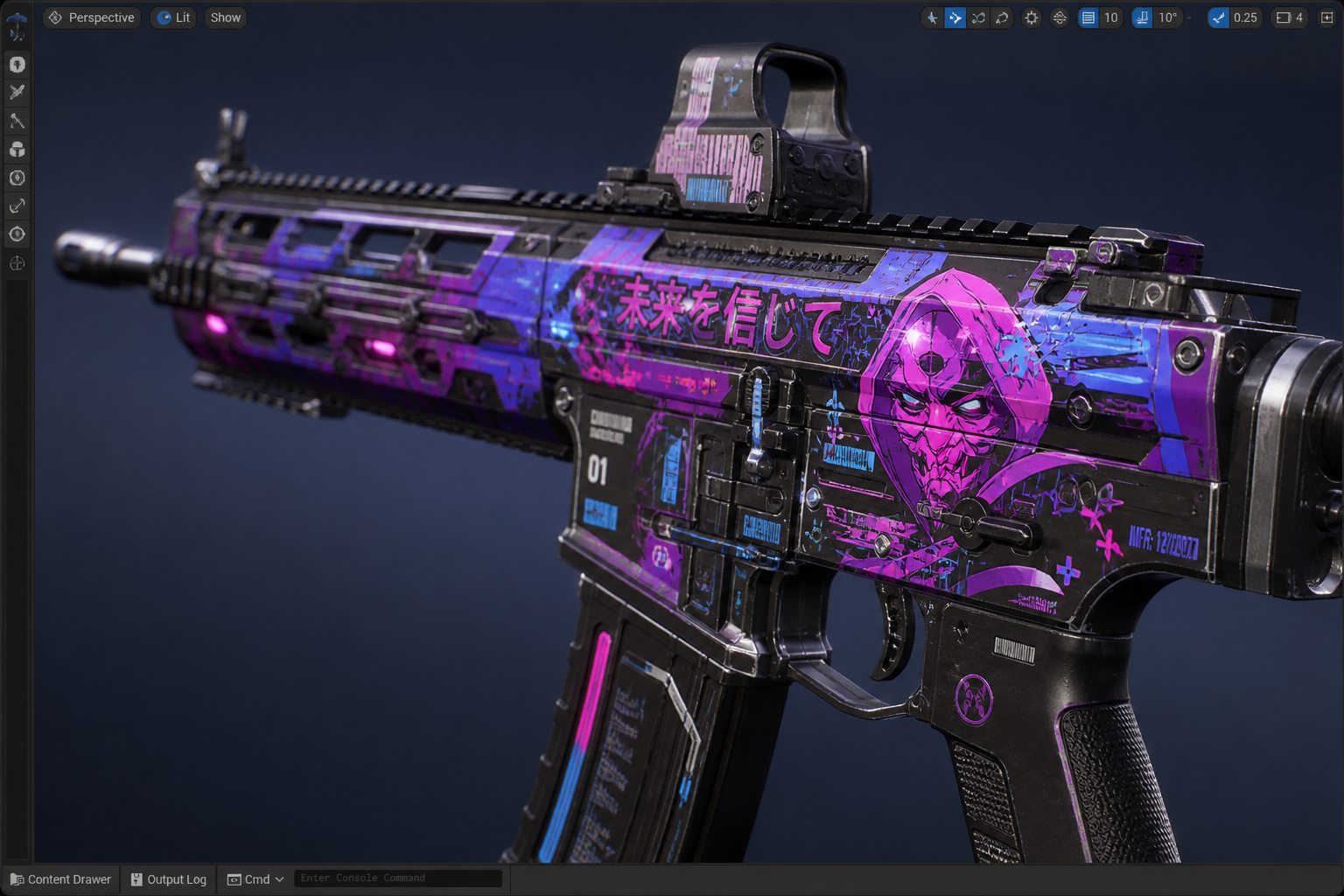
If you’re hunting for a roadmap on how to make skins in CS:GO, you’re probably discovering that the multi-million dollar art ecosystem you want to join—one heavily fueled by players who trade CS:GO skins—has changed its underlying architecture. Over the last 10-11 years, community-driven documentation built a legendary foundation for creators. The canonical Instructables comprehensive skin creation guide alone racked up 122,898 project views, guiding thousands through the murky process of modding text files and bouncing through third-party converters. But following those old guides today to generate csgo skins will result in broken, uncompilable files.
The duct-tape era of legacy workflow is dead, and creating skins today is executed exclusively inside the modern Counter-Strike 2 (CS2) engine. This breakdown serves as your post-mortem of the obsolete Counter-Strike: Global Offensive (CS:GO) texturing pipeline, giving you a sequential guide to setting up the modern Source 2 tools and mastering physically based rendering.
Key Takeaways
The modern CS2 native tools automatically compile textures into .vtex_c files, deprecating external conversion software and the legacy .vtf file format.
Stamping flat coloring-book style colors onto a weapon is no longer enough; modern source rendering requires a deep understanding of PBR (Physically Based Rendering) to dictate how materials reflect in-game light.
Finding out how a skin looks in-game no longer requires hacking dedicated server scripts; an integrated preview environment instantly runs your design inside an isolated engine map sandbox.
Table of Contents
The Great Migration: Why Legacy CS:GO Skin Tools Will Sabotage Your CS2 Workflow
Let’s talk about why your old files are actively breaking. For returning veteran creators, muscle memory is your biggest enemy right now. A common pattern in professional workshop circles is watching creators port over their old methods, failing to find the new testing loops, and resorting to hacking script files.
Legacy Skin Creation Workflow (CS:GO)
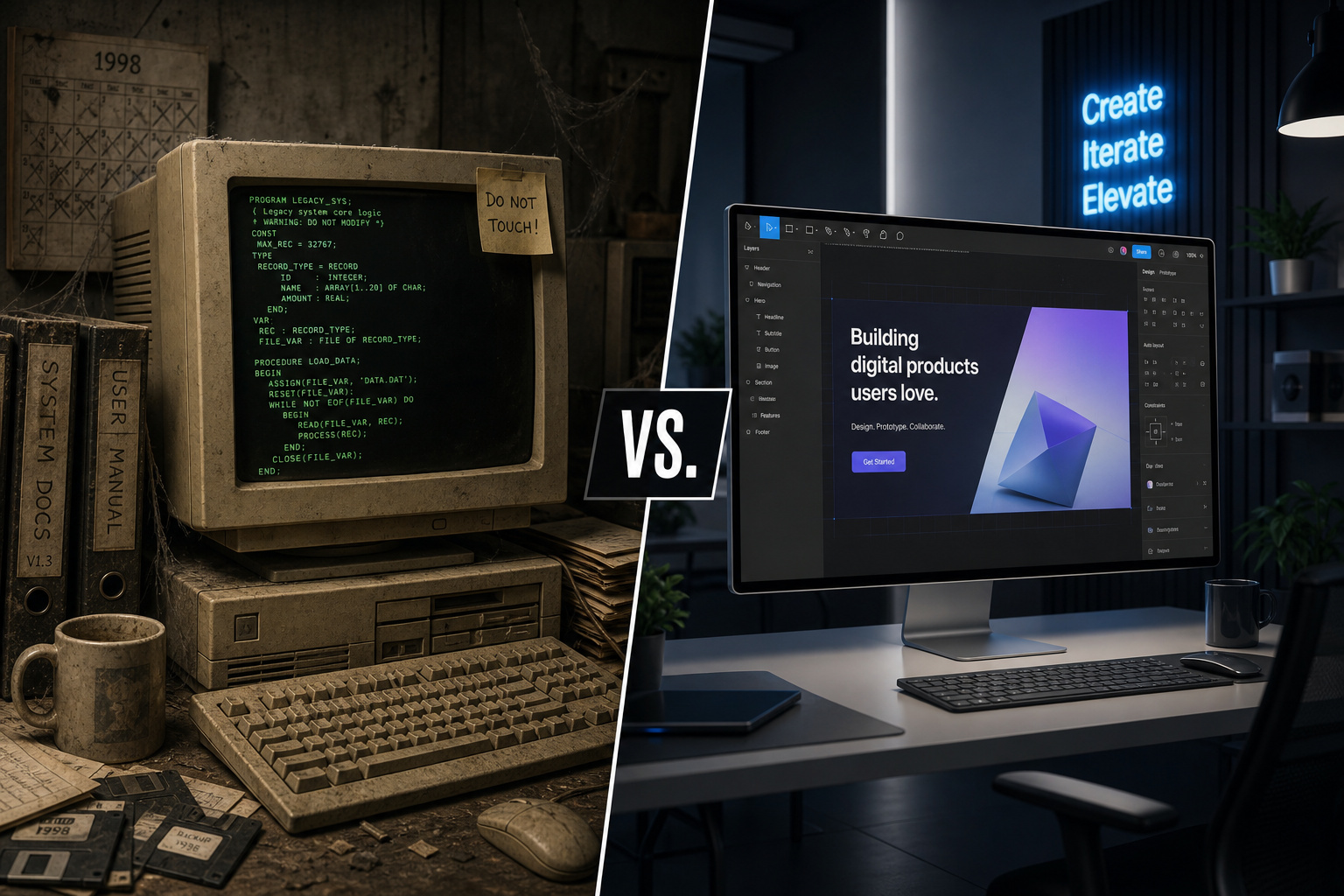
The old pipeline required manual conversion of flat .tga textures into .vtf format, followed by manual script editing in local folders for private testing. Relying on an old standard like the Valve Texture Format (VTF / VMT) inherently meant relying on legacy file manipulation—modifying game directories to spoof your finish over an existing default weapon. Hacking text files for simple texture adjustments felt as clunky as trying to drive complex app personalization using 1990s web cookies; the legacy architecture, unlike the modern CS2 console, was never built to scale.
“Hacking text files for simple texture adjustments felt as clunky as trying to drive complex app personalization using 1990s web cookies.”
Do I Still Need VTFEdit to Convert Images for CS2 Skins?
Short answer: No, and trying to use it will sabotage your pipeline. We used to rely heavily on VTFEdit to make our .tga files readable for the old Source engine, but CS2 natively compiles images into a proprietary format called vtex_c under the hood, bypassing the need for third-party file converters entirely. Additionally, the notoriously finicky legacy workbench optimization is dead. If you remember the old hacks where you checked use_normal alongside ignore_weapon_size_scale to fix weird lighting bugs, and strictly dialed in zero-scaled offset sliders to keep your UVs perfectly wrapped, you can forget them. The technical configuration handles sizing natively now.
Step 1: Enabling the Native CS2 Workshop Development Tools
Step away from sketchy third-party hubs. The first technical step on how to create cs go skins today (now built for CS2) is accessing the verified developer environment directly inside Steam. Because the development environment is now a native toolkit reflecting the core CSGO vs CS2 differences, you don’t hunt down obscure exe files on GitHub.
You enable these tools by right-clicking Counter-Strike 2 in your Steam game library. Navigate to Properties, click on the Steam DLC tab, and deliberately check the box for the Workshop tools to trigger the download. Once installed, launching the game won’t dump you to the main menu. You’ll be hit with a dedicated pop-up prompt asking if you want to load the base game or explicitly launch the CS2 Workshop development suite.
Step 2: Preparing Your External Software, UV Sheets, and Base Models
Although how to make skins for CS2 relies on native compiling, your actual art generation still requires external graphical tools to draw and wrap the geometry. Standard 2D editing suites like Photoshop CS6 or GIMP are still choices for this phase.
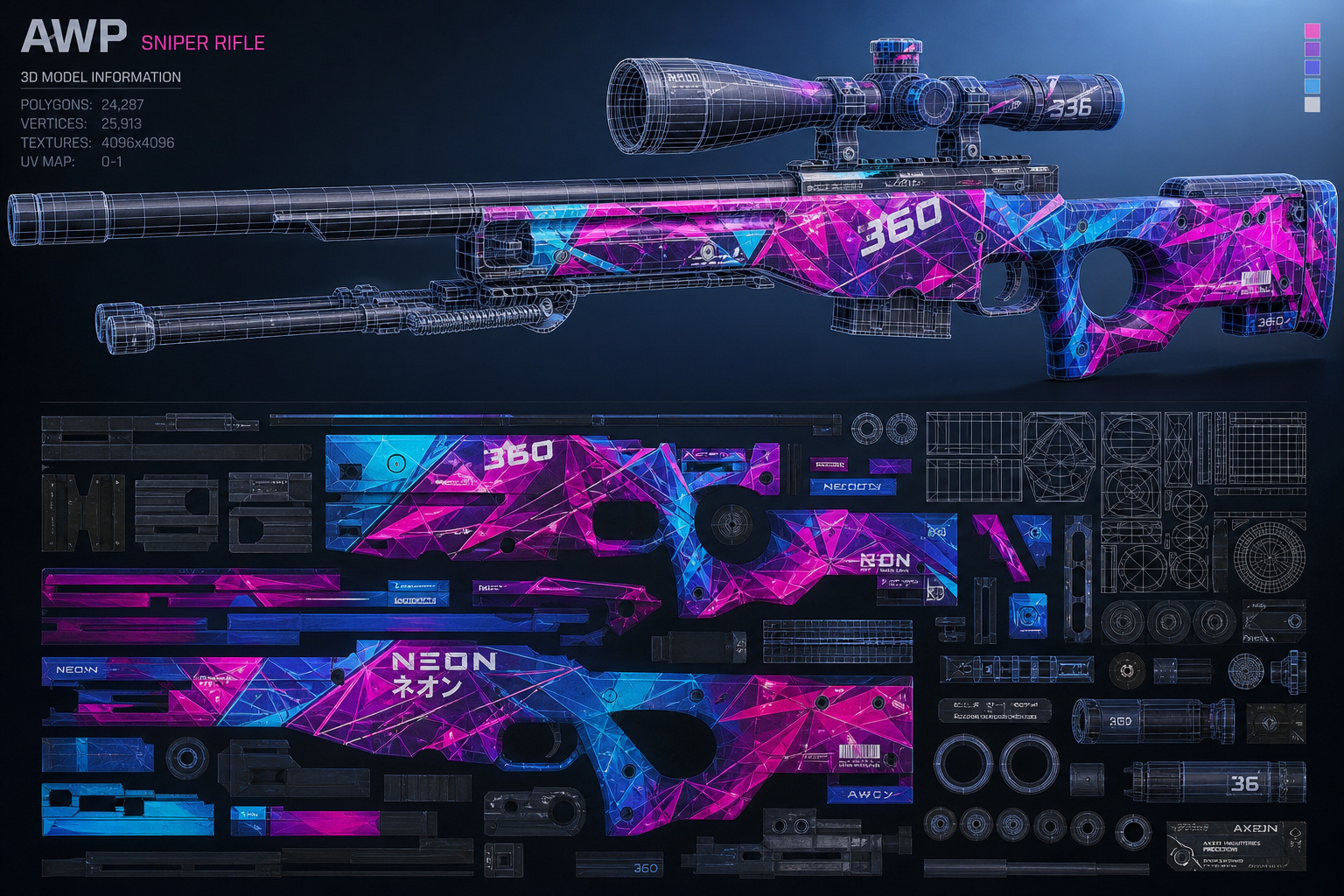
When you create a CS2 skin, you pair 3D geometry with flat 2D canvas wraps. To start, you take the geometric wireframe of the weapon, saved as an .obj, and lay down the foundational base color layer of your design. Next, you need a way to wrap the complex 3D shape—like a rifle stock and barrel—onto a continuous 2D plane. To understand how disconnected gun parts share canvas space, study the AWP UV sheet as a baseline reference for complex texture mapping in legacy editors. Once your design is drawn, you export your flat 2048 x 2048 pixels image as a standard Targa Image File (.tga), which serves as your final UV sheet for the game engine to ingest.
Preparing 3D PBR Workflows in Blender
Beyond traditional 2D editors, advanced creators use Blender to prepare 3D PBR workflows and map seamless designs across disjointed gun parts. This texturing pipeline lets you visualize how materials map onto the 3D model before final compilation. When creating advanced Gunsmith or Patina finishes, you establish the exact base wear by adjusting material sliders directly in the modeling suite. Dialing in these roughness and metallic values ensures accurate oxidation and light reflection before you ever touch the native toolkit.
Step 3: Transitioning Your Texture Pipeline to PBR
Physically Based Rendering (PBR) defines how your materials dynamically absorb and reflect in-game light within the Source 2 rendering logic, replacing the flat color layers of the past. By contrast, legacy games were digital coloring books where you simply plastered static pixels onto a polygon model. To understand how to make a CS skin in this modern era, you must transition how you think about textures entirely.
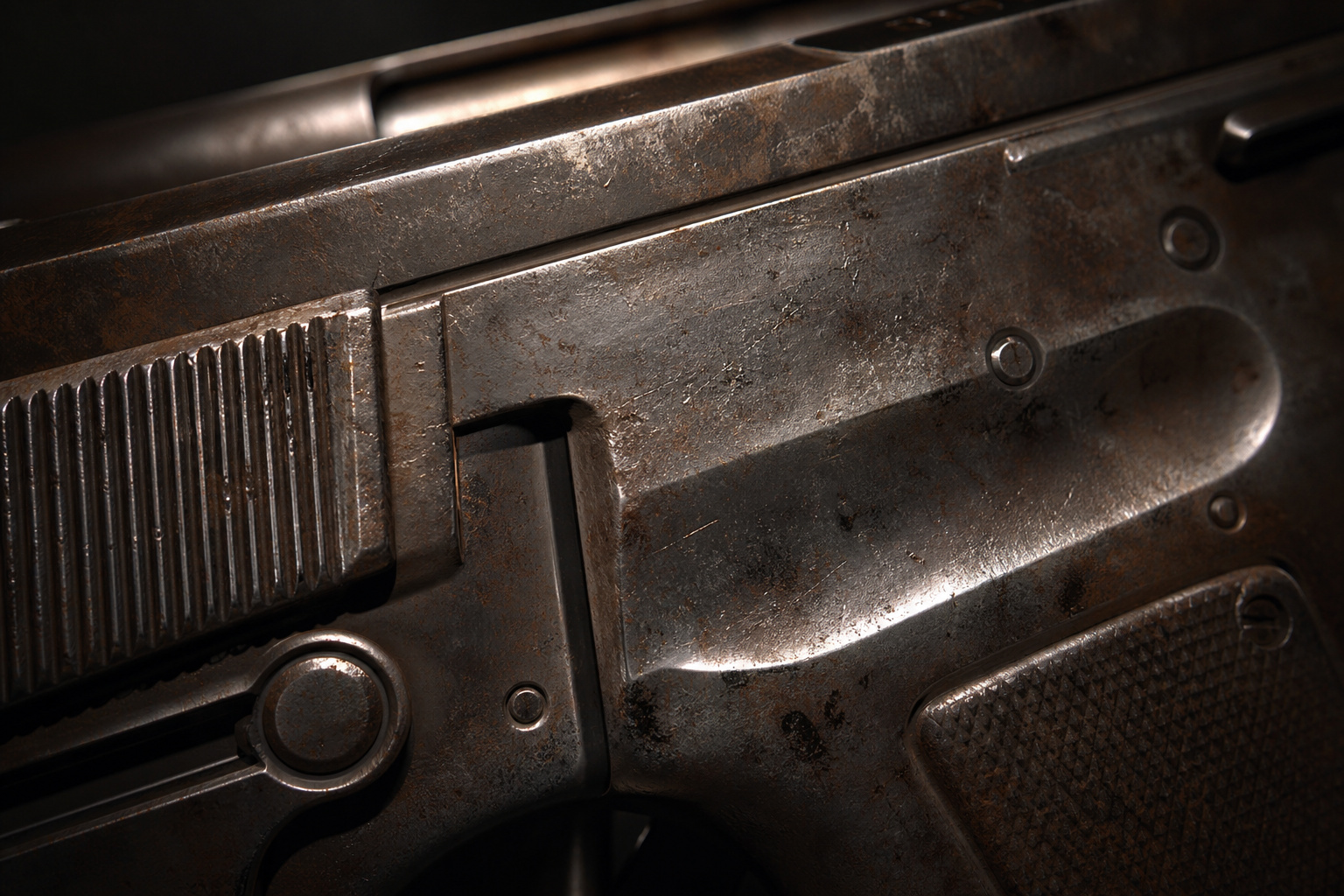
Moving to PBR means your textures must natively adhere to Source 2 rendering logic, mapping exact material properties to how light behaves in a physical simulated scene. The new engine reads specific PBR channels—like roughness and metallics—to calculate real-time lighting. This means different weapon designs natively react to varying light levels organically. A heavily worn gunsmith finish bouncing light off scratched steel will behave completely differently under an overhead map light than a glossy custom paint job.
If you slap a flat base color onto a gun now, it will look strangely unnerving and plasticky. You have to design the physical wear and tear of the material itself.
Step 4: Loading the In-game Preview System
Loading your weapon finish requires nothing more than clicking the workshop UI’s preview button, which grants immediate in-game inspection within the sandbox environment. For many returning creators trying to figure out how to make a csgo skin work in CS2, finding this exact testing loop is the biggest hurdle. Valve has democratized the workflow so you no longer have to be a command-line hacker repeatedly firing off text strings in the developer console just to see your art.
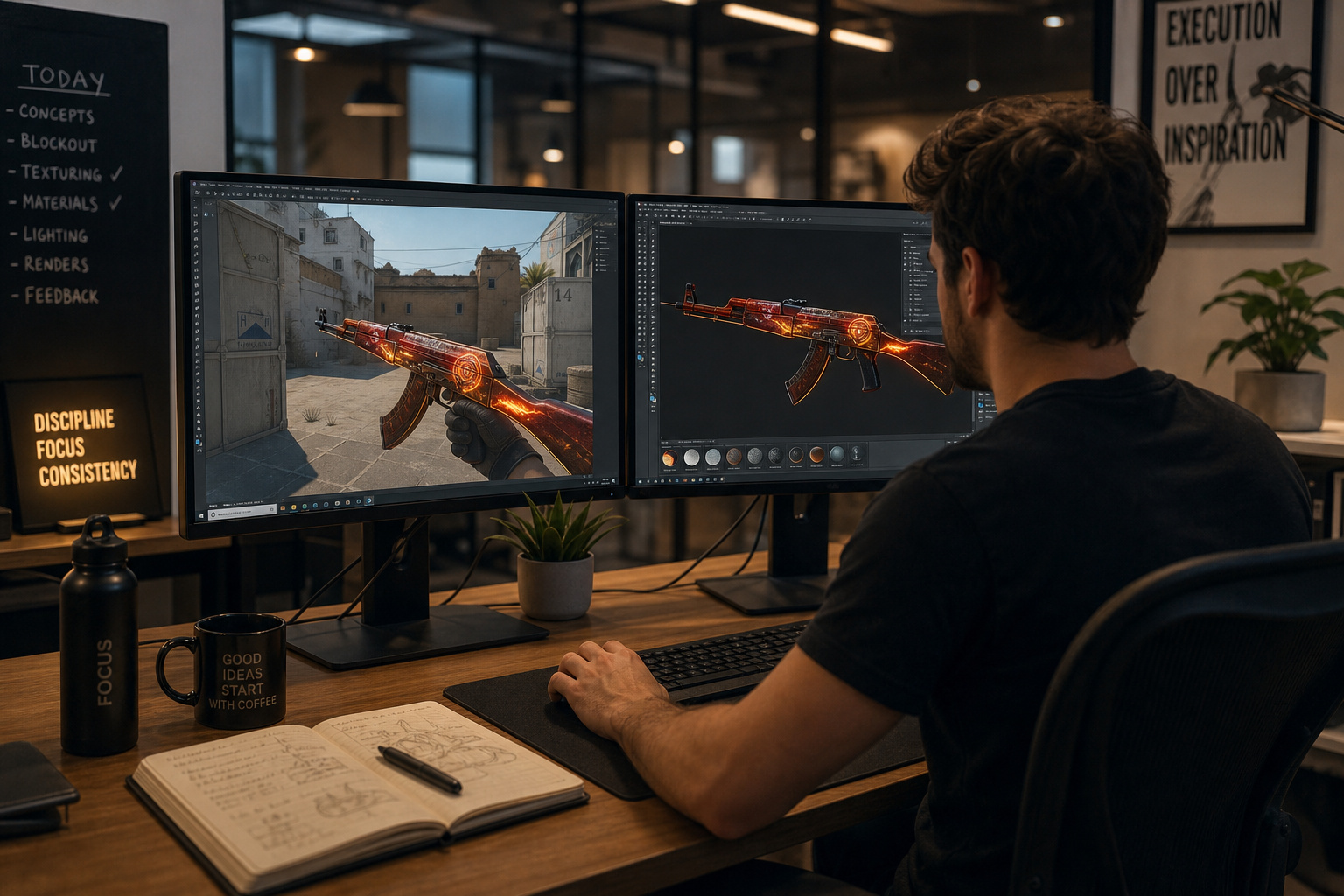
Why the Dust 2 Testing Sandbox Replaces Private Servers
In the previous era, you verified a design by manually editing local game text files to trick a private server mod into loading your local file. Now, you eliminate the tedious comparison of modifying manual items_game.txt scripts in favor of clicking the UI’s preview button inside the new toolkit.
When you click that button, the engine automatically compiles your .tga into vtex_c and loads a visual playground. It injects your asset straight into an isolated Dust 2 preview environment, allowing for immediate in-game inspection under authentic mapping shadows and sunlight. You can run around, inspect the weapon, and see if your PBR material properties look too shiny in the shade or too dull in the sun—speeding up your iteration time.
Step 5: Publishing Your Final Skin to the Steam Workshop
Once your sandbox testing checks out and you verify the PBR interactions don’t break in realistic map lighting, you move to the final upload. The Workshop tool suite fully handles the packaging phase to prep your asset.
As the institutionalized single source of truth for Valve, the Steam Workshop acts as the sole pipeline to authenticate your completed vtex_c layout for community viewing and official voting feedback. You wrap the item parameters, attach your promotional renders, hit the publish execute, and push your weapon finish to the Steam Workshop.
Frequently Asked Questions
How to make skins for CS:GO?
You no longer create skins for CS:GO, but rather for its successor, Counter-Strike 2. The process requires downloading the official Workshop DLC via Steam, designing your UV sheets in an external 2D editor, and using the modern native engine tools to compile your art instead of legacy file manipulation.
How to become a CS skin creator?
To start, enable the official Workshop development suite found in the Steam DLC properties for Counter-Strike 2. Shift your focus from basic 2D texturing to mastering Physically Based Rendering (PBR), which allows your weapon finishes to react realistically to the game’s dynamic lighting and shadows.
Can anyone make CS skins?
Yes, any player can access the development tools by downloading the Workshop DLC from the Steam library. While the barrier to entry is lower thanks to the integrated, user-friendly preview sandbox, creating professional-grade skins now requires a deeper understanding of material properties like metallic and roughness channels.
Do I still need VTFEdit to convert images for CS2 skins?
No, using third-party conversion software like VTFEdit will actually sabotage your modern workflow. The CS2 engine natively compiles your .tga files into a proprietary .vtex_c format automatically, completely removing the need for manual image conversion or legacy file hacks.
Why does my custom skin look plasticky or flat in-game?
This happens when you treat the weapon as a flat 2D canvas rather than using PBR (Physically Based Rendering) principles. To fix this, you must define material channels for roughness and metallics so the game engine understands how to reflect light off the texture, simulating realistic wear and material depth.
What is the difference between legacy modding and the current CS2 toolkit?
Legacy modding relied on hacking text files, manually editing game scripts, and spoofing assets to see previews. The current toolkit is an integrated, native environment that provides an instant in-game sandbox for testing designs without ever needing to touch a developer console or local game directory.
How do I test my skin design without using private servers?
The modern Workshop suite includes an integrated preview environment that creates an isolated sandbox map for you. By clicking the preview button in the toolkit, the engine automatically compiles your file and loads it into a live environment, allowing you to inspect how lighting reacts to your design instantly.