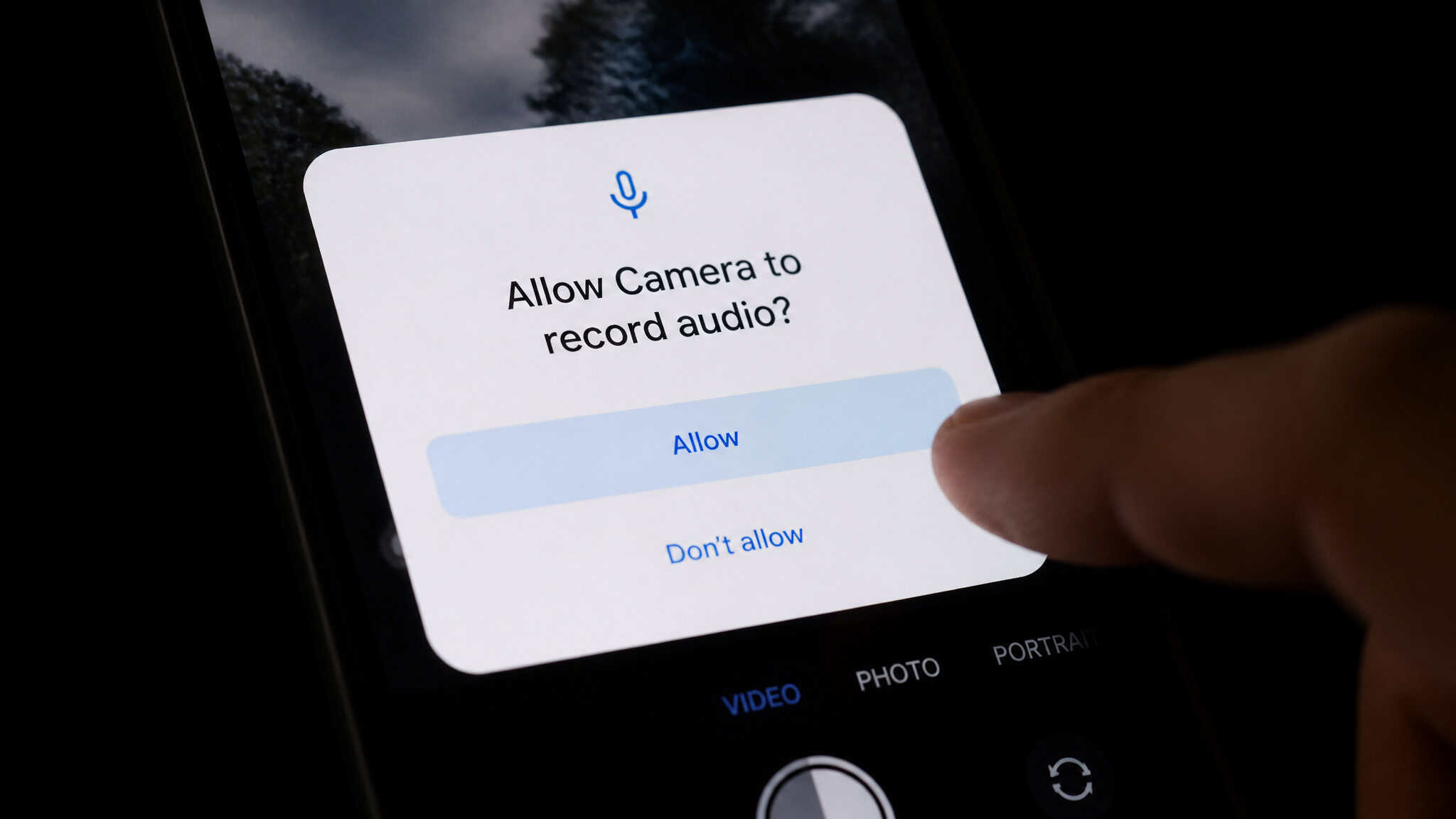
You’ve been there. You mention a weekend trip to a friend, or you’re talking about a show you want to watch, and the next day your feed is full of hotel deals and that exact series. It feels like the phone is listening. It’s the most persistent tech rumor of the last decade, and it refuses to die because the coincidence is so uncanny.
Here’s the short version, and it’s genuinely good news: your phone’s microphone only works because a permission was granted, or denied. No app can just flip the mic on silently. And every modern operating system now shows you a live indicator the moment a mic goes active, so you have a witness in real time. The orange dot on an iPhone, the green dot on Android, the tray icon on Windows: these aren’t decorations. They’re the OS watching the watchers.
So let’s walk through the whole thing. What those dots actually mean and how to identify the app behind them, how to audit microphone access on each platform, how wake words really work on smart speakers, and what a tapped phone actually looks like when it’s real.
Key Takeaways
Microphone access is permission-gated on every modern platform: an app can’t hear you until you’ve granted it mic access, and the OS shows a live indicator (orange dot on iPhone, green dot on Android) the moment a mic goes active.
Smart speakers are the one honest exception to “not always listening”: they’re always listening for a wake word like “Alexa” or “Hey Google,” but recording only starts after that trigger fires, and the physical mute switch is the only true off.
The real privacy risk isn’t a hidden eavesdropper: it’s the permissions you’ve already granted, and a quick monthly sweep of the permission manager (Settings > Privacy & Security on iOS, Settings > Privacy > Permission Manager on Android) is the fix.
Table of Contents
How microphone permissions work: the toggles under the hood
Here’s the mental model that makes everything else click: permission granted is permission granted. When an app has microphone access, it can use the mic whenever the app is active, even if you never touch a voice feature. The permission is the key, and the OS is the gatekeeper.
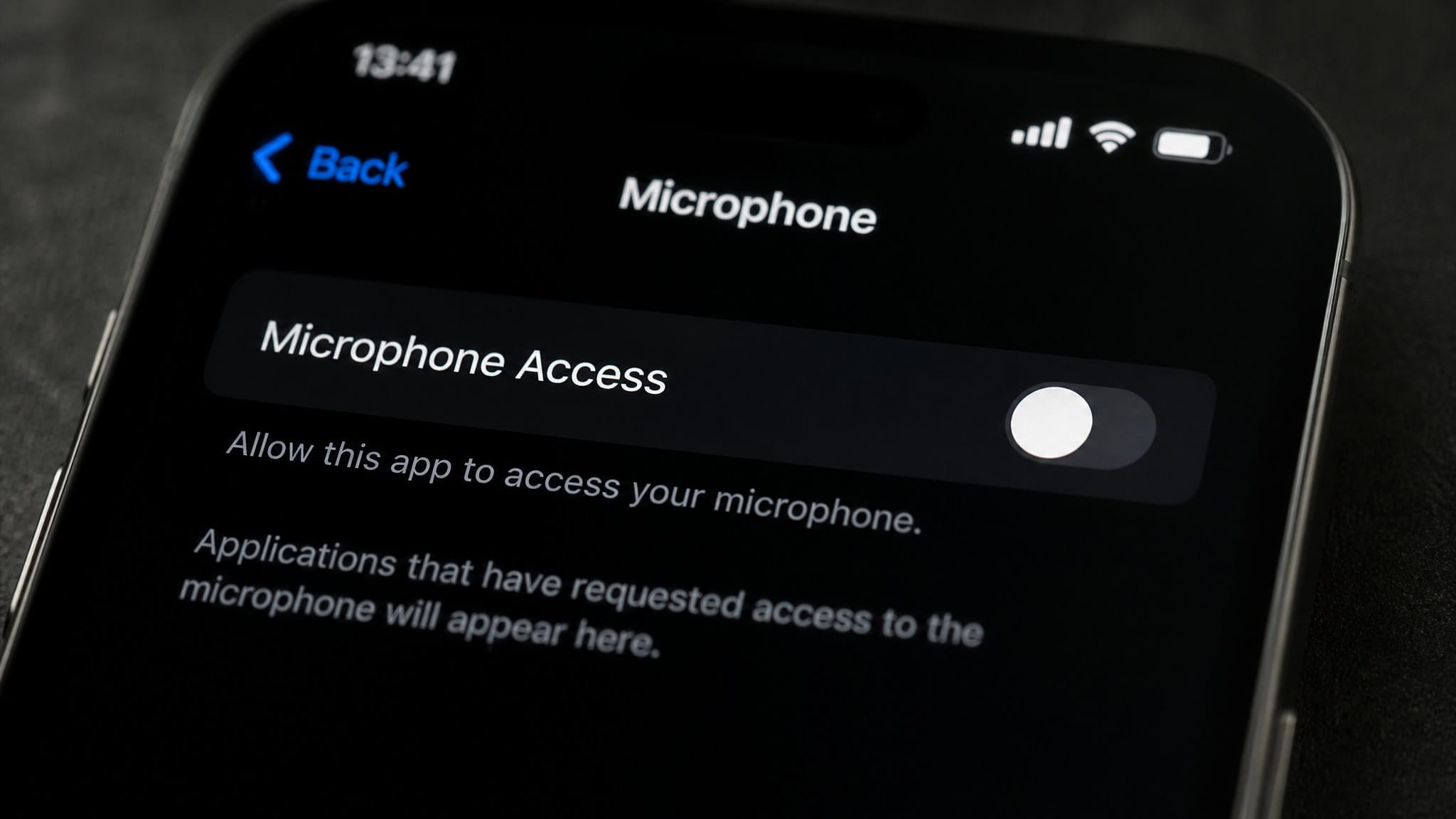
Both iOS and Android enforce strict systems that require apps to ask. On iOS, the app asks once when you first use it: you say yes or no, and that’s the whole transaction. Android’s model has shifted over time. Older apps could request mic access at install time, but from Android 6.0 onward, permissions are requested at runtime, when the app actually needs them. And since Android 11, the system can auto-reset permissions for apps you haven’t touched in a while.
Every device maker funnels this through a central control panel that lists every app with camera, microphone, and location access. On iOS it’s Settings > Privacy & Security. On Android it’s Settings > Privacy > Permission Manager. On Windows 11 it’s Settings > Privacy & security. Same idea everywhere: one list, every app, your call.
Is it safe to allow microphone access? It’s a judgement call. Legitimate apps need the mic for voice messages, live streaming, and video, and the OS is the gatekeeper. The question is whether you trust the app and whether it actually needs the mic. If a flashlight app asks for mic access, that’s a red flag, not a feature request.
Bottom line: A permission is a key, not a one-time event. Grant mic access only to apps where the mic is part of the job, then verify it in the permission manager.
One thing worth knowing: apps bundle feature requests. When a social media app asks for mic access, it’s usually for voice messages, live streaming, or video. But when you say yes to one thing, you might be saying yes to others. The permission list is the place to see what you actually agreed to.
Why your phone seems to be spying: the “always listening” myth, busted
Let’s address the elephant in the room, because the fear didn’t come from nowhere. Stories about phones secretly listening have gone viral for years, and there’s a real history of apps abusing the permissions they were granted. But the reality is different from the rumor. If you want the full evidence-based investigation into how phones handle audio data, we’ve got a dedicated piece on whether your phone is listening to you.
Phones don’t continuously record when they’re idle. Recording starts only after a trigger: a wake word, a button press, a call, or an app that actually uses the mic it was granted. And in every one of those cases, the system shows an indicator. The mic can’t be on without you knowing, at least not through normal app behavior.
Here’s the nuance that keeps the myth alive: even when the mic is off, apps and their providers can collect usage metadata for advertising and analytics. The mic might be silent while the data tap is still running. That’s not spying, it’s analytics, but it’s worth understanding.
And yes, there are documented cases of granted access doing surprising things. A 2018 Symantec study found certain Android flashlight apps harvesting location data without permission and serving targeted ads. A 2014 Consumer Reports investigation found health and fitness apps sharing user data with third parties. More recently, Snapchat’s camera code-scanning ran even when the app wasn’t open, because the camera toggle was already enabled before the user scanned anything. Google Fit held always-on location access, and disabling it broke other fitness features.
The reframe here is the important part: the threat isn’t the microphone, it’s the permissions already granted. Your browsing history, your location, your app activity already tell advertisers everything they need to know. A phone doesn’t need to listen to learn what you’re into. If you want the deep dive on the ad-coincidence question specifically, we’ve got a whole piece on whether your phone listens for ads.
What the orange and green dots mean: identify the app at this second
Here’s the part that turns the fear into a tool. The colored dots aren’t just warnings, they’re interactive. Tap them, or open the right panel, and they’ll name the app responsible.
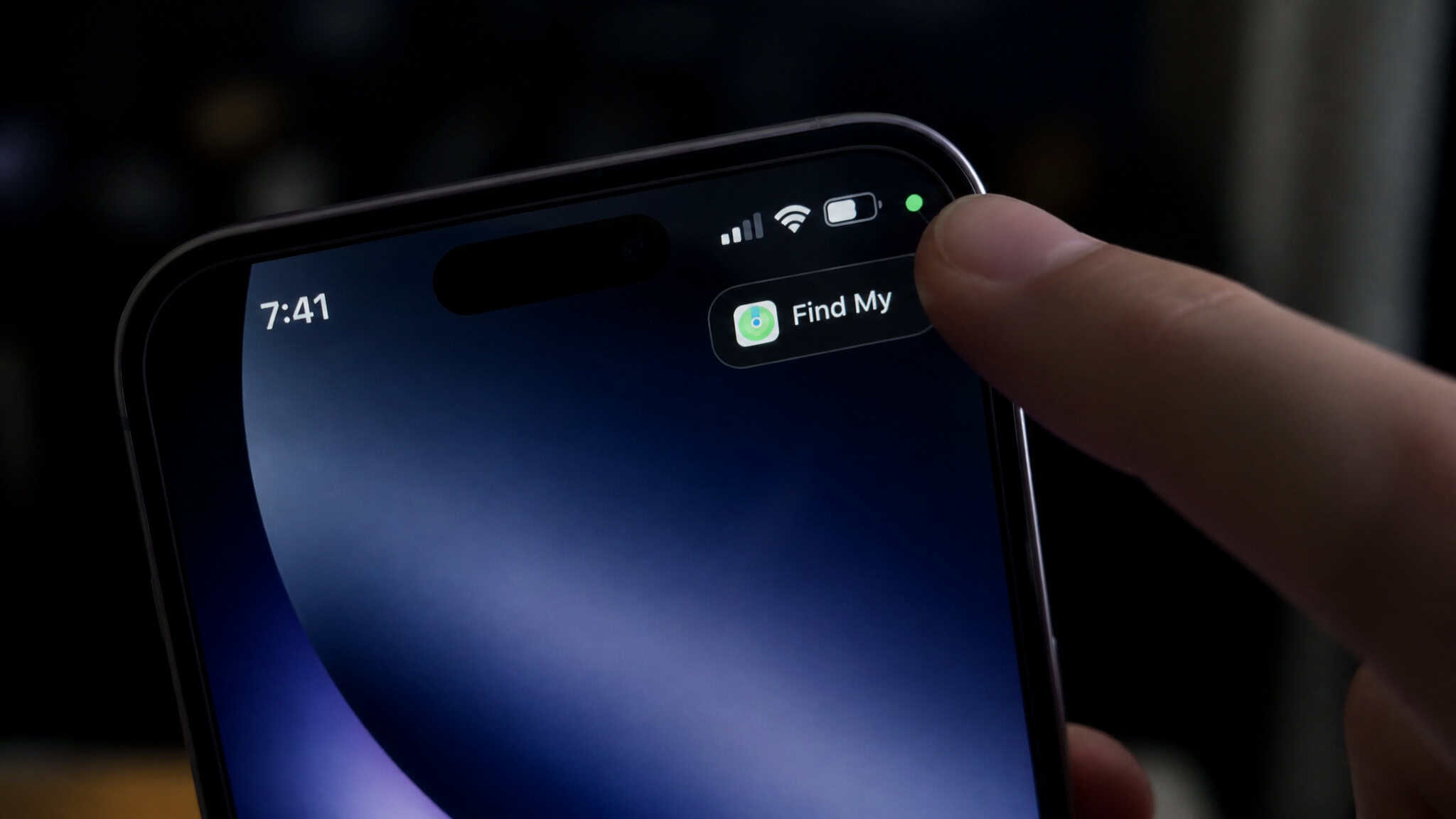
The color grammar is simple. On iOS 14 and later, an orange dot means the microphone is in use, and a green dot means the camera, or the camera plus the mic. Android 12 and iOS 15.1 and later show an icon while the mic is active. Android’s green dot sits in the top-right corner, and iPhone’s appears whenever an app is using the camera or mic.
The fast fix most people miss: on Android, swipe down and tap the green indicator at the top, and it tells you exactly which app is using the mic or camera. On iPhone, open Control Center and the top shows which app is using the mic (orange) or camera (green). Windows 11 displays a microphone icon in the system tray while an app is recording, and hovering over it names the app. The “unknown microphone” moment on iPhone usually resolves the same way: open Control Center and the top names the app.
One detail worth knowing: Android 12’s indicators are per-app rather than a global status, so you know exactly which app is using the mic. iOS shows the same per-app info in Control Center.
| Device | Indicator | How to reveal the app |
|---|---|---|
| iPhone / iPad | Orange dot (mic), green dot (camera) | Open Control Center, check the top |
| Android | Green dot, top-right | Swipe down, tap the green indicator |
| Samsung Galaxy | Green dot in notification panel | Tap the green indicator in the notification panel |
| Windows 11 | Microphone icon in system tray | Hover over the icon |
| Mac | Dots in the menu bar | Check the menu bar |
Two honest caveats. The dots flag active use, not background permission grants: an app with mic access that isn’t currently recording won’t show a dot. And the dot doesn’t guarantee the app is behaving well. It just tells you which app is using the hardware, and a misbehaving app can still show a dot.
If you want the audit trail, there are dashboards for that too. Android 12 and later have a Privacy Dashboard. iPhone has an App Privacy Report, but you have to enable it first. Windows 11 has a recent-activity view. These are the “who used my mic last week” answers.
iPhone, iPad, and Mac: recent usage and permission toggles
On Apple devices, the quickest check is Control Center. Open it and the top shows which app is using the mic (orange) or camera (green), along with recent usage info. Here’s the version-specific nugget: on iOS 16, tapping that message in Control Center reveals full details of recent mic and camera usage. It’s the difference between “something used my mic” and “here’s exactly what, and when.”
To revoke access, the path is Settings > Privacy & Security, then Camera or Microphone, and toggle each app off. It’s a one-tap operation per app, and it’s instant.
On the Mac, the dots live in the menu bar, and you manage access via System Settings (formerly System Preferences) > Privacy & Security > Microphone and Camera. Same idea, slightly different furniture.
Android and Samsung Galaxy: the green dot, Permission Manager, and auto-revoke
On stock Android, the green indicator appears in the top-right corner when an app uses the camera or mic. Swipe down and tap it to see which app it is. That’s the fastest way to answer what app is using my microphone right now.
For the full permission list, head to Settings > Privacy > Permission Manager, choose Microphone, and set each app to allow, ask every time, or deny. “Ask every time” is a nice middle ground for apps you use occasionally.
Samsung Galaxy: a different menu path
Samsung Galaxy users, note the difference: the path is Settings > Privacy and Safety > Permission Manager, and the green indicator appears in the notification panel, where it’s tappable to reveal the app. Generic Android guides often skip this, but the menu structure really is different on Samsung.
Why some apps suddenly lose mic access
Now the surprise that trips people up: Android 11 and later can auto-revoke permissions for apps you haven’t used in a while. It selectively restricts unused apps from sensitive permissions like the camera or mic. It’s available on Android 6.0 and later devices running apps that target Android 11 and above. The side effect: an app that later tries to use the hardware can hang or crash.
If a previously working app suddenly has no audio, this is usually why. It’s not a broken mic, it’s the OS being aggressive about unused permissions.
Windows 11: the tray icon, recent activity, and per-app controls
Windows 11 gets in on the act too. When an app records audio, a microphone icon appears in the system tray, and hovering over it names the app. The camera has an equivalent indicator.
The audit trail is the standout feature here. Head to Settings > Privacy & security > Camera or Microphone, expand “Recent activity,” and you’ll see which apps used them in the last 7 days. That turns the question of whether you’re being recorded into a checkable list.
Per-app toggles live under Settings > Privacy & security > Microphone. There’s also a blue indicator in the microphone privacy settings that shows when the mic is in use, whether for calls or a wind noise reduction accessory for phones. Three moves, that’s it: see it live in the tray, audit it in recent activity, kill it with the per-app toggles.
Smart speakers (Alexa and Google Home): the wake-word catch
Now for the honest exception to everything I just said. Smart speakers are always listening. But here’s the catch that matters: they’re only listening for the wake word. “Alexa” or “Hey Google” is the trigger, and recording starts only after that trigger fires. There’s typically an audio indicator when it happens.
The physical mute is the only true off. Alexa has a mic-off button on the device, and Google Nest has a slide switch. No software request overrides a physical mute, which is exactly why it’s the guarantee.
If you want to review or delete voice history, the controls are in the apps. In the Alexa app, it’s More > Settings > Alexa Privacy > Manage Your Data. In the Google Home app, it’s Settings > Privacy, plus the My Activity page. The history doesn’t auto-delete, so if you want it gone, that’s where you go.
Quick test: Tap the physical mute on a smart speaker, then say the wake word. If nothing happens, the hardware switch really is the final word.
Enabling mic access again, plus browser-level prompts (Chrome mobile and beyond)
The mirror image of revoking is letting an app back in, and it’s the same hub flipped the other way. On iOS, Settings > Privacy & Security > Microphone, toggle on. On Android, Settings > Privacy > Permission Manager, set the app to “Allow while using.”
The part that trips people up is the browser. Web apps like meeting sites and voice recorders trigger a two-layer flow: the site asks first, then the OS prompts. On Chrome mobile, the site-level permission lives in the site’s settings, but the initial consent comes through the OS prompt. That’s the classic I allowed it in the browser but it still won’t record situation. You have to say yes at both layers.
And if an app has silently lost audio, the troubleshooting tie-in: it’s probably not a hardware fault. It’s Android 11+ auto-revoke, or a permission you flipped at some point. Check the permission manager before you blame the mic. If you want the full step-by-step on locking things down, our guide to stopping your phone from listening walks through the whole sweep.
Signs your phone is tapped: why permission scans are the first move
Let’s talk about the tapped-phone fear, because it’s real and it deserves a grounded answer. There are signs that can indicate unauthorized access or background activity: unusual battery drain or overheating, data-usage spikes you can’t explain, strange background noises on calls, and apps you don’t remember installing.
Here’s the thing: these signs are a reasonable checklist, not proof a phone is tapped. In most cases, apps can’t secretly access your mic without permission or an indicator. The system is on your side. Spyware can break through, but that typically requires the device to be compromised through a malicious download, an unsafe link, or a targeted attack, not through normal app behavior.
The sane first response is a permission audit. Review your permissions, revoke anything unfamiliar, and remove suspicious apps. Asurion’s habit is worth borrowing: turn off mic access for tools that never needed it, like flashlight and QR-code scanner apps. Do you really need a flashlight to hear you? Probably not.
The common failure pattern is dismissing these signs as normal glitches. Checking permissions is the correction. It won’t prove your phone is clean, but it’s the right first move.
A short history of mic permissions and privacy indicators (with a developer aside)
Here’s the trajectory, because it explains why today’s phones feel so much more transparent than the ones from a decade ago. iOS 14 introduced the orange and green indicator dots, and iOS privacy labels launched in December 2020. Apple started slapping nutrition labels on apps, and it was a genuinely good thing for transparency.
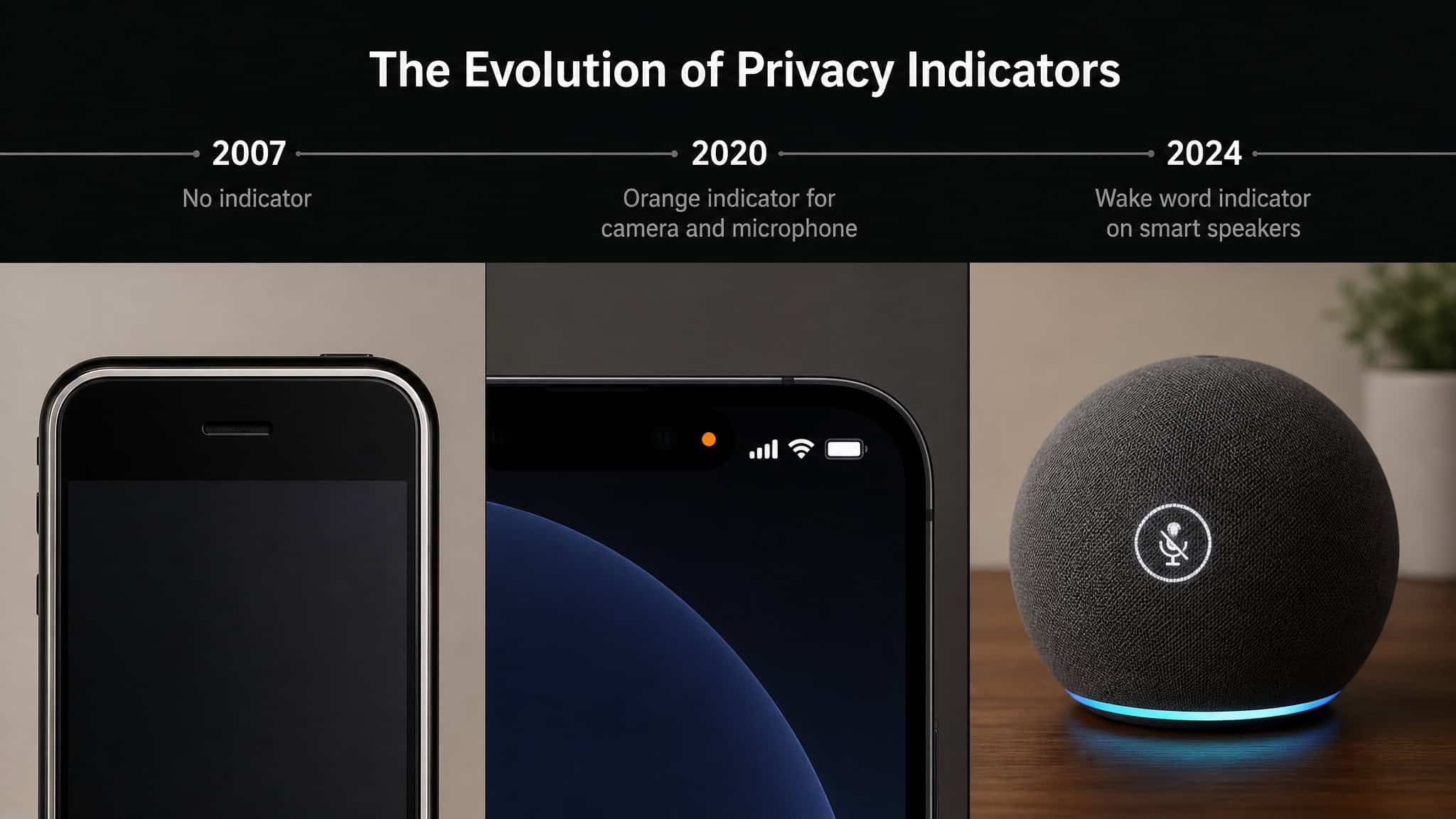
Android’s been tightening the screws on a timeline. Android 6.0 introduced runtime permissions. Android 11 added auto-revoke. Android 12 introduced per-app indicators and the Privacy Dashboard. The granularity trend is visible everywhere: Android 12’s approximate-location feature lets you give apps a rough idea instead of your exact coordinates, Android 13’s photo picker allows you to share only specific photos, and Android 14 restricts photo and video access for apps that don’t target the latest API. Google is pushing developers to update or lose access.
The next versions keep the momentum. Android 16 will block permission changes to sensitive categories like Accessibility, Notification Listener, Default SMS, and Phone Call during active framework man-in-the-middle attacks, and it will auto-revoke permissions for old Android 6 through 10 apps that haven’t been opened in months. Android is cleaning up after you.
Apple requires developers to submit privacy reports to participate in the App Store, and Google asks developers to provide intent filters and privacy policies. Both platforms are nudging developers toward transparency.
The developer aside: why some apps get silence instead of an error
Here’s a bonus for the technical readers. On Android, before version 10, the system only allowed one app to record audio at a time, and conflicts returned errors. Android 10 introduced a priority scheme that can switch input between apps, with voice and video calls holding higher priority. Developers detect availability through AudioRecord and callbacks like AudioManager.
AudioRecordingCallback. That’s why some apps silently receive silence instead of an error: the system handed the mic to someone else, and the app didn’t get the memo.
one last wire
Here’s the rare good news in the privacy conversation: permission-less apps can’t hear you. The indicator is the agreement made visible in real time. And the real risk isn’t a hidden eavesdropper, it’s the permission list you’ve already built.
You now control the whole inventory. The dots tell you what’s active right now. The permission manager tells you what’s been granted. The wake-word truth explains the one device that’s genuinely always listening. And the physical switches on smart speakers are the only true off.
The sustainable habit is a two-minute sweep. Every month or so, open the permission manager, look at the mic and camera lists, and revoke anything you don’t recognize. It’s the same move every time, and it genuinely works: following these steps lets you stop app microphone access.
One last caveat, because it matters: deleting an app doesn’t erase the data it already collected. Uninstalling isn’t an eraser. The practical baseline is reviewing permissions, auditing privacy settings, and sticking to trusted platforms. Do that, and the mic is yours again.
Frequently Asked Questions
How do I know which app is using my mic?
The colored dot (orange on iPhone, green on Android) appears when the mic is active. Tap it or open Control Center (iPhone) or swipe down and tap the indicator (Android) to see the app name. Windows shows a tray icon—hover over it to identify the app.
How do I stop apps from using the mic?
Open the platform’s permission manager: on iPhone, go to Settings > Privacy & Security > Microphone; on Android, Settings > Privacy > Permission Manager > Microphone. Toggle off any app you don’t want to have access. On Windows, use Settings > Privacy & security > Microphone.
Is Alexa or Google Home always listening?
They are always listening for the wake word (“Alexa” or “Hey Google”) but only record after that trigger fires. To guarantee privacy, use the physical mute switch on the device—no software request can override it. You can also delete voice history through the app.
How do I tell if my phone is tapped?
Look for signs like unusual battery drain, data usage spikes, strange background noises on calls, or unfamiliar apps. These are a checklist, not proof. Start with a permission audit—review and revoke anything you don’t recognize, and remove suspicious apps.
Why do some apps suddenly lose mic access?
On Android 11 and later, the system can auto-revoke permissions for apps you haven’t used in a while. This is a security feature, not a bug. If an app that previously worked suddenly has no audio, check the permission manager—it’s likely the OS being aggressive about unused permissions.
Can apps access my mic without permission?
No, not through normal means. Both iOS and Android require explicit permission before an app can access the mic, and the system shows an indicator when it’s in use. Spyware could bypass this, but that requires a compromised device, not typical app behavior.