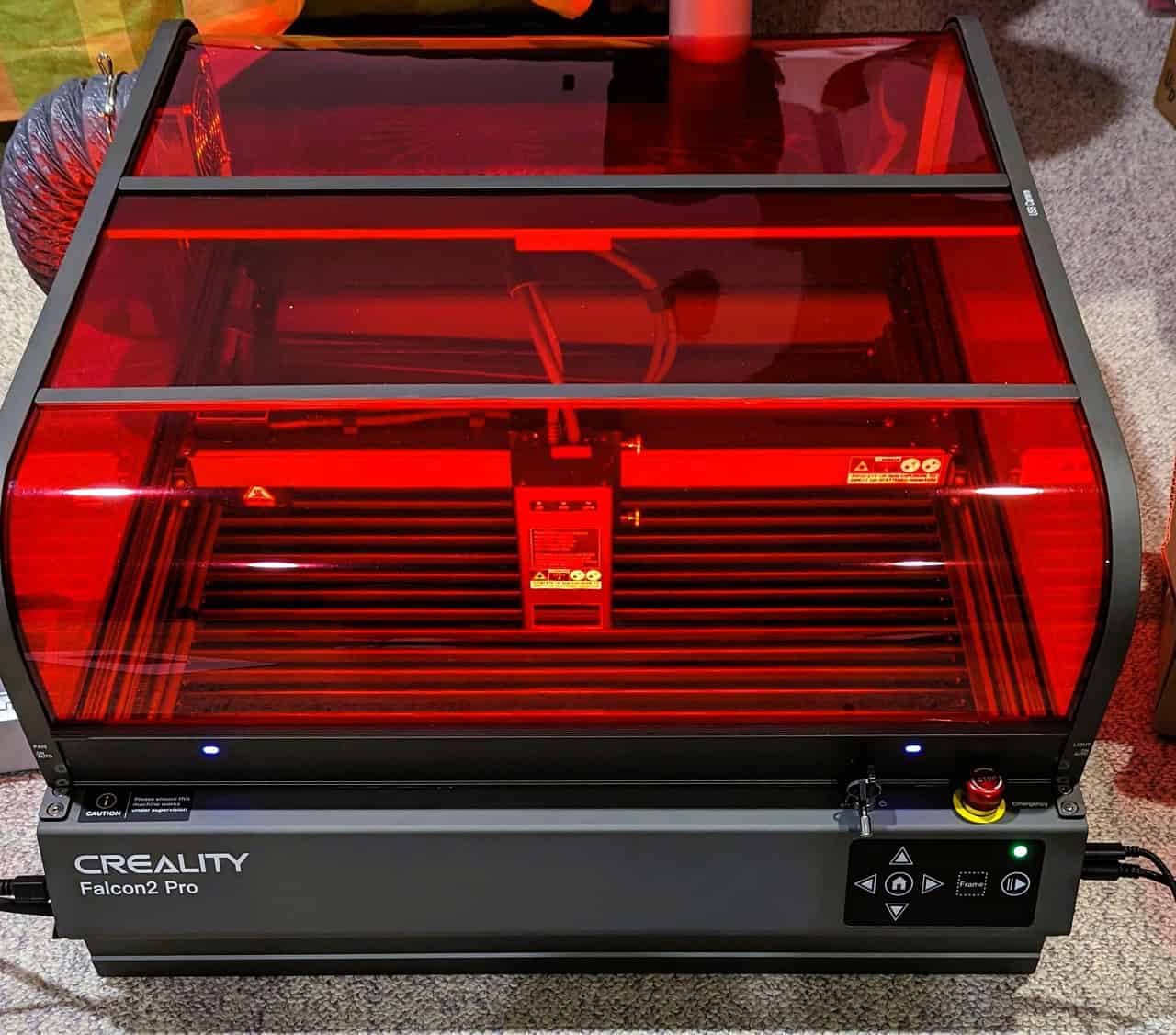
Whenever I dig into desktop laser spec sheets at GeekExtreme, the marketing hype always screams about maximum wattage. It is easy to assume you need the highest power available for a production machine. But after spending plenty of time with the Creality Falcon2 Pro, I realized this assumption misses the mark for most makers.
Check whether your primary commercial output demands high-fidelity artwork or thick structural plywood cuts to determine if the exact wattage advertised on the official Creality website matches your business needs before buying. Ultimately, the 22W model is highly recommended for starting a small laser engraving business.
Key Takeaways
The 22W laser module cuts 15mm basswood in a single pass while retaining a highly focused 0.08 x 0.1mm spot size for detailed engraving.
The fully enclosed chassis earns an FDA Class 1 Safety Certification, but users still need to attach external fume extraction to maintain safe air quality.
Operating offline at speeds up to 25,000mm/min via the onboard microSD slot eliminates the data interruption risks standard to dusty woodworking shops.
Table of Contents
The 22W Power Paradox: Why Lower Wattage Yields Fine Detail
It is tempting to look at a spec sheet and assume paying a premium for the Creality Falcon 2 40W or 60W upgrade is the move. But when you examine the optical physics, higher wattage requires combining more diodes, which inherently widens the precision of your laser beam.

The Mechanics of Spot Size
The 22W module uses FAC spot compression to combine four 6W laser diodes into a single beam with a 0.08 x 0.1mm spot size. This setup allows it to slice through 15mm basswood or 10mm black acrylic in a single pass, while maintaining a focused pinpoint that prevents blurring when etching fine textures.
Brute Force Vs. High-fidelity Art
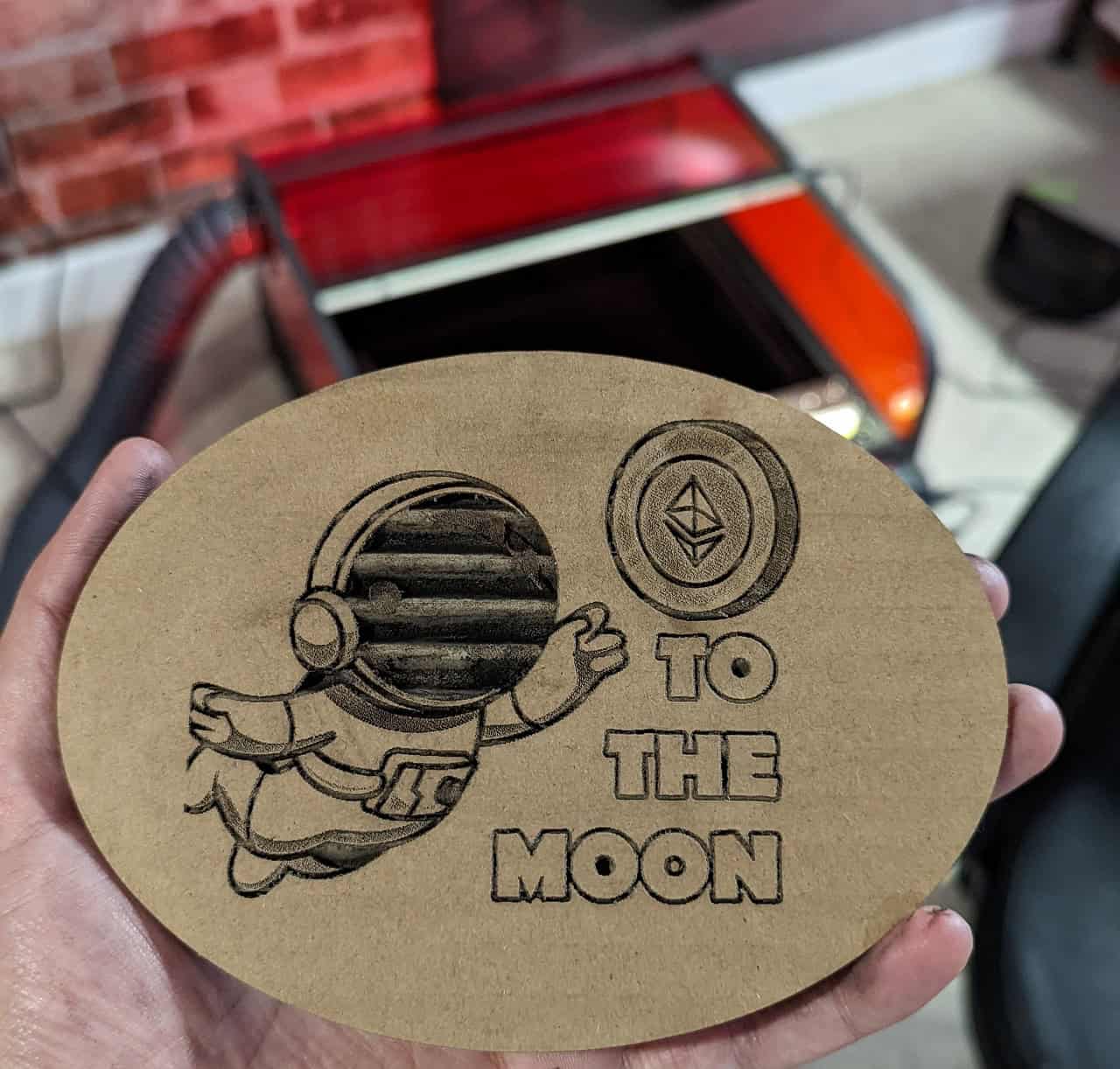
A 40W or 60W laser is fantastic if you are constantly slamming through thick materials. But physically pulling all those extra diodes into the optical mix sacrifices beam tracking tightness. Choose the 22W module over the 40W upgrade if your primary product involves high-fidelity engraved artwork (like photos) rather than single-pass 20mm cuts. This lower wattage fundamentally outperforms heavier modules when intricate detail is your end goal.
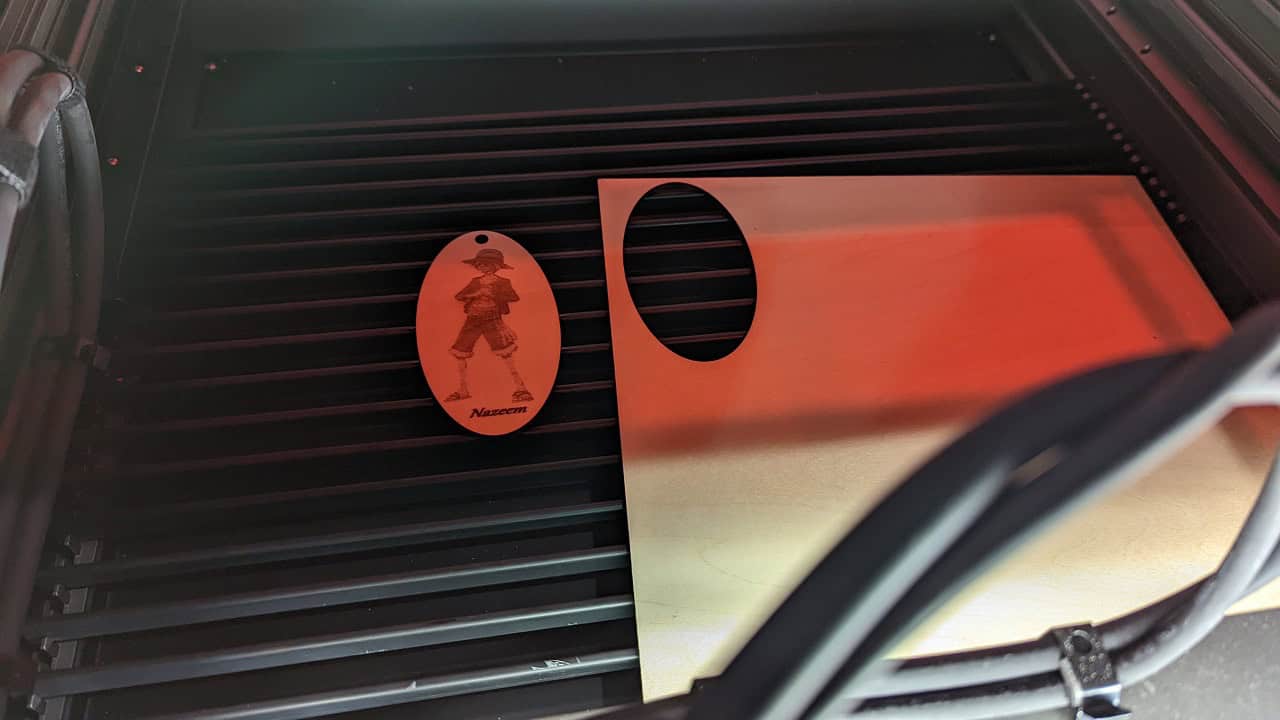
Choose the 22W module over the 40W upgrade if your primary product involves high-fidelity engraved artwork—one of the most popular uses of lasers—rather than single-pass 20mm cuts.
Safety and Enclosure: the FDA Class 1 Reality vs Fume Venting
Managing a cutting workspace requires a dual approach: mitigating light hazards from the laser beam and handling the hazardous byproducts of combustion. Protecting your retinas from a blinding laser bounce is fundamentally different from keeping your lungs safe from toxic fumes.
Physical Optical Safety
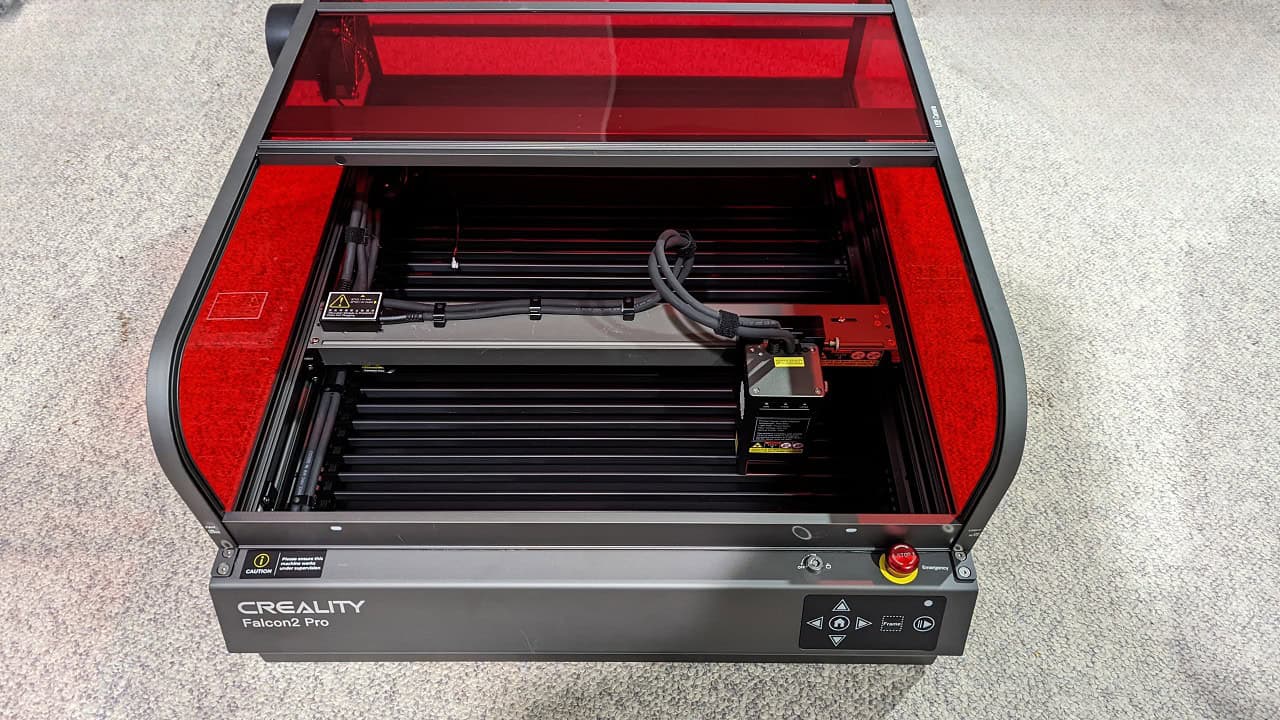
The chassis design on this machine secures your physical environment. Because the tinted enclosure blocks radiation natively, the machine earns an FDA Class 1 Safety Certification, backed mechanically by a mandatory lid interlock that restricts the laser from firing if the door is left open. You don’t need peripheral protective goggles to stare at your job under the bright internal LEDs, avoiding the headache of safety glasses slipping off mid-job.
The Air Quality Catch
But here is a reality check: protecting your eyes does not mean you have protected your lungs. The enclosure physically traps the smoke and severely limits flare-ups, but it does not vaporize the particulate matter. Install an external air purifier or route the built-in exhaust fan out a window to manage ambient lung safety when processing high-odor materials, regardless of the chassis safety rating.
Preventative Maintenance for the Falcon2 Pro Hardware
Long-term reliability for the Falcon2 Pro relies on keeping the optical path unobstructed and the work area free of heavy soot buildup. Regular cleaning of the hardware ensures the laser maintains precision over its operational lifespan.
Managing Smoke and Debris
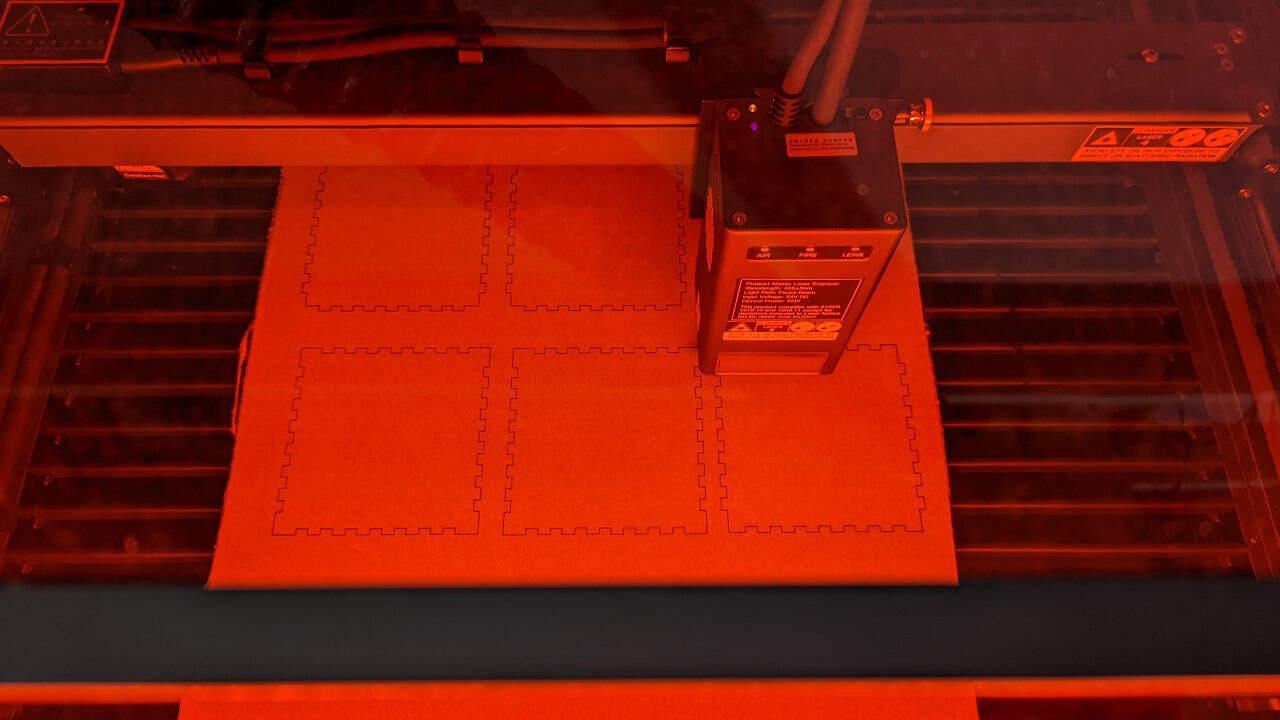
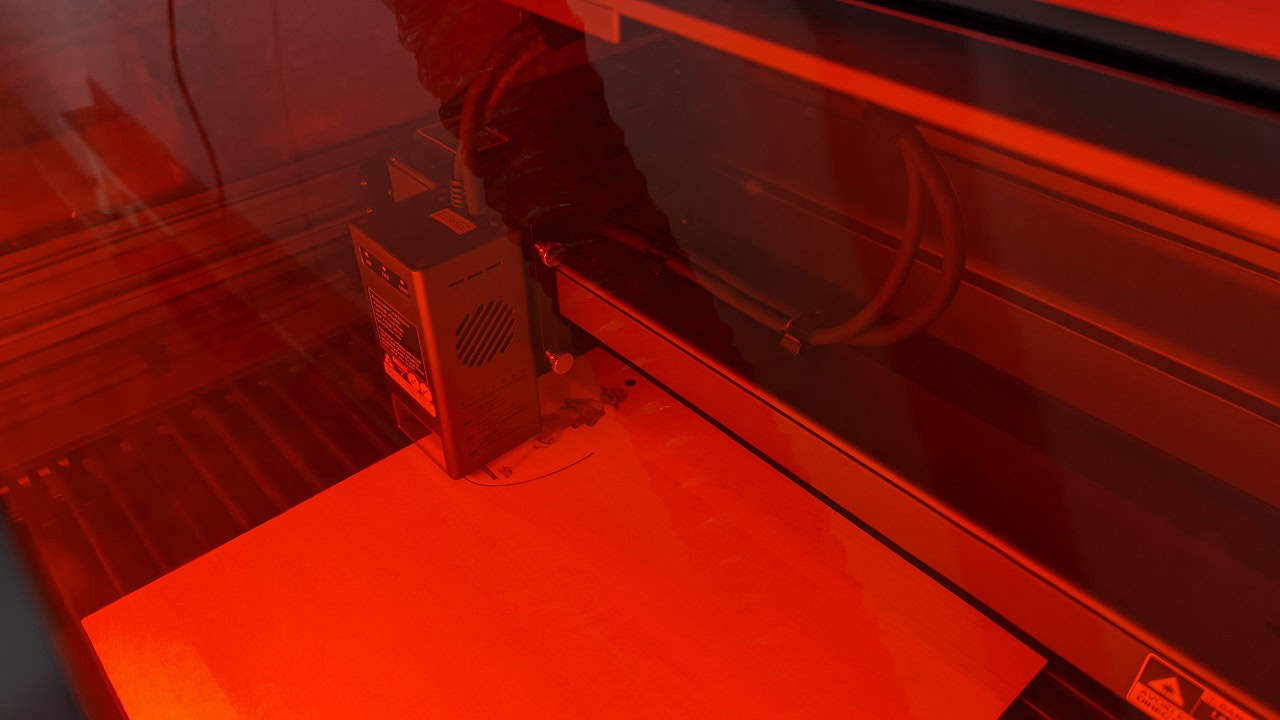
As the laser burns through material, the built-in pneumatic system—the integrated air assist—blasts debris directly out of the path, resulting in excellent charring prevention on lightwoods. Beneath the workpiece, a set of removable honeycomb slats allows the hot smoke to escape downward freely, while the sliding clean out tray safely catches the resulting ash.
Beyond managing ash, you must carefully maintain the mechanical tracks during long-term wear testing in heavy-dust environments. The sliding protective eye shield relies on these guides to move smoothly, and allowing sawdust or soot to build up inside them will cause frustrating friction during operation.
Smart Sensors and Cylindrical Expansions
There’s a notoriously sensitive onboard lens monitoring system that triggers a warning light when the optics get gunky, sitting alongside the fire hazard and airflow monitoring indicator lights; to clear it, use high-percentage isopropyl alcohol to manually clean the optic glass and reset the alert. This prevents the lens burnout plague that kills so many bare-frame diode lasers. And if you’re expanding your workflow to engrave glass cups using the Rotary Kit Pro, you’ll need to master dialing back your power settings carefully to prevent shattering the localized hot zones on the cylindrical workpiece.
There’s a notoriously sensitive onboard lens monitoring system—a vital feature for those monetizing a laser engraver—that triggers a warning light when the optics get gunky.
Real-world Workflow: Software Integration and Stability Fixes
LightBurn integration is supported natively out of the box, but requires manual vision calibration. Beyond that, integrating this Creality laser engraver into a dusty shop environment takes a few specific software workarounds.
Vision Systems and Design Software
On paper, the top-mounted USB camera sounds amazing for visual layout. The camera array physically mounts roughly 265mm above the deck and requires two dedicated USB ports—one for data and one for vision. However, it acts less like an industrial vision sensor and more like a standalone cheap USB webcam.
To make the Falcon2 Pro’s top-mounted camera usable, you have to run through multiple manual passes using LightBurn calibration cards to perfectly dial in the camera array alignment. Once it’s calibrated, you can import Vector Graphics like SVG or DXF files from CorelDRAW or Adobe Illustrator. It processes Raster Images formatted as PNG, BMP, or JPG files from Adobe suites.
Ditching the Tether for Workshop Reliability
A live tethered USB connection frequently drops data packets due to the typical shop interference caused by ambient static, dust, and electrical noise from vacuums and saws. Bypass live software bottlenecks and prevent mid-engrave connection drops by exporting g-code directly to the machine’s built-in microSD slot. Operating in coordinates offline is the pro-level stability fix that lets this machine shine.
Final Verdict: Production Readiness and Top Alternatives
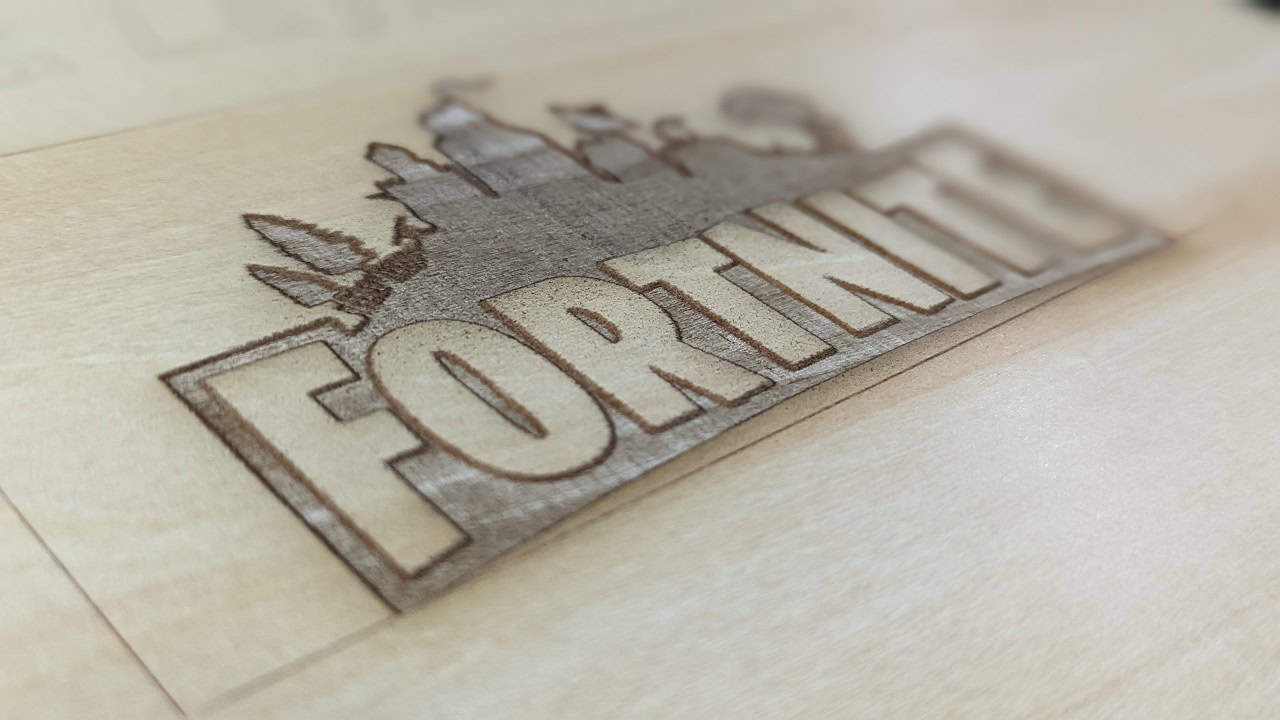
Deciding if a Creality Falcon2 Pro 22W aligns with your specific needs comes down to your production style. The combination of the FDA Class 1 certified enclosure, internal air assist, and 0.08 x 0.1mm spot size makes the 22W module suitable for professional artists. However, it requires a willingness to wrangle manual camera calibration and manage active fume extraction.
When evaluating competitors like the xTool S1, you will notice distinct differences in enclosure footprints and software usability. The Falcon2 Pro requires a taller z-height clearance to house its top-mounted camera, while the xTool S1 uses a sleeker profile and relies on proprietary software for physical multi-point positioning instead of a live camera feed. If your primary output requires high-fidelity engraving rather than cutting thick wood, this machine provides an enclosed Class 1 workspace.
Frequently Asked Questions
Is a 20W laser engraver good?
A 22W module is excellent if your primary focus is high-fidelity artwork and detailed engraving. While it can still slice through 15mm basswood, its lower-wattage diode configuration provides a tighter, more precise spot size than higher-wattage units, preventing the blurring associated with bulkier laser modules.
Can the Creality Falcon 2 cut metal?
While it handles non-metallic materials effectively, the documentation does not identify the Falcon2 Pro as a dedicated metal cutter.
Can Creality Falcon 2 cut acrylic?
Yes, the 22W module is capable of cutting through 10mm black acrylic in a single pass. The integrated air assist and exhaust system help manage the debris and fumes generated during this process, though you still need external ventilation to protect your air quality.
Why does the 22W laser module perform better for engraving than higher power models?
Higher-wattage lasers require combining more individual diodes, which physically widens the laser beam. By using only four diodes, the 22W module maintains a tighter 0.08 x 0.1mm spot size, which is critical for preserving fine textures and sharp detail in engraved images.
What is the benefit of the FDA Class 1 safety certification?
This certification confirms the machine’s enclosed chassis and interlock system effectively block hazardous optical radiation to your eyes. It means you can safely observe the work through the tinted lid without needing to wear protective goggles, though it does not eliminate the need for external smoke extraction.
How do I fix connection drops during laser engravings?
Avoid using a tethered USB connection, which is prone to data interference from shop equipment and dust. Instead, export your job as G-code and run the files directly from the machine’s onboard microSD card for complete, offline stability.
Is the Falcon2 Pro camera worth using?
The camera acts more like a basic USB webcam rather than a high-end industrial sensor, so it requires manual effort to become useful. You must dedicate time to calibrating the array using LightBurn cards, but once aligned, it becomes a functional tool for visual layout.