Sharing a folder over your network should be simple. You just want to send a few files to your phone, a Mac, or a friend’s laptop. You need it to be quick, safe, and not leave a permanent, forgotten share open on your PC.
That’s exactly why I created TempShare.bat.
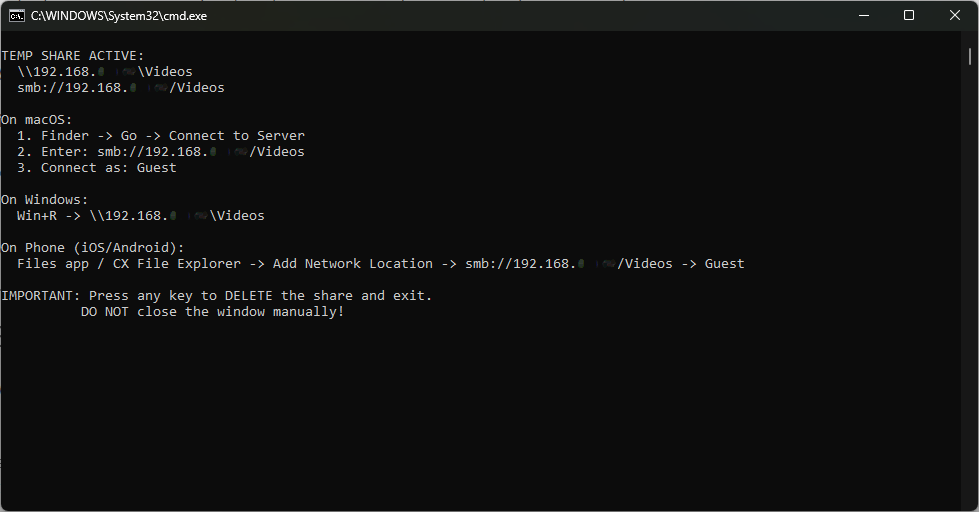
It’s a one-click Windows batch file that creates an instant, temporary SMB share of whatever folder it’s in. It is read-only, allows guest access, and smartly uses your local IP address instead of your computer name to avoid connection issues. The best part? The moment you’re done and press a key, the share is deleted automatically.
It’s the perfect tool for fast, LAN-only file sharing with zero setup and no passwords.
Table of Contents
The Problem: Temporary File Sharing Is Too Hard
You already know the frustration. The official Windows method is a maze of clicks.
“Just open File Explorer ? right-click the folder ? Properties ? Sharing ? Advanced Sharing ? check the box ? set permissions ? disable password protection ? and hope the firewall doesn’t block it…”
After all that, it’s easy to forget to remove the share, leaving your files unintentionally exposed. A 2023 report from cybersecurity firm GreyNoise highlighted a surge in internet-wide scanning for exposed SMB servers, making forgotten shares a real risk.
Even worse, you tell someone to connect to \\MY-PC-NAME\Share, and it fails because their device can’t find your PC on the network. This is especially common with Macs or devices on a guest Wi-Fi.
The Solution: The TempShare.bat Script
This single batch file automates the entire process safely. Just place it in a folder and run it.
@echo off
:: TempShare.bat - One-click temporary SMB share (read-only, guest, auto-delete)

:: === Auto-elevate ===
net session >nul 2>&1
if %errorLevel%==0 (goto :admin) else (
    powershell "Start-Process '%~f0' -Verb RunAs"
    exit /b
)

:admin
:: === Folder name ===
set "folder=%~dp0"
set "folder=%folder:~0,-1%"
for %%I in ("%folder%") do set "name=%%~nxI"

:: === GET LOCAL IPv4 (first non-loopback) ===
set "localip="
for /f "usebackq tokens=2 delims=:" %%a in (`ipconfig ^| findstr /r /c:"IPv4.*[0-9]"`) do (
    set "localip=%%a"
    goto :gotip
)
:gotip
if defined localip set "localip=%localip: =%"
if not defined localip set "localip=YOUR-WINDOWS-IP"

:: === Clean old share ===
net share "%name%" /delete >nul 2>&1

:: === Create temporary read-only share ===
net share "%name%"="%folder%" /GRANT:Everyone,READ /UNLIMITED >nul 2>&1
if errorlevel 1 (
    echo.
    echo ERROR: Could not create share. Is "%name%" already in use?
    echo        Run: net share "%name%" /delete
    pause
    exit /b
)

:: === Show connection info (ASCII only) ===
echo.
echo TEMP SHARE ACTIVE:
echo   \\%localip%\%name%
echo   smb://%localip%/%name%
echo.
echo On macOS:
echo   1. Finder -^> Go -^> Connect to Server
echo   2. Enter: smb://%localip%/%name%
echo   3. Connect as: Guest
echo.
echo On Windows:
echo   Win+R -^> \\%localip%\%name%
echo.
echo On Phone (iOS/Android):
echo   Files app / CX File Explorer -^> Add Network Location -^> smb://%localip%/%name% -^> Guest
echo.
echo IMPORTANT: Press any key to DELETE the share and exit.
echo           DO NOT close the window manually!
echo.

pause >nul

:: === Auto-delete on exit ===
net share "%name%" /delete >nul 2>&1
echo.
echo Share "%name%" removed. Safe to close.
How to Use It (It Takes 30 Seconds)
- Save the script. Copy the code above into a new text file and save it as
TempShare.batin any folder you want to share. A pro-tip I always share: make sure you can see file extensions in Windows, so you don’t accidentally save it asTempShare.bat.txt. - Double-click the file. A User Account Control (UAC) prompt will appear asking for administrator rights. This is necessary for the
net sharecommand to work. Just click “Yes.” - Your folder is now shared. The script automatically detects your IP and displays the correct path, which will look something like this:
\\192.168.1.100\YourFolderNamesmb://192.168.1.100/YourFolderName - Connect from your other device. Use the path from the previous step (see the specific instructions below).
- Press any key to finish. Once you are done transferring files, just press any key in the script’s command window. The share vanishes instantly.
The script makes no permanent changes. No new services are started, no registry keys are modified, and nothing is left behind once it closes.
Connect from Mac, Windows, iPhone, or Android
Connecting is simple because the script uses the standard SMB protocol, which is natively supported almost everywhere.
macOS (Connect from Mac to a Windows Share)
- Open Finder and click Go in the menu bar, then select Connect to Server.
- Type the address shown in the script window:
smb://192.168.1.100/YourFolderName - When prompted, choose to connect as a Guest, then click Connect.
Windows
- Press the Windows Key + R to open the Run dialog.
- Type the network path:
\\192.168.1.100\YourFolderName - Press Enter. The folder will open instantly in File Explorer.
iPhone / iPad
- Open the native Files app.
- Tap the three dots (…) at the top and select Connect to Server.
- Enter the server address starting with `smb://`.
- Select Guest when asked for credentials.
Android
- Use a file manager that supports network locations. Many users on forums like Reddit’s r/AndroidApps recommend Solid Explorer or CX File Explorer for their reliability.
- In the app, find the option to “Add a new cloud connection” or “Add network location,” choose SMB, and connect as a Guest.
Why Using Your Local IP Is More Reliable Than a Computer Name
Many built-in sharing tools use your PC’s name (%COMPUTERNAME%), but this often fails in the real world. Here’s why:
- Cross-Platform Issues: macOS and Linux devices don’t always resolve Windows NetBIOS names correctly without special configuration.
- Network Segmentation: Guest Wi-Fi networks often use a feature called “client isolation” that blocks the protocols (like mDNS) needed for device discovery.
- Firewall and VPNs: Aggressive firewalls or active VPN clients can interfere with name resolution traffic.
A direct local IP address (like 192.168.1.100) bypasses all these issues. This Windows batch file to share a folder automatically finds your active IPv4 address, ensuring a connection that just works.
Safety & Firewall: Designed for LAN-Only Use
I designed this script with safety in mind for home and small business networks. It enforces several security layers.
- Read-Only Access: The share is created with the `/GRANT:Everyone,READ` permission. No one can modify or delete your files.
- Local Network Only: SMB traffic uses TCP port 445. By default, every modern internet router and ISP firewall blocks this port from the outside world, so the share is not exposed online.
- Works with Windows Firewall: On a “Private” network profile, Windows Defender Firewall is pre-configured to allow local file sharing. If your network is set to “Public,” it will be blocked.
- Auto-Delete on Exit: The most important feature. The script runs a cleanup command (`net share “%name%” /delete`) the moment you press a key, so there’s no persistent share left to forget about.
Important Tip: For the script to work, your active network connection in Windows must be set to Private. You can check this in Settings ? Network & internet ? Wi-Fi (or Ethernet) ? [Your Network Name].
Final Thoughts: Your New Go-To Sharing Tool
This read-only network share batch has become my go-to utility for countless daily tasks.
- Sending a batch of photos from my PC to my phone.
- Sharing log files or large documents with a coworker in the office.
- Quickly moving files during a meeting without using cloud services.
- Testing network connectivity and SMB clients.
There are no installers and no bloat. Just a single file that lets you share a folder without a password and cleans up after itself.
Drop TempShare.bat in a folder and create your first temporary SMB share in seconds.
Last updated: November 2025. Tested and working on Windows 10 & 11.