You’ve got Kodi, which is powerful but feels like flying a 747 from your couch. You’ve got Stremio, which is cleaner but still leans on its own ecosystem. And then there’s Nuvio — a new media center that landed in beta with a web-first approach and it’s been quietly impressing me.
I’ve been testing Nuvio on a FireStick 4K and an Android TV device for a few weeks now. The interface is clean, the search is fast, and the whole thing runs without the kind of stuttering I’ve come to expect from early-release streaming tools.
Nuvio is unavailable on official app stores (Amazon, Google Play). It doesn’t auto-update. You can’t just type your email into the TV — you’ll need a phone to scan a QR code. And if you’re sitting there with a Samsung or LG TV? Sorry, there’s no native app for Tizen or webOS.
I’ll walk you through exactly what Nuvio is, how to sideload it on your FireStick or Android TV device, how to get past that quirky QR-code login, and where the landmines are. Let’s dig in.
Key Takeaways
Nuvio is a beta-stage addon-based media center, not a streaming service — it comes preloaded with Cinemeta (metadata) and OpenSubtitles as safe, official addons, and relies entirely on third-party addons or plugins for actual content
The app isn’t available on Amazon or Google Play, so you’ll need to sideload via the Downloader app using nuvioapp.space as the source URL and app-armeabi-v7a-release.apk as the exact file to grab from GitHub Releases
TV login is QR-code only — no typing, so you’ll need a phone with a camera to scan and approve the connection at nuvioapp.space/account, and a quick Settings > Playback > Audio & Trailer > Advanced Audio > Decoder Priority > Prefer app decoders (FFmpeg) tweak fixes most audio hiccups
Table of Contents
What even is Nuvio?
Everything you watch flows through addons and plugins that you connect to the app.
Out of the box, Nuvio ships with exactly two official addons: Cinemeta for metadata (posters, descriptions, that kind of thing) and OpenSubtitles for subtitles. Both are safe, legal, and pre-installed.
The gray area comes from third-party addons. You can plug in manifest URLs for addons that pull from various online sources. Some of those are fine. Some point to unlicensed content. That’s the heart of the whole legality question.
Nuvio also integrates with IMDb and TMDb for metadata, plus Trakt if you want to sync watchlists and track what you’re watching. If you’re already in the Trakt ecosystem, that’s a nice bonus.
Related: [What is Nuvio and how it works] — deeper dive into the architecture and why it’s gaining traction.
Is Nuvio safe and legal to use?
Safety-wise, Nuvio passes the checks that matter. I ran the APK through VirusTotal — zero flags from any vendor. Norton Safe Web also gave the GitHub release page a clean rating. That’s two independent scans saying this thing doesn’t have obvious malware baked in. For a sideloaded app not on official stores, that’s reassuring.
Legality is where it gets murky. Nuvio itself is a neutral piece of software. The app doesn’t distribute content. It’s the third-party addons you choose to install that determine whether you’re pointing at licensed streams or unlicensed ones.
Stick with the official addons (Cinemeta, OpenSubtitles) and you’re in clear waters. Start adding community addons whose manifest URLs came from a Reddit thread? You’re responsible for what those addons access.
I can’t vouch for Nuvio’s legality — that’s your call. I can tell you the scanner said the APK is clean and that plenty of people are using it without issues.
Oh, and use a VPN. Your IP address is visible to whatever servers those addons connect to. A decent VPN masks that entirely. ExpressVPN is the usual recommendation here — it’s fast, easy to install on FireStick (just grab it from the Amazon app store), and they offer a 30-day money-back guarantee. There’s also a current deal where you get 4 months free on the 2-year plan (it’s listed as both 73% off plus 4 extra months and 81% off, same offer, different wording).
Related: [Is Nuvio legit?] — more detail on the legality and trustworthiness analysis.
Installing Nuvio on FireStick, Google TV, or Android TV
I’m using a FireStick 4K for the demo, but the steps are identical for any Android TV or Google TV device.
Step 1: Get the Downloader app ready
Nuvio isn’t on any official app store, so you’re sideloading. The tool for that is Downloader — it’s a free app that lets you download files from URLs.
On your FireStick, just search for “Downloader” using the built-in search. It’ll pop right up. Install it.
Step 2: Enable unknown sources
Your device won’t let you install APKs from Downloader until you flip the right switch.
For newer FireSticks: Settings > My Fire TV > Developer Options > Install Unknown Apps > find Downloader in the list and enable it.
For older FireSticks: Settings > My Fire TV > Developer Options > Apps from Unknown Sources > Turn On.
For Google TV / Android TV: Settings > Apps > Downloader > enable unknown sources.
Done. Now Downloader has permission to install stuff.
Step 3: Download the Nuvio APK
Open Downloader. In the URL bar, type nuvioapp.space and hit Go.
That URL is the official Nuvio website. It’ll redirect you to GitHub Releases automatically. Scroll down until you see app-armeabi-v7a-release.apk — that’s the exact file you want. Tap it. The download starts immediately, but if you’re on iOS, you’ll need to know what Nuvio IPA files are, how to sideload them, and the risks involved.
(Full disclosure: FireStickTricks.com doesn’t host this URL and isn’t affiliated with Nuvio’s developers. So, Is Nuvio legit? I’m just pointing you to the source.)
Step 4: Install and clean up
Once the download finishes, the install prompt appears. Hit Install. It takes a few seconds.
After it installs, click Done — don’t launch yet. Then click Delete to remove the APK file. It’s only a few megabytes, but deleting the installer keeps your storage tidy and is just good practice. Confirm the deletion.
Step 5: Account creation (do this on your phone or computer)
Nuvio account creation doesn’t happen on the TV. Open a browser on your phone, tablet, or computer and go to nuvioapp.space. Click Login, then click “Need an account? Create one.” Enter your email and password, and you’re registered.
Once you log in, you’ll land on the Account Dashboard. This is your control center.
Step 6: Set up profiles and addons
Click Add Profile, give it a name (say “Sports” or “Kids” or “My Stuff”), check which primary addons or plugins you want associated with that profile, and save. You can create multiple profiles for different household members. Profiles support PIN-based parental controls too.
The Addons tab on the dashboard shows your pre-installed Cinemeta and OpenSubtitles. To add more, click Add Addon, paste a manifest URL and a name, and save. You can also install addons from within the Nuvio app itself, but the dashboard method is faster when you’re still getting set up.
Step 7: Log in on the TV with the QR code
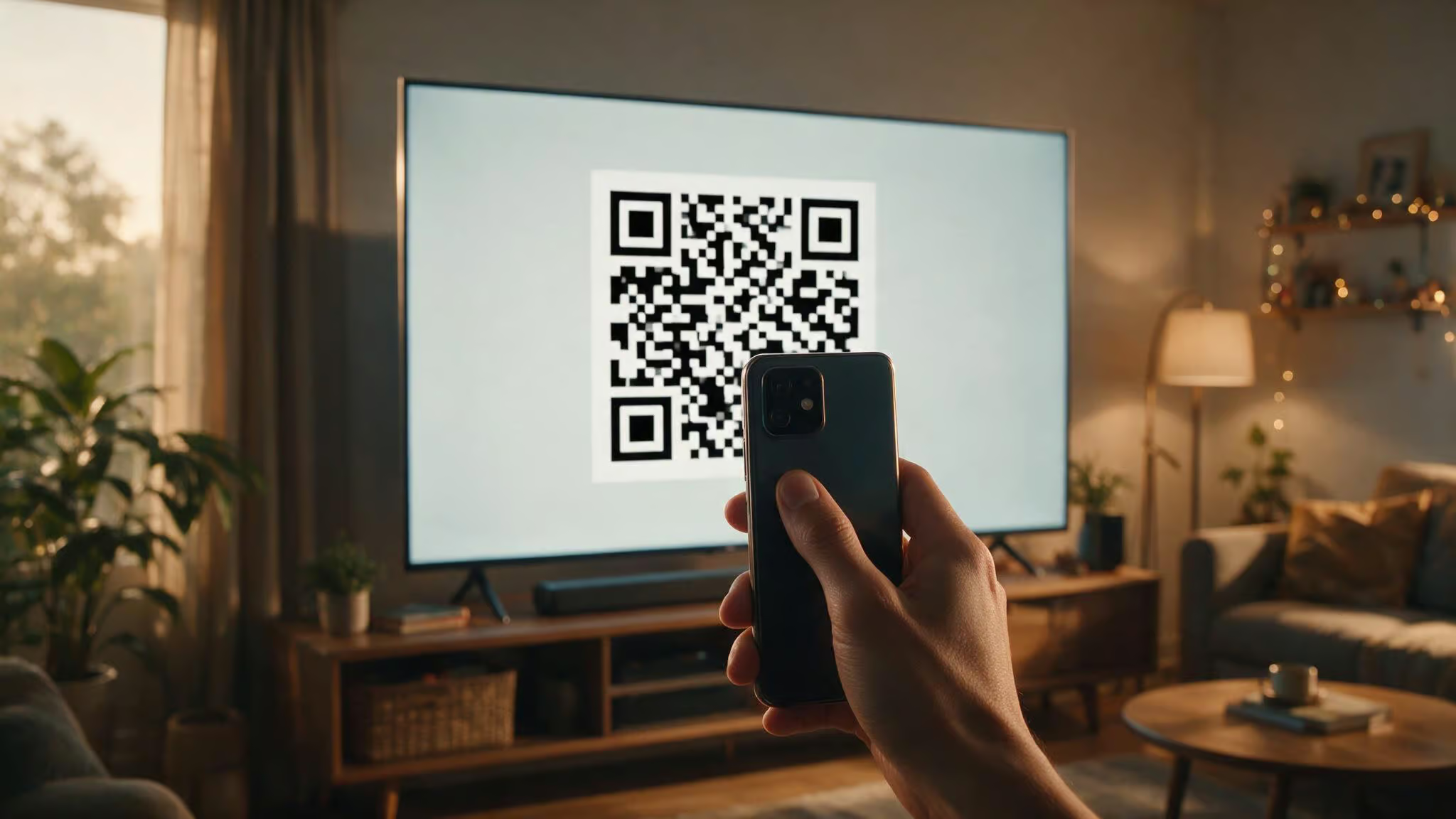
Here’s where Nuvio does something different. The TV login is QR-code only. No typing emails with a remote — you need a phone with a camera.
- Open the Nuvio app on your TV. You’ll see a QR code on screen.
- On your phone, open nuvioapp.space/account. Tap the menu icon > Login, enter your credentials.
- Scan the QR code with your phone’s camera (most camera apps have a built-in scanner).
- Tap the link that opens, re-enter your email and password, then tap “Sign in & Approve TV”.
The TV logs in automatically. Choose your active profile and layout preference, hit Continue, and you’re in. The home screen appears with your content ready.
Navigating the interface
The main menu runs down the left side: Home, Search, Library, Addons, Settings. Simple, no bloat.
Home shows poster art for popular content. Search is genuinely fast — type something and results appear in seconds, which is more than I can say for some paid streaming apps.
Addons tab lets you manage, remove, or reorder installed addons. If you want to install addons in-app instead of via the dashboard, go to Install Addons, paste the manifest URL, and click Install. The Plugin system here works like Cloudstream — add repositories via HTTPS links.
Settings has some useful depth:
- Account — manage details or sign out
- Profiles — edit, switch, or add new profiles
- Appearance — choose color palettes, themes, fonts, and language
- Playback — configure video and subtitle preferences, pick an external player, adjust audio behavior
- Plugins — add repos via HTTPS links, same as the addon system
- Integrations — IMDb, TMDb, and Trakt are all supported
The About section has a Check for Updates button. Since Nuvio is in beta and doesn’t auto-update, you’ll want to check this periodically.
That one audio glitch (and how to fix it)
Nuvio is in beta, so there are quirks. The most common one I’ve run into is audio acting weird — no sound, or the sound is garbled on certain streams.
The fix is specific and actually works:
Settings > Playback > Audio & Trailer > Advanced Audio > Decoder Priority > Prefer app decoders (FFmpeg)
That’s it. Switch to FFmpeg decoders and most audio issues disappear. It’s a known beta hiccup, not a hardware problem.
I’d also recommend setting up an external media player like VLC or MX Player for the best playback experience. Nuvio lets you pick an external player in the Playback settings.
No Samsung, LG, or Roku app? Here’s the workaround
This is the question that keeps coming up: can you run Nuvio on a Samsung TV (Tizen), LG TV (webOS), or Roku? Short answer: no native app exists for any of those platforms.
Nuvio is currently only available on:
- Android TV
- Google TV
- Amazon Fire TV / FireStick
- Android phones and tablets
- iOS
If you have a Samsung or LG TV, your options are limited:
Option 1: Sideload on an Android TV box. If your Samsung or LG TV runs some flavor of Android TV (some newer models do), you can sideload Nuvio using the same steps above. But if it’s running Tizen, webOS, or Roku OS, you can’t install Android APKs.
Option 2: Cast from your phone. Nuvio has Android and iOS apps. You can find content on your phone and cast it to the TV if your TV supports Chromecast or AirPlay. It’s not as smooth as a native app, but it works.
Option 3: Get an inexpensive Android TV dongle or FireStick. The FireStick 4K is around $40 and handles Nuvio perfectly. Chromecast with Google TV is another solid option. If you’re serious about cord-cutting, this is the cleanest solution.
How Nuvio compares to Stremio and Kodi
Nuvio uses the same addon-based architecture that made Stremio and Kodi popular, but with a cleaner web-first twist.
The addon systems are very similar — Nuvio actually supports Stremio addon manifest URLs directly, so you can plug in Stremio addons without modification. That’s a smart compatibility move. The interface is comparable, but Nuvio feels a bit more modern.
Kodi is the granddaddy here, and it’s powerful, but it’s also overkill for a lot of people. Nuvio skips the complicated skin system and the endless configuration menus. You lose some flexibility, but you gain a simpler setup.
Keep in mind that Nuvio is still getting updates and occasional bugs, while Stremio and Kodi are mature products with established communities. If you want something that works out of the box with no surprises, Stremio is probably your safer bet. If you’re willing to deal with a few beta quirks for a cleaner experience, Nuvio is worth a look.
Final thoughts on Nuvio
I’ve been surprised by how much I like Nuvio. For a beta app from a small team, it’s polished, responsive, and the QR-code login — while initially annoying, makes sense when you realize you never have to type anything with a TV remote.
The APK is clean, the official addons are safe, and the legal gray area is in the third-party addons you choose. That’s your call.
If you’re on a FireStick or Android TV device and you understand the risks of the third-party addon ecosystem, Nuvio is a solid media center. The audio fix is simple, the interface is clean, and the search is fast.
Because Nuvio is still in beta, early adopters have a real opportunity to shape the app’s direction. The developers are active on GitHub, where you can submit feature requests, report bugs, and follow the roadmap. That feedback channel turns beta status from a drawback into an advantage — you’re not just using the app, you’re helping build it.
Related: [Nuvio IPA for iOS] — if you’re wondering about sideloading on iPhones and iPads.
Frequently Asked Questions
Is Nuvio safe to use on FireStick?
The APK itself is clean — VirusTotal showed zero malware flags and Norton Safe Web gave the GitHub release page a clean rating. The safety risk comes from third-party addons you install, not from the app itself. Using a VPN is recommended to mask your IP from whatever servers those addons connect to.
Why does Nuvio use a QR code to log in on TV?
It’s a deliberate design choice to avoid typing email and password with a TV remote. You scan the QR code on your TV screen with your phone’s camera, then approve the connection on nuvioapp.space/account. It’s slightly annoying at first but actually faster than pecking out credentials character by character.