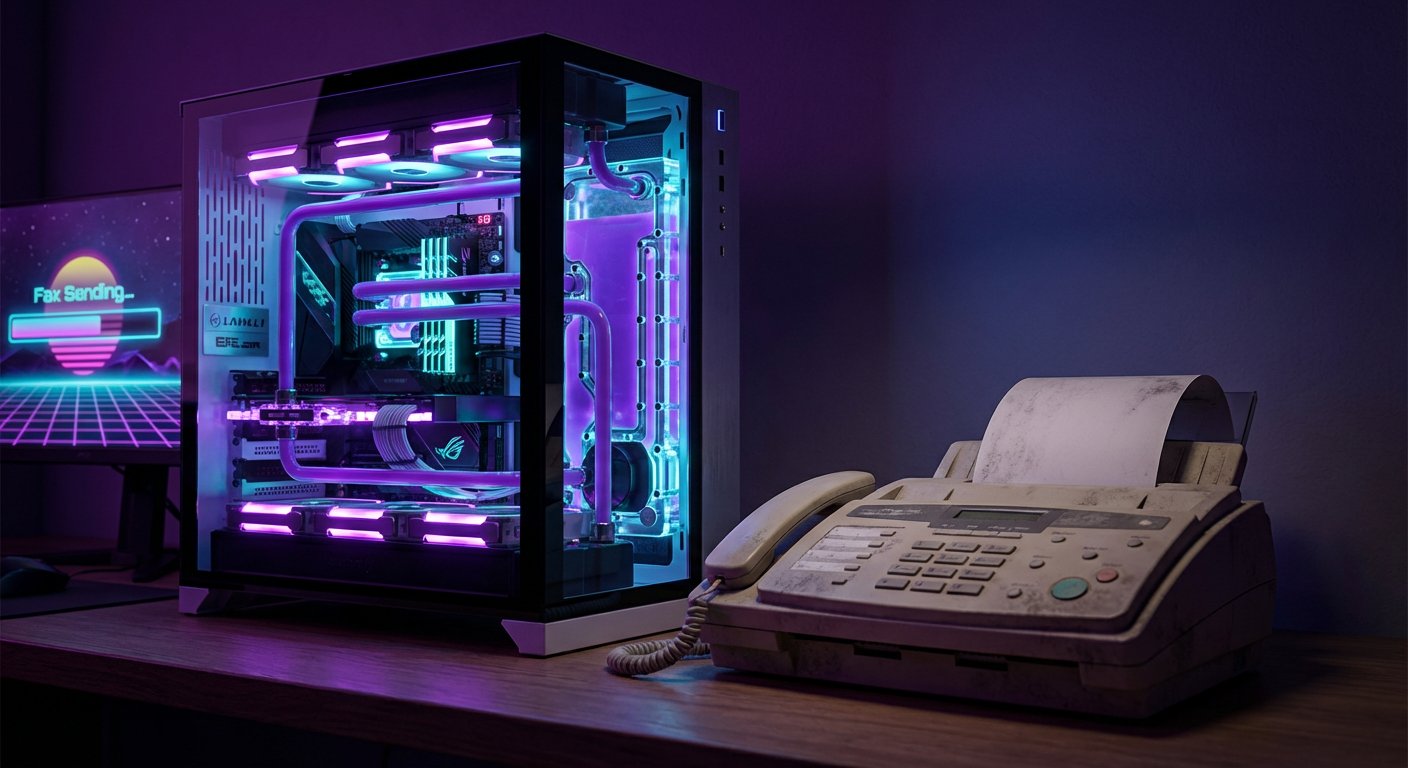
It’s a strange modern problem. You have a powerful gaming PC that can create entire digital worlds, but you’re being asked to use technology from the 1990s. Landlords, government agencies, and medical offices often require faxes for official documents.
This creates a frustrating roadblock if you don’t own a fax machine. While faxing feels like a relic, it’s still surprisingly common. Though new federal regulations like the Health Data, Technology, and Interoperability (HTI-4) rule are designed to phase out fax machines in healthcare, their use for secure document transfer remains widespread in many industries. This can be a huge pain, but it doesn’t have to be.
This guide will show you how to send a fax from your gaming PC, and you can do it completely free. We’ll walk through turning a paper document into a secure digital file, adding your signature, and sending it as a fax, all from your keyboard. By the end, you’ll be ready to handle any fax request without leaving your desk.
Key Takeaways
Modern Necessity: Despite being outdated, faxing remains a requirement in healthcare, legal, and government sectors due to perceived security and specific regulations.
Digital Scanning: You can replace physical scanners by using smartphone apps like Adobe Scan or Microsoft Lens, which use AI to create professional, high-contrast PDFs.
Secure Signing: Avoid the “print-sign-rescan” cycle by using free tools like Adobe Acrobat Reader to overlay a digital signature, which maintains document quality and security.
Online Services: Online fax platforms allow you to transmit documents from your PC. Choosing a service with end-to-end encryption (like Fax.xyz) is essential for HIPAA compliance and data protection.
Cost Efficiency: You can bypass the high cost of fax machines and dedicated phone lines by utilizing free tiers or trials of digital fax services to handle occasional document requests.
Table of Contents
What You’ll Need to Send a Fax From Your Gaming PC

Before you start, let’s make sure you have everything ready. Gathering these simple tools now will make the process smooth and quick.
- A PC with a stable internet connection.
- The document you need to send, either as a physical paper or a digital file (like a PDF, DOCX, or JPG).
- A smartphone with a camera, which is often faster and more convenient than a traditional flatbed scanner.
- A valid email address to verify your account with a free fax service.
Your Step-by-Step Guide to Digital Faxing
Follow these three parts in order. We’ll cover digitizing your document, signing it, and sending it on its way.
Part 1: How to Digitize Your Documents The Right Way
If your document is already a file on your computer, like a PDF or Word document, you can jump ahead to Part 2. If you need an official form, it can be helpful to know how to search for PDFs on Google to find a downloadable version. Otherwise, this section will help you create a perfect digital copy of a paper document.
Using Your Smartphone as a High-Quality Scanner
Your phone’s camera is a powerful tool when you use the right app. While you can just take a picture, a dedicated scanner app will give you a much more professional result. Free apps like Adobe Scan and Microsoft Office Lens are designed to create clear, legible files perfect for faxing. For instance, Adobe Scan uses AI to automatically correct the image perspective and remove shadows, ensuring a clean look.
Even the built-in Notes app on an iPhone has a document scanning feature that works well for quick jobs. No matter which app you choose, follow these steps for a great scan.
- Place your document on a flat surface in a well-lit area. For best results, use a dark background that contrasts with the white paper.
- Open your scanner app and hold your phone directly over the document. Try to avoid casting any shadows from your body or phone.
- The app should automatically find the edges of the document. Once it does, capture the image.
- Review the digital copy. Most apps will convert the image into a high-contrast, black-and-white PDF, which looks like it came from a real scanner. This is ideal for faxing.
- Save the file as a PDF and send it to your gaming PC. You can email it to yourself, use a cloud service like Google Drive, or transfer it with a USB cable.
Part 2: How to Add a Digital Signature Securely
After your document is on your PC, you might need to sign it. Printing, signing, and re-scanning is a clumsy process that lowers the document’s quality. A much better way is to add a digital signature directly to the PDF file.
This is also much more secure. Sending signed documents over email exposes them to risk, as phishing attacks are a primary cause of security breaches. According to Verizon’s 2024 Data Breach Investigations Report, the “human element” is involved in 68% of breaches, with phishing being a major factor. Using a secure online fax service avoids this vulnerability.
Applying Your Signature with a Free PDF Tool
You don’t need to buy any software for this. The free version of Adobe Acrobat Reader has a built-in Fill & Sign tool that makes this incredibly easy. Just open your PDF, click the fountain pen icon for “Sign,” and choose Add Signature. You can then type your name, draw your signature with the mouse, or upload a picture of your actual signature.
Once you’ve created it, you can drag and drop your signature onto the correct line in the document. Save the file, and it is officially ready to send.
Part 3: How to Transmit Your Fax Online for Free
With your signed PDF ready, the last step is sending it. An actual fax machine is expensive, with hardware costs ranging from $100 to over $1,000, not to mention a dedicated phone line. Online fax services let you skip all that and send the document directly from your PC.
The demand for these services is growing, with the global online fax market projected to reach over $12 billion by 2030. This means more platforms are competing to offer better security and features.
Choosing the Right Online Fax Service
Several services let you send a fax for free, but their features and limitations differ. When sending sensitive information for legal or medical reasons, it is vital to choose a service that protects your data. Some free services are truly free for light use, while others offer a free trial of a more powerful paid platform.
| Feature | Fax.xyz (Free Trial) | FaxZero (Free Service) |
|---|---|---|
| Free Pages | Full features during trial | Up to 3 pages + cover page |
| Daily Limit | Depends on trial terms | 5 free faxes per day |
| Cover Page | Professional, no ads | Includes FaxZero branding |
| Security | End-to-end encryption, HIPAA compliant | Basic SSL/TLS encryption |
| Best For | Sending sensitive or professional documents | Quick, non-sensitive, one-off faxes |
Sending Your First Fax With Fax.xyz
For its blend of top-tier security and user-friendly design, we recommend starting with Fax.xyz. The platform is built to make faxing as simple as sending an email. Its popular free fax trial provides immediate access to all its features, including enterprise-grade encryption.
This level of security is important if you’re sending documents that require HIPAA compliance to protect personal data. Many truly free services don’t offer this, making a service with a professional trial a smarter choice for confidential information.
To start, go to the Fax.xyz website and sign up for the trial using your email. The interface is clean and simple. You’ll be asked to upload your document, which is the signed PDF you already prepared. Enter the recipient’s fax number, add a note for the cover sheet, and click Send. The platform handles everything else and gives you real-time notifications when the fax is sent and successfully delivered.
Troubleshooting and Common Problems
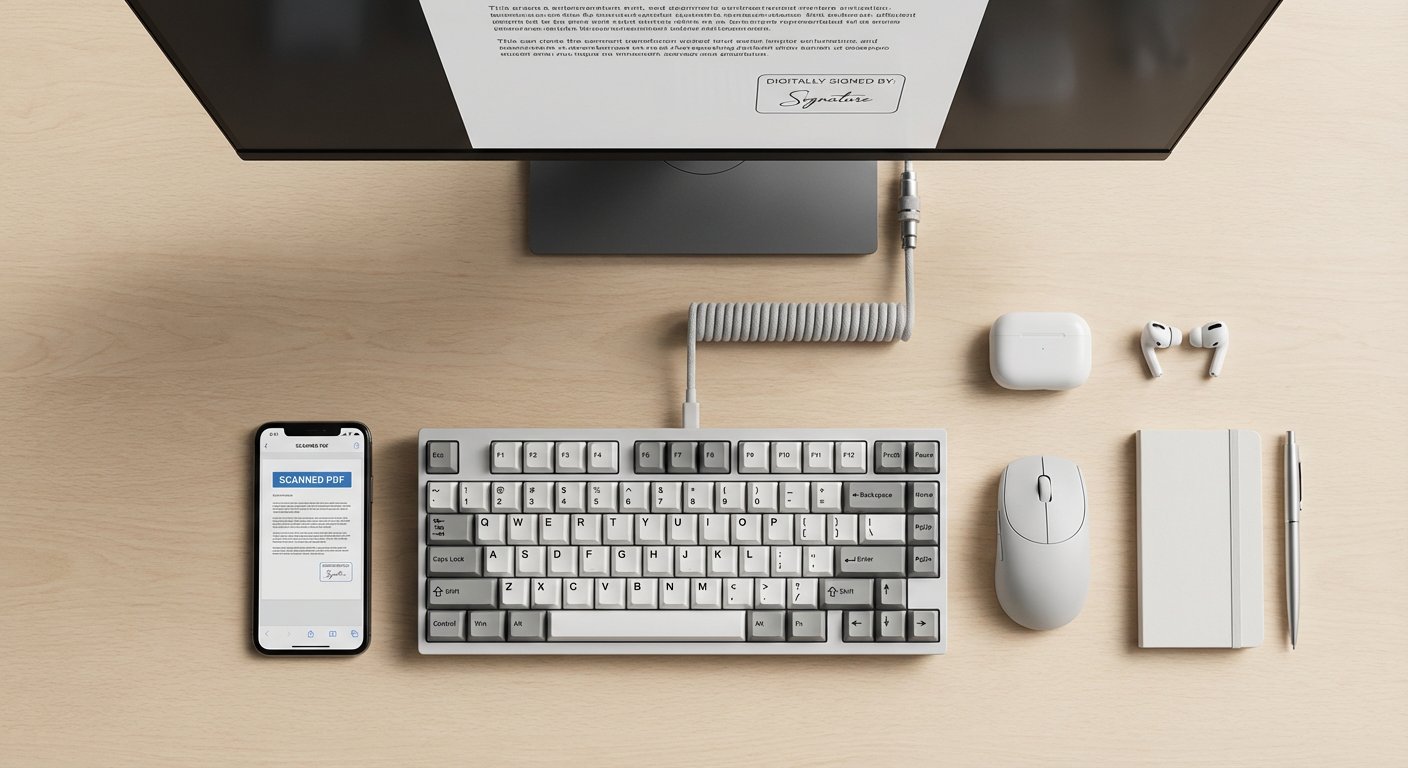
Even with a simple process, you might run into an issue. Here’s how to solve the most common problems.
- My fax failed to send.
First, double-check the fax number you entered, making sure to include the area code. Then, confirm your document is a supported file type like PDF, DOCX, or JPG. Some services also have file size limits, so check that your file isn’t too large. If you suspect a connection problem, you may want to learn how to identify a device on my network to diagnose it. - Is it safe to upload sensitive documents?
This is a very important question. You should only use online fax services that are clear about their security. Fax.xyz is a secure choice because it is fully HIPAA compliant and uses 256-bit SSL end-to-end encryption. For an extra layer of security, some advanced users also learn how to use a proxy server. - The recipient said the fax was unreadable.
This problem almost always comes from the quality of the original scan. Go back to Part 1 and re-scan your document. Pay close attention to the lighting, make sure the document is flat, and ensure the app is in focus. Saving the scan in black-and-white mode also greatly improves readability on older fax machines.
How to Send a Fax From Your Gaming PC is No Longer a Problem
You’ve now bypassed the old-school requirement of faxing by using the modern tools you already have. You know how to create excellent digital scans, sign them securely, and send them for free without a physical fax machine.
This method saves you time, money, and the headache of dealing with outdated hardware. Your gaming PC is a powerful machine for more than just entertainment, it can solve even the most annoying real-world problems. Keep this guide handy for the next time an analog request tries to interrupt your digital life.
***Disclaimer: Follow these instructions at your own risk. GeekExtreme is not responsible for any data loss or transmission errors that may occur. We recommend verifying the receipt of any critical documents with the recipient.***