You know that sinking feeling when you are deep into a match, your team is counting on you, and suddenly your screen goes black? Your gaming laptop just ran out of juice at the worst possible moment. Most high-performance rigs barely scrape by with four hours of life before they start begging for a charger.
But you don’t have to accept defeat. I am going to share some clear, easy tips on how to maximize gaming laptop battery life using smart power settings and a few geeky tricks that manufacturers often hide.
I will walk you through the exact steps I use to squeeze extra hours out of my machine.
So, grab a coffee (and maybe your power brick for now), and let’s get your rig optimized. Stick around, because you will definitely want these hacks the next time your charger is out of reach!
Key Takeaways
Lowering your gaming laptop’s screen brightness to 50% or less can extend runtime by up to 30%, but dropping your refresh rate from 144Hz to 60Hz is the real secret weapon for saving power.
Using Windows Battery Saver mode and physically turning off RGB lighting can reclaim 15-20% of your battery; newer tools like G-Helper for ASUS laptops offer even better efficiency than official software.
Closing background apps is critical; use the “Energy Saver” mode in browsers like Chrome and Edge, and disable hardware acceleration in Discord to stop them from draining your GPU.
Dropping graphics settings and capping your frame rate (FPS) to 30 or 60 in the NVIDIA Control Panel prevents your GPU from working harder than necessary on battery power.
Manufacturers’ tools like ASUS Armoury Crate or Dell Power Manager are useful for updates, but switching to Eco Mode (which disables the dedicated GPU entirely) is the single most effective step for non-gaming tasks.
Table of Contents
Optimize Power and Display Settings
The display is often the biggest power hog on your entire machine. By tweaking just two settings, you can let your battery take a breather instead of sprinting a marathon.
Most gamers know about brightness, but they forget about refresh rate. Let’s fix that.
How can lowering screen brightness extend my gaming laptop’s battery life?
Lowering screen brightness is the fastest way to drop your power consumption. A bright 500-nit screen can chew through watts faster than your CPU does during light tasks.
I found that sliding the brightness bar down to 40 or 50 percent can make your machine run up to 30 percent longer. It is simple math.
If I am just grinding out rounds at bingo sites online or doing some light web browsing, I drop it as low as I can tolerate. There is no need for HDR-level brightness when you are just reading text.
Why you must lower your refresh rate on battery
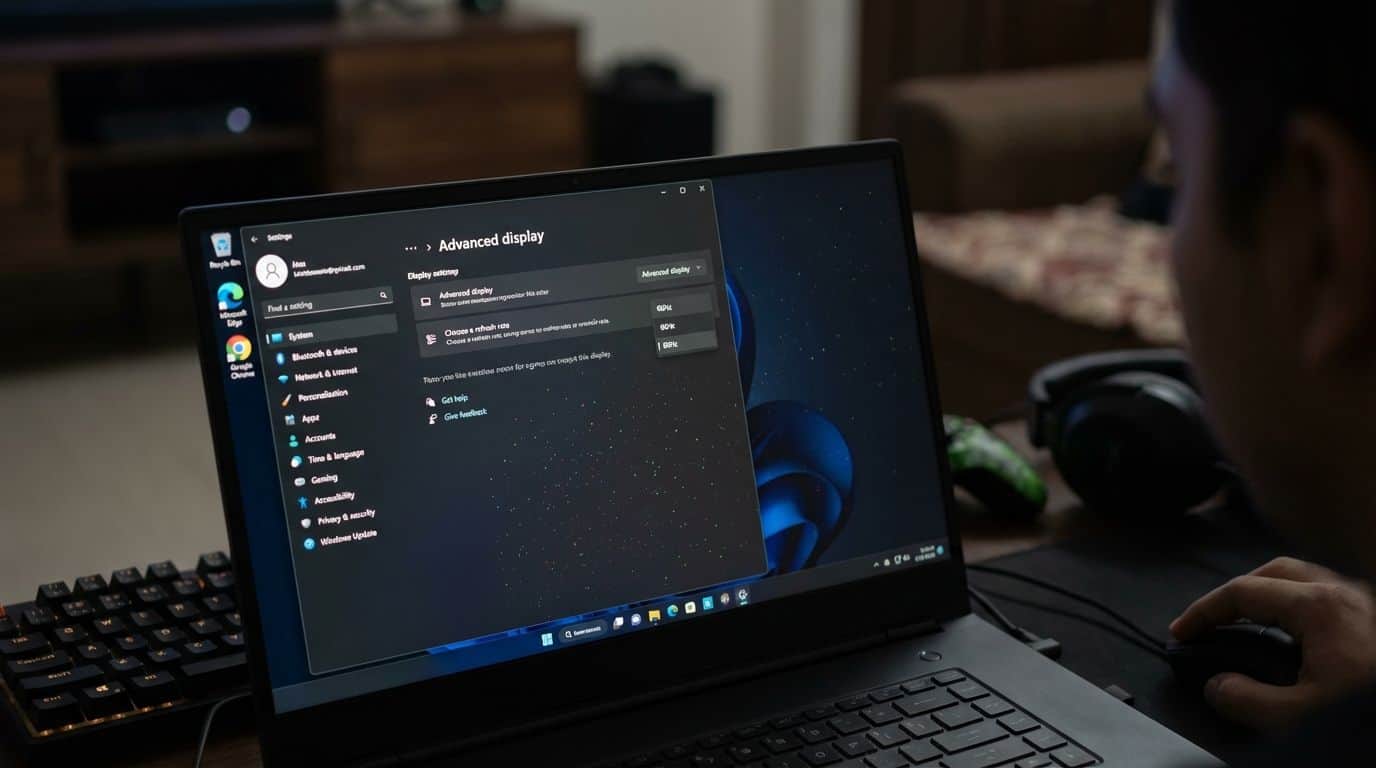
Here is the pro tip that most people miss. Your gaming laptop likely runs at 144Hz, 240Hz, or even 360Hz. That means it is refreshing the image hundreds of times every second, even if you are just staring at a static desktop.
Switching your display from 144Hz to 60Hz can save you 15% to 20% battery life immediately.
Most modern laptops make this easy:
- Windows 11: Go to Settings > System > Display > Advanced display and change the refresh rate to 60Hz.
- Dynamic Refresh Rate: If your laptop supports it, enable this feature so Windows drops the rate automatically when you aren’t scrolling.
What does enabling Battery Saver mode do for my laptop battery?
Firing up Battery Saver mode is like putting your laptop into survival mode. It automatically dims the screen, halts background syncing (like OneDrive), and throttles your CPU speed to sip power rather than chug it.
You will see this option by clicking the battery icon in your taskbar. Windows usually kicks this on at 20%, but I recommend you turn it on immediately if you know you will be away from a plug for a while.
In my own testing with an ASUS Zephyrus, manually toggling Battery Saver at 100% charge gave me an extra 45 minutes of work time compared to waiting for the automatic trigger.
It helps you achieve an optimal mix of performance versus efficiency. Just remember that your games will run poorly in this mode, so save it for when you are browsing or watching videos.
Manage Background Activities
Background apps are silent killers. They sit in your system tray, pinging servers and waking up your CPU hundreds of times a minute.
If you kill these “vampire apps,” you can reclaim a huge chunk of your runtime.
Which programs or apps should I close to save battery?
Start by opening your Task Manager (Ctrl + Shift + Esc) and looking for the “Energy impact” column. You will likely see familiar names topping the list.
Here are the usual suspects you should close immediately:
- Game Launchers: Steam, Epic Games Store, and Battle.net are constantly using resources. Close them fully from the system tray.
- Electron Apps: Apps like Discord and Slack are web browsers in disguise. If you aren’t using them, shut them down.
- Creative Tools: Adobe Creative Cloud helper processes are notorious for draining power.
For your web browser, use the new efficiency tools. Chrome has a “Energy Saver” mode (under Performance settings) that freezes background tabs. I leave this on 24/7 on my laptop.
Also, check the Battery usage screen under Settings > System > Power & battery. If you see NVIDIA’s GeForce Experience or other utilities gobbling up watts, it might be time to uninstall or disable them.
A
When should I disable Wi-Fi, Bluetooth, and RGB lighting?
If you are playing an offline game or typing up a document, turn on Airplane Mode. Searching for Wi-Fi networks and maintaining a Bluetooth signal drains a constant trickle of power.
But the biggest physical drain is often your keyboard. Flashing RGB lighting looks great on a desk, but it is a waste of energy on the go.
At full brightness, a complex RGB keyboard can draw up to 3 watts of power. That might sound small, but on a 60Wh battery, that is a significant hit.
The Fix: Turn the backlight completely off (usually Fn + F4 or similar) as soon as you unplug. Your battery will thank you.
Adjust Gaming and Graphics Settings
If you absolutely must game on battery, you need to change your expectations. You cannot run Cyberpunk 2077 at Ultra settings without your laptop dying in 45 minutes.
The goal here is efficiency, not fidelity.
How do reduced in-game graphics settings affect battery life?
Lowering in-game graphics drastically reduces the load on your GPU. When your graphics card works less, it draws less power and generates less heat, which means your fans don’t have to spin as fast.
Fan spin is a huge hidden battery drain.
For the best results, try these specific tweaks:
| Setting | Why It Helps |
| Cap FPS at 30 or 60 | This is the #1 tip. Use NVIDIA Control Panel or in-game settings to lock your frame rate. It stops your GPU from rendering wasteful frames your eye can’t even see on battery. |
| Lower Resolution | Drop from 1440p to 1080p. Fewer pixels means less processing power needed per frame. |
| Turn off Anti-Aliasing | This feature smooths jagged edges but is mathematically expensive. Turn it off to save juice. |
I once cut my game settings to medium and capped my FPS at 30 during Destiny 2 matches. I saw my battery last almost twice as long—about two hours instead of just over one.
If you want to maintain your skills while saving power, check out guides on how to become more skilled at gaming that focus on mechanics rather than relying on high-end graphics.
When should I use integrated graphics instead of a dedicated GPU?
Your laptop likely has two graphics cards: the powerful NVIDIA or AMD one, and the weak (but efficient) integrated one built into the CPU.
For anything that isn’t gaming, you should force your laptop to use the integrated chip. I always use Intel UHD Graphics or AMD Vega when checking emails, writing code, or watching YouTube.
Most modern laptops have a “MUX Switch” or Advanced Optimus that handles this, but you can force it manually:
- ASUS Laptops: Open Armoury Crate and select “Eco Mode”. This physically disconnects the power-hungry GPU.
- Lenovo Laptops: Look for “Hybrid Mode” in Lenovo Vantage.
- Other Brands: Check the NVIDIA Control Panel under “Manage 3D Settings” and set the preferred graphics processor to “Integrated graphics.”
How can I keep my gaming laptop hardware running efficiently?
Software tweaks are great, but physical maintenance is just as important. A hot laptop is an inefficient laptop.
Dust buildup in vents acts like a heavy winter coat. It traps heat, forcing your fans to spin at max speed just to keep the system running.
The Fix: Buy a can of compressed air and clean your vents every two months. Keeping your temps down prevents thermal throttling and saves battery power that would otherwise be wasted on spinning fans.
The 80% Charge Rule
Battery health depends on smart habits too. If you leave your laptop plugged in 24/7, you are stressing the battery cells.
Most gaming laptops now have a “Battery Charge Limit” feature that stops charging at 60% or 80%. I highly recommend enabling this if you mostly play at a desk. It can double the lifespan of your battery over 2-3 years.
How do driver updates and manufacturer tools improve battery performance?
Keeping your system updated isn’t just about security; it is about efficiency. Fresh drivers often contain optimizations that stop energy leaks.
However, you need to be smart about which tools you use. Some manufacturer software is bloated and actually drains battery.
Dell Power Manager and ASUS Armoury Crate are the standard tools, but the community has found better ways.
Insider Tip: Use G-Helper for ASUS Laptops
If you own an ASUS ROG or TUF laptop, here is a secret weapon: G-Helper. It is a free, open-source tool created by the community that replaces the heavy Armoury Crate software.
It is lightweight, uses almost no background resources, and lets you easily toggle refresh rates and disable the GPU. Many users report significantly better battery idle drain just by switching to this tool.
Why is it important to update drivers regularly?
Outdated drivers can cause your hardware to “hang” or stay in a high-power state when it should be sleeping.
For example, NVIDIA often releases updates that improve “Battery Boost” technology, which uses AI to balance power usage in supported games. Always keep your GPU drivers updated via the manufacturer app or website.
Security patches from companies such as NVIDIA, AMD, and Intel also fight off new cyber threats. You don’t want malware mining crypto in the background and killing your battery!
How Will Gaming Laptop Battery Performance Evolve by 2026?
We are finally seeing a shift where gaming laptops are becoming true all-day devices. New chips like Intel’s Core Ultra and AMD’s Ryzen AI series are focusing heavily on “performance per watt” rather than just raw speed.
By the end of 2026, expect to see more laptops hitting the 99.9Whr legal battery limit (the max allowed on planes) paired with smarter AI tuning.
Features like NVIDIA Battery Boost 2.0 are already using AI to control the entire platform—CPU, GPU, and memory—in real time. You will see more “Eco modes” that don’t just dim the screen but actively re-route power to the specific components that need it.
Until then, using the tips above is your best bet for staying in the game without being tethered to a wall.
People Also Ask
How can I make my gaming laptop battery last longer during play sessions?
Cap your frame rate to 30 FPS within Nvidia GeForce Experience or AMD Adrenalin to stop your GPU from drawing maximum power for frames you don’t need. Dimming your screen brightness and killing background apps like Chrome will also help you squeeze out a bit more runtime.
Does charging while playing games hurt my laptop’s battery life?
Newer laptops from brands like Asus and Lenovo often have a bypass mode that powers the system directly to avoid cooking the battery with excess heat. If your rig doesn’t have this, be careful not to let the chassis get too hot, as high temperatures degrade lithium-ion cells much faster than standard charging does.
Should I update drivers or software to improve battery performance?
You absolutely should, as driver updates often include critical patches that stop your hardware from leaking memory or working harder than necessary on new games.
What habits help extend overall gaming laptop battery health?
Use tools like Lenovo Vantage or MyASUS to cap your maximum charge at 80% if you mostly leave your laptop plugged in at your desk. When you need to store it away for a while, keep the battery at roughly 50% charge to maintain a stable voltage and prevent chemical aging.
References
- https://www.cyberpowerpc.com/blog/how-to-improve-your-gaming-laptops-battery-life/?srsltid=AfmBOop3_pARy8RczN-kibKBCmKOt23kNak5Un0nKJk2BQNAIkeFsbCi (2024-01-24)
- https://www.hp.com/us-en/shop/tech-takes/maximising-laptop-battery-life-tips (2025-03-26)
- https://support.microsoft.com/en-us/windows/battery-saving-tips-for-windows-a850d64d-ee8e-c8d2-6c75-8ffe6ea3ea99
- https://www.pcmag.com/how-to/how-to-increase-laptop-battery-life (2023-04-29)
- https://rebootix.com/how-to-maximize-gaming-laptop-battery-life-a-complete-guide/
- https://xeox.com/blog/driver-updates-why-when-and-how/
- https://www.hp.com/us-en/shop/tech-takes/importance-of-updating-software-hardware-regularly (2024-10-29)
- https://www.lenovo.com/us/en/knowledgebase/power-management-and-performance-balance-a-comprehensive-guide/?srsltid=AfmBOoqWkUdtWHh92efr7OXXVnjZifTxOM4sjRhAIbQIcPctA0DsblFV